

Microsoft has quietly reintroduced a hands‑free voice interface to the PC: Windows 11’s Copilot now supports an opt‑in wake word — “Hey, Copilot” — that summons a floating voice UI, runs local wake‑word spotting with a short on‑device audio buffer, and then routes full conversational audio to Copilot’s cloud models (or to on‑device NPUs on supported Copilot+ hardware) to answer questions or carry out multi‑turn tasks.
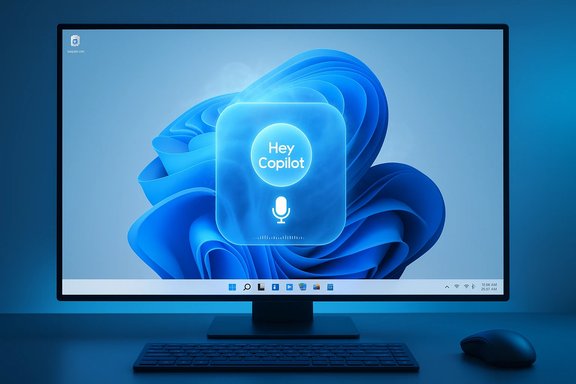
Microsoft’s October 2025–January 2026 Copilot wave reframes Windows 11 as a multimodal assistant platform by making voice, vision, and constrained agentic workflows first‑class features in the operating system. The wake‑word addition is the most visible of these changes because it restores a familiar smartphone‑style hands‑free interaction to the desktop: say the phrase, see the Copilot microphone overlay, hear a chime, and begin a voice conversation. The wake‑word feature is explicitly opt‑in, requires the Copilot app to be running, and only functions while the PC is powered on and unlocked. Microsoft documents suggest the architecture is hybrid: a small, on‑device wake‑word “spotter” listens continuously (when enabled) using a transient in‑memory audio buffer — Microsoft references roughly a *10‑secw documentation — that is not written to disk, and full speech processing typically happens in the cloud unless the device is a Copilot+ PC equipped with a high‑performance Neural Processing Unit (NPU). This design balances responsiveness and scale while attempting to limit unnecessary audio transfers.
Microsoft’s “Hey, Copilot” is not simply a cosmetic addition; it’s part of a broader redefinition of how Windows will accept input and assist users. The feature delivers immediate productivity and accessibility benefits, but it also demands careful operational controls, explicit consent, and enterprise‑grade governance to balance utility with privacy and security. The advice for both consumers and IT teams is the same: enable deliberately, pilot carefully, and require transparency and logging before scaling agentic features across business environments.
Source: MSN http://www.msn.com/en-us/news/techn...vertelemetry=1&renderwebcomponents=1&wcseo=1]
 Background
Microsoft’s October 2025–January 2026 Copilot wave reframes Windows 11 as a multimodal assistant platform by making voice, vision, and constrained agentic workflows first‑class features in the operating system. The wake‑word addition is the most visible of these changes because it restores a familiar smartphone‑style hands‑free interaction to the desktop: say the phrase, see the Copilot microphone overlay, hear a chime, and begin a voice conversation. The wake‑word feature is explicitly opt‑in, requires the Copilot app to be running, and only functions while the PC is powered on and unlocked. Microsoft documents suggest the architecture is hybrid: a small, on‑device wake‑word “spotter” listens continuously (when enabled) using a transient in‑memory audio buffer — Microsoft references roughly a *10‑secw documentation — that is not written to disk, and full speech processing typically happens in the cloud unless the device is a Copilot+ PC equipped with a high‑performance Neural Processing Unit (NPU). This design balances responsiveness and scale while attempting to limit unnecessary audio transfers. What landed in Wils
- Wake word: “Hey, Copilot.” Opt‑in voice activation that summons Copilot Voice and begins an interactive, multi‑turn session. The floating microphone UI and chime make state visible.
- Local wake‑word spotting with an in‑memory buffer. Microsoft says the detector runs on‑device and keeps a short buffer (reported at ~10 seconds) solely for recognition; that buffer is not stored persistently.
- Cloud processing for conversations (unless on Copilot+ hardware). After activation, longer audio is streamed to cloud models for transcription and LLM reasoning; Copilot+ PCs can offload more inference locally.
- Visibility and controls. Wake‑word is off by default and must be enabled in Copilot Settings. The OS shows the microphone indicator while Copilot is in use; sessions can be ended verbally (“Goodbye”), by tapping the X, or by timeout.
- Requirements and limits. PC must be on and unlocked; initial wake‑word training and broad availability are focused on English, with staged rollouts for other languages and markets.
How the wake word works (technical snapshot)
1. Local spotting, transient buffer, cloud escalation
The wake‑word detector is a lightweight on‑device model that continuously monitors audio only when the feature is enabled. It holds a short, in‑memory audio buffer so the system captures the immediate context around the trigger phrase; Microsoft’s preview material cites a 10‑second buffer. That buffer is not saved to disk. After detection, the system opens a Copilot Voice session and forwards the buffered audio plus subsequent speech to cloud services for transcription and reasoning, unless local inference is available on a Copilot+ NPU.2. UI signals and session boundaries
When a wake word is detected, a floating Copilot microphone UI appears on the screen and a chime plays to signal listening. The session clearly indicates when the microphone is active and how to terminate the exchange: speak a goodbye phrase, tap the on‑smeout. Windows also shows the system microphone indicator in the tray when Copilot is accessing audio. These visible cues are central to Microsoft’s privacy messaging.3. Privacy and local-first intent
Microsoft’s stated design reduces continuous cloud streaming by performing wake‑word recognition locally and only escalating audio after a positive detection. The company says the in‑memory buffer is not recorded or stored locally. That approach mirrors best practices used by mainstream voice assistants, but the degree of privacy depends on downstream behaviors (what audio is actually sent to the cloud, how transcripts are retained, connector behaviors, and enterprequire independent verification for specific deployments.What this means for Windows users — benefits
- Lower friction, faster productivity. Voice removes the need to break focus for short lookups, drafts, or contextual help — valuable during multitask workflows or when hands are occupiined with Copilot Vision turns on‑screen context into immediate, voice‑driven assistance.
- Accessibility gains. Users with motor impairments or those who benefit from speech input can use the PC more naturally. Voice plus on‑screen vision can reduce friction for dictation, navigation, and content manipulation.
- Clear opt‑in and visible state. By default the wake‑word is off; Microsoft provides UI signals (mic overlay, chime, system tray mic icon) and controls to terminate sessions. Those affordances improve transparency vs. hidden always‑listening models.
- Hybrid performance model. Copilot+ PCs with dedicated NPUs (Microsoft’s guidance references roughly 40+ TOPS as a baseline) can execute more inference locally for lower latency and reduced cloud dependency, benefitting privacy‑sensitive or latency‑intolerant workflows.
Risks, tradeoffs and unanswered questions
1. Ambient activation and accidental triggers
Any wake‑word system risks false positives. Even with a local spotter, shared workspaces or open mics can cause unintentional activations that may capture sensitive speech or prompt unwanted acible UI and opt‑in model mitigate but do not eliminate the problem. Independent testing will be necessary to measure real‑world false positive rates.2. Privacy beyond the buffer
Microsoft’s documentation carefully describes the local detection buffer and opt‑in controls, but several operational details remain important for organizations:- Exactly which audio fragments are sent to the cloud after activation and for how long.
- Whether any spoken content or transcripts are stored, and for how long.
- How Copilot Connectors handle third‑party data (OAuth integrations with Gmail, Google Drive, etc. once voice commands request cross‑service actions.
3. Hardware fragmentation and inconsistent performance
Not all Windows 11 PCs are Copilot+ machines. Devices without NPUs fall back to cloud processing, increasing latency and requiring network connectivity. Organizations face a decision: invest in Copilot+ hardware to get low‑latency, on‑device features, or accept cloud‑backed performance that may vary by region and connection. Microsoft’s Copilot+ guidance (40+ TOPS NPUs) establishes a hardware expectation that many older laptops won’t meet.4. Agentic actions and governance
Copilot Actions can execute multi‑step tasks across apps and services under permissioning. That capability is powerful—but introduces governance and auditing demands. Administrators should demand explicit logs, revocable tokens, and fine‑grained permissions before enabling agentic workflows for business‑critical tasks. Current previews emphasize sandboxing and user consent, but production deployments require robust change control and audit trails.5. Unverifiable company claims
Microsoft has cited telemetry and internal engagement metrics claiming increased use and value from voice interactions. Such metrics are company‑sourced and useful for context but are not independently verifiable without third‑party audits or publishthose claims as indicative rather than conclusive until external verification is available.How to enable “Hey, Copilot” (practical steps)
- Open the Copilot app from the taskbar or by pressing Windows + Cogs.windows.
- Click your avatar (profile) in the Copilot sidebar and select Settings.
- In Voice mode, toggle Listen ftart a conversation to On. The feature is off by default.
- Ifot to access your microphone in Windows Privacy settings. Verify microphone selection if you have multiple inputs.
- Keep the PC powered on and unlocked; say “Hey, Copilot” to begin a session and listen for the chime and floating mic overlay.
- Confirm Copilot app is updated (version 1.25051.10.0 orn early Insider rollouts for wake‑word support).
- Verify microphone permission: Settings → Privacy & security → Microphone.
- Ensure the display language and locale are compatible with the roll‑out (initial English focus reported).
Enterprise guidance: pilot, govern, and verify
For IT teams planning to adopt Copilot wake‑word and related agentic features, follow a staged approach:- Inventory and risk assessment: Identify devices that will run Copilot Voice and whether they meet Copilot+ hardware criteria (if low latency or local inference is required).
- Controlled pilot: Run Copilot features with a limited group and capture logs for false positive rate, latency, audio handling, and user behavior. Validate how connectors interact with enterprise Policy and access controls: Use group policy or MDM to enforce opt‑in defaults, disallow wake‑word for sensitive groups, and configure logging/auditing of agent actions. Confirm retentiies for transcripts and audio.
- Vendor assurance: Requespecifies what is captured, transmitted, and stored; ask for SOC/ISO audits or contractual clauses if sensitive data may be processed.
- User training and signals: Educate employees about when Copilot listens (unlocked PC, app running), how to terminate sessions, and how to revoke connector access. Provide clear instructions for reporting unwanted activations.
Security and privacy mitigations IT should enforce now
- Disable wake‑word by default in enterprise images; allow opt‑in only where necessary.
- Require explicit admin approval for Copilot Connectors that access corporate mailboxes, drives, or third‑party services.
- Collect and retain detailed action logs for Copilot Actions to support audits and incident response.
- Enforce network routing through enterprise proxies and egress controls for any cloud audio or LLM traffic to monitor and control external data flow.
- Define retention and deletion policies for voice transcripts and any recordings, and ensure legal/regulatory alignment (e.g., data residency, consent).
How “Hey, Copilot” compares to other assistants
Voice wake words are mature on mobile and smart speakers. Microsoft’s on‑device spotter + cloud reasoning model is broadly consistent with ApAssistant approaches, with a hybrid local‑first wake detection and cloud‑based intent processing. On the desktop, however, the stakes differ because PCs often contain sensitive documents, running enterprise apps, and multitenanted services. That context raises unique governance demands that mobile ecosystems don’t fully replicate. The availability of Copilot Vision and Actions elevates both the utility and the beyond what most mobile assistants face today.Practical scenarios and examples
- Drafting email replies while reviewing a document: Say “Hey, Copilot, summarize the last email thread and draft a reply proposing a new meeting time,” then review and send — Copilot can pull context from visible on‑screen content and your calendar (when permitted).
- Troubleshooting a settings dialog: Show the dialog to Copilot Vision, say “Hey, Copilot, why is this error appearing?” and receive step‑by‑step guidance with highlighted UI elements.
- Multi‑step agentic tasks: Ask Copilot Actions to consolidate receipts from a month’s folder, extract totals into a spreadsheet, and prepare an expense summary — but require explicit permission and audit logs before running in a production context.
Final assessment — why this matters now
The return of a wake word to Windows 11 is symbolic and practical. Symbolically, it signals Microsoft’s intention to treat voice as a first‑class input on the desktop, not merely a novelty. Practically, it lowers the friction for a wide range of tasks — from quick lookups and dictation to visually grounded troubleshooting and agentic automations — that can save time and improve accessibility. The new model is thoughtfully designed with opt‑in controls, visible UI cues, and an on‑device wake‑word spotter to limit continuous cloud streaming. That said, the model also expands the attack surface and governance needs. Organizations should treat wake‑word activation and agentic features as enterprise‑grade capabilities that require policy, oversight, and auditing. Users should understand the tradeoffs: on‑device detection reduces some exposures, but the bulk of speech processing and any cross‑service actions flow through cloud systems where retention, access, and connectors drive actual risk. Microsoft’s guidance and documentation provide important protections and controls, but independent testing and contractual assurances will be necessary for sensitive deployments.Quick checklist before you enable “Hey, Copilot”
- Confirm Copilot app version and Windows Update status; ensure corporate policy permits Copilot features.
- Validate microphone settings and office layout to reduce accidental activations.
- For enterprise use, pilot with limited users, enforce logging, and require connector approvals.
- If privacy is critical, prefer devices with local NPU inference where feasible and review Microsoft’s data handling documents for Copilot and Microsoft 365 Copilot. Flag company‑sourced telemetry claims as unverified until independent validation is available.
Microsoft’s “Hey, Copilot” is not simply a cosmetic addition; it’s part of a broader redefinition of how Windows will accept input and assist users. The feature delivers immediate productivity and accessibility benefits, but it also demands careful operational controls, explicit consent, and enterprise‑grade governance to balance utility with privacy and security. The advice for both consumers and IT teams is the same: enable deliberately, pilot carefully, and require transparency and logging before scaling agentic features across business environments.
Source: MSN http://www.msn.com/en-us/news/techn...vertelemetry=1&renderwebcomponents=1&wcseo=1]
