

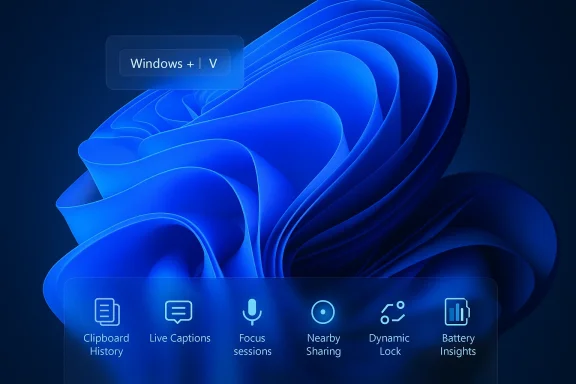
Windows 11 is full of hidden productivity tools, and the biggest surprise is that many of them are not experimental AI demos at all. They are mature, built-in features that can save time, reduce friction, and replace third-party utilities if users actually know where to look. In a year when Microsoft keeps pushing Copilot and newer AI-first experiences, the quieter story is that the operating system already contains a deep bench of practical features that still fly under the radar. That gap between marketing and everyday usefulness is exactly why these tools matter.
Windows has always carried a split personality. On one side is the highly visible consumer story: a centered taskbar, Copilot, widgets, and glossy promotional updates. On the other side is a long-running layer of utility features buried in keyboard shortcuts, Settings menus, and legacy app surfaces. The latter category is where a lot of daily value lives, especially for users who spend hours in front of a PC and need small wins that add up. Microsoft’s own support documentation makes clear that many of these tools are standard, supported parts of Windows 11, not niche extras.
That matters because Windows 11 is now the default desktop environment for a huge share of new PCs, and Windows 10 support ended on October 14, 2025. That shift has concentrated attention on Windows 11 as the only mainstream path forward for consumers, schools, and many enterprises. The result is a new round of feature discovery, but also a lot of confusion: users see the same interface every day and assume they already know what it can do. In reality, a surprising number of powerful options remain hidden in plain sight.
The most interesting part is how these features divide between consumer convenience and enterprise-grade usefulness. Clipboard syncing, live captions, voice typing, nearby sharing, and dynamic lock help individual users. Battery analytics, focus modes, and virtual desktops help both solo workers and managed fleets. Copilot, meanwhile, represents a different category entirely: an umbrella assistant that can help with content creation, search, and system tasks, but whose value still depends heavily on how well users integrate it into their workflows. Microsoft’s current documentation shows Copilot on Windows as a taskbar-pinned app with voice, screenshot, file-search, and Windows Settings capabilities on supported devices.
What makes this list compelling is not that these features are brand new. It is that they are mature enough to matter and still underused enough to be newsworthy. A hidden feature is useful only if it solves a real problem, and these nine do. They are also a reminder that Windows 11’s best tricks often have nothing to do with the flashy headline features and everything to do with small design decisions that make the operating system faster, safer, and more humane.
That alone changes how people work. Anyone who edits documents, moves data between apps, or collects snippets from web pages knows how often the old clipboard model breaks momentum. Clipboard history effectively turns a momentary scratchpad into a reusable buffer, which reduces the need to switch between apps or re-copy the same content. For remote workers and anyone juggling multiple devices, the cross-device sync option makes the feature even more valuable.
It also helps explain why this feature is so sticky once discovered. A pinned clipboard item becomes a reusable building block, especially for repeated work like signatures, standardized replies, coding snippets, and frequent URLs. The result is less retyping and fewer small interruptions.
The appeal here is behavioral, not technical. Most people do not forget security because they do not care; they forget because locking a PC is a small task that gets skipped in the real world. Dynamic lock removes that judgment call and makes the secure action the default. In an office, home office, or shared workspace, that can meaningfully reduce casual shoulder-surfing and opportunistic access.
It is less elegant in messy real-world conditions. Bluetooth can be flaky, range can vary, and phones can stay nearby even when the user steps away. In other words, this is a useful automation layer, but not a replacement for strong authentication, fast sign-in options, or sensible workstation policies.
This matters because typing is still the default assumption in a desktop OS, even though many workflows are faster when spoken. Drafting rough notes, capturing ideas during meetings, and responding to messages can all become faster when the interface stops making the keyboard the only entry path. Voice input also helps users with accessibility needs, temporary injuries, or simply high-speed ideation.
There is also a workflow benefit for people who think out loud more easily than they type. The cognitive switch between speaking and editing is often easier than staring at a blank screen and waiting for the perfect sentence. That makes voice typing useful not only for speed, but for getting past writer’s block.
That combination of scope and privacy is what makes it stand out. Most captioning tools work only inside specific apps or web platforms, which means they stop being useful the moment you switch to a game, a legacy app, or a browser tab that does not cooperate. Live captions is system-wide, so it can help with video calls, streaming content, and miscellaneous audio without forcing the user to depend on the app developer.
Because the feature processes locally, it also avoids some of the trust concerns that cloud captioning can raise. That is a meaningful difference, especially in environments where conversations are sensitive or compliance matters. It makes live captions feel like a modern system capability rather than a cloud service wearing a local interface.
The feature’s strength is not elegance, because Apple’s ecosystem still arguably wins on polish. Its strength is ubiquity. Windows users have long relied on email, cloud drives, messaging apps, USB drives, and one-off workarounds just to move files between nearby PCs. Nearby sharing removes that overhead and makes the transfer feel native instead of improvised.
Still, it is not a universal replacement for cloud collaboration. It is best for fast, local transfer rather than ongoing shared editing or long-distance distribution. That makes it complementary to OneDrive, email, and Teams rather than competitive with them.
This is not the same as a simple timer. It is closer to a lightweight productivity environment that reshapes the desktop for a short period. The point is to stop the ambient noise of Windows from competing with the work you are trying to do, whether that means writing, coding, studying, or handling deep-focus admin work.
It also fits the broader trend in modern productivity software: fewer isolated timers, more context-aware work states. Microsoft is effectively turning Windows into a conductor of focus instead of just a stage for apps. That is subtle, but it matters.
This is a classic example of a hidden feature that becomes more important over time. As laptops get thinner and more mobile, battery life is no longer just a hardware issue; it is also a software policy problem. The app landscape can quietly drain a device through background updates, periodic syncs, and notification behavior, and Windows 11 now offers a more transparent way to manage that.
Windows 11 also includes broader energy recommendations and power mode options to reduce consumption. That means users can make informed tradeoffs between performance and longevity instead of treating battery life as a fixed property of the machine. This is especially important for hybrid workers who spend parts of the day plugged in and parts away from a charger.
The important thing is not the existence of AI in Windows. It is the degree to which Microsoft is trying to move AI from novelty into workflow. Copilot can summarize, draft, answer questions, and assist with system settings, but its relevance depends on whether users trust it enough to use it regularly. The taskbar placement matters because it normalizes access and lowers the activation energy for trying it.
That strategy creates both opportunity and tension. On one hand, it could make Windows feel smarter and more forgiving. On the other, it raises legitimate concerns about data, memory, and user control. Microsoft’s own support material shows that Copilot functionality is expanding quickly, which makes it a moving target as well as a flagship feature.
That matters because shortcut knowledge compounds. Learning one or two at a time can dramatically change the pace of daily work. Once users understand that Windows can handle window management, screenshotting, emoji insertion, and notification access with near-instant key combinations, the whole OS starts to feel more responsive.
For enterprises, shortcuts are a force multiplier. For consumers, they are the quickest way to make Windows feel less clumsy and more intentional. The learning curve is tiny compared with the long-term payoff.
That means discoverability will matter as much as capability. A feature that lives in a support page is not the same as a feature that users can adopt naturally during everyday work. Microsoft has room to improve onboarding, first-run prompts, and contextual tips so these tools stop feeling hidden and start feeling like part of the operating system’s identity.
Windows 11’s strongest advantage may be that it does not need to invent everything from scratch to stay relevant. It just needs to keep turning overlooked utilities into everyday habits. And if users begin to treat clipboard history, live captions, voice typing, focus sessions, nearby sharing, and Copilot as normal parts of the workflow, then the operating system’s real story will not be about a single AI assistant at all. It will be about a desktop that finally feels like it knows how people actually work.
Source: eWeek 9 Windows 11 Features You’re Probably Not Using, Including Built-In AI Assistant
 Overview
Windows has always carried a split personality. On one side is the highly visible consumer story: a centered taskbar, Copilot, widgets, and glossy promotional updates. On the other side is a long-running layer of utility features buried in keyboard shortcuts, Settings menus, and legacy app surfaces. The latter category is where a lot of daily value lives, especially for users who spend hours in front of a PC and need small wins that add up. Microsoft’s own support documentation makes clear that many of these tools are standard, supported parts of Windows 11, not niche extras.That matters because Windows 11 is now the default desktop environment for a huge share of new PCs, and Windows 10 support ended on October 14, 2025. That shift has concentrated attention on Windows 11 as the only mainstream path forward for consumers, schools, and many enterprises. The result is a new round of feature discovery, but also a lot of confusion: users see the same interface every day and assume they already know what it can do. In reality, a surprising number of powerful options remain hidden in plain sight.
The most interesting part is how these features divide between consumer convenience and enterprise-grade usefulness. Clipboard syncing, live captions, voice typing, nearby sharing, and dynamic lock help individual users. Battery analytics, focus modes, and virtual desktops help both solo workers and managed fleets. Copilot, meanwhile, represents a different category entirely: an umbrella assistant that can help with content creation, search, and system tasks, but whose value still depends heavily on how well users integrate it into their workflows. Microsoft’s current documentation shows Copilot on Windows as a taskbar-pinned app with voice, screenshot, file-search, and Windows Settings capabilities on supported devices.
What makes this list compelling is not that these features are brand new. It is that they are mature enough to matter and still underused enough to be newsworthy. A hidden feature is useful only if it solves a real problem, and these nine do. They are also a reminder that Windows 11’s best tricks often have nothing to do with the flashy headline features and everything to do with small design decisions that make the operating system faster, safer, and more humane.
Clipboard History: The Quiet Productivity Upgrade
The clipboard is one of the most underestimated parts of Windows 11, largely because people assume copy-and-paste is a single-item system. It is not. Windows 11’s clipboard history can store up to 25 copied items, and users can pin entries so they survive restarts. Microsoft also supports clipboard syncing across devices tied to the same account, which can be either automatic or manual depending on how much cloud behavior the user wants.That alone changes how people work. Anyone who edits documents, moves data between apps, or collects snippets from web pages knows how often the old clipboard model breaks momentum. Clipboard history effectively turns a momentary scratchpad into a reusable buffer, which reduces the need to switch between apps or re-copy the same content. For remote workers and anyone juggling multiple devices, the cross-device sync option makes the feature even more valuable.
Why It Matters
The biggest advantage is not just convenience; it is error recovery. If you accidentally copy over a critical item, Windows 11 gives you a second chance instead of forcing a retrace of your steps. That makes the clipboard feel more like a lightweight task history than a disposable memory slot.It also helps explain why this feature is so sticky once discovered. A pinned clipboard item becomes a reusable building block, especially for repeated work like signatures, standardized replies, coding snippets, and frequent URLs. The result is less retyping and fewer small interruptions.
- Press Windows + V to open clipboard history.
- Clipboard history supports up to 25 copied entries.
- You can pin important items so they stay available.
- Syncing is tied to your Microsoft account or work account.
Dynamic Lock and Sign-In Security
Windows 11’s Dynamic lock is one of those features that sounds almost too simple to be useful, and then quietly proves its worth. It uses a paired Bluetooth phone as a proximity signal, and when the device moves out of range, Windows automatically locks the PC. Microsoft’s sign-in settings documentation describes it as a way to automatically lock your device when you are away, typically within a minute of leaving Bluetooth range.The appeal here is behavioral, not technical. Most people do not forget security because they do not care; they forget because locking a PC is a small task that gets skipped in the real world. Dynamic lock removes that judgment call and makes the secure action the default. In an office, home office, or shared workspace, that can meaningfully reduce casual shoulder-surfing and opportunistic access.
When It Works Best
Dynamic lock is strongest when the user’s habits are consistent. If your phone is always with you, the pairing is stable, and your Bluetooth environment is predictable, the feature can become a background safeguard you never have to think about. That is exactly what good security should feel like.It is less elegant in messy real-world conditions. Bluetooth can be flaky, range can vary, and phones can stay nearby even when the user steps away. In other words, this is a useful automation layer, but not a replacement for strong authentication, fast sign-in options, or sensible workstation policies.
- Works through Bluetooth pairing with a phone.
- Locks the PC automatically after you walk away.
- Best used alongside Windows Hello or strong sign-in methods.
- More useful in office environments than in highly mobile setups.
Voice Typing and the New Input Model
Windows 11’s voice typing is not just a novelty; it is one of the clearest examples of how Microsoft has shifted the operating system toward multimodal input. Microsoft’s documentation says voice typing uses online speech recognition powered by Azure Speech services, can be started with Windows + H, and provides real-time dictation in text fields. The company also notes the privacy distinction between device-based and online speech recognition, which gives users some control over how the data is handled.This matters because typing is still the default assumption in a desktop OS, even though many workflows are faster when spoken. Drafting rough notes, capturing ideas during meetings, and responding to messages can all become faster when the interface stops making the keyboard the only entry path. Voice input also helps users with accessibility needs, temporary injuries, or simply high-speed ideation.
The Real Advantage
The real story is not that voice typing exists. It is that it has become good enough for ordinary work instead of being reserved for accessibility edge cases. Automatic punctuation, stronger speech models, and improved handling of dictation workflows have turned it into a practical tool rather than a demonstration feature.There is also a workflow benefit for people who think out loud more easily than they type. The cognitive switch between speaking and editing is often easier than staring at a blank screen and waiting for the perfect sentence. That makes voice typing useful not only for speed, but for getting past writer’s block.
- Launch with Windows + H.
- Requires a microphone and internet connection for cloud-backed dictation.
- Uses online speech recognition for voice typing.
- Works in most text fields, not just Microsoft apps.
Live Captions as a System-Wide Accessibility Layer
Windows 11’s live captions feature is one of the most impressive built-in tools in the entire OS. It can generate captions for any audio playing on the PC, and Microsoft says the processing happens on-device, with audio, voice data, and captions never leaving the device. The shortcut is Windows + Ctrl + L, and the feature can download language files for on-device speech recognition.That combination of scope and privacy is what makes it stand out. Most captioning tools work only inside specific apps or web platforms, which means they stop being useful the moment you switch to a game, a legacy app, or a browser tab that does not cooperate. Live captions is system-wide, so it can help with video calls, streaming content, and miscellaneous audio without forcing the user to depend on the app developer.
A Built-In Accessibility Win
The accessibility value is obvious, but the practical value extends far beyond that. People in noisy homes, open offices, and public places can use live captions to follow audio they would otherwise miss. It can also serve as a fallback when speakers are weak, language clarity is poor, or the viewer just wants a second layer of comprehension.Because the feature processes locally, it also avoids some of the trust concerns that cloud captioning can raise. That is a meaningful difference, especially in environments where conversations are sensitive or compliance matters. It makes live captions feel like a modern system capability rather than a cloud service wearing a local interface.
- Open with Windows + Ctrl + L.
- Captions are generated on-device.
- Works across apps and audio sources.
- Requires a language pack for some supported languages.
Nearby Sharing and the Windows-to-Windows Handoff
Microsoft’s Nearby sharing is the closest thing Windows has to AirDrop, and that is exactly why people keep rediscovering it. The feature lets Windows users share documents, photos, and links to nearby devices using Bluetooth or Wi-Fi. It works across Windows 10 and Windows 11 devices, with Wi-Fi available in some latest Windows 11 scenarios when both devices are on the same private network.The feature’s strength is not elegance, because Apple’s ecosystem still arguably wins on polish. Its strength is ubiquity. Windows users have long relied on email, cloud drives, messaging apps, USB drives, and one-off workarounds just to move files between nearby PCs. Nearby sharing removes that overhead and makes the transfer feel native instead of improvised.
Where It Fits in Daily Work
Nearby sharing shines in mixed-device households, small offices, and classrooms. If you have a second laptop on the same desk, or a coworker sitting nearby, sending a file can become a one-click action instead of a mini workflow. The feature also supports links, which makes it surprisingly handy for sharing web pages without switching to another app.Still, it is not a universal replacement for cloud collaboration. It is best for fast, local transfer rather than ongoing shared editing or long-distance distribution. That makes it complementary to OneDrive, email, and Teams rather than competitive with them.
- Supports documents, photos, and links.
- Uses Bluetooth or Wi-Fi depending on availability.
- Can be limited to your own devices or opened to others nearby.
- Best for quick, local transfers between PCs.
Focus Sessions and the Modern Workday
Windows 11’s Focus feature is an underrated example of OS-level attention management. Microsoft describes it as a way to minimize distractions, turn on Do Not Disturb, suppress taskbar flashing and badges, and optionally tie into the Clock app, Spotify, and Microsoft To Do. The feature can be started from the Clock app or via shortcuts in the interface.This is not the same as a simple timer. It is closer to a lightweight productivity environment that reshapes the desktop for a short period. The point is to stop the ambient noise of Windows from competing with the work you are trying to do, whether that means writing, coding, studying, or handling deep-focus admin work.
Why OS-Level Focus Beats App-Level Timers
A browser extension can remind you to work. A phone app can block distractions. But Windows Focus has the advantage of living where the distractions originate. It can directly manage taskbar indicators, notifications, and desktop behavior without depending on the user to remember to launch a separate tool. That is a big deal in practice.It also fits the broader trend in modern productivity software: fewer isolated timers, more context-aware work states. Microsoft is effectively turning Windows into a conductor of focus instead of just a stage for apps. That is subtle, but it matters.
- Can enable Do Not Disturb automatically.
- Can hide taskbar badges and flashing.
- Integrates with Spotify in the Clock app.
- Can integrate with Microsoft To Do for task tracking.
Battery Insights and Power Efficiency
Windows 11 gives users far better battery visibility than many people realize. Microsoft’s power and battery documentation provides battery usage views that show which apps are consuming energy, and it also offers background activity controls for supported apps. The system can recommend Power optimized, Always, or Never background behavior, which lets users shape battery usage more deliberately.This is a classic example of a hidden feature that becomes more important over time. As laptops get thinner and more mobile, battery life is no longer just a hardware issue; it is also a software policy problem. The app landscape can quietly drain a device through background updates, periodic syncs, and notification behavior, and Windows 11 now offers a more transparent way to manage that.
Why Battery Tools Are Better Than a Simple Percentage
The battery percentage on its own is almost useless for diagnosis. Knowing that a device is at 31 percent does not explain why the battery is disappearing so quickly or which workload is responsible. Battery usage charts and background controls are more actionable because they point to the culprit rather than merely the symptom.Windows 11 also includes broader energy recommendations and power mode options to reduce consumption. That means users can make informed tradeoffs between performance and longevity instead of treating battery life as a fixed property of the machine. This is especially important for hybrid workers who spend parts of the day plugged in and parts away from a charger.
- View app-specific battery usage in Settings.
- Control background behavior per app when supported.
- Use Power optimized to balance updates and battery life.
- Switch power modes for more efficient operation.
Copilot and the Taskbar AI Story
Copilot is the feature Microsoft loves to market, and for good reason: it represents the company’s effort to make AI a first-class part of Windows rather than a separate website. Microsoft’s support pages say the Copilot app can be pinned to the taskbar or Start menu on new Windows 11 PCs, and that users can sign in to access chat history, image creation, voice interactions, file search, screenshots, and Windows Settings support. The company also notes the Windows key + C shortcut for voice conversations on supported setups.The important thing is not the existence of AI in Windows. It is the degree to which Microsoft is trying to move AI from novelty into workflow. Copilot can summarize, draft, answer questions, and assist with system settings, but its relevance depends on whether users trust it enough to use it regularly. The taskbar placement matters because it normalizes access and lowers the activation energy for trying it.
Copilot Plus and the Bigger Competitive Bet
On newer Copilot+ PCs, Microsoft has also been pushing deeper on-device experiences such as semantic search and Recall-style activity recovery, though these capabilities have had a more complicated rollout and stronger privacy scrutiny. That reflects a larger strategic bet: the next generation of Windows may be less about apps in isolation and more about AI-assisted retrieval, search, and action across the device.That strategy creates both opportunity and tension. On one hand, it could make Windows feel smarter and more forgiving. On the other, it raises legitimate concerns about data, memory, and user control. Microsoft’s own support material shows that Copilot functionality is expanding quickly, which makes it a moving target as well as a flagship feature.
- Open Copilot from the taskbar or supported shortcut.
- Use it for summaries, drafting, and search.
- Newer devices may support deeper Copilot+ features.
- The broader AI experience is still evolving quickly.
Keyboard Shortcuts That Change How Windows Feels
The best Windows features are often the ones you can trigger without thinking, and keyboard shortcuts are the clearest example. Microsoft documents shortcuts for widgets, notifications, the emoji panel, snap layouts, screenshots, and virtual desktops. These are not hidden in the sense of secret; they are hidden because most users never make the leap from mouse habits to keyboard fluency.That matters because shortcut knowledge compounds. Learning one or two at a time can dramatically change the pace of daily work. Once users understand that Windows can handle window management, screenshotting, emoji insertion, and notification access with near-instant key combinations, the whole OS starts to feel more responsive.
The Shortcuts Worth Learning First
Not every shortcut is equally valuable, so prioritization helps. The biggest wins tend to come from the commands that reduce window hunting, mouse travel, and context switching. Those are the tasks that consume time without being memorable, which is exactly why shortcuts are worth the effort.- Windows + Z for Snap layouts.
- Windows + Shift + S for screenshots.
- Windows + W for Widgets.
- Windows + N for notifications and calendar.
- Windows + . for the emoji panel.
- Windows + Ctrl + D for a new virtual desktop.
For enterprises, shortcuts are a force multiplier. For consumers, they are the quickest way to make Windows feel less clumsy and more intentional. The learning curve is tiny compared with the long-term payoff.
Strengths and Opportunities
Windows 11’s hidden features are strongest when they do one thing well and do it without extra software. Microsoft has quietly created a toolbox that addresses communication, accessibility, workflow, and security in ways that are easy to overlook but hard to replace once adopted. The opportunity is not merely to add features; it is to help users discover features they already own.- Clipboard history reduces re-copying and recoverable mistakes.
- Live captions improve accessibility and comprehension across the OS.
- Voice typing can speed up drafting and note-taking.
- Nearby sharing simplifies local transfers without cloud dependence.
- Focus sessions help structure work without third-party timers.
- Battery insights make power management more transparent and useful.
- Copilot gives Microsoft a visible AI layer tied directly to the OS.
Risks and Concerns
The same features that make Windows 11 more capable can also make it feel more complicated, more cloud-dependent, or more opaque if users do not understand the tradeoffs. Some of the hidden tools are local and private, while others depend on Microsoft accounts, online recognition, or evolving AI services. That unevenness can create confusion, especially in workplaces with strict compliance requirements.- Cloud-backed voice typing may raise privacy or policy concerns.
- Clipboard syncing can move data between devices in ways users may not expect.
- Dynamic lock depends on Bluetooth reliability and phone proximity.
- Nearby sharing is useful, but only when devices are nearby and configured correctly.
- Copilot features are evolving quickly, which makes expectations hard to manage.
- Shortcut overload can leave casual users feeling like the OS is more complex than it needs to be.
- Battery recommendations and background controls may confuse users who just want one clear answer.
Looking Ahead
The next phase of Windows 11 is likely to be defined less by a single headline feature and more by the gradual merging of utility, AI, and device intelligence. Microsoft is clearly betting that the desktop will become more proactive: better at remembering, summarizing, transcribing, sharing, and adapting to what the user is doing. The challenge is making that feel helpful rather than intrusive.That means discoverability will matter as much as capability. A feature that lives in a support page is not the same as a feature that users can adopt naturally during everyday work. Microsoft has room to improve onboarding, first-run prompts, and contextual tips so these tools stop feeling hidden and start feeling like part of the operating system’s identity.
- Better first-run guidance for Clipboard history, Focus, and Nearby sharing.
- More transparent controls for Copilot and AI-linked workflows.
- Stronger surface-level discoverability for keyboard shortcuts.
- Clearer privacy explanations for sync, speech, and cloud-connected features.
- Continued refinement of accessibility tools like live captions.
Windows 11’s strongest advantage may be that it does not need to invent everything from scratch to stay relevant. It just needs to keep turning overlooked utilities into everyday habits. And if users begin to treat clipboard history, live captions, voice typing, focus sessions, nearby sharing, and Copilot as normal parts of the workflow, then the operating system’s real story will not be about a single AI assistant at all. It will be about a desktop that finally feels like it knows how people actually work.
Source: eWeek 9 Windows 11 Features You’re Probably Not Using, Including Built-In AI Assistant
