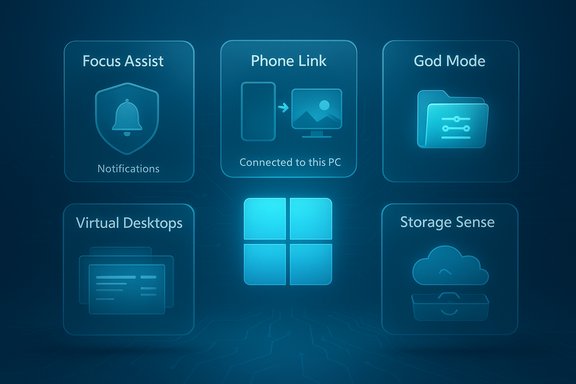
Most of us treat Windows 11 like a familiar toolbox and never pry open the drawers labeled “less obvious.” That’s a missed opportunity: a short Pocket‑lint roundup that unearthed five underrated Windows features — Focus Assist, Phone Link, God Mode, Virtual Desktops, and Storage Sense — is a useful reminder that productivity and convenience often live behind simple toggles and little-known shortcuts.
Windows 11 arrived with headline features — centered Start, Snap Layouts, Widgets — but it also quietly bundles dozens of smaller utilities aimed at real‑world friction: notification control, phone integration, centralized settings views, workspace separation, and automated cleanup. Many of these features are stable parts of the OS and have been refined since Windows 10; others live inside inbox apps like Clock or Phone Link and are updated independently. This article summarizes Pocket‑lint’s practical picks, verifies technical claims against Microsoft documentation and independent reporting, and provides step‑by‑step guidance so readers can enable each feature confidently.
Source: Pocket-lint 5 useful Windows features I wish everyone knew about
 Background
Windows 11 arrived with headline features — centered Start, Snap Layouts, Widgets — but it also quietly bundles dozens of smaller utilities aimed at real‑world friction: notification control, phone integration, centralized settings views, workspace separation, and automated cleanup. Many of these features are stable parts of the OS and have been refined since Windows 10; others live inside inbox apps like Clock or Phone Link and are updated independently. This article summarizes Pocket‑lint’s practical picks, verifies technical claims against Microsoft documentation and independent reporting, and provides step‑by‑step guidance so readers can enable each feature confidently. Focus Assist (Focus Sessions) — A productivity game‑changer
What it is
Focus Assist (now surfaced as Focus and Focus sessions in Windows 11) is Windows’ built‑in distraction control. It silences notifications, hides taskbar badges, and can display a session timer so you work in bounded, interruption‑free stretches. Pocket‑lint highlights it as a simple way to “turn on Do not disturb” for a set duration and track progress — a description that matches how Microsoft and independent outlets describe the feature.How to enable and use it
- Open Settings > System > Focus.
- Or, open the Clock app and choose Start focus session to begin a timed work block.
- Configure options: show the timer, hide badges on taskbar apps, hide flashing, and enable Do not disturb.
- Optionally set automatic rules (e.g., when duplicating your display, during certain hours, or while playing a game).
Why it matters
- Blocks distractions from apps and badges while you work.
- Session timer encourages time‑boxed work (Pomodoro‑style).
- Custom rules let the OS suppress notifications automatically during meetings or presentations.
Verification and context
Microsoft documents Focus and Focus Assist behavior and the integration with the Clock app, and technical coverage from outlets like Windows Central explains the UI and options in practical terms, confirming the Pocket‑lint description of timers, Do Not Disturb, and badge suppression.Risks and caveats
- Focus doesn’t remove notifications — it reroutes them to the notification center; you should review missed alerts after a session.
- Automatic rules can be too broad; test configurations to ensure you don’t miss urgent messages (especially for work accounts).
- Corporate policies may override personal Focus settings in managed environments.
Phone Link — Use your phone on your PC (and stop the cable shuffle)
What it is
Phone Link (formerly “Your Phone” and paired with the mobile Link to Windows app) lets certain Android phones mirror messages, photos, notifications, calls, and mobile apps on your PC. For supported devices it makes your phone’s recent photos instantly accessible and enables sending/receiving SMS and calls on the PC. Pocket‑lint’s hands‑on notes about scanning a QR code to pair and automatic reconnection reflect the standard setup flow.How to set it up
- On Windows, open Phone Link (or search for Phone Link in Start).
- If prompted, sign in with your Microsoft account.
- On your Android phone, open Link to Windows (preinstalled on many devices) or install it from Google Play.
- Use the PC’s Phone Link to generate a QR code and scan it with the phone’s Link to Windows camera to pair.
- Grant the required permissions (contacts, SMS, notifications, etc..
Why it matters
- Seamless photo transfer — shoot on your phone, edit on your PC without USB.
- Message and call handling — keep working without reaching for the phone.
- App streaming (on supported devices) lets you run mobile apps on the PC.
Verification and context
Microsoft’s Phone Link support pages describe system requirements (Windows 10/11, Android 8.0+; recommended Android 10+ for best experience) and the QR pairing workflow. Independent reporting tracks ongoing improvements and platform partnerships (for example, deeper Samsung integration and testing of iPhone file‑sharing features). That confirms Pocket‑lint’s practical setup notes and the feature’s capabilities while highlighting device and OS prerequisites.Risks and caveats
- Phone Link’s best experience is Android‑first; iPhone support is limited and iPhone features (like app mirroring) are constrained by platform restrictions. Features tested in Insider builds (like iPhone file sharing) are not guaranteed in the stable channel yet — treat any reports of new iOS capability as in testing.
- Phone Link requires both devices on the same Wi‑Fi network for many features and can be limited by OEM implementations. Confirm device compatibility on your phone manufacturer’s support site.
God Mode — All settings in one place
What it is
“God Mode” is a longstanding Windows trick: renaming a new folder with a special class identifier converts it into a master Control Panel view that lists hundreds of Windows settings and administrative tasks in one place. It doesn’t grant additional privileges; it only aggregates existing settings for convenience. Pocket‑lint’s short how‑to (create folder, rename to GodMode.{ED7BA470-8E54-465E-825C-99712043E01C}) is the classic method still used widely.How to enable it
- Right‑click the desktop and choose New > Folder.
- Rename the folder exactly to:
GodMode.{ED7BA470-8E54-465E-825C-99712043E01C} - Press Enter and open the resulting Control Panel‑style icon to browse consolidated settings.
Why it matters
- Quick access to dozens (200+) of settings grouped by category.
- Time saver for power users and admins who need fast links to seldom‑used tools (Power Options, Device Manager, Recovery settings).
- Portable: you can drag shortcuts out of the God Mode folder to create desktop links.
Verification and context
Major tech outlets document the exact folder name and explain that God Mode is simply a special shell folder alias recognized by Windows; Microsoft doesn’t officially promote it but the method remains valid on modern Windows builds. Guides reiterate the warning: do not apply the name to a non‑empty folder (it can hide contents).Risks and caveats
- God Mode is an aggregator, not a privilege escalation. It lists powerful configuration options that can break behavior if misused; non‑technical users should avoid changing unfamiliar settings.
- Some enterprise environments or security products may restrict access to control panel items; the folder will not bypass management policies. Evidence from forum reports shows administrators sometimes block such conveniences for governance reasons.
Virtual Desktops — Clean separation for work and play
What it is
Virtual Desktops let you create multiple, separate workspace screens (Task View → New desktop) so you can isolate contexts: one desktop for email and spreadsheets, another for development tools, and a third for personal apps. Pocket‑lint notes the Task View icon and renaming desktops for clarity — both valid, practical tips.How to use them
- Click the Task View icon on the taskbar (two overlapping squares) or press Win + Tab.
- Click New desktop.
- Switch with Win + Ctrl + Left/Right Arrow or via Task View thumbnails.
- Right‑click a desktop thumbnail to rename it; set different backgrounds per desktop to visually distinguish them.
Why it matters
- Reduced clutter: group related windows and apps by task.
- Focus: remove unrelated applications from sight without closing them.
- Quick switching via keyboard makes context shifts fast and repeatable.
Verification and context
Microsoft and hardware vendors document Virtual Desktop usage, and how‑to pieces from Lifewire and vendor support pages walk through creation, switching, and naming. These independent descriptions agree on keyboard shortcuts and Task View mechanics, corroborating Pocket‑lint’s practical guidance.Risks and caveats
- Apps are still running in the background on other desktops — they’re not isolated sessions. Be mindful of resource consumption (CPU/RAM) when many apps are open across desktops.
- Some window‑management behaviors are app‑specific and may not snap or remember positions when moved between desktops.
Storage Sense — Automated disk cleanup that saves time
What it is
Storage Sense automatically frees disk space by removing temporary files, emptying the Recycle Bin after a chosen period, and changing locally stored cloud files (e.g., OneDrive) to online‑only when they haven’t been used lately. Pocket‑lint’s description — automatic deletion of old items in Downloads and Recycle Bin, and online‑only migration to cloud — aligns with Microsoft’s official guidance.How to configure it
- Open Settings > System > Storage.
- Toggle Storage Sense to On.
- Click Storage Sense to choose cadence (daily/weekly/monthly/when low on space) and rules (delete files in Recycle Bin after X days, delete files in Downloads if not opened after Y days, dehydrate cloud files after Z days).
- Optionally run Storage Sense immediately via Run Storage Sense now.
Why it matters
- Hands‑off maintenance reduces low‑space interruptions and improves update reliability.
- Configurable levels let you balance preservation of local copies with space savings.
- Enterprise controls are available via policy for managed fleets (Intune/GPO), making it suitable for shared or low‑capacity devices.
Verification and context
Microsoft documents Storage Sense behavior and admin policy surfaces, and independent guides from Tom’s Hardware, Lifewire, and sysadmin resources explain typical setups and caution that the Downloads folder and cloud content aren’t touched unless the user explicitly opts in. That clarifies a common misconception: Storage Sense won’t delete your cloud‑only content unless configured to manage locally stored cloud files.Risks and caveats
- Unintended deletion: misconfigured thresholds can remove files from Downloads or Recycle Bin sooner than expected — review settings before enabling automatic deletion.
- Cloud‑file dehydration: making files online‑only reduces local disk usage but requires network access to restore; for critical offline workflows, mark files as “Always keep on this device.”
Practical workflows: pairing features for better productivity
- Combine Focus sessions with Virtual Desktops: use a “deep work” desktop with only the apps needed for a session, and start a Focus timer to mute other distractions.
- Use Phone Link to move quick photos to the PC, then edit with Photos or share; pair with Storage Sense to ensure temporary transfer artifacts don’t bloat your drive.
- Create a God Mode shortcut and pin the handful of settings you tweak often to the Start menu or desktop for rapid access, but avoid changing things you don’t fully understand.
Strengths and limitations — a balanced assessment
- Strengths:
- Low friction: all five features are built into Windows or offered as free inbox apps; setup is straightforward.
- Tangible productivity gains: time‑boxing (Focus), reduced context switching (Virtual Desktops), and cross‑device convenience (Phone Link) solve recurring pain points.
- Administrative control: Storage Sense and central setting aggregators (God Mode) help both home users and IT admins streamline workflows.
- Limitations and risks:
- Platform and device dependencies: Phone Link’s feature set varies by phone OEM and OS (Android is best supported). New features can be behind Insider builds and may not be present on stable channels.
- Privacy tradeoffs: cloud‑backed clipboard sync, Phone Link permissions, and Storage Sense’s cloud file handling require deliberate choices about syncing and retention. Review account and permission settings before enabling cross‑device sync.
- Potential for misconfiguration: God Mode exposes powerful controls and Storage Sense can remove files if thresholds aren’t set carefully; these tools reward informed use.
Quick reference: enablement cheat sheet
- Focus (Focus sessions): Settings > System > Focus or Clock app → Start focus session.
- Phone Link: Settings > Phone Link (or install from Microsoft Store) → Pair via Link to Windows QR code on phone; requires Android 8.0+ (best on Android 10+).
- God Mode: New folder → rename to GodMode.{ED7BA470-8E54-465E-825C-99712043E01C}.
- Virtual Desktops: Win + Tab → New desktop; Win + Ctrl + Left/Right to switch.
- Storage Sense: Settings > System > Storage > Storage Sense → toggle on and configure cadence/rules.
Final verdict
Pocket‑lint’s shortlist is practical because it focuses on low‑friction, high‑impact features many users skip. Each pick — Focus, Phone Link, God Mode, Virtual Desktops, and Storage Sense — addresses a different daily friction point: interruptions, device context switching, scattered settings, workspace clutter, and storage bloat. Verified against Microsoft documentation and independent technical coverage, these features are legitimate productivity enhancers when used with awareness of device compatibility and privacy settings. Try one at a time, validate the behavior on your machine, and adopt the ones that solve real, recurring problems in your workflow. Conclusion: the next time Windows feels like a familiar but limited toolbox, invest 15 minutes exploring these built‑in tools — chances are one of them will shave a daily annoyance off your routine and give you back time that matters.Source: Pocket-lint 5 useful Windows features I wish everyone knew about