

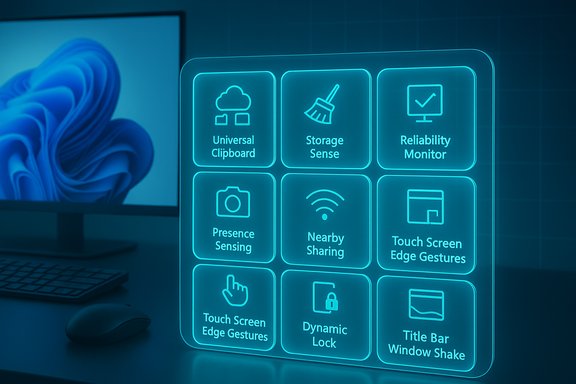
The eight small, easily overlooked Windows 11 tools Pocket‑lint highlights quietly transform routine workflows into noticeably smoother, more secure, and — in several cases — cross‑device experiences, yet most users never discover them on their own. The list — which includes Universal Clipboard, Storage Sense, Reliability Monitor, Presence Sensing, Nearby Sharing, Touch Screen Edge Gestures, Dynamic Lock, and Title‑bar Window Shake — is a reminder that Windows 11 still hides productivity wins in settings panels and legacy utilities. The Pocket‑lint roundup that prompted this analysis collects those exact features and shows how flipping a few toggles can make everyday computing feel smarter and less fiddly.
Windows 11 arrives after decades of incremental refinements, and while headline features get most of the press, the OS ships with dozens of smaller utilities that target friction points in everyday use. Some of these are modern (cloud‑backed clipboard syncing), others are holdovers from older eras (the Aero Shake gesture), and a few require specific hardware to deliver the full experience (Presence Sensing). Because these features are spread across Settings, legacy Control Panel tools, and system services, many users simply never stumble across them — which is why curated lists such as the Pocket‑lint piece are so useful.
Below is a practical, hands‑on guide to each feature Pocket‑lint called out, with step‑by‑step enablement notes, real‑world use cases, and an evidence‑based look at strengths and risks using Microsoft’s own documentation and independent technical coverage for verification. Every major claim has been validated against official Microsoft support material and at least one independent technical source.
Windows 11 still rewards curiosity: the OS contains both new, cloud‑enabled conveniences and mature legacy tools that remain useful. With Microsoft’s official documentation and independent coverage available to guide setup and troubleshooting, turning these hidden features into reliable, repeatable improvements is straightforward — provided you understand the device dependencies and trade‑offs described above.
Conclusion: these eight “hidden” Windows 11 features are more than curiosities — they’re practical tools. When used selectively and with an eye to hardware and privacy, they deliver measurable usability gains. Explore them in Settings, test them carefully on your machine, and fold the ones that help into your regular workflow.
Source: Pocket-lint 8 hidden Windows 11 features I wish I knew about sooner
 Background
Windows 11 arrives after decades of incremental refinements, and while headline features get most of the press, the OS ships with dozens of smaller utilities that target friction points in everyday use. Some of these are modern (cloud‑backed clipboard syncing), others are holdovers from older eras (the Aero Shake gesture), and a few require specific hardware to deliver the full experience (Presence Sensing). Because these features are spread across Settings, legacy Control Panel tools, and system services, many users simply never stumble across them — which is why curated lists such as the Pocket‑lint piece are so useful.Below is a practical, hands‑on guide to each feature Pocket‑lint called out, with step‑by‑step enablement notes, real‑world use cases, and an evidence‑based look at strengths and risks using Microsoft’s own documentation and independent technical coverage for verification. Every major claim has been validated against official Microsoft support material and at least one independent technical source.
Universal Clipboard (Cloud Clipboard)
What it is
Universal Clipboard (sometimes called cloud clipboard or clipboard syncing) turns the clipboard from a single‑slot utility into a multi‑device, short‑term cloud vault. Clipboard history stores up to 25 recent entries (text, HTML and bitmaps), and the sync option uploads items to your Microsoft account so they appear on other Windows devices where you’re signed in.How to enable
- Open Settings > System > Clipboard.
- Turn on Clipboard history and enable Clipboard history across your devices.
- Choose Automatically sync text that I copy or Manually sync text that I copy depending on your privacy preferences.
Practical benefits
- Move text and small images between multiple Windows 11 PCs without emailing or sending a file.
- Pin frequently used snippets (addresses, code snippets, boilerplate) so they persist across reboots and devices.
- Workflow boost for writers, developers, and multi‑device researchers.
Risks and caveats
- Cloud clipboard is tied to your Microsoft account; items synced are transient but stored in the cloud while pinned or until the 25‑item history limit rolls older entries out. Microsoft documents a 4 MB per‑item limit and a 25‑item history window. Users handling sensitive data should disable automatic sync and use manual sync or clipboard clearing.
Storage Sense
What it is
Storage Sense is Windows’ automatic cleanup assistant for the system drive. It frees space by removing temporary files, emptying the Recycle Bin on a schedule, and converting rarely used OneDrive files to online‑only to reclaim local storage. This is not a third‑party disk cleaner — it’s built into the OS and runs with Windows’ safety guardrails.How to enable
- Settings > System > Storage.
- Toggle Storage Sense On, then click into Storage Sense to configure:
- Run frequency (e.g., daily, weekly, when low disk space).
- Delete files in Recycle Bin older than N days.
- Make locally available cloud content online‑only after a set period.
Practical benefits
- Automated housekeeping that prevents the system drive from filling up, which directly impacts performance and update reliability.
- Granular controls for Downloads and cloud content reduce accidental deletions.
Risks and caveats
- Storage Sense acts only on the system drive (typically C
 . It will not clean other partitions automatically unless you configure those drives differently.
 - Default settings exclude Downloads and cloud files unless you explicitly include them; misconfiguration can lead to surprises if you assume everything will be pruned. Confirm settings before enabling automatic aggressive cleanups.
Reliability Monitor
What it is
Reliability Monitor is a long‑standing Windows diagnostic tool that visualizes system stability over time: application failures, Windows failures, warnings and informational events are plotted on a daily or weekly timeline. It’s essentially a user‑friendly view into Event Viewer and can speed up troubleshooting by pointing to the time and source of a crash.How to open it
- Type “View reliability history” in the Start menu search, or open Control Panel > System and Security > Security and Maintenance > View reliability history.
- As an alternative, run perfmon /rel from the Command Prompt to launch the Reliability Monitor.
Practical benefits
- Quick visual summary of when crashes or crashes-influencing events occurred, which helps correlate user actions, app installs, or driver updates with stability regressions.
- Save the reliability history as an XML report to share with support or to keep a record before system changes.
Risks and caveats
- The reliability graph is only as useful as the underlying logging — if Task Scheduler or the RACTask job is disabled, Reliability Monitor may show blank results. It can also take time to populate meaningful history on a fresh install. Verify the Task Scheduler service is running if data is missing.
Presence Sensing (Lock on Leave / Wake on Approach / Adaptive Dimming)
What it is
Presence Sensing uses dedicated presence sensors (webcams with proximity or combined sensor modules) to detect when a human is near, and it can automatically dim or turn off the display when you step away, lock the device on leave, or wake the device when you approach. This is the most hardware‑dependent item on the list; many laptops and a growing number of external webcams include the required sensors and firmware. Microsoft added presence controls into Settings to centralize behavior and privacy controls.How to enable
- Settings > System > Power & battery > Screen & sleep.
- Toggle Automatically turn off my screen when I leave and Automatically wake up my device when I approach if available.
- Use the More options link to tune distances and timeouts, or to disable the feature when external displays are connected.
Practical benefits
- Improved security: the device can lock automatically when you walk away, reducing the chance of shoulder‑surfing or forgotten unlocked sessions.
- Battery savings on laptops by turning the screen off when you’re not present.
- Smoother sign‑in experience when combined with Windows Hello facial recognition (wake then unlock).
Risks and caveats
- Presence Sensing is device‑specific. If your PC doesn't ship with appropriate hardware, the settings will not appear. OEM firmware and driver support matters: some vendors moved presence logic from vendor apps into Windows, so firmware updates and vendor documentation may be needed. Dell, for example, now points customers to Windows’ Presence Sensing options for machines released after 2024.
- Because presence depends on sensors and proximity thresholds, misconfiguration can lead to false positives (locking while you’re still at the desk) or false negatives (not locking when you leave). Test settings and adjust sensitivity before relying on it for security.
Nearby Sharing (Windows’ AirDrop analogue)
What it is
Nearby Sharing replicates the convenience of AirDrop on Windows: it uses Bluetooth, Bluetooth LE, and Wi‑Fi (including peer‑to‑peer Wi‑Fi where available) to send documents, photos, and links to other nearby Windows devices. It’s local, fast (when Wi‑Fi is used), and convenient for ad‑hoc transfers without cables. Microsoft documents how to configure it and troubleshoot common problems.How to enable
- Settings > System > Nearby sharing.
- Choose My devices only (requires the same Microsoft account) or Everyone nearby for open discoverability.
- Optionally rename your device and change the default folder for received files. To share, use File Explorer’s Share menu or right‑click and choose Share.
Practical benefits
- Replace USB sticks and email attachments for local transfers.
- Use in meetings or collaborative sessions for quick file handoffs.
- Cross‑version compatibility: Nearby Sharing works with supported Windows 10 and 11 devices.
Risks and caveats
- Nearby Sharing requires Bluetooth 4.0+ with LE for discovery and may prefer Bluetooth over Wi‑Fi by default; transferring large files over Bluetooth will be slow. Force Wi‑Fi sharing by ensuring both devices are on the same private Wi‑Fi network and checking Nearby Sharing settings. Firewalls and network profile settings (Private vs Public) can also block transfers. Microsoft’s troubleshooting doc covers these cases.
Touch Screen Edge Gestures
What it is
Windows 11 exposes configuration for the default edge swipe shortcuts on touch screens: a left‑edge swipe opens the Widgets panel and a right‑edge swipe opens the Notification Center (or Click‑to‑Do in some builds). These gestures are customizable or can be disabled if they interfere with touch workflows or gaming. Microsoft documents how to find and adjust these touch gestures in Settings.How to enable / adjust
- Settings > Bluetooth & devices > Touch > Touch screen edge gestures.
- Toggle the left or right edge gestures on or off, or disable both for a cleaner touch experience.
Practical benefits
- Tailor a touch device’s behavior: enable useful quick access gestures or remove accidental activations that interrupt apps.
- Useful on tablets and convertible laptops to reclaim real estate and avoid spurious gestures while holding the device.
Risks and caveats
- Edge gestures are global; disabling them removes the quick access affordances entirely, which may be undesirable if you rely on widgets or quick notifications.
- Behavior can vary between OEM touch drivers — test adjustments after driver updates.
Dynamic Lock
What it is
Dynamic Lock automatically locks a Windows device when the paired Bluetooth phone moves out of range, using the phone’s Bluetooth RSSI (signal strength) as a proxy for proximity. It’s a simple, low‑friction layer of security that helps prevent an unattended device from staying unlocked. Microsoft classifies it as an extra barrier — not a replacement for consciously locking your workstation.How to enable
- Pair your phone with the PC via Bluetooth.
- Settings > Accounts > Sign‑in options > Additional settings > Dynamic lock.
- Check Allow Windows to automatically lock your device when you're away.
Practical benefits
- A pragmatic guard against forgetting to lock in shared or public environments.
- Works with both Android and iPhone (Bluetooth pairing required).
Risks and caveats
- Bluetooth signal strength is an imperfect proximity measure. If the phone is in a bag or pocket near the workstation, Dynamic Lock may not engage promptly; conversely, if the phone is left on the desk and you walk away, the PC might remain unlocked. Microsoft explicitly notes that Dynamic Lock only locks when the PC is idle and the Bluetooth signal falls below the threshold. Use Dynamic Lock as a complementary control, not the sole protection.
Title Bar Window Shake (Aero Shake)
What it is
A throwback from the Windows 7 era, the Title Bar Window Shake gesture (also called Aero Shake) lets you click and shake a window’s title bar to minimize all other windows, restoring them when you shake again. The feature is still present in Windows 11 and can be toggled in Multitasking settings if you prefer a fast desktop declutter.How to enable
- Settings > System > Multitasking > Title bar window shake: toggle on or off. If needed, Group Policy and Registry options are available for enterprise or scripted deployments.
Practical benefits
- Rapidly isolate a single window for focus without minimizing manually or creating a new virtual desktop.
- Familiar muscle memory for long‑time Windows users who rely on the shake gesture.
Risks and caveats
- The gesture can be accidentally triggered during heavy mouse movement. If that happens frequently, disable the setting.
- Not a substitute for virtual desktops or other multitasking features; it’s a simple convenience tool.
Critical analysis — notable strengths and real risks
Strengths
- Small, built‑in features address specific productivity and security gaps without third‑party installs. Features such as Universal Clipboard and Nearby Sharing reduce friction between devices and replicate conveniences found on other ecosystems, while Storage Sense and Reliability Monitor provide low‑effort system maintenance and troubleshooting tools that avert bigger problems. Microsoft’s documentation demonstrates intentional design and clear enablement paths for each feature, which is a strong usability plus.
- When hardware permits, Presence Sensing and Dynamic Lock meaningfully improve security and convenience; these pair well with Windows Hello for fast, secure sign‑ins and automatic lockouts. Microsoft and OEM documentation confirm the feature set and configuration options, and OEMs are moving presence logic into Windows to standardize behavior.
Risks and limitations
- Many of these tools are device‑dependent or rely on external factors: Presence Sensing needs compatible sensors and firmware; Dynamic Lock and Nearby Sharing depend on Bluetooth and Wi‑Fi behavior; cloud clipboard requires a Microsoft account. That fragmentation means some users will see robust benefits while others will see nothing at all. Microsoft support pages and community threads both document missing toggles and driver dependencies — an important reality check when troubleshooting.
- Privacy considerations: syncing clipboard contents or enabling Nearby Sharing with Everyone nearby broadens the attack surface. Clipboard sync is encrypted and transient by design, but sensitive data should never be blindly synced; prefer manual sync or disable cloud clipboard when handling secrets.
- False sense of security: Dynamic Lock is explicitly an additional barrier and is not foolproof; RSSI‑based proximity checks are imperfect. Similarly, Presence Sensing can fail with certain accessory configurations or when external displays or BIOS settings block USB wake support. Microsoft’s documentation and vendor advisories repeatedly remind users to treat these as complementary protections.
Quick checklist — enablement and troubleshooting (concise)
- Universal Clipboard: Settings > System > Clipboard → Enable Clipboard history & Clipboard history across devices (sync mode: automatic or manual).
- Storage Sense: Settings > System > Storage → Toggle Storage Sense on and configure cleanup schedule and Recycle Bin rules.
- Reliability Monitor: Start menu → type “View reliability history” or run perfmon /rel. If blank, verify Task Scheduler and RACTask.
- Presence Sensing: Settings > System > Power & battery > Screen & sleep → Toggle presence options if visible; check OEM firmware if not present.
- Nearby Sharing: Settings > System > Nearby sharing → choose My devices only or Everyone nearby; use File Explorer Share to send files. Ensure Bluetooth & Wi‑Fi are on.
- Touch Edge Gestures: Settings > Bluetooth & devices > Touch → Expand Touch screen edge gestures and configure.
- Dynamic Lock: Pair phone via Bluetooth, then Settings > Accounts > Sign‑in options > Additional settings > Dynamic lock → enable.
- Title‑bar Window Shake: Settings > System > Multitasking → Toggle Title bar window shake. Use Group Policy or Registry for broader deployments.
Final verdict
Pocket‑lint’s list surfaces precisely the kind of low‑visibility features that amplify everyday productivity and security when properly configured. For most users the takeaway is practical: flip a few toggles and reclaim minutes of time every week. For administrators and privacy‑conscious users, the important follow‑ups are to verify device compatibility, audit the privacy settings (especially cloud clipboard and Nearby Sharing), and test behavior after updates or firmware changes.Windows 11 still rewards curiosity: the OS contains both new, cloud‑enabled conveniences and mature legacy tools that remain useful. With Microsoft’s official documentation and independent coverage available to guide setup and troubleshooting, turning these hidden features into reliable, repeatable improvements is straightforward — provided you understand the device dependencies and trade‑offs described above.
Conclusion: these eight “hidden” Windows 11 features are more than curiosities — they’re practical tools. When used selectively and with an eye to hardware and privacy, they deliver measurable usability gains. Explore them in Settings, test them carefully on your machine, and fold the ones that help into your regular workflow.
Source: Pocket-lint 8 hidden Windows 11 features I wish I knew about sooner
