

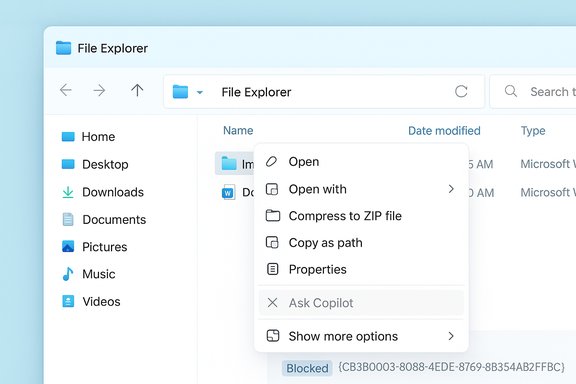
The new “Ask Copilot” entry that appears when you right‑click documents and images in Windows 11 has become an unwelcome convenience for many users — it opens the selected file in Copilot and uploads content to Microsoft’s cloud for analysis — but there are safe, reversible ways to remove it from the context menu without breaking your system.
Microsoft has folded Copilot into Windows 11 in multiple ways: as a taskbar affordance, a keyboard shortcut, protocol handlers, and File Explorer context‑menu entries such as Ask Copilot. The context‑menu action is designed to let users query a file (text, document, or image) directly from Explorer and receive summaries, answers, or contextual web lookups. That convenience means the feature can upload file contents to Microsoft’s servers for processing, because the Copilot experience is cloud‑backed rather than running entirely locally.
The File Explorer entry is implemented as a shell extension (Packaged COM / Appx style), which is registered with a GUID (CLSID). Blocking that specific extension is the least invasive and most easily reversible method to remove the Ask Copilot item without uninstalling Copilot itself. Multiple community tests and technical walk‑throughs have converged on the same CLSID and registry approach for hiding the entry.
GUI method:
If your priority is minimal risk and maximum reversibility, start with the taskbar toggle and the per‑user registry Blocked key; escalate only if and when you need enterprise‑grade persistence.
Source: gadgetbridge.com How to remove ‘Ask Copilot’ from the right-click menu in Windows 11
 Background
Microsoft has folded Copilot into Windows 11 in multiple ways: as a taskbar affordance, a keyboard shortcut, protocol handlers, and File Explorer context‑menu entries such as Ask Copilot. The context‑menu action is designed to let users query a file (text, document, or image) directly from Explorer and receive summaries, answers, or contextual web lookups. That convenience means the feature can upload file contents to Microsoft’s servers for processing, because the Copilot experience is cloud‑backed rather than running entirely locally.The File Explorer entry is implemented as a shell extension (Packaged COM / Appx style), which is registered with a GUID (CLSID). Blocking that specific extension is the least invasive and most easily reversible method to remove the Ask Copilot item without uninstalling Copilot itself. Multiple community tests and technical walk‑throughs have converged on the same CLSID and registry approach for hiding the entry.
What the Ask Copilot right‑click option does (concise)
- It appears in the modern (compact) right‑click menu for selected files such as .docx, .pdf, .txt and common image types (.jpg, .png).
- Selecting it opens the file in the Copilot app/web experience and prompts you to enter a query; the file is uploaded to Microsoft for processing.
- Because the integration uses a shell extension, the menu item can be suppressed by blocking that specific CLSID rather than deleting files or modifying installed packages directly.
Two supported ways to remove Ask Copilot from the right‑click menu
1) Block the Copilot shell extension in the Windows Registry (recommended, safe, reversible)
This method suppresses the Copilot context‑menu entry by adding its CLSID to the Shell Extensions\Blocked key. It is the least risky approach: it does not uninstall software, does not delete system files, and is easily reversed by removing the string.- Why it’s preferred: it targets the UI surface (context menu) directly and preserves the rest of Windows behavior. It’s safe for home users and admins who want a minimal change.
- Press Windows + R, type regedit, and press Enter to open Registry Editor.
- Navigate to the appropriate key:
- Per‑user (no admin required):
HKEY_CURRENT_USER\Software\Microsoft\Windows\CurrentVersion\Shell Extensions\ - System‑wide (requires admin rights):
HKEY_LOCAL_MACHINE\SOFTWARE\Microsoft\Windows\CurrentVersion\Shell Extensions\ - If a key named Blocked does not exist beneath Shell Extensions, right‑click Shell Extensions → New → Key and name it Blocked.
- Inside Blocked, right‑click the right pane → New → String Value (REG_SZ).
- Name the new value exactly: {CB3B0003-8088-4EDE-8769-8B354AB2FF8C}.
- (Optional) Double‑click the new value and enter Ask Copilot as the Value data to make it easy to identify later.
- Restart File Explorer (open Task Manager → select Windows Explorer → Restart) or reboot the PC. The Ask Copilot entry should disappear from the modern context menu for the scope you edited (HKCU = current user, HKLM = all users).
- The legacy “Show more options” (the old classic menu) may still display alternate entries depending on Windows build and extension behavior. Restarting Explorer and/or rebooting usually confirms the change.
- To revert, delete the string value you created. The change is fully reversible and low risk.
2) Uninstall the Copilot app (cleans up most UI affordances)
If you prefer removing Copilot completely (taskbar icon, Win+C shortcut behavior, and context entries in many builds), uninstalling the Copilot package is an option when Windows exposes Copilot as a separable app.GUI method:
- Open Settings (Windows + I) → Apps → Installed apps.
- Find Copilot in the list, click the three‑dot menu next to it, and choose Uninstall.
- Reboot and verify the taskbar and context menu no longer launch Copilot.
- Open PowerShell as Administrator.
- Confirm installed Copilot packages:
Get-AppxPackage | Where-Object { $_.Name -like "Copilot" } - Remove for the current user:
Get-AppxPackage -Name "Exact.Package.Name" | Remove-AppxPackage - Remove provisioned package for all users (admin required):
Get-AppxPackage -AllUsers -Name "Exact.Package.Name" | Remove-AppxPackage -AllUsers
- Package names can vary between builds (examples reported include Microsoft.Copilot, Microsoft.Windows.Copilot). Confirm the package name with Get‑AppxPackage before removing anything.
- Uninstalling locally may not be permanent: Copilot can be re‑provisioned by future Windows feature updates or tenant‑level installs unless you apply administrative controls.
Administrative / enterprise considerations
If you manage devices in a business or education environment and need durable enforcement, use the supported management controls and a layered approach.- Supported Group Policy: Use the Turn off Windows Copilot policy found at User Configuration → Administrative Templates → Windows Components → Windows Copilot. Setting this policy to Enabled maps to the registry key path:
- Per‑user: HKEY_CURRENT_USER\Software\Policies\Microsoft\Windows\WindowsCopilot\TurnOffWindowsCopilot (DWORD) = 1
- Machine‑wide: HKEY_LOCAL_MACHINE\SOFTWARE\Policies\Microsoft\Windows\WindowsCopilot\TurnOffWindowsCopilot (DWORD) = 1.
- AppLocker / WDAC: To prevent re‑installation or execution, pair the TurnOffWindowsCopilot policy with AppLocker rules (block package family MICROSOFT.COPILOT by publisher) or WDAC profiles. AppLocker must be carefully tested because misconfiguration can block legitimate apps.
- Intune / MDM and Microsoft 365 Admin Center: Use Intune to deploy the TurnOffWindowsCopilot registry setting or AppLocker profiles at scale. Disable tenant‑side automatic installs of Copilot from Microsoft 365 admin settings where applicable.
- Pilot on devices that mirror your servicing channel and feature‑update cadence.
- Deploy Group Policy / registry to disable Copilot for users.
- Add AppLocker/WDAC rules to block the Copilot package family name and publisher to prevent re‑provisioning.
- Disable tenant‑level auto‑install behavior in Microsoft 365 / Intune if your tenant uses Microsoft 365 managed device provisioning.
- Maintain a short playbook to re‑verify after every major Windows Feature Update. Microsoft can change packaging or delivery behavior in new builds.
Safety, privacy, and operational tradeoffs
- Privacy: Removing the context menu reduces the chance of accidental uploads. Copilot’s file analysis requires cloud processing, so preventing accidental use reduces unintended data disclosure to Microsoft’s services. Users and admins with high‑sensitivity workflows have a defensible reason to block the menu.
- Feature loss: Blocking or uninstalling Copilot eliminates convenience features like quick summarizations, image‑based queries, and Copilot‑assisted drafting in Office. Consider whether users rely on these features before mass removal.
- Durability: Local uninstall may be temporary. Windows updates and tenant provisioning can reintroduce Copilot if only local steps are taken. For persistent removal, combine policy + AppLocker + tenant controls.
- Risk to system stability: PowerShell removal of provisioned packages or aggressive edits to system packages can cause issues. Always create a System Restore point and export registry keys before making changes. Prefer the Blocked CLSID method for minimal risk.
Practical guidance — recommended step path by audience
Home / casual users (fastest, lowest risk)
- Step 1: Hide Copilot UI affordances first: Settings → Personalization → Taskbar → toggle Copilot (preview) off. This removes visible taskbar clutter without registry edits.
- Step 2: If the right‑click menu still annoys you, use the per‑user registry Blocked key (HKCU) and add the CLSID {CB3B0003-8088-4EDE-8769-8B354AB2FF8C}. Restart Explorer or reboot. This change requires no admin rights and is reversible.
Power users (want cleaner system and willing to use PowerShell)
- Step 1: Create a restore point and export any registry keys you will modify.
- Step 2: Uninstall Copilot from Settings → Apps → Installed apps, or use confirmed PowerShell removal commands (confirm package names first).
- Step 3: Add Blocked CLSID under HKLM to remove Ask Copilot for all users.
IT administrators (durable enforcement)
- Step 1: Pilot on devices that match your update channel and imaging.
- Step 2: Deploy Group Policy Turn off Windows Copilot (or push registry equivalent) via AD/Intune.
- Step 3: Add AppLocker rules to block Copilot package family and publisher.
- Step 4: Disable tenant‑level automatic Copilot installs in Microsoft 365 Admin Center and monitor updates.
Troubleshooting — common questions and fixes
- Ask Copilot still appears after editing Blocked: ensure you added the CLSID to the correct hive (HKCU vs HKLM), restart File Explorer, and reboot if necessary. The legacy menu may still show other entries depending on build.
- Uninstall option is greyed out: on some builds Copilot is provisioned as a system component; use PowerShell Get‑AppxPackage to identify the exact package name before attempting removal, and always back up first.
- Copilot reappears after a Windows feature update: reapply your policy and AppLocker rules; consider adding the Blocked CLSID and an AppLocker block to prevent re‑provisioning. Maintain a verification checklist after each major update.
Critical analysis — strengths and risks of the registry‑block approach
Strengths:- Targeted and minimal. Blocking the CLSID directly removes the visible nuisance without touching package contents or altering system files. It’s easily reversible and safe for most users.
- No admin needed for per‑user changes. HKCU edits let individual users remove the menu without elevated privileges.
- Faster to deploy in mixed environments. For small fleets, pushing a registry value via scripted Intune policy is quicker than building and testing AppLocker rules immediately.
- Not a permanent removal for managed environments. The Blocked key hides the UI but does not stop Copilot code from being present or re‑provisioned by tenant or feature updates. For durable enforcement in enterprises, policy + AppLocker + tenant settings are required.
- Legacy menus and alternate launch paths. The compact modern menu respects the Blocked key, but the classic “Show more options” menu or protocol handlers may still surface alternate Copilot entries depending on build. Expect edge cases on Insider builds.
- Potential behavioral changes across Windows builds. Microsoft has modified Copilot delivery and packaging across releases; a single local tweak may not behave identically on all servicing channels. Test on your exact build.
Verification of key technical claims
- The guidance to add {CB3B0003-8088-4EDE-8769-8B354AB2FF8C} to Shell Extensions\Blocked is supported by multiple independent community write‑ups and technical walkthroughs; it is the widely reported Packaged COM CLSID for the Ask Copilot File Explorer extension. The registry block approach suppresses the modern context menu entry on multiple tested Windows builds.
- The Group Policy named Turn off Windows Copilot maps to the registry key WindowsCopilot\TurnOffWindowsCopilot (DWORD) = 1 under SOFTWARE\Policies\Microsoft\Windows and is the supported management path for disabling Copilot on managed editions (Pro, Enterprise, Education). This mapping and recommended usage are documented in community and Microsoft‑aligned guidance.
- PowerShell package names can vary between builds (Microsoft.Copilot, Microsoft.Windows.Copilot, etc.; always confirm package names with Get‑AppxPackage before attempting removal. Community troubleshooting guides and practical examples repeatedly emphasize this verification step.
- Some articles claim the Copilot taskbar entry or right‑click features are scheduled for stable release timing (for example, “early 2026”). Such roadmap‑style claims should be treated as provisional unless confirmed by an official Microsoft release or product update notice; product timelines and exact rollouts are subject to change and are not provable solely from community reporting. Treat date assertions that are not tied to official Microsoft communications with caution.
Step‑by‑step quick reference (concise copy‑paste checklist)
- Quick, non‑destructive:
- Settings → Personalization → Taskbar → toggle Copilot off.
- Remove right‑click Ask Copilot (per‑user, no admin):
- Regedit → HKCU\Software\Microsoft\Windows\CurrentVersion\Shell Extensions\Blocked → New REG_SZ value named {CB3B0003-8088-4EDE-8769-8B354AB2FF8C} → Value data: Ask Copilot → Restart Explorer.
- Remove system‑wide (requires admin):
- Repeat above under HKLM\SOFTWARE\Microsoft\Windows\CurrentVersion\Shell Extensions\Blocked and restart.
- Uninstall Copilot (if visible):
- Settings → Apps → Installed apps → Copilot → Uninstall OR PowerShell (confirm package name first).
- Enterprise durable block:
- Group Policy → Turn off Windows Copilot = Enabled; add AppLocker/WDAC rules; disable tenant auto‑installs; verify after feature updates.
Conclusion
Removing the Ask Copilot entry from Windows 11’s right‑click menu is straightforward and low risk when you use the recommended registry Blocked‑CLSID approach. For most users, adding the GUID {CB3B0003‑8088‑4EDE‑8769‑8B354AB2FF8C} under Shell Extensions\Blocked in HKCU (per‑user) will immediately remove the menu item without uninstalling Copilot or touching system files; it’s reversible and requires no admin rights. For power users and admins who need longer‑term enforcement, combine the Blocked registry tweak with uninstall + Group Policy and AppLocker/MDM controls to avoid re‑provisioning after updates. Always verify package names before PowerShell removals, back up the registry, and test on representative machines before rolling changes out at scale.If your priority is minimal risk and maximum reversibility, start with the taskbar toggle and the per‑user registry Blocked key; escalate only if and when you need enterprise‑grade persistence.
Source: gadgetbridge.com How to remove ‘Ask Copilot’ from the right-click menu in Windows 11
