I ditched Adobe Illustrator and rebuilt my vector workflow around a free, open‑source tool — and the results were more capable, less expensive, and in several everyday ways more pleasant than I expected. The switch comes with trade‑offs — most notably around print color management and some proprietary file round‑trips — but for logo work, icons, UI mockups, and web assets, Inkscape today is a viable, professional‑grade alternative to Illustrator that costs nothing to own or run.
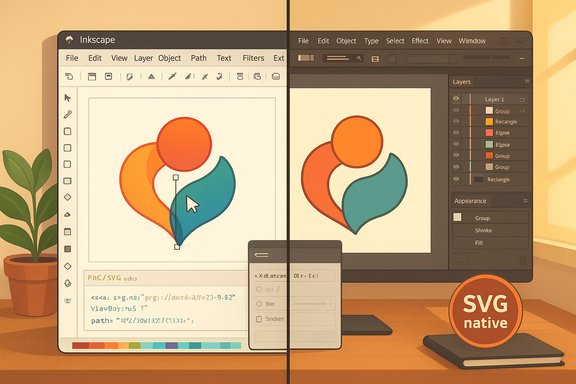
Inkscape is a cross‑platform vector editor that uses SVG (Scalable Vector Graphics) as its native document format. That architectural choice makes Inkscape fundamentally web‑friendly: the files you create are literally the same standardized code modern browsers render. Illustrator, by contrast, centers on a proprietary AI container and treats SVG mainly as an export option, which affects round‑trip workflows between design and development. Since mid‑2023 Inkscape has closed many functionality gaps that traditionally made Adobe the default for rapid logo design and complex vector tasks. Inkscape 1.3 added a native Shape Builder Tool, on‑canvas pattern editing, improved PDF import, and major performance work via asynchronous, multithreaded rendering — updates that matter for everyday productivity. Those changes narrow the practical difference between the two tools for many users.
In short: escaping Adobe’s subscription trap is realistic for many workflows. Inkscape delivers a professional‑grade, free vector editor with modern features and a web‑native document model that benefits designers and developers alike. Test your specific files, validate print proofs if you need them, and the savings plus creative control make the switch worth serious consideration.
Source: MakeUseOf I replaced Adobe Illustrator for this vector app, and I can’t believe it’s free
 Background / Overview
Inkscape is a cross‑platform vector editor that uses SVG (Scalable Vector Graphics) as its native document format. That architectural choice makes Inkscape fundamentally web‑friendly: the files you create are literally the same standardized code modern browsers render. Illustrator, by contrast, centers on a proprietary AI container and treats SVG mainly as an export option, which affects round‑trip workflows between design and development. Since mid‑2023 Inkscape has closed many functionality gaps that traditionally made Adobe the default for rapid logo design and complex vector tasks. Inkscape 1.3 added a native Shape Builder Tool, on‑canvas pattern editing, improved PDF import, and major performance work via asynchronous, multithreaded rendering — updates that matter for everyday productivity. Those changes narrow the practical difference between the two tools for many users. Why people are actually switching: the headline strengths
- No subscription, no vendor lock‑in. Inkscape is free under the GPL license and maintained by a community of contributors; there’s no monthly bill or cloud hold on your source files.
- Native SVG-first workflow. If your deliverables go to the web or UI teams, editing the raw SVG, inspecting the XML, and exporting predictable SVG output saves time and avoids surprises.
- A professional feature set. Pen and node editing, gradients, pattern fills, text on path, layered grouping, live path effects, and built‑in bitmap tracing via Potrace are all present and usable for production work.
- Cross‑platform and lighter on resources. Inkscape runs on Windows, macOS, and Linux and generally has lower baseline system demands than a current Adobe Creative Cloud install, which helps on older hardware or inexpensive machines.
Feature deep dive: what Inkscape gives you today
Vector and path tools
Inkscape provides the core editing tools designers expect: a Pen tool, Node tool, shape primitives (rectangles, ellipses, stars, spirals), boolean operations, and Live Path Effects. The Node tool in Inkscape offers a tactile workflow for manipulating points and handles — often more direct than Illustrator’s separate selection/handle tools.Shape Builder (Inkscape 1.3+)
The long‑requested Shape Builder arrived in Inkscape 1.3, offering click‑and‑drag merging and subtraction of overlapping shapes. Its workflow is intentionally similar to Illustrator’s Shape Builder but implemented with Inkscape’s SVG‑first logic and kept lightweight thanks to the app’s multithreaded rendering improvements. This addition addressed one of the most common objections to switching for logo and mark‑making workflows.Bitmap tracing (Potrace)
Inkscape’s bitmap tracing uses the Potrace engine to convert pixels into vector paths. Potrace is well‑established and delivers layered, editable vector traces suitable for many logo reconstructions and icon conversions. It is not a magical one‑click fix for every raster — but for clean silhouettes and high‑contrast images, it’s competitive with Illustrator’s Image Trace.Text and typography
Inkscape handles multi‑line text, kerning, letter spacing, and text‑on‑path editing. Recent updates improved font collection handling and document resources dialogs, which helps manage type across large documents. For typical UI and branding work, Inkscape’s text tools are sufficient and, in many workflows, more than adequate.XML editor and developer friendliness
Because Inkscape saves as SVG, it includes an on‑canvas and XML editor for direct manipulation of attributes, IDs, CSS classes, and metadata. That is a concrete advantage for developers who need precise SVG code, because what you edit is what will ship to the browser.Compatibility and file interchange: the practical reality
Opening AI files and PDFs
Inkscape can open .AI files if they are saved with PDF compatibility enabled in Illustrator. That’s an important caveat: AI files saved without embedded PDF data are effectively a closed container and will not import cleanly. In practice, most designers who export AI with PDF compatibility will find their artwork editable in Inkscape, though complex Illustrator‑exclusive effects and mesh gradients can fail to translate perfectly.SVG round‑tripping
SVG is Inkscape’s native format, which makes editing and delivering web assets straightforward. However, SVG round‑trips between Illustrator and Inkscape can be lossy if Illustrator embeds private AI data inside the file or if SVGs are expected to preserve Illustrator‑specific editability. For hand‑offs to developers, the SVG‑native route is typically an advantage.Print output and CMYK
This is the key professional limitation to understand: Inkscape is primarily RGB‑native and lacks full native CMYK workflow support. The project’s color‑management documentation and multiple independent reviews confirm that Inkscape’s path to print typically involves exporting a PDF and finishing color conversion in a page‑layout or RIP tool such as Scribus or a print‑workflow prepress application that supports CMYK. That extra step can be a blocker for some print‑centric studios. Flag: if your job requires precise CMYK separations, spot colors, or a tightly controlled print chain, test the entire process end‑to‑end with your commercial printer before committing to a full migration.Performance: faster on modest machines, but results vary
Many users report that Inkscape is lighter on system resources than Illustrator, especially on older hardware or Linux machines. The 1.3 series introduced multithreaded rendering and other optimizations that improved responsiveness for many complex documents. However, absolute performance depends heavily on the complexity of your files, whether you use many bitmap effects, and OS/driver combinations — so treat any blanket claim of “Inkscape is faster” as usually true but hardware‑dependent. Benchmarking for your representative workloads is the right approach.Practical migration plan: how to switch from Illustrator to Inkscape
- Inventory: list the file types and features you rely on (AI with mesh gradients, EPS templates, CMYK print jobs, plugins).
- Test imports: open representative AI files in Inkscape — ensure they were saved with PDF compatibility. Document any effects that fail to translate.
- Recreate test assets: rebuild a small logo, an icon set, and a UI mockup in Inkscape to validate the workflow and shortcuts.
- Color workflow: if you print, export to PDF from Inkscape and import into Scribus or another CMYK‑capable tool to apply output intents and finalize separations. Test print proofs before shipping anything client‑facing.
- Keyboard shortcuts and muscle memory: either remap Inkscape keys to Illustrator’s layout (possible) or commit to Inkscape defaults for a clean learning curve — both strategies work, but expect a brief productivity dip.
- Backup and parallel run: keep Illustrator installed during the pilot period and maintain original AI/PDF exports as archives. Only stop using Illustrator after several weeks of production success in Inkscape.
Strengths: where Inkscape shines (and why they matter)
- Cost and ownership. You keep full control of files without subscription risk. For freelancers, hobbyists, and small teams, the financial upside is immediate.
- Developer integration. Native SVG means less manual cleanup for front‑end teams and clearer control over exported markup. This reduces developer friction and speeds iteration.
- Active community and extensions. A wide set of community tutorials, extensions, and scripts lets you extend the app for build systems, batch exports, and automation.
- Rapid logo and icon workflows. With the Shape Builder, improved boolean handling, and practical on‑canvas editing, day‑to‑day mark work is fast and intuitive.
Risks and limitations: what to watch out for
- CMYK and professional print. As noted, Inkscape is not a one‑click replacement for color‑critical, print production workflows. Expect an extra step and proofing overhead.
- Proprietary effect translation. Some Illustrator features — mesh gradients, certain blend modes, and plugin effects — won’t import perfectly. Complex, layered AI files often need manual cleanup.
- Industry stickiness. Agencies and studios standardized on Adobe tooling may have delivery, template, or asset constraints that require Illustrator for compatibility with third‑party plug‑ins or stock marketplaces.
- Learning curve and UI differences. Muscle memory from Illustrator can slow you down initially; remapping keys is an option, but the best long term approach is learning Inkscape defaults for efficiency.
When to use Inkscape, and when to keep Illustrator
Use Inkscape when:- Your primary output is digital (web, UI, icons, SVG assets).
- You need a zero‑cost studio or work on modest hardware.
- You want direct control of SVG code for developer handover.
- You work in print production requiring CMYK separations, spot colors, or contract color proofs.
- Your studio depends on Illustrator‑only plugins, third‑party templates, or an Adobe‑centric workflow.
- You need guaranteed, lossless round‑trip editing with other Creative Cloud apps.
Practical tips to get the most out of Inkscape
- Save often and use versioned filenames. Open‑source tools iterate quickly; keep stable archives of final deliverables.
- Export to PDF for print and import into Scribus to set CMYK profiles and generate press‑ready PDFs. This preserves Inkscape for design while leveraging a proper prepress tool for output.
- Use the XML editor to tidy IDs, classes, and inline CSS so exported SVG integrates cleanly in web projects.
- Explore extensions and the community. Many repetitive tasks can be automated via scripts and extensions contributed by the Inkscape community.
Alternatives and complementary tools
For designers unwilling to fully leave Adobe but seeking cost relief, several hybrid options exist:- Affinity Designer — a one‑time purchase vector app with mature CMYK handling and a professional feature set (good middle ground for print).
- CorelDRAW — robust for print and production shops.
- Scribus — pair it with Inkscape to handle CMYK, PDF/X output, and page layout.
Final analysis: is Inkscape “good enough”?
For a large class of designers — independent creatives, web designers, iconographers, startup product teams, and hobbyists — Inkscape is more than good enough: it is a modern, actively developed, and free vector studio that handles the daily tasks that previously forced people to tolerate Adobe’s subscription economics. The addition of the Shape Builder and performance improvements in the 1.3 series materially shifted the app from “capable for learning” to “capable for production” in many workflows. However, the switch is not without cost. The principal friction points are print color management and translating complex, proprietary Illustrator effects. Where those are essential, Inkscape must be paired with other specialized tools or you must retain Illustrator for final output. That balance — keeping creative ownership and eliminating recurring subscription fees while preserving critical delivery paths — is the pragmatic sweet spot many users will find appealing.Quick migration checklist (one‑page)
- Back up Illustrator assets and export each AI with PDF compatibility enabled.
- Install Inkscape 1.3+ and open representative files. Note failed effects and document what needs manual rebuilding.
- Recreate one production file end‑to‑end: design in Inkscape → export PDF → import to Scribus → proof CMYK output (if printing).
- Decide on shortcut strategy: remap or re‑learn.
- Run a two‑week parallel production window; keep Illustrator available for edge cases.
- After successful proofs and handoffs, retire the subscription for cost savings.
In short: escaping Adobe’s subscription trap is realistic for many workflows. Inkscape delivers a professional‑grade, free vector editor with modern features and a web‑native document model that benefits designers and developers alike. Test your specific files, validate print proofs if you need them, and the savings plus creative control make the switch worth serious consideration.
Source: MakeUseOf I replaced Adobe Illustrator for this vector app, and I can’t believe it’s free