

PowerShell keeps proving that Windows’ polished interface is only part of the story. Beneath Settings and File Explorer, there are still meaningful gaps in what the operating system exposes, and PowerShell is often the only built-in tool that can close them cleanly. Three of the clearest examples are duplicate-file detection, stubborn app removal, and a more complete startup audit, all of which are directly supported by Windows command-line access rather than by the Settings app’s simplified view
Windows has spent years trying to make common tasks more approachable through Settings, Task Manager, and the modern File Explorer experience. That is good design for everyday users, but it also means Microsoft often reveals only the most common layer of a system that is much deeper underneath. PowerShell remains one of the few tools that still exposes that deeper layer in a structured, scriptable way, and that matters because Windows itself still hides certain functions or presents them only partially
The How-To Geek piece gets the core point right: some jobs are not merely easier in PowerShell, they are not fully doable anywhere else in the standard interface. That does not make PowerShell glamorous, but it does make it practical. In an era when Microsoft keeps packaging more Windows functionality into simplified panels and tiles, PowerShell continues to serve as the escape hatch for users who need precision instead of presentation
This matters for both casual and advanced users. Casual users may never need to compare file hashes or enumerate startup commands, but when they do, the GUI often stops just short of giving a complete answer. Power users, meanwhile, have long understood that the most useful admin tools are frequently the least polished ones, because the real value is not in visual appeal but in access, repeatability, and control
There is also a broader strategic lesson here. Windows keeps adding better built-in features, but there is still a recurring pattern where the interface is intentionally simplified while the underlying capability remains hidden. PowerShell is the proof that Microsoft has not fully replaced the command line model; it has merely made it less visible. For anyone trying to understand what Windows is actually doing, that distinction is crucial
The practical benefit is immediate. If you have multiple backup folders, imported camera rolls, or years of accumulated installers, duplicate content can consume a surprising amount of storage and make cleanup harder than it should be. A hash-based comparison is not just faster than manual review; it is deterministic, meaning identical content produces the same result even if filenames differ. That is the kind of accuracy Settings never attempts to provide in this area
The command shown in the article uses a recursive search, file hashing, grouping by hash, and filtering for groups with more than one member. That sequence is important because it turns a vague cleanup task into a reproducible audit. It is also a good example of why PowerShell remains valuable: the command is short, but it expresses an entire logic chain that the GUI would require multiple manual steps to approximate
Key advantages include:
That difference is not cosmetic. If you are trying to de-bloat a fresh install or standardize a machine for a specific role, “uninstall” in Settings often means “remove the easy thing and leave the rest behind.” PowerShell gives you visibility into packages Windows does not surface as cleanly, and that visibility is often the difference between a tidy system and one that still carries hidden clutter
This is also where the command line offers more honesty than the GUI. Settings may simply omit a package or hide the fact that it is non-removable, while PowerShell makes the boundaries visible. Even when an app cannot be removed, the command output tells you why you are blocked, which is often more useful than a grayed-out button with no explanation
What this means in practice:
That is a meaningful distinction, because startup issues are often blamed on the wrong thing. People disable a few visible entries in Task Manager and wonder why boot time barely improves. The reason is that Windows startup is not a single list; it is a collection of different launch mechanisms. PowerShell gives you a way to inspect one of the more important layers directly, which is why it remains useful for both troubleshooting and security review
This is one of the best examples of PowerShell’s value as a diagnostic lens. It does not merely let you toggle a setting; it lets you inspect the configuration structure behind the setting. If you are trying to diagnose performance problems, that structural view is often the difference between a guess and a conclusion
It is worth noting that PowerShell is still not an all-seeing oracle. It improves visibility, but it does not replace broader tooling for complete autostart analysis. Still, for an in-box command, it offers a lot more than Settings, and that is exactly the article’s point: Microsoft’s GUI is the convenience layer, not the whole system
The broader story is that Windows is split between two philosophies. One is consumer simplicity, where Microsoft tries to guide users toward a handful of common choices. The other is system openness, where the underlying platform remains scriptable and extensible. PowerShell is the bridge between the two, and in many cases it is still the only bridge that goes all the way across
That is why the learning curve is often overstated. You do not need to become a scripting author to benefit from PowerShell. You just need to learn a small number of commands well enough to solve recurring problems, and the three examples here are exactly the kind of high-value use cases where that effort pays off quickly
The practical takeaway is simple:
For home users, this usually translates into a feeling of mild frustration. They can tell something is possible, but they cannot quite find the right switch. For advanced users, it becomes a recurring reminder that Windows still favors a layered model where the most capable controls are tucked away from the default experience
The important thing is that these are not “hack the registry” chores. They are legitimate Windows maintenance tasks performed with Microsoft’s own tooling. That lowers the barrier to entry and makes PowerShell feel less like a niche specialty and more like a hidden feature of the OS itself
That does not mean every organization should rely on ad hoc scripts for everything. But it does mean PowerShell remains central to the Windows admin stack, especially when a GUI does not expose enough detail to support a confident decision. In enterprise terms, that is not convenience; it is control
It also creates opportunities for better user habits. Once people learn that PowerShell can answer questions Settings cannot, they start thinking more like system owners and less like passive app users. That mindset shift is subtle, but it is exactly what makes the tool stick over time
There is also a discoverability problem. Even when PowerShell makes a task easier, many users never learn that the command exists. That means Microsoft’s hidden-capability model can leave good features underused, especially by people who would benefit from them most but do not live in the command line every day
The likely future is not a victory of command line over GUI, but a continued split where the GUI handles common tasks and PowerShell remains the precision layer. That is already how many experienced Windows users work, and it is also why articles like the How-To Geek piece resonate: they remind readers that Windows still contains a deeper operating model if you are willing to reach for it
Source: How-To Geek PowerShell does 3 things Windows Settings simply can't, no matter how hard you try
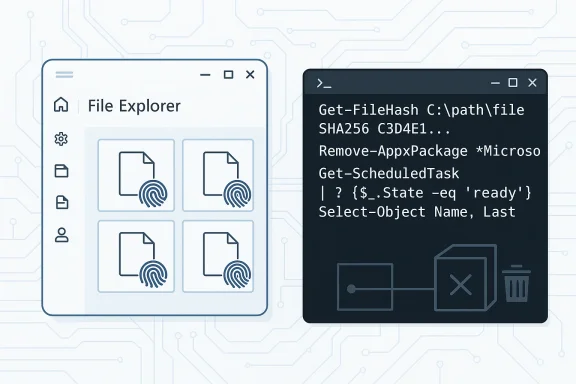 Overview
Windows has spent years trying to make common tasks more approachable through Settings, Task Manager, and the modern File Explorer experience. That is good design for everyday users, but it also means Microsoft often reveals only the most common layer of a system that is much deeper underneath. PowerShell remains one of the few tools that still exposes that deeper layer in a structured, scriptable way, and that matters because Windows itself still hides certain functions or presents them only partiallyThe How-To Geek piece gets the core point right: some jobs are not merely easier in PowerShell, they are not fully doable anywhere else in the standard interface. That does not make PowerShell glamorous, but it does make it practical. In an era when Microsoft keeps packaging more Windows functionality into simplified panels and tiles, PowerShell continues to serve as the escape hatch for users who need precision instead of presentation
This matters for both casual and advanced users. Casual users may never need to compare file hashes or enumerate startup commands, but when they do, the GUI often stops just short of giving a complete answer. Power users, meanwhile, have long understood that the most useful admin tools are frequently the least polished ones, because the real value is not in visual appeal but in access, repeatability, and control
There is also a broader strategic lesson here. Windows keeps adding better built-in features, but there is still a recurring pattern where the interface is intentionally simplified while the underlying capability remains hidden. PowerShell is the proof that Microsoft has not fully replaced the command line model; it has merely made it less visible. For anyone trying to understand what Windows is actually doing, that distinction is crucial
Duplicate files: where PowerShell goes beyond File Explorer
Finding duplicate files sounds like a basic task, but Windows still does not offer a first-party duplicate detector that truly compares file contents and confirms exact matches. File Explorer can help sort by name, date, or size, yet that is not the same thing as verifying identity. PowerShell closes that gap by letting you hash files and compare the resulting fingerprints, which is far more reliable than eyeballing a folder full of nearly identical photos, documents, or downloadsThe practical benefit is immediate. If you have multiple backup folders, imported camera rolls, or years of accumulated installers, duplicate content can consume a surprising amount of storage and make cleanup harder than it should be. A hash-based comparison is not just faster than manual review; it is deterministic, meaning identical content produces the same result even if filenames differ. That is the kind of accuracy Settings never attempts to provide in this area
Why hash comparison matters
A hash is effectively a content fingerprint. That means PowerShell can compare file data rather than just metadata, which is the only reliable way to determine whether two files are truly the same. In a GUI workflow, users usually end up guessing based on names or sizes, and that guess can be badly wrong when files have been renamed, compressed, or duplicated across foldersThe command shown in the article uses a recursive search, file hashing, grouping by hash, and filtering for groups with more than one member. That sequence is important because it turns a vague cleanup task into a reproducible audit. It is also a good example of why PowerShell remains valuable: the command is short, but it expresses an entire logic chain that the GUI would require multiple manual steps to approximate
The real-world payoff
For home users, duplicate detection is mostly about reclaiming space and reducing clutter. For business users, it can also be about avoiding confusion, especially when multiple versions of a file circulate across shared drives, synced folders, or archive locations. PowerShell is not just cleaning up duplicates; it is giving the user confidence that the cleanup is based on evidence rather than suspicionKey advantages include:
- Content-based accuracy instead of filename guessing
- Recursive scanning across folder trees
- Quick validation of suspected duplicates
- Better storage hygiene for photos, downloads, and archives
- Repeatable results for audits and cleanup runs
Removing built-in apps Settings won’t touch
Windows Settings makes app removal look simpler than it really is. For ordinary desktop apps, the process is straightforward, but built-in Appx packages are a different story. Some apps are hidden, some are protected, and some are only removable for the current user unless you explicitly target all users. PowerShell exposes the underlying package inventory, which is why it can reach where the Settings app stopsThat difference is not cosmetic. If you are trying to de-bloat a fresh install or standardize a machine for a specific role, “uninstall” in Settings often means “remove the easy thing and leave the rest behind.” PowerShell gives you visibility into packages Windows does not surface as cleanly, and that visibility is often the difference between a tidy system and one that still carries hidden clutter
Admin rights and package scope
The article correctly notes that administrator rights matter here. Some package information only appears with elevated access, and some removals fail without it. That is not a bug in PowerShell so much as a reflection of Windows’ security model: the operating system protects certain components because they are tied to the user shell, the Start experience, or other shared system functionsThis is also where the command line offers more honesty than the GUI. Settings may simply omit a package or hide the fact that it is non-removable, while PowerShell makes the boundaries visible. Even when an app cannot be removed, the command output tells you why you are blocked, which is often more useful than a grayed-out button with no explanation
Enterprise and consumer implications
For consumers, the appeal is obvious: fewer preinstalled distractions, fewer app tiles, and less background noise. For IT teams, the value is larger because package removal can be part of image preparation, endpoint standardization, or privacy-hardening workflows. PowerShell is one of the few tools that scales from “I want to remove one annoying app” to “I need to clean 200 machines the same way” without changing platformsWhat this means in practice:
- Full package inventory is visible through PowerShell
- Hidden or stubborn apps can often be targeted directly
- Admin context improves what you can see and remove
- Some core apps remain protected
- The process is more manual, but also more transparent
Startup auditing: seeing more than Task Manager shows
Task Manager’s Startup tab is useful, but it is not comprehensive. Many things that launch at boot or logon live elsewhere, including registry run keys, scheduled tasks, and other autostart mechanisms that do not appear in the usual startup UI. PowerShell’sWin32_StartupCommand query reveals a broader picture and helps bridge the gap between what users think is starting and what is actually startingThat is a meaningful distinction, because startup issues are often blamed on the wrong thing. People disable a few visible entries in Task Manager and wonder why boot time barely improves. The reason is that Windows startup is not a single list; it is a collection of different launch mechanisms. PowerShell gives you a way to inspect one of the more important layers directly, which is why it remains useful for both troubleshooting and security review
Why the GUI view is incomplete
The GUI simplifies startup management for accessibility, but simplification comes at a cost. Task Manager is good at showing the obvious, not the exhaustive, and Windows intentionally spreads startup behavior across multiple subsystems. That means a genuine audit needs broader visibility than the standard Startup tab providesThis is one of the best examples of PowerShell’s value as a diagnostic lens. It does not merely let you toggle a setting; it lets you inspect the configuration structure behind the setting. If you are trying to diagnose performance problems, that structural view is often the difference between a guess and a conclusion
Security and performance benefits
A fuller startup view is useful even when your machine is not obviously slow. Startup entries can be benign, but they can also reveal unwanted software, outdated utilities, or launchers tied to apps you no longer remember installing. For security-conscious users, that makes startup auditing part of basic hygiene rather than just performance tuningIt is worth noting that PowerShell is still not an all-seeing oracle. It improves visibility, but it does not replace broader tooling for complete autostart analysis. Still, for an in-box command, it offers a lot more than Settings, and that is exactly the article’s point: Microsoft’s GUI is the convenience layer, not the whole system
Why PowerShell still matters in a Settings-first Windows
Microsoft has clearly invested in making Windows friendlier. Modern Settings pages, simplified menus, and taskbar shortcuts all reduce friction for mainstream users. Yet the OS still contains many administrative and diagnostic functions that are easier to reach, or only reachable, through PowerShell or other classic tools. That tension is not a flaw so much as a design trade-off, but it does mean Settings is not a substitute for the command lineThe broader story is that Windows is split between two philosophies. One is consumer simplicity, where Microsoft tries to guide users toward a handful of common choices. The other is system openness, where the underlying platform remains scriptable and extensible. PowerShell is the bridge between the two, and in many cases it is still the only bridge that goes all the way across
A tool for the impatient and the precise
People often think the command line is for experts, but that is only half true. It is also for anyone who wants a direct answer, a repeatable process, or a way to automate what the GUI makes tedious. In that sense, PowerShell is less about technical bravado and more about removing friction from tasks Windows hasn’t fully productized yetThat is why the learning curve is often overstated. You do not need to become a scripting author to benefit from PowerShell. You just need to learn a small number of commands well enough to solve recurring problems, and the three examples here are exactly the kind of high-value use cases where that effort pays off quickly
The power-user advantage
Power users value PowerShell because it composes well. Once you understand the object-based pipeline, you can filter, group, and act on data in ways that would be awkward or impossible in a point-and-click interface. That makes the tool especially valuable for audits, batch cleanup, and system inventory work, where speed and precision matter more than visual polishThe practical takeaway is simple:
- Settings is convenient
- PowerShell is complete
- Task Manager is helpful
- PowerShell is more revealing
- File Explorer is familiar
- PowerShell is more exact
How these gaps affect everyday Windows users
The most interesting thing about these PowerShell-only or PowerShell-first tasks is that they are not exotic admin chores. Duplicate files, unwanted built-in apps, and startup clutter are ordinary problems. That is what makes the gaps in the GUI so noticeable: Windows hides functionality not because it is rare, but because it assumes most users will not need the full depth of the system every dayFor home users, this usually translates into a feeling of mild frustration. They can tell something is possible, but they cannot quite find the right switch. For advanced users, it becomes a recurring reminder that Windows still favors a layered model where the most capable controls are tucked away from the default experience
Consumer use cases
Consumers benefit most when PowerShell solves an irritating one-off problem. A duplicate scan can recover storage before a laptop backup fails. An app removal can clean up a new PC that came with too much unwanted software. A startup audit can explain why a machine is booting slowly or behaving oddly after loginThe important thing is that these are not “hack the registry” chores. They are legitimate Windows maintenance tasks performed with Microsoft’s own tooling. That lowers the barrier to entry and makes PowerShell feel less like a niche specialty and more like a hidden feature of the OS itself
IT and enterprise use cases
In managed environments, the value is even clearer. IT departments need reproducibility, and PowerShell offers that in a way a mouse-driven workflow rarely can. Whether the goal is standardizing app removal, identifying startup persistence, or scanning for duplicated content across shared folders, the command line gives administrators a process they can document and repeatThat does not mean every organization should rely on ad hoc scripts for everything. But it does mean PowerShell remains central to the Windows admin stack, especially when a GUI does not expose enough detail to support a confident decision. In enterprise terms, that is not convenience; it is control
Strengths and Opportunities
The biggest strength of PowerShell in this context is that it turns vague maintenance tasks into concrete, verifiable operations. It can inspect content, reveal hidden packages, and expose startup behavior in ways that the standard interface still does not match. That makes it useful not just for troubleshooting, but for everyday housekeeping and system hygieneIt also creates opportunities for better user habits. Once people learn that PowerShell can answer questions Settings cannot, they start thinking more like system owners and less like passive app users. That mindset shift is subtle, but it is exactly what makes the tool stick over time
- Accurate duplicate detection through file hashing
- Better visibility into installed Appx packages
- More complete startup auditing
- Repeatable workflows for IT and power users
- Built-in tooling with no third-party dependency
- Scales from one PC to many
- Useful for both troubleshooting and optimization
Risks and Concerns
PowerShell’s strengths come with real risks, mostly because it gives users more direct access to the system than the GUI does. A careless command can remove the wrong package, surface confusing results, or trigger changes that are hard to reverse if you do not know what you are doing. The command line is powerful precisely because it is less protective than SettingsThere is also a discoverability problem. Even when PowerShell makes a task easier, many users never learn that the command exists. That means Microsoft’s hidden-capability model can leave good features underused, especially by people who would benefit from them most but do not live in the command line every day
- Accidental removal of the wrong app package
- Admin-only commands can be intimidating
- Startup audits are not fully exhaustive
- Hash scans can be misused if users do not understand duplicates in context
- PowerShell still has a learning curve
- GUI simplicity can hide important nuance
- Some core system apps are intentionally non-removable
Looking Ahead
PowerShell is unlikely to replace Settings, and that is probably for the best. Most users do not want to manage Windows by typing commands, and Microsoft should keep making the UI friendlier. But the more Windows hides complexity behind a polished surface, the more valuable a tool like PowerShell becomes for the people who need the real machinery underneathThe likely future is not a victory of command line over GUI, but a continued split where the GUI handles common tasks and PowerShell remains the precision layer. That is already how many experienced Windows users work, and it is also why articles like the How-To Geek piece resonate: they remind readers that Windows still contains a deeper operating model if you are willing to reach for it
- More hidden tools may surface in future Windows builds
- Better Settings pages could reduce the need for some commands
- PowerShell will remain essential for admins and enthusiasts
- Automation will matter more as Windows workflows become busier
- Security and cleanup tasks will continue favoring scriptable tools
Source: How-To Geek PowerShell does 3 things Windows Settings simply can't, no matter how hard you try
