

Microsoft’s current guidance for checking whether an app is installed in Windows is simple: open Start, go to Settings, choose Apps, and review Installed apps, while the Start menu also shows commonly used and alphabetical app entries. That tiny support note says more than it appears to. In modern Windows, Microsoft has quietly made Settings—not Control Panel, not File Explorer, and not the Store—the front door for answering the basic question, “Is this software actually on my PC?” The result is cleaner for ordinary users, but still messier than it should be for administrators, power users, and anyone who remembers when “installed” meant one thing.
For years, Windows users were trained to look in half a dozen places to understand what lived on a machine. There was Add or Remove Programs, then Programs and Features, then Start menu folders, then Microsoft Store libraries, then per-user AppData installs, then enterprise software portals, then winget. The operating system accumulated installation models faster than it retired old ones.
Microsoft’s current answer cuts through that history with a consumer-friendly path: Start > Settings > Apps > Installed apps. On Windows 11 especially, that is the place Microsoft wants users to treat as the canonical inventory of installed software. It is searchable, it uses the modern Settings interface, and it gives users immediate actions such as modifying, repairing, resetting, or uninstalling apps where those options are supported.
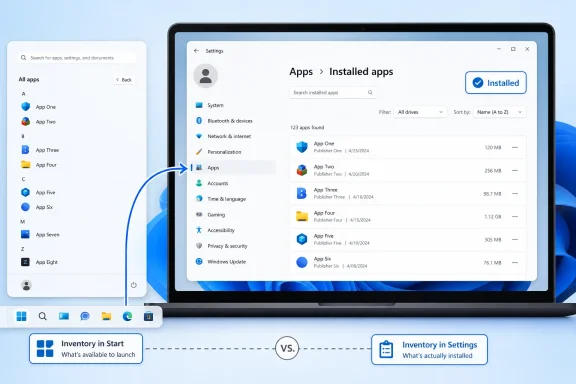
The second half of Microsoft’s advice is just as revealing. Apps can also be found on Start, with frequently used apps surfaced first and the rest shown alphabetically. That sounds obvious, but it draws a line between two different ideas: software that is installed and software that is discoverable. Those categories overlap, but they are not identical.
That distinction matters because Windows is no longer a single-app-model operating system. It runs traditional Win32 programs, Microsoft Store packages, MSIX packages, Progressive Web Apps, inbox Windows components, portable executables, enterprise-deployed tools, and vendor updaters that behave like operating systems inside the operating system. Settings is Microsoft’s attempt to make that complexity look like one list.
But Start is not a reliable software inventory. It depends on shortcuts, package registrations, search indexing, user profile state, and sometimes policy. A program can be installed without a visible Start shortcut. A shortcut can survive after a broken uninstall. A Store app can appear for one user and not another. A line-of-business tool can be deployed silently and never intended to be launched from Start at all.
This is where casual troubleshooting often goes wrong. A user says an app is “not installed” because it is not pinned. A help desk says it is installed because it appears in Settings. A vendor says it is present because its service exists. All three may be describing different layers of the same Windows machine.
The Start menu remains the fastest human answer to “Can I open this?” Settings is the better answer to “Does Windows believe this is installed?” Neither is the whole truth in every environment.
The benefit is consistency. Installed apps brings together many applications that used to be scattered across older Windows surfaces. It supports search, sorting, filtering, and direct management options. For a home user trying to check whether Spotify, Zoom, iTunes, Minecraft, or a printer utility is present, the page is far more approachable than the old Control Panel list.
It is also more honest about modern software in one important way: not every app is simply a classic executable in Program Files. Store apps and packaged apps have metadata, package identities, permissions, reset options, and per-user installation behavior. A Settings-first model gives Microsoft a place to expose those app-management concepts without pretending the year is 2009.
Still, the page is not magic. It depends on apps registering themselves properly. It can omit portable tools that were never “installed” in the Windows sense. It may show entries that cannot be removed from Settings. It may treat system components differently from third-party software. For most people, it is the right place to start; for IT pros, it is a useful view rather than an absolute audit.
This is one of Windows’ recurring design compromises. Microsoft cannot simply break decades of installers, uninstallers, registry keys, and vendor habits in the name of elegance. The company has to provide a modern experience for users while keeping legacy software viable enough that businesses do not revolt.
That is why Settings can feel like both the future and a translation layer. It presents apps in a modern list, but many actions still hand off to old uninstallers, vendor wizards, embedded maintenance tools, or Control Panel-era plumbing. Click “Uninstall” and the experience might be a clean modern removal, a UAC prompt, a vendor-branded wizard, a browser window, or a dead end.
The support article’s simplicity is therefore both useful and incomplete. It tells users where to check first, not everything Windows knows. That is fair for a support page. It is less satisfying for anyone who has to maintain fleets of PCs where every definition of “installed” has operational consequences.
Portable apps are the obvious exception. A user can download a ZIP file, extract an executable to Downloads or the desktop, and run it indefinitely. It may never appear under Installed apps, yet it is plainly software being used on the machine. From a user’s point of view, it is an app; from Windows’ formal inventory point of view, it may be little more than a file.
Then there are per-user installs, a favorite of collaboration tools, developer utilities, and updaters that want to avoid administrative friction. These can live in user profile directories and update themselves without touching traditional machine-wide installation paths. They are convenient, but they complicate the job of answering whether a PC—or a particular user profile on that PC—has an app installed.
Microsoft Store and MSIX-style apps complicate the language in a different direction. They are more structured than classic Win32 apps in some ways, with package identities and cleaner lifecycle management. But they also introduce user-scoped availability and Store-mediated updates, which means “installed on the device” and “available to this user” can diverge.
That two-step pattern solves a large percentage of real-world confusion. Users often miss apps because they are not pinned to Start or the taskbar. Others search for a vendor name when Windows lists the product name, or vice versa. Some apps appear under a suite name rather than the individual executable the user expects.
The alphabetical Start list remains useful because it reflects what Windows is prepared to launch through the shell. The “most used” section is useful for convenience but poor for diagnosis, because absence there may mean only that the app has not been launched recently. Search is often better than scrolling, especially on machines loaded with OEM utilities, game launchers, device companion apps, and Microsoft 365 components.
For a nontechnical user, the main caution is not to treat File Explorer as the first source of truth. Seeing a folder under Program Files does not always mean the app is usable. Not seeing a folder there does not mean the app is absent. Modern Windows software can live in protected package directories, user-profile locations, or vendor-specific paths that are not obvious.
In managed environments, the question “Is this app installed?” usually has a hidden second clause: installed for whom, installed how, installed at what version, and installed in a state that meets policy? Settings cannot answer all of that. It is not meant to reconcile Microsoft Intune deployment state, Group Policy, winget sources, MSI product codes, Store app provisioning, and vendor auto-update channels.
This matters for security. A vulnerable app may not be obvious to the user. A runtime dependency may not appear in a way that means anything to a nontechnical operator. A browser extension, bundled updater, driver control panel, or background service can create risk without presenting as a normal application tile in Start.
It also matters for support. Help desks need reproducible checks. “Look in Installed apps” is a good first instruction, but escalation often requires PowerShell, management-console data, event logs, registry inspection, package queries, or vendor-specific diagnostic tools. The Settings app is the lobby; the building has many locked rooms behind it.
But WindowsForum readers live closer to the fault lines. They know that Windows’ genius and curse is compatibility. The operating system can run software from many eras, packaged in many ways, updated by many mechanisms, and launched through many surfaces. That flexibility is why Windows remains dominant on the desktop, and also why the simple act of checking for an installed app still needs a support article.
Microsoft’s design answer has been to keep compressing complexity into Settings. That approach is good for discoverability. It makes Windows feel less like a museum of administrative snap-ins. It gives Microsoft one place to improve search, accessibility, app management, and future update flows.
The risk is that Settings becomes a polished surface over unresolved fragmentation. If users assume Installed apps is exhaustive and administrators know it is not, Windows has not eliminated complexity; it has merely moved it out of sight. Hidden complexity is sometimes worse than visible complexity because it breeds false confidence.
Winget has been one of the more important developments for power users and administrators because it gives Windows a native package-manager story that does not depend on users clicking through vendor installers. It can list, install, upgrade, and remove many applications from the command line. For people who live in terminals or manage scripted setups, it answers the installed-app question in a more automatable way than Settings ever could.
The Microsoft Store has also changed. It is no longer only a home for sandboxed UWP-style apps. Microsoft has allowed more traditional desktop applications into the Store ecosystem, which improves discoverability but also blurs the boundary between Store-managed and vendor-managed software. A user may install a familiar Win32 app through the Store and reasonably expect the Store to understand its lifecycle.
Settings sits between these worlds. It is the user-facing place where Microsoft can gather app visibility, app actions, defaults, startup behavior, optional features, and perhaps more update controls over time. If Microsoft ever fully rationalizes Windows app management, Settings will almost certainly be the front end ordinary users see.
But convergence is slow because every installer is a political treaty between Microsoft, software vendors, enterprise admins, and user expectations. Nobody wants broken apps. Nobody wants surprise removals. Nobody wants a package manager that confidently mangles a tax application, CAD suite, VPN client, or endpoint security agent. So Windows moves toward coherence one cautious layer at a time.
Version matters almost as much as presence. Users often say an app is installed when they really mean “the right app at the right version is installed.” Security guidance, vendor support matrices, and enterprise compatibility rules rarely care about presence alone. They care whether a specific release is installed, whether it is patched, and whether old vulnerable versions remain alongside newer ones.
This is especially true for runtimes and frameworks. Visual C++ redistributables, .NET runtimes, Java, Python, Node.js, game anti-cheat components, VPN clients, remote support agents, and printer packages can coexist in ways that confuse users. Removing the “wrong” one can break an app. Keeping the old one can preserve compatibility or preserve risk, depending on the case.
The Settings app can show some of this, but it cannot replace judgment. A visible list is not the same as a dependency graph. Windows still lacks a consumer-friendly way to explain why a component exists, which app installed it, whether it is still needed, and whether removing it is safe.
That does not make Microsoft’s guidance wrong. It makes it limited to its purpose. If the task is to find whether a normal app is installed, Settings is the right place. If the task is to determine whether a system is clean, compliant, or free of unauthorized software, Settings is only one clue.
For administrators, app inventory should be paired with execution controls, update management, least privilege, application control, and endpoint detection. The prettiest Settings page in the world cannot tell you everything that has executed on a machine. Nor can it reliably identify every abandoned helper utility a vendor left behind.
For home users, the security lesson is simpler. If an unfamiliar app appears in Installed apps, do not ignore it. If a browser, antivirus, VPN, remote access tool, or “PC optimizer” appears unexpectedly, investigate before clicking around. Conversely, if something suspicious is not listed there, that does not prove the system is safe.
That matters because Windows still suffers from a split-brain reputation. Some users experience it as a modern, searchable, cloud-connected OS. Others experience it as a maze of legacy panels, duplicate controls, and inconsistent app behaviors. Every tiny support note is part of the campaign to make the first experience more common than the second.
The problem is that Microsoft sometimes removes explanatory depth while the underlying system remains complicated. The support page tells users where to go, but not why an app might be absent from the list, why it might appear under a strange name, or why Start might show something Settings does not. Those omissions are fine for a quick-answer article, but they leave power users to fill the gaps.
In that sense, Microsoft’s answer is both correct and incomplete in exactly the way modern Windows often is. The user path is simple. The architecture behind it is not. The gap between those two realities is where many support tickets are born.
That hierarchy keeps expectations sane. It prevents a home user from diving into the registry just to find a missing app. It prevents an administrator from pretending the Settings app is a compliance report. It also recognizes that Windows has multiple audiences sharing one operating system, often on the same hardware.
Microsoft’s challenge is to make those audiences collide less often. A family PC, a gaming rig, a developer workstation, a school laptop, and an Intune-managed corporate device all expose an “Installed apps” surface. But the meaning of that surface varies. The same UI carries different operational weight depending on context.
The future of Windows app management will be judged by how well Microsoft narrows that gap. A better Installed apps page would not merely list software. It would explain source, scope, update channel, version, publisher trust, install date, background behavior, and removal safety in ways that ordinary users can understand and administrators can export.
 Microsoft Has Moved the Truth About Apps Into Settings
For years, Windows users were trained to look in half a dozen places to understand what lived on a machine. There was Add or Remove Programs, then Programs and Features, then Start menu folders, then Microsoft Store libraries, then per-user AppData installs, then enterprise software portals, then winget. The operating system accumulated installation models faster than it retired old ones.Microsoft’s current answer cuts through that history with a consumer-friendly path: Start > Settings > Apps > Installed apps. On Windows 11 especially, that is the place Microsoft wants users to treat as the canonical inventory of installed software. It is searchable, it uses the modern Settings interface, and it gives users immediate actions such as modifying, repairing, resetting, or uninstalling apps where those options are supported.
The second half of Microsoft’s advice is just as revealing. Apps can also be found on Start, with frequently used apps surfaced first and the rest shown alphabetically. That sounds obvious, but it draws a line between two different ideas: software that is installed and software that is discoverable. Those categories overlap, but they are not identical.
That distinction matters because Windows is no longer a single-app-model operating system. It runs traditional Win32 programs, Microsoft Store packages, MSIX packages, Progressive Web Apps, inbox Windows components, portable executables, enterprise-deployed tools, and vendor updaters that behave like operating systems inside the operating system. Settings is Microsoft’s attempt to make that complexity look like one list.
The Start Menu Is a Map, Not the Territory
The Start menu is where most users first look, and in many cases that is good enough. If Word, Chrome, Steam, Teams, Photoshop, or Calculator appears in Start, the practical question is answered: the app exists and can probably be launched. Microsoft’s note that the most used apps appear at the top reflects how Windows has increasingly treated Start as a behavior-driven launcher rather than a static program directory.But Start is not a reliable software inventory. It depends on shortcuts, package registrations, search indexing, user profile state, and sometimes policy. A program can be installed without a visible Start shortcut. A shortcut can survive after a broken uninstall. A Store app can appear for one user and not another. A line-of-business tool can be deployed silently and never intended to be launched from Start at all.
This is where casual troubleshooting often goes wrong. A user says an app is “not installed” because it is not pinned. A help desk says it is installed because it appears in Settings. A vendor says it is present because its service exists. All three may be describing different layers of the same Windows machine.
The Start menu remains the fastest human answer to “Can I open this?” Settings is the better answer to “Does Windows believe this is installed?” Neither is the whole truth in every environment.
Installed Apps Is Windows’ Attempt at a Single Ledger
The Installed apps page in Settings is Microsoft’s modern ledger for software. It replaced the older Windows 10-era “Apps & features” vocabulary and sits inside the Settings app that has been absorbing Control Panel territory for more than a decade. The direction is unmistakable: if a normal user needs to find, manage, or remove software, Microsoft wants that journey to start in Settings.The benefit is consistency. Installed apps brings together many applications that used to be scattered across older Windows surfaces. It supports search, sorting, filtering, and direct management options. For a home user trying to check whether Spotify, Zoom, iTunes, Minecraft, or a printer utility is present, the page is far more approachable than the old Control Panel list.
It is also more honest about modern software in one important way: not every app is simply a classic executable in Program Files. Store apps and packaged apps have metadata, package identities, permissions, reset options, and per-user installation behavior. A Settings-first model gives Microsoft a place to expose those app-management concepts without pretending the year is 2009.
Still, the page is not magic. It depends on apps registering themselves properly. It can omit portable tools that were never “installed” in the Windows sense. It may show entries that cannot be removed from Settings. It may treat system components differently from third-party software. For most people, it is the right place to start; for IT pros, it is a useful view rather than an absolute audit.
The Old Control Panel Still Haunts the Room
Microsoft has been moving app management away from Control Panel for years, but the migration remains incomplete in spirit if not always in surface area. Programs and Features still matters because many older Win32 applications were designed around Windows Installer conventions that long predate the modern Settings app. Enterprises still encounter software whose repair, change, or uninstall flows make more sense in the old model.This is one of Windows’ recurring design compromises. Microsoft cannot simply break decades of installers, uninstallers, registry keys, and vendor habits in the name of elegance. The company has to provide a modern experience for users while keeping legacy software viable enough that businesses do not revolt.
That is why Settings can feel like both the future and a translation layer. It presents apps in a modern list, but many actions still hand off to old uninstallers, vendor wizards, embedded maintenance tools, or Control Panel-era plumbing. Click “Uninstall” and the experience might be a clean modern removal, a UAC prompt, a vendor-branded wizard, a browser window, or a dead end.
The support article’s simplicity is therefore both useful and incomplete. It tells users where to check first, not everything Windows knows. That is fair for a support page. It is less satisfying for anyone who has to maintain fleets of PCs where every definition of “installed” has operational consequences.
The Word “Installed” Has Become Surprisingly Slippery
In the classic desktop era, installed software usually meant a program wrote files to Program Files, added registry entries, created Start menu shortcuts, and registered an uninstaller. That model still exists, but it now shares the stage with several others. Some apps install per machine, some per user, some as Store packages, some through enterprise management, some as browser apps, and some not at all.Portable apps are the obvious exception. A user can download a ZIP file, extract an executable to Downloads or the desktop, and run it indefinitely. It may never appear under Installed apps, yet it is plainly software being used on the machine. From a user’s point of view, it is an app; from Windows’ formal inventory point of view, it may be little more than a file.
Then there are per-user installs, a favorite of collaboration tools, developer utilities, and updaters that want to avoid administrative friction. These can live in user profile directories and update themselves without touching traditional machine-wide installation paths. They are convenient, but they complicate the job of answering whether a PC—or a particular user profile on that PC—has an app installed.
Microsoft Store and MSIX-style apps complicate the language in a different direction. They are more structured than classic Win32 apps in some ways, with package identities and cleaner lifecycle management. But they also introduce user-scoped availability and Store-mediated updates, which means “installed on the device” and “available to this user” can diverge.
For Home Users, Microsoft’s Advice Is the Right First Move
For ordinary Windows users, the practical workflow is straightforward. Open Settings, go to Apps, and check Installed apps. If the app appears there, Windows recognizes it as installed. If it does not, open Start and search for the app by name, because launchability and inventory do not always line up perfectly.That two-step pattern solves a large percentage of real-world confusion. Users often miss apps because they are not pinned to Start or the taskbar. Others search for a vendor name when Windows lists the product name, or vice versa. Some apps appear under a suite name rather than the individual executable the user expects.
The alphabetical Start list remains useful because it reflects what Windows is prepared to launch through the shell. The “most used” section is useful for convenience but poor for diagnosis, because absence there may mean only that the app has not been launched recently. Search is often better than scrolling, especially on machines loaded with OEM utilities, game launchers, device companion apps, and Microsoft 365 components.
For a nontechnical user, the main caution is not to treat File Explorer as the first source of truth. Seeing a folder under Program Files does not always mean the app is usable. Not seeing a folder there does not mean the app is absent. Modern Windows software can live in protected package directories, user-profile locations, or vendor-specific paths that are not obvious.
For IT Pros, the Settings Page Is a Symptom, Not an Inventory System
Administrators should treat Installed apps as a useful local view, not as a management strategy. It tells you what a signed-in user can see through the Windows Settings experience. It does not replace endpoint management, software inventory, vulnerability scanning, package management, or configuration baselines.In managed environments, the question “Is this app installed?” usually has a hidden second clause: installed for whom, installed how, installed at what version, and installed in a state that meets policy? Settings cannot answer all of that. It is not meant to reconcile Microsoft Intune deployment state, Group Policy, winget sources, MSI product codes, Store app provisioning, and vendor auto-update channels.
This matters for security. A vulnerable app may not be obvious to the user. A runtime dependency may not appear in a way that means anything to a nontechnical operator. A browser extension, bundled updater, driver control panel, or background service can create risk without presenting as a normal application tile in Start.
It also matters for support. Help desks need reproducible checks. “Look in Installed apps” is a good first instruction, but escalation often requires PowerShell, management-console data, event logs, registry inspection, package queries, or vendor-specific diagnostic tools. The Settings app is the lobby; the building has many locked rooms behind it.
Microsoft’s Consumer Simplicity Collides With Enterprise Reality
Microsoft’s support language is intentionally minimal because it is aimed at users who need a quick answer. That is the right editorial choice for Microsoft Support. A consumer does not need a lecture on Win32 registration, AppX manifests, Start menu indexes, and uninstall strings just to find out whether an app is present.But WindowsForum readers live closer to the fault lines. They know that Windows’ genius and curse is compatibility. The operating system can run software from many eras, packaged in many ways, updated by many mechanisms, and launched through many surfaces. That flexibility is why Windows remains dominant on the desktop, and also why the simple act of checking for an installed app still needs a support article.
Microsoft’s design answer has been to keep compressing complexity into Settings. That approach is good for discoverability. It makes Windows feel less like a museum of administrative snap-ins. It gives Microsoft one place to improve search, accessibility, app management, and future update flows.
The risk is that Settings becomes a polished surface over unresolved fragmentation. If users assume Installed apps is exhaustive and administrators know it is not, Windows has not eliminated complexity; it has merely moved it out of sight. Hidden complexity is sometimes worse than visible complexity because it breeds false confidence.
The Store, Winget, and Settings Are Converging Slowly
The deeper story is not just where users check for installed apps today. It is where Microsoft wants app management to go. Windows now has several overlapping pieces that could, in theory, become a more coherent software lifecycle: the Microsoft Store, the Settings app, Windows Update, Microsoft Intune, and winget.Winget has been one of the more important developments for power users and administrators because it gives Windows a native package-manager story that does not depend on users clicking through vendor installers. It can list, install, upgrade, and remove many applications from the command line. For people who live in terminals or manage scripted setups, it answers the installed-app question in a more automatable way than Settings ever could.
The Microsoft Store has also changed. It is no longer only a home for sandboxed UWP-style apps. Microsoft has allowed more traditional desktop applications into the Store ecosystem, which improves discoverability but also blurs the boundary between Store-managed and vendor-managed software. A user may install a familiar Win32 app through the Store and reasonably expect the Store to understand its lifecycle.
Settings sits between these worlds. It is the user-facing place where Microsoft can gather app visibility, app actions, defaults, startup behavior, optional features, and perhaps more update controls over time. If Microsoft ever fully rationalizes Windows app management, Settings will almost certainly be the front end ordinary users see.
But convergence is slow because every installer is a political treaty between Microsoft, software vendors, enterprise admins, and user expectations. Nobody wants broken apps. Nobody wants surprise removals. Nobody wants a package manager that confidently mangles a tax application, CAD suite, VPN client, or endpoint security agent. So Windows moves toward coherence one cautious layer at a time.
The Practical Troubleshooting Path Is Broader Than Microsoft’s One-Liner
Microsoft’s support note gives the cleanest path, but good troubleshooting still follows a sequence. First, check Installed apps in Settings. Second, search Start for the app name and vendor name. Third, check whether the app exists only for another user account. Fourth, look for Store library entries, winget records, or classic uninstall entries if the situation calls for deeper inspection.Version matters almost as much as presence. Users often say an app is installed when they really mean “the right app at the right version is installed.” Security guidance, vendor support matrices, and enterprise compatibility rules rarely care about presence alone. They care whether a specific release is installed, whether it is patched, and whether old vulnerable versions remain alongside newer ones.
This is especially true for runtimes and frameworks. Visual C++ redistributables, .NET runtimes, Java, Python, Node.js, game anti-cheat components, VPN clients, remote support agents, and printer packages can coexist in ways that confuse users. Removing the “wrong” one can break an app. Keeping the old one can preserve compatibility or preserve risk, depending on the case.
The Settings app can show some of this, but it cannot replace judgment. A visible list is not the same as a dependency graph. Windows still lacks a consumer-friendly way to explain why a component exists, which app installed it, whether it is still needed, and whether removing it is safe.
App Visibility Is Now a Security Issue
The humble installed-app list has become part of the security perimeter. Attackers do not need every user to run malware as a formal installer. They can abuse scripting tools, portable binaries, browser extensions, sideloaded packages, scheduled tasks, services, and living-off-the-land techniques. Not all of that will appear as a neat entry under Installed apps.That does not make Microsoft’s guidance wrong. It makes it limited to its purpose. If the task is to find whether a normal app is installed, Settings is the right place. If the task is to determine whether a system is clean, compliant, or free of unauthorized software, Settings is only one clue.
For administrators, app inventory should be paired with execution controls, update management, least privilege, application control, and endpoint detection. The prettiest Settings page in the world cannot tell you everything that has executed on a machine. Nor can it reliably identify every abandoned helper utility a vendor left behind.
For home users, the security lesson is simpler. If an unfamiliar app appears in Installed apps, do not ignore it. If a browser, antivirus, VPN, remote access tool, or “PC optimizer” appears unexpectedly, investigate before clicking around. Conversely, if something suspicious is not listed there, that does not prove the system is safe.
Microsoft’s Minimalism Is a Product Strategy
There is a temptation to mock a support article that boils down to “open Settings and look under Apps.” But minimalism is not laziness here; it is product strategy. Microsoft wants users to form a habit. If the company can make Settings the reflexive destination for app questions, it can gradually retire older mental models.That matters because Windows still suffers from a split-brain reputation. Some users experience it as a modern, searchable, cloud-connected OS. Others experience it as a maze of legacy panels, duplicate controls, and inconsistent app behaviors. Every tiny support note is part of the campaign to make the first experience more common than the second.
The problem is that Microsoft sometimes removes explanatory depth while the underlying system remains complicated. The support page tells users where to go, but not why an app might be absent from the list, why it might appear under a strange name, or why Start might show something Settings does not. Those omissions are fine for a quick-answer article, but they leave power users to fill the gaps.
In that sense, Microsoft’s answer is both correct and incomplete in exactly the way modern Windows often is. The user path is simple. The architecture behind it is not. The gap between those two realities is where many support tickets are born.
The Installed Apps Page Is the New Control Surface, but Not the Final Word
The most useful way to read Microsoft’s guidance is as a hierarchy of trust. For everyday use, trust Settings first. For launchability, trust Start. For automation and fleet management, trust management tools and package queries. For forensic certainty, trust deeper inspection.That hierarchy keeps expectations sane. It prevents a home user from diving into the registry just to find a missing app. It prevents an administrator from pretending the Settings app is a compliance report. It also recognizes that Windows has multiple audiences sharing one operating system, often on the same hardware.
Microsoft’s challenge is to make those audiences collide less often. A family PC, a gaming rig, a developer workstation, a school laptop, and an Intune-managed corporate device all expose an “Installed apps” surface. But the meaning of that surface varies. The same UI carries different operational weight depending on context.
The future of Windows app management will be judged by how well Microsoft narrows that gap. A better Installed apps page would not merely list software. It would explain source, scope, update channel, version, publisher trust, install date, background behavior, and removal safety in ways that ordinary users can understand and administrators can export.
The WindowsForum Reader’s Short List for a Messy App World
The practical answer is still Microsoft’s answer, but with the Windows reality restored around it. Settings is the front door; Start is the hallway; admin tooling is the wiring closet.- Open Start > Settings > Apps > Installed apps when you want Windows’ main user-facing list of installed software.
- Search the Start menu when you care whether the app can be launched, because Start reflects shortcuts and shell registration rather than a complete inventory.
- Remember that portable apps, broken installers, per-user installs, and enterprise deployments may not behave like classic machine-wide programs.
- Treat Installed apps as a convenience view on personal PCs and as only one data point on managed systems.
- Check version, publisher, and install source when the question involves security, compatibility, or support—not merely whether the name appears.
- Use proper management or package tools when you need repeatable answers across multiple Windows devices.
References
- Primary source: Microsoft Support
Published: Wed, 20 May 2026 11:05:34 Z
How to check if an app or program is installed in Windows | Microsoft Support
To find out if an app or program is installed in Windows, select Start > Settings > Apps.support.microsoft.com - Related coverage: makeuseof.com
6 Ways to Uninstall Built-In and Third-Party Windows 11 Apps
Has a program you've downloaded overstayed your welcome? Or is a built-in app giving you grief? Here's how to remove either of them on Windows 11. www.makeuseof.com
- Official source: learn.microsoft.com
some apps are not showing in start menu - Microsoft Q&A
where are the installed apps? why are the installed apps not showing in start menu?learn.microsoft.com - Related coverage: howtogeek.com
How to Uninstall an Application on Windows 11
If you uninstall an app in the woods, does it make a sound? www.howtogeek.com
- Related coverage: pcworld.com
How to uninstall programs in Windows 11 | PCWorld
Need to clear out some cruft? Here's how to uninstall programs in Windows 11.www.pcworld.com - Official source: techcommunity.microsoft.com
What is the best app uninstall software for Windows 11? | Microsoft Community Hub
Running into a frustrating issue on a Windows 11 PC where an antivirus program just won‘t uninstall properly. Tried removing it from Settings > Apps and... techcommunity.microsoft.com
- Related coverage: windowscentral.com
Microsoft adds new "app updates" page to Windows 11's Settings app for updating certain apps using Windows Update | Windows Central
A new "app updates" page has appeared in the Windows Settings app on Windows 11 in the latest preview builds, providing the ability to update apps using Windows Update.www.windowscentral.com
