
Keeping track of printer ink levels on Windows 11 can save time, money, and frustration—especially when a deadline looms and the first page comes out faded or streaked.
Windows 11 provides several straightforward ways to monitor ink and toner, but the experience varies by printer model, connection type, and the driver or utility the manufacturer supplies. Consumers often assume Windows will always show exact cartridge percentages, yet the reality is that ink reporting is a cooperative process: the printer, its firmware, the driver, and any manufacturer software must all support status reporting for accurate on‑screen values. Understanding how these pieces fit together helps users pick the quickest method to check supplies, avoid surprises, and plan cartridge purchases.
This feature walks through three primary ways to check ink levels on Windows 11—and expands into advanced options, troubleshooting, and practical tips for managing supplies more efficiently.
These utilities generally present:
To check:
To use it:
This path is handy for users who prefer the classic Control Panel interface or need to access printer properties not exposed in Settings.
Key differences:
A practical, layered approach works best: keep the manufacturer utility installed on machines that do heavy printing, rely on the printer panel for immediate hardware status, and use Windows Settings for quick checks. Combine that with conservative printing habits, firmware maintenance, and a small backup stock of cartridges to avoid last‑minute interruptions and keep print quality consistently high.
Source: Windows Report How to Check Printer Ink Levels on Windows 11 in 3 Ways
 Background
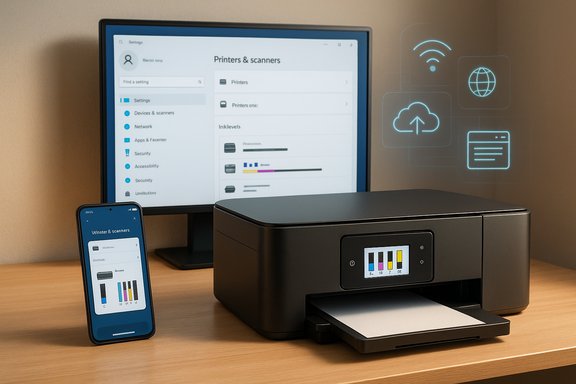
Windows 11 provides several straightforward ways to monitor ink and toner, but the experience varies by printer model, connection type, and the driver or utility the manufacturer supplies. Consumers often assume Windows will always show exact cartridge percentages, yet the reality is that ink reporting is a cooperative process: the printer, its firmware, the driver, and any manufacturer software must all support status reporting for accurate on‑screen values. Understanding how these pieces fit together helps users pick the quickest method to check supplies, avoid surprises, and plan cartridge purchases.This feature walks through three primary ways to check ink levels on Windows 11—and expands into advanced options, troubleshooting, and practical tips for managing supplies more efficiently.
Overview of the three primary methods
- Use Windows Settings for a quick, integrated look at basic ink information for many printers.
- Use the manufacturer’s printer software or mobile app for the most detailed cartridge and maintenance data.
- Check the printer’s built‑in control panel (or embedded web interface for network printers) for on‑device, real‑time status.
Windows Settings: the quickest check
Where to look in Windows 11
Windows 11 centralizes peripheral management in Settings. To check ink levels using the Settings app:- Press Windows key + I to open Settings.
- Select Bluetooth & devices from the left pane.
- Click Printers & scanners.
- Choose your connected printer from the list.
- Look for an Ink levels or Supplies section beneath the printer name or status.
Strengths and limitations
- Strengths:
- Fast and built into Windows 11.
- No separate utility required for basic status.
- Works for both USB and network printers when the driver exposes the information.
- Limitations:
- Not all printers report ink or toner to Windows Settings; some require the manufacturer driver package.
- Values shown are sometimes approximate rather than precise.
- Advanced maintenance or quality‑control features are not available here.
Manufacturer utility: the most detailed view
Why use the official software?
Printer makers bundle utilities that do more than print — they report exact cartridge status, run alignment and cleaning procedures, let you purchase supplies through the vendor, and provide firmware updates. Utilities commonly include names like HP Smart, Epson Printer Utility, Canon IJ Network Tool, or Brother iPrint&Scan.These utilities generally present:
- Individual cartridge levels (Cyan, Magenta, Yellow, Black)
- Toner percentage or remaining pages estimate for laser printers
- Maintenance alerts and recommended actions
- Cartridge serial numbers and estimated page yield
How to access and use the utility
- Install the full driver and software package from the manufacturer’s support page (avoid relying solely on Windows Update’s basic driver).
- Launch the desktop utility or the vendor’s app from Start.
- Select your device in the utility’s device list or connect via the app (apps often require the printer and PC/mobile to be on the same network).
- Open sections labeled Ink Levels, Supplies, Maintenance, or Printer Status.
Practical tips for manufacturer utilities
- Keep the utility updated; newer versions may provide better reporting and fix bugs.
- If the utility fails to find your printer, verify that the printer and PC are on the same network and that firewall settings aren’t blocking discovery.
- For network printers, you can often access even more detail through the printer’s embedded web server (EWS) — open a browser to the printer’s IP address and log in to the supplies or status page.
On‑device checks: printer panel and embedded web server
Checking ink on the printer itself
Most modern printers include a built‑in LCD or touchscreen that reports ink/toner levels. This is the most direct reading because it comes straight from the device.To check:
- Power on the printer.
- Press the Home, Menu, or Settings button on the control panel.
- Navigate to Supplies, Ink Levels, or Device Information.
- Review the reported level for each cartridge and, if available, print a test or supplies status page.
Using the embedded web server for network printers
Network printers often run a small web server accessible from any browser. The embedded web server typically displays status, supplies, and configuration options.To use it:
- Find the printer’s IP address (often shown on the control panel or via Windows Settings > Printers & scanners > [printer] > Printer properties).
- Enter the IP address into a browser address bar.
- Locate a Supplies, Status, or Reports section in the printer’s web UI.
Advanced checks: Devices and Printers, Print Management, and command line
Devices and Printers (Control Panel)
The legacy Devices and Printers panel (Control Panel > Hardware and Sound > Devices and Printers) can still be useful. Selecting a printer here and opening its properties sometimes gives a status window that shows supplies, depending on the driver installed.This path is handy for users who prefer the classic Control Panel interface or need to access printer properties not exposed in Settings.
Print Management (for Pro/Enterprise editions)
Windows Pro and Enterprise editions include the Print Management MMC snap‑in, which is helpful in environments managing many printers. While Print Management focuses on drivers, queues, and server deployment, it helps administrators detect offline or error states quickly. It is not typically used for cartridge percentages but is valuable for diagnosing deployment or driver issues that might prevent ink reporting.Command line and PowerShell
There is no universal PowerShell cmdlet that returns cartridge ink percentages because supplies reporting is vendor-specific. Common command-line approaches include:- Using WMI classes (Win32_Printer) to query printer status; this often returns general statuses (idle, printing, error) but not cartridge levels.
- Using vendor command-line tools or APIs (some manufacturers provide CLI utilities or REST endpoints).
- For network printers that support SNMP, using SNMP tools (snmpwalk, snmpget) to query supplies OIDs. This approach is technical and requires the printer’s MIBs or knowledge of the correct OIDs.
Troubleshooting: why ink levels may not appear or be incorrect
Common reasons Windows doesn't show ink levels
- The installed printer driver is a generic driver without supplies reporting.
- The printer is connected via a protocol that doesn’t forward supplies data (e.g., some shared printers or legacy drivers).
- The manufacturer utility is missing or not installed.
- The printer firmware is out of date and has a bug or incompatibility.
- Network discovery or firewall blocks connectivity between PC and printer.
Steps to resolve missing or inaccurate reporting
- Install the full driver and utility from the printer manufacturer’s support website rather than using the generic driver bundled by Windows.
- Reboot both the PC and the printer after installation.
- Update the printer’s firmware using the manufacturer’s update tool.
- If the printer is networked, check that the printer’s IP is static or reserved so status reporting isn’t disrupted by IP changes.
- Disable VPNs or firewall rules temporarily to confirm they aren’t blocking communication.
- Try checking ink on the printer’s control panel to confirm which device (printer vs. PC) is reporting correctly.
Ink vs. toner reporting: what’s different?
Inkjet and laser printers report cartridge status differently. Consumer inkjets often show percentage‑style bars for each color cartridge. Laser printers with toner cartridges may show an estimated remaining percentage or a page‑count estimate.Key differences:
- Ink cartridges: Levels can be approximate because estimating remaining liquid ink is harder; manufacturers may show conservative warnings to avoid a dry nozzle.
- Toner cartridges: Many laser printers track toner life more reliably via weight or page counts and may report a more consistent percentage or “estimated pages remaining.”
- Third‑party refill cartridges and remanufactured cartridges: These may not communicate properly with the printer and can cause inaccurate reporting or disable status reporting entirely.
Security and privacy considerations
Printers are networked devices and can expose management interfaces. When using manufacturer utilities or embedded web servers:- Change default administrator passwords on printers that offer them.
- Disable remote management if you do not need it.
- Use secure discovery and remove unused protocols like Telnet or unsecured SNMPv1 when possible.
- Be cautious when allowing cloud or vendor apps access to your printer—grant only necessary permissions.
Third‑party tools and services
Several third‑party monitoring tools and services exist that can track supplies across multiple devices and send centralized alerts. These are common in small business environments and typically support:- Multi‑printer dashboards
- Email or SMS low‑ink alerts
- Automatic reordering or integration with supply vendors
- Proven vendor reputation and secure handling of credentials
- Compatibility with your printer brands and models
- Local analytics options if you must avoid cloud uploading of device metadata
Tips to stretch ink life and avoid surprises
Regular monitoring is the first step, but adjusting printing habits prolongs cartridge life:- Use Draft or Economy print modes for internal or non‑final documents to reduce ink usage.
- Print in black‑and‑white when color is unnecessary.
- Select grayscale or pure black in application print dialogs to reduce color cartridge use for text.
- Combine printing tasks to avoid repeated head cleanings that consume ink.
- Store spare cartridges at recommended temperatures and away from direct sunlight to preserve chemical stability.
- Run maintenance utilities (alignment, nozzle check) only when necessary—excessive cleaning cycles waste ink.
When to replace cartridges and best practices for swapping
Manufacturers usually provide a low‑ink warning and a separate “empty” message. Replace cartridges when:- The printer warns of “low” and print quality is critical.
- Test pages show streaks, missing nozzles, or faded colors that cleaning cycles cannot fix.
- Toner is visibly low or prints are inconsistent for laser printers.
- Buy cartridges that match your printer model precisely.
- Keep a small stock of commonly used cartridges if you rely on frequent printing.
- When installing, handle cartridges by the plastic housing and avoid touching contacts or nozzles.
- After installing, run a short alignment and print a test page to confirm correct installation.
Special cases: managed printers, shared printers, and cloud printing
- Shared printers: When a printer is shared from another PC, ink reporting may be limited on client machines. For accurate status, check the host PC or the printer’s own display.
- Managed printers (print servers): Administrators should use centralized monitoring tools or print server tools that aggregate supplies data.
- Cloud printing: Cloud printing solutions often provide status pages and notifications through vendor dashboards; however, some cloud paths may abstract or delay real‑time supplies reporting.
Flagging unverifiable or model‑specific claims
Some statements about exact percentages, specific menu names, or available settings depend on the printer model, firmware version, and manufacturer software. When a particular model behaves differently or provides unique features, those specifics may not apply universally. If a precise menu name or numeric behavior is critical, consult the printer’s manual or the manufacturer’s support site before taking action.Quick reference — three fastest ways, one‑line summaries
- Windows Settings: Open Settings > Bluetooth & devices > Printers & scanners > select printer; view Ink levels when available.
- Manufacturer Utility or App: Launch the vendor tool (HP Smart, Epson, Canon, Brother) for the most detailed cartridge and maintenance info.
- Printer Display / Embedded Web Server: Use the printer’s control panel or web interface for direct, real‑time supplies reporting.
Conclusion
Checking printer ink levels on Windows 11 is a routine task that rewards a little setup and understanding. For most users, the Windows Settings page and the printer’s control panel provide fast reassurance. For detailed diagnostics, ink estimates, or automated alerts, the manufacturer’s software or mobile apps are the better choice. Advanced users and administrators can leverage network features, SNMP, and centralized tools, but those require more technical setup and care.A practical, layered approach works best: keep the manufacturer utility installed on machines that do heavy printing, rely on the printer panel for immediate hardware status, and use Windows Settings for quick checks. Combine that with conservative printing habits, firmware maintenance, and a small backup stock of cartridges to avoid last‑minute interruptions and keep print quality consistently high.
Source: Windows Report How to Check Printer Ink Levels on Windows 11 in 3 Ways
