

Unless you’ve actively blocked them, Windows 10 is very likely installing updates automatically — and if you like to know exactly what changed and when, there are several built‑in ways to inspect the update history, along with more powerful administrator tools for deep forensic checks and exportable audit records.
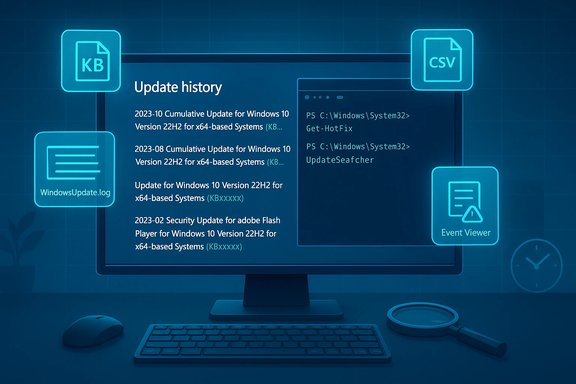
For most users the quickest route to see what Windows 10 has installed is the Settings UI: open Settings → Update & Security → Windows Update → View update history. That page shows recent quality updates, driver updates, definition updates and the KB number associated with each entry, and offers direct links to uninstall entries when appropriate. Microsoft also publishes per‑version update history pages on its support site that list cumulative updates, feature updates and known issues for each Windows 10 release (for example pages for 20H2, 1909, 2004, etc.. Those pages are the official record for what Microsoft released against each Windows 10 version. Because Windows 10 is serviced as a rolling platform, relying on the official per‑version pages is the safest way to verify what Microsoft says was shipped for a particular build.
Get-WinEvent -FilterHashtable @{LogName='Microsoft-Windows-WindowsUpdateClient/Operational'; ID=19,20,21,31,34} | Select TimeCreated, Id, Message. Event log extraction is invaluable when you need precise timestamps, error codes, or to correlate reboots and installation events with user‑reported problems.
Caveat: some servicing stack and other updates are not removable, and rolling back a feature update may only be possible for a limited window (commonly around 10 days unless system files were cleaned up). Always create a full backup or disk image before major changes.
Keeping track of Windows 10 update history is straightforward if you use the right tool for the job: the Settings UI for casual confirmation, the Windows Update Agent (COM) and event logs for authoritative per‑machine records, and Get‑WindowsUpdateLog or centralized management for forensic and compliance-grade auditing. Use the layered approach described above to verify what actually installed, when it happened, and whether follow‑up actions (rollback, block, or manual reinstall) are required.
Source: BetaNews How to keep track of your Windows 10 update history
 Background / Overview
For most users the quickest route to see what Windows 10 has installed is the Settings UI: open Settings → Update & Security → Windows Update → View update history. That page shows recent quality updates, driver updates, definition updates and the KB number associated with each entry, and offers direct links to uninstall entries when appropriate. Microsoft also publishes per‑version update history pages on its support site that list cumulative updates, feature updates and known issues for each Windows 10 release (for example pages for 20H2, 1909, 2004, etc.. Those pages are the official record for what Microsoft released against each Windows 10 version. Because Windows 10 is serviced as a rolling platform, relying on the official per‑version pages is the safest way to verify what Microsoft says was shipped for a particular build. Quick methods every user should know
1) Settings → Update & Security → View update history (the UI way)
- Open Settings (Win + I) → Update & Security → Windows Update → View update history.
- The UI lists the update type, KB identifier and the installed date. Clicking an entry’s “More info” (or the KB link) opens the official KB article in your browser for details.
2) Microsoft’s Windows 10 update history web pages
- Microsoft maintains separate update‑history pages for each Windows 10 version that list the monthly cumulative updates, out‑of‑band fixes and known issues.
- For troubleshooting or compliance you can cross‑check the KB number shown in Settings against Microsoft’s per‑version release notes to get the full changelog and the list of known problems.
For power users and admins: deeper, verifiable ways to track update activity
A. Use PowerShell to list installed updates
There are several PowerShell commands frequently used by power users:- Get-HotFix
- Command: Get-HotFix | Select-Object HotFixID, InstalledOn, InstalledBy
- What it does: returns quick‑fix / hotfix style updates and some installed KBs. It’s a built‑in cmdlet and often the first tool admins try.
- Get-CimInstance / Win32_QuickFixEngineering
- Command: Get-CimInstance -ClassName Win32_QuickFixEngineering | Select HotFixID, InstalledOn
- Notes: this reads the Win32_QuickFixEngineering class (the same source used by Get‑HotFix). It’s useful for scripted collection across many machines.
B. Use the Windows Update Agent (WUA) COM interface for full history
For a complete client‑side Windows Update history, use the Windows Update Agent COM API:- Example PowerShell using the COM API:
- $session = New-Object -ComObject "Microsoft.Update.Session"
- $searcher = $session.CreateUpdateSearcher
- $count = $searcher.GetTotalHistoryCount
- $history = $searcher.QueryHistory(0, $count)
- $history | Select-Object Date, Title, ResultCode | Sort-Object Date -Descending
C. Check the Windows Update Client event logs
Windows Update activity is also logged in Event Tracing / Event Log channels:- Location: Event Viewer → Applications and Services Logs → Microsoft → Windows → WindowsUpdateClient → Operational.
- Useful event IDs:
- 19 — Installation successful
- 20 — Installation failed
- 21 — Restart required
- 31 — Download started
- 34 — Download completed
Get-WinEvent -FilterHashtable @{LogName='Microsoft-Windows-WindowsUpdateClient/Operational'; ID=19,20,21,31,34} | Select TimeCreated, Id, Message. Event log extraction is invaluable when you need precise timestamps, error codes, or to correlate reboots and installation events with user‑reported problems.
D. Generate the WindowsUpdate.log (ETW → human readable)
Windows 10 records rich diagnostic traces as ETW (.etl) files rather than a single plain text log. To convert those traces into a readable WindowsUpdate.log use the PowerShell cmdlet:- Command: Get‑WindowsUpdateLog -LogPath C:\Path\WindowsUpdate.log
Practical, step‑by‑step recipes
Recipe A — Confirm which KB caused a recent regression (quick)
- Open Settings → Update & Security → View update history and identify the most recent KB or driver package.
- If no KB is visible there (UI blank or confusing), open Event Viewer to Microsoft‑Windows‑WindowsUpdateClient/Operational and filter for Event ID 19, 20 or 21 around the issue time.
- Cross‑check the KB in Microsoft’s per‑version update history page to read the official notes and known issues.
Recipe B — Produce an exportable, machine‑readable update history
- From an elevated PowerShell, run:
- $s = New-Object -ComObject 'Microsoft.Update.Session'
- $searcher = $s.CreateUpdateSearcher
- $count = $searcher.GetTotalHistoryCount
- $history = $searcher.QueryHistory(0, $count)
- Export:
- $history | Select Date, Title, ResultCode, Description | Export-Csv C:\Temp\UpdateHistory.csv -NoTypeInformation
Recipe C — When Get‑HotFix shows incomplete results
- Run Get‑HotFix and note gaps.
- Run the UpdateSearcher QueryHistory as above and compare — missing items in Get‑HotFix often show in QueryHistory. If you need a comprehensive scan across many machines, script the COM QueryHistory remotely via PowerShell remoting or use a management product.
Troubleshooting: common pitfalls and how to avoid them
- Blank or empty Update history in Settings: occasionally installing a feature update absorbs the older history or the UI can show blank due to a telemetry/config glitch. If the UI is blank, use Event Viewer or COM QueryHistory as the authoritative local source. Microsoft support threads document this behavior and recommended troubleshooting steps.
- Get‑HotFix doesn’t list everything: rely on COM QueryHistory or the Event log for full diagnostic detail — Get‑HotFix is convenient but incomplete.
- Symbol server and Get‑WindowsUpdateLog: Get‑WindowsUpdateLog may attempt to reach Microsoft’s symbol server to translate trace symbols. If you run it on a device without Internet access, copy the .etl files to another PC that can access the symbol server to build the readable log.
- Driver updates installed by OEM installers: some drivers installed by OEM packages or vendor installers do not show as Windows Update entries; check Device Manager → Driver details or vendor tools for those records.
Recovering from a bad update
If a newly installed update breaks your system, the Update history UI offers an "Uninstall updates" link that opens the classic Installed Updates Control Panel where you can remove recent cumulative updates or drivers. For feature upgrades you may need to "Go back" to the previous version using the Recovery options if the rollback window is still available. After removing an update, temporarily block its reinstallation using Microsoft’s “Show or hide updates” troubleshooter (wushowhide) until a fixed revision is released. Community step‑by‑step guidance and rollback tutorials walk through these exact steps.Caveat: some servicing stack and other updates are not removable, and rolling back a feature update may only be possible for a limited window (commonly around 10 days unless system files were cleaned up). Always create a full backup or disk image before major changes.
Automation and third‑party tooling
- PSWindowsUpdate module (PowerShell Gallery) — provides Get-WUHistory, Get-WindowsUpdate, Install‑WindowsUpdate and remote management functions. It’s widely used for scripted patch checks and supports exporting history. Use it when you need to automate history collection across multiple endpoints, but understand it requires installing a community module and suitable permissions.
- Enterprise tools (WSUS, SCCM/ConfigMgr, Intune) — these provide centralized records and reporting for update compliance and are recommended for managed fleets rather than relying on local UI alone.
Security and audit considerations — why a single UI is not enough
Relying exclusively on Settings → Update history or a single machine’s UI can be misleading for security posture:- User‑visible update history is a helpful first step, but not a complete audit. The Windows Update client, ETW traces and management consoles provide the logs administrators must use for compliance and forensic purposes. Cross‑validate the UI entries with event logs or QueryHistory when accuracy is required.
- Adversaries or misconfiguration could remove or alter local logs; for high‑value environments collect logs centrally (Syslog/ELK, SIEM, Intune, SCCM) and stage regular integrity checks. The MITRE ATT&CK technique T1070 (indicator removal) illustrates why log preservation matters in incident response: deleted records can hamper triage. Plan for redundancy.
Quick reference: commands and their best uses
- Settings → Update & Security → View update history — fastest for end users and initial triage.
- Get-HotFix — quick list of some installed KBs; not exhaustive.
- Get-CimInstance -ClassName Win32_QuickFixEngineering — similar to Get‑HotFix, scriptable.
- COM QueryHistory (Microsoft.Update.Session + QueryHistory) — full client update history, best for authoritative per‑machine audits.
- Get-WinEvent (Microsoft‑Windows‑WindowsUpdateClient/Operational) — extract Event IDs 19, 20, 21, 31, 34 for success/failure timeline.
- Get-WindowsUpdateLog — convert ETW traces (.etl) to a readable WindowsUpdate.log for in‑depth diagnostics.
Final analysis — strengths, limits and practical guidance
Strengths:- Windows 10 provides multiple layers of visibility: a friendly Settings UI for quick checks, client APIs and COM interfaces for exhaustive local history, and ETW traces for detailed diagnostics. These layers allow both casual users and sysadmins to get the level of detail they need.
- Microsoft’s per‑version update pages give an authoritative list of KBs and known issues, enabling cross‑validation of local records.
- The most common mismatch is Get‑HotFix vs. Settings UI: Get‑HotFix can miss CBS/cumulative entries. Don’t treat Get‑HotFix as the definitive audit source.
- UI inconsistencies or blank history pages occur; rely on Event Viewer, COM QueryHistory and ETW logs for authoritative evidence.
- For compliance and incident response, preserve logs centrally — local UIs and local logs can be altered or lost, and some updates are not uninstallable. Implement scheduled export or centralized collection for critical fleets.
- Start at Settings → Update history for a fast look.
- If you need full history or proof, use the UpdateSearcher QueryHistory or extract Event Viewer logs (WindowsUpdateClient/Operational).
- For forensic detail, generate the WindowsUpdate.log via Get‑WindowsUpdateLog and inspect timestamps and error codes.
Keeping track of Windows 10 update history is straightforward if you use the right tool for the job: the Settings UI for casual confirmation, the Windows Update Agent (COM) and event logs for authoritative per‑machine records, and Get‑WindowsUpdateLog or centralized management for forensic and compliance-grade auditing. Use the layered approach described above to verify what actually installed, when it happened, and whether follow‑up actions (rollback, block, or manual reinstall) are required.
Source: BetaNews How to keep track of your Windows 10 update history
