

AirPods connect to a Windows 10 PC through the standard Bluetooth pairing flow: open Settings, go to Devices, enable Bluetooth, choose Add Bluetooth or other device, put the AirPods case into pairing mode, select the AirPods when they appear, and finish the connection. That plain sequence is the useful answer, but it is not the whole story. The more interesting truth is that AirPods on Windows are both simpler and less magical than Apple’s marketing has trained users to expect. They work because Bluetooth works; they disappoint when users expect the iPhone experience to follow them onto a PC.
Apple’s earbuds have always carried a faint aura of platform exclusivity, but under the glossy pairing animation and iCloud handoff sits a conventional Bluetooth audio device. Windows 10 does not need iCloud, an Apple ID, or a special AirPods driver to see them. It needs Bluetooth support, enough battery in the earbuds and case, and a clean pairing attempt.
That is good news for Windows users because it means AirPods are not locked out of the PC world. They can play music, handle video calls, and act as a microphone for Teams, Zoom, Discord, browsers, games, and ordinary desktop applications. The catch is that Windows treats them as Bluetooth headphones, not as a privileged extension of an Apple account.
This distinction matters because many AirPods frustrations on Windows come from misplaced expectations. On an iPhone, AirPods feel like a service. On Windows 10, they are a peripheral. The pairing process is easy, but the user has to manage the connection more deliberately.
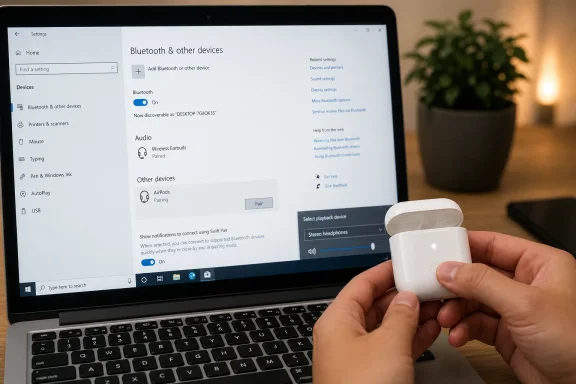
From there, click Add Bluetooth or other device and choose Bluetooth. Windows will begin scanning for nearby devices, which is the point at which the AirPods need to become discoverable. That does not happen just because the case is nearby; the case has to be opened, with the earbuds inside, and the setup button on the back must be held until the status light flashes white.
That flashing white light is the most important visual cue in the entire process. It means the AirPods are advertising themselves to nearby devices and are ready to pair with something new. If the light is not flashing white, Windows may never see them, no matter how many times the user opens and closes the Bluetooth menu.
When the AirPods appear in the Windows device list, select them and wait for the pairing process to complete. Windows should show a confirmation message, after which the earbuds are available as an audio device. In the best case, that is the entire job: open Bluetooth settings, put the AirPods in pairing mode, select them, and click Done.
The fix is usually in the taskbar. Click the speaker icon, open the output selector, and choose the AirPods from the available playback devices. If Windows exposes more than one AirPods profile, the stereo headphones option is the one users generally want for music, video, and everyday listening.
The confusing part is that Bluetooth headsets often present different modes to the operating system. A high-quality stereo playback mode is best for listening, while a hands-free headset mode may be used when the microphone is active. That trade-off is part of the Bluetooth audio stack, not a special punishment aimed at AirPods owners.
This is why some users report that their AirPods sound great in Spotify but thin or compressed in a meeting app. When Windows switches into a call profile, audio quality can change because the system is prioritizing two-way communication. For voice calls, that may be acceptable; for music, it is usually not.
The complication is that AirPods are often surrounded by Apple devices that are very eager to reclaim them. An iPhone, iPad, or Mac may connect first, leaving the Windows PC waiting for hardware that is technically nearby but already occupied. Temporarily disabling Bluetooth on those Apple devices can make the first Windows pairing attempt much cleaner.
This is one of those moments where Apple’s ecosystem convenience becomes a cross-platform annoyance. Automatic switching is excellent when every device in the chain belongs to Apple’s world. A Windows 10 PC is outside that trust circle, so the user has to act as traffic cop.
The practical rule is simple: if the AirPods do not appear in Windows, make sure they are not already connected somewhere else. If they appear but will not connect, remove them from Windows and pair again from scratch. Bluetooth remembers just enough state to be useful and just enough bad state to be maddening.
But the Apple-only features do not fully come with them. Siri, automatic device switching through Apple’s account ecosystem, Personalized Spatial Audio, Find My integration, and the seamless pop-up pairing card are not part of the Windows experience. Windows is getting a Bluetooth device, not the surrounding Apple software layer.
That does not make AirPods a bad choice for PC users. It does mean they are often a better secondary headset for Windows than a purpose-built Windows headset. Someone who already owns AirPods for an iPhone may be perfectly happy using them with a laptop. Someone buying earbuds primarily for Windows meetings may want to compare alternatives designed around PC behavior.
The most misleading assumption is that premium earbuds guarantee premium integration everywhere. AirPods are excellent at being AirPods inside Apple’s ecosystem. On Windows, they are good Bluetooth headphones with some conspicuous absences.
Start with power. Put both AirPods in the case and give them a chance to charge. A weak battery can prevent stable pairing or cause the connection to drop shortly after it succeeds.
Next, isolate the pairing attempt. Turn off Bluetooth temporarily on nearby iPhones, iPads, and Macs, then put the AirPods back into pairing mode. Windows should have a clearer shot at discovering them when another device is not silently grabbing the connection.
If the AirPods still fail, remove them from Windows and re-pair them. Go to Settings, then Devices, then Bluetooth & other devices, select the AirPods, and choose Remove device. After that, restart the pairing process from the beginning and wait for the white flashing light before selecting them again.
Drivers are the final ordinary suspect. Windows Update and the PC manufacturer’s support utility may provide Bluetooth driver updates that improve stability. This is especially relevant for older laptops, budget desktops with cheap Bluetooth adapters, and machines that have been upgraded repeatedly over several years.
For consumers, that means troubleshooting may increasingly depend on existing drivers, manufacturer utilities, and whatever extended support path is available to the machine. For businesses, it means Bluetooth peripherals sit inside a broader endpoint management conversation. A headset issue is minor; an unsupported fleet is not.
This is not an argument that every Windows 10 user must abandon a working PC tomorrow. It is an argument that small compatibility annoyances become harder to separate from platform lifecycle realities over time. When the operating system is past its support horizon, every driver oddity feels a little less temporary.
AirPods still pair with Windows 10 because Bluetooth is a standard, not because Apple and Microsoft have built a special bridge. That standardization is powerful. It is also why the experience can feel generic compared with the Apple version.
 AirPods Become Ordinary Headphones the Moment They Leave Apple’s Walled Garden
Apple’s earbuds have always carried a faint aura of platform exclusivity, but under the glossy pairing animation and iCloud handoff sits a conventional Bluetooth audio device. Windows 10 does not need iCloud, an Apple ID, or a special AirPods driver to see them. It needs Bluetooth support, enough battery in the earbuds and case, and a clean pairing attempt.That is good news for Windows users because it means AirPods are not locked out of the PC world. They can play music, handle video calls, and act as a microphone for Teams, Zoom, Discord, browsers, games, and ordinary desktop applications. The catch is that Windows treats them as Bluetooth headphones, not as a privileged extension of an Apple account.
This distinction matters because many AirPods frustrations on Windows come from misplaced expectations. On an iPhone, AirPods feel like a service. On Windows 10, they are a peripheral. The pairing process is easy, but the user has to manage the connection more deliberately.
The Pairing Button Is the Real Setup Wizard
The Windows side of the process begins in the old familiar place: the Settings app. Click Start, open Settings, choose Devices, then Bluetooth & other devices. If the Bluetooth toggle is off, turn it on before doing anything else.From there, click Add Bluetooth or other device and choose Bluetooth. Windows will begin scanning for nearby devices, which is the point at which the AirPods need to become discoverable. That does not happen just because the case is nearby; the case has to be opened, with the earbuds inside, and the setup button on the back must be held until the status light flashes white.
That flashing white light is the most important visual cue in the entire process. It means the AirPods are advertising themselves to nearby devices and are ready to pair with something new. If the light is not flashing white, Windows may never see them, no matter how many times the user opens and closes the Bluetooth menu.
When the AirPods appear in the Windows device list, select them and wait for the pairing process to complete. Windows should show a confirmation message, after which the earbuds are available as an audio device. In the best case, that is the entire job: open Bluetooth settings, put the AirPods in pairing mode, select them, and click Done.
Windows Connects the Device Before It Always Routes the Sound
A successful Bluetooth connection does not automatically mean the audio has moved where the user expects. Windows can pair with the AirPods and still send sound through laptop speakers, a monitor, a dock, or another headset. This is not an AirPods failure; it is Windows being Windows.The fix is usually in the taskbar. Click the speaker icon, open the output selector, and choose the AirPods from the available playback devices. If Windows exposes more than one AirPods profile, the stereo headphones option is the one users generally want for music, video, and everyday listening.
The confusing part is that Bluetooth headsets often present different modes to the operating system. A high-quality stereo playback mode is best for listening, while a hands-free headset mode may be used when the microphone is active. That trade-off is part of the Bluetooth audio stack, not a special punishment aimed at AirPods owners.
This is why some users report that their AirPods sound great in Spotify but thin or compressed in a meeting app. When Windows switches into a call profile, audio quality can change because the system is prioritizing two-way communication. For voice calls, that may be acceptable; for music, it is usually not.
Reconnection Is Convenient Until Another Device Wins the Race
After the first pairing, Windows 10 should remember the AirPods. In many cases, opening the case near the PC with Bluetooth enabled is enough for them to reconnect. If that does not happen, return to Settings, open Bluetooth & other devices, select the AirPods, and click Connect.The complication is that AirPods are often surrounded by Apple devices that are very eager to reclaim them. An iPhone, iPad, or Mac may connect first, leaving the Windows PC waiting for hardware that is technically nearby but already occupied. Temporarily disabling Bluetooth on those Apple devices can make the first Windows pairing attempt much cleaner.
This is one of those moments where Apple’s ecosystem convenience becomes a cross-platform annoyance. Automatic switching is excellent when every device in the chain belongs to Apple’s world. A Windows 10 PC is outside that trust circle, so the user has to act as traffic cop.
The practical rule is simple: if the AirPods do not appear in Windows, make sure they are not already connected somewhere else. If they appear but will not connect, remove them from Windows and pair again from scratch. Bluetooth remembers just enough state to be useful and just enough bad state to be maddening.
The Missing Features Are Not Bugs
Once connected to Windows 10, AirPods can perform the basic jobs most users need. They can play audio, handle voice calls, use the built-in microphone, and provide noise cancellation on supported models. Volume control works through Windows, and most apps treat the earbuds like any other Bluetooth headset.But the Apple-only features do not fully come with them. Siri, automatic device switching through Apple’s account ecosystem, Personalized Spatial Audio, Find My integration, and the seamless pop-up pairing card are not part of the Windows experience. Windows is getting a Bluetooth device, not the surrounding Apple software layer.
That does not make AirPods a bad choice for PC users. It does mean they are often a better secondary headset for Windows than a purpose-built Windows headset. Someone who already owns AirPods for an iPhone may be perfectly happy using them with a laptop. Someone buying earbuds primarily for Windows meetings may want to compare alternatives designed around PC behavior.
The most misleading assumption is that premium earbuds guarantee premium integration everywhere. AirPods are excellent at being AirPods inside Apple’s ecosystem. On Windows, they are good Bluetooth headphones with some conspicuous absences.
Most Pairing Failures Come From Three Boring Causes
When AirPods fail to connect to Windows 10, the cause is usually not mysterious. The earbuds may be low on battery, already connected to another device, or stuck in a stale Bluetooth pairing record. Those are not glamorous explanations, but they solve a large share of real-world cases.Start with power. Put both AirPods in the case and give them a chance to charge. A weak battery can prevent stable pairing or cause the connection to drop shortly after it succeeds.
Next, isolate the pairing attempt. Turn off Bluetooth temporarily on nearby iPhones, iPads, and Macs, then put the AirPods back into pairing mode. Windows should have a clearer shot at discovering them when another device is not silently grabbing the connection.
If the AirPods still fail, remove them from Windows and re-pair them. Go to Settings, then Devices, then Bluetooth & other devices, select the AirPods, and choose Remove device. After that, restart the pairing process from the beginning and wait for the white flashing light before selecting them again.
Drivers are the final ordinary suspect. Windows Update and the PC manufacturer’s support utility may provide Bluetooth driver updates that improve stability. This is especially relevant for older laptops, budget desktops with cheap Bluetooth adapters, and machines that have been upgraded repeatedly over several years.
The Windows 10 Context Now Matters More Than It Used To
There is another layer to this story in 2026: Windows 10 is no longer the default future of the Windows client. Microsoft ended free mainstream support for Windows 10 on October 14, 2025, which changes the risk profile for users who continue to rely on it. AirPods will not suddenly stop pairing because of that date, but the platform around them is aging.For consumers, that means troubleshooting may increasingly depend on existing drivers, manufacturer utilities, and whatever extended support path is available to the machine. For businesses, it means Bluetooth peripherals sit inside a broader endpoint management conversation. A headset issue is minor; an unsupported fleet is not.
This is not an argument that every Windows 10 user must abandon a working PC tomorrow. It is an argument that small compatibility annoyances become harder to separate from platform lifecycle realities over time. When the operating system is past its support horizon, every driver oddity feels a little less temporary.
AirPods still pair with Windows 10 because Bluetooth is a standard, not because Apple and Microsoft have built a special bridge. That standardization is powerful. It is also why the experience can feel generic compared with the Apple version.
The AirPods-on-Windows Checklist Worth Keeping
For WindowsForum readers, the useful lesson is not that AirPods can connect to Windows 10. That much is settled. The useful lesson is that the best experience comes from treating them as a Bluetooth peripheral and managing them with that level of patience.- Make sure the Windows 10 PC actually has Bluetooth enabled before opening the AirPods case.
- Put both AirPods in the charging case, open the lid, and hold the rear setup button until the light flashes white.
- Pair them through Settings, Devices, Bluetooth & other devices, Add Bluetooth or other device, and then Bluetooth.
- Select the stereo headphones output in Windows when audio quality matters more than microphone use.
- Disable Bluetooth temporarily on nearby Apple devices if the AirPods refuse to appear or keep reconnecting elsewhere.
- Remove and re-pair the AirPods if Windows remembers them but no longer connects reliably.
References
- Primary source: The Mac Observer
Published: 2026-06-03T04:20:12.079353
Loading…
www.macobserver.com - Official source: support.microsoft.com
Loading…
support.microsoft.com - Official source: support.apple.com
Loading…
support.apple.com - Related coverage: windowscentral.com
Loading…
www.windowscentral.com - Related coverage: macrumors.com
Loading…
www.macrumors.com - Related coverage: pcworld.com
Loading…
www.pcworld.com