

If you’ve ever stared at your computer and wondered which operating system (and exact version) is actually running under the hood, you’re not alone — and it’s far easier to discover than most people think. This guide walks through simple, reliable ways to identify the exact version of Windows, macOS, and ChromeOS on any machine, explains why the difference between an “edition,” “version,” and “build” matters, and gives practical tips for troubleshooting, security checks, and enterprise inventorying.
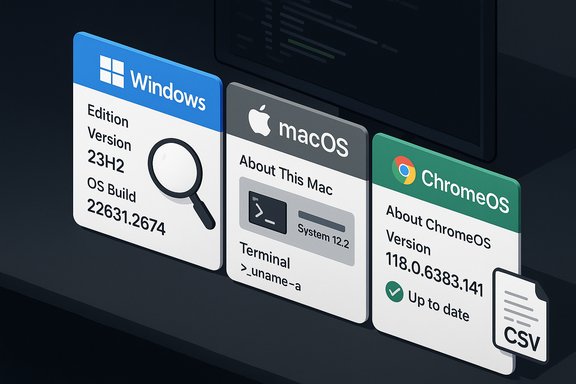
Operating systems are updated in two different flavors: user-visible feature updates and frequent micropatches that change build numbers. Knowing the precise OS string — not just “Windows” or “macOS” — matters for compatibility, security, and support. On Windows you’ll commonly see an Edition (Home/Pro/Enterprise), a Version (for example, 23H2), and an OS build that includes patch-level details. These three fields answer the common questions support staff and installers ask: “Can this app run here?” and “Is this machine still receiving security updates?” The same principle applies to ChromeOS and macOS, even when the naming conventions differ.
If you follow these concise steps and make the checks part of standard procedure, you’ll save time on support calls, reduce compatibility surprises, and stay far better protected against emergent vulnerabilities.
Source: Mashable How to find out which Mac, Windows, or Chrome operating system you have
 Background
Operating systems are updated in two different flavors: user-visible feature updates and frequent micropatches that change build numbers. Knowing the precise OS string — not just “Windows” or “macOS” — matters for compatibility, security, and support. On Windows you’ll commonly see an Edition (Home/Pro/Enterprise), a Version (for example, 23H2), and an OS build that includes patch-level details. These three fields answer the common questions support staff and installers ask: “Can this app run here?” and “Is this machine still receiving security updates?” The same principle applies to ChromeOS and macOS, even when the naming conventions differ.How to tell which Windows version you have
Quick summary: three levels of precision
- For most users, the Settings > System > About screen is enough.
- For a fast confirmation you can use the legacy winver dialog.
- For full, scriptable detail use Command Prompt, PowerShell, or msinfo32 to export an inventory.
1) The simplest GUI method (recommended for most users)
- Click the Start button.
- Open Settings (gear icon) or press Windows + I.
- Select System → About.
- Under Windows specifications you’ll see the Edition, Version, and OS build.
2) The fastest visual check: winver
- Press Win + R, type winver, and press Enter.
- A small dialog opens showing the Windows edition and build number.
3) Command line and exportable reports (for power users and admins)
- systeminfo — runs in Command Prompt or PowerShell and prints OS name, version, build, architecture (x64/ARM), BIOS date, install date, and more. Use systeminfo | findstr /B /C:"OS Name" /B /C:"OS Version" to filter the output. You can export with systeminfo /fo csv > C:\temp\sysinfo.csv.
- msinfo32 — run this to open System Information, which can be exported to a text file and includes hardware, firmware, and OS fields. File → Export.
- dxdiag — useful when you need GPU and audio driver details; it also shows the OS string at the top.
- PowerShell: Get-ComputerInfo or Get-ComputerInfo | Select CsName, WindowsProductName, WindowsVersion, OsBuildNumber for structured output you can pipe to CSV.
Interpreting what you see
- Edition — Home, Pro, Enterprise, Education (affects licensing and management capabilities).
- Version — the named feature update (for example, Windows 11, version 23H2).
- OS Build — the exact cumulative update and micropatch level (for example, 22631.2674). Match these against vendor release notes for feature and security coverage.
Why this matters: support and lifecycle
Microsoft publishes support deadlines and feature‑release notes tied to version and build. For example, Windows 10’s end-of-support deadline affects whether a machine will continue receiving security updates and should be a trigger for upgrade planning. Devices running out-of-support versions should be prioritized for updates or replacements. When filing support tickets or checking compatibility with modern apps (including drivers and virtualization features), always copy the Settings > About output and, where necessary, pair it with a systeminfo dump for the most technical detail.How to tell which macOS version you have
The one-click method (Apple gets this right)
- Click the Apple menu at the top-left of the screen.
- Choose About This Mac.
- The pop-up shows the macOS product name in large text (for example, macOS Ventura) and the precise version number beneath it.
How to tell which ChromeOS version you have
Quick GUI steps (Chromebook)
- Click the time in the bottom‑right corner of the shelf.
- Click the Settings gear.
- Click About ChromeOS.
Browsers, Chromium baselines, and why precise numbers matter
Modern browsers (Chrome, Microsoft Edge, and Chromium-based variants) publish precise version strings that matter for security advisories and CVE mapping. For example:- For Google Chrome you can open chrome://version or chrome://settings/help to see the exact build string.
- For Microsoft Edge you can open edge://version or Settings → Help and feedback → About Microsoft Edge to see both the Edge version and the underlying Chromium baseline.
Interpreting version strings: worked examples and practical rules
Windows example
If Settings → About shows: Windows 11, version 23H2, OS build 22631.2674, that tells you:- The machine is running Windows 11 (product).
- It has the 23H2 feature update installed (major feature baseline).
- Build 22631.2674 indicates the cumulative update / patch level and can be matched to Microsoft’s release notes for the precise security updates included. Use winver to get a second confirmation.
Chrome/Edge example
- chrome://version might show 141.0.7339.207 — the major.minor.build.patch format tells you whether you’re at or above the patched build for a given CVE. If the advisory says “fixed in 141.0.7339.207,” any local build number less than that is considered in the vulnerable range. For Edge, compare the Chromium baseline in edge://version (Chromium xx.x.xxxx.x) against the upstream fixed Chromium build.
Security, updates, and lifecycle considerations
Keep builds current — single best security step
For desktops, updating the OS and browser when a vendor publishes a fix is the fastest way to mitigate web-based and system-level attacks. For browsers, use chrome://settings/help or edge://settings/help to trigger the update check and relaunch when required. For Windows, Windows Update (Settings → Update & Security → Windows Update) manages OS updates; check Settings → System → About to confirm the post‑update build.End-of-support deadlines are non-negotiable
When a product reaches end of support it no longer receives security patches. Confirm support status against vendor published dates and plan upgrades accordingly; for Windows make this part of your asset lifecycle. When a device is out of support, isolate it from sensitive networks or accelerate its upgrade. Unverifiable claims about third‑party support windows should be validated directly with vendor documentation when planning large upgrades.When you need absolute certainty (enterprises and auditors)
- Collect the Settings → About string (user-facing) and a systeminfo / msinfo32 export (technical).
- For browsers, capture chrome://version or edge://version outputs and store them in your inventory database.
- Use centralized management: Microsoft Endpoint Manager / Intune, SCCM, or Google Admin Console for Chrome Enterprise to collect versions at scale. These tools let you compare installed versions against vendor-published fixed builds for compliance auditing.
Advanced troubleshooting and tips
When multiple system locations disagree
Different tools may show slightly different version strings because they draw from different metadata stores. For support or licensing questions, combine the Settings → About string with a systeminfo output to provide both human‑readable and technical strings. This combined approach eliminates most ambiguity for help desks.Scriptable checks for many machines
- Windows PowerShell example to standardize output:
- Open PowerShell as admin.
- Run:
Get-ComputerInfo | Select CsName, WindowsProductName, WindowsVersion, OsBuildNumber | Export-Csv -Path C:\temp\pc_inventory.csv -NoTypeInformation
GPU and audio‑specific checks
If you’re investigating a multimedia or gaming issue, dxdiag provides concise GPU, audio driver, and DirectX version information and can export a “Save All Information” text file that’s useful for vendor support. Use dxdiag when driver compatibility or DirectX features are at issue.Practical checklists
For home users — quick checklist
- Windows: Settings → System → About or Win + R → winver.
- macOS: Apple menu → About This Mac.
- ChromeOS: time → Settings → About ChromeOS.
- Browser: chrome://settings/help or edge://settings/help and relaunch to apply updates.
- If you’re unsure about compatibility, take a screenshot or copy the version string before reaching out to support.
For IT admins — deployment and audit checklist
- Use PowerShell Get-ComputerInfo and msinfo32 exports for Windows inventories.
- Pull chrome://version or edge://version across endpoints (via management agents).
- Map installed builds to vendor CVE advisories and Microsoft’s Security Update Guide for Edge ingestion status.
- Prioritize updates for devices on end‑of‑support or vulnerable build ranges.
- Document and schedule reboots/maintenance windows to minimize user disruption.
Common pitfalls and cautions
- Don’t rely on marketing names alone. “Windows 11” might hide whether you have 22H2 or 23H2; features and security patches vary greatly by version and build. Always capture both the version and OS build when verifying compatibility or support.
- Browser CVE mapping can be subtle. A Chrome fix upstream doesn’t guarantee Edge is fixed on the same day — check Edge’s Chromium baseline in edge://version and Microsoft’s Security Update Guide entries for downstream confirmation.
- Managed devices may be pinned by policy and won’t auto-update until your update ring or corporate patch management allows it. Account for that when triaging security exposures.
Final words: an everyday procedure you can adopt
Make checking OS and browser versions a routine part of troubleshooting and maintenance. For home users, a quick glance at Settings → About (Windows), About This Mac (macOS), or About ChromeOS will usually answer the question. For admins, invest in scripted, central reporting that captures the exact version strings and maps them to vendor advisories. When in doubt, gather both a user‑visible string (for concise communications) and a system-level report (for technical confirmation). That two‑pronged approach removes ambiguity and speeds up support, patching, and compliance checks.If you follow these concise steps and make the checks part of standard procedure, you’ll save time on support calls, reduce compatibility surprises, and stay far better protected against emergent vulnerabilities.
Source: Mashable How to find out which Mac, Windows, or Chrome operating system you have
