• Thread Author
If the “Set time zone automatically” toggle in Windows 11 is greyed out on your PC, the most common causes are Location Services being disabled, the setting being blocked by local or organizational policy, or the system service that controls automatic time‑zone updates being disabled — and there are reliable, low‑risk fixes you can apply immediately as well as safer administrative workarounds for managed devices. m])

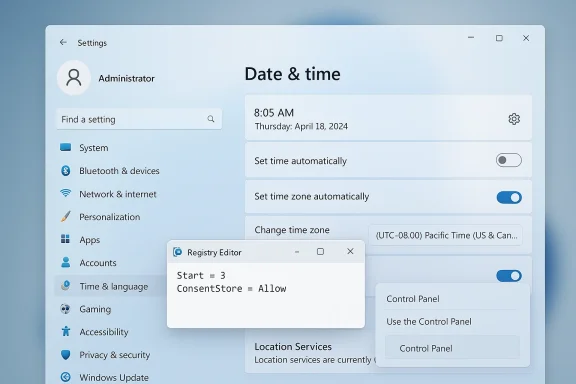
Windows-style Settings screen showing Date & time with auto toggles and a floating Registry Editor pane.Background​

Windows exposes two related but distinct behaviors in Date & time settings: automatic time synchronization (the system clock syncing to internet NTP servers) and automatic time‑zone detection (Windows using location or network signals to choose the correct time zone). The latter — the “Set time zone automatically” toggle — depends on the OS being allowed to access location data and on a system component (the tzautoupdate service) being enabled. Microsoft documents this dependency and provides registry, Group Policy, and MDM controls that can enable or disable the feature. This dependency produces three common support scenarios:
  • Home users who turned off Location Services for privacy and then find the toggle greyed out.
  • Non‑administrator (standard) accounts or machines where the setting is intentionally disabled by IT.
  • Machines where the tzautoupdate service or related registry value has been changed, intentionally or accidentally.
Microsoft’s troubleshooting pages, community threads, and long‑form how‑to guides all converge on the same trio of fixes: enable Location Services, restore the tzautoupdate setting, or apply a policy/MDM change.

Why Windows needs Location and what “greyed out” actually means​

How automatic time‑zone detection works​

When “Set time zone automatically” is enabled, Windows will use available signals — GPS where present, Wi‑Fi and IP‑based geolocation, and other heuristics — to infer which time zone the device is in. Because that process draws on location data, Location Services must be on and Windows must be allowed to access it. If Location Services are off, the Settings UI disables (greys out) the automatic time‑zone control because Windows can’t make a location‑based decision.

System‑level controls and design decisions​

The automatic time‑zone toggle is a system‑wide setting. On many Windows builds the control in the Settings app is restricted to administrative users by design (the setting applies to all local accounts). Enterprise management (Group Policy or MDM) can also force the behavior. Microsoft’s troubleshooting documentation explains both the registry key used by the tzautoupdate service and the policy/MDM surfaces that override it.

Complete fixes and workarounds (step‑by‑step)​

The following sections present practical fixes in recommended order: quick fixes first, then administrative/advanced fixes. Each solution is annotated with safety notes.

Solution 1 — Enable Location Services (fastest, lowest‑risk)​

This is the most common resolution for consumer devices.
  • Open Settings (Windows key + I).
  • Go to Privacy & security → Location.
  • Toggle Location services to On.
  • Toggle Let apps access your location to On.
  • In the app list, enable Host Process for Windows Services (sometimes labeled “Host Process for Windows Services” or “Windows Shell Experience Host” in older builds). This item gives certain system tasks permission to use location.
After enabling location, open Settings → Time & language → Date & time and check whether Set time zone automatically is available. If it remains greyed out, proceed to the next sections.
Safety notes:
  • Enabling Location Services grants apps and some system components access to coarse or precise location. Consider the privacy trade‑off before enabling on a device you share.
  • On work devices, Location Services may be intentionally disabled by IT; discuss with your administrator before changing.

Solution 2 — Confirm account privileges and local user rights​

If you are on a standard (non‑admin) account, Windows may not allow you to change system‑wide settings in Settings.
  • Sign in as an Administrator and check Settings → Time & language → Date & time.
  • If the feature is still unavailable for non‑admin users but available for admins, the machine may have been configured to restrict standard users. Microsoft documents that this can be by design and shows how administrators can enable the setting before deployment.
If you are on a corporate device:
  • Ask IT whether a policy or security baseline prevents changing time or location settings — they may have a security reason (for instance, to maintain consistent logs across endpoints).

Solution 3 — Registry Editor (for administrators)​

If Location Services are enabled and you have admin rights but the control is still locked, you can verify and edit the tzautoupdate registry entry to re‑enable automatic time‑zone detection.
Important: Always back up the registry (File → Export in regedit) or create a system restore point before making changes.
Steps:
  • Press Windows key + R, type regedit, and press Enter.
  • Navigate to:
  • HKEY_LOCAL_MACHINE\SYSTEM\CurrentControlSet\Services\tzautoupdate
  • In the right pane, double‑click Start (a DWORD).
  • Set Value data to 3 to enable automatic time‑zone updates.
  • Set Value data to 4 to disable them.
  • Next, ensure location consent is allowed:
  • Navigate to HKEY_LOCAL_MACHINE\SOFTWARE\Microsoft\Windows\CurrentVersion\CapabilityAccessManager\ConsentStore\location
  • Double‑click Value (REG_SZ) and set it to Allow to let the OS use Location Services for system features.
  • Reboot the PC. Check Date & time in Settings.
These exact registry keys and values are documented by Microsoft as the supported way to restore the setting when it’s been disabled. Safety notes:
  • Editing HKLM affects all users. If the Location setting is being enforced by Group Policy or MDM, your registry edit will be overridden eventually.
  • Do not edit other registry keys unless you know the impact.

Solution 4 — Group Policy and MDM (for IT administrators)​

Enterprises should not use local regedit edits at scale. Use Group Policy Preferences, Local Group Policy, or Intune/MDM to control the setting:
  • Local Group Policy path for the location provider:
  • Computer Configuration → Administrative Templates → Windows Components → Location and Sensors → Windows Location Provider.
  • Ensure Turn off Windows Location Provider is set to Not Configured (or Disabled if you want location allowed).
  • To enable the time‑zone toggle centrally, use Group Policy Preferences to configure the tzautoupdate Start value described above.
  • For Intune/MDM, use the Privacy/LetAppsAccessLocation policy. The accepted values are:
  • 0 = User in control
  • 1 = Force allow
  • 2 = Force deny
    Microsoft recommends 0 for user control, but 1 will ensure automatic time‑zone gets location as needed.
Notes for admins:
  • Test changes in a controlled OU or pilot group before broad deployment.
  • Policies from domain controllers or MDM override local registry edits; coordinate changes with policy owners.

Solution 5 — Control Panel manual workaround (when all else fails)​

If you need an immediate manual change and can’t or won’t enable Location or edit the registry, use the legacy Control Panel Date and Time dialog:
  • Press Windows key + R, type timedate.cpl, and press Enter.
  • Click Change time zone… and pick the correct zone from the list.
  • Click OK.
This does not fix the underlying automation problem, but it lets you set the time zone now. Microsoft acknowledges and documents this workaround when the Settings UI is unavailable.

Advanced troubleshooting and power‑user tools​

Check the tzautoupdate service and Windows Time (W32Time)​

  • The Windows Time service (W32Time) handles NTP sync; it is separate from tzautoupdate (which doesetects and applies time zone changes). Use these commands:
  • Check current time zone: tzutil /g
  • List zones: tzutil /l
  • Set a zone (example): tzutil /s "Pacific Standard Time"
  • PowerShell: Get‑TimeZone; Set‑TimeZone -Id "Central European Standard Time"
  • Force NTP resync: w32tm /resync
    These tools let admins script and inspect time configuration across machines.

BIOS/UEFI and dual‑boot considerations​

If a machine keeps losing time across boots, check the hardware clock (RTC) in BIOS/UEFI. Dual‑boot setups (Windows + Linux) can have conflicting expectations about whether the RTC is stored as UTC or local time; the RealTimeIsUniversal registry tweak or corresponding Linux setting may be necessary. Be cautious — changing RTC handling affects both OSes.

VPNs, proxy networks and incorrect zone detection​

When automatic time‑zone detection uses IP or Wi‑Fi signals, VPNs or corporate proxies can cause Windows to infer the wrong location and thus the wrong zone. For travel scenarios, consider disabling automatic zone detection temporarily and set a manual zone until you’re back on a local network.

The enterprise angle: policies, patches, and hotfix history​

In Windows 11 24H2 a UI bug caused non‑administrators to be unable to change the time zone from Settings even when they had appropriate local rights. Microsoft confirmed the issue and rolled the fix into updates beginning January 28, 2025 (optional KB5050094) and later cumulative updates. If you haven’t received that update, the Control Panel workaround remains valid and safe. Administrators should check the Windows release‑health page and test the KB in their environment before broad rollout. MDM/Intune administrators should also be aware that device configuration profiles or scripts can tattoo time‑zone settings at reboot; audit assigned profiles and PowerShell scripts if devices keep reverting.

Risks, caveats and privacy considerations​

  • Registry edits: Changing HKLM keys without a backup can cause unintended system behavior. Always export the specific key before editing and document the change.
  • Location privacy: Enabling Location Services permits system and app access to geolocation. In sensitive contexts, weigh privacy vs. convenience.
  • Policy overrides: In domain or MDM environments, local changes will be replaced by centrally applied policies. Coordinate with IT and use supported Group Policy/MDM channels for enterprise fixes.
  • Update testing: Optional preview updates (like the January 28 optional release) solve issues quickly but can introduce regressions. Test on a pilot group when you manage many devices. Microsoft’s release notes and resolved issues page list the KB that addressed the Settings bug; consult them before mass deployment.

Quick troubleshooting checklist (one‑page summary)​

  • Check Location Services: Settings → Privacy & security → Location → turn on Location services and Let apps access your location. Enable Host Process for Windows Services if present.
  • Try as Admin: Sign out and sign in as an administrator and attempt to toggle the setting.
  • Registry confirmation (admin only): Confirm HKEY_LOCAL_MACHINE\SYSTEM\CurrentControlSet\Services\tzautoupdate\Start = 3 and ConsentStore\location\Value = Allow. Reboot.
  • Control Panel fallback: timedate.cpl → Change time zone… to set zone manually.
  • Verify Windows Update: Ensure KB505009ve update is installed on Windows 11 24H2 builds to receive the UI fix.

What I verified while preparing this guide​

  • Microsoft’s troubleshooting documentation explicitly lists the tzautoupdate registry path and the Start values (3 = enabled, 4 = disabled) and instructs admins to set the Location consent store to Allow when appropriate. These are published Microsoft guidance items.
  • Microsoft Support confirms that the Settings app toggles behave as described and that timedate.cpl remains a supported manual route.
  • Community and technical sites (TenForums, MakeUseOf, WinHelpOnline) independently document the same registry and Location Services fixes and are consistent with Microsoft guidance; they are useful corroborating references for practical steps and screenshots.
  • Microsoft’s Windows release‑health page shows the UI issue was resolved as of the January 28, 2025 update (KB5050094), which is the official patch that addressed the Settings view bug for Windows 11 24H2. If a machine does not have that update, the Control Panel workaround is explicitly called out as the remediation in Microsoft’s notes.
If any detail in your environment differs (for example, if Group Policy disallows location access or Intune policies enforce a specific behavior) that could change the recommended action. Where organization‑managed devices are involved, the safest path is to coordinate changes with your IT team so policy and compliance requirements remain intact.

Conclusion​

A greyed‑out Set time zone automatically toggle is almost always resolvable without reinstalling Windows: start with Location Services and the simple Settings switches, then check admin rights, and if needed use the documented registry values for tzautoupdate — or apply a proper Group Policy/MDM change for fleet management. For immediate needs, timedate.cpl is a reliable manual fallback that Microsoft still supports. For managed fleets, check policy layers and test updates (including KB5050094 and later) in a pilot before wide deployment. With a few careful checks and the right admin tools, you can restore automatic time‑zone detection or apply a safe manual workaround in minutes.
Source: HowToiSolve Set Time Zone Automatically Greyed Out in Windows 11 (Complete Fix Guide)
 

Microsoft says Windows 11 has crossed the 1 billion‑users threshold — and it did so in 1,576 days, a faster climb than Windows 10 managed on its way to the same landmark.

A futuristic office scene with a glowing Windows-style dashboard, charts, and security panels.Background / Overview​

Microsoft disclosed the milestone during its fiscal Q2 2026 earnings commentary, framing Windows 11’s installed base as “up over 45% year‑over‑year” and noting a one‑billion user count reached in 1,576 days after the OS’s public availability. That timeline is being contrasted directly with Windows 10’s climb to one billion devices, which Microsoft previously reported took 1,706 days. Those two figures — 1,576 and 1,706 — are now the headline comparison used across the industry to argue that Windows 11 adopted more quickly than its predecessor.
This is a notable corporate milestone because Windows is the most widely deployed desktop platform in the world and because the milestone arrives in the aftermath of a hard calendar pressure point: Microsoft ended mainstream support for Windows 10 on October 14, 2025. The end‑of‑support deadline, OEM refresh cycles, and Microsoft’s push toward AI‑enabled PCs are all factors the company and analysts cite as drivers of the recent adoption surge.
Before we take the numbers at face value, however, it’s important to understand what Microsoft means by “1 billion users,” how the day counts were calculated, and what context — technical, commercial, and political — shaped the migration.

Verifying the number: what “1 billion users” likely means​

Microsoft’s public statements about platform milestones have historically used telemetry‑derived metrics such as monthly active devices or monthly active users. The billion‑user framing in Microsoft earnings commentary is consistent with that practice: it reflects large‑scale telemetry rather than a device census produced by an independent auditor.
A few important clarifications:
  • “Users” almost certainly maps to devices on Microsoft’s telemetry model (for example, monthly active devices). That’s typical for platform vendors and explains why the same human user with several devices could be counted more than once.
  • The day counts are a corporate arithmetic choice. Counting from Windows 11 public availability (October 5, 2021) to the earnings‑call timeframe in late January 2026 yields an inclusive span that matches Microsoft’s 1,576 figure. Windows 10’s previously reported 1,706 days is consistent with Microsoft’s internal choice of start and end timestamps for that generation. However, Microsoft has not published a line‑by‑line, independent timestamp log showing exactly which internal event marked the start and end for each OS’s count.
  • This is Microsoft’s telemetry story, not an independent audit. That does not make it untrue, but it does mean the figure is best read as an official metric rather than a third‑party verified census.
Because of those caveats, treat the 1,576‑day claim as a corporate milestone that is directionally correct and plausible based on calendar arithmetic and Microsoft’s historical telemetry definitions — and not as an immutable, independently verified fact.

The arithmetic: how the day counts hold up​

A straightforward calendar check supports the plausibility of Microsoft’s claim for Windows 11. Windows 11 was made broadly available on October 5, 2021; counting inclusively to late January 2026 corresponds to the 1,576‑day window Microsoft cited. For Windows 10, public reporting places the one‑billion device announcement in mid‑March 2020, and counting from Windows 10’s public release on July 29, 2015 to that March 2020 announcement — again, depending on which specific start/end instants you choose — produces a span that aligns with Microsoft’s cited 1,706 days.
Important caveat: the start and end moments for Windows 10’s measurement can vary (retail release, RTM, or other internal markers), which is why the day counts are best read as Microsoft’s preferred framing. The arithmetic is plausible and consistent with public release dates, but the exact numbers depend on the specific timestamps Microsoft used and whether counting was inclusive or exclusive.

Why Windows 11 accelerated faster than Windows 10 — key drivers​

A single number rarely tells the whole story. Several overlapping commercial and technical factors accelerated Windows 11 adoption:
  • Windows 10 end‑of‑support pressure. Microsoft stopped mainstream updates for Windows 10 on October 14, 2025. That deadline created a clear security and compliance incentive for enterprises and many consumers to upgrade or pay for extended security support. End‑of‑support events are powerful levers that regularly drive migration waves in enterprise and consumer markets.
  • OEM refresh cycles and inventory timing. PC makers pushed Windows 11‑ready hardware through late 2024 and 2025, anticipating upgrade demand and a new wave of AI‑focused systems. Those refresh cycles mean that when Microsoft signals a support cutoff, OEMs typically see a sales bump as organizations and consumers refresh older hardware.
  • AI and feature differentiation. Windows 11’s marketed integration with on‑device AI capabilities, Copilot‑centric experiences, and new security foundations (like hardware security baseline requirements) created a product narrative that made upgrades attractive for users seeking AI features and modern security.
  • Aggressive migration nudges. Microsoft has used a mix of messaging, in‑OS prompts, and limited offers (including a one‑year free security update pathway for some Windows 10 users who meet criteria) to encourage upgrades. Those nudges — combined with enterprise communications about compliance — raised the perceived cost of staying on Windows 10.
  • Gaming and platform effects. Windows 11’s improved support for modern APIs and gaming optimizations, along with an uptick in Steam user adoption of Windows 11, contributed to the mainstream perception that the platform was increasingly ready for everyday use.
Each of these factors combined to produce a faster calendar climb to one billion than occurred for Windows 10, which launched into a very different market context.

Comparing Windows 11 and Windows 10: apples, oranges, and the context gap​

The headline comparison — Windows 11 took 1,576 days vs Windows 10’s 1,706 days — is compelling, but it obscures meaningful differences in context between the two generations:
  • Different marketplace realities. Windows 10 was born into a PC market before the AI device narrative, before widespread TPM/secure‑boot enforcement conversations, and before Microsoft’s stronger post‑Windows‑10 migration incentives. Windows 11’s era included a global PC hardware refresh cycle and a strategic push toward AI PCs, which influenced adoption dynamics.
  • Different upgrade friction. Windows 11 initially featured stricter hardware requirements (TPM 2.0, certain CPU generations), causing a slower start that later accelerated as OEMs shipped compatible machines and Microsoft adjusted messaging and upgrade pathways. Windows 10’s early adoption benefited from broader compatibility in an era with fewer hardware‑level security checks.
  • Different counting choices. Microsoft’s telemetry and corporate presentation choices — for example, whether to count monthly active devices, monthly active users, or active licenses — may not be identical between the two milestones, depending on internal data availability and reporting choices made at the time of each announcement.
Bottom line: the faster timespan for Windows 11 is real in Microsoft’s framing and calendar arithmetic, but readers should interpret it within the broader differences between each OS’s market landscape and Microsoft’s internal measurement choices.

What the milestone doesn’t tell you (and what to be skeptical of)​

A corporate headline can leave out important nuance. Here are the most important limitations and unverifiable elements to be aware of:
  • Telemetry vs. audited installed base. Microsoft’s number reflects the company’s telemetry signals. It’s not an independent audit of unique human users or single devices worldwide.
  • Potential double counting. Telemetry counting devices rather than unique users means the same person using a phone, tablet, laptop, and desktop could be counted multiple times.
  • Geography and segmentation unknown. Microsoft did not publicly break down the one‑billion figure by region, enterprise vs consumer, or active monthly usage brackets.
  • Day‑count methodology not published. The precise start and end timestamps Microsoft used for the day counts are not in a public, auditable record. That makes exact reproduction of the 1,576 vs 1,706 figures impossible without Microsoft’s internal logs.
  • Conflicting external metrics. Market observers that use sampling panels, like StatCounter, show Windows 11 overtaking Windows 10 at different moments and with different shares. Those independent metrics are useful but use a different methodology from Microsoft’s telemetry.
Whenever a company reports a milestone using internal telemetry, the correct journalistic posture is to accept the announcement as a valid company metric while highlighting what it does and does not prove. That is the approach we take here.

Risks and downsides from the migration — technical, commercial, and environmental​

The migration milestone is positive for Microsoft’s strategy, but it also surfaces several risks:
  • Security and fragmentation risk. Tens or hundreds of millions of PCs remain on Windows 10, some of which are trapped on unsupported hardware. Unsupported systems are security liabilities for enterprises, and managing those pockets of legacy systems creates complexity and cost.
  • Upgrade compatibility and user frustration. Windows 11’s hardware requirements excluded many otherwise capable systems at launch. While many affected users eventually replaced hardware, the requirement contributed to upgrade churn and significant pushback from advanced users who preferred to remain on Windows 10.
  • Extended Security Update (ESU) dependence. Enterprises that pay for ESUs or rely on limited free pathways face recurring costs. Organizations that delay migration can incur higher long‑term costs than upfront upgrades.
  • Environmental and e‑waste concerns. A forced hardware refresh cycle could lead to increased device turnover and environmental consequences if recycling and takeback programs are not strictly enforced by OEMs and retailers.
  • Perception and trust. Aggressive in‑OS promotion, perceived forced migrations, and friction around Microsoft Account requirements can harm user trust — an intangible cost that could affect adoption of future Microsoft initiatives.
These downsides underscore why the one‑billion milestone is not an unalloyed win. It advances Microsoft’s platform strategy but leaves real policy, support, and sustainability questions on the table.

Enterprise implications: migration planning and hard choices​

For IT teams and CIOs, the implication is simple: migration planning becomes urgent and complex. Key considerations:
  • Audit and inventory. Identify which systems are Windows 10 vs Windows 11 capable, including TPM/CPU/NPU readiness, and create a prioritized migration map.
  • Security posture assessment. Determine which systems require ESUs, which can be migrated, and which must be retired for security reasons.
  • Application compatibility testing. Validate mission‑critical apps on Windows 11 images and identify blockers that will slow adoption.
  • User staging and training. Prepare communication and training plans to smooth the UX transition.
  • Cost analysis. Weigh ESU fees, hardware refresh costs, and potential productivity impacts against the security and performance benefits of Windows 11.
Enterprises that act early can use the migration as a strategic refresh: consolidating device fleets, adopting hardware with modern security features, and enabling AI acceleration where it provides real productivity uplift.

Consumer perspective: should you upgrade?​

For individual users, the answer is nuanced.
  • If your PC meets Windows 11 requirements and you value the latest features, improved security, and AI integrations, upgrading is reasonable.
  • If your PC is older but still meets your needs, remember that Microsoft has offered temporary extension pathways and that many users elect to stay on supported Windows 10 only while planning hardware refreshes.
  • If your machine is ineligible, you must weigh the cost of hardware replacement versus staying on an unsupported OS and relying on other mitigations (air‑gapped use, Linux migration, or continued hardware use without security updates).
Regardless of the path, basic precautions are smart: maintain backups, enable strong recovery options, and avoid running unsupported software for critical tasks.

Market impact: OEMs, chipmakers, and the AI PC story​

The milestone empowers a narrative Microsoft and OEM partners have been selling for more than a year: the industry is entering an AI PC refresh cycle where hardware with NPUs and new AI silicon will be the mainstream enablers of on‑device experiences.
  • OEMs benefit from a migration wave as enterprises and consumers buy new laptops and desktops.
  • Chipmakers and silicon partners gain traction as hardware requirements — especially for on‑device AI acceleration — become a competitive differentiator.
  • Cloud and services revenue also benefit from users moving to Microsoft’s latest platform and ecosystem, particularly where Copilot‑powered services and OneDrive integration combine with device sales.
This is a cyclical interplay: Microsoft signals support cutoffs, OEMs ship compatible hardware, consumers buy to access new features, and chipmakers enjoy new volume — until the next cycle begins.

What to watch next​

After a milestone like this, the sensible metrics and signals to follow are:
  • Independent market share panels (StatCounter, NetMarketShare) to corroborate platform share trends.
  • Steam and other platform‑specific snapshots for gaming and specialized user segments.
  • OEM earnings and guidance for shipment trends that sustain adoption.
  • Microsoft telemetry releases or detailed breakdowns (if published) explaining what the company counts as a “user” for these milestones.
  • Enterprise ESU adoption rates and the rate at which organizations finalize migrations.
Those indicators will show whether this one‑billion figure is transiently driven by end‑of‑support urgency or the start of a sustained platform shift.

Practical checklist: preparing for Windows 11 (for consumers and IT admins)​

If you’re planning a migration or evaluating options, follow these steps:
  • Audit your devices to confirm Windows 11 compatibility, including TPM, Secure Boot, CPU generation, and memory/storage requirements.
  • Back up all critical data to a secure location — local image + cloud backup if possible.
  • Test applications and drivers in a sandbox or virtual image before wide deployment.
  • For enterprises: pilot the upgrade with a representative business unit and gather telemetry on performance and compatibility.
  • Communicate clearly with end users about timing, benefits, and change‑management support.
  • If a device is ineligible, evaluate repair, replacement, or migration to supported alternatives (including Linux where appropriate).
  • For security: ensure endpoint protection and network controls are in place to protect any remaining Windows 10 devices during and after transition.
This approach reduces avoidable disruptions and gives organizations a defensible, auditable migration path.

Conclusion​

Microsoft’s announcement that Windows 11 has reached one billion users in 1,576 days is a defensible corporate milestone: the calendar arithmetic checks out, and the company’s telemetry practices make the figure plausible. The faster climb compared to Windows 10 is real in Microsoft’s framing, but it must be read in context — a migration accelerated by a forced end‑of‑support deadline, OEM refresh cycles, AI marketing, and product nudges.
For users and IT leaders, the milestone is both an affirmation of Windows 11’s commercial momentum and a reminder that adoption brings new operational, security, and environmental responsibilities. The number is an important signal, but not a final verdict: the true test for Microsoft will be sustained, healthy adoption that balances feature innovation with compatibility, security without coercion, and upgrade incentives without leaving large groups of users stranded on unsupported hardware.
Windows 11’s passage to one billion is a story about corporate strategy, product design, and market mechanics — and the weeks and quarters ahead will tell whether this milestone represents a permanent shift in the PC landscape or a milestone whose meaning will be refined as independent market metrics and long‑term adoption patterns emerge.

Source: TechPowerUp Windows 11 Reaches 1 Billion Users in 1,576 Days — Faster Than Windows 10
 

Microsoft has confirmed a milestone many expected but few predicted would come this quickly: Windows 11 is now active on more than 1 billion devices, and it reached that threshold faster than any previous Windows release. The company reported that Windows 11 hit the 1 billion mark in 1,576 days from its public availability, a pace Microsoft compared directly to Windows 10’s 1,706 days to the same milestone—an internal arithmetic that underscores both the scale and the stakes of the modern Windows era.

Windows 11 branding over a blue globe with connected devices and a progress bar at 1,000,000,000.Background​

What Microsoft announced and why it matters​

Microsoft disclosed the figure during its most recent earnings commentary, where CEO Satya Nadella flagged Windows reaching “a big milestone” as part of a broader update on product and platform momentum. The raw number—1 billion active devices running Windows 11—matters because it signals the OS is now the dominant on‑ramp for Microsoft’s client platform strategy: security baselines, new developer APIs, and the company’s push to tie experiences to cloud and AI services.
This milestone arrives against a backdrop of structural change. Windows 11 was publicly released on October 5, 2021, and Microsoft’s day count to the 1 billion mark is measured from that public availability. The Windows 10 milestone (hit in March 2020) was similarly celebrated but occurred in a different PC market: one with faster growth, a less aggressive hardware gate, and fewer enterprise multi-year transitions prompted by end‑of‑support deadlines. That context matters when you compare the two operating systems’ adoption curves.

Windows 11’s lifecycle and Windows 10’s sunset​

Windows 11’s adoption has been heavily influenced by calendar events and corporate policy. Windows 10—released in July 2015—reached a billion active devices in March 2020 and subsequently enjoyed a long tail of commercial and consumer use. Microsoft formally ended mainstream support for many Windows 10 SKUs in October 2025, which created a sharp incentive for enterprises and many consumers to evaluate upgrades or purchase new hardware. That forced timetable is one of the principal accelerants behind Windows 11’s more rapid climb to a billion devices.

Why Windows 11 grew faster—A layered reality​

1) Forced transitions and end‑of‑support economics​

One of the clearest drivers of Windows 11 adoption is timing. Microsoft’s phased end of support for Windows 10—coupled with the practical business risk of running an out‑of‑support OS—pushed many organizations to accelerate migrations in late 2024 and 2025. Enterprises that had deferred hardware refreshes or migration projects were suddenly faced with security and compliance imperatives, which manifest as measurable migration velocity.
  • Commercial pressure: Enterprises avoiding the costs and risks of Extended Security Updates (ESUs) planned migrations or purchased new hardware.
  • OEM cycle: PC manufacturers increasingly shipped devices as “Windows 11 ready,” bundling the upgrade narrative with hardware sales.

2) A market shaped by OEM replacement cycles​

The PC market is driven as much by replacement cycles and OEM strategies as by operating system preference. Several large OEM refresh programs (targeting commercial fleets and consumer holiday buying windows) aligned with Windows 10’s end‑of‑support, pushing more devices onto Windows 11.
  • New hardware purchases accounted for a sizable share of installed base growth.
  • OEMs marketed performance- and AI-capable hardware with Windows 11 as the default platform.

3) Strategic bundling with AI and cloud services​

Microsoft’s aggressive integration of AI into Windows and Microsoft 365 created a narrative: to access the latest productivity and generative‑AI features, users should be on a modern Windows build. For many enterprise customers assessing the ROI of modernizing endpoints, feature opportunity—not just security—became a migration lever.
  • Windows 11 is positioned as the platform where Microsoft’s device‑level AI and cloud experiences coalesce.
  • This bundling encouraged earlier migration in organizations investing in AI-enabled workflows.

4) Measurement, messaging, and corporate arithmetic​

It’s important to emphasize that Microsoft’s day counts, metrics, and phrasing are corporate measurements—not independent audit figures. The company chose specific start and end dates and a measurement method (active devices, presumably monthly active devices or another internal metric) to report the 1,576 and 1,706 day comparisons. Those figures are directionally meaningful—Windows 11 reached 1 billion faster than Windows 10—but different definitional choices (RTM vs. GA vs. internal usage metrics) would shift exact day totals.

The rocky road: Why Windows 11 adoption was controversial​

Strict hardware requirements: TPM 2.0 and CPU gates​

From day one, Windows 11’s minimum system requirements were a flashpoint. Microsoft required TPM 2.0, Secure Boot, and a whitelist of supported CPUs—changes that immediately locked out large numbers of otherwise functional PCs from in-place upgrades.
  • Security rationale: TPM and Secure Boot are real security improvements—hardware roots of trust enable stronger platform protections.
  • Real-world impact: Millions of PCs that could have run Windows 11 were excluded, prompting pushback from enthusiasts, enterprises with long upgrade cycles, and budget-focused consumers.

Update reliability, stability dips, and frustrated admins​

After the launch, users and admins reported bumps in update quality and reliability. Patch regressions, driver conflicts, and feature regressions occasionally made headlines. For enterprises juggling telemetry, update rings, and compatibility testing, the occasional reliability misstep had outsized operational costs.
  • Patch-related issues: Some updates caused regressions in performance, printing, or peripheral compatibility.
  • Operational friction: IT departments adjusted policies and pilot procedures to mitigate the risk of mass rollouts.

Perception vs. reality: “Most popular hated Windows”​

Windows 11 occupies a unique space: it may be among the most widely used Windows releases while simultaneously inspiring vocal criticism. Historical “unpopular” Windows versions (Vista, Windows 8) never came close to one billion users, so the scale of adoption alongside vocal discontent underscores a key truth: outside enthusiast forums, Windows is primarily a tool. For most users the default functions—productivity, web, media, gaming—work well enough to accept the migration.

Strengths that helped Windows 11 succeed​

Modern security baseline​

Windows 11’s insistence on hardware security (TPM 2.0, Secure Boot) raised the baseline for a platform that must defend against increasingly sophisticated threats. This matters in enterprise environments where regulatory and insurance frameworks favor demonstrable hardening.
  • Benefit: Reduced attack surface for certain classes of firmware and boot attacks.
  • Enterprise advantage: Easier to justify zero‑trust strategies when endpoints meet a minimum hardware security bar.

Improved UX, productivity features, and developer hooks​

Windows 11 brought UI modernizations—centered taskbar, new Start menu paradigms, snap layouts and groups—that incrementally improved productivity and window management. New developer APIs for UI, performance, and app packaging helped modern app scenarios.
  • User productivity: Small changes—like more intuitive snap layouts—translate to real productivity gains for heavy multitaskers.
  • Developer platform: Microsoft continued to invest in app modernization and the Microsoft Store’s economics, which matters to ISVs.

Platform fit for AI and cloud integration​

By designing Windows 11 as the client for Microsoft’s broader AI stack, the company created a platform-treated-as-productivity-layer that supports agentic workflows, Copilot integrations, and deeper cloud‑local interop.
  • Strategic alignment: Devices running Windows 11 can leverage the latest integrations with Copilot, Microsoft Graph, and Azure AI tooling.
  • Commercial leverage: AI features expanded monetization pathways for Microsoft’s productivity suites and cloud services.

Risks and open questions​

Measurement and messaging risk​

Microsoft’s announcement is a win, but corporate measurements can mask the nuance. Analysts and admins should treat the day counts and “1 billion” headline as helpful but not dispositive—a signal rather than an audit.
  • Risk: Overreliance on headline metrics could obscure regional, industry, or device-segment gaps.
  • Mitigation: Companies should ask for breakdowns: monthly active devices, geographic distribution, OEM preloads vs upgrades, and consumer vs enterprise split.

Fragmentation from hardware exclusion and workaround adoption​

The hardware gates created a two‑tier ecosystem: officially supported devices and a large community of workarounds. Tools and hacks to bypass TPM/CPU checks proliferated—acceptable in hobbyist circles, but a nightmare for security-conscious organizations.
  • Risk: Unsupported workarounds increase vulnerability and make enterprise compliance difficult.
  • Mitigation: Clear vendor guidance and tooling for firmware updates, TPM enablement, and refresh planning.

Update cadence and reliability​

Quality must be the anchor. Microsoft’s track record of shipping major feature updates and security patches means that every widespread regression has outsized operational consequences.
  • Risk: Persistent update-quality issues erode trust among admins and consumers.
  • Mitigation: Invest in extended pilot programs, stronger telemetry opt‑ins for admins, and clearer rollback options.

Balancing innovation with control​

Pushing AI and new services into the OS can deliver enormous value but also raises questions about user control, data residency, and enterprise governance.
  • Risk: Perceived forced integration or opaque data practices can reduce trust and compliance willingness.
  • Mitigation: Offer transparent opt‑out controls and enterprise policy parity for AI features.

What Windows users and IT teams should do next​

For enterprises: a practical migration checklist​

  • Inventory your estate now. Identify hardware, TPM status, firmware levels, and driver compatibility.
  • Assess business application compatibility. Use Microsoft Endpoint Manager (Intune), Windows Server Update Services (WSUS), and third‑party tools to identify risk areas.
  • Pilot in controlled rings. Use staged deployment rings that reflect real-world user scenarios and workloads.
  • Validate updates and security baselines. Test cumulative updates and feature updates on pilot groups before broad rollout.
  • Communicate and train. Ensure helpdesk, change management, and end‑user training accompany the rollout.
  • Plan for rollback and ESU contingencies. Keep fallback plans in place for critical systems.

For consumers and enthusiasts​

  • Check your PC for TPM and Secure Boot status before deciding to purchase new hardware or attempt an upgrade.
  • Consider whether you need the latest AI features; for many consumers, the daily experience (web, media, games) is fine on mature hardware.
  • If you activate bypasses to install on unsupported devices, understand the security tradeoffs—drivers, firmware, and future updates may be problematic.

For OEMs and hardware partners​

  • Continue to provide clear firmware updates and documentation for TPM enablement.
  • Highlight value propositions for Windows 11–native features (performance, security, AI) when advising enterprise customers on refresh cycles.
  • Provide longer-term driver and support commitments for commercial customers who need predictable lifecycle management.

Recommendations for Microsoft: how to translate scale into sustained trust​

  • Double down on update quality: Prioritize reliability over cadence in feature rollouts. Clearer staging and more graceful rollback mechanisms will reduce admin friction.
  • Improve measurement transparency: When announcing adoption milestones, provide breakdowns by active‑device metric, preloaded vs upgrade installs, and enterprise vs consumer segmentation.
  • Offer enterprise-grade feature control for AI: Give IT teams policy parity—i.e., the ability to enable, disable, or sandbox AI features in ways that meet compliance and data residency needs.
  • Make TPM enablement easier: Provide partner‑delivered firmware updates and OEM guides that make TPM activation a simple step, not a project.
  • Address the perception gap: Engage with admins, power users, and independent testing organizations to show how telemetry, update processes, and security improvements actually behave in the field.

The wider implications: Windows as infrastructure for AI and productivity​

Hitting 1 billion devices isn't only a marketing check — it’s an infrastructural moment. With Windows 11 installed on a global scale, Microsoft now has a living platform for distributing compute, enabling agentic workflows, and pushing integrated AI experiences to end users and enterprises. That is strategically enormous: the OS is no longer just a runtime for apps, it’s a delivery mechanism for cloud‑augmented workflows, security telemetry, and ecosystem monetization.
But with that scale comes responsibility. The more users rely on Windows for mission‑critical work, the less tolerance there is for regressions, opaque policy changes, or perceived coercion. Microsoft’s next challenge is not converting users (that appears largely accomplished) but keeping them by delivering consistent quality, transparent business and privacy practices, and enterprise control over fast-moving innovation.

Conclusion​

Windows 11’s climb to 1 billion devices—faster than any prior Windows release—is a clear validation of Microsoft’s platform approach: couple hardware‑backed security, modern user experiences, and cloud/AI integration to create a dominant client platform. But the headline conceals complexity. Strict hardware gates, persistent update and reliability concerns, and a vocal user base that often resists forced change remain real constraints.
For users and IT teams, the path forward is pragmatic: inventory carefully, pilot broadly, and choose the mix of upgrade and replacement that aligns with security, budget, and operational risk. For Microsoft, the path forward is stewardship: preserve the momentum by fixing the fundamentals—quality, transparency, and enterprise-friendly controls—so that having a billion devices is more than a milestone; it’s the foundation for a trusted platform everyone can rely on.

Source: gHacks Technology News Windows 11 Reaches 1 Billion Devices Faster Than Any Version Before It - gHacks Tech News
 

Back
Top