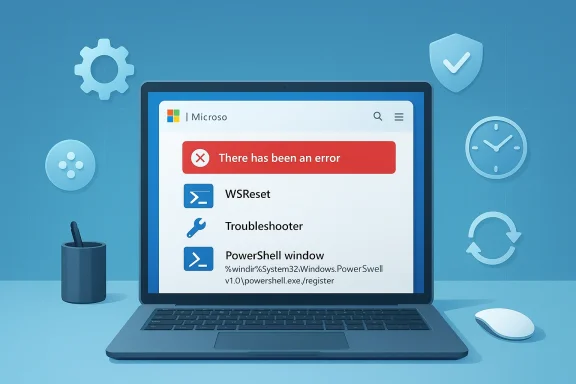
Seeing “There has been an error” in the Microsoft Store is one of those Windows annoyances that shows up suddenly, blocks downloads or updates, and makes otherwise simple tasks feel like a technical emergency — but in the vast majority of cases the fix is straightforward and non‑destructive if you follow a logical troubleshooting order.
The Microsoft Store is a modern app platform (AppX/MSIX) that depends on cached metadata, app registrations, system services, and correct system time/region settings to authenticate and download packages. When any of those components gets out of sync — corrupted cache, stopped background services, wrong system clock, or network filtering from VPN/antivirus — the Store can throw a non‑descriptive modal: “There has been an error.” This generic error is usually a client-side problem that can be resolved without reinstalling Windows. Community and support runbooks consistently recommend a safe, ordered checklist that begins with cache and app repairs and only escalates to PowerShell re-registration and system file repairs if needed.
What follows is a practical, tested, step‑by‑step guide for U.S. Windows users (applies to both Windows 10 and Windows 11 with small UI differences). Each major claim below is supported by community and troubleshooting documentation; when a step carries risk (data loss, profile changes) it will be explicitly flagged.
Example: If Netflix or an update shows “There has been an error” while downloading, WSReset frequently clears the cached state and allows the download to proceed.
Why this matters: BITS and Delivery Optimization are used to fetch Store packages; if they’re disabled installs will silently fail or stall.
Get-AppxPackage -allusers Microsoft.WindowsStore | ForEach-Object { Add-AppxPackage -DisableDevelopmentMode -Register "$($.InstallLocation)\AppXManifest.xml" }
If you prefer to re-register all packages (broader but noisier), run:
Get-AppxPackage -AllUsers | ForEach-Object { Add-AppxPackage -DisableDevelopmentMode -Register "$($.InstallLocation)\AppXManifest.xml" }
Notes and cautions:
Source: HowToiSolve How To Fix There Has Been An Error In Microsoft Store
 Background / Overview
The Microsoft Store is a modern app platform (AppX/MSIX) that depends on cached metadata, app registrations, system services, and correct system time/region settings to authenticate and download packages. When any of those components gets out of sync — corrupted cache, stopped background services, wrong system clock, or network filtering from VPN/antivirus — the Store can throw a non‑descriptive modal: “There has been an error.” This generic error is usually a client-side problem that can be resolved without reinstalling Windows. Community and support runbooks consistently recommend a safe, ordered checklist that begins with cache and app repairs and only escalates to PowerShell re-registration and system file repairs if needed.What follows is a practical, tested, step‑by‑step guide for U.S. Windows users (applies to both Windows 10 and Windows 11 with small UI differences). Each major claim below is supported by community and troubleshooting documentation; when a step carries risk (data loss, profile changes) it will be explicitly flagged.
Quick triage: What to try first (safe, low-risk)
Start here — these steps are fast and non‑destructive in nearly all cases.1. Restart the Store and your PC
- Close Microsoft Store, open Task Manager, and make sure no Store-related processes remain.
- Reopen the Store; if that fails, reboot Windows.
2. Clear the Microsoft Store cache with WSReset (the most common fix)
- Press Windows key + R, type: wsreset.exe, and press Enter.
- A blank command window opens; wait for it to close and the Store to relaunch.
Example: If Netflix or an update shows “There has been an error” while downloading, WSReset frequently clears the cached state and allows the download to proceed.
3. Run the Windows Store Apps troubleshooter
- Windows 11: Settings > System > Troubleshoot > Other troubleshooters > Windows Store Apps > Run.
- Windows 10: Settings > Update & Security > Troubleshoot > Additional troubleshooters > Windows Store Apps > Run.
If the quick steps didn’t work: Repair, Reset, and account checks
If WSReset and the troubleshooter don’t solve it, move to these next‑level, still low‑risk steps.4. Repair or Reset the Microsoft Store app
- Windows 11: Settings > Apps > Installed apps > Microsoft Store > three dots > Advanced options > Repair (try first) → Reset if Repair fails.
- Windows 10: Settings > Apps > Apps & features > Microsoft Store > Advanced options > Repair → Reset.
- Repair tries to fix app state while preserving sign‑in tokens and local settings.
- Reset clears local Store data and will sign you out of the Store, but it does not remove installed apps. Use Reset only after Repair fails or when caches appear corrupted.
5. Sign out and sign back into the Store (and Xbox app if you use Game Pass)
- Open the Store, click your profile, choose Sign out, then close the Store and sign back in.
- For game-related issues, sign out/in the Xbox app too.
6. Check Date, Time, and Region settings
- Settings > Time & language > Date & time → Enable Set time automatically and Set time zone automatically, then click Sync now if present.
- Settings > Time & language > Language & region → Ensure Region is set correctly (for U.S. users: United States).
Network and interference checks
If the Store fails to connect or displays network‑related error codes (for example 0x80072EFD), try these network checks before deep system repairs.7. Temporarily disable VPN and third‑party antivirus/firewall
- Disable VPN clients and any third‑party AV/firewall temporarily and test the Store.
- If disabling fixes the Store, re-enable components one at a time to isolate which agent is blocking traffic.
8. Basic network stack refresh (Admin Command Prompt)
Run these commands (copy/paste as administrator), then reboot:- ipconfig /flushdns
- netsh winsock reset
- netsh int ip reset
- netsh winhttp reset proxy
9. Check the hosts file
- Open Notepad as Administrator and open: C:\Windows\System32\drivers\etc\hosts
- Ensure there are no entries blocking microsoft.com, windowsupdate.microsoft.com, or other relevant endpoints.
Services and background components to verify
The Microsoft Store and AppX deployment rely on several Windows services. If these are stopped or disabled, installs and updates will fail.10. Verify and (if needed) start these services
Open Services (Win + R → services.msc) and check:- Microsoft Store Install Service (InstallService / StoreInstallService)
- Windows Update (wuauserv)
- Background Intelligent Transfer Service (BITS)
- Delivery Optimization
- AppX Deployment Service (AppXSvc)
- Client License Service (ClipSVC)
- Cryptographic Services (CryptSvc)
- Application Identity
Why this matters: BITS and Delivery Optimization are used to fetch Store packages; if they’re disabled installs will silently fail or stall.
Advanced repairs (use when earlier steps fail)
If the Store still shows the generic error after the above, move to more powerful but still supported repairs. These require administrator access and may take time.11. Re‑register Microsoft Store and AppX packages with PowerShell (Admin)
Open PowerShell as Administrator and run the targeted command for the Store first:Get-AppxPackage -allusers Microsoft.WindowsStore | ForEach-Object { Add-AppxPackage -DisableDevelopmentMode -Register "$($.InstallLocation)\AppXManifest.xml" }
If you prefer to re-register all packages (broader but noisier), run:
Get-AppxPackage -AllUsers | ForEach-Object { Add-AppxPackage -DisableDevelopmentMode -Register "$($.InstallLocation)\AppXManifest.xml" }
Notes and cautions:
- Expect red warning lines for in‑use system packages; that’s normal.
- Re‑registration can take several minutes. If the command appears to hang, be patient — the operation may be modifying manifest files.
12. Clear Microsoft Store LocalCache manually (advanced but safe)
- Open File Explorer and paste: %localappdata%\Packages\Microsoft.WindowsStore_8wekyb3d8bbwe\LocalCache
- Delete the folder contents (or move them to a backup folder).
- Then run WSReset and restart the Store.
13. Repair system image and protected files: DISM + SFC
Run these commands in an elevated command prompt (order matters — DISM first):- DISM /Online /Cleanup-Image /RestoreHealth
- sfc /scannow
14. Reset Windows Update components and caches (advanced step)
If Store installs fail due to an inconsistent Windows Update state, run these (Admin Command Prompt), then reboot:- net stop wuauserv
- net stop bits
- net stop cryptsvc
- ren C:\Windows\SoftwareDistribution SoftwareDistribution.old
- ren C:\Windows\System32\catroot2 catroot2.old
- net start wuauserv
- net start bits
- net start cryptsvc
Isolation techniques: identify profile or third‑party interference
When fixes work in one account but not another, or when third‑party software is suspected, use isolation methods before taking destructive actions.15. Clean Boot to rule out third‑party interference
- Run msconfig, on the Services tab check Hide all Microsoft services, then disable remaining services.
- On the Startup tab, open Task Manager and disable startup items.
- Reboot and test the Store.
16. Test with a new local administrator user
- Settings > Accounts > Family & other users > Add account > “I don’t have this person’s sign‑in information” > “Add a user without a Microsoft account” — then make it Administrator.
- Log into the new account and test the Store.
When to escalate: reinstallation, in‑place repair, or professional help
If you’ve worked through everything above and the Store still shows errors, consider escalation options — but only after backups.17. Reinstall the problematic app (destructive for app data)
- If a single app fails repeatedly, back up the app’s local data, uninstall it, and reinstall from the Store.
- Use PowerShell Remove‑AppxPackage if the GUI uninstall fails.
18. In‑place repair upgrade (keeps files and apps)
- Mount a Windows ISO and run setup.exe → choose Keep personal files and apps.
- Or use Settings > System > Recovery > Reset this PC → Keep my files as a last resort.
19. Corporate or managed devices
If the device is managed by an organization, group policies, or endpoint protections can intentionally block Store features. Coordinate with your IT admin before attempting re‑registration or destructive fixes. Local repairs won’t override enterprise restrictions.Practical checklist you can copy/paste (safe→advanced)
- Restart PC and Store.
- Run: wsreset.exe (Win + R).
- Run Windows Store Apps troubleshooter.
- Settings > Apps > Microsoft Store > Advanced options → Repair → Reset (if needed).
- Confirm Date/Time/Region settings and sync.
- Temporarily disable VPN/AV; flush DNS and reset Winsock.
- Ensure required services (InstallService, BITS, Delivery Optimization, AppXSvc, ClipSVC) are started.
- Re‑register Store: PowerShell (Admin) targeted command for Microsoft.WindowsStore.
- Clear LocalCache: %localappdata%\Packages\Microsoft.WindowsStore_8wekyb3d8bbwe\LocalCache.
- DISM /Online /Cleanup-Image /RestoreHealth and sfc /scannow.
- Test in a clean boot or new local admin user if unsure.
Common error codes and what they usually mean
- 0x80072EFD — network connection to Store blocked or failing; try disabling VPN/AV and perform the network stack reset.
- 0x803F8001 / 0x80073Dxx — entitlement or package registration issues; try sign out/in, WSReset, Repair/Reset, and PowerShell re‑register steps.
- “Working…” or stuck at “Pending” — often cache or Delivery Optimization/BITS issue; WSReset, reset update caches, and check services.
Safety notes and final cautions
- Always try non‑destructive steps first: Restart → WSReset → Troubleshooter → Repair. These steps resolve the majority of cases.
- Use Reset only after Repair fails and after backing up any unsynced app data. Reset will sign you out of the Store.
- PowerShell re‑registration is effective but can produce red warnings for in‑use system components; if you’re on a managed device, coordinate with IT before running these commands.
- Avoid third‑party “fixers” or aggressive debloat scripts; community reports show these can remove Store components and make recovery harder. Prefer built‑in Windows tools and documented escalation steps.
Preventing future Store problems
- Keep Windows up to date — Store and servicing components are updated via Windows Update and mismatches can cause problems.
- Avoid persistent VPN/AV policies that intercept TLS to Microsoft endpoints; if needed, create exceptions for Store endpoints.
- Use Microsoft account sign‑in consistently for purchases and app ownership; multiple accounts can create entitlement confusion. Sign out/in if you switch accounts.
- Occasionally run the Windows troubleshooters after major updates if you notice app behavior changes.
Conclusion
A Microsoft Store showing “There has been an error” is usually fixable without dramatic measures. Start with the simplest, safest steps — WSReset, the built‑in troubleshooter, and Repair — and only escalate to PowerShell re‑registration, DISM/SFC, or an in‑place repair if those do not work. Carefully checking services, date/time, and network interference (VPN/AV) resolves many cases quickly. If the device is managed by an organization or if re‑registration repeatedly fails, coordinate with IT or consider professional support before attempting deeper repairs. The structured, layered approach above follows community and support guidance and will restore Store functionality for most users.Source: HowToiSolve How To Fix There Has Been An Error In Microsoft Store