

Freezing Windows is one of those small, infuriating interruptions that can derail a productive hour — the cursor becomes a spinning wheel, the window won’t respond, and minutes feel like hours while you wonder how much work you’ll lose. This guide dives deep into how to force quit on Windows 11, presenting four fast, reliable ways to close a frozen app — from the everyday Task Manager trick to command-line power tools — plus emergency fallbacks, prevention tips, and clear warnings about data loss and system risk.
Windows offers multiple escape hatches for unresponsive software. The common, practical choices are:
Keep autosave and backups enabled, update drivers and apps, and adopt the stepwise recovery flow above. That combination preserves your work and ensures you’re ready the next time the spinning wheel appears.
Source: How2shout How to Force Quit Frozen Apps on Windows 11 and 10 (4 Fast Ways)
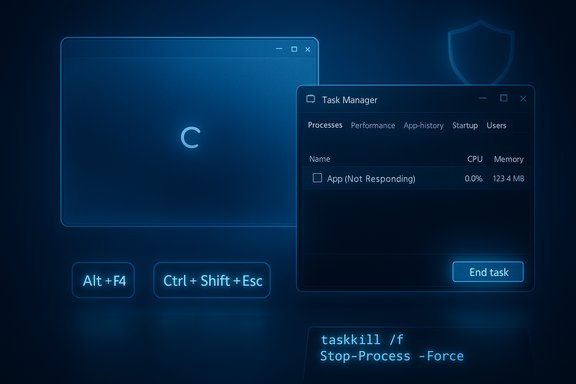 Overview
Windows offers multiple escape hatches for unresponsive software. The common, practical choices are:- Task Manager (Ctrl + Shift + Esc) — the go-to, surgical tool for most stuck apps.
- Alt + F4 — a gentle keyboard-first attempt to close the focused window without immediately killing the process.
- Command-line tools (taskkill / PowerShell Stop-Process) — the power-user approach for stubborn processes or scripting.
- Emergency restart / Secure attention (Ctrl + Alt + Delete / shutdown) — when even Task Manager won’t open.
Background: why apps freeze and what “force quit” actually does
When an application becomes unresponsive, Windows usually still has enough control to either ask the app to close or forcibly terminate it. The difference matters:- A graceful close (Alt + F4 or normal Close) sends a window-close message so the app can attempt to save state, free resources, and exit cleanly. It’s the least risky option for data integrity.
- A forced termination (Task Manager End Task, taskkill /f, Stop-Process -Force) ends the process immediately. This frees system resources fast but offers no guarantee of saving open documents or rolling back partial file I/O.
- High resource usage (CPU, RAM, disk I/O, GPU) causing the UI thread to block.
- Driver conflicts, especially GPU or storage drivers that hang during rendering or I/O.
- Application bugs or bad updates creating deadlocks or long blocking operations.
- External factors such as malware, failing storage, or hardware issues.
Method 1 — Task Manager (Recommended)
Why Task Manager first?
Task Manager is the default tool Windows ships for managing processes. It lets you inspect CPU, memory, disk, and GPU usage, identify the offending process, and terminate it selectively — preserving as much system state as possible. For most unresponsive applications this is the fastest, safest fix.How to open Task Manager (fast)
- Press Ctrl + Shift + Esc.
- Or press Ctrl + Alt + Delete and choose Task Manager.
- Or right-click the taskbar / Start button and select Task Manager.
Steps to force-close a frozen app
- In Task Manager, click the Processes tab.
- Find the app — it often shows “Not responding.” Click it to highlight.
- Click End task. Wait a few seconds; the app should disappear.
Advanced Task Manager tips
- Switch to the Details tab to see executable names and PIDs (e.g., chrome.exe, WINWORD.EXE). Right‑click → End process tree to kill a parent and its child processes (useful for browsers or apps that spawn helpers).
- If Task Manager itself misbehaves, use command-line fallbacks or secure attention sequence (see “When Task Manager won’t open” below).
Method 2 — Alt + F4 (Polite first attempt)
What Alt + F4 does
Pressing Alt + F4 tells the focused window to close (it sends the standard WM_CLOSE message). If the app still processes messages, this often triggers normal shutdown flows and save dialogs — giving you the chance to avoid data loss. It’s the quickest, least disruptive option you should try before force-killing.When to use it
- The application’s UI still accepts clicks or can be brought into focus.
- You want the app to have a chance to auto-save or prompt you.
- The freeze looks transient (short wait time).
Limitations
Alt + F4 is ineffective when the process is heavily blocked and cannot process window messages. Some programs or games intentionally ignore WM_CLOSE or handle it differently, so Alt + F4 is not a guaranteed kill switch. Treat it as a polite first attempt.Method 3 — Command Prompt: taskkill (Power user)
Why use taskkill?
When GUI tools are unavailable, or you’re scripting remediation, taskkill offers direct, scriptable control. You can kill by image name (/im) or process ID (/pid), and you can force termination with the /f flag. Microsoft’s taskkill documentation lays out syntax and parameters.Common taskkill commands
- Gentle close by image name:
- taskkill /im notepad.exe
- Force immediate kill:
- taskkill /im notepad.exe /f
- Kill by PID:
- taskkill /pid 1234 /f
Key notes and cautions
- /f forcibly terminates without allowing app cleanup — unsaved data will be lost. Use it only when necessary.
- Use tasklist to find PIDs if multiple instances exist. Scripting: administrators frequently embed taskkill in batch jobs to remediate hung apps remotely.
Method 4 — PowerShell: Stop-Process (Modern scripting)
Why PowerShell?
PowerShell provides the Stop-Process cmdlet with clearer syntax and powerful piping and filtering. It’s ideal for automation, remote management, and tasks where you want to combine inspection and action (Get-Process | Stop-Process).Basic commands
- By name:
- Stop-Process -Name chrome -Force
- By ID:
- Stop-Process -Id 1234 -Force
- Best practice example (quietly stop if running):
- Get-Process -Name chrome -ErrorAction SilentlyContinue | Stop-Process -Force
When to prefer PowerShell
- You’re building scripts, remote runbooks, or need advanced filtering (e.g., kill processes consuming >X MB).
- PowerShell integrates with management tooling (WinRM, Intune, SCCM) for fleet remediation.
When Task Manager won’t open — emergency options
Ctrl + Alt + Delete (secure attention)
Press Ctrl + Alt + Delete to bring up the secure screen; its power menu and Task Manager often work even when the desktop shell is hung. Use that route to sign out, restart, or open Task Manager.Restart explorer.exe
If the shell (taskbar, Start) is broken but Task Manager opens, use File → Run new task → type explorer.exe to restart the Windows shell without a full reboot. This can reclaim a frozen UI.Command-line forced restart
If other options fail and you can open a Run box or command window, run:- shutdown /r /f /t 0
This restarts immediately and forces apps to close. Microsoft’s shutdown documentation confirms the meaning of /r (restart), /f (force), and /t 0 (no timeout). Use with caution — all unsaved work will be lost.
Hard reset (last resort)
Holding the physical power button to force power off risks file-system corruption and should be reserved for when the system is completely unresponsive and no software path works. Modern Windows is resilient, but prepare to run chkdsk /sfc checks after an abrupt power-off.The taskbar “End task” option: a speed shortcut, but build-dependent
Microsoft and the Windows community have been rolling out a convenience that lets you end a task directly from the taskbar jump list (right-click an app icon → End task). This can be enabled from Settings → System → For developers or exposed via feature flags in Insider builds; in some builds it’s gated or requires a toggle, and some third-party tools (ViveTool) have been used to enable it in pre-release channels. Tom’s Hardware and other outlets have tested and documented the feature and its varying availability across builds. Use this for quick kills — but understand that availability will vary by Windows 11 build and enterprise policy. Caution: Because the taskbar End task behaves like a force kill, it will not prompt to save — treat it like taskkill /f. Also, managed corporate devices may not expose the option due to admin policy settings.Shortcut & Command Cheat Sheet
- Task Manager: Ctrl + Shift + Esc (fast).
- Gentle close: Alt + F4 (focused window).
- Power user menu: Win + X → Task Manager or power actions.
- Command Prompt taskkill:
- taskkill /im app.exe /f (force).
- PowerShell:
- Stop-Process -Name app -Force (scriptable).
- Emergency restart:
- shutdown /r /f /t 0 (immediate restart).
Practical recovery flow (recommended step sequence)
- Pause 30–60 seconds — sometimes the system is completing background work.
- Try Alt + F4 on the frozen window to give it a chance.
- Open Task Manager (Ctrl + Shift + Esc) and use End Task. Check Details → End process tree if needed.
- If Task Manager is unavailable, press Ctrl + Alt + Delete or run shutdown /r /f /t 0 from Run/CMD.
- Last resort: hold the physical power button. Expect to check disk and system health after reboot.
Prevention: reduce future freezes and lost work
- Keep Windows, drivers (especially GPU and storage), and apps up to date. Many freezes are fixed with vendor updates.
- Monitor resources: use Task Manager or Resource Monitor to spot applications that repeatedly spike CPU, memory, or disk. Address or replace offending software.
- Enable autosave / version history in productivity apps (Office, OneDrive/Cloud apps, browser session restore). These features can reduce the pain of forced quits.
- For managed devices, ensure endpoint protection and monitoring tools are correctly configured to avoid inadvertent termination by users. Administrative policies can prevent misuse of force-kill tools.
Risks, enterprise considerations, and what’s unverifiable
- Data loss risk: Any forced termination (Task Manager End Task, taskkill /f, Stop-Process -Force, shutdown /f) can cause unsaved work to vanish and — in rare cases — corrupt files or databases. Treat forced kills as emergency actions.
- Enterprise policy: On corporate machines Task Manager and developer toggles may be disabled. If taskkill / PowerShell is blocked, contact IT. These administrative restrictions are intentional for security reasons.
- Feature rollout variability: The taskbar “End task” option is a convenience that has appeared in Insider and newer builds and may be hidden, gated, or require toggles or ViveTool for pre-release activation. Availability differs by build and channel — that variability is confirmed by community testing and reporting. Treat any public-facing claim that the feature is “always available” as inaccurate unless validated against your exact Windows build.
Quick troubleshooting checklist after a forced quit or restart
- Reopen the app and look for auto-recovery or crash-recovery dialogs. Some apps (Word, Chrome) restore sessions automatically.
- Run Event Viewer → Application/System logs to identify crashes or driver faults.
- Update or roll back drivers if freezes correlate with GPU or storage activity.
- Run system checks: sfc /scannow, DISM /Online /Cleanup-Image /RestoreHealth and, if needed, run chkdsk on your drives.
Conclusion
Force-quitting frozen apps on Windows 11 doesn’t need to be a panic-fueled scramble. Start gently — Alt + F4 — move to the surgical Task Manager (Ctrl + Shift + Esc) if needed, and use taskkill or PowerShell Stop-Process for scripting or stubborn processes. Reserve shutdown /r /f /t 0 and the physical power button for emergencies. New conveniences such as the taskbar End task shortcut can speed recovery but are build-dependent and should be used with the same caution as taskkill /f.Keep autosave and backups enabled, update drivers and apps, and adopt the stepwise recovery flow above. That combination preserves your work and ensures you’re ready the next time the spinning wheel appears.
Source: How2shout How to Force Quit Frozen Apps on Windows 11 and 10 (4 Fast Ways)
