

Microsoft’s recent moves around Windows 11 installation media have reopened a long-running debate: should consumers be able to install Windows without a Microsoft account or an internet connection — and if so, how safe and supported is that path? HotHardware’s piece on an updated Windows 11 ISO tool and methods to perform an install without a Microsoft account or online connection rekindles this conversation, but the reality is more nuanced. Microsoft’s ecosystem changes, official tooling behavior, and third‑party utilities like Rufus all play a role — and readers need a clear, practical guide plus an honest risk analysis before they try any workarounds.
Windows setup has steadily shifted toward an account‑first, cloud‑integrated model for several years. Microsoft emphasizes features that rely on a Microsoft account — OneDrive sync, device recovery, personalization, and some security conveniences — and these priorities are now reflected in Out‑of‑Box Experience (OOBE) flows. Recent Insider builds explicitly removed several well‑known in‑setup bypasses that once let users finish OOBE entirely offline or with a local account, a change Microsoft says prevents users from skipping critical setup screens that could leave a device incompletely configured. This tightening is documented in recent coverage and in community summaries of Insider release notes. ([tomshardware.com]are.com/software/windows/microsoft-eliminates-workaround-that-circumvents-microsoft-account-requirement-during-windows-11-installation)
At the same time, community tooling and imaging workflows have matured. Rufus — the popular USB‑creation utility — now exposes options to alter the installer image so setup does not force an online Microsoft account or certain hardware checks (TPM/Secure Boot/4GB RAM). That capability, combined with direct ISOs from Microsoft and answer‑file or registry techniques, gives power users, builders, refurbishers and privacy‑minded installers multiple paths to a lation. Independent guides and long‑running forum threads document these methods and the trade‑offs.
This feature article explains what changed, how to install Windows 11 offline / without an MSA (both officially and via community tools), and where the risks lie. You’ll get a step‑by‑step path that works today plus a critical, practical analysis so you can choose the right approach for your needs.
stricter OOBE behavior is documented in Insider preview notes and observed on preview builds. Public release behavior can differ over time; Microsoft has previously adjusted the setup flow between Insider and general availability channels. Treat any single Insider note as an indicator, not an immutable rule.
Two important checks when you read any single piece such as HotHardware’s:
If you intend to go offline or stay local, use official ISOs as your starting point, prefer the Rufus image customization path for repeatability, and document everything. Accept the trade‑offs: fewer cloud conveniences, potential update caveats on unsupported hardware, and occasional cat‑and‑mouse maintenance as Microsoft hardens the setup flow. For enterprises and high‑volume deployments, the supported approach — unattend files and managed provisioning — remains the best practice.
Practical, repeatable methods exist today for an offline or local‑account install. Use them with informed caution, test update behavior immediately after install, and keep an eye on Microsoft’s release notes — the rules for setup are still evolving, and staying informed is the best way to avoid surprises.
Source: HotHardware Microsoft Updates Windows 11 ISO Tool, How To Install It Without A Microsoft Account Or Internet Connection
 Background / Overview
Windows setup has steadily shifted toward an account‑first, cloud‑integrated model for several years. Microsoft emphasizes features that rely on a Microsoft account — OneDrive sync, device recovery, personalization, and some security conveniences — and these priorities are now reflected in Out‑of‑Box Experience (OOBE) flows. Recent Insider builds explicitly removed several well‑known in‑setup bypasses that once let users finish OOBE entirely offline or with a local account, a change Microsoft says prevents users from skipping critical setup screens that could leave a device incompletely configured. This tightening is documented in recent coverage and in community summaries of Insider release notes. ([tomshardware.com]are.com/software/windows/microsoft-eliminates-workaround-that-circumvents-microsoft-account-requirement-during-windows-11-installation)At the same time, community tooling and imaging workflows have matured. Rufus — the popular USB‑creation utility — now exposes options to alter the installer image so setup does not force an online Microsoft account or certain hardware checks (TPM/Secure Boot/4GB RAM). That capability, combined with direct ISOs from Microsoft and answer‑file or registry techniques, gives power users, builders, refurbishers and privacy‑minded installers multiple paths to a lation. Independent guides and long‑running forum threads document these methods and the trade‑offs.
This feature article explains what changed, how to install Windows 11 offline / without an MSA (both officially and via community tools), and where the risks lie. You’ll get a step‑by‑step path that works today plus a critical, practical analysis so you can choose the right approach for your needs.
What changed at Microsoft — the account‑first shift
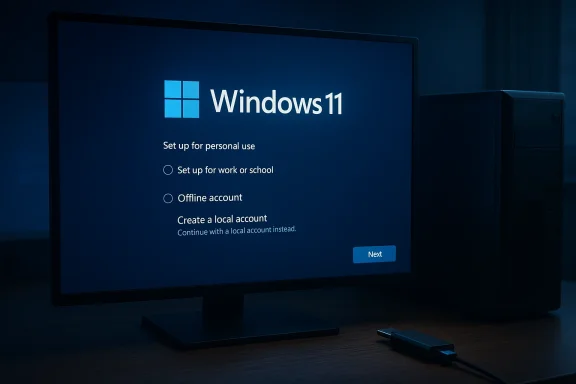
Microsoft’s Insider release notes and subsequent reporting make the direction clear: the company is closing several OOBE loopholes that allowed local account creation during first‑boot. In plain terms:- Microsoft removed or neutralized the small command‑line and script “escape hatches” (for example, BypassNRO.cmd and certain ms‑cxh shortcuts) that were widely used to bypass the network/MSA requirement during OOBE. Microsoft says this avoids users skipping screens that are important for correct device configuration.
- Those changes have been observed and summarized by community analysts and forum threads that track Insider build notes — they report that the default consumer OOBE path in recent Insider flights now requires an internet connection and a Microsoft account to complete.
stricter OOBE behavior is documented in Insider preview notes and observed on preview builds. Public release behavior can differ over time; Microsoft has previously adjusted the setup flow between Insider and general availability channels. Treat any single Insider note as an indicator, not an immutable rule.
The official options: Media Creation Tool and direct ISOs
If you want a supported, straightforward offline installation, use Microsoft’s official routes:- Download the Windows 11 ISO from Microsoft’s “Download Windows 11” page or use the Windows 11 Media Creation Tool to build installation media. An official ISO plus a standard USB imaging tool gives you the cleanest, supported installer.
- Official ISO installs generally still show OOBE behavior that encourages account sign‑in — in some public images Windows will attempt the online path first. However, you can complete setup with an offline local account in several scenarios when the installer presents the “Offline account” choice. That option has been progressively harder to reach in recent Insider builds, but official ISOs remain the recommended starting point.
The practical community route: Rufus and image customization
If Microsoft’s stock flow forces an MSA and you want to avoid it, the most practical and repeatable approach is to create a customized installer image using Rufus (or equivalent imaging workflows that edit the install image). Rufus exposes several image options that are relevant:- “Remove requirement for an online Microsoft account” — removes the OOBE enforcement and lets setup present or default to a local account.
- “Remove requirement for TPM/Secure Boot/4GB RAM” — allows installation on older or unsupported hardware.
- “Create a local account automatically” — when available, predefines a local user during imaging so OOBE completes with a local account.
When to use Rufus (short checklist)
- You must install on unsupported hardware (no TPM, Secure Boot, or <4GB RAM).
- You need a reliable offline/local account install on retail Home/Pro images where OOBE is otherwise online‑centric.
- You are comfortable applying community tools and understand the support/upgrade trade‑offs.
Step‑by‑step: Create an offline installer that avoids an MSA (Rufus method)
Below is a tested, widely documented workflow. It’s repeatable and works for both Home and Pro retail ISOs in current public images — but remember Microsoft’s Insider changes may affect future behavior, and Rufus options can change over time.- Prepare:
- A second working PC with internet access to download tools and create media.
- A USB flash drive (at least 8–16 GB). Back up its contents — Rufus will erase it.
- Download the official Windows 11 ISO from Microsoft (choose the language and edition you need). Alternatively, run the Media Creation Tool and instruct it to create an ISO.
- Download the latest Rufus release from the official Rufus site or its GitHub releases page. Use a recent Rufus version — the options discussed have appeared in Rufus releases in the last few years.
- Open Rufus, select your USB device, then “Select” the Windows 11 ISO you downloaded.
- In Rufus’s “Image option” or “Advanced options” toggle, check:
- “Remove requirement for an online Microsoft account”
- Optional: “Remove requirement for TPM/Secure Boot/4GB RAM” if installing on legacy hardware
- Optional: “Create a local account automatically” if you want Rufus to predefine a local user
- Click Start. Rufus will build the USB. Confirm any prompts. Wait until the process finishes.
- Boot the target PC from the USB and proceed with the normal Windows 11 setup. If Rufus’s options worked, OOBE will not force an MS account and you’ll be able to create/use a local account offline. ([windowscentral.com](https://www.windowscentral.com/how-set-windows-11-without-microsoft-account?utm_sooute is broadly adopted by enthusiasts and refurbishers; multiple outlets and guides document the exact menu options shown by Rufus and the resulting offline setup behavior.
Alternative and fallback techniques
If Rufus is not an option or you prefre are other approaches (use with caution):- Registry edits while running Setup from within Windows: mount the ISO, run setup.exe, and when you reach the point for account creation, open an elevated Command Prompt and apply registry tweaks to allow a local account. Commspecific registry keys that control the “bypass network requirement” behavior. This method is technical and error‑prone — document your registry changes and back up data first.
- OOBE command shortcuts and answer files: historically, a one‑line ms‑cxh:localonly or the oobe\BypassNRO trick allowed local account creation. Microsoft has neutralized some of these in Insider builds, but similar methods can still be used on some public images and are documented in multiple community threads and how‑tos. Expect this cat‑and‑mouse pattern to continue.
- Unattend/autounattend.xml: for enterprise, kiosk, or automated deployments, supply an autounattend.xml that preconfigures local users, audit mode, or domain join settings. This is the supported, scalable approach for IT departments and avoids manual OOBE manipulation.
What HotHardware reported — and how to read it
HotHardware highlighted the updated Windows 11 ISO tool and how to install without an MSA or internet connection. Reporting like that is useful — it consolidates the vaques and flags the updated tooling — but it should be read alongside Microsoft’s own statements and community verification.Two important checks when you read any single piece such as HotHardware’s:
- Confirm the specific Microsoft change: is it an official Microsoft update to a public tool, or is it a community tool (like Rufus) providing the installer modification? Often the latter is the real enabler of local/offline installs. Cross‑check the specific claim against Microsoft release notes and the Rufus changelog.
- Verify whether the behavior was tested on the same Windows 11 build you will use: Insider previews can behave differently than general‑release ISOs. If reporting mixes Insider behavior and retail behavior, treat the implications as conditional.
Risks, support implications, and security considerations
Choosing to install Windows 11 offline or with a local account — especially via third‑party modifications — comes with concrete trade‑offs:- Updates and driver support: installing on unsupported hardware (bypassing TPM/Secure Boot) can lead to update or driver delivery issues. Microsoft may limit the delivery of feature or even security updates to unsupported configurations in some scenarios. If long‑term Windows Update compatibility matters, prefer supported installs.
- Activation and licensing: a retail digital license is commonly tied to the device’s hardware or a Microsoft account. If you avoid an MSA, activation behnks via the machine’s hardware ID, but specific outcomes can vary with OEM or retail licensing routes. Keep your product keys or digital license records handy.
- Feature limitations: cloud‑first features (OneDrive automatic backunalization, password recovery via MSA, some Copilot functionality) require an MS account. If you want those features, an offline install will either block them or require you to sign in later.
- Security posture: moving to a local account can be perfectly secure for many scenarios, but it also removes conveniences such as cloud‑based account recovery and Microsoft’s device link to find/lock features. Use strong local passwords, enable BitLocker (store recovery keys safely), and keep a recovery plan.
- Legal and warranty: refurbishers and resellers should confirm OEM warranty and licensing terms before shipping devices with modified install media. Some enterprises may have compliance policies that require cloud provisioning.
The practical verdict: which method should you choose?
- If you’re an IT admin deploying many machines: use autounattend.xml or enterprise provisioning — it’s supported, repeatable, and scales.
- If you’re a refurbisher or technician prepping machines for resale: Rufus’s image options are the mcient way to preconfigure local accounts and bypass sudden OOBE online requirements across many machines, but document that you’ve altered the image and understand update expectations.
- If you’re a privacy‑conscious home user building a single PC: use Rufus for convenience omanual registry/OOBE process; either will work, but maintain backups and be prepared to sign in with an MSA later if you want cloud features.
- If you run old/unsupported hardware: know the update and driver implications. You can run Windows 11 for years on older hardware with workarounds, but you may need to manually manage drivers or defer some feature updates.
How to stay safe and maintain supportability
- Use official ISOs as the base: always start with an official Microsoft ISO. Don’t use unknown modified images from random downloads. ([windowstan.com](Download Windows 11 25H2 ISO images - Windowstan
- Keep a restore path: before modifying setups or installing on unsupported hardware, image the current system or have a recovery USB that restores the machine to a known good state.
- Document modifications: if you’re a refurbisher or IT shop, track which images had Rufus modifications and what options were used. This helps future troubleshooting and warranty discussions.
- Test Windows Update: after installing, run Windows Update and verify that security updates are delivered. If they are not, evaluate whether running Windows on that hardware long term is acceptable.
- Protect BitLocker keys: if you enable BitLocker, store recovery keys outsi server, or secure printout). Using a local account does not remove the need to protect recovery keys.
What to watch next
- Microsoft’s OOBE policies will continue to evolve. Insider preview notes are the earliest sign of changes; track official Microsoft blog posts and Windows release notes to see which changes reach general release.
- Rufus and similar tools update frequently. Their changelogs and GitHub issues will reflect any new imaging options or compatibility workarounds — check them before you create media.
- Community projects (tiny11, custom builders) will continue to provide alternate images for edge cases; these are powerful but require extra caution around updates and legal compliance.
Conclusion
HotHardware’s coverage highlights an important practical truth: many users and technicians still want — and need — the ability to install Windows 11 without an internet connection or a Microsoft account. The ecosystem today supports that desire through a combination of official ISOs and mature third‑party tooling (most notably Rufus). However, Microsoft’s push toward an account‑first OOBE in Insider previews and ongoing changes to setup behavior mean the landscape will keep shifting.If you intend to go offline or stay local, use official ISOs as your starting point, prefer the Rufus image customization path for repeatability, and document everything. Accept the trade‑offs: fewer cloud conveniences, potential update caveats on unsupported hardware, and occasional cat‑and‑mouse maintenance as Microsoft hardens the setup flow. For enterprises and high‑volume deployments, the supported approach — unattend files and managed provisioning — remains the best practice.
Practical, repeatable methods exist today for an offline or local‑account install. Use them with informed caution, test update behavior immediately after install, and keep an eye on Microsoft’s release notes — the rules for setup are still evolving, and staying informed is the best way to avoid surprises.
Source: HotHardware Microsoft Updates Windows 11 ISO Tool, How To Install It Without A Microsoft Account Or Internet Connection
