

If you want the easiest, free way to send and receive Android texts from your Windows PC, Microsoft’s Phone Link (with the companion Link to Windows app on Android) is the best place to start — it lets you read and reply to SMS/MMS, handle calls, view recent photos, get phone notifications, and even stream supported apps to your PC with just a few minutes of setup.
Phone Link (formerly “Your Phone”) is Microsoft’s cross‑device continuity layer that connects a Windows PC and an Android phone to create a single, integrated workspace. Once paired, your PC becomes a second surface for phone features: messaging, notifications, phone calls (using PC audio), photo browsing, file transfers, cross‑device clipboard, and — on many supported phones — app streaming. The companion app on Android is called Link to Windows; on Windows the client is Phone Link. These two pieces work together over Bluetooth Low Energy (BLE) and the local network, using your Microsoft account to verify and coordinate the link. This article explains exactly how to set it up, what each feature actually does, where practical limits and risks lie, and how to troubleshoot problems so you can reliably send and receive Android texts on your Windows PC without paying for any third‑party service.
Phone Link turns the basic act of sending and receiving Android texts on your PC into a polished, free productivity flow — set it up once, grant the small set of required permissions, and your PC will handle most day‑to‑day phone tasks while you remain focused on your desktop.
Source: ZDNET The easiest way to send and receive Android texts on your Windows PC - for free
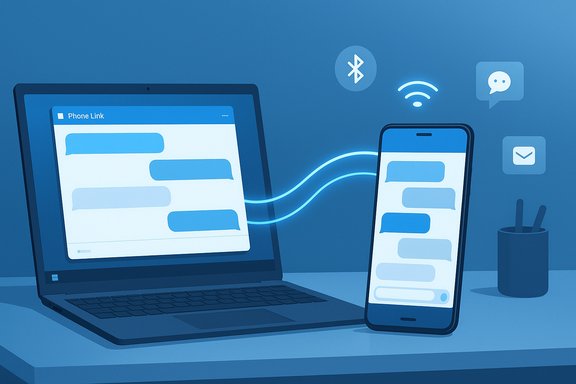 Background / Overview
Phone Link (formerly “Your Phone”) is Microsoft’s cross‑device continuity layer that connects a Windows PC and an Android phone to create a single, integrated workspace. Once paired, your PC becomes a second surface for phone features: messaging, notifications, phone calls (using PC audio), photo browsing, file transfers, cross‑device clipboard, and — on many supported phones — app streaming. The companion app on Android is called Link to Windows; on Windows the client is Phone Link. These two pieces work together over Bluetooth Low Energy (BLE) and the local network, using your Microsoft account to verify and coordinate the link. This article explains exactly how to set it up, what each feature actually does, where practical limits and risks lie, and how to troubleshoot problems so you can reliably send and receive Android texts on your Windows PC without paying for any third‑party service.What Phone Link actually does (short checklist)
- Send and receive SMS and MMS from your PC with full two‑way replies, image attachments, emojis and GIFs.
- Make and receive cellular calls using your PC’s microphone and speakers (requires BLE pairing and call permissions).
- View recent photos from your phone and drag‑and‑drop images into desktop apps (Phone Link typically surfaces the most recent images, subject to limits).
- Mirror notifications so phone alerts show up on your desktop and can often be dismissed or interacted with there.
- Shared clipboard and file transfer — copy/paste between devices and send files over the local network.
- App streaming / mirroring on supported Android phones: the app runs on the phone while the PC renders and controls it. Performance depends on phone CPU, Wi‑Fi latency, and OEM support.
Requirements you must verify first
Before you start, check these basics — they determine whether Phone Link will work and which features you can expect:- A PC running Windows 10 (October 2022 update or later) or Windows 11 (newer builds give the best experience).
- An Android phone (many guides list Android 7.0+ as a baseline, but Android 9/11+ is strongly recommended for fuller functionality). Some OEMs like Samsung or HONOR ship Link to Windows preinstalled with deeper integration.
- The same Microsoft account signed in on both PC and phone for the smoothest pairing.
- Bluetooth Low Energy (BLE) support on the PC for call routing and discovery; a stable local Wi‑Fi network is preferred for file transfer and streaming.
Step‑by‑step: Set up Phone Link for Android texting (fast walkthrough)
Follow these numbered steps for a fast, reliable connection.- On your PC, open the Phone Link app (type “Phone Link” into Start). If you don’t have it, install it from the Microsoft Store.
- In Phone Link, choose Android when asked and click Get started. A QR code will appear on the PC screen.
- On your Android phone, install or open Link to Windows (Google Play or preinstalled on many Samsung devices). Use the in‑app camera to scan the QR code shown in Phone Link or follow the aka.ms/yourpc shortlink flow.
- Sign in with the same Microsoft account on the phone when prompted, and enter any verification or code Phone Link shows. After QR scan and validation, Phone Link will report a pairing success.
- Grant the required Android permissions requested by Link to Windows: Contacts, Phone, SMS, Storage/Files, and Notification access. These permissions are required for the corresponding Phone Link features to function. You may also be asked to allow the app to run in background / exclude it from battery optimization for reliability.
- Back on the PC, choose whether Phone Link should start automatically, then open Messages to confirm your SMS threads have synchronized. If not, use the Refresh icon next to Connection in Phone Link.
The texting experience: what it’s really like
Once linked, Phone Link’s Messages pane shows recent SMS/MMS threads from your phone. Typical behaviors:- You can read, reply, start new messages, and attach photos/GIFs from your PC. The compose box supports emojis and media attachments just like your phone’s Messages app.
- Message history is normally synchronized, but the amount available can vary by Android version, OEM, and initial permissions. If you’re missing older messages, refresh or re‑ensure SMS permission is granted on the phone.
- For two‑factor authentication (2FA) codes or other highly sensitive messages, treat mirrored content cautiously — Phone Link displays those messages on your PC as well, so be mindful of who can access your unlocked desktop.
Phone calls, photos and notifications — what to expect
Calls
Phone Link can route your phone’s cellular calls to the PC audio (microphone and speakers). This requires enabling Bluetooth on the phone and pairing the call profile; occasionally you’ll need to confirm a pairing PIN on both devices. If calls don’t work, check Bluetooth drivers on the PC and ensure the Link to Windows app has the Phone/Call permission.Photos
Phone Link exposes the most recent images from your phone’s camera and screenshots. Official docs commonly cite a practical limit (for performance) — community testing and Microsoft pages reference roughly the most recent 2,000 images being visible, though this can vary by build and device. For full backups or access to older photos use OneDrive or direct file transfer. Note that Microsoft has been adjusting where phone images are surfaced and may redirect some photo management into File Explorer.Notifications
Granting Notification access on Android allows many app notifications to appear on your PC. You can dismiss or sometimes reply to notifications from Phone Link, but behavior depends on Android’s privacy model and OEM policies; in some cases sensitive notifications may be restricted from third‑party access.Verified limitations and recent platform changes (what you must know)
- Photos may be moved out of Phone Link: Microsoft has recently signaled changes to the Phone Link photo experience and is directing users toward File Explorer’s mobile device view for longer‑term file management. Expect the “Photos” pane behavior to evolve as Windows features change. This is an active change, and the Phone Link UI may prompt you to use File Explorer instead.
- The Windows Subsystem for Android (WSA), which allowed running Android apps locally through the Amazon Appstore, was officially declared end‑of‑support by Microsoft and slated to be retired. That shift explains why Microsoft is focusing more on streaming/mirroring phone apps via Phone Link rather than running them natively in Windows for future continuity scenarios. If you relied on WSA for a local Android runtime, plan alternatives now.
- Feature parity varies by OEM and OS version. Samsung phones often enjoy deeper integration (some features preinstalled); other manufacturers may offer slightly different behavior. Some banking or DRM apps intentionally block mirroring for security reasons.
Security, privacy, and enterprise considerations
Bringing phone texts and notifications to your desktop is convenient, but it expands the attack surface and raises privacy considerations:- Permissions are explicit but broad: access to SMS, contacts, phone, storage, and notifications gives the companion app wide visibility. Revoke permissions or unlink the device if you don’t trust the endpoint.
- Transmission security: Microsoft documents encrypted transport for Phone Link traffic, but claims of full end‑to‑end encryption should be treated cautiously unless explicitly documented by Microsoft for each feature. For highly sensitive messaging or enterprise data, treat the paired desktop like another authenticated device and apply the same caution you’d use with remote desktop sessions.
- Corporate policy and MDM: Many organizations block Link to Windows and Phone Link or restrict features in managed (work) profiles to prevent data leakage. IT administrators should evaluate risks before allowing personal devices to pair with corporate Windows endpoints.
- Physical security: If your PC is shared or unattended while unlocked, incoming texts and notifications displayed on the desktop are visible to anyone with access. Use locking and sign‑in policies to reduce exposure.
Troubleshooting checklist (short, practical)
- Confirm both devices use the same Microsoft account and are on the same Wi‑Fi network for pairing.
- Update Phone Link on Windows and Link to Windows on Android to the latest versions. Reboot both devices if pairing stalls.
- If calls fail, check Bluetooth drivers on PC and allow microphone/speaker permissions for Phone Link.
- If photos are missing, remember Phone Link typically shows a recent subset (around 2,000 images in many tests). Reconnect or refresh; for full access use File Explorer or OneDrive.
- Disable aggressive battery optimization for Link to Windows on Android if background syncing drops frequently. This prevents Android from suspending the companion app.
Advanced tips and power‑user settings
- Enable copy and paste between devices in Phone Link settings to accelerate moving URLs, short snippets, or one‑time passwords.
- Pin frequently used mobile apps to the Windows taskbar when app streaming is supported by your phone. This creates a near‑native launch experience.
- Use Send to PC or drag‑and‑drop via the Photos pane or File Explorer for rapid file exchange instead of email or cloud uploads.
- For power mirroring and low‑latency control, put both devices on the same high‑quality Wi‑Fi network and avoid congested 2.4 GHz bands. Wired USB-based mirroring (using tools like scrcpy) can be preferable for large‑scale screen capture or full control scenarios.
Alternatives to Phone Link (when it’s not the right tool)
If Phone Link doesn’t meet your needs or your device isn’t supported, consider these alternatives:- scrcpy — a free, open‑source tool that mirrors and controls Android devices over USB (and wireless with setup). It’s powerful but requires USB debugging and is more technical.
- AirDroid / AirMore — third‑party apps that provide remote file transfer, notification mirroring and SMS features; they may require cloud accounts or subscription tiers for advanced features. Verify privacy policies before use.
Why Phone Link is (still) the best free option for texts on Windows
- It’s a Microsoft‑native experience built into Windows and optimized for the OS, so interactions feel integrated (Start menu, notifications, File Explorer ties).
- It’s free and maintained by Microsoft; no extra subscriptions or cloud accounts are required.
- It supports two‑way messaging with attachments, GIFs and photos — everything you need for day‑to‑day texting without picking up your phone.
Final verdict and recommended setup checklist
Phone Link is the easiest, free, and most integrated method to send and receive Android texts on a Windows PC. For the most reliable experience, follow this final, actionable checklist:- Update Windows and Phone Link to the latest versions.
- Install Link to Windows on the phone and sign into the same Microsoft account.
- Scan the QR code in Phone Link and complete pairing.
- Grant SMS, Phone, Contacts, Storage, and Notification permissions on Android; disable battery optimization for Link to Windows if you see disconnects.
- Enable BLE and confirm Bluetooth drivers on PC if you plan to use call routing. Test calls and messaging, then tweak notification filters to reduce noise.
Phone Link turns the basic act of sending and receiving Android texts on your PC into a polished, free productivity flow — set it up once, grant the small set of required permissions, and your PC will handle most day‑to‑day phone tasks while you remain focused on your desktop.
Source: ZDNET The easiest way to send and receive Android texts on your Windows PC - for free


