

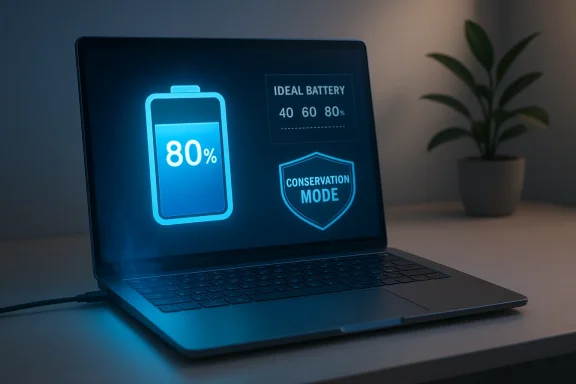
You’re not damaging your laptop in a dramatic way by leaving it plugged in — but you almost certainly are speeding up the battery’s aging by doing one simple thing: keeping it at 100% while it bakes in heat. Small habits and a forew manufacturer settings can stop that slow decline and keep a laptop battery healthy for years longer.
Background
Modern laptops almost universally use lithium‑ion (Li‑ion) based cells. These batteries are compact, energy‑dense, and safe when used correctly, but they are chemically sensitive to two key stressors: high state of charge (SoC) and elevated temperature. The combination of those two factors — a battery held at or near 100% while the machine runs warm — is the common pattern that accelerates long‑term capacity loss. Multiple laboratory studies and industry analyses show the same trend: keep a Li‑ion cell full and hot and its usable capacity falls noticeably faster than if you store and use it at moderate SoC and normal room temperature. This is why you’ll see battery‑care features from manufacturers (charge caps, “conservation” or “primarily AC use” modes) and why Apple, Google, and others add optimized charging features that delay the final top‑up to 100% until just before you unplug. These measures aren’t cosmetic: they are the practical response to well‑documented chemistry.How and why batteries age: the science in plain language
What happens chemically when a battery sits at 100%?
Charging a Li‑ion cell pushes lithium ions into the anode and raises the cell’s internal voltage. While the battery management system (BMS) stops overcharging, the cells remain at a high voltage state when held at full charge. That high voltage increases parasitic chemical reactions at electrode surfaces and thickens the solid‑electrolyte interphase (SEI), which reduces the amount of lithium that can shuttle during subsequent cycles — in plain terms, the battery holds less usable charge over time. Think of it like leaving a rubber band permanently stretched: occasional stretching is fine, constant stretching shortens life.Why heat makes it worse
Elevated temperature accelerates chemical reaction rates inside the cell. Heat increases SEI growth and other degradative processes; at the same SoC a warm battery loses capacity faster than a cool one. Studies that run cells at elevated storage temperatures show dramatic differences in remaining capacity after months and years. The damage is cumulative and often not obvious until the battery has lost a meaningful share of its original capacity.Calendar vs. cycle aging — both matter
Battery wear comes from cycling (charge/discharge) and from calendar aging (time, SoC, and temperature). The slower capacity declines you notice when you use a laptop primarily plugged in are primarily calendar effects — the battery sits at high voltage while warm — and they add up alongside cycle wear. Treating both is how you extend useful life.What the evidence actually says — numbers you can trust
Key, evidence‑backed points to keep in mind:- Storing Li‑ion cells at high SoC and elevated temperature causes measurable capacity loss far faster than storage at mid SoC and cool conditions. Several lab studies using commercially available cells report significantly higher capacity fade for cells kept at 55 °C or 40–47.5 °C and 90–100% SoC versus cells stored at 25 °C and 40–50% SoC.
- Popular industry summaries and long‑running studies give concrete examples: a widely‑referenced industry guide estimates that storing typical Li‑ion cells at 40 °C and 100% SoC can reduce usable capacity to roughly 65% of original after a year (about a 35% loss), while the same cell stored at 25 °C and 100% SoC shows much lower loss; similarly, intermediate charge levels (40–60% SoC) show far less calendar fade. These benchmark tables give the best practical sense of scale for everyday users.
- Laboratory calendar‑aging experiments that combine temperature and SoC demonstrate that cells stored at 55 °C and very high SoC can suffer significant SEI growth and 20% or more capacity loss over months to a few years — the exact rate depends on the chemistry and the cell format, but the trend is consistent. In other words: extreme heat + full charge = real, measurable loss.
Why “the laptop stops charging at 100% so it’s fine” is incomplete
Most modern systems include protection that stops charging current when the battery hits 100% voltage. That prevents overcharging — a real safety hazard. But protection does not eliminate the chemical stress of sitting at high voltage. A battery at 100% is still at a higher cell potential and can undergo parasitic chemistry while seated at that state; being plugged in and full simply prevents continued current input, it doesn’t reverse the high‑voltage dwell or the heat present in the system. Over months and years, that gentle, invisible stress reduces the battery’s maximum capacity.Practical fixes that actually work (small changes, big gains)
You don’t need to radically change how you use your laptop. A handful of targeted steps reduce the two main stressors (high SoC and heat) and materially slow calendar aging.1. Use a charge cap (80% is the sweet spot for many users)
- Why: Limiting the upper SoC reduces the voltage stress that accelerates chemical side‑reactions. Many OEMs recommend or provide an 80% cap because it’s a strong balance between longevity and usable capacity.
- How: Use your manufacturer’s battery utility or BIOS option:
- Apple devices: iPhone and Apple Watch implement Optimized Battery Charging and now let you choose charge limits on recent models. macOS and iOS also support features that reduce time at 100%.
- Dell: Dell Power Manager / Dell Command | Power Manager offers modes like Primarily AC Use and Custom where you can choose start/stop thresholds (typical min start ~50%, stop up to 95%).
- Lenovo: Lenovo Vantage exposes Conservation Mode or Battery Charge Threshold (ThinkPad models can often set custom start/stop thresholds; other models have a conservation cap around 75–80%).
- Other OEMs (ASUS, HP, Acer, Surface) have similar utilities or BIOS options; check your vendor app or the BIOS/UEFI for battery health/charge threshold settings.
2. Keep your laptop cool
- Why: Heat multiplies damage when SoC is high. Avoid trapping your laptop on soft surfaces (beds, sofas), keep vents clean of dust, and maintain good airflow. If you use heavy workloads that make the system hot, consider lowering power/performance settings when plugged in to reduce thermal stress.
- Quick tips:
- Use a hard, flat surface and small elevation to allow under‑chassis airflow.
- Clean vents and fans every 6–12 months (or more often in dusty environments).
- Avoid using laptops in direct sun or near heat sources.
3. Avoid prolonged high‑performance workloads while plugged in (when possible)
Running sustained, high‑power tasks (3D rendering, long gaming sessions, heavy compute) while plugged in can both raise temperatures and push power management to favor performance over efficiency. If you mostly use your machine at a desk and don’t need full performance, choose a balanced power profile during daily plugged‑in use. That reduces the thermal contribution to calendar aging.4. Store unused machines at ~40–60% charge in cool conditions
If you plan to set a laptop aside for weeks or months, store it at roughly 40–60% SoC and in a cool place (~15–25 °C) to minimize calendar fade. Airline and shipping rules often require lower SoC for safety, which aligns with storage best practice.5. Use built‑in “learned” optimizing features
Apple’s Optimized Battery Charging, Microsoft Surface “Smart Charging,” and some OEM adaptive modes learn your schedule and delay the last 20% of charging until just before you typically unplug. These are useful because they preserve capacity while still giving you a full battery when you need it. Turn these features on where available.6. Limit ultra‑fast charging when the battery is cold
Fast charging generates more heat and can increase stress if the battery is cold. Most BMS systems slow charging if conditions are suboptimal, but if you see options to reserve ultra‑fast charge for occasional use, follow that guidance.How to enable charge limiting on common laptops (short, practical guide)
- Check your vendor app (Lenovo Vantage, Dell Power Manager, MyASUS, Acer Care Center, Surface app).
- If available, enable “Conservation Mode,” “Primarily AC Use,” or a Custom charge threshold and set the stop charge ≈80% (start ≈50–75% depending on the vendor).
- If no vendor app exists, check BIOS/UEFI for battery health or charge threshold settings.
- Use optimized/learned charging features on phones, tablets, and some laptops (Surface/Mac/Apple Watch) to avoid prolonged 100% dwell.
When numbers matter: calibrate expectations and look for evidence
- Expect slow, steady decline rather than a sudden “death.” Typical consumer laptops will lose capacity over years; good habits slow that decline.
- If your laptop’s battery has already dropped substantially (for example, you’re seeing half the runtime you had when new), check battery health and cycle count in the OS or vendor diagnostic tools and weigh the cost of a replacement versus accepting reduced runtime. OEM apps will often show estimated battery health or cycles.
What to do if your battery already shows significant wear
- Check health metrics: Use the vendor tool or Windows’ battery report to get cycle count and design vs. current capacity numbers.
- Calibrate occasionally: A full charge → full discharge cycle every few months can help the gauge accuracy (not the battery chemistry). Calibration won’t restore lost capacity, but it can make the reported runtime more accurate.
- Consider replacement: If the battery has fallen under the vendor’s recommended replacement threshold (often around 60–70% health) or shows excessive swelling, replace it with an OEM part or authorized service.
- Warranty & service: Check warranty terms — some vendors include battery service or replacement for certain health thresholds within warranty periods.
Future‑proofing: new battery tech is coming — but it’s not here for every laptop yet
There’s active development in silicon‑carbon anodes, improved NMC/LFP formulations, and solid‑state chemistries that promise higher energy density and slower degradation. CES 2026 showcased multiple solid‑state and ceramic solid‑state announcements from companies claiming dramatic improvements; some press coverage is enthusiastic, but independent validation and mass production remain the hurdles. Treat bold claims with caution until third‑party verification and production readiness are shown. Meanwhile, the clear, immediate gains come from changing charging and cooling habits today. Note: many startups and OEMs preview “holy‑grail” battery tech at trade shows; real, verified improvements for consumer laptops generally lag laboratory breakthroughs by several years. Rely on manufacturer guidance and independent testing before changing buying behavior based on press announcements.Quick checklist — what to change right now
- Enable vendor charge‑limit / conservation mode (aim for ~80% stop).
- Use “optimized” or learned charging features where available (phones, watches, some laptops).
- Keep the laptop on a hard, ventilated surface; clean vents and fans.
- If you store the laptop, leave it at ~40–60% SoC in cool conditions.
- Avoid repeated ultra‑fast charging and prolonged high‑T workloads while at full SoC.
Risks and trade‑offs: what you gain — and what you give up
- Benefit: Charging to 80% and avoiding prolonged heat can materially extend calendar life and delay replacement by years for many users. Lab and industry studies back this approach.
- Cost: Capping charge reduces immediate on‑battery runtime. For many plugged‑in desktop‑replacement workflows the loss is negligible; for mobile users who need full range daily, it is a trade‑off. Choose settings based on your actual mobility needs.
- Operational caveat: Not all laptops expose fine‑grained thresholds; some offer only fixed “conservation” behavior. In those cases, balancing between convenience and longevity is a personal choice — but enabling any available conservation option is better than none.
Final verdict
Leaving a laptop plugged in at 100% all the time is not immediately dangerous and it won’t suddenly “fry” the battery overnight, but it significantly increases calendar aging — especially when combined with heat. The solution is simple and low effort: use the built‑in conservation or charge‑limit features your vendor provides, keep the machine cool, and adopt a modest charging habit (aim for mid SoC for storage and ≈80% for daily plugged‑in use). Those small steps are supported by laboratory studies, industry guidelines, and the utilities vendors now ship with their hardware. The future may bring batteries that make these precautions less necessary, but until then, these practical tweaks give you more runtime and fewer replacements over the laptop’s lifetime.Source: MakeUseOf You’re probably wasting battery life with this common habit
