

If you want to guarantee your PC never jumps to a newer Windows feature update or the next OS edition, you can — but “guarantee” requires careful, layered action and ongoing vigilance. This feature explains why those surprise upgrades happen (they usually don’t come from an invisible Microsoft switch), shows the proven, supported ways to lock your machines to a target version, examines registry and Group Policy mechanics, evaluates a popular third‑party “one‑click” tool that many users rely on, and walks through risks, caveats, and recovery steps so you can make a long‑term, safe decision for home or business systems.
Windows delivers two update classes: monthly quality/ security updates and larger feature updates (the big semi‑annual or annual releases that change the OS version string, e.g., “22H2”, “23H2”, “24H2”). Feature updates are controlled by Windows Update logic but are also subject to update‑management policies for business customers and for local machines via Group Policy or Registry. Microsoft’s official tooling intentionally provides administrators the ability to target a specific feature update version and to defer updates — and the company documents both the supported Group Policy options and the policy behavior when a version reaches end of service. (learn.microsoft.com)
That built‑in control is why most reliable methods to “stop Windows upgrading” are not hacks but policy settings — either via Group Policy (for Pro/Enterprise/Education) or the equivalent registry keys (for Home users or scripted deployments). The community has also built small utilities that set those same policy keys for you; the most widely referenced is Steve Gibson’s InControl, which sets the target‑version registry values and reports what it changed. Major community threads and guides show the same Registry / GP paths being used repeatedly by technicians and sysadmins over the last several years.
Where it lives:
Computer Configuration → Administrative Templates → Windows Components → Windows Update → Manage updates offered from Windows Update → Select the target Feature Update version.
How to set it (step‑by‑step):
Caveats:
Exact registry path and values:
Caveats and reliability notes:
How it works, in short:
Operational guidance:
If you want a concise checklist to apply right now, follow this three‑step action plan:
Source: Make Tech Easier How to Block Windows Upgrade for Good - Make Tech Easier
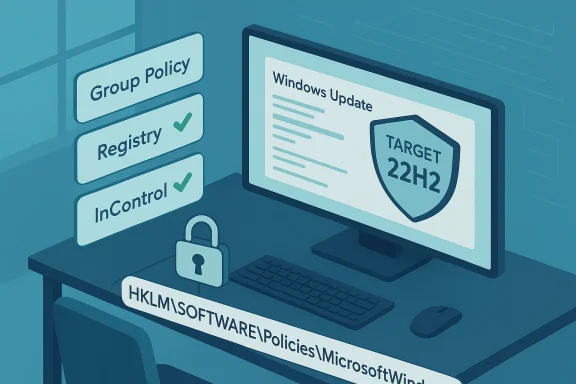 Background / Overview
Windows delivers two update classes: monthly quality/ security updates and larger feature updates (the big semi‑annual or annual releases that change the OS version string, e.g., “22H2”, “23H2”, “24H2”). Feature updates are controlled by Windows Update logic but are also subject to update‑management policies for business customers and for local machines via Group Policy or Registry. Microsoft’s official tooling intentionally provides administrators the ability to target a specific feature update version and to defer updates — and the company documents both the supported Group Policy options and the policy behavior when a version reaches end of service. (learn.microsoft.com)That built‑in control is why most reliable methods to “stop Windows upgrading” are not hacks but policy settings — either via Group Policy (for Pro/Enterprise/Education) or the equivalent registry keys (for Home users or scripted deployments). The community has also built small utilities that set those same policy keys for you; the most widely referenced is Steve Gibson’s InControl, which sets the target‑version registry values and reports what it changed. Major community threads and guides show the same Registry / GP paths being used repeatedly by technicians and sysadmins over the last several years.
Why PCs Seem to Upgrade “On Their Own”
There are three common causes behind surprise upgrades:- Accidental consent: upgrade prompts, optional update dialogs, or “Get started” flows can be clicked, sometimes by inattentive users. Community threads include many cases where a user clicked through a dialog and later discovered a feature upgrade was initiated.
- Optional/off‑channel settings: toggles such as Get the latest updates as soon as they’re available can cause a device to receive non‑security/preview or configuration updates earlier than typical rollout waves. Microsoft documents this toggle and how it prioritizes non‑security updates for devices that opt in.
- Policy or lifecycle enforcement: if a device remains on an unsupported feature update beyond Microsoft’s grace period, Windows Update will attempt to bring it to a supported release automatically — Microsoft’s documentation says devices will be updated once they are 60 days past end of service for their edition unless an administrator explicitly configures a target version policy. That behavior explains reports of forced upgrades after a version’s servicing window closes. (learn.microsoft.com)
The Supported, Reliable Ways to Stop Feature / OS Upgrades
Below are the proven methods every technically competent user or admin should understand. Each method includes exact settings, a short how‑to, and the operational caveats you must accept.1) Group Policy Editor: Best for Windows Pro / Enterprise / Education
Why use it: Group Policy is the supported, enterprise‑grade control for Windows Update behavior. It’s the least fragile method because it is applied at the policy layer rather than tinkering with internal state keys.Where it lives:
Computer Configuration → Administrative Templates → Windows Components → Windows Update → Manage updates offered from Windows Update → Select the target Feature Update version.
How to set it (step‑by‑step):
- Open gpedit.msc (type “gpe” in Start and open Edit group policy).
- Navigate to the path above.
- Open “Select the target Feature Update version”.
- Choose Enabled.
- In the policy page, set the “Which Windows product version would you like to receive feature updates for?” field to the product name you want (for example, Windows 10 or Windows 11), and set the “Target Version for Feature Update” to the version string you want to remain on (for example, 22H2). Apply and OK.
Caveats:
- If you’re managing a fleet, use Group Policy or Intune to avoid local drift.
- If you set a target that’s older than the machine’s current version or an invalid value, Windows Update may stop offering any feature updates until the policy is corrected, so test carefully. (learn.microsoft.com)
2) Registry edits: For Windows Home users or scripted automation
Why use it: Windows Home doesn’t ship with gpedit.msc, so the same policy is enforced by registry values under the Policies branch. This is how tools and scripts implement the Group Policy behavior for unmanaged machines.Exact registry path and values:
- Key: HKEY_LOCAL_MACHINE\SOFTWARE\Policies\Microsoft\Windows\WindowsUpdate
- Values:
- TargetReleaseVersion (DWORD) = 1
- ProductVersion (REG_SZ) = "Windows 10" or "Windows 11" (exact text)
- TargetReleaseVersionInfo (REG_SZ) = "22H2" or the feature‑update string you want to stay on
- Run regedit as Administrator.
- Create the key WindowsUpdate under HKEY_LOCAL_MACHINE\SOFTWARE\Policies\Microsoft\Windows if it doesn’t exist.
- Create the values shown above and set them accordingly.
- Reboot or run gpupdate /force to ensure policy is read.
Caveats and reliability notes:
- Many admins discovered that omitting ProductVersion can make the registry approach ambiguous; that’s why modern guidance includes ProductVersion explicitly.
- This approach enacts a policy. If your machine is domain‑joined or managed by Intune, that management layer can overwrite or ignore local changes.
- If the targeted release reaches end of service and Microsoft’s lifecycle enforcement kicks in, Windows may upgrade after Microsoft’s grace period (see the 60‑day rule below). The registry policy can hold if correctly configured and maintained, but it is not a magical permanent block against lifecycle‑driven remediation unless the policy is kept current. (learn.microsoft.com)
3) InControl (“Take Control”): a single‑click utility that sets the same policies
What it is: InControl is a small, portable utility from Gibson Research Corporation (Steve Gibson). It sets the supported registry keys and a handful of related values to “freeze” the OS edition and feature update behavior, then leaves the policy in place after it exits. Many users choose it because it removes manual registry risk and gives a one‑button “Take Control” and “Release Control” interface.How it works, in short:
- InControl sets the policy keys under HKLM\SOFTWARE\Policies\Microsoft\Windows\WindowsUpdate and other related values that inform Windows Update what to offer.
- The changes persist across reboots; InControl does not need to continue running for the policy to be enforced.
- The app is portable and widely mirrored on reputable download sites; it’s authored by a long‑standing Windows utility developer.
- It’s quick and reversible.
- It reduces the risk of typo or formatting errors when editing the registry manually.
- It is explicitly designed to allow monthly security and quality updates while blocking feature (major) upgrades.
Additional Tactics (Less Robust / Higher Risk)
- Metered connection: setting your network as metered prevents large downloads including some feature updates on non‑metered rules, but this is not foolproof and Microsoft may still deliver critical updates. Use this only as a temporary throttle, not a long‑term block. Community threads show many users rely on metered connections to delay upgrades, but it can be bypassed by system changes.
- Pause updates from Settings: Windows Update allows short pauses (up to 35 days for quality updates and a limited period for feature updates through deferred rings). This is temporary and not a permanent block. (learn.microsoft.com)
- Disabling update services or changing task scheduler tasks: some advanced guides propose stopping Windows Update services or disabling scheduled tasks like SIH (Service Installer Helper). These approaches can break security patching and are fragile (Windows often repairs these changes), and so they’re not recommended for long‑term use except in isolated test systems. Community archives contain many such “workarounds,” and the consensus is they’re risky and brittle.
The 60‑Day Lifecycle Reality: When Microsoft Can (and Will) Push You
A critical fact many users miss: if your computer remains on an unsupported feature update past the official end‑of‑service, Microsoft’s update logic can and will attempt to bring the device to a supported version. Microsoft’s deployment guidance states that when a device reaches 60 days past end of service for its edition, the device will be automatically updated unless a target version policy is configured and enforced. That policy behavior is why some machines appear to be “forced” to upgrade after the version ages out. If you intend to freeze at a version long‑term, you must track lifecycle dates and update your target policy well before end of service for the version you intend to use. (learn.microsoft.com)Operational guidance:
- Maintain a calendar of end‑of‑service dates for the Windows versions you run.
- If you must stay on a version beyond its EoS for specific compatibility reasons, plan to apply extended security updates (if available) or prepare to move to a supported branch. Otherwise the automatic upgrade may be enforced. (learn.microsoft.com)
Practical Example — Locking a Home PC to Windows 10 22H2 (Registry)
Below is a tested, reversible example. Do not copy/paste without understanding; back up the registry first.- Run regedit.exe as Administrator.
- Create (if missing): HKEY_LOCAL_MACHINE\SOFTWARE\Policies\Microsoft\Windows\WindowsUpdate
- Create a new DWORD (32‑bit) value:
- Name: TargetReleaseVersion
- Value: 1
- Create a new String Value (REG_SZ):
- Name: ProductVersion
- Value: Windows 10
- Create a new String Value (REG_SZ):
- Name: TargetReleaseVersionInfo
- Value: 22H2
- Reboot.
Troubleshooting: Why Blocking Might Not “Stick”
If your attempt to block upgrades doesn’t work, check these common issues:- Conflicting policies: domain/group policies or MDM (Intune) settings will override local registry edits.
- Typo or wrong product string: the ProductVersion value must match the expected product name (e.g., “Windows 10” or “Windows 11”), and incorrect spelling will make the policy invalid. Many help posts and Q&A threads show missing ProductVersion is a common pitfall.
- Version mismatch semantics: different major releases can reuse feature labels (e.g., 21H2 could appear in both product families historically), which is why ProductVersion exists to disambiguate. (learn.microsoft.com)
- Software that changes the Windows Update client behavior (WSUS, SCCM, third‑party patching agents) can override or interfere. If your machine is managed, talk to your admin rather than fighting the management layer. Community threads show clusters of machines stuck or being offered upgrades because of WSUS or missing client hardening updates.
Security Trade‑offs and Operational Risks
Blocking feature updates is not the same as blocking security patches — but mistakes can convert a safe block into a dangerous exposure.- Risk: If you disable or misconfigure update services, you might block security updates too, exposing your system to unpatched vulnerabilities. Many third‑party “blockers” are blunt instruments and can prevent all updates. Community discussions frequently warn about tools that stop security patches along with feature updates. Always verify that monthly cumulative security updates are still being delivered.
- Risk: Leaving a machine on an unsupported branch indefinitely can create compliance issues for businesses and increase the risk surface. Microsoft’s enforcement after EoS (60‑day rule) exists to protect devices — resisting it without a plan for extended security support is risky. (learn.microsoft.com)
- Risk: Third‑party tools must be vetted. Even well‑known utilities should be downloaded from the author’s official distribution, scanned, and checked for authenticity. Steve Gibson’s InControl is a reputable option, but treat any tool that changes system policies with appropriate caution and backups.
When You Need to Upgrade Later: Undoing the Blocks Safely
If you decide to move to a newer feature update or to Windows 11, reverse the policy safely:- If you used Group Policy: set “Select the target Feature Update version” to Not Configured and run gpupdate /force or reboot.
- If you edited the registry: delete TargetReleaseVersion, ProductVersion, and TargetReleaseVersionInfo under HKLM\SOFTWARE\Policies\Microsoft\Windows\WindowsUpdate, then reboot.
- If you used InControl: use the app’s “Release Control” command so it undoes the changes it applied.
- After policy removal, check Windows Update settings and run “Check for updates” to see the offered feature update, then follow the normal upgrade process (or use the Windows Update Assistant or Media Creation Tool if you prefer manual upgrade).
Recommendations: A Practical, Conservative Plan
For home users who want long‑term stability:- Use the registry method (or InControl) to set a target version.
- Keep automatic security/quality updates enabled — verify monthly that security patches are still arriving.
- Maintain awareness of the target version’s end‑of‑service date and plan a migration path well before the 60‑day enforcement window.
- Prefer Group Policy or Intune policies so you have traceable, auditable control.
- Test feature updates in a pilot ring before changing the target for all devices.
- Document the target configuration in change logs and monitor compliance.
- Don’t rely on metered connections or service stoppage as a permanent strategy.
- Vet any third‑party tool, and keep a documented undo procedure.
Final Analysis — Strengths, Weaknesses, and the Bottom Line
Strengths of the supported approach:- The Group Policy and registry methods are supported by Microsoft and widely documented; they enforce a clear contract with Windows Update about which feature update to offer. These methods are predictable and reversible. (learn.microsoft.com)
- The lifecycle enforcement (60‑day rule) means a “set and forget” mentality is dangerous; you must track servicing dates.
- Misapplied or overly blunt blocking (e.g., disabling update services) risks missing critical security fixes.
- Management tools and organizational policies can override local settings, so local blocks may be ineffective in corporate environments. Community incident threads demonstrate how easily policies can conflict or be reset by management infrastructure.
- If your goal is to guarantee no unexpected feature upgrades while still receiving security updates, use the supported policy mechanisms (Group Policy or the registry trio) — and, if you prefer convenience, use a vetted tool like InControl that applies those keys for you. But do not assume those settings remove your obligation to monitor lifecycle dates and verify monthly patch delivery. Treat blocking feature updates as a managed decision, not a permanent escape from maintenance.
If you want a concise checklist to apply right now, follow this three‑step action plan:
- Confirm your current version: press Win + R → type winver → note the product and feature update (e.g., Windows 10, 22H2).
- Choose your control method:
- Windows Pro/Enterprise: set the Group Policy “Select the target Feature Update version”.
- Windows Home or one machine: apply the registry trio (TargetReleaseVersion = 1; ProductVersion = "Windows X"; TargetReleaseVersionInfo = "YYH2") or run a vetted tool like InControl and press Take Control.
- Verify monthly security updates are still being installed and add the target release end‑of‑service date to your calendar so you can plan upgrades before Microsoft’s 60‑day enforcement period.
Source: Make Tech Easier How to Block Windows Upgrade for Good - Make Tech Easier
