

Windows freezing mid-task is one of those aggravations that can derail a productive afternoon or wreck a gaming session — and it rarely has a single, obvious cause. The fixes are usually a combination of quick triage steps, targeted software repairs, and hardware checks. This guide synthesizes practical, proven steps to stop random Windows freezes for good, explains why each step matters, and flags the risks and when to escalate to hardware replacement or professional support. The approach combines the common-sense checklist from popular troubleshooting guides with vendor-documented commands and tools so you can act with confidence.
Freezes — where the mouse, keyboard, or the whole system becomes unresponsive — are typically symptoms, not the disease. They fall into three broad categories:
Cross-checks: In enterprise or laptop scenarios, prefer OEM-signed drivers from the laptop/motherboard manufacturer when available because they are tailored for the platform.
Source: How-To Geek Tired of Windows freezing? Try these fixes to stop it for good
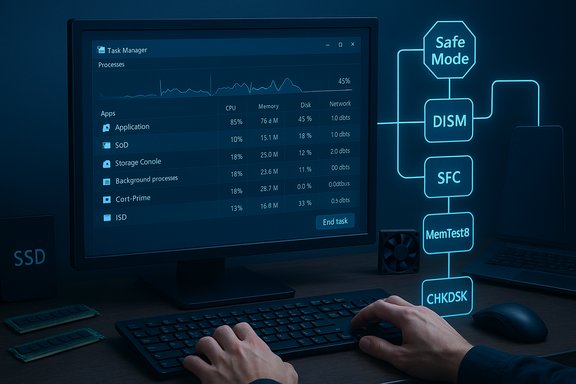 Background / Overview
Freezes — where the mouse, keyboard, or the whole system becomes unresponsive — are typically symptoms, not the disease. They fall into three broad categories:- Resource exhaustion (CPU, RAM, disk I/O) that leaves Windows with nothing left to do.
- Driver, firmware, or OS-level corruption that causes kernel-mode threads or services to hang.
- Hardware problems (overheating, failing RAM or storage, or a bad PSU) that manifest as intermittent stalls or sudden hangs.
Quick triage: regain control without panic
If your PC freezes, follow this minimal-impact checklist first. These steps often fix the problem in minutes and reduce the chance of data loss.- Wait 30–60 seconds. Many transient hangs clear themselves. A premature hard power-off can corrupt files mid-write.
- Try Alt+F4 on the focused window to gracefully close a stuck app.
- Open Task Manager (Ctrl+Shift+Esc) and sort by CPU, Memory, or Disk to identify a runaway process; right-click it and choose End task if necessary.
- If Task Manager won't open, press Ctrl+Alt+Del to reach the secure desktop. Use that menu to open Task Manager or restart the PC.
- If everything is dead and keyboard shortcuts don’t work, use a controlled restart: run
shutdown /r /t 0from any open elevated shell or, as a last resort, hold the power button for ~10 seconds. Use the power-off as a last option because of the risk of lost data or file corruption.
Stop apps from eating resources
One of the most frequent causes of freezes is simple resource exhaustion — too many browser tabs, background sync services, game launchers, or misbehaving apps starving the system.How to find the culprits
- Open Task Manager and view the Processes tab.
- Sort by CPU, Memory, and Disk to find sustained top consumers.
- For persistent culprits, open the Startup tab and disable them from auto-starting.
- Close or suspend browser tabs and heavyweight apps (virtual machines, video encoders).
- Disable unnecessary startup entries for stable long-term performance.
- On low-RAM systems (4–8 GB), prefer lighter browsers or increase physical RAM if you routinely hit 100% memory. Community guidance commonly recommends keeping memory pressure below 80% to avoid OS swapping stalls.
When to upgrade hardware
If Task Manager shows consistent high memory use during normal tasks, a RAM upgrade is often the only lasting fix. For sustained disk saturation, an NVMe or SATA SSD will provide a dramatic improvement over older HDDs.Prevent overheating — the silent freeze trigger
Thermal throttling or protective shutdowns are common when components run too hot. When the CPU or GPU crosses a threshold, the system throttles performance to protect silicon, which often looks like freezes or long stalls.- Monitor temps with a trusted tool such as HWMonitor (CPUID) to read CPU/GPU junction and package temps.
- If CPU or GPU temperatures consistently run above ~85°C under normal load, investigate cooling. Sustained operation in the 85–95°C range commonly triggers throttling and instability; modern chips have TjMax values in the 95–105°C range but running near those limits is not advisable. Use multiple sources to confirm these thresholds (TechSpot, hardware guides).
- Clean dust from fans and heatsinks; compressed air is effective.
- Reapply thermal paste on older builds showing high idle temps.
- Ensure laptop vents are unobstructed; avoid running laptops on soft surfaces.
- Use a cooling pad for laptops and improve case airflow on desktops.
- Underclock or limit power/thermal profiles as a temporary mitigation while you fix cooling.
Graphics drivers: update or roll back carefully
Graphics drivers are among the most frequently implicated kernel-mode drivers that cause freezes, stutters, or blue screens.- Recommended source: download drivers directly from the GPU vendor (NVIDIA, AMD, Intel) or your OEM. Vendor pages provide the most current, tested packages.
- If freezes began immediately after a driver update, roll the driver back via Device Manager (Properties → Driver → Roll Back Driver) or restore to a previous stable driver set.
- If a fresh driver is required, use the vendor installer and choose a clean installation or use Display Driver Uninstaller (DDU) in Safe Mode to remove residues of older packages before reinstalling — especially useful when symptoms started after a driver upgrade.
Cross-checks: In enterprise or laptop scenarios, prefer OEM-signed drivers from the laptop/motherboard manufacturer when available because they are tailored for the platform.
Run SFC and DISM in the correct order to repair system files
Windows includes two core servicing tools that fix component-store and system file corruption. Use DISM to repair the component store, then SFC to restore protected files.- From an elevated command prompt, run:
DISM /Online /Cleanup-Image /RestoreHealthsfc /scannow
- DISM may download replacement files from Windows Update; if the machine is air-gapped, you can provide an ISO or a known-good source using the
/Source:switch. IfDISMreturns a source error, follow the DISM guidance for using an offline source. - After DISM completes, run
sfc /scannow. If SFC reports unfixable issues, repeat DISM then SFC again, or consider an in-place repair install. Community and Microsoft guidance both recommend CHKDSK afterward if disk errors are suspected.
Scan and validate RAM — don’t skip memory checks
Random freezes under light loads with memory usage near capacity can indicate faulty RAM.- Run the built-in Windows Memory Diagnostic: press Win+R →
mdsched.exe→ choose “Restart now and check for problems.” The tool runs and writes results to Event Viewer. - For deeper validation, use MemTest86 bootable media and run multiple passes (overnight if possible). Faulty DIMMs typically appear as consistent errors across independent runs.
- Power off the PC, reseat RAM modules.
- Test one stick at a time to isolate the faulty module.
- Replace the failing module(s) or return them under warranty.
Optional feature: hardware-accelerated GPU scheduling — flip if it causes problems
Hardware-accelerated GPU scheduling is an OS-level option that can improve latency and reduce CPU overhead by letting the GPU manage its own VRAM scheduling. It was introduced to Windows as a performance feature but has been known to produce stuttering or freezing on some systems — particularly low-end or older GPUs with immature driver support. Microsoft’s DirectX blog describes the feature and the driver/firmware prerequisites; mainstream how-to guides show the control is in Settings → System → Display → Graphics → Advanced Graphics Settings. If you turned it on and started seeing freezes, switch it off and reboot to test whether stability returns.Disk health, free space, and CHKDSK
Low free space on the system drive and failing storage both produce freezes stemming from blocked I/O and corrupted writes.- Keep at least a practical buffer of free space — community guidance often recommends 10–15% free for general use and a much larger buffer (20–35 GB or more) when applying major feature updates. This is a guideline — exact needs vary by system and update.
- Run
chkdsk C: /f /rfrom an elevated CMD if you suspect disk errors. CHKDSK may require scheduling at next reboot and can take hours on large drives. - Check SMART attributes with vendor tools (Samsung Magician, Crucial Storage Executive, vendor SSD/HDD utilities) for reallocated sectors, high wear, or other failure indicators.
When to use Safe Mode, Clean Boot, and Autoruns
Safe Mode and Clean Boot are isolation techniques that help determine whether third‑party services or drivers cause freezes.- Safe Mode boots with minimal drivers and is a fast way to test whether the problem is third-party software.
- Clean Boot (msconfig → Hide all Microsoft services → Disable all, plus disable startup entries in Task Manager) lets you re-enable services one at a time to find the offender.
- Autoruns (Sysinternals) exposes every autorun location, including scheduled tasks and shell extensions, which can hide the true culprit when Task Manager doesn’t show it.
Advanced diagnostics: Event Viewer, minidumps, Driver Verifier
If freezes persist after the basic and intermediate steps, collect data before making major changes.- Inspect Event Viewer (Windows Logs → System / Application) and Reliability Monitor to see errors around the freeze time. These logs often point to a driver, kernel error, or service.
- Configure Windows to generate kernel or full memory dumps on crash and analyze minidumps with WinDbg or tools like BlueScreenView to identify the problematic driver.
- Use Driver Verifier to stress suspect drivers — but prepare a recovery plan because Verifier can cause crashes by design; only enable it selectively and on systems where you can boot to Safe Mode or have recovery media ready.
Last resorts: in-place repair, System Restore, and clean install
If layered troubleshooting fails:- Try System Restore to revert to a point before the issue started (if you have restore points).
- Do an in-place repair (run Windows Setup from a mounted ISO and choose to keep personal files and apps) to refresh system files without a full reinstall.
- As a final step, back up critical data and perform a clean install.
Practical checklist — step-by-step sequence (recommended)
- Wait 30–60 seconds; try Alt+F4.
- Open Task Manager (Ctrl+Shift+Esc) → End task on the top resource hog.
- Restart if necessary (use Ctrl+Alt+Del → Restart).
- Check temperatures with HWMonitor; cool the system if temps exceed 85°C under reasonable load.
- Update or roll back GPU drivers from the vendor site (NVIDIA/AMD/Intel); use clean installs or DDU for stubborn issues.
- Run
DISM /Online /Cleanup-Image /RestoreHealththensfc /scannow. - Run Windows Memory Diagnostic; follow up with MemTest86 if errors appear.
- Run CHKDSK if disk I/O issues or SMART faults are suspected.
- Boot Safe Mode / perform a Clean Boot to isolate third-party software.
- Collect logs (Event Viewer, minidumps); escalate if you find driver or firmware-level causes.
Strengths, risks, and when to get help
Strengths of this layered approach:- Uses built-in, vendor-supported tools first (Task Manager, SFC, DISM, Memory Diagnostic), which are low-risk and reversible.
- Prioritizes non-invasive fixes before hardware replacements.
- Provides a defensible audit trail (logs and dumps) for vendor escalation or warranty claims.
- Hard power cycles and force-killing processes risk lost work and, in rare cases, filesystem corruption. Use them only when necessary.
- Firmware or BIOS updates carry non-trivial risk if interrupted; always back up and follow vendor instructions when flashing.
- Some “optimizers” and third-party driver updaters have historically caused more problems than they solve — prefer vendor sites and Microsoft’s guidance.
- Repeated SMART failures, persistent MemTest86 errors, or PSU instability — these are hardware faults that warrant RMA or technician support.
- If crash dumps point to motherboard or chipset faults; those are often beyond DIY fixes and require vendor diagnostics.
Conclusion
Random Windows freezes are maddening but usually solvable with a calm, methodical process: triage with Task Manager and safe restarts, check for thermal and resource pressure, update or roll back drivers (especially GPU drivers), repair system image and files with DISM and SFC, test memory and disks, and isolate third-party services with Safe Mode or a Clean Boot. Keep a habit of regular preventive maintenance — clean fans, keep firmware/drivers reasonably current, and maintain backups — and you’ll dramatically reduce the frequency and severity of freezes. If internal diagnostics point to failing hardware, act quickly: failing RAM, SSDs with reallocated sectors, or an unstable PSU are all reasons to stop chasing software fixes and get a professional replacement. The steps above combine community-tested troubleshooting flows with vendor-documented tools so you can solve freezes more reliably and with less risk to your data.Source: How-To Geek Tired of Windows freezing? Try these fixes to stop it for good
