

 How to Turn Off Efficiency Mode in Windows 11: What It Is, Why It Matters, and When You Should Leave It Alone
Windows 11’s Efficiency Mode is meant to be a quiet helper: it lowers the priority of selected processes, nudges them toward more power-efficient execution, and helps laptops sip battery instead of gulping it. But in real-world use, that same feature can become a nuisance when it throttles a browser tab you still need, slows a game launcher, or makes a background sync tool crawl. Microsoft also does not provide a simple, official global “off” switch, so disabling it is less about one magic button and more about choosing the right workaround for the job.Background
Efficiency Mode is closely tied to Windows power management, especially the broader power throttling and EcoQoS ideas that Microsoft has used to steer workloads toward more efficient CPU behavior. In practice, that means Windows can treat some background work as less urgent, reduce how aggressively it uses CPU resources, and lower energy use on devices where battery life matters. Microsoft’s own documentation on power throttling describes background work as a candidate for reduced CPU frequency, with the goal of saving power without completely stopping the process.That design makes sense on paper. A laptop that is light on battery should not spend peak power on a tab you abandoned hours ago, a sync task that can wait, or a launcher sitting idle before a game starts. The problem is that Windows, browser vendors, and app developers each have their own logic for deciding what counts as “background,” and those choices do not always match what the user actually cares about.
Over the last few years, complaints have clustered around browsers in particular. Chromium-based browsers have long used internal memory and priority management strategies to lower the resource footprint of background tabs, and Chrome can even discard tabs when memory pressure rises. That behavior is useful for keeping the system alive under load, but it can also look like random freezing or tab reloads from the user’s perspective.
Microsoft’s stance is also important here: there is no officially supported system-wide switch that permanently disables Efficiency Mode for every app. Microsoft community answers repeatedly point users to per-process toggles, while noting that registry tweaks and policy workarounds are not the same thing as an endorsed global control. That means anyone writing about the feature needs to be careful not to oversell a permanent fix that does not actually exist in the box.
The result is a very modern Windows 11 problem: the operating system is trying to be smarter than ever about conserving resources, but power users, gamers, and heavy multitaskers often want deterministic performance instead of adaptive restraint. That tension explains why Efficiency Mode has become one of those features people appreciate in theory and disable in practice.
What Efficiency Mode Actually Does
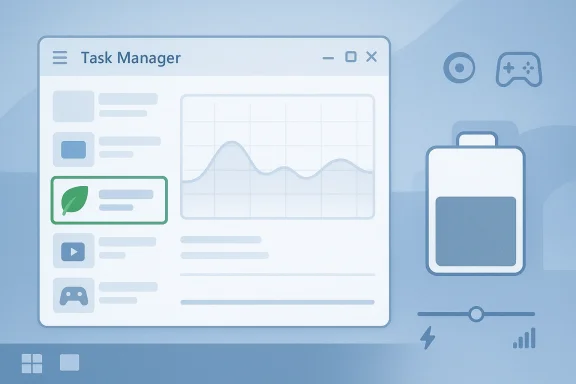
At a basic level, Efficiency Mode tells Windows that a process should be treated as lower priority and should favor power-efficient execution. In Task Manager, this often appears as a green leaf icon, which signals that the process is being managed with efficiency in mind rather than raw responsiveness. Microsoft support guidance describes this as a per-process control, not a whole-system switch.The practical consequence is that the process may get less CPU attention when competing with foreground tasks. That is not inherently bad; background work should not be allowed to starve the app you are actively using. But if Windows or the app itself misclassifies something important as background activity, the user sees lag instead of savings.
Why the green leaf matters
The leaf icon is more than a cosmetic badge. It is the quick visual clue that a process is being deprioritized, and it helps explain why an app may feel sluggish even when the machine is not obviously overloaded. When a browser, launcher, or sync client gets marked this way, the result can be much more noticeable than a simple drop in benchmark numbers.There is also a psychological angle. Users tend to interpret lag as a bug, but Efficiency Mode is often a policy decision rather than a crash or hardware failure. That distinction matters because it changes the troubleshooting path: you are not necessarily dealing with a broken app, but with a system feature doing exactly what it was designed to do.
- It reduces CPU priority for selected work.
- It can encourage more efficient CPU behavior.
- It may improve battery life or reduce power draw.
- It can slow down tasks that need consistent responsiveness.
- It often shows up as a green leaf in Task Manager.
Why Users Want to Disable It
The biggest reason people want to turn off Efficiency Mode is simple: it sometimes throttles the wrong thing. A process that is technically in the background might still matter a great deal to the user, especially if it is keeping a browser tab live, syncing files, or supporting a creative workflow. In those cases, “efficient” can translate into “annoyingly delayed.”Gamers also run into this behavior in ways that are hard to diagnose at first. Launchers, overlays, and companion utilities can end up deprioritized, which can create stutter, longer load times, or delayed input in places users do not expect. The same pattern shows up in coding tools, media apps, and heavy multitasking environments where background work is not optional.
Browsers are the most common pain point
Browsers deserve special attention because they are both memory-hungry and highly dynamic. Chrome, Edge, and Firefox all have their own mechanisms for managing background tabs, and those internal rules can stack on top of Windows’ own efficiency decisions. The end result is that a tab may look “frozen” when it is really being deprioritized by more than one layer of software.That is why browser complaints are so persistent. A user switches away from a tab, Windows and the browser both decide it is not urgent, and when the user returns, the page responds slowly, reloads, or appears to hang. This is not always a Windows bug in isolation; sometimes it is an overlap between the operating system’s power model and the browser’s own resource policies.
- Background tabs may reload or stall.
- Sync tools may appear late or inconsistent.
- Games can feel less responsive than expected.
- Creative tools may lag during long sessions.
- Power users often prefer predictable performance over battery savings.
The Fastest Fix: Turn It Off in Task Manager
The easiest way to disable Efficiency Mode for a specific app is still the Task Manager route. Open Task Manager, find the process, right-click it, and toggle Efficiency Mode off if the option is available. Microsoft’s guidance confirms that this is a per-process action and that it is not designed as a permanent global configuration.This is the right first step because it is immediate and low risk. If an app is misbehaving right now, this method lets you test whether throttling is the cause without touching the registry or policy settings. It is also the most user-friendly path for people who only need to rescue one process, such as a browser or a particular background service.
Where the option may be hiding
On newer Windows 11 builds, the toggle may not always appear in the exact place users expect. If the process is grouped, you may need to expand the tree and target a sub-process rather than the parent entry. That detail matters because browsers and other modern apps often run dozens of child processes, and the leaf icon may be attached only to one of them.The downside is persistence. If Windows or the app decides to re-enable efficiency handling later, the leaf can come back after a restart or even during a fresh browsing session. That is why this method is best viewed as a quick intervention, not a lasting policy choice.
- Press Ctrl + Shift + Esc to open Task Manager.
- Find the app or process that feels slow.
- Expand grouped processes if needed.
- Right-click the specific process.
- Toggle off Efficiency Mode if the option is present.
Preventing Windows from Throttling Important Apps
If a process keeps getting put into Efficiency Mode, the issue may be partly about how Windows treats background activity. In that case, changing the app’s background behavior can reduce how often it is treated as low priority. This is not a guarantee, but it helps shift the odds in your favor.Windows Settings lets you review how an app behaves in the background, and for some users that alone is enough to make a noticeable difference. The key idea is to make sure important tools are not treated as disposable background work when you actually need them to stay active. That is particularly useful for apps that do periodic syncing, notification handling, or session persistence.
Background app permissions matter more than many users realize
If an app is allowed to run in a more persistent mode, Windows is less likely to treat it like an expendable process. That does not override every efficiency decision, but it reduces the chance that the app will be aggressively deprioritized just because it is not front-and-center. For users with sync clients or collaborative tools, this can be the difference between usable and frustrating.Startup behavior matters too. An app that launches at boot and stays resident is often handled more predictably than one that is repeatedly started from scratch. That said, startup apps are not free; every extra resident process consumes memory, so this is a tradeoff rather than a universal best practice.
- Set critical apps to stay active in the background when possible.
- Review startup apps for tools you rely on daily.
- Avoid letting everything auto-start just for convenience.
- Remember that “more persistent” is not the same as “faster.”
- Use this approach as a complement to, not a replacement for, other fixes.
Registry Tweaks and Power Throttling
For users who want a more durable change, the most discussed workaround is to disable the underlying power throttling mechanism. Microsoft has acknowledged in community replies that users have reported success with registry-based approaches, even while stopping short of endorsing them as an official global control. That distinction is crucial: it is a workaround, not a supported feature toggle.The registry approach is attractive because it targets the platform behavior underneath Efficiency Mode instead of fighting each individual process one by one. If it works on your machine, it can reduce the need to keep undoing efficiency settings after every reboot or app launch. But because this changes how Windows balances power and performance system-wide, it should be used thoughtfully.
What the registry change is really doing
The idea behind the registry tweak is to switch off the system’s power-throttling policy so Windows is less inclined to apply efficiency treatment automatically. In practical terms, that can stop the operating system from applying the same low-priority behavior to background work. Microsoft’s policy documentation also shows that power-throttling controls exist in enterprise management contexts, reinforcing the fact that this is part of the broader Windows power framework rather than a browser-only quirk.Still, there is a cost. On a laptop, more aggressive performance behavior can mean more heat, more fan noise, and faster battery drain. On desktops, it may be less visible day to day, but it can still alter how background services behave when the machine is under load. The tradeoff is real, and it is not automatically worth it for every user.
- It may reduce automatic throttling.
- It can improve responsiveness for heavy multitasking.
- It may increase power draw on laptops.
- It is not an official global on/off switch.
- It should be treated as a targeted power-user workaround.
Group Policy and Managed Devices
For Windows 11 Pro and Enterprise users, Group Policy is the cleaner administrative route. Microsoft’s policy ecosystem includes power-throttling controls, and enterprise documentation shows that these settings can be managed through policy channels rather than hacked in manually on each machine. That makes Group Policy the better choice for standardized environments.This matters in business settings because administrators want repeatable behavior. A registry tweak can be brittle across imaging, scripting, or compliance workflows, while a policy can be documented, deployed, and audited more cleanly. In other words, what is a personal workaround on a home PC becomes a governance issue in a fleet.
Why admins care more than enthusiasts
In managed environments, the wrong power behavior can affect more than one user’s annoyance level. It can alter app responsiveness across a department, interfere with line-of-business software, or create troubleshooting noise that masks bigger problems. Policy-based controls are therefore appealing not because they are glamorous, but because they are consistent.There is also a deployment angle. Policies can be rolled back if a change creates trouble, which is much easier than chasing scattered local edits on dozens or hundreds of machines. That is why enterprise admins tend to prefer documented controls over ad hoc registry guidance, even if both can lead to similar behavior on the surface.
- Best for Pro and Enterprise editions.
- Better for organizations that need consistency.
- Easier to audit than local changes.
- Easier to reverse if performance or battery life suffers.
- More appropriate for fleets than for casual experimentation.
Browser-Specific Fixes
Browsers are often where users first notice Efficiency Mode, but the browser itself may be doing part of the throttling. Chromium-based browsers and Firefox both have their own resource-management behavior, which means the fix is sometimes inside the browser rather than in Windows. That is why browser-specific troubleshooting should be part of any serious solution path.Chrome and Edge, for example, have long managed background tabs aggressively to conserve memory, and Chromium documentation makes clear that the browser lowers the priority of background tabs and may discard them under pressure. That means a “Windows problem” may actually be a browser policy plus Windows power management working together.
Chrome and Edge: efficiency is built in
For Chrome and Edge, users sometimes try command-line flags or memory settings to reduce background throttling. However, policy and feature behavior change over time, so shortcuts that once worked may no longer be reliable across current versions. A more important practical step is to review built-in memory saver features, because those are often the actual source of tab unloading and reload behavior.Microsoft’s Edge policy documentation also shows that Edge has its own EfficiencyMode policy surface, which can influence when energy-saving behavior becomes active. That means administrators have browser-level controls that are distinct from Windows’ own task-level efficiency settings. For users, the takeaway is simple: do not assume all leaf icons come from the same place.
Firefox: the hidden setting many users miss
Firefox has a particularly useful internal knob: a configuration preference that can stop it from requesting EcoQoS-style treatment for background work. Mozilla’s process model documentation shows how Firefox uses multiple processes, which explains why a browser may feel inconsistent unless the browser’s own process management is understood. When background tabs are freezing, Firefox’s internal preference can be more relevant than Windows’ Task Manager toggle.That makes Firefox troubleshooting especially important for users who assumed Windows was always the culprit. If the browser itself is asking for lower-priority handling, changing the browser setting may do more good than toggling Efficiency Mode in Task Manager over and over. This is one of those quiet but important distinctions that separates a temporary workaround from a lasting fix.
- Check browser memory-saving features first.
- Remember that browsers can request their own efficiency handling.
- Use browser settings when Task Manager changes do not stick.
- Test the browser after each change rather than stacking everything at once.
- Treat command-line flags cautiously because support changes over time.
Power Plans and Performance Modes
Windows power plans still matter because they shape how aggressively the system prefers efficiency over responsiveness. Microsoft’s performance slider and related power-management settings make clear that Windows is constantly balancing CPU behavior against energy use. If you are trying to keep Efficiency Mode from interfering, a more performance-oriented plan can help reduce how often the system decides to conserve.The important nuance is that a performance plan is not the same as disabling Efficiency Mode outright. Rather, it sets the system’s default expectations so Windows is less eager to behave as though every non-foreground task is expendable. That is why many users see better results when they pair a performance-oriented plan with per-process or browser-specific changes.
Best Performance is not always best for everyone
On a desktop plugged into the wall, a performance mode is often the least controversial choice. On a battery-powered laptop, the same setting can be a poor trade if you care more about runtime than maximum responsiveness. That makes power-plan selection a policy choice as much as a technical one.Users should also remember that Windows may still make background decisions regardless of the selected power plan. The plan influences the system’s baseline behavior, but it does not erase the underlying logic that makes Efficiency Mode available in the first place. So while a performance mode can help, it is not a silver bullet.
- Best for desktops and plugged-in workstations.
- Helpful for games and creative workloads.
- Less ideal for battery-sensitive laptops.
- Works best when combined with app-level tuning.
- Reduces, but does not eliminate, efficiency behavior.
Troubleshooting When the Fix Does Not Stick
One of the most frustrating complaints is that Efficiency Mode comes back after you turn it off. That usually means there is another layer at work: the browser, the app, Windows background policy, or a power plan that keeps nudging the system toward throttling. In other words, the leaf icon can be a symptom, not the whole disease.If the toggle appears greyed out, the issue may be that you are clicking the wrong process level. Many modern apps are multi-process, so the parent entry may not be the right place to make the change. In some cases, the toggle is unavailable by design because the process is a core Windows component or the application manages the behavior internally.
A sensible troubleshooting sequence
The best way to avoid chasing your tail is to troubleshoot in layers. Start with the app itself, then check Task Manager, then review background permissions and power mode, and only then move to registry or policy changes. That order reduces the chance of making a broad change when a narrower fix would have been enough.It also helps to separate “slow because of efficiency” from “slow because of something else.” Low RAM, saturated storage, outdated drivers, and malware can all mimic throttling problems. A user who skips those basics can spend an hour changing power settings for a problem that was really caused by something entirely different.
- Expand process trees before judging the toggle.
- Check whether the app controls efficiency behavior internally.
- Verify that the problem still exists after changing power mode.
- Watch for low memory or heavy disk usage.
- Do not assume every freeze is caused by Efficiency Mode.
Strengths and Opportunities
Efficiency Mode is not a bad idea; in fact, it is one of the more rational parts of Windows 11’s energy strategy. The opportunity lies in using it selectively rather than reflexively, especially on systems where battery life, fan noise, and background load are genuine concerns. The feature is most effective when it is allowed to do its quiet work on truly expendable processes.- It can reduce unnecessary power usage.
- It can help laptops last longer on battery.
- It can make background work less intrusive.
- It gives Windows a more intelligent way to manage idle tasks.
- It can improve thermals on compact devices.
- It benefits users who value silence and endurance over raw speed.
- It aligns with broader Windows power-efficiency goals.
Risks and Concerns
The downside is that Efficiency Mode can be too helpful, especially when it gets applied to software that users still consider active and important. The biggest concern is not that it exists, but that it may act invisibly and unpredictably enough to create confusion, frustration, and unnecessary troubleshooting.- It may throttle apps users still need.
- It can create browser tab freezes or reloads.
- It may interfere with games and launchers.
- It can hide the real cause of a slowdown.
- It may encourage users to disable broader power management.
- It can be confusing when multiple layers of throttling overlap.
- It is not easy to turn off globally in an official way.
Looking Ahead
Windows power management is moving toward finer-grained control, not less control. That means users should expect more intelligent throttling behavior over time, not fewer system decisions. The challenge for Microsoft is to make those decisions feel transparent enough that they help more than they annoy.The likely future is more app-specific and policy-specific tuning, not a universal kill switch. For most users, that is probably the right direction, but it also raises the bar for clarity, because every added layer of “smart” behavior makes troubleshooting a little harder. The more Windows tries to optimize automatically, the more users will want clear explanations when performance changes.
- More app-specific controls are likely.
- Browser vendors will keep shaping the experience.
- Enterprise policy will remain more flexible than home editions.
- Users will continue to want predictable behavior over adaptive savings.
- Power-efficient defaults will stay important on mobile devices.
Source: H2S Media How to Turn Off Efficiency Mode in Windows 11 (And When You Should)
Last edited:
