

I ignored AutoArchive for years — and my mailbox paid the price, until I turned it on and reclaimed tens of gigabytes and a lot of mental overhead.
If your Outlook inbox feels like a cluttered attic — thousands of messages, folders layered with old threads, and a mailbox that slows down searches and syncs — there's a simple, long‑standing tool inside the classic Outlook client that can help: AutoArchive. AutoArchive automatically moves older items out of your live mailbox and into a local Outlook Data File (.pst), reducing mailbox size while keeping old mail accessible. The feature quietly handles routine cleanup on a schedule you choose, and when configured correctly it can be the fastest path from "messy" to "manageable."
This feature is part of Classic Outlook for Windows and is not available in the New Outlook client; you must use the legacy/classic client to access AutoArchive controls. Microsoft documents the feature, the default archive file location, aging rules, and the fact that New Outlook does not include AutoArchive.
Below I summarize how AutoArchive works, walk through practical setup and folder rules you should change immediately, explain the risks and recovery options, and offer a step‑by‑step cleanup plan for anyone sitting on tens of thousands of messages. I cross‑checked Microsoft’s documentation and independent how‑to guides to verify the settings and file locations, and I flag where AutoArchive behavior can create new problems if you’re not careful.
Important clarifications:
If you depend on AutoArchive and the classic client, make sure your environment still supports it; some newer machines or managed installs may emphasize New Outlook. Keep a copy of the classic installer or coordinate with your IT admin if your machine is managed by a corporate update policy.
If you use AutoArchive, proactively place your archive.pst outside cloud sync to prevent corruption and sync conflicts.
If you’re dealing with thousands of messages, a staged AutoArchive rollout — tailored per folder, with archive files stored off cloud sync and backed up regularly — will restore control to your inbox without throwing away history. Be vigilant about storage location (avoid OneDrive for active .pst files) and set sensible aging periods for different folder types. With a few minutes of configuration and a simple maintenance plan, you can go from an overloaded mailbox to a lean, responsive mail environment — and stop letting old emails slow you down.
Source: MakeUseOf I ignored this Outlook Classic feature for years, and my inbox was a disaster because of it
 Overview
If your Outlook inbox feels like a cluttered attic — thousands of messages, folders layered with old threads, and a mailbox that slows down searches and syncs — there's a simple, long‑standing tool inside the classic Outlook client that can help: AutoArchive. AutoArchive automatically moves older items out of your live mailbox and into a local Outlook Data File (.pst), reducing mailbox size while keeping old mail accessible. The feature quietly handles routine cleanup on a schedule you choose, and when configured correctly it can be the fastest path from "messy" to "manageable."This feature is part of Classic Outlook for Windows and is not available in the New Outlook client; you must use the legacy/classic client to access AutoArchive controls. Microsoft documents the feature, the default archive file location, aging rules, and the fact that New Outlook does not include AutoArchive.
Below I summarize how AutoArchive works, walk through practical setup and folder rules you should change immediately, explain the risks and recovery options, and offer a step‑by‑step cleanup plan for anyone sitting on tens of thousands of messages. I cross‑checked Microsoft’s documentation and independent how‑to guides to verify the settings and file locations, and I flag where AutoArchive behavior can create new problems if you’re not careful.
Background: What AutoArchive really is (and what it isn’t)
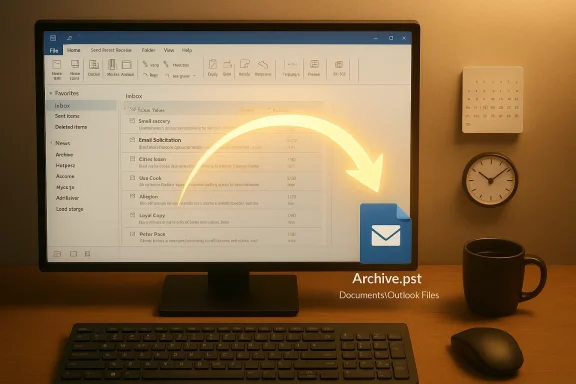
AutoArchive is an automated housekeeping engine built into Classic Outlook for Windows. It:- Moves older items from your mailbox folders into a separate Outlook Data File (.pst) on disk.
- Reduces mailbox size by physically removing archived items from the server or the live mailbox.
- Retains access to archived messages — they remain searchable in Outlook when the .pst is loaded.
- Runs on a schedule you set (daily to every 60 days) and uses aging rules that determine which items qualify.
Important clarifications:
- Manual "Archive" (the Archive button) often moves messages into an Archive folder inside the same mailbox, which does not reduce mailbox storage on the server. AutoArchive instead moves items out of the mailbox into a local .pst — that is the action that reduces server mailbox size.
- AutoArchive works at the folder level and respects folder‑specific settings. It also has default aging periods for Inbox, Sent Items, Deleted Items, Calendar, Tasks, Notes, and Journal. These defaults can be changed globally or per folder.
- AutoArchive is not present in the New Outlook for Windows; you must use Classic Outlook to configure and rely on this feature.
Why AutoArchive makes sense now
If you have an established account measured in years — particularly POP, IMAP, or mailboxes with large message history — archive files are a practical way to:- Free server quota or improve Exchange/Office 365 mailbox performance.
- Speed up search indexing and improve client responsiveness.
- Keep older mail available locally without view clutter in your primary mailbox.
- Those messages live on the local PC (or whatever storage the .pst file is on). If you rely on multiple devices or cloud continuity, plan accordingly.
- If a .pst is stored in cloud‑synced folders (for example, inside OneDrive), you can trigger sync conflicts, warnings, and even Outlook instability — a known real‑world problem reported in support threads and community troubleshooting posts. Move archive .pst files to a local folder outside active cloud sync to avoid that risk.
Overview of AutoArchive settings and defaults
Microsoft documents the AutoArchive dialog and the default aging periods. Here are the essentials you’ll see under File > Options > Advanced > AutoArchive Settings:- Run AutoArchive every n days — choose 1 to 60 days; default is 14 days.
- Prompt before AutoArchive runs — optional; useful if you want warning dialogs.
- Delete expired items (e‑mail folders only) — removes messages past their expiry date (off by default).
- Archive or delete old items — enable this to archive; otherwise AutoArchive does nothing.
- Clean out items older than — set the age threshold (1 day to 60 months).
- Move old items to — choose the .pst file location (default archive.pst in Documents\Outlook Files).
- Permanently delete old items — avoid unless you’re sure, as this bypasses Deleted Items.
- Inbox and Drafts: 6 months
- Sent Items and Deleted Items: 2 months
- Outbox: 3 months
- Calendar, Tasks, Notes, Journal: 6 months
Step‑by‑step: Turning on AutoArchive in Classic Outlook
If you use Classic Outlook, the setup is straightforward. Confirm the steps below against what you see in your client.- Open Classic Outlook (not the New Outlook).
- Go to File > Options > Advanced.
- Click AutoArchive Settings.
- Check Run AutoArchive every… and pick the frequency (14 days is reasonable).
- Configure Clean out items older than… and choose Move old items to… (or select Permanently delete old items if that's desired).
- Optionally select Prompt before AutoArchive runs.
- Click OK.
- Right‑click the target folder in the Navigation pane > Properties > AutoArchive tab.
- Choose either Use default settings or Archive this folder using these settings to override defaults.
- For Calendar or Tasks, open the folder then use Folder > Folder Properties on the ribbon to access the AutoArchive tab.
Practical configuration recommendations
If you’re starting from a full mailbox (tens of thousands of messages), I recommend this conservative approach that balances accessibility, storage relief, and safety:- Frequency: Run AutoArchive every 14 days (default). This keeps files small enough to process without large spikes.
- Inbox: Archive items older than 6 months — a sensible default that keeps recent mail handy.
- Sent Items: 2–3 months by default; extend to 6–12 months if you need more history for sent confirmations.
- Project folders: Set per‑folder rules; you may want 12–24 months for active project history.
- Archive file location: Use C:\Users\<username>\Documents\Outlook Files\Archive.pst or another local folder that is not synced by OneDrive, Dropbox, or Google Drive to avoid file lock/sync corruption.
- Backups: Regularly back up the .pst; a corrupted .pst can cause permanent local data loss. Keep a copy on external storage or a dedicated backup service.
A realistic cleanup plan for a 30,000‑message mailbox
If your mailbox is already massive, do this in stages rather than an all‑at‑once sweep:- Audit and snapshot
- Check mailbox size in File > Info and note which folders are largest.
- Export or copy critical folders if you want a safe checkpoint before any mass moves.
- Decide retention periods
- Choose conservative aging thresholds per folder. Start with 12 months for Inbox if you're unsure; you can tighten later.
- Configure AutoArchive globally (Run every 14 days) and tailor the key folders (Inbox, Sent, project folders).
- Run AutoArchive manually once via the settings prompt or by using Archive to force the first pass.
- Verify the Archive.pst is created in your local Documents\Outlook Files folder and confirm size and contents (Open Outlook Data File to browse).
- Monitor mail delivery and search responsiveness; give the system 2–3 AutoArchive cycles to settle.
- Trim further: change folder thresholds or use targeted manual archiving for very large older attachments.
- Backup the .pst and test a restore on another machine or profile to ensure you can recover the archive if needed.
Risks, edge cases, and how to avoid them
AutoArchive is powerful but not risk‑free. Here are the principal hazards and mitigations:- PST stored in cloud sync can cause corruption, sync loops, or "file in use" errors.
- Community troubleshooting posts document real instances where Outlook became unstable because a .pst was stored inside OneDrive and OneDrive tried to sync a file Outlook kept open. To avoid this, keep .pst files on local storage outside cloud folders.
- Local .pst files are tied to a single device unless you deliberately copy or back them up. If you need cross‑device access, use a server‑side archive or plan for reliable backup and restoration.
- Permanently delete old items: If you select the Permanently delete option, there is no AutoArchive copy — deleted items bypass Deleted Items. Use this only when you are absolutely sure you will not need the messages later.
- Multiple Exchange accounts: If your profile contains multiple Exchange accounts and you configure AutoArchive for an Exchange account, Microsoft notes that the same settings may apply across other Exchange accounts in the same profile — check account scope carefully before applying global settings.
- Large .pst files can become slow or unstable over time; keep archives segmented if you expect them to grow beyond a few dozen GB. Back up and, if needed, create new archive .pst files per year or per project.
Recovery and search: how to find archived mail after AutoArchive
When AutoArchive moves items into a .pst file, they remain accessible from Outlook — but you may need to open the data file if it isn't already loaded:- Use File > Open & Export > Open Outlook Data File and browse to your archive .pst (typically in Documents\Outlook Files). The archive will appear in your folder list. Search within it using Outlook’s search tools. Practical how‑to guides confirm these steps and provide alternate ways to search within archive files.
- Whether the archive .pst is loaded in Outlook.
- Folder‑specific AutoArchive rules (a folder can be excluded).
- Whether the item was permanently deleted (Permanently delete option was selected).
Why the New Outlook still leaves some veterans behind
Microsoft has been repositioning Outlook toward a unified, streamlined "New Outlook" experience. That new client omits some legacy features — AutoArchive among them — which frustrates power users who rely on the predictable behavior of the classic client. Community guides and troubleshooting posts recommend switching back to Classic Outlook for advanced controls like AutoArchive or reinstalling Classic Outlook if a device shipped with New Outlook only.If you depend on AutoArchive and the classic client, make sure your environment still supports it; some newer machines or managed installs may emphasize New Outlook. Keep a copy of the classic installer or coordinate with your IT admin if your machine is managed by a corporate update policy.
Real‑world example: the OneDrive/.pst problem and the fix
A common pitfall is storing .pst files in cloud folders. Support threads show users experiencing Outlook hangs and OneDrive "file in use" messages because OneDrive attempted to sync a .pst that Outlook had open. The practical fix is to move the .pst out of OneDrive into a local folder (for example, C:\Outlook Files) and re‑attach it in Outlook (File > Account Settings > Data Files). Many community troubleshooting posts walk through copying the .pst off OneDrive, verifying the copy, and removing the OneDrive folder to prevent future issues.If you use AutoArchive, proactively place your archive.pst outside cloud sync to prevent corruption and sync conflicts.
Advanced tips and best practices
- Yearly archives: Create a new archive .pst per calendar year. This keeps each file smaller and reduces corruption risk.
- Separate attachments: If attachments are the main driver of mailbox size, use targeted rules to save attachments to local storage and reference them from saved messages.
- Use server archiving for multi‑device access: If you need cross‑device historical access, use Exchange or a server‑side archiving solution rather than local .pst files.
- Test restores: Periodically open your archive.pst on another profile or machine to confirm your backups and restores work.
- Split very large PSTs: If an archive grows beyond safe practice (some admins recommend <20–50 GB depending on Outlook version and environment), split into smaller PSTs by year or topic.
- Keep an index export: Export a message list (subject, date, folder) before archiving if you want a quick lookup reference outside Outlook.
Conclusion
AutoArchive is an old but still invaluable tool for anyone using Classic Outlook for Windows who needs to reduce mailbox size while retaining searchable historical email. It solves the core problem the Archive button doesn't — it physically moves old messages out of your live mailbox into a local .pst, which lowers server quotas and can dramatically speed up client performance. Microsoft documents the feature, default locations, and folder aging rules — and explicitly notes the feature is not available in the New Outlook, a critical fact for anyone considering the switch.If you’re dealing with thousands of messages, a staged AutoArchive rollout — tailored per folder, with archive files stored off cloud sync and backed up regularly — will restore control to your inbox without throwing away history. Be vigilant about storage location (avoid OneDrive for active .pst files) and set sensible aging periods for different folder types. With a few minutes of configuration and a simple maintenance plan, you can go from an overloaded mailbox to a lean, responsive mail environment — and stop letting old emails slow you down.
Source: MakeUseOf I ignored this Outlook Classic feature for years, and my inbox was a disaster because of it
