Windows 10 End of Support: A Practical Lab Migration to Windows 11

  • Thread Author
The practical reality for engineers, lab managers, and IT leaders is simple: Windows 10’s retirement is not a theoretical deadline — it’s an operational inflection that demands a disciplined migration strategy, careful validation, and explicit vendor coordination to avoid security, compliance, and measurement‑integrity failures.

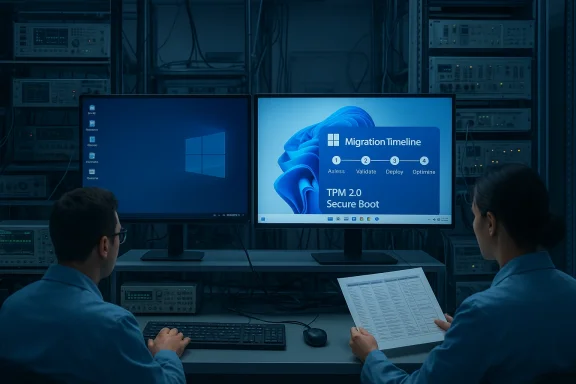
Two technicians monitor a TPM 2.0 Secure Boot migration on dual monitors in a server lab.Background / Overview​

Microsoft ended mainstream support for Windows 10 on October 14, 2025; after that date non‑ESU Windows 10 installations no longer receive routine security updates or standard technical assistance. This is a hard servicing boundary from the vendor that changes the calculus for any system still reliant on Windows 10.
For organizations running measurement, DAQ, and instrument‑control systems — environments where a validated software/OS baseline is often part of regulatory or quality controls — the timeline is particularly consequential. Vendors and practitioners interviewed in EE World emphasize that the migration decision is not merely cosof inventory, compatibility testing, revalidation, and (sometimes) hardware refresh.
Microsoft’s supported Windows 11 cadence now centers around discrete feature releases (for example 24H2, 25H2). Home and Pro devices running Windows 11, version 25H2 are scheduled to receive servicing through October 12, 2027, and Enterprise/Education editions of 25H2 have separate end dates tied to the Modern Lifecycle Policy — details IT must track precisely for planning.

What EE World reported (summary)​

  • Industry practitioners in test & measurement told EE World that the user experience change from Windows 10 to Windows 11 is miile system layout, typical folders (System32, SysWOW64, Program Files) and common workflows remain familiar, so operator retraining is often limited.
  • The larger migration burden lies in drivers, timing/behavior changes, and required revalidation: instrument drivers, kernel modules, and certified test software may needndows 11. EE World emphasizes that organizations that built validation and unit testing into development are far better placed.
  • Vendors recommend continuous architecture modernization — a steady program of CI/CD, unit testing, ty testing — rather than one‑off migrations. This approach shortens revalidation cycles and reduces risk.
Those are practical, field‑facing observation of your problems; the technical and regulatory implications are the heavy lifting.

Why this matters: four operational realities​

1. The security cliff​

Once a Windows build reaches end of servicing, new kernel and platform vulnerabilities discovered after that date will not be patched for non‑ESU systems. For lab machines that talk to networks or cloud services, that creates a rising attack surface and measurable compliance risk. Microsoft’s lifecycle documentation clarifies the implications of the October 14, 2025 deadline.

2. Hardware gating for Windows 11​

Windows 11 intentionally raises a hardware baseline (UEFI with Secure Boot, TPM 2.0 or firmware TPM, minimum RAPU families). That gate is a frequent blocker for older instrument PCs and embedded controller hardware. Many machines can be firmware‑upgraded or reconfigured, but others will require replacements.

3. Vendor driver risk and requalification​

Instrument vendors often certspecific Windows build. When you change the OS, you may be in scope for revalidation — a costly, time‑consuming task in regulated industries. EE World’s interviews stress contacting vendors early about driver roadmaps and building migration windows into procurement contracts.

4. The ESU bridge is limited​

Microsoft offered Extended Security Updates (ESU) as a time‑boxed runway for Windows 10: consumer ESU options existed to extend security‑only patches for roughly a year; commercial ESU arrangements are available for enterprises but are intentionally expensive to encourage migration. Treat ESU as temporary insurance, not a strategy.

Technical checkpoints every measurement lab must verify​

Below are concrete checkpoints you must test before moving any critical test host to Windows 11 or deciding to retain Windows 10 on ESU.
  • Firmware and platform readiness
  • Is TPM 2.0 present and enabled (discrete TPM or fTPM)? Is Secure Botem booting UEFI + GPT? These firmware states are common blockers and often resolved by BIOS/UEFI updates and a couple of configuration changes.
  • CPU and architecture
  • Windows 11 requires a 64‑bit CPU from Microsoft’s supported family lists. For timing‑sensitive DAQ systems verify that any low‑level performance or instruction timing is preserved on the new platform.
  • Kernel drivers and vendor‑supplied DLLs
  • Obtain Windows 11‑certified drivers from instrumenailable, budget for driver rewrite, virtualization, or replacement hardware. Test driver behavior under load—timing regressions are not uncommon.
  • Revalidation and QA coverage
  • Does your system have unit tests, automated validation scripts, CI/CD pcible test harnesses? If not, prepare for manual regression testing — which is far slower and more error‑prone. EE World explicitly recommends integrating validation into the development lifecycle.
  • Network exposure and segmentation
  • If you must keep Windows 10 devices online temporarily, segment them, apply strict firewall rules, and restrict management paths. Treat retainisk assets that require compensating controls.

Options and tradeoffs — a pragmatic taxonomy​

  • Upgrade in place to Windows 11
  • Benefits: restored vendor patching, access to modern security primitives, no recurring ESU costs.
  • Risks: hardware incompatibility, driver availability, revalidation time and cost. EE World quotes vendors noting the UI change is minor but driver/validation are the main issues.
  • Enroll in Extended Security Updates (ESU) as a bridge
  • Benefits: buys time for requalification and procurement.
  • Caveats: ESU is explicitly temporary, consumer enrollment may require account linkage or micro‑transactions in some regions, and enterprise ESU can be expensive. Use ESU only as a planned runway.
  • Replatform or virtualize (Cloud PC, virtualization host)
  • Benefits: move the OS and drivers into a supported environment without replacing instrument stacks immediately. Good for short‑term continuity if the instrument connectivity model supports it.
  • Risks: additional latency, licensing complexity, and the potential need to certify a virtualized test flow.
  • Migrate to an alternative OS or hardware stack
  • Benefits: for some worr cloud‑hosted stacks reduce long‑term vendor lock‑in.
  • Risks: most vendor instrument drivers are Windows‑centric — migrating away from Windows often requires rewriting or replacing vendor software and retraining staff.

Financial, procurement, and sustainability considerations​

  • Budgeting reality: treating ESU as a multi‑year plan will be expensive; vendors structured ESU pricing (enterprise) to pressure organizations toward hardware refresh. Plan capital budgets accordingly if many machines are ineligible for Windows 11.
  • Procurement language: require vendor commitments on driver lifecycles and OS roadmaps for new purchases. If you buy equipment intended to survive a decade, impose clear warranty/compatibility clauses.
  • Sustainability and e‑waste: hardware churn increases environmental impact. Consider refurbished modern hardware, trade‑in progn/cloud options to reduce waste while meeting security requirements. Microsoft and OEM programs sometimes offer trade‑in or recycling paths that can reduce net refresh cost.

A recommended migration playbook (step‑by‑step)​

  • Inventory and classify (week 0–4)
  • Produce a canonical inventory: model, CPU, TPM, UEFI stats, driver versions, validation status, regulatory profiles, and internet exposure. Use Endpoint Manager, SCCM, or an RMM to collect data at scale.
  • Prioritize assets by risk and business impact (week 2–6)
  • Internet‑exposed, audit‑critical, and regulated endpoints go first. Low‑risk lab benches with no external connectivity can follow later.
  • Vendor engagement and driver roadmap (week 3–8)
  • Contact instrument OEMs for Windows 11 certified drivers and compatibility windows. If vendors cannot commit, evaluate virtualization or instrument controller replacement strategies. EE World highlights vendor coordination as essential.
  • Build a pilot and test harness (week 4–12)
  • Create an isolated pilot that mirrors production: same instruments, same firmware, same versions. Run regression suites, timing tests, and long‑run stress tests. Measure signal fidelity and throughput against the Windows 10 baseline.
  • Automate validation where possible (ongoing)
  • If you don’t already have CI/CD, introduce it for your test software. Add unit tests and repeatable validation scripts. Those investments accelerate requalification and cut long‑term cost. EE World and multiple practitioners recommend this continuous modernization approach.
  • Decide ESU enrollment for ineligible, mission‑critical machines (as needed)
  • If you must keep Windows 10 in service temporarily, enroll in ESU and document an absolute sunset date. Do not use ESU as a deferral strategy beyond the allowed window.
  • Staged rollout and monitoring (after pilot)
  • Upgrade in waves, monitoring telemetry, logs, driver exceptions, and test‑bench outputs. Have rollback images and requalification checkpoints for each wave.
  • Decommissionl (end of migration)
  • Wipe and retire devices according to data protection policies; capture residual value where possible via trade‑in or recycling programs.

Testing and revalidation: practical guidance​

  • Create repeatable, automated validation he same I/O paths as production. Include long‑duration runs to catch memory leaks or timer drift that appear only after hours/days.
  • Verify kernel‑level timing characteristics for DAQ and instrument drivers on Windows 11; there can be subtle performance or scheduling changes that affect measurement fm depends on real‑time behavior, consider hardware isolation or purpose‑built real‑time controllers.
  • Preserve golden images and images of validated states (but use Sysprep/generalize correctly before wide deployment to avoid SID and activation issues). Community practice and forum guidance warn about cloning pitfalls; follow best practice imaging workflows.

What vendors and product teams should do now​

  • Publish explicit driver and certification roadmaps tied to Microsoft servicing windows. Buyers should demand these in procurement language. EE World quotes vendors urging early involvement and cross‑planning with customers to smooth migrations.
  • Ship instrument drivers that are regression‑tested across the latest Windows 11 builds and maintain a compatibility matrix that customers can use during pilot testing.
  • Provide packaged test images or containerized harnesses where possible so labs can reproduce vendor test conditions without needing full hardware duplication.

Ba and cost — an executive rubric​

  • High risk + high impact systems: migrate early, budget for vendor support and hardware refresh. Use ESU only as a tightly controlled bridge.
  • Low risk + low impact: batch into later waves, use community builds or alternative OS paths for non‑critical benches where vendor dependencies are minimal.
  • Coated systems: prioritize automation of validation and push for vendor certification to reduce manual test time.
EE World and field practitioners repeatedly emphasize: the learning curve for operators isic and validation work is the real cost. Plan accordingly.

Risks and unresolved or unverifiable claims (cautions)​

  • Installed‑base counts and precise device percentages vary widely across trackers — treat any single global percentage as directional, not exact. Many forum and news summaries reproduce conflicting market share estimates; rely on your inventory, not internet aggregates.
  • Vendor‑specific timelines and priorities can change; any compatibility promise that isn’t contractually defined is a business risk. Insist on written commitments where long lifecycles are required.
  • Community‑built Windows images (for example trimmed Windows 11 builds) may be useful for hobby or niche deployments but are unsupported by Microsoft and potentially risky for production or regulated environments. Use official media and vendor‑blessed drivers for validated systems.

Conclusion — a practical closing​

Windows 10’s retirlem that operators will struggle with: it is an architectural and programmatic problem for engineers and IT teams responsible for validated, instrument‑connected systems. The right response is a disciplined program: inventory, vendor coordination, pilot testing with automated validation, and a staged rollout guided by risk and business impact. EE World’s reporting captures the field view accurately — minimal operator retraining, major driver/validation work, and the need to treat modernization as a continuous practice rather than a last‑minute scramble.
Act now: inventory your endpoints, engage vendors, automate validation, and reserve ESU only as a precisely time‑boxed bridge. Do that and you will preserve measurement integrity, satisfy compliance obligations, and avoid the security and procurement shocks that follow procrastination.

Source: EE World Online Contending with Windows 10’s retirement: part 4
 

Installing Windows 11 from a USB stick remains one of the fastest, most reliable ways to control an upgrade or perform a clean install — and with careful preparation you can avoid the pitfalls that derail many DIY installs. This guide expands on HP’s step‑by‑step approach and adds practical troubleshooting, enterprise rollout notes, and advanced options for power users, drawing on multiple independent community and vendor guides to verify key steps and warnings.

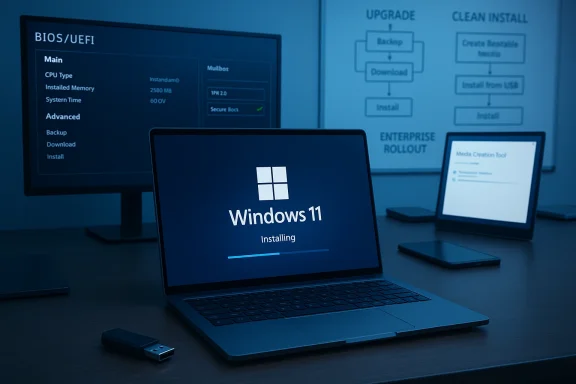
Windows 11 installing on a laptop in a tech workspace, with a BIOS/UEFI screen in the background.Background​

Windows 11 changed the installation landscape by formalizing hardware checks (UEFI, Secure Boot, TPM 2.0) and by encouraging Microsoft Account sign‑in during Out‑Of‑Box Experience (OOBE). For many users — especially technicians and IT admins — creating a bootable USB remains the preferred route because it provides:
  • full control over upgrade vs clean install choices,
  • reusable media for multiple devices,
  • a recovery tool for repairs and offline installs.
Microsoft’s Media Creation Tool is the standard route for most users; alternatives such as Rufus give technicians greater flexibility, including options to create modified installers for legacy hardware. Both approaches are widely used and documented in community and vendor guides.

Overview: What you’ll need​

Before you begin, assemble these essentials:
  • A Windows 11–capable PC (verify CPU, TPM 2.0, Secure Boot, and minimum RAM/storage). Use Microsoft’s PC Health Check or your OEM’s compatibility tool to confirm.
  • A high‑speed USB flash drive, 16 GB or larger (32 GB recommended for headroom). USB 3.0/3.1 will materially reduce creation and install times compared with USB 2.0.
  • A stable internet connection to download the ISO or Media Creation Tool. The installer image is several gigabytes; intermittent connections will slow or interrupt the process.
  • A full system backup to external storage or cloud — a clean install will remove everything. HP and industry guidance both emphasize multiple backup copies for safety.
  • (Optional) An external SSD/NVMe if you plan to deploy to many machines or want faster install I/O; note that NVMe as the target drive speeds OS operations, but installation time gains depend on other factors such as USB speed and CPU. This claim is plausibly true in practice but environment‑dependent — treat it as likely but not always guaranteed.

Background: Windows 11 hardware checks (what to verify)​

Before you create media, confirm the target PC meets the core requirements:
  • Processor: 1 GHz or faster with 2 or more cores on a compatible 64‑bit CPU or SoC.
  • Memory: 4 GB RAM minimum (8 GB recommended).
  • Storage: 64 GB minimum — aim for 128 GB if you plan to keep many apps and files.
  • System firmware: UEFI with Secure Boot capability.
  • TPM: Trusted Platform Module version 2.0 (this is the most frequent compatibility blocker).
  • Graphics & Display: DirectX 12 / WDDM 2.x and a 720p+ display.
These requirements are reiterated across Microsoft, HP, and community documentation; always confirm with the PC Health Check or your OEM utility for model‑specific details.

Step 1 — Preflight checklist (do this before any media creation)​

  • Back up everything. Create at least one full image or file backup and an additional copy of critical files. HP and enterprise playbooks recommend a 3‑copy rule for important data.
  • Update current Windows (install pending cumulative updates) — it smooths in‑place upgrade paths.
  • Update BIOS/UEFI firmware and device drivers from your OEM (use HP Support Assistant on HP machines, or your vendor’s equivalent). Firmware updates often expose toggles for TPM/UEFI that fix compatibility blocks.
  • Free up disk space: aim for 20–30 GB free to avoid installer temporary‑file failures.
  • Verify TPM 2.0 and Secure Boot in UEFI; if either is disabled but supported, enable them before starting.

Step 2 — Creating a bootable USB (two mainstream methods)​

Method A — Microsoft Media Creation Tool (recommended for most users)​

The Media Creation Tool provides a simple, supported path to create installation media:
  • Download and run the Media Creation Tool on a working Windows PC. Choose “Create installation media (USB flash drive, DVD, or ISO file) for another PC.”
  • Select language, edition (Windows 11), and architecture (64‑bit).
  • Choose “USB flash drive”, pick the correct removable drive, and let the tool download and write the image. The tool will format the drive (all data erased).
Why choose this? It’s official, simple, and handles image selection and media formatting automatically. For most home users and small businesses this is the safest route.

Method B — ISO + Rufus (power‑user flexibility)​

Techs and admins often prefer downloading the Windows 11 ISO and using Rufus to create the USB. Rufus supports advanced partition schemes, NTFS handling for large WIM files, and options to modify installer checks.
  • Download the official Windows 11 ISO and the latest Rufus executable.
  • Launch Rufus, select the ISO, and choose GPT / UEFI for modern systems. Use NTFS if the install.wim exceeds FAT32 limits.
  • Rufus additionally offers “extended” options to create media that will bypass certain Windows 11 preflight checks (TPM, Secure Boot, RAM) — these options are powerful but controversial and should be used with awareness of the tradeoffs (unsupported hardware may not receive regular updates and Microsoft does not officially support bypassed installs).
Rufus is invaluable for technicians who need to install Windows 11 on a wide range of hardware or who require local account setups without internet during OOBE.

Step 3 — Booting and installing (clean install vs upgrade)​

Insert the bootable USB into the target PC and either:
  • Run Setup.exe from File Explorer if you’re upgrading an already‑running Windows (keeps apps and files), or
  • Reboot and use the Boot Menu / UEFI to boot from the USB for a clean install (Custom: Install Windows only).
Common boot keys vary by vendor (Esc, F9, F11, F12, F2, Del)—use the key shown on the vendor’s splash screen to enter the boot menu or change boot order in UEFI.
Installation flow:
  • Choose language, time, and keyboard.
  • Click Install now. If asked for a product key, choose “I don’t have a product key” for systems with a digital license; activation typically occurs after online setup.
  • For a fresh start choose “Custom: Install Windows only (advanced)” and pick the target partition. Formatting will erase data — confirm backups are complete.
  • Follow prompts to set region, keyboard, and account choices.
A few notes on Microsoft Account requirements: Windows 11’s OOBE nudges users toward a Microsoft Account. Workarounds exist (disconnect network during OOBE, use Rufus options, or the documented OOBE bypass command), but each approach has privacy and manageability implications. Use them only when you understand the tradeoffs.

Troubleshooting common problems (and how to fix them)​

  • “This PC can’t run Windows 11” error: Recheck TPM 2.0, Secure Boot, UEFI mode, and CPU support with PC Health Check or OEM tools. Many firmware toggles fix the issue.
  • USB not booting: Confirm the USB is formatted and created correctly; try a different USB port (use USB‑A vs USB‑C adapter issues), or recreate media with the Media Creation Tool or Rufus.
  • Installer freezes or errors during file copy: Restart and try again; create new media on a different USB drive or use the ISO + Rufus route. Faulty USB sticks or intermittent power can corrupt the download.
  • Driver issues after install: Download the latest drivers from HP’s support site for your exact model. Business laptops often need vendor drivers for fingerprint readers, docking stations, or corporate VPN / endpoint security.
If you cannot resolve an installer error, collect logs (setuperr.log and setupact.log in the Panther folder) and consult vendor support — these files provide the most load‑bearing clues for persistent failures. This guidance is standard across community and vendor documentation.

Advanced scenarios and enterprise considerations​

Rolling out to many devices​

For enterprise deployments, HP and industry best practices recommend a phased rollout:
  • Inventory and pilot: validate app compatibility and pilot with a small set of machines.
  • Broad deployment: use Microsoft Endpoint Manager / Intune or SCCM for policy‑driven rollouts.
  • Hardware refresh: replace incompatible hardware on a schedule to avoid unsupported systems.
For bandwidth constrained environments, create one install image and apply locally (USB, network share, or WDS) rather than having each device download the image separately. HP explicitly suggests this approach for environments with many devices.

Installing on unsupported hardware​

Tools like Rufus can produce installers that ignore TPM/Secure Boot checks. While technically feasible, this creates unsupported systems that may:
  • be ineligible for feature and security updates in the normal cadence,
  • lack vendor support for driver or firmware issues, and
  • present security risks if TPM/Secure Boot were required by policy.
Treat bypass installs as a last resort and document the exceptions if performed in an enterprise. Community guides warn about these trade‑offs; use them only with full awareness.

Optimizing performance and post‑install checklist​

After installation complete these steps:
  • Run Windows Update repeatedly until no more updates are offered.
  • Install latest device drivers from HP for your model — Chipset, graphics, and network drivers first.
  • Enable Windows Defender or your chosen endpoint security product and update definitions.
  • Configure privacy settings and telemetry levels to your organizational policy.
  • Set up a cloud backup solution or automatic external backups for critical files.
  • If you use gaming or graphics‑intensive apps, update GPU drivers for best performance.

Local account vs Microsoft account: what to choose?​

Windows 11 leans toward Microsoft Accounts during OOBE to enable sync, OneDrive, and credential recovery features. If privacy or offline use is a priority:
  • Create a local account during OOBE (disconnect from the internet to force the option), or
  • Use Rufus/ISO options or the documented OOBE bypass (Shift+F10 → command) to proceed without a Microsoft Account.
Each choice has tradeoffs: local accounts improve privacy but remove automatic sync and single‑sign‑on conveniences. Community guides provide practical workarounds but stress that admins should consider manageability and security policies before choosing a local account for corporate devices.

Climate and physical‑world considerations (regionally practical advice)​

If you’re in a tropical climate (such as Thailand), simple physical precautions during installation reduce risk:
  • Ensure good ventilation and avoid direct sun exposure; heavy CPU/GPU load during setup can increase chassis temperature.
  • Use a stable power source or UPS for desktops and laptops to prevent power interruptions mid‑install.
  • Schedule installs during cooler morning or evening hours if you don’t have air conditioning; overheating can cause unexpected reboots and disk errors.
HP’s regional guidance and practical community posts both recommend attention to power stability and thermal conditions — small environmental issues can become major problems during large‑scale rollouts.

Security and legal notes (what to avoid)​

  • Do not use pirated or unverified ISO images. Always obtain the Windows 11 image from Microsoft or validated OEM channels. This reduces malware and licensing risk.
  • Avoid bypassing security checks unless you fully understand the consequences for updates and support. Document every exception in an enterprise environment.
If a claim about third‑party tools or hardware performance cannot be independently corroborated in vendor documentation, treat it as plausible but not vendor‑endorsed — always test in a lab before broad deployment.

Final checklist (quick reference)​

  • Back up data (and confirm backups are recoverable).
  • Confirm hardware compatibility (CPU, TPM 2.0, Secure Boot).
  • Decide: Media Creation Tool (official, supported) or ISO + Rufus (flexible, advanced).
  • Create media on a USB 16 GB+ (32 GB recommended), prefer USB 3.x for speed.
  • Boot, choose Upgrade or Custom (clean install), follow prompts, then update drivers and Windows.

Conclusion​

Installing Windows 11 from USB remains the most reliable method when you need control, repeatability, or a clean slate. The Media Creation Tool gives most users an easy, supported path; Rufus and the ISO route empower technicians and IT admins when advanced options are required. Across both official and community documentation, the recurring themes are the same: do thorough backups, verify TPM/UEFI/Secure Boot requirements, keep firmware and drivers updated, and treat bypasses as exceptions rather than defaults. Follow the preflight checklist, prepare your hardware, and you can expect a smooth upgrade or fresh installation that preserves productivity while modernizing your Windows platform.

Source: HP Install Windows 11 from USB: Step-by-Step Guide
 

Installing Windows 11 from a USB gives you speed, control, and a clear path to a clean system image — but it also exposes you to firmware, compatibility, and activation pitfalls that every HP owner should understand before they press Install. This guide walks HP users through the full process: from checking hardware and creating a bootable USB, to advanced options (Rufus, TPM/UEFI workarounds), post‑install housekeeping, and enterprise rollout considerations — with concrete steps, safety checks, and practical troubleshooting you can use right now.

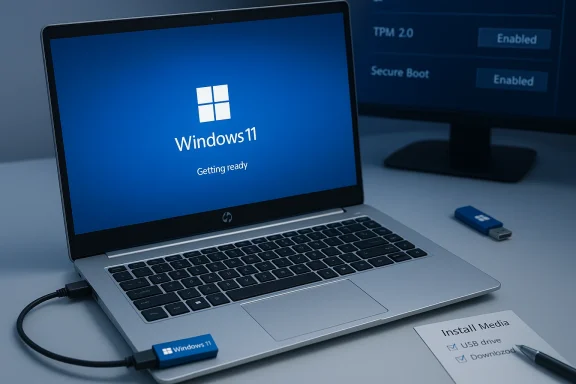
Windows 11 getting ready on a laptop with a USB installer plugged in.Background​

Windows 11 tightened the bar for what Microsoft calls a secure, modern PC: UEFI firmware with Secure Boot, a TPM 2.0 chip, and a 64‑bit, multi‑core CPU are core expectations. For most supported HP machines the OEM firmware exposes the required toggles, but older or atypical hardware often requires manual configuration or alternate tooling to proceed. HP’s documentation and community guides split the installation story into three paths: Windows Update (the simplest), Microsoft’s Media Creation Tool (official, supported), and advanced methods such as creating a custom ISO with Rufus (power‑user flexibility).
This article assumes you want a USB‑based install — either to upgrade several machines, perform a clean install, or recover a PC that won’t boot. Read the compatibility checklist and backup steps carefully: a USB install can erase data and, when using bypass methods, may leave the system in an unsupported state.

Overview: Which installation path should you choose?​

  • Windows Update — Recommended for most users: automatic compatibility checks and driver handling; minimal manual work. Best when HP offers the staged upgrade.
  • Media Creation Tool — Official method to build a bootable USB or ISO; supported by Microsoft and safe for standard upgrades and clean installs. Use this if Windows Update isn’t available or for multi‑PC deployments.
  • Rufus + ISO — Power‑user option: more control, supports advanced partition/format choices, and can bypass hardware checks (TPM, Secure Boot, RAM). Useful for legacy hardware or when you need local account setups during OOBE — but it carries support and update risks.

What you’ll need (hardware and time)​

  • A USB flash drive, 16 GB recommended (8 GB minimum but 16 GB safer for large feature updates). Use a USB 3.0 stick for faster write times.
  • A PC that meets the Windows 11 minimums or clear plan for workarounds (TPM 2.0, UEFI/Secure Boot, 64‑bit CPU, 4 GB RAM, 64 GB storage). If you’re unsure about your device’s TPM/UEFI state, check firmware settings or the PC Health Check tool.
  • A stable internet connection for downloading the image (several gigabytes). Allow 1–2 hours total for creation and install on most devices; more for older hardware or driver updates.
  • A full backup of personal files (external HDD/SSD or cloud). A system image or recovery media is strongly advised before a clean install.

Step 1 — Verify compatibility and firmware settings (don’t skip this)​

Check system requirements​

Before you begin, confirm these baseline checks:
  • CPU: 1 GHz or faster, 2 or more cores, 64‑bit compatible.
  • RAM: 4 GB minimum (8 GB recommended for a smoother experience).
  • Storage: 64 GB or larger (20–30 GB free advised during upgrade to avoid temporary file failures).
  • Firmware: UEFI with Secure Boot capability (enabled for supported installs).
  • TPM: Trusted Platform Module version 2.0 (TPM can be discrete or firmware-based fTPM).
  • Graphics/Display: DirectX 12 / WDDM 2.x, 720p+ display.
Those checks are important because Windows’ installer applies “preflight” rules; failing them stops an in‑place upgrade. There are technical ways to proceed on unsupported systems, but they introduce risk and potential loss of guaranteed updates.

How to check TPM and Secure Boot on an HP PC​

  • Reboot and enter UEFI/BIOS (common keys: Esc, F10, F2 — HP often shows the key on the splash screen).
  • Look for Security > TPM Devices (or Platform Security), confirm TPM 2.0 or fTPM is enabled.
  • Under System Configuration or Boot Options, confirm Secure Boot is enabled and the firmware is in UEFI Boot mode.
  • If TPM or Secure Boot is present but disabled, enable them and save changes. Firmware updates from HP can expose missing options — update the BIOS/UEFI if needed.

Step 2 — Create a bootable Windows 11 USB (official route)​

Using the Microsoft Media Creation Tool (recommended)​

The Media Creation Tool is the supported, straightforward method to create Windows 11 installation media.
  • Use a working Windows PC and run the Media Creation Tool executable.
  • Accept the license terms and select Create installation media (USB flash drive, DVD, or ISO file) for another PC.
  • Choose language, edition, and 64‑bit architecture, then select USB flash drive.
  • Insert your USB drive and choose it from the list — the tool will erase and format it.
  • Wait while the tool downloads and writes the Windows 11 image to the USB. This may take 15–60 minutes depending on connection and USB speed.
  • When complete the tool confirms the USB is ready; eject safely and use it for installation.
Why use the official tool? It handles image integrity, sets GPT/UEFI requirements correctly for modern systems, and avoids manual errors. Use it first unless you have a specific reason to use Rufus or custom ISOs.

Step 3 — Create a bootable Windows 11 USB (advanced route)​

Using Rufus and an ISO (power users & IT)​

Rufus gives technicians flexibility: you can choose GPT vs MBR, NTFS (for large install.wim), and even options that remove hardware checks. Use Rufus when you need:
  • NTFS on USB to accommodate large WIM files (FAT32 has limits).
  • Control of partition scheme and advanced options for multi‑booting or custom deployments.
  • Ability to bypass TPM/Secure Boot/RAM checks understanding that bypassed installs may not be eligible for updates and are unsupported by Microsoft.
When using Rufus:
  • Download the Windows 11 ISO (or use Rufus’ built‑in download feature).
  • Set Partition scheme to GPT and target system to UEFI (non‑CSM) for modern HP systems.
  • Choose NTFS if required for the image size.
  • Rufus offers explicit checkboxes to remove TPM, Secure Boot, and RAM checks — use these only when you know the consequences.

Step 4 — Installing Windows 11 from the USB​

There are two installation modes:
  • In‑place upgrade (keeps apps and files): Boot into Windows, insert USB, run Setup.exe from File Explorer, and follow the prompts. This path is preferable when preserving settings and drivers.
  • Clean install (fresh system): Reboot with USB inserted, enter Boot Menu (Esc, F9/F12 etc. depending on HP model), boot from USB, choose Custom: Install Windows only (advanced), format target partitions, and proceed. Clean installs are recommended for troubleshooting or repurposing a device.
During setup:
  • When asked for a product key, choose I don’t have a product key if your machine has a digital license; Windows will typically activate automatically once online.
  • If the installer stops with “This PC can’t run Windows 11”, double‑check TPM/Secure Boot and free disk space; consider Rufus or the registry workaround only as a last resort.

Advanced options & workarounds (with cautions)​

Installing without a Microsoft Account​

Windows 11’s OOBE pushes Microsoft account sign‑in. If you prefer a local account, standard workarounds include disconnecting from the internet during setup or using known OOBE bypass sequences (Shift+F10 to run commands or Rufus options to remove the online account requirement). These are practical for privacy‑focused users or lab machines. Use them with awareness: some cloud features and services require a Microsoft account.

Bypassing TPM/Secure Boot and other checks​

Tools like Rufus or manual registry edits can let you install Windows 11 on unsupported hardware. That’s useful for legacy machines, but it comes with tradeoffs:
  • Microsoft may deem the installation unsupported — updates, especially security fixes, could be restricted or delayed.
  • Compatibility issues (drivers, firmware) are more likely on older hardware.
  • You assume responsibility for stability and security; businesses should avoid bypasses for production endpoints.
If you must proceed, use Rufus’ options rather than undocumented registry hacks unless you are experienced. Rufus provides a reproducible, auditable path.

Troubleshooting common installation problems​

  • Installer won’t boot from USB: confirm the USB is first in UEFI boot order or use the Boot Menu key at startup. On HP machines the boot key is often Esc or F9; the splash screen shows the correct prompt.
  • “This PC can’t run Windows 11”: verify TPM 2.0, Secure Boot, UEFI mode, and CPU compatibility. If TPM is present but disabled, enable it in firmware. Firmware updates may add missing options.
  • Setup fails during file copy or driver stage: ensure at least 20–30 GB free on the target drive, update BIOS/UEFI and storage drivers on the source machine, and use a high‑quality USB stick.
  • Network or activation issues after install: sign into a Microsoft account to trigger digital license activation, or enter your product key under Settings → Activation. If activation fails and you believe your license should transfer, collect device evidence (hardware ID, digital entitlement) and contact HP or Microsoft support.

Post‑install checklist (critical steps)​

  • Run Windows Update repeatedly until no more updates are available. This installs firmware‑specific drivers and security patches.
  • Install OEM drivers from HP (HP Support Assistant makes this simpler on HP devices). Avoid generic drivers until you confirm device stability.
  • Recreate backups and verify data integrity. If you used a clean install, reinstall critical apps and validate licensing.
  • Configure privacy and telemetry settings to your comfort level in Settings → Privacy & security.
  • If you used bypass methods, plan a monitoring and update strategy — unsupported installs may need manual patching.

Enterprise considerations and rollout planning​

For IT teams upgrading fleets of HP machines, HP and industry guidance converge on a phased rollout:
  • Inventory and pilot: audit devices, test critical apps, and validate firmware toggles on a small group. Use tools such as Microsoft Endpoint Manager/Intune or SCCM for staged rollouts.
  • Broad deployment: automate imaging and driver pushes after pilots pass. Schedule upgrades during off‑peak windows. Maintain rollback images and recovery media.
  • Hardware refresh: machines that cannot meet requirements should be replaced or segmented into supported legacy images with compensating controls. Microsoft and HP recommend modernization where TPM/UEFI options are impossible.
Document the process, collect telemetry on upgrade failures, and keep a buffer period for third‑party app remediation.

Security, support, and risks you must accept​

  • Unsupported installs: bypassing TPM/Secure Boot/RAM checks may keep older devices running Windows 11 but at the cost of official support and potentially delayed security patches. That’s a material risk for business endpoints.
  • Driver compatibility: older drivers can cause instability, BSODs, or feature loss (audio, Wi‑Fi, GPU acceleration). OEM driver updates are essential.
  • Activation and licensing: digital entitlement should transfer on supported upgrades; a hardware change or bypass may require reactivation steps or support intervention. Keep product keys and license records available.
  • Data loss: any clean installation erases user data. A verified backup strategy — external drive or image — is non‑negotiable.

Practical tips and time‑saving hacks​

  • Use a high‑speed USB 3.0/3.1 drive — the speed difference in writing the image and copying install files is large.
  • If you plan to install Windows 11 on multiple PCs, create one USB with the Media Creation Tool or a single ISO and reuse it rather than redownloading per machine.
  • For technicians: Rufus’ NTFS option avoids the FAT32 WIM size limit and reduces complex split‑WIM workarounds. But always label the USB and keep a checksum of the ISO for integrity checks.
  • Update the firmware (UEFI) on HP machines before upgrade — firmware fixes often enable TPM or resolve compatibility checks. Use HP Support Assistant where available.

When to wait: Why you might skip Windows 11 for now​

If your workflow depends on legacy apps, custom drivers, or certified peripherals, staying on Windows 10 until you have a remediation plan is reasonable. Microsoft’s formal end‑of‑support timeline for Windows 10 (October 2025) gives time for planned upgrades; use that window to pilot and inventory rather than rush.

Final checklist (quick reference)​

  • Backup everything (external image + user files).
  • Confirm TPM 2.0 and Secure Boot or decide on an intentional, documented bypass.
  • Create installation media with Media Creation Tool (official) or Rufus (advanced).
  • Update firmware and OEM drivers, then install.
  • Post‑install: Update drivers, activate Windows, and validate backups and apps.

Conclusion​

Installing Windows 11 from a USB on HP hardware is straightforward when you follow the tested path: verify compatibility, prefer the Media Creation Tool for supported installs, and reserve Rufus or other bypasses for well‑documented, exceptional cases. The major advantages are speed, repeatability, and control — especially useful when imaging multiple devices or performing clean installs. The trade‑offs are accountability for firmware settings, driver compatibility, and support status when you step outside Microsoft’s supported rules.
If you’re managing business endpoints, treat this as a project: inventory, pilot, staged rollout, and recovery plans. If you’re a home user, take the time to update firmware, back up data, and use the official Media Creation Tool first. And if you choose to bypass TPM or use local account workarounds, do so with a clear rollback plan and a full understanding of the support and security implications.

Source: HP Install Windows 11 from USB: Step-by-Step Guide
 

Back
Top