

For years I accepted jittery pairings, laggy audio, and missing controls as the price of using AirPods with a Windows PC — until an inexpensive third‑party app quietly fixed most of the annoyances that had turned routine listening into a hassle. The app, MagicPods, doesn’t magically make AirPods behave like they do inside Apple’s walled garden, but it solves a long list of real-world problems: faster reconnects, battery and case charge reporting, customizable hotkeys, simplified noise‑cancellation toggles, and — perhaps most importantly for everyday use — dramatically reduced playback delay. For anyone who's been frustrated with the way AirPods interact with Windows 11, this is a practical, low‑friction path to a far better experience, provided you accept a few clear risks and limitations.
AirPods were built to be part of Apple’s integrated ecosystem, and they show that in day‑to‑day behavior. On iPhone, pairing is instant, ANC toggles appear in control panels, ear detection is seamless, and case/earbud battery levels are obvious. On Windows, you typically get the bare minimum: Bluetooth pairing and A2DP playback, with hands‑free telephony falling back to the low‑quality HFP/HSP profile whenever the headset’s microphone is used. Windows 11 introduced changes to Bluetooth and audio handling that, for many users, made these mismatches more visible: slower reconnections, ambiguous codec negotiation, and sometimes an audible delay when starting playback.
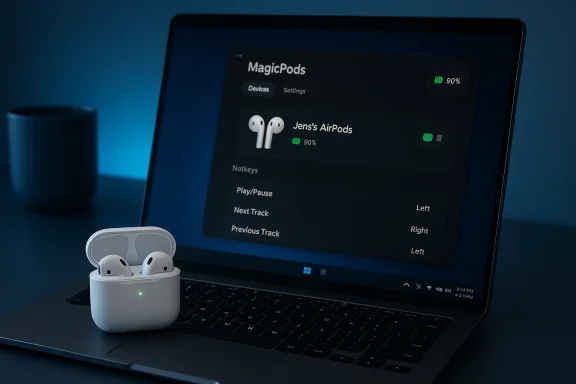
MagicPods is a small Microsoft Store app that layers features on top of the existing Bluetooth connection to make AirPods — and some other earbuds — behave much more usefully on Windows 11. It pairs with a companion driver (MagicAAP) to expose advanced controls that Windows does not provide natively, bringing battery widgets, ANC controls, hotkeys, and faster reconnect behavior to a PC environment.
Important implementation notes and limitations:
Consider the cost against the alternatives:
If you use AirPods with Windows regularly and you’re on a personal, non‑managed PC, MagicPods is worth trying. The app’s low price and trial option make it easy to test. For gamers, enterprise users, or anyone unwilling to risk unsigned or community‑signed drivers, MagicPods is not a safe fit — the potential for anti‑cheat false positives or policy conflicts rules it out.
The key to a good outcome is to proceed carefully: back up, use trial mode, test the community‑signed option only after vetting it, and uninstall if anti‑cheat or system instability appears. If you accept those precautions, the app can turn AirPods from a quirky, occasionally annoying accessory into a smooth, reliable part of your Windows audio setup.
MagicPods doesn’t reinvent the wheel — it addresses specific, practical shortcomings in Windows’ handling of Apple earbuds and does so with a thoughtful feature set and a tiny price of admission. For many AirPods owners who split time between a Mac or iPhone and a Windows 11 PC, that little app closes enough of the gap to make their earbuds feel genuinely useful again. If you rely on your PC for casual listening and productivity, it’s worth a careful try; just don’t install unsigned drivers where stability or security is non‑negotiable.
Source: Windows Central Use AirPods with Windows? This app solved most issues I've experienced.
 Background
AirPods were built to be part of Apple’s integrated ecosystem, and they show that in day‑to‑day behavior. On iPhone, pairing is instant, ANC toggles appear in control panels, ear detection is seamless, and case/earbud battery levels are obvious. On Windows, you typically get the bare minimum: Bluetooth pairing and A2DP playback, with hands‑free telephony falling back to the low‑quality HFP/HSP profile whenever the headset’s microphone is used. Windows 11 introduced changes to Bluetooth and audio handling that, for many users, made these mismatches more visible: slower reconnections, ambiguous codec negotiation, and sometimes an audible delay when starting playback.MagicPods is a small Microsoft Store app that layers features on top of the existing Bluetooth connection to make AirPods — and some other earbuds — behave much more usefully on Windows 11. It pairs with a companion driver (MagicAAP) to expose advanced controls that Windows does not provide natively, bringing battery widgets, ANC controls, hotkeys, and faster reconnect behavior to a PC environment.
What MagicPods does — at a glance
MagicPods focuses on practical fixes and convenience features rather than trying to replicate Apple's full ecosystem. If you install it, you can expect:- Battery and case level reporting via a small widget that appears when your AirPods are connected.
- Faster reconnection and reduced playback latency, so audio starts immediately when you press play.
- Hotkeys and customizable controls, including a tray icon for quick access.
- ANC and Transparency toggles for models that support on‑device noise control.
- Ear detection behavior adjustments (e.g., what happens when you remove one earbud).
- Press speed and gesture customization for AirPods’ physical controls.
- Dark mode and UI polish, plus a low learning curve for casual users.
How the app integrates with Windows
MagicPods performs its magic in two layers:- The user‑facing Microsoft Store app, which provides the UI, hotkeys, widgets, and settings.
- A low‑level driver (MagicAAP) that enables Windows to read additional Bluetooth/GATT characteristics used by AirPods for battery reporting, ANC controls, and similar features.
Important implementation notes and limitations:
- The driver used by MagicPods is not signed by Microsoft in its default distribution. Unsigned driver installation requires Windows to be placed in test mode, which temporarily disables normal driver signature enforcement.
- There is a community‑signed driver available that can avoid enabling test mode; however, community signing introduces its own trust and security considerations.
- Because the driver interacts with low‑level Bluetooth and audio subsystems, it can cause conflicts with gaming anti‑cheat systems and may not be permitted on company or school‑managed machines.
Why MagicPods improves AirPods on Windows
There are several concrete pain points MagicPods addresses:- Slow or failed reconnects: Many users report that AirPods take several seconds or fail to reconnect automatically. MagicPods uses polling and smart reconnection heuristics to make reconnection near‑instant in most cases.
- Playback delay when hitting Play: On some Windows configurations, pressing Play produces an audible delay while the Bluetooth stack negotiates codecs and profiles. MagicPods reduces that delay by ensuring the audio path is ready when playback starts.
- No battery or ANC controls: Windows doesn’t expose Apple’s battery reporting and ANC controls. MagicPods surfaces these via the app and tray menu.
- Limited gesture/customization: AirPods gesture recognition and behavior are tuned for iOS; MagicPods offers configuration options for press speed, triple‑press actions, and more.
- UX polish: The animated widget and dark mode make the AirPods feel like a first‑class peripheral rather than an afterthought.
Installation: what you should expect and how to stay safe
If you decide to try MagicPods, here’s a pragmatic, conservative approach to installing and testing the software. Follow each step carefully and stop if you’re uncomfortable with any driver changes.- Back up important data and create a system restore point. This is a simple safeguard and should be standard practice before installing unsigned drivers.
- Pair your AirPods with Windows through Windows Settings → Bluetooth & devices → Add device. Confirm they work as a basic audio device before adding MagicPods.
- Download the MagicPods app from the Microsoft Store and start the free trial to test behavior before buying.
- If you want full functionality, you will need the MagicAAP driver. Two options exist:
- The official MagicAAP unsigned driver (requires enabling Windows test mode).
- A community‑signed driver variant that avoids test mode but introduces trust concerns.
- If you choose the test mode route, enable it temporarily:
- Open an elevated command prompt and run: bcdedit /set testsigning on
- Reboot the PC, install the driver, then reboot again.
- After installation and verification, disable test mode with: bcdedit /set testsigning off and reboot once more.
- If you prefer to avoid test mode, carefully vet the community‑signed driver you find. Check community feedback and whether the driver binary has been scanned or published by a trusted project.
- Do not install unsigned or community‑signed drivers on gaming PCs where anti‑cheat systems are required, or on managed work machines controlled by IT policy.
- If you rely on Windows Hello, BitLocker TPM features, or enterprise security controls, consult your IT administrator before modifying driver signature enforcement.
- If you notice anti‑cheat or security alerts after installing a driver, uninstall and restore to your pre‑install state immediately.
Real‑world performance: what to expect
In day‑to‑day use, MagicPods dramatically reduces friction in three places: connection reliability, playback responsiveness, and control accessibility.- Connection reliability: Reconnects are consistently faster, often immediate after pulling earbuds from the case. If multiple devices (iPhone, iPad) are present, switching is still governed by the AirPods’ own multipoint behavior; MagicPods reduces the time Windows needs to become active once the earbuds connect.
- Playback responsiveness: Where Windows might previously wait to negotiate the audio path, MagicPods prepares the path proactively, reducing or eliminating the hit‑and‑wait delay when hitting Play on Spotify, YouTube, or a local media player.
- Controls and toggles: Noise cancellation, Transparency mode, and ear detection settings that were previously iPhone‑only can be toggled from Windows. The hotkey and tray controls make switching modes quicker than opening a phone.
- Microphone quality: Using AirPods’ microphone on Windows commonly forces the hands‑free profile that significantly reduces audio quality. MagicPods helps with reconnects and controls, but it cannot bypass the physical and protocol limitations of HFP vs. wideband codecs. Expect microphone quality to remain a compromise compared with a dedicated USB microphone.
- Codec negotiation: Which codec (SBC, AAC, aptX, LC3) is used depends on your Bluetooth adapter and drivers. MagicPods does not universally enable AAC or higher‑quality codecs on every Windows machine; codec behavior is still dependent on hardware and stack support.
- Apple‑only features: Deep integration features like spatial audio with head tracking or instant pairing via iCloud still require Apple devices and will not be replicated on Windows.
- Security and trust: Installing a third‑party driver — particularly one that is unsigned or community‑signed — increases your security risk surface. Treat the tradeoff between convenience and potential vulnerabilities seriously.
Troubleshooting and tips
If you run into trouble, these practical tips will resolve most issues:- If AirPods refuse to pair, reset them: place both earbuds in the case, hold the pairing button until the LED flashes amber then white, and re-add the device in Windows Bluetooth settings.
- If MagicPods’ battery widget doesn’t show values, try toggling the app’s driver settings or re‑installing the driver after a reboot.
- If audio is lagging in games or video, confirm the audio output is set to the correct AirPods playback profile (A2DP) and not the hands‑free profile.
- If you see anti‑cheat or security warnings, uninstall the driver immediately and reboot. Do not use MagicPods on machines where anti‑cheat is required.
- Confirm Bluetooth adapter drivers are up to date and that the adapter supports the Bluetooth version advertised. A modern Bluetooth 5.x adapter with up‑to‑date Windows drivers will yield the best results.
- Use the app’s hotkeys or tray controls to switch ANC and playback profiles quickly rather than fiddling with the Windows sound control panel.
Alternatives, and why you might pick them
MagicPods is not the only way to improve AirPods on Windows. Here are some other paths and why you might choose them instead:- Native Windows updates: Microsoft periodically improves Bluetooth stacks and codec support. If you prefer to avoid third‑party drivers, keep your system patched and vendor drivers current; future Windows updates may shrink the gap in functionality.
- Dedicated Bluetooth adapters: A vendor‑specific Bluetooth USB adapter with excellent codec support may yield better AAC/aptX behavior without third‑party drivers. This is a hardware solution that avoids driver signing concerns but costs more upfront.
- Different earbuds: If you want seamless multi‑device behavior without risk, consider earbuds designed with cross‑platform parity in mind — many Android‑first earbuds provide good Windows compatibility and better codec support.
- Minimalist apps: Some lightweight utilities expose battery levels or notifications without a low‑level driver. These avoid signing headaches but provide fewer control features.
Trust, privacy, and community considerations
One of the app’s selling points is its small price and the developer’s claim of "no data collection, no ads, no subscriptions." That’s a positive sign, but where driver installation is involved, a cautious approach is warranted.- Check the app’s privacy statements and the developer’s public posts or repository (if available) before installing drivers.
- Prefer the official Windows Store app and the official installation instructions from the developer rather than mirror sites.
- When a community‑signed driver is used, investigate how the signature was produced and whether the signing key is trustworthy and transparent.
- If you are security‑conscious, request or inspect source code (if published), or stick to apps that don’t require driver installation.
Who should use MagicPods — and who shouldn’t
MagicPods is a practical tool for a specific audience:- Recommended for:
- Casual listeners who primarily use AirPods for music and video on a personal Windows 11 laptop.
- People who want quick controls, battery reporting, and faster reconnects without switching devices.
- Users comfortable with modest technical steps and who accept the tradeoff of driver installation on a personal machine.
- Not recommended for:
- Gamers who rely on anti‑cheat software or competitive environments, because unsigned or low‑level drivers can trip protections.
- Corporate or managed laptops, where device policy and signed driver requirements are enforced by IT.
- Users who strictly need Apple’s ecosystem features (spatial audio head tracking, instant iCloud pairing) — these cannot be provided by any Windows app.
Deep dive: what the driver actually changes (technical overview)
MagicPods’ driver interacts with Bluetooth and Windows audio layers in targeted ways:- It reads AirPods’ BLE GATT characteristics to pull battery, ANC, and configuration state that Windows’ Bluetooth stack normally ignores.
- It exposes those characteristics to the app UI and to user controls, allowing toggles for modes like ANC or Transparency.
- It provides an orchestrated reconnection workflow that pre‑primes the audio pipeline so playback starts with minimal delay.
- It may help Windows choose an appropriate audio endpoint when switching from phone or another paired device, reducing the time Windows spends negotiating the audio profile.
Pricing, availability, and value
The app’s one‑time price is modest: $1.99 for the Microsoft Store version at the time of writing. There is generally a free trial so users can test behavior before paying. For an inexpensive fee, you gain a polished UI, useful widgets, and a set of controls that significantly improve the day‑to‑day experience. For most home users who own AirPods and spend time on Windows, that price is an easy justification.Consider the cost against the alternatives:
- Buying different earbuds with better Windows support often costs significantly more.
- Purchasing a high‑quality Bluetooth adapter also tends to be pricier.
- The app’s low cost lowers the barrier to testing whether the benefits are real for your setup.
Final analysis: is MagicPods worth it?
MagicPods is a practical, well‑focused solution for a particular problem: making AirPods more pleasant to use on a Windows PC. It doesn’t pretend to replicate Apple’s ecosystem or eliminate all protocol limitations, but it fixes the most frustrating gaps in day‑to‑day use: reconnection reliability, playback latency, battery/ANC controls, and quick access.If you use AirPods with Windows regularly and you’re on a personal, non‑managed PC, MagicPods is worth trying. The app’s low price and trial option make it easy to test. For gamers, enterprise users, or anyone unwilling to risk unsigned or community‑signed drivers, MagicPods is not a safe fit — the potential for anti‑cheat false positives or policy conflicts rules it out.
The key to a good outcome is to proceed carefully: back up, use trial mode, test the community‑signed option only after vetting it, and uninstall if anti‑cheat or system instability appears. If you accept those precautions, the app can turn AirPods from a quirky, occasionally annoying accessory into a smooth, reliable part of your Windows audio setup.
Practical checklist before you install
- Confirm you’re on a personal PC, not a managed or gaming machine with anti‑cheat dependencies.
- Create a system restore point and back up important files.
- Pair AirPods with Windows via Settings first and confirm basic audio works.
- Install the MagicPods Store app and test the trial.
- Review driver installation options (official unsigned vs community‑signed) and choose your risk posture.
- Install the driver according to the developer’s instructions; reboot and verify behavior.
- Test playback, battery reporting, ANC toggling, and hotkeys across the apps you use.
- If anything misbehaves (security warnings, anti‑cheat flags, instability), uninstall immediately and restore.
MagicPods doesn’t reinvent the wheel — it addresses specific, practical shortcomings in Windows’ handling of Apple earbuds and does so with a thoughtful feature set and a tiny price of admission. For many AirPods owners who split time between a Mac or iPhone and a Windows 11 PC, that little app closes enough of the gap to make their earbuds feel genuinely useful again. If you rely on your PC for casual listening and productivity, it’s worth a careful try; just don’t install unsigned drivers where stability or security is non‑negotiable.
Source: Windows Central Use AirPods with Windows? This app solved most issues I've experienced.
