

Microsoft’s Copilot on Windows has just moved another step closer to becoming a real-time, in‑flow writing assistant: Windows Insiders can now run Copilot Actions to edit text directly inside shared app windows during a Copilot Vision session, letting the assistant propose rewrites, tone changes, and clarity edits as previewed suggestions before any change is applied.
Copilot on Windows began life as a conversational assistant and has been steadily evolving into a multimodal platform that combines Voice, Vision, and Actions. The Vision component lets Copilot analyze a user‑selected window or region on the screen in a permissioned session, while Actions represent a set of agentic capabilities that can take steps on behalf of the user. The new text editing capability stitches those pieces together so Copilot can suggest edits inside the document you’re already using, rather than returning results that must be copied and pasted elsewhere.
This update is being distributed as a Copilot app package update and rolled out to Windows Insiders first as a staged preview. It is explicitly opt‑in; Vision sessions are session‑bound and must be enabled by the user, and the new editing behavior requires the Copilot Actions toggle to be switched on in the app settings. Version gating and OS build requirements are part of Microsoft’s rollout policy for Copilot features.
Caveat: early reports and hands‑on testing indicate variability in reliability depending on app compatibility and OCR accuracy; these are implementation limits that remain subject to refinement during the preview. Treat any accuracy or application‑specific claims as provisional until the feature reaches broader availability.
Enabling Copilot Actions for in‑window edits is not merely a convenience feature — it’s a structural shift in how assistants can interact with user content on the desktop. Its success will depend on Microsoft’s ability to improve accuracy, expand admin controls, and clarify data handling while keeping the user experience smooth and predictable. In the meantime, Insiders who want to test the capability should follow the verified steps: confirm Windows and Copilot app versions, enable Vision and Copilot Actions in settings, and run the feature on non‑sensitive content to evaluate reliability and suitability for their workflows.
Conclusion: the update signals a meaningful move toward in‑context, actionable AI assistance on Windows — powerful and productive, but also demanding prudent governance and careful human oversight.
Source: Windows Report Copilot on Windows Updated With Real-Time Text Editing; Now Available for Insiders
 Background
Copilot on Windows began life as a conversational assistant and has been steadily evolving into a multimodal platform that combines Voice, Vision, and Actions. The Vision component lets Copilot analyze a user‑selected window or region on the screen in a permissioned session, while Actions represent a set of agentic capabilities that can take steps on behalf of the user. The new text editing capability stitches those pieces together so Copilot can suggest edits inside the document you’re already using, rather than returning results that must be copied and pasted elsewhere.This update is being distributed as a Copilot app package update and rolled out to Windows Insiders first as a staged preview. It is explicitly opt‑in; Vision sessions are session‑bound and must be enabled by the user, and the new editing behavior requires the Copilot Actions toggle to be switched on in the app settings. Version gating and OS build requirements are part of Microsoft’s rollout policy for Copilot features.
What’s included in the update
Core capabilities
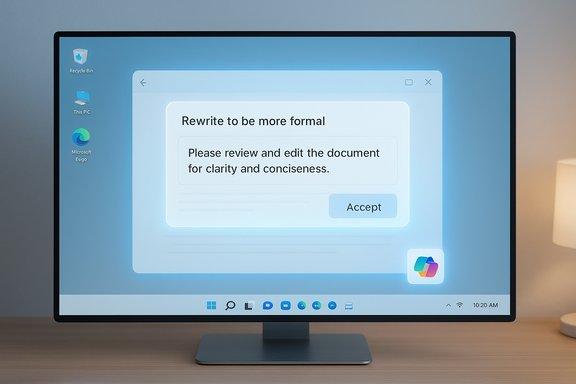
- In‑window text editing: During a Copilot Vision session, share the window that contains the editable text, place the cursor in the field, and ask Copilot to perform an edit (for example, “rewrite to be more formal” or “simplify this paragraph”). Copilot generates an edit preview and applies changes only after you accept them.
- Voice and typed commands: Commands can be spoken or typed in the Copilot composer, making the feature usable in both quiet and hands‑free scenarios.
- Preview before commit: Suggested edits are displayed as a preview first, preserving user control and preventing silent or automatic overwrites.
- Session permissions and visible feedback: The UI signals which window is shared (a visible glow) and provides clear stop controls to end the Vision session, aligning with a permissioned privacy model.
Packaging and minimum requirements
- Copilot app package: The feature ships with Copilot app version 1.25121.60.0 and higher.
- Windows build requirement: Insiders must be running Windows build 26200.6899 or later on a preview channel to use this specific text‑editing capability.
- Availability: The feature is rolling out to all Insider channels through the Microsoft Store as a staged update, with regional gating applied during the preview (some regions are excluded initially).
How it works in practice
Step‑by‑step user flow
- Ensure your PC is enrolled in a Windows Insider channel and updated to the required Windows build.
- Update the Copilot app from the Microsoft Store to at least 1.25121.60.0.
- Open the Copilot composer and click the glasses (Vision) icon to begin a Vision session.
- Select the app window or region to share — a glow indicates what Copilot can see.
- Place the cursor in an editable text field and speak or type a natural language editing command (e.g., “make this clearer”). Review the preview and accept or refine the suggestion.
Supported scenarios and UX notes
Typical use cases cited in the preview include:- Polishing email drafts, chat messages, and form entries without leaving the original app.
- Tone adjustments (formal ↔ casual), simplification, and brevity conversions.
- Quick clarity passes for commit messages, short documentation bits, and content snippets.
Technical verification and cross‑checks
Key technical claims have been confirmed across multiple independent reporting channels and internal previews:- The package version 1.25121.60.0 is repeatedly referenced as the minimum Copilot app build that carries the text editing actions.
- The requirement to run Windows build 26200.6899 or later on an Insider channel is documented as the OS gate for this preview capability.
- The opt‑in, session‑bound privacy model (visible glow, Stop/X to end) and the Copilot Actions toggle in settings are specified as controls to enable and limit when Vision can act on shared content.
Caveat: early reports and hands‑on testing indicate variability in reliability depending on app compatibility and OCR accuracy; these are implementation limits that remain subject to refinement during the preview. Treat any accuracy or application‑specific claims as provisional until the feature reaches broader availability.
Why this matters: productivity, accessibility, and user flow
Bringing editing actions directly into the shared window is a practical change with outsized productivity effects.- Workflow continuity: Eliminates the repetitive copy/paste loop common when using separate AI editors, saving time on short edits and tone polishing.
- Speed and iteration: Preview‑based edits enable rapid micro‑iterations without leaving the document, which is especially useful for email triage and short‑form content.
- Accessibility: The ability to issue spoken editing commands benefits users who rely on voice interaction and reduces friction for assistive workflows. The combination of voice and typed inputs broadens the feature’s accessibility footprint.
Risks, limits, and governance concerns
Deploying an assistant that can edit content inside live applications raises several non‑trivial concerns that organizations and individual users must weigh carefully.Accuracy and domain risk
AI models will sometimes hallucinate or make content‑level mistakes, particularly when simplifying or clarifying technical content. Examples from early previews include unit conversion errors or incorrect technical rewrites. For high‑stakes content (legal agreements, clinical notes, regulatory filings), Copilot’s edits should be treated as drafting assistance, not authoritative output.Privacy and data flow
Although Vision sessions are session‑bound and permissioned, the underlying processing may involve cloud routing depending on device capabilities and Copilot’s execution path. Organizations must verify data flows, retention practices, and DLP (data loss prevention) controls before enabling Vision on production devices that handle sensitive or regulated data. Conditional restrictions for Vision use in regulated contexts are advisable.Region gating and compliance
The staged rollout excludes certain regions during the Insider preview, reflecting regulatory, contractual, or policy reasons. Administrators should monitor availability and any region‑specific differences before planning broad deployment.App compatibility and robustness
Copilot Vision relies on being able to interpret UI text correctly; not every app or web editor exposes text in a way that yields accurate OCR or contextual semantics. Testing across the apps and forms your organization relies on is essential to avoid drift or corrupted edits.Practical guidance for Insiders and IT teams
Quick checklist for trying the preview
- Confirm device enrollment in a Windows Insider channel (Canary/Dev/Beta as appropriate).
- Update to Windows build 26200.6899 or later and the Copilot app 1.25121.60.0 or newer.
- Enable Copilot Vision and turn on the Copilot Actions toggle in app settings.
- Start in a controlled, low‑risk context (personal notes, drafts) to evaluate behavior.
- Capture sample outputs and QA for common workflows (email, CMS inputs, commit messages) to build a prompt/template library.
Recommended 90‑day pilot plan for organizations
- Identify three pilot workflows: one high‑volume, one high‑value, and one experimental.
- Negotiate Copilot pilot licensing or use Copilot Pro test accounts for the pilot group.
- Configure conditional policies: restrict Vision on devices handling regulated data and install DLP rules for AI data flows.
- Instrument editorial QA: pair creators with Copilot in recorded sessions and measure time‑to‑publish and error rates.
- Reassess and scale based on measured ROI and compliance readiness.
Developer and accessibility implications
For app developers
- Ensure editable fields expose proper accessibility metadata and text semantics so Vision can accurately interpret and edit content.
- Test interactions across common frameworks (native Win32, UWP, WebView-based apps, and browser editors) to identify any edge cases where Copilot’s OCR or selection logic fails.
- Provide clear affordances for undo and state exposure to avoid accidental overwrites.
For accessibility advocates
- The voice and typed command options are a step forward, but outcomes depend on consistent UI labeling and focus management.
- Developers must prioritize accurate control labeling and expose text editing states to assistive technologies for predictable AI‑driven edits.
What to watch next
- Broader availability: Timeline for when this preview will move from Insiders to general availability, and whether Microsoft will expand region coverage, remains the primary question to track.
- Enterprise controls: New admin policies, DLP integrations, or audit logging specifically for Vision sessions and Copilot Actions can materially change adoption readiness.
- On‑device inference: Expansion of Copilot+ on‑device model support (NPUs and SLMs) could shift some editing flows to local processing, improving latency and privacy guarantees for customers with the appropriate hardware.
- App parity and Highlights: Restoring or redesigning the visual “Highlights” overlay for typed Vision flow may improve the assistant’s ability to point at UI elements while typing, and is a usability area Microsoft is likely to iterate on.
Final analysis — strengths and tradeoffs
The new real‑time text editing inside Copilot Vision is a thoughtful, pragmatic evolution of Windows’ assistant strategy. Its immediate strengths are clear:- Seamless integration into existing workflows that saves time and reduces friction.
- Multimodal flexibility that supports both voice and typed inputs for accessibility and real‑world practicality.
- Preview control that preserves user agency and reduces the risk of unwanted changes.
- Accuracy limits and domain risk mean Copilot’s edits are best used as assistance, not as final, authoritative text—human review remains essential.
- Privacy and governance concerns around cloud routing and data retention necessitate enterprise controls and DLP policies before broad deployment.
- Staged availability and app compatibility mean the real‑world experience will vary across devices, apps, and regions during the preview window.
Enabling Copilot Actions for in‑window edits is not merely a convenience feature — it’s a structural shift in how assistants can interact with user content on the desktop. Its success will depend on Microsoft’s ability to improve accuracy, expand admin controls, and clarify data handling while keeping the user experience smooth and predictable. In the meantime, Insiders who want to test the capability should follow the verified steps: confirm Windows and Copilot app versions, enable Vision and Copilot Actions in settings, and run the feature on non‑sensitive content to evaluate reliability and suitability for their workflows.
Conclusion: the update signals a meaningful move toward in‑context, actionable AI assistance on Windows — powerful and productive, but also demanding prudent governance and careful human oversight.
Source: Windows Report Copilot on Windows Updated With Real-Time Text Editing; Now Available for Insiders
