

Microsoft’s Copilot on Windows 11 has taken another step toward being a real-time collaborator: Insiders can now use Copilot Actions to rewrite, refine, and edit text directly during Copilot Vision sessions, letting the assistant suggest in-place edits, preview changes, and accept or refine results without switching apps or copying and pasting.
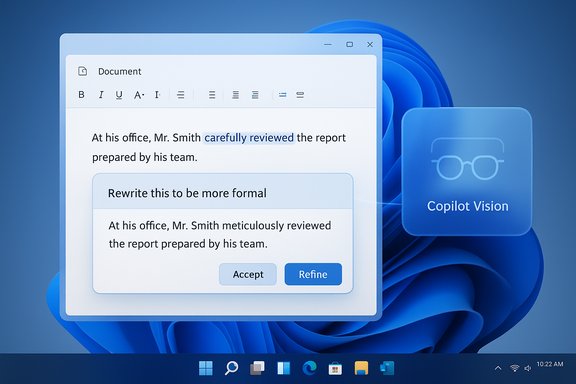
This preview update brings a focused, practical capability to Copilot Vision: text editing actions that operate in flow — you share an app window, place the cursor in a text field, and ask Copilot to “rewrite this to be more formal,” “make this clearer,” or “simplify this paragraph.” The assistant produces an edit preview, which you can accept or iterate on. The rollout is currently limited to Windows Insiders (preview channels) and requires a recent Copilot app and Windows 11 build. Microsoft describes the feature as opt-in, session-bound, and under active refinement as the company gathers feedback from early users.
Note that beyond OS and app requirements, some Copilot experiences still benefit from more powerful hardware (Copilot+ PCs with on-device NPUs), which can reduce latency and increase on-device processing. However, the text-editing scenario primarily depends on the Vision session and the Copilot backend rather than exclusive on-device models.
Microsoft’s incremental, permissioned approach — session-bound Vision, sandboxed agent workspaces, and opt-in toggles — shows a design intent to balance usefulness with control. That balance is what will determine whether Copilot’s on-screen editing becomes a trusted daily tool or a convenience restricted to non-sensitive tasks. For now, the feature is an exciting preview of a future where desktop assistants operate directly in the apps we use, but it comes with the same caveats that apply to generative AI everywhere: verify facts, control exposures, and keep a human in the loop.
Source: Thurrott.com Copilot on Windows 11 Gets Text Editing Actions in Preview
 Overview
This preview update brings a focused, practical capability to Copilot Vision: text editing actions that operate in flow — you share an app window, place the cursor in a text field, and ask Copilot to “rewrite this to be more formal,” “make this clearer,” or “simplify this paragraph.” The assistant produces an edit preview, which you can accept or iterate on. The rollout is currently limited to Windows Insiders (preview channels) and requires a recent Copilot app and Windows 11 build. Microsoft describes the feature as opt-in, session-bound, and under active refinement as the company gathers feedback from early users.Background
Since Copilot first arrived in Windows, Microsoft has expanded the assistant from a chat overlay to a multimodal, screen-aware toolset. The most relevant pieces of that evolution for this update are:- Copilot Vision — a permissioned screen-sharing mode that allows Copilot to analyze selected windows or regions, extract text and UI context, and respond with guidance or actions.
- Copilot Actions / Agentic Actions — a family of features that enable Copilot to take steps on behalf of the user, either in a sandboxed agent workspace or by suggesting edits and actions in the UI.
- Click to Do / Text Actions — contextual text actions surfaced across Windows (e.g., rewrite, summarize, refine) that show how Microsoft is integrating AI actions into existing workflows.
What the update delivers (quick summary)
- In-flow text editing inside a Copilot Vision session: request rewrites, tone changes, clarity edits, or simplifications without leaving the app you’re working in.
- Voice and typed commands supported — you can speak natural commands or type them in the Copilot chat.
- Preview before commit — Copilot shows suggested changes before applying them, letting you accept or refine edits.
- Opt-in controls — the feature requires enabling Copilot Vision and the Copilot Actions toggle inside the Copilot app.
- Minimum software requirements — Copilot app version 1.25121.60.0 or later and Windows 11 build 26200.6899 or later on a preview channel.
- Gradual rollout — available to Windows Insiders as a preview and initially excluded from certain regions as Microsoft stages availability.
How it works — step-by-step
- Ensure your PC is enrolled in a Windows Insider Preview channel and updated to Windows 11 build 26200.6899 or later.
- Update the Copilot app to version 1.25121.60.0 or above via the Microsoft Store.
- Open the Copilot app, enable Copilot Vision, and enable the Copilot Actions toggle in Copilot Settings.
- Start a Vision session by clicking the glasses icon in the Copilot composer and selecting the window (or app) containing the text you want to edit.
- Place your cursor in the target document text field or click inside the editable area.
- Speak or type a natural command (for example: “rewrite this to be more formal,” “make this shorter,” or “simplify this paragraph”).
- Review Copilot’s suggested edit in the preview. Accept it to apply the change or refine the instruction and request a new suggestion.
Real-world behavior and limits
Early reports from preview users show that the interaction can be natural and fast — Copilot often produces idiomatic rewrites and useful clarity improvements. However, the preview is fragile in places:- The AI can make content-level mistakes, such as mixing up measurement units or technical facts when it attempts to “clarify” or “simplify” technical language.
- Accuracy degrades with domain-specific content or where precise semantics matter (legal, scientific, or financial text).
- The assistant’s understanding of context depends on how well the target app exposes editable text and whether the app’s UI is accessible to Copilot Vision OCR and contextual analysis.
- The feature is experimental: Microsoft warns it may make mistakes, and early users should treat its edits as suggestions to be carefully reviewed.
Why this matters for Windows 11 users
- Faster editing: The feature reduces friction for quick tone and clarity edits inside email clients, document editors, and web-based content management systems.
- Workflow continuity: You don’t need to copy text into a separate AI editor; Copilot edits in the context of the app you’re using.
- Accessibility boost: For users who benefit from voice-driven interaction, being able to issue spoken editing commands can speed tasks and lower barriers.
- Productivity lift: For routine editorial tasks — tone adjustment, shortening, reformatting bullets — this can shave minutes off repetitive editing.
Technical requirements and availability
To be precise about the preview’s gatekeeping:- The Copilot app update required for this text-editing feature is version 1.25121.60.0 or later.
- Windows 11 must be updated to build 26200.6899 or later on an Insider preview channel to use the functionality.
- The feature is rolling out gradually to Windows Insiders and is initially excluded from some regions. It’s an opt-in experience: Copilot Vision must be enabled and the Copilot Actions toggle switched on within the Copilot app settings.
Note that beyond OS and app requirements, some Copilot experiences still benefit from more powerful hardware (Copilot+ PCs with on-device NPUs), which can reduce latency and increase on-device processing. However, the text-editing scenario primarily depends on the Vision session and the Copilot backend rather than exclusive on-device models.
Privacy, security, and enterprise governance
This feature raises important privacy and governance considerations due to the way it handles visible screen content:- Permissioned screen sharing: Copilot Vision operates like a session-based, permissioned screen share. Only the window or region you explicitly share is accessible during the Vision session.
- Hybrid processing: While some on-device spotting (like wake-word detection) and light processing can run locally on Copilot+ devices, many reasoning tasks and generative edits are processed in the cloud when hardware or policy requires it. That means text and images shared in a Vision session may traverse Microsoft cloud services for processing.
- Opt-in defaults and controls: Microsoft has emphasized opt-in defaults, and Copilot Vision requires explicit consent to start. The Copilot Actions toggle provides an additional on/off control for actions that can manipulate content.
- Sandboxed agent workspaces: For agentic Actions that act across files and apps, Microsoft uses a sandboxed Agent Workspace model to isolate those operations. This reduces risk compared with giving an agent unfettered privileges in the primary interactive session, but it’s still an area that demands administrative oversight.
- Enterprise considerations: Organizations should evaluate these preview features against data protection policies, regulatory constraints, and internal compliance requirements. Standard recommendations include:
- Restricting Vision and Actions usage on machines that handle regulated data.
- Applying Data Loss Prevention (DLP) policies to block or audit screen-sharing sessions that are not permitted.
- Ensuring sign-in identities and tenant-level settings prevent unwanted data routing to personal accounts.
- Logging and monitoring Copilot activity and agent actions for audit purposes.
Accuracy, hallucinations, and editorial risk
AI editing tools are powerful but imperfect. The preview has already produced an instructive example: a Copilot suggestion merged a camera sensor’s physical size (millimeters) with image resolution (megapixels) — two distinct technical properties — into a single, incorrect reformulation. This kind of error demonstrates several important points:- Surface-level fluency doesn’t equal subject-matter accuracy. The assistant can produce polished prose that nevertheless alters or corrupts technical content.
- Editors must verify factual claims. Accepting stylistic edits is generally safe; accepting changes that affect technical facts, data, or legal language without verification increases risk.
- Context matters for domain text. Technical and specialist documents need domain-aware models or human oversight to maintain accuracy during rewriting.
Use cases and scenarios: where this helps most
- Quick tone adjustments in emails and internal communications.
- Drafting and shortening paragraphs for blog posts or social updates.
- Converting notes into more formal language for presentation or reporting.
- Simplifying complex sentences for broader audiences or accessibility.
- Iterative refinement: asking for multiple variations (e.g., “make this more concise,” then “make it more persuasive”).
Workflow tips and testing checklist
- Start with small, incremental requests (tone, clarity) and examine edits closely before applying them to sensitive documents.
- Use voice commands for hands-free edits, but confirm the transcription and the suggested changes visually before accepting.
- Keep a revision history or use an app that supports undo — a mistaken edit can be reversed but it’s safer to preview carefully.
- For collaborative documents, keep your team informed that Copilot may be used to suggest edits so reviewers know to look for AI-introduced changes.
- If an edit changes a number, measurement, or a technical descriptor, flag it for manual verification.
Developer and enterprise implications
For developers and IT teams, these feature rollouts reflect a shift in how productivity tools are architected:- APIs and connectors: Expect more integration points for Copilot to interact with line-of-business apps and cloud services in controlled ways.
- Agent runtime model: The sandboxed Agent Workspace pattern offers a template for building agentic automation that can be audited and controlled — a necessity for enterprise adoption.
- Governance tooling needs: Enterprises will want finer control over what Copilot can access, how long content persists, and how agent actions are logged and approved.
What to watch next
- Staged availability: Microsoft is rolling Copilot Actions and Vision features gradually across Insider channels and regions. Expect additional refinements and broader availability as Microsoft collects feedback and addresses early issues.
- Accuracy improvements: Model updates and UI refinements will likely reduce simple factual errors and improve the assistant’s understanding of domain-specific material.
- Expanded controls: Enterprise-grade governance and consent controls are likely to be announced or improved, responding to customer and regulator concerns.
- On-device processing: Wider deployment of on-device models (Copilot+ hardware) could shift more inference locally, reducing latency and limiting cloud exposure — though this will be hardware-dependent.
Final assessment — strengths and risks
Strengths- Seamless integration with existing workflows reduces friction and improves productivity for routine editorial tasks.
- Multimodal interaction (voice, vision, text) makes editing more accessible and flexible.
- Preview-before-apply safeguards give users control over edits and help prevent accidental changes.
- Accuracy limitations can introduce factual errors, especially in technical content.
- Privacy and compliance concerns arise because screen content is shared during Vision sessions and may be processed in the cloud.
- Enterprise governance gaps need addressing before organizations enable this broadly for regulated workloads.
Recommendations for Windows users and IT teams
- Individual users: Try the feature on non-sensitive drafts first. Treat Copilot’s edits as smart suggestions that speed the drafting process, not as final authoritative changes.
- Power users and writers: Use Copilot for tone, structure, and clarity, but maintain a human-in-the-loop for fact checks and technical accuracy.
- IT administrators: Pilot the feature with a controlled group, confirm DLP and logging policies, and build guidance for employees about acceptable uses and sensitive data safeguards.
- Security & privacy teams: Engage with vendor reps to clarify data handling, model training policies, and tenant-level protections before a wider rollout.
Microsoft’s incremental, permissioned approach — session-bound Vision, sandboxed agent workspaces, and opt-in toggles — shows a design intent to balance usefulness with control. That balance is what will determine whether Copilot’s on-screen editing becomes a trusted daily tool or a convenience restricted to non-sensitive tasks. For now, the feature is an exciting preview of a future where desktop assistants operate directly in the apps we use, but it comes with the same caveats that apply to generative AI everywhere: verify facts, control exposures, and keep a human in the loop.
Source: Thurrott.com Copilot on Windows 11 Gets Text Editing Actions in Preview
