

Microsoft is rolling out a bold test in Windows 11 that lets Copilot do work inside your PC: an experimental “Copilot Actions” agent that — when enabled by Insiders who join Copilot Labs — can operate desktop and web apps, manipulate locally stored files (resize photos, edit documents, assemble playlists) and even carry out multi‑step tasks in a visible, contained environment while you go about other tasks.
Microsoft’s latest Windows 11 Copilot update moves beyond text chat and screen suggestions into a new class of agent that can take actions on your behalf inside the operating system. The functionality is being trialed with users in the Windows Insider Program and an experimental Copilot Labs group. If you opt in, Copilot can execute sequences such as resizing batches of photos, curating playlists in Spotify, exporting content into Office files, or running multi‑step workflows that span multiple apps and web services. The feature is off by default; if enabled, it runs inside a sandboxed desktop with step‑by‑step visibility and an option for the human to intervene at any point.
This is a major pivot for Copilot on Windows — from assistant and helper to an agent that can perform click-and-typing style work. It follows a steady stream of Copilot investments since Microsoft introduced Copilot+ hardware and in‑OS AI features: local semantic search, Copilot Vision (screen analysis), and deeper integrations with Office and cloud connectors. Microsoft has marketed AI PCs aggressively and earlier projected rapid adoption for AI‑focused hardware; that market framing helps explain the company’s push to let Copilots manipulate real files on real desktops.
Two important differences:
The initial rollout is deliberately cautious: opt‑in, visible, and contained. That’s the right posture for a capability that can change what a PC does on behalf of its user. Organizations and savvy users should treat Copilot Actions as powerful new tooling and manage it accordingly: test in controlled environments, apply least‑privilege policies, and demand clear technical documentation before granting it access to sensitive data or enterprise systems. If those governance steps are taken seriously, Copilot Actions could become a useful and secure productivity feature; if they are ignored, it could introduce new and avoidable risks into everyday computing.
Source: CNBC https://www.cnbc.com/2025/10/16/microsoft-test-copilot-manus-windows-11.html
 Overview
Microsoft’s latest Windows 11 Copilot update moves beyond text chat and screen suggestions into a new class of agent that can take actions on your behalf inside the operating system. The functionality is being trialed with users in the Windows Insider Program and an experimental Copilot Labs group. If you opt in, Copilot can execute sequences such as resizing batches of photos, curating playlists in Spotify, exporting content into Office files, or running multi‑step workflows that span multiple apps and web services. The feature is off by default; if enabled, it runs inside a sandboxed desktop with step‑by‑step visibility and an option for the human to intervene at any point.This is a major pivot for Copilot on Windows — from assistant and helper to an agent that can perform click-and-typing style work. It follows a steady stream of Copilot investments since Microsoft introduced Copilot+ hardware and in‑OS AI features: local semantic search, Copilot Vision (screen analysis), and deeper integrations with Office and cloud connectors. Microsoft has marketed AI PCs aggressively and earlier projected rapid adoption for AI‑focused hardware; that market framing helps explain the company’s push to let Copilots manipulate real files on real desktops.
Background: Where this comes from
Copilot on Windows has evolved from a sidebar chat to a native app with expanding capabilities. Over the past year Microsoft has added:- Local semantic search and indexing so Copilot can find content inside files on a machine.
- Copilot Vision / Desktop Share, which allows Copilot to “see” any application window or the shared desktop and answer questions about what’s on screen.
- Connectors and document generation, enabling Copilot to create Office files and access linked cloud accounts (Outlook, Gmail, OneDrive, Google Drive).
- On‑device acceleration on certain Copilot+ PCs using NPUs and other dedicated silicon for faster local inference.
What Copilot Actions actually does
The new behavior, in practical terms
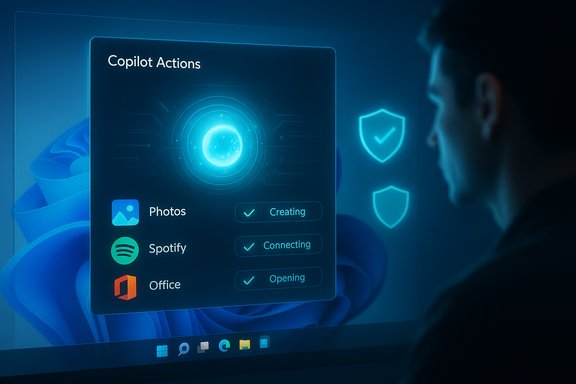
When Copilot Actions is enabled, it can:- Launch and interact with local desktop applications (for example, Photos, File Explorer, or Spotify) and web apps to complete tasks.
- Operate on files stored on the device — opening images to resize or crop, scanning documents to extract data, or aggregating media into playlists.
- Execute multi‑step sequences that would normally require manual clicking and typing, and run them as a single instruction (for example: “Find all Brian Eno tracks I have, put them in a new Spotify playlist, then start playback”).
- Run in the background while the user keeps working; the process occurs within a separate desktop instance that the user can observe or take control of.
Safety controls Microsoft describes
Microsoft has said the feature will be turned off by default. When active, Copilot Actions:- Runs in a contained environment (a separate desktop instance) meant to limit its direct access to the main user session.
- Shows visual step‑by‑step progress, so users can watch the agent click and type in real time.
- Allows users to interrupt or take over at any point.
- Requires explicit permissioning for file access and other higher‑privilege actions.
How this compares to other “computer‑use agents”
Anthropic, Google, and OpenAI have demonstrated or released agent‑like models that accept action-oriented directives (book a restaurant, manage calendars, order groceries). Microsoft’s approach is distinguished by deep OS integration: Copilot Actions can work directly with installed software and the local file system rather than operating purely through web APIs or cloud connectors.Two important differences:
- On‑device vs cloud execution: Some agent workflows run entirely in cloud services and manipulate only data passed through APIs. Copilot Actions explicitly targets local files and desktop UI, which requires hooking into system UI elements or automation APIs.
- Visibility and human oversight: Microsoft emphasizes that actions will be visible and interruptible on a separate desktop — an observable execution model that seeks to make automation auditable in real time.
Technical underpinnings and unknowns
Microsoft has built several technical foundations that make Copilot Actions feasible:- Copilot app improvements: The Copilot application has shifted toward a native Windows experience and now includes features like File Search and Vision that can analyze local content.
- Semantic indexing and local models: Windows Search and some Copilot features use local indexing (semantic indexing) and can leverage NPUs on supported hardware for on‑device inference.
- Power Automate / Copilot Studio integration: The Microsoft ecosystem already supports flow‑style automation — Copilot Actions can be seen as a user‑facing, conversational wrapper around automation primitives.
- Whether the full multi‑step reasoning model runs locally (on‑device) or via Microsoft cloud models for complex tasks — Microsoft uses a hybrid of local and cloud models across Copilot features.
- The exact sandboxing mechanism (is it a traditional hypervisor, a separate Windows desktop session, or a constrained process using Windows security APIs).
- Which Windows builds, hardware classes (Copilot+ vs general Windows 11), and Copilot app versions will support the earliest tests.
Strengths: what this enables
- Real productivity gains: Automating repetitive UI workflows (image resizing, batch exports, playlist creation, report generation) saves time for casual and power users.
- Lowering the bar: Non‑technical users can accomplish multi‑app workflows via plain language instead of scripting or learning automation tools.
- Faster triage and multi‑document summarization: Copilot can aggregate information from several local files and present a single summary — useful for research and content creation.
- Tighter ecosystem experience: When Copilot can use both desktop and cloud apps, the user experience can feel more cohesive and less fractured between siloed services.
- User‑observable automation: The separate desktop execution model that lets you watch the agent is an improvement over opaque cloud-only automations that run unseen.
Risks and concerns
Privacy and data residency
Allowing an AI agent to read, modify, and move local files raises obvious privacy questions. Even if processing is local, the agent might:- Summarize or surface sensitive information (financial records, health data, PII) unless users restrict scope.
- Use cloud connectors (Gmail, Spotify, OneDrive) which may transmit tokens or data off‑device.
- Store derived data or transcripts in logs or telemetry unless explicitly controlled.
Security and attack surface
Automated UI control increases the attack surface in several ways:- Privilege escalation: If a Copilot agent can manipulate UI elements and run processes, a compromised model or malicious prompt could be used to trigger harmful actions.
- Automation of malicious workflows: An agent could be abused to orchestrate complex attacks (e.g., move files, exfiltrate data via cloud uploads, or manipulate accounts).
- Supply chain risk: Third‑party integrations and connectors expand trust boundaries; bugs in those connectors can be vectors for compromise.
Reliability and brittleness
Automating UIs is brittle. Differences in application versions, localized UI labels, or unexpected dialogs can cause the agent to fail, make incorrect changes, or hang waiting for user input. Built workflows must be continuously validated.Compliance and auditability
For enterprise environments, automated actions need to be auditable, reversible, and subject to compliance checks. The ad‑hoc nature of conversational agent requests makes governance a new challenge for IT departments.Practical scenarios: promise and caveats
Helpful examples
- Batch photo edits: Tell Copilot to resize a folder of event photos to web‑friendly dimensions and export to a new folder. This reduces manual drag‑and‑drop and menu navigation.
- Data extraction: Ask Copilot to scan a set of invoices saved as PDFs and create a spreadsheet with vendor names, dates, and totals.
- Cross‑app workflows: “Open my draft email attachments, summarize the attached doc, and add the summary to a new OneNote page.”
- Multimedia tasks: Assemble audio files and queue a playlist in Spotify, or extract timestamps from a meeting recording and create a highlight reel.
Caveats to bear in mind
- Validate every automated result before publishing or acting on it.
- Avoid granting blanket file access; instead, restrict to specific folders or file types.
- Be cautious when actions cross cloud boundaries — e.g., syncing local folders to OneDrive as part of an automation may expose files beyond the local device.
Enterprise and administrator guidance
Enterprises should treat Copilot Actions like any new automation platform: controlled pilots, policies, and monitoring first.- Start in a lab environment: enable the Windows Insider builds for a small test group and simulate real workflows before broad rollout.
- Use administrative controls: policy, AppLocker, SRP, or other endpoint controls to restrict which users can run Copilot Actions or access ms‑copilot URI handlers.
- Limit sensitive data exposure: exclude HR, finance, legal folders from indexing and set strict connector policies for cloud access tokens.
- Audit and logging: ensure endpoint and SIEM logs capture Copilot activity, automation execution, and any privilege use.
- Update ACLs and permissions: adopt least‑privilege defaults for local files and avoid running Copilot Actions under administrative accounts.
Legal, regulatory, and ethical considerations
- Data protection laws (GDPR, CCPA) require clear lawful bases for processing personal data. Enterprises must understand and document where Copilot moves or stores user data and whether any processing leaves the EU/US jurisdictional boundaries.
- Audit trails are essential for regulated industries to show who initiated automated actions and why.
- Transparency and consent are critical for employee privacy; organizations should make Copilot usage policies explicit and obtain consent where needed.
The competitive landscape and what this means for users
Microsoft’s move is part of a broader industry race to ship agents that can act on the user’s behalf. Key distinctions:- Microsoft integrates agents deeply into the desktop OS — making on‑device file and app interactions a differentiator.
- Rivals are experimenting with agent plugins and web‑first actions; some emphasize cloud APIs and tightly scoped actions.
- The winner will be the platform that balances usefulness, reliability, and trust — especially when agents touch sensitive local data.
Recommendations for everyday users
- Keep Copilot Actions off unless you need it. When you enable it, start with small, reversible tasks.
- Limit the folders Copilot can index. Do not give blanket access to your Documents, Desktop, or system folders.
- Watch the automation run the first few times so you see how it behaves; intervene when unexpected dialogs or permission prompts appear.
- Use separate user accounts for testing (non‑admin) to avoid granting excessive privileges to the agent.
- Maintain backups — any automated changes can be reversed more easily if you have recent local backups.
What to watch for next
- Technical documentation from Microsoft clarifying the runtime model (local vs cloud), sandboxing architecture, and exact permissioning mechanisms.
- Enterprise controls and audit capabilities that integrate Copilot activity with existing endpoint management and SIEM tools.
- Third‑party integration guidance and security reviews for popular connectors (Spotify, Google, Slack, etc..
- User reports from Insiders about edge cases, failures, and privacy controls — real‑world feedback will shape how Microsoft hardens the feature.
Conclusion
Copilot Actions represents a significant evolution in AI on Windows: a shift from conversational assistance to instrumental automation that can manipulate local apps and files. The promise — faster workflows and easier automation for non‑technical users — is tangible and exciting. At the same time, the risks are real: privacy blunders, automation errors, and novel attack surfaces that require rigorous containment, policy, and human oversight.The initial rollout is deliberately cautious: opt‑in, visible, and contained. That’s the right posture for a capability that can change what a PC does on behalf of its user. Organizations and savvy users should treat Copilot Actions as powerful new tooling and manage it accordingly: test in controlled environments, apply least‑privilege policies, and demand clear technical documentation before granting it access to sensitive data or enterprise systems. If those governance steps are taken seriously, Copilot Actions could become a useful and secure productivity feature; if they are ignored, it could introduce new and avoidable risks into everyday computing.
Source: CNBC https://www.cnbc.com/2025/10/16/microsoft-test-copilot-manus-windows-11.html
