

I spent far too long chasing conflicting guides before I discovered a reliable, low-friction way to get Anthropic’s Claude Code running on Windows 11: use WinGet to install the official native build. The result is one simple command—no Node.js hoops, no WSL overhead unless you want it—and a straightforward first-run authentication flow that connects Claude Code to your Anthropic account. This article pulls together a concise, verified walkthrough, practical troubleshooting, and an honest comparison of the alternative installers so you can choose the method that fits your workflow.
Claude Code is Anthropic’s command-line, agentic coding assistant that runs in your terminal and operates on your project files: it can refactor, debug, scaffold, and run commands in the context of your repository. Unlike the web chat interface, Claude Code is project-aware and can take actions (edit files, run tests, create commits) when explicitly allowed.
Anthropic now publishes a native installer and package manifests that make a WinGet-based install possible on Windows. The official Claude Code documentation lists three recommended installation channels—Native (recommended), Homebrew, and WinGet—and documents the exact WinGet package ID you should use. This makes WinGet a reliable, officially supported option for Windows users who want the native binary without bringing Node.js into the mix. At the same time, WinGet itself is Microsoft’s supported package manager for Windows and ships as part of the App Installer on current Windows 11 and modern Windows 10 releases. For the vast majority of Windows 11 machines, WinGet is already present and ready to run.
Installing Claude Code with WinGet is intentionally low‑friction: one command, quick auth, and a terminal-based assistant that can operate directly on your repository. The biggest practical friction you’ll encounter is deciding how you want updates to be handled—automatic via Anthropic’s native installer, or manual via WinGet. Either path is supported and documented by Anthropic and works well; pick the one that matches your update preferences and organizational policies. If you’re just getting started with AI-assisted coding, begin by asking Claude Code to explain unfamiliar code, add tests to a small function, or refactor a messy module—those tasks let you learn the tool’s behavior with minimal risk while delivering real productivity gains.
Source: H2S Media How to Install Claude Code on Windows 11 Using WinGet
 Background / Overview
Claude Code is Anthropic’s command-line, agentic coding assistant that runs in your terminal and operates on your project files: it can refactor, debug, scaffold, and run commands in the context of your repository. Unlike the web chat interface, Claude Code is project-aware and can take actions (edit files, run tests, create commits) when explicitly allowed.Anthropic now publishes a native installer and package manifests that make a WinGet-based install possible on Windows. The official Claude Code documentation lists three recommended installation channels—Native (recommended), Homebrew, and WinGet—and documents the exact WinGet package ID you should use. This makes WinGet a reliable, officially supported option for Windows users who want the native binary without bringing Node.js into the mix. At the same time, WinGet itself is Microsoft’s supported package manager for Windows and ships as part of the App Installer on current Windows 11 and modern Windows 10 releases. For the vast majority of Windows 11 machines, WinGet is already present and ready to run.
Why WinGet for Claude Code?
- No Node.js dependency required. The WinGet package installs a native binary rather than an npm-distributed tool.
- System PATH handling is automatic: WinGet adds the binary to your environment so
claudeis available system-wide after a terminal restart (or a reboot when required). - Official packaging: Anthropic publishes native manifests and recommends WinGet as one of the supported installation methods—so you’re getting the official binary, not a community fork.
- Repeatable and scriptable for provisioning: WinGet works cleanly in automation and scripts that use exact IDs or exported app manifests. Microsoft’s documentation covers the scriptable use cases and recommended flags.
- WinGet-installed packages do not auto-update in the same way the native installer’s built‑in auto-updater does. Anthropic’s native installer performs background auto-updates by default; WinGet-managed installs require manual upgrades using
winget upgrade. The official docs call this out explicitly. - If your environment restricts access to the Microsoft Store or WinGet sources, you may need to use the PowerShell installer or an internal package feed.
What you’ll need (prerequisites)
Before starting, confirm these basics:- Windows 11 (recommended) or Windows 10 with a recent build; WinGet requires App Installer (the client is included on Windows 11 and modern Windows 10 builds). If
wingetis not found, install or update App Installer from the Microsoft Store. - Administrative access for package installs (recommended for scripted machine-wide installs; you can still run WinGet per-user in many cases).
- An Anthropic account (Pro/Max subscription or API/console billing) for authentication and usage—Claude Code supports both subscription-based and API-key billing models.
- A modern terminal (Windows Terminal, PowerShell, or CMD). If you plan to run Claude Code in native Windows (not WSL), the official docs recommend having Git for Windows available because the tool expects a bash-like shell for certain operations; you can set
CLAUDE_CODE_GIT_BASH_PATHif your Git is in a nonstandard location.
Step-by-step: Install Claude Code on Windows 11 with WinGet
Below are the exact steps you can follow. Each step is short and intentionally deterministic.- Open an elevated terminal
- Right-click Start → Windows Terminal (Admin) or run PowerShell/CMD as Administrator. Administrator privileges remove elevation prompts during install for packages that require machine scope.
- Verify WinGet is present
- Run:
- winget --version
- If
wingetis missing, update App Installer via the Microsoft Store or follow Microsoft’s WinGet bootstrap guidance. - Install Claude Code with the exact package ID
- Run:
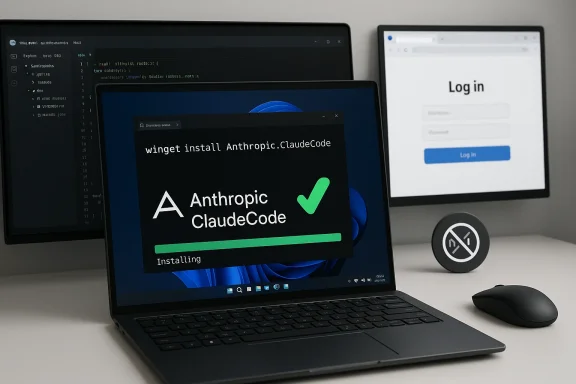
- winget install Anthropic.ClaudeCode
- Important: use Anthropic.ClaudeCode (the package for the command‑line tool). Anthropic also publishes a separate desktop/GUI package under a different ID—don’t confuse them. The official documentation shows the
winget install Anthropic.ClaudeCodecommand. - Accept prompts and watch the progress
- WinGet will display package details and ask you to accept source/package agreements on the first use. After that it downloads and installs the binary and places it on PATH.
- Verify the binary is available
- Close your terminal and open a new one (required so PATH updates take effect), then run:
- claude --version
- If you see a version string, congratulations—Claude Code is installed.
- winget source update
Then retry the install. This resolves stale source cache problems in many environments.
First run and authentication (what to expect)
The first time you launch Claude Code it walks you through a one-time authentication flow.- Start Claude Code in any project directory:
- claude
- The CLI will open a browser window to Anthropic’s login/authorization page and guide you through OAuth sign-in or API selection. Options supported include:
- Claude.ai subscription (Pro / Max) — sign in with your Claude account (recommended for many individual users).
- Anthropic Console / API billing — sign in to console.anthropic.com and use API credits if you prefer pay‑per‑use.
- After successful authentication, the CLI stores credentials locally and will display “Login Successful” in the terminal. Anthropic’s docs describe this flow and note that a “Claude Code” workspace is created automatically when you authenticate with Console-based API billing.
- claude — start the interactive REPL in the current directory.
- claude --version — check installed version.
- claude doctor — diagnostic check of installation type, configuration and common issues (useful if something goes sideways).
Updating Claude Code (WinGet vs native installer)
Two facts to lock in:- The official native installer supports background auto-updates by default. If you installed via Anthropic’s native script or installer, Claude Code will periodically update itself. You can disable auto-updates via the
DISABLE_AUTOUPDATERenvironment variable or with theclaude configsettings. - WinGet installations do not auto-update; you must manually upgrade with WinGet:
- winget upgrade Anthropic.ClaudeCode
- Or check all managed packages:
- winget upgrade --all
winget upgrade shows no available update, wait a short time and retry; package manifest publishing and cache propagation are the usual culprits. Uninstalling and cleaning up
- To uninstall the WinGet-managed package:
- winget uninstall Anthropic.ClaudeCode
- Configuration files are stored in your user profile (for example:
%USERPROFILE%.claudeand%USERPROFILE%.claude.json). Uninstalling the binary does not remove these files by default; remove them manually if you want a complete reset: - Remove-Item -Path "$envnv:USERPROFILE.claude" -Recurse -Force
- Remove-Item -Path "$env:USERPROFILE.claude.json" -Force
Troubleshooting: common issues and fixes
- “claude is not recognized as a command”
- Cause: PATH changes not picked up.
- Fix:
- Close all terminal windows and open a new one (this resolves most cases).
- If still failing, reboot Windows (Windows sometimes needs a restart to register PATH changes).
- Check where the binary lives:
- where.exe claude
- If the binary isn’t present, confirm WinGet installation state:
- winget list Anthropic.ClaudeCode
- If you see a mismatch between commands and installed package status, run
claude doctorfor diagnostics. - WinGet can’t find the package
- Cause: stale WinGet source cache.
- Fix:
- winget source update
- Then retry
winget install Anthropic.ClaudeCode. - Permission errors during install
- Cause: elevation required for machine-scoped installs.
- Fix: Run terminal as Administrator and retry.
- Behind a corporate proxy / firewall
- Cause: installer download blocked.
- Fix: Confirm proxy and firewall rules with IT; WinGet follows system proxy settings. For strict enterprise envs, use Anthropic’s PowerShell installer or an internal WinGet source that proxies and validates packages.
- Claude crashes immediately after launch
- Cause: antivirus or endpoint protection may block new CLI tools.
- Fix: Check quarantine logs or exclusions. Anthropic signs distributed Windows binaries, but real-time scanners can still interfere—add exclusions for working project directories if needed.
- False “file modified” or edit conflict errors
- Cause: cloud sync or real-time antivirus interfering with file timestamps.
- Fix: Exclude project directories from real-time scanning (or upgrade to a version where the issue was mitigated). Anthropic’s release notes noted fixes around false positives in later 2.1.x releases—check
claude --versionandclaude doctorif you suspect this.
How WinGet compares to other installation methods
Anthropic supports multiple install channels; here’s a practical comparison:- PowerShell installer (irm https://claude.ai/install.ps1 | iex)
- Best for: Users who want the native installer experience and automatic background updates.
- Pros: Auto-updates, official native package, recommended for many users.
- Cons: Runs a remote script (some orgs block
iexof remote scripts for policy reasons). - WinGet (winget install Anthropic.ClaudeCode)
- Best for: Users who prefer native Windows package management and deterministic installs.
- Pros: Official package, no Node.js, works well in provisioning scripts.
- Cons: Manual updates required (
winget upgrade), dependent on WinGet sources. - npm (npm install -g @anthropic-ai/claude-code)
- Best for: Developers already managing global Node.js CLI tools.
- Pros: Simple for Node users, historically the fastest path.
- Cons: Deprecated as a primary distribution channel; Anthropic now recommends native installers to eliminate Node.js as a hard dependency and to streamline cross-platform consistency. Expect eventual migration.
- WSL (install within Windows Subsystem for Linux)
- Best for: Users who already use Linux toolchains and prefer running the tool in a Linux environment.
- Pros: Full POSIX environment, consistent with Linux installs.
- Cons: Heavier setup if your only reason to use WSL is Claude Code.
Security and supply-chain considerations
A few important safety notes for production or enterprise environments:- Always prefer official publisher manifests or the vendor-provided installer script when available. Anthropic publishes signed Windows binaries and release manifests with SHA256 checksums for integrity verification. Check the published manifest for the version you install if you need cryptographic verification.
- Package manager ecosystems can have issues: community-managed WinGet manifests occasionally raise security flags (for example, community issues have been filed around package hash mismatches for other Anthropic packages in the community repository). If you operate an enterprise fleet, consider using a private, curated WinGet source or internal artifact repository to control what installs on endpoints.
- Endpoint protection may flag new CLI tools: verify vendor signatures and check quarantine logs before reinstating quarantined binaries. Anthropic signs their Windows binaries with a publisher certificate and publishes release manifests to help you verify integrity.
Practical tips and recommended workflow
- If you prefer control over updates, use WinGet. Schedule a fortnightly
winget upgrade --allin Task Scheduler or your provisioning pipeline and audit manifests before applying upgrades. - If you prefer automatic background updates and don’t mind the installer running its updater, use Anthropic’s native PowerShell installer—the native path gives you that hands-off update behavior.
- If you need WSL or Linux-level integration for other tools, use WSL and install Claude Code in the WSL environment—this keeps the runtime consistent with other Linux-based development tooling.
- Add Git Bash to your Windows environment (or use the built-in Git for Windows) if you plan to run Claude Code natively and want its bash-based utilities available; Anthropic documents a
CLAUDE_CODE_GIT_BASH_PATHenv var you can set to point Claude Code at a specific bash binary. - Start small: try Claude Code on a non-critical repository first and watch which operations you trust the tool to perform. The tool can propose edits and create commits, so the initial permissions cycle is a good time to validate the experience.
Quick reference: copy-ready commands
- Verify winget:
- winget --version
- Install Claude Code (WinGet):
- winget install Anthropic.ClaudeCode
- Update with WinGet:
- winget upgrade Anthropic.ClaudeCode
- Check installed package:
- winget list Anthropic.ClaudeCode
- Quick diagnostic:
- claude doctor
- Start Claude in a repo:
- cd path\to\your\project
- claude
Final assessment — strengths, downsides, and a recommended approach
Strengths of the WinGet approach:- Fast, simple, and repeatable single-command install.
- Removes Node.js dependency and avoids common npm permission pitfalls on Windows.
- Fits neatly into PowerShell or provisioning scripts for system admins.
- Manual update management when using WinGet; if you prefer automatic updates, use the native installer.
- Package-manager propagation delays: WinGet versions may lag behind Anthropic’s native channel for short windows of time.
- Corporate policy constraints may prohibit
irm ... | iex(the native PowerShell installer) and require manifest vetting or private feeds for compliance.
- For most Windows 11 power users and developers who want quick control and no extra dependencies: use WinGet—run
winget install Anthropic.ClaudeCode, authenticate, and start experimenting. - For users who want automatic background updates and are comfortable allowing Anthropic’s native installer to manage updates: use Anthropic’s PowerShell/native install (
irm [url]https://claude.ai/install.ps1[/url] | iex), but only where corporate policy allows remote script execution. - For enterprise fleets: vet the installer and manifest, host approved manifests in a private WinGet source, and use your standard configuration management pipeline to control rollouts.
Installing Claude Code with WinGet is intentionally low‑friction: one command, quick auth, and a terminal-based assistant that can operate directly on your repository. The biggest practical friction you’ll encounter is deciding how you want updates to be handled—automatic via Anthropic’s native installer, or manual via WinGet. Either path is supported and documented by Anthropic and works well; pick the one that matches your update preferences and organizational policies. If you’re just getting started with AI-assisted coding, begin by asking Claude Code to explain unfamiliar code, add tests to a small function, or refactor a messy module—those tasks let you learn the tool’s behavior with minimal risk while delivering real productivity gains.
Source: H2S Media How to Install Claude Code on Windows 11 Using WinGet
