

If your Chrome install on Windows 11 has become slow, unstable, or simply refuses to start, a quick uninstall-and-reinstall using the Windows Package Manager (winget) is often the fastest way back to a clean, working browser — and it can be done entirely from the Terminal in a matter of moments. This guide explains exactly what to run, why each step matters, how to perform a clean reinstall that removes profile data, and how to scale the workflow for automation and enterprise deployments while clearly flagging the risks and troubleshooting steps most likely to matter in the field.
Windows Package Manager (winget) is Microsoft’s official command-line package manager for Windows. It is delivered as part of the App Installer on modern Windows systems and exposes commands to search, install, upgrade, list, and uninstall applications from curated sources. Winget’s CLI-first approach makes common maintenance tasks — including removing and re-installing Chrome — faster and scriptable across many machines. ([learn.microsoft.coosoft.com/en-us/windows/package-manager/winget/)
There are three distinct scenarios this workflow covers:
Warning: Deleting the profile folder permanently removes locally stored bookmarks, passwords, history, and extension data unless these were synchronized to your Google account. Confirm Chrome Sync is active or export bookmarks/passwords before proceeding. This is irreversible if sync/backups are not available.
Steps for a clean reinstall:
If you plan to roll this workflow into automation for dozens or thousands of endpoints, add:
Source: H2S Media How to Uninstall and Reinstall Chrome on Windows 11 Using Winget CMD
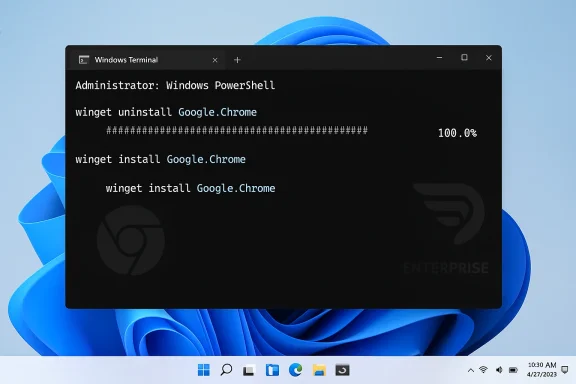 Background / Overview
Windows Package Manager (winget) is Microsoft’s official command-line package manager for Windows. It is delivered as part of the App Installer on modern Windows systems and exposes commands to search, install, upgrade, list, and uninstall applications from curated sources. Winget’s CLI-first approach makes common maintenance tasks — including removing and re-installing Chrome — faster and scriptable across many machines. ([learn.microsoft.coosoft.com/en-us/windows/package-manager/winget/)There are three distinct scenarios this workflow covers:
- A standard reinstall that removes and restores the application binary while preserving user profile data.
- A clean reinstall that also deletes Chrome’s local user data folder to eliminate corrupted profiles or persistent extension problems.
- An automated, unattended reinstall for remote troubleshooting and enterprise provisioning.
Why use winget to reinstall Chrome?
Winget shines in these situations:- Speed and convenience: Two commands (uninstall, then install) replace multiple GUI steps and a manual download. This is ideal when a browser won’t launch or when you’re working remotely.
- Scripting and repeatability: The same commands can be placed into PowerShell scripts or deployment pipelines for dozens or thousands of endpoints. The CLI flags (--silent, --accept-package-agreements, --accept-source-agreements) make unattended installs possible.
- Consistent source: Winget pulls the manifest-defined installer for packages in its repositories, avoiding accidental downloads from third-party sites.
- Remote management: From an elevated terminal over RDP, SSH, or remote management tooling, winget commands are much faster than GUI navigation.
What you must check before you start
- Confirm winget is present and usable. On Windows 11, winget is distributed via App Installer and is generally available; if it’s missing or not initialized on a freshly set up machine, the Microsoft App Installer component must be present and registered. You can check with:
winget --version
The Microsoft docs explain App Installer distribution details and how winget is registered on first login.- Run Terminal as Administrator. Removing system-wide applications requires elevated privileges. Right-click Windows Terminal (or PowerShell/Command Prompt) and select Run as administrator before starting.
- Close Chrome completely. Make sure Chrome isn’t running (check Task Manager and end lingering
chrome.exeor updater processes). If Chrome processes are active, the uninstall may fail because files are locked. - Confirm sync or back up critical data. If you rely on Chrome Sync for bookmarks, passwords, and extensions, ensure sync is fully up-to-date with your Google account before you delete local data. If you are not using sync, back up the profile folder manually if you need to preserve bookmarks and saved passwords.
Quick commands (summary)
- Check installed package:
winget list Google.Chrome - Uninstall Chrome:
winget uninstall Google.Chrome - For silent uninstall:
winget uninstall Google.Chrome --silent - Reinstall Chrome:
winget install Google.Chrome - Silent, unattended install with agreement acceptance:
winget install Google.Chrome --silent --accept-package-agreements --accept-source-agreements - Remove leftover profile data for a clean reinstall:
rmdir /s /q "%LocalAppData%\Google\Chrome"
Step-by-step: uninstall and reinstall Chrome with winget
Step 1 — Confirm Chrome is tracked by winget
- Open Terminal as administrator.
- Run:
winget list Google.Chrome - If winget finds the package it will show the installed version and package ID. If nothing appears, the Chrome install might have been made by a different mechanism (an enterprise MSI, offline installer, or a Chromium build winget does not track). In that case use the broader search:
winget list --name Chrome
Use the exact package ID or name when you proceed. The winget list behavior and naming rules are documented by Microsoft.
Step 2 — Uninstall Chrome
- Normal uninstall:
winget uninstall Google.Chrome
Winget forwards the request to the application’s native uninstaller and runs it. You may briefly see the Chrome uninstall dialog flash on-screen. - Silent uninstall (no dialogs):
winget uninstall Google.Chrome --silent - If the uninstall reports multiple matches or ambiguity, add
--idwith the package ID or use--exactto target the precise package record. Theuninstallcommand options are documented in the winget reference.
%LocalAppData%\Google\Chrome\User Data untouched by default. This preserves bookmarks, passwords, history, and extensions for a subsequent reinstall unless you explicitly delete the folder. This behavior is consistent with Chrome’s storage model — the profile folder contains the full user data set.Step 3 — Verify uninstallation
- Re-run:
winget list Google.Chrome
The package should no longer appear. - Also check Settings > Apps or the Start menu to confirm Chrome is gone.
- If Chrome still appears, make sure Chrome processes are terminated and try a forced uninstall:
taskkill /IM chrome.exe /Fwinget uninstall Google.Chrome --force
Step 4 — Reinstall Chrome
- Standard install:
winget install Google.Chrome - Silent/unattended install:
winget install Google.Chrome --silent --accept-package-agreements --accept-source-agreements
Use the--accept-package-agreementsand--accept-source-agreementsflags to avoid interactive prompts when scripting. The flags are commonly used in automation scenarios and are described in Microsoft’s guidance and community examples.
chrome://settings/help or the About page to confirm you’re on the expected release.Clean reinstall (remove leftover profile data)
If Chrome problems are caused by a corrupted profile — repeated crashes, extensions that break on startup, or profile DB errors — you can perform a clean reinstall by deleting Chrome’s local data folder between uninstall and reinstall.Warning: Deleting the profile folder permanently removes locally stored bookmarks, passwords, history, and extension data unless these were synchronized to your Google account. Confirm Chrome Sync is active or export bookmarks/passwords before proceeding. This is irreversible if sync/backups are not available.
Steps for a clean reinstall:
- Uninstall Chrome with winget as shown above.
- From an elevated prompt or File Explorer, delete the user data folder:
- File Explorer: Navigate to
%LocalAppData%\Google\Chromeand delete theChromefolder. - Command prompt (elevated):
rmdir /s /q "%LocalAppData%\Google\Chrome" - Reinstall with:
winget install Google.Chrome
C:\Users\<User>\AppData\Local\Google\Chrome\User Data) and contain all profile artifacts; removing it is the effective way to start with a truly fresh profile.Automating and scaling: unattended installs and enterprise deployment
For scripted, mass deployment, combine flags to avoid prompts:- Example unattended install:
winget install Google.Chrome --silent --accept-package-agreements --accept-source-agreements - For true headless automation (Intune, group policy scripts, or custom provisioning), incorporate the winget commands into a PowerShell script and add checks for winget availability, elevation, and a network check.
- Some environments must handle the App Installer/winget registration timing on fresh images; winget may appear only after the Microsoft Store/App Installer registers the component for the user context. The Microsoft documentation describes App Installer distribution and registration steps and includes a recovery command for App Installer registration if winget is missing.
- When running winget from system context (for example in Intune device scripts), path and registration differences may cause failures; test in both user and system contexts and consider deploying App Installer as part of preprovisioning if necessary. Community discussions document common pitfalls and workarounds for system-context execution.
Troubleshooting common winget errors and how to fix them
- “No installed package found matching input criteria”
Meaning: winget does not find Chrome under the queried name. Try the broader searchwinget list --name Chromeor uninstall via Settings if Chrome was installed using an MSI or enterprise tool. Winget can still reinstall Chrome afterwards. - “The operation was blocked by Windows Installer”
Another installer or Windows Update may be running. Wait, then retry, or restart the Windows Installer service:
net stop msiserver && net start msiserver - “winget is not recognized”
The App Installer component may be missing or not registered. Install/update App Installer from the Microsoft Store (or register App Installer manually per Microsoft guidance) and re-runwinget --version. Microsoft’s WinGet documentation explains App Installer distribution and registration details. - Uninstall fails because Chrome processes block file removal
Force-terminate processes:
taskkill /IM chrome.exe /F
Then run uninstall with--force:winget uninstall Google.Chrome --force - Winget repository or source errors (stale cache)
Reset and refresh sources:
winget source reset --force
winget source update
Thesource resetsubcommand resets client configuration and removes non-default sources; it requires admin privileges and is documented in Microsoft’s winget source reference. Use cautiously. - Package agreements or interactive prompts block automation
Include eements --accept-source-agreements --disable-interactivity` when running unattended installs. Some manifests or msstore sources may still require explicit acceptance if agreements have changed; automation should handle failures gracefully and re-run with updated agreements if necessary.
Winget vs Settings (GUI) – practical comparison
- Speed: Winget typically completes uninstall/install commands in seconds to a few minutes depending on network and system resource conditions. GUI navigation and manual download take longer, especially on multiple machines.
- Repeatability: Winget is scriptable; GUI is manual.
- Remote use: Winget excels for remote troubleshooting; GUI requires remote screen control.
- Data preservation: Both methods leave profile data behind by default; a clean reinstall requires explicit deletion of the profile folder in either method.
- Accessibility: GUI is familiar for non-technical users; winget requires CLI comfort.
Important safety notes and data-loss warnings
- If you delete
%LocalAppData%\Google\Chromeyou will permanently remove local bookmarks, saved passwords, cookies, history, and extension data unless those items are synced to your Google account or you have a backup. Confirm Chrome Sync is active and fully synchronized before deleting local data. - If your organization enforces Chrome policies via registry or group policy (enterprise MSI installations), winget may not be able to modify or replace the browser cleanly; check with your IT policy team before making changes in managed environments.
- Use
--silentand--accept-package-agreementsonly in controlled, tested automation runs. Silent installs can hide installer errors and prompts that would otherwise inform you about license or configuration changes. - For enterprise environments, prefer validated MSI/MSIX enterprise channels or vendor-signed installers when supply-chain assurance and signed packaging are required; winget manifests may reference publisher installers and can change over time — audit the manifests you rely on.
How to recover bookmarks or passwords if you didn’t sync
If you unintentionally deleted the user data folder and Chrome Sync was not enabled, local recovery is difficult:- If you have a system-level backup or File H%LocalAppData%\Google\Chrome\User Data` folder from backup.
- If you don’t have backups, local bookmarks and passwords are typically unrecoverable once the profile folder has been deleted. Always double-check sync or export bookmarks before removing local profile folders. Chromium project documentation and admin policy resources explain where Chrome stores profile artifacts and the consequences of deletion.
Real-world caveats & field validation
- Winget client behavior and availability can depend on App Installer version and the Microsoft Store’s background registration — especially on freshly imaged machines. If winget is missing on a fresh install, the App Installer will usually register shortly after the first user login, or you can re-register App Installer manually (Microsoft provides guidance). Test deployments against clean images to ensure winget is initialized prior to using it in provisioning.
- Silent install flags depend on the underlying installer supporting silent switches. Winget requests silence, but the installer run by the manifest determines how quiet the actual install will be. Always test silent modes before broad automation. Practical community guidance warns that silent behavior is installer-dependent.
Quick checklist for safe winget-based Chrome reinstall
- Confirm winget is available with
winget --version. - Ensure Terminal is elevated (Run as administrator).
- Verify Chrome sync is active or export bookmarks/passwords.
- Close Chrome and kill background processes (
taskkill /IM chrome.exe /F). - Uninstall:
winget uninstall Google.Chrome(or--silent). ([learn.microsoft.com]([uninstall Command](https://learn.microsoft.com/en-us/ windows/package-manager/winget/uninstall?utm_(Optional) clean step) Delete%LocalAppData%\Google\Chromeif you need a fresh profile. - Reinstall:
winget install Google.Chrome --silent --accept-package-agreements --accept-source-agreements. - Launch Chrome, sign in, and confirm sync restored your data.
Final thoughts and best practice recommendations
Uninstalling and reinstalling Chrome with winget on Windows 11 is simple, fast, and especially powerful for IT professionals and power users who value repeatability and remote management. Use the standard uninstall when you want to preserve user data; choose the clean reinstall only when troubleshooting stubborn profile corruption or malware because deleting%LocalAppData%\Google\Chrome permanently removes local artifacts if they were not synced or backed up. Technical behavior described above is documented by Microsoft and Chromium project materials — winget’s uninstall/install flags and source controls are covered in Microsoft’s WinGet documentation, while Chrome’s profile storage locations and the consequences of deleting them are described in Chromium resources.If you plan to roll this workflow into automation for dozens or thousands of endpoints, add:
- Pre-checks for winget/App Installer availability and version,
- Logging for each step and error handling,
- A conservative rollback or user-notification for any destructive profile-deletion steps.
Source: H2S Media How to Uninstall and Reinstall Chrome on Windows 11 Using Winget CMD
