

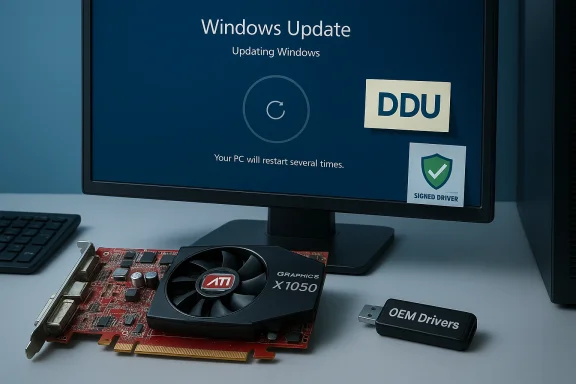
If you’ve found a bargain listing for a Radeon X1050 (or pulled an older ATI/AMD card from a drawer) and are wondering whether and how to install a legacy driver on Windows 10, this guide walks you through the reality, the safest paths, and the advanced (riskier) techniques used by enthusiasts. The short version: for ATI Radeon X-series cards the safest and most reliable option is to accept the Microsoft‑supplied driver or use your OEM’s package; forcing archived ATI/AMD Catalyst drivers onto Windows 10 is possible in specific, controlled cases, but it comes with real compatibility and security trade‑offs that must be understood and mitigated.
Note: follow the earlier “safe workflow” first. Only attempt this if you understand and accept the riskisk image (e.g., Macrium Reflect, Clonezilla). Create a System Restore point.
This guide consolidates official vendor guidance, community‑tested workflows, and practical safety controls so you can make an informed choice about running an ATI/AMD Radeon X1050 on Windows 10. The most defensible long‑term choices remain to rely on Microsoft Update or an OEM driver for stability, or to replace the GPU if you need current features and secure, signed drivers.
Source: Born2Invest https://born2invest.com/?b=style-232014112/
 Background / Overview
Why legacy Radeon installs are different today
ATI/AMD graphics driver packaging evolved through several eras: the old Catalyst-era installers (used up through the mid‑2010s), then Crimson and finally the modern AMD Software: Adrenalin Edition. Microsoft and AMD agree that very old product families — notably ATI Radeon X-series and many HD 2000–4000 parts — were never validated for the Windows 10 driver model and therefore have no official modern driver support. In practice Windows 10 will fall back to the Microsoft Basic Display Adapter or a Microsoft‑signed legacy driver that provides a functional desktop without the full Catalyst/Adrenalin feature set. Third‑party archives and driver‑bundle sites still host old installers (for example, driver packages from 2009–2011 that claim Windows 10 compatibility), but these are not AMD‑validated for modern Windows 10 kernels; using them increases the risk of instability, missing security signatures, and modified INF files. Treat those files with extreme caution and verify digital signatures and hashes whenever possible.What “works” on Windows 10 for an X‑series (X1050) card
- Basic display output, desktop rendering and low‑level 2D acceleration: usually provided by Windows Update’s Microsoft‑signed driver or the default Basic Display Adapter.
- Advanced Catalyst features (Catalyst Control Center, modern power control, game optimizations, recent codec offload): unlikely or unavailable because those legacy packages were not tested against recent Windows 10 kernel updates.
Key facts verified (short, verifiable claims)
- AMD explicitly lists ATI/AMD Radeon X‑series cards among products that do not support Windows 10 and advises users to rely on Windows Update for basic functionality.
- AMD’s legacy and Catalyst archives remain available (for older families that can be manually installed), but Catalyst support for Windows 10 was limited to newer product lines (HD 7000 and newer in many release notes). Use modern Adrenalin builds for supported families.
- Windows 10 reached end of support on October 14, 2025; relying on unsupported OS builds increases the long‑term risk of running d kernel drivers. Consider upgrading or using Extended Security Updates where applicable.
- The Born2Invest link supplied in the original query is not a dependable, verifiable source for driver files or official guidance — the page cannot be reliably authenticated and should not be treated as authoritative. Treat that item as unverified.
Practical, safest path (most reliable)
These steps prioritize system stability and security. Follow them in order.- Inventory and backup (non‑negotiable)
- Record the GPU hardware ID: Device Manager → Display adapters → right‑click adapter → Properties → Details → Hardware Ids. Save the PCI\VEN_1002&DEV_xxxx string to a text file.
- Create a System Restore point and — if the system is important — take a full disk image. Driver changes to the display stack can leave a machine unbootable.
- Try Windows Update (lowest risk)
- Settings → Update & Security → Windows Update → Check for updates → View optional updates → Driver updates.
- If Windows Update offers a Radeon display driver install it first and validate resolution, multi‑monitor behavior and video playback. This is the safest option for X‑series cards.
- Check OEM / system vendor pages (branded laptops/desktops)
- For laptops and many prebuilt desktops, OEMs often publish tailored drivers that handle hotkeys, power management, and hybrid graphics. If your machine is a branded system (Dell, HP, Lenovo, etc., prefer the OEM package for Windows 10.
- Use the official AMD pages (only if your card is listed or you need a specific legacy feature)
- Search AMD’s Drivers & Support pages and the legacy/previous drivers area. If AMD lists a driver for your hardware ID and Windows 10, prefer that WHQL‑signed package. Otherwise, avoid broad Catalyst installs for X‑series cards.
- Clean the driver state before manual attempts
- If you must try a legacy package, use Display Driver Uninstaller (DDU) in Safe Mode (recommended) to remove leftover AMD/NVIDIA driver artifacts. A clean state reduces partial installs and conflicts.
- Keep the working installer and a rollback plan
- Always keep the installed driver package and DDU toolsf things go wrong, revert using the Restore point or the disk image.
Advanced: manual INF install (when the installer refuses to run)
Only perform the following steps if you are comfortable with system recovery and understand driver signing risks.- Extract the legacy driver package
- Many AMD installers\AMD or %TEMP%. When the installer stops with “unsupported device” or “unsupported OS”, note the extraction folder.
- Verify the INF contains your hardware ID
- Open Display.Driver.inf in a text editor and search for your exact PCI\VEN_1002&DEV_xxxx. If the INF does not contain your device ID, do not* edit it unless you fully understand driver signing and re‑cataloging. Editing and re‑signing is a technical, risky process.
- Install via Device Manager → Have Disk or pnputil
- Device Manager → Update driver → Browse my computer → Let me pick from a list → Have Disk → point to the extracted INF. Alternatively, use pnputil to add the driver to the driver store:
- pnputil /add-driver "C:\path\to\oemNN.inf" /install
- Reboot and validate. If Windows reverts the driver via Windows Update, pause updates temporarily during validation.
- If Windows blocks unsigned drivers
- Modern Windows enforces kernel driver signatures. Microsoft documents temporary developer/test modes (Test Signing via bcdedit /set TESTSIGNING ON or boot menu option "Disable driver signature enforcement" for a single boot). These reduce security and often require disabling Secure Boot first; they must be used only briefly and on test/non‑production systems. Revert the setting immediately after installing and validating.
Troubleshooting common errors and fixes
- “This hardware is not supported” / Error 182
- Cause: installer INF lacks your hardware ID or you’re using the wrong package (Catalyst vs Adrenalin). Fix: confirm hardware ID and tr Disk” route or use a different archive package that explicitly lists your device.
- Catalyst Control Center installed but driver shows Microsoft Basic Display Adapter
- Cause: partial install. Fix: run DDU in Safe Mode, clean all AMD/ATI tracesorrect package or the Microsoft driver.
- Black screen or boot failure after driver install
- Recovery: boot to Safe Mode, uninstall the problematic driver via Device Manager, or restore using System Restore / image backup. If you cannot access Safe Mode, use Windows rore the system image.
- Windows Update keeps overwriting your manual driver
- Fix: pause or temporarily disable automatic driver updates while validating your manual install. Re‑enable updates after convergence or retain the Microsoft driver for long‑term stability.
Security and lifecycle considerations (why this matters)
- Graphics drivers run at kernel level, so unsigned or repackaged kernel modules are a real risk for malware insertion or system instability. Always prefer signed binaries from AMD, Microsoft, or your OEM.
- Windows 10 reached end of support on October 14, 2025. That means no routine security updates from Microsoft for the OS, and vendors are less likely to validate legacy drivers against new kernel changes. If you must run a legacy driver on an unsupported OS, understand the increased long‑term security risk and consider enrolling in Extended Security Updates or upgrading to Windows 11 where practical. ([support.microsoft.com](Windows 10 support has ended on October 14, 2025 - Microsoft Support signature enforcement or Secure Boot to install drivers removes important kernel protections. Use these modes only on disposable or offlireturn the system to normal mode immediately after the required driver is installed and validated. Microsoft documents Test Signing and the associated risks explicitly.
Buying used/surplus X‑series cards — what to check before you buy
- Ask for the exact part number, photos of the PCB, and a short video of the card installed with Device Manager visible. This helps prove the boa vendor’s subsystem ID matches an INF entry you can match against.
- Inspee (bulging capacitors, burn marks) and verify the seller’s return window (a 14‑day DOA guarantee is ideal).
- Consider total cost: older cards often lack modern codec support and are less power efficient; sometimes a budget modern GPU with current driver support is a better long‑term value.
Note: follow the earlier “safe workflow” first. Only attempt this if you understand and accept the riskisk image (e.g., Macrium Reflect, Clonezilla). Create a System Restore point.
- Record hardware ID (Device Manager → Details → Hardware Ids). Save it.
- Download an archived ATI/AMD package that ceep the original zipped EXE). Verify any checksums if published. Prefer AMD/OEM packages over driver repositories.
- Boot to Safe Mode and run DDU to remove existing drivers. Reboot to normal.
- Run the legacy installer; when it extracts files to a folder (C:\AMD or %TEMP%) and then fails, note the folder. If the installer completes, reboot and test. If it fails:
- Open the extracted folder → Packages\Drivers\Display\W86 or W64 → open the .inf file and search for your hardware ID. If found, close the editor. If not found, abort and revert to Microsoft driver.
- In Device Manager, Update driver → Browse my computer → Let me pick → Have Disk → point to the extracted INF. Approve any prompts and install only the Display Driver co. If Windows blocks the install due to signature enforcement you can:
- Use the F8 advanced boot menu once to temporarily disable driver signature enforcement for a single boot, or
- Enable Test Mode (bcdedit /set TESTSIGNING ON) — only as a shormachines where disabling Secure Boot and BitLocker is acceptable. Revert with bcdedit /set TESTSIGNING OFF immediately after.
- Validate: Device Manager shows an AMD/ATI adapter (not Microsoft Basic Display Adapter). Check resolution, video playback, and basic 3D functionality. Keep the working installer and the disk image for rollback.
When to stop and choose a hardware refresh
- You need modern video decode acceleration (HEVC, AV1), DirectX 11/12 performance, or modern driver‑level features. Legacy X‑series cards simply can’t deliver these capabilities reliably on Windows 10.
- The effort to force legacy drivers (including disabling core security features) outweighs the cost of a low‑end modern GPU that ships with supported drivers. For long‑term stability and security, replacing the card is often the best value.
Final verdict and clear recommendations
- If your goal is a stable Windows 10 desktop with basic display and video playback for an ATI Radeon X1050, the lowest‑risk route is to let Windows Update install the Microsoft‑signed legacy driver or to use an OEM driver if your system vendor supplies one. This preserves signature enforcement, Secure Boot, and overall system security.
- If you need a specific legacy Catalyst feature that only an archived package provides, use the manual INF install workflow on a non‑critical machine after backing up your system, use DDU to clean the driver state, verify the INF contains your hardware ID, and avoid repackaged third‑party bundles. Be prepared to accept the security and compatibility risks, and revert to the tability issues appear.
- Never leave Test Mode, disabled Secure Boot, or disabled driver signature enforcement enabled on production systems — these remove key kernel protections and dramatically increase the attack surface. Use these modes only for the brief window required to validate a driver and then return the system to normal.
This guide consolidates official vendor guidance, community‑tested workflows, and practical safety controls so you can make an informed choice about running an ATI/AMD Radeon X1050 on Windows 10. The most defensible long‑term choices remain to rely on Microsoft Update or an OEM driver for stability, or to replace the GPU if you need current features and secure, signed drivers.
Source: Born2Invest https://born2invest.com/?b=style-232014112/
