

The ATI Radeon Xpress 200 series is a classic entry in the mid‑2000s era of integrated AMD/ATI graphics, and the reality for Windows 10 users is blunt: the chipset is legacy, official vendor support is archival, and the safest, most reliable route to a working display on modern Windows is to rely on Microsoft’s signed drivers or an OEM‑provided package rather than forcing old Catalyst installers. Practical workarounds exist for enthusiasts who need more features, but they require careful manual steps, a rigorous rollback plan, and an acceptance of security and stability trade‑offs.
The ATI Radeon Xpress 200 family shipped as an integrated and low‑end discrete option in the mid‑2000s and was supported by AMD’s Catalyst driver stack for Windows Vista and earlier releases. AMD continues to host archival Catalyst/WDM packages for the Xpress 200 on its legacy download pages, but these drivers were written for older WDDM/kernel models and were not developed or validated for the Windows 10 driver model. In short: official binaries exist in the archive, but they are aging and were not created for contemporary Windows 10 kernels. At the same time, Microsoft’s formal stance and community experience converge on a safety prism: for legacy GPUs the Windows Update (Microsoft‑signed) driver is the lowest‑risk way to get a functional desktop. Community testing and forum archives show repeated instances where Windows Update provides a stable display driver when Catalyst installers either fail or deliver incomplete results on modern Windows builds. If you need the simplest, safest path, begin with Windows Update.
The bottom line: the Xpress 200 can provide a working desktop on Windows 10, but the safest and most supportable method is to use Microsoft’s signed drivers or an OEM package; trying to resurrect full Catalyst functionality with archival installers is possible, but it’s an advanced, risk‑laden path best reserved for enthusiasts who understand driver signing, INF editing, and disaster recovery.
Source: Born2Invest https://born2invest.com/?b=style-238597112/
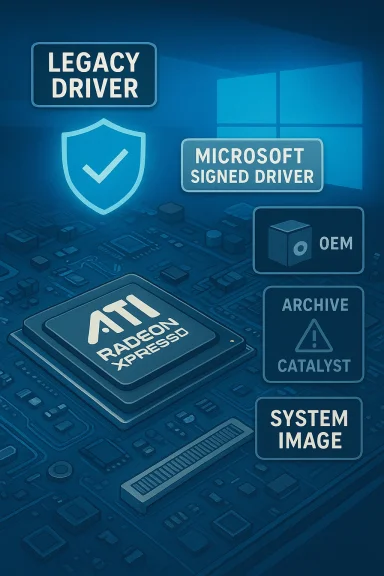 Background / Overview
The ATI Radeon Xpress 200 family shipped as an integrated and low‑end discrete option in the mid‑2000s and was supported by AMD’s Catalyst driver stack for Windows Vista and earlier releases. AMD continues to host archival Catalyst/WDM packages for the Xpress 200 on its legacy download pages, but these drivers were written for older WDDM/kernel models and were not developed or validated for the Windows 10 driver model. In short: official binaries exist in the archive, but they are aging and were not created for contemporary Windows 10 kernels. At the same time, Microsoft’s formal stance and community experience converge on a safety prism: for legacy GPUs the Windows Update (Microsoft‑signed) driver is the lowest‑risk way to get a functional desktop. Community testing and forum archives show repeated instances where Windows Update provides a stable display driver when Catalyst installers either fail or deliver incomplete results on modern Windows builds. If you need the simplest, safest path, begin with Windows Update. Why the Radeon Xpress 200 is “legacy” and what that means
The term legacy in this context isn’t pejorative — it’s a lifecycle label. AMD moved families like Radeon Xpress and many early Radeon HD parts into a maintenance/archival status years ago. That means:- AMD stopped regular driver development and validation for new Windows kernels for those families.
- The latest Catalyst packages targeting Xpress 200 are drawn from a Vista/Windows 7 era codebase (Catalyst 10.x and similar). Those installers include XP/Vista metadata and INF entries that may not enumerate modern hardware/OS combinations.
- You will typically get a functional desktop (correct resolution, basic 2D acceleration) using Microsoft’s signed driver, but not full Catalyst features such as legacy Catalyst Control Center or vendor‑specific power management.
- Attempting to run archival Catalyst installers can produce installer errors, INF device‑ID mismatches, or partial installs that leave Device Manager showing the Microsoft Basic Display Adapter.
Current vendor position and the Windows 10 lifecycle context
Microsoft ended mainstream support for Windows 10 on October 14, 2025. That EOL milestone changes the security and update calculus for anyone relying on older drivers on an unsupported OS. Running an unsupported OS with archived drivers increases long‑term exposure to security risks and reduces the incentive for vendors to validate legacy drivers against late kernel revisions. If a device is critical, consider upgrade options or Extended Security Updates (ESU) rather than relying on unsigned or modified drivers as a long‑term solution. AMD’s support site still preserves downloads for the ATI Radeon Xpress 200 family (Catalyst 10.2 and related WDM packages), but those files target older OSes (Windows Vista and earlier) and are listed in AMD’s legacy drivers area. They are archival artifacts — useful for recovery on vintage systems, but not a guarantee of seamless Windows 10 compatibility.What actually “works” on Windows 10 (realistic expectations)
Expectations should be conservative and clearly defined:- Minimum‑risk outcome: Microsoft‑signed legacy driver via Windows Update — stable desktop, multiple monitors, video playback. No Catalyst extras. This is the recommended starting point for the vast majority of users.
- Moderate‑effort outcome: OEM/vendor Windows 10 package — if your machine is a branded laptop or prebuilt desktop, the OEM may have published a tailored driver that handles hotkeys, hybrid graphics, or power management. Prefer OEM packages when available.
- Advanced outcome: Manual install of an archived Catalyst package — possible if the package’s INF explicitly lists your GPU’s hardware ID (VID/PID). This can restore more legacy features, but it is an advanced, potentially risky operation that requires driver cleanup tools, Safe Mode, and a tested rollback plan.
Where to get drivers (trust hierarchy)
When hunting for drivers for a Radeon Xpress 200 on Windows 10, follow this trust order:- OEM / system vendor support pages (Dell, HP, Lenovo): best for branded systems.
- Microsoft Update / Windows Update driver catalog: safest and Microsoft‑signed.
- AMD official legacy archive pages (Catalyst 10.2, WDM integrated drivers): authoritative but legacy — check INF contents before trusting.
- Community archives / third‑party repackagers: last resort and should be treated with extreme caution — they commonly host unsigned or modified installers. Born2Invest or other non-vendor pages are not authoritative for drivers and should be considered unverified unless they point back to AMD/OEM files.
Step‑by‑step: safe, recommended workflow to get a working display
Follow these numbered steps to maximize safety and minimize downtime. This workflow synthesizes vendor guidance and long‑form community best practices.- Inventory and backup
- Create a full system image or at least a System Restore point. Driver changes to the display stack can render a system unbootable.
- Record your GPU Hardware Id in Device Manager → Display adapters → Properties → Details → Hardware Ids (copy the PCI\VEN_1002&DEV_xxxx string).
- Try the safe option first — Windows Update
- Settings → Update & Security → Windows Update → Check for updates → View optional updates → Driver updates.
- If Windows Update offers a display driver, install it and validate desktop, multi‑monitor behavior, and video playback. This Microsoft‑signed driver is the least invasive path.
- Check the OEM support page (if the device is branded)
- If your machine is a Dell, HP, Lenovo, or similar, search the support site for your model — OEM packages may include special tweaks that AMD’s generic installers omit. Prefer vendor packages for laptops.
- Only if you need more features: prepare for an archival Catalyst manual install
- Download the AMD archive package (Catalyst/Catalyst WDM) into a safe folder. Let the installer extract, then cancel the GUI if possible to inspect the extracted files (many AMD installers unpack to C:\AMD).
- Inspect Display.Driver*.inf files in the extracted folder and search for your PCI\VEN_1002&DEV_xxxx hardware string. If your VID/PID is not present, do not proceed unless you understand INF editing, driver re‑signing, and the security implications.
- Clean the system before testing a manual install
- Boot Safe Mode and run Display Driver Uninstaller (DDU) to remove prior AMD/NVIDIA remnants. Reboot to normal mode. This reduces partial install problems.
- Manual “Have Disk” install (only when INF matches)
- Device Manager → Display adapter → Update driver → Browse my computer → Let me pick from a list → Have Disk → point to the extracted INF. Follow prompts, reboot, and test. If Windows reverts to Microsoft’s generic driver via Windows Update, temporarily hide the update while you validate the manual install.
- Rollback plan — essential
- Keep the Windows recovery media, your system image, and a copy of the Microsoft‑signed driver. If the manual legacy install creates instability, roll back immediately via System Restore or recovery image.
Advanced techniques and the real risks
Advanced users sometimes edit display INF files to add missing VID/PID entries so a Catalyst installer will accept an older GPU. While this can restore more legacy features, it comes with notable risks:- Unsigned or modified driver binaries: editing an INF or installing an unsigned driver can require disabling driver signature enforcement or Secure Boot features — both of which reduce kernel enforcement protections. This is unsafe on production or networked machines.
- Stability problems: older Catalyst components were never validated against later Windows 10 kernel updates. Partial or incompatible installs can produce hangs, BSODs, or persistent Display Driver crashes.
- Automatic Windows Update reversion: Windows Update may replace a manual install with the Microsoft‑signed driver. Community guides recommend hiding the related update during testing, but this is only a temporary measure.
Security and lifecycle considerations — why this matters now
Two contextual facts materially change the calculus in 2026:- Windows 10 reached end‑of‑support on October 14, 2025. That means Microsoft no longer issues routine security updates to the platform, and any device that remains on Windows 10 is inherently more exposed than one on a supported OS. Running archival drivers on an unsupported OS compounds risk.
- Vendors are less likely to validate or backport fixes to legacy drivers for an OS that is no longer a mainstream focus. This reduces the long‑term safety of custom or unsigned driver installs.
Alternatives and practical recommendations
If the goal is simply a usable desktop and basic video playback, follow these quick recommendations:- Start with Windows Update — accept Microsoft’s driver if offered. This is the recommended default for stability and minimal risk.
- If the device is a branded model, prefer the OEM download for your exact model and Windows version. OEMs sometimes publish bridged packages that work better than generic archives.
- If you must run modern apps or games, don’t expect the Xpress 200 to deliver acceptable performance. Consider a modest modern discrete GPU or an inexpensive upgrade. For many users a <$50–$60 used GPU (or a low‑end new GPU) will provide far better compatibility and security than fighting legacy drivers.
- Avoid third‑party driver repackagers and unvetted download sites. Born2Invest and similar aggregators are not authoritative driver sources and should be treated as unverified unless they directly link to AMD/OEM files.
Strengths, real‑world value, and when to keep an Xpress 200
There are cases when keeping an Xpress 200 makes sense:- The device is strictly a legacy machine used for offline tasks, retro computing, or specific legacy software that doesn’t require modern graphics features.
- You need hardware that exactly matches a vintage system for restoration or archival purposes — in that case, preserving the original driver stack from AMD’s archive is part of historical fidelity.
Final verdict and checklist
The ATI Radeon Xpress 200 series is supported today only in an archival sense. The responsible, evidence‑based approach for Windows 10 users is:- First, attempt Microsoft’s signed driver via Windows Update. This is the least risky and most supported path.
- Second, prefer OEM drivers if the system is branded. OEMs frequently provide the most stable packaged experience for specific models.
- Third, treat AMD’s legacy Catalyst packages as archival resources for advanced manual installs only if the package explicitly lists your hardware ID and you are prepared with full system backups and a rollback plan.
- Full disk image or System Restore point.
- Record GPU Hardware Id (PCI\VEN_1002&DEV_xxxx).
- Download DDU and place on removable media.
- Test manual installs in an isolated environment; be ready to re‑enable signature enforcement and restore.
The bottom line: the Xpress 200 can provide a working desktop on Windows 10, but the safest and most supportable method is to use Microsoft’s signed drivers or an OEM package; trying to resurrect full Catalyst functionality with archival installers is possible, but it’s an advanced, risk‑laden path best reserved for enthusiasts who understand driver signing, INF editing, and disaster recovery.
Source: Born2Invest https://born2invest.com/?b=style-238597112/
