

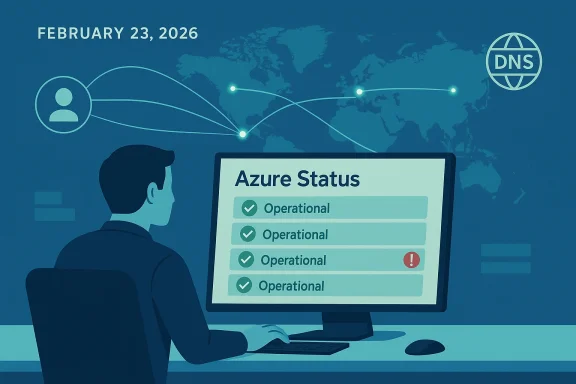
On February 23, 2026 the question “Is Microsoft Azure down?” trended in forums and community threads after a wave of user reports and frustrated admins posted errors and timeouts. The short answer for most customers: no — Microsoft’s public status systems and multiple independent monitors showed Azure operational on February 23, 2026, but localized and service-specific impacts continue to cause confusion. This article dissects what happened, explains how to verify whether Azure is genuinely down for your tenant, summarizes recent outage history, and gives an actionable playbook for IT teams to detect, mitigate, and design for resilience against cloud availability problems.
Azure is a vast, global cloud with hundreds of services, thousands of data centers, and millions of customer resources. Because of its scale, a single problem can produce a wide variety of symptoms — from console timeouts and failed REST calls, to regional VM boot failures, to slow API responses. That complexity makes the “is Azure down?” question rarely binary: sometimes a full platform outage occurs, but more often problems are regional, service-specific, or caused by local network components between you and Azure.
In late 2025 and early 2026, cloud outages — including several that touched Microsoft properties — received heavy coverage. Over the past two months Microsoft communicated incidents affecting Microsoft 365, Azure compute and management-plane services in specific regions, and published post-incident reviews for the larger events. On February 23, 2026, publicly available Microsoft status information indicated general platform availability, while community reports and outage trackers recorded scattered user complaints. That mismatch — official “all clear” versus user pain — is why many operations teams and community members asked the same question on social forums and message boards.
Why the difference? There are several common explanations:
Key takeaways
Source: DesignTAXI Community Is Microsoft Azure down? [February 23, 2026]
 Background / Overview
Azure is a vast, global cloud with hundreds of services, thousands of data centers, and millions of customer resources. Because of its scale, a single problem can produce a wide variety of symptoms — from console timeouts and failed REST calls, to regional VM boot failures, to slow API responses. That complexity makes the “is Azure down?” question rarely binary: sometimes a full platform outage occurs, but more often problems are regional, service-specific, or caused by local network components between you and Azure.In late 2025 and early 2026, cloud outages — including several that touched Microsoft properties — received heavy coverage. Over the past two months Microsoft communicated incidents affecting Microsoft 365, Azure compute and management-plane services in specific regions, and published post-incident reviews for the larger events. On February 23, 2026, publicly available Microsoft status information indicated general platform availability, while community reports and outage trackers recorded scattered user complaints. That mismatch — official “all clear” versus user pain — is why many operations teams and community members asked the same question on social forums and message boards.
What “Azure is down” really means
When users say “Azure is down,” they could mean any of these scenarios:- A global, platform-wide outage that stops many Azure services across many regions.
- A regional outage affecting one or more Availability Zones or a single region.
- A single-service outage (for example, a problem specifically with Azure SQL, Azure Storage, or Azure Active Directory).
- Local network or DNS issues between a customer’s environment and Azure, causing apparent downtime but not a cloud-side problem.
- A third‑party dependency (such as a CDN or DDoS mitigation provider) failing and making Azure-hosted endpoints unreachable.
- Authentication/tenant-level problems that affect only resources within a single Azure tenant.
How to confirm Azure status (quick checklist)
If you suspect an Azure outage, follow this prioritized checklist to confirm whether the problem lies in Azure, in your tenant, or in your network.- Check the official Azure status grid (the public status page) for broad platform incidents.
- Check Azure Service Health within your Azure portal — this is personalized and shows incidents that affect your subscriptions and regions.
- Check Resource Health for individual resources (VMs, App Services, SQL instances) to see whether Azure has recorded a resource-level issue.
- Consult independent monitors (third‑party aggregators and real‑time outage trackers) and community reports to look for correlated global signals.
- Check your local network, DNS, VPN, or corporate firewall logs; try a simple traceroute to the endpoint to see where traffic is failing.
- Examine application-level error codes and timestamps — transient 5xx errors with the same tracking IDs indicate platform-side problems; authentication errors (4xx) may indicate tenant-side or identity problems.
- If you have monitoring or alerts integrated (PagerDuty, Opsgenie, Splunk, Datadog), review those for correlated alerts and diagnostics.
The February 23, 2026 snapshot: what the signals said
On February 23, 2026 the public Azure status reported normal operations for most services and regions. Simultaneously, several third-party monitoring aggregators and community trackers showed limited, short-lived reports from scattered geographic locations. Large-scale independent news outlets and incident trackers that covered earlier January and February outages (which impacted Microsoft 365 and multiple Azure services) had not reported a new, wide-reaching Azure outage on that date.Why the difference? There are several common explanations:
- Many reports are caused by local connectivity problems (ISP/DNS/VPN) and not by Azure itself.
- Third-party infrastructure (for example, a CDN or DDoS mitigation vendor) can fail and make Azure-hosted endpoints unreachable — users then attribute the outage to Azure.
- Some incidents affect control-plane APIs (portal, management API) but not data-plane services, producing confusing symptoms.
- Finally, some services may be degraded in a particular region while the global status remains operational.
Recent outage context and why you should care
To make sense of the February 23 chatter, it helps to see the recent pattern:- January 2026: Microsoft 365 experienced a multi-hour outage that impacted mail flow, collaboration tools, and a subset of tenant services. The disruption led to tens of thousands of user-reported incidents on crowd-sourced trackers and prompted Microsoft to rebalance traffic across affected infrastructure.
- Early February 2026: Microsoft published preliminary post‑incident reviews for February events that caused intermittent outages in specific regions, including a power event that affected multiple services in a West US datacenter and a broad partial outage that persisted for about 11 hours for a mix of compute and management services.
- Mid–late February 2026: Several third‑party platform incidents (notably a major CDN provider) produced cascading effects for many internet services; customers sometimes misattributed those impairments to the clouds hosting their sites.
Common false positives: why your team might think Azure is down when it isn’t
Several common scenarios can make users and monitoring tools report an outage even though Azure is functional:- DNS cache or resolver problems at the ISP or enterprise edge cause inability to resolve Azure endpoints.
- VPN or corporate proxy misconfigurations obstruct traffic to Azure endpoints while the internet path remains fine for others.
- Local network outages or BGP path changes produce packet loss or routing blackholes.
- Client-side authentication/token expiry (Azure AD) lead to 401/403 errors that look like service outages.
- Misconfigured health checks or overly aggressive monitoring thresholds generate alerts on transient slowdown, not true outages.
- Third-party CDN or WAF provider issues make a Azure-hosted web site unreachable, even though the underlying cloud resources are healthy.
Immediate operational playbook: what to do if your systems can’t reach Azure
Use this step-by-step runbook when you, your app, or your users see errors potentially caused by Azure:- Confirm the scope.
- Are all users affected or only a subset? Are specific regions or services impacted?
- Check timestamps, error messages, and request IDs.
- Check official status channels.
- Look at the Azure public status grid for global incidents.
- Sign in to the Azure portal and check Azure Service Health — it shows subscription-specific incidents and planned maintenance.
- Inspect resource-level health.
- In the Azure portal, open Resource Health for your affected resources to see recent status events and recommended actions.
- Review Azure activity logs for correlated management-plane errors.
- Run quick network tests.
- From an affected and an unaffected network, run traceroute/ping and compare results.
- Clear DNS cache and/or use a known working resolver (for example, switching temporarily to a different public resolver) to test DNS resolution.
- Validate identity/authorization.
- Check Azure AD health and token expiration issues. Correlated 401/403 errors often indicate authentication or tenant-level issues.
- Use application-level retries and circuit breakers.
- If services are intermittently failing, implement exponential backoff, retries, and circuit breakers to avoid cascading failures.
- Escalate to Microsoft support if required.
- If Service Health shows an incident or you have resource-level errors without an obvious local cause, open a support case and provide request IDs, timestamps, and diagnostic logs.
- Communicate early and honestly to stakeholders.
- Provide a brief status update, indicate that you are investigating, and share any available mitigation steps or workarounds.
Architecture and resilience: how to avoid being a victim next time
You cannot make any cloud service perfectly reliable, but you can reduce blast radius and recovery time with proven patterns.- Design for region-level failures
- Use multi-region deployment models (active-active or active-passive) for critical workloads.
- Replicate state or use geo-redundant services where appropriate (for storage, databases, and identity).
- Use Availability Zones and zone-redundant services
- Deploy services across Availability Zones to protect against datacenter-level events within a single region.
- Ensure zone awareness in your networking, firewall, and IP configurations.
- Embrace multi-layered traffic management
- Use application delivery solutions (global load balancers, Traffic Manager, Azure Front Door) to route around regional problems and origin failures.
- Implement health probes, but keep probe frequency moderate to avoid adding noise or contributing to failover storms.
- Implement resilient application patterns
- Apply retries with jitter, exponential backoff, and circuit-breakers.
- Use queuing (Azure Service Bus, Storage Queues) to decouple front-end writes from backend processing.
- Implement graceful degradation to deliver reduced functionality during partial outages rather than full failure.
- Automate monitoring and alerting
- Configure Azure Service Health alerts to notify your on-call channels via webhook, SMS, or integrated incident-response tools.
- Aggregate telemetry (metrics, logs, traces) into a central observability stack and map alerts to runbooks.
- Prepare runbooks and playbooks
- Maintain runbooks for common incidents: region outage, control plane failure, AD auth failure, DNS outage, and third-party CDN failure.
- Exercise runbooks with tabletop drills and chaos engineering to validate assumptions.
- Consider multi-cloud for critical fallbacks
- For ultra-critical services, evaluate active-passive multi-cloud failover patterns; this increases complexity and cost but can reduce outage correlation risk from a single provider.
How Microsoft communicates after an incident
Microsoft uses a combination of public status pages, Azure Service Health, and formal Post Incident Reviews (PIRs) for larger events. For major incidents Microsoft often:- Posts incident updates on the public status grid and in Azure Service Health with timelines and workarounds.
- Publishes a Preliminary Post Incident Review and later a Final PIR that outlines root cause analysis and corrective actions for broadly impactful events.
- Provides targeted notifications to affected tenants via Azure Service Health alerts and support cases.
SLA and financial credits: what to expect
Azure SLAs vary by product. Some high-level points:- Not all services carry the same SLA; database and compute services may have different uptime guarantees than management-plane features.
- SLA calculations and eligibility for service credits depend on the specific resource configurations you deployed (for example, single-instance versus redundant deployments, use of Availability Zones, or zone redundancy).
- If you believe an outage breached an SLA, file a formal support ticket with Microsoft with the required evidence (timestamps, affected resources, tracking IDs). Microsoft will calculate credits per the SLA terms if eligibility criteria are met.
Practical recommendations for admins and developers
- Subscribe to Azure Service Health alerts and integrate them into your incident management pipeline.
- Set up health probes and synthetic transactions from multiple geographic vantage points to expose regional failures quickly.
- Keep runbooks short and precise: include exact steps to collect diagnostics (request IDs, correlation IDs, logs) that Microsoft support will ask for.
- Instrument your applications to capture Azure request IDs and include them in logs; these identifiers help Microsoft engineers trace requests during support engagements.
- Avoid assuming a third-party outage is an Azure outage — validate the network path and intermediary providers before broad escalations.
- Test failover regularly: multi-region failover is only reliable if exercised under controlled conditions.
- Be conservative in probe aggressiveness: too-tight monitoring can amplify incident noise and trigger unnecessary failovers.
Why community threads spike during ambiguous incidents
Public forums and social threads — like the DesignTAXI community thread that asked whether Azure was down on February 23, 2026 — capture the immediate human reaction to service disruption. They are valuable for real-time sentiment and to surface symptoms that official status grids may not yet reflect. However, community reports are noisy and often lack the telemetry necessary for root cause analysis. Use them as an early warning, but validate with the Azure Service Health and your own telemetry before concluding that Azure as a whole is down.What to watch for: signals that indicate a true platform incident
Look for these high-confidence signals when diagnosing a potential platform outage:- Official incident posting on the Azure public status page with widespread service and region impact.
- Azure Service Health showing “active” service issues that list the services and regions that match your symptom set.
- Multiple independent monitoring services and outage aggregators reporting correlated spikes in error submissions across many regions.
- Microsoft issuing public incident updates, or a visible stream of support cases and statements that match your reported symptoms.
- Consistent, identical errors across many tenants and regions (for example, a specific Azure API returning the same 5xx error and tracking ID).
Final assessment — February 23, 2026
On February 23, 2026 public and subscription-specific Azure health feeds indicated general platform availability, while community reports recorded isolated problems. For most customers the best next steps were to:- Check Azure Service Health for subscription-level incidents,
- Run local network and DNS diagnostics,
- Review resource-level health and application logs,
- Open a support case with Microsoft when evidence pointed to provider-side issues.
Key takeaways
- On Feb 23, 2026, Azure’s public and subscription-aware health channels reported broad operational status, while isolated user reports created local confusion.
- Always confirm with Azure Service Health (subscription-aware) before assuming a platform-wide outage.
- Implement multi-region, zone-aware designs and resilient application patterns (retries, queues, graceful degradation) to reduce blast radius.
- Integrate Azure Service Health alerts into your incident management stack and keep concise runbooks with the exact diagnostics Microsoft support will request.
- Community threads are useful for symptom discovery but can be noisy; validate community claims with telemetry and official health channels before escalating.
Source: DesignTAXI Community Is Microsoft Azure down? [February 23, 2026]
