Hi
samagya. The windows are probably being moved
off-screen rather than closed. This can happen because of a remembered/“ghost” display, corrupted Snap state, or the graphics driver.
Try these fixes in order
1. Recover a missing window
- Press
Alt + Tab until the missing window is selected.
- Press
Alt + Space.
- Press
M for Move.
- Press any arrow key once.
- Move your mouse or continue pressing the arrow keys until the window appears.
- Press
Enter.
You can also try:
Code:
Windows + Shift + Left Arrow
Windows + Shift + Right Arrow
Windows + Up Arrow
2. Reset the graphics system
- Press
Windows + Ctrl + Shift + B.
- The screen should briefly flash or go black.
- Test Snap again.
This safely restarts the graphics driver without closing your applications.
3. Reset Snap settings

- Open Settings > System > Multitasking.
- Turn Snap windows off.
- Restart the laptop.
- Return to the same page and turn Snap windows on.
- Expand its options and enable Show my snapped windows when I hover over taskbar apps, in Task View, and when I press Alt + Tab.
4. Remove a possible ghost display
- Press
Windows + P.
- Select PC screen only.
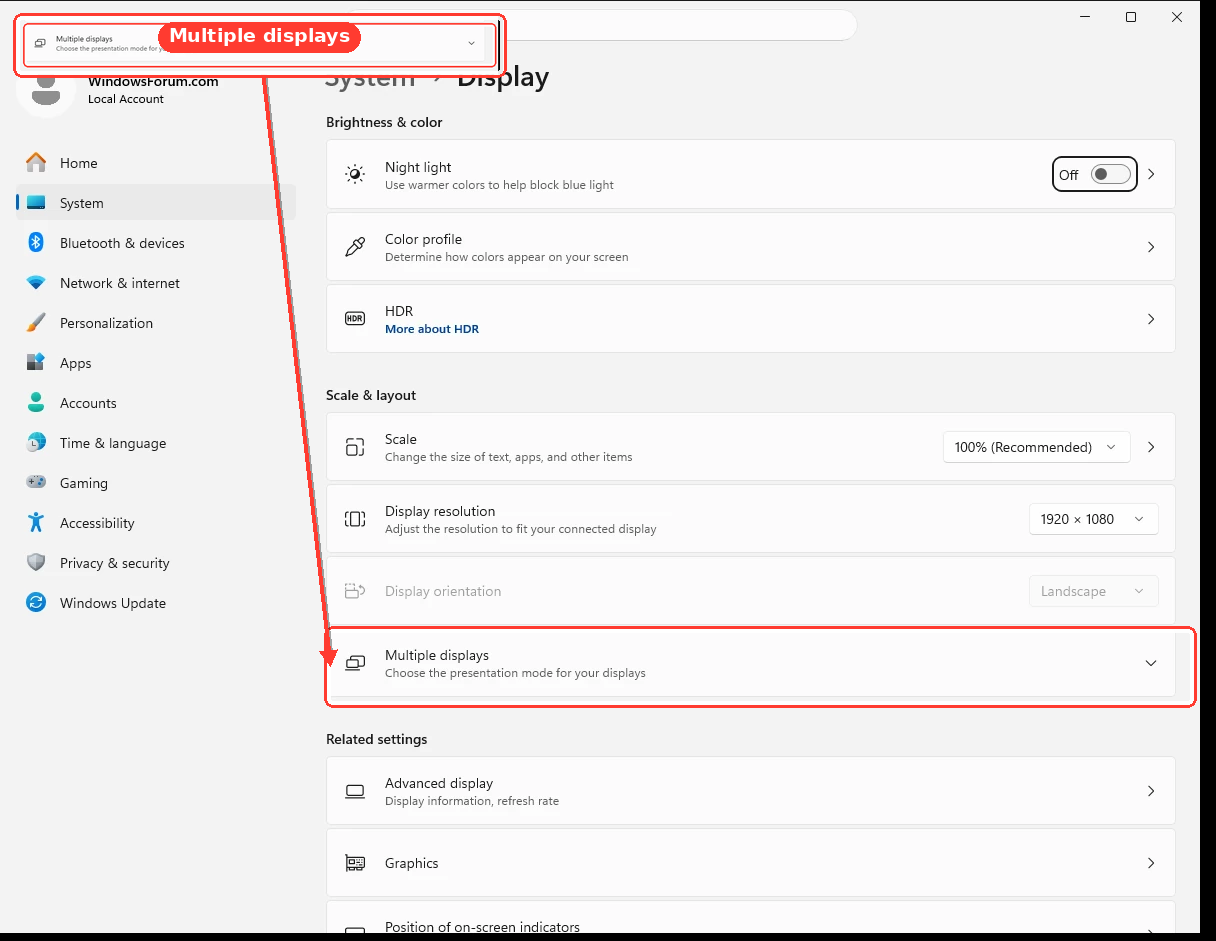
- Open Settings > System > Display.
- Check whether Windows shows an additional display that is not actually connected.
- Under Multiple displays, disconnect any nonexistent display.
- Confirm that Display resolution and Scale are set to their recommended values.
If you previously connected the laptop to a TV, projector, dock, or external monitor, this is the most likely fix.
5. Restart Windows Explorer
- Press
Ctrl + Shift + Esc.
- Locate Windows Explorer in Task Manager.
- Right-click it and select Restart.
- Wait for the desktop and taskbar to reload, then test Snap.
6. Repair or roll back the graphics driver
Create a restore point before reinstalling drivers.
- Right-click Start and select Device Manager.
- Expand Display adapters.
- Right-click your Intel, AMD, or NVIDIA adapter and select Properties.
- Open the Driver tab.
- If this began after a driver update, select Roll Back Driver.
- Otherwise, download the newest graphics driver from your laptop manufacturer’s support page and install it.
- Restart the laptop.
If it still happens, toggle
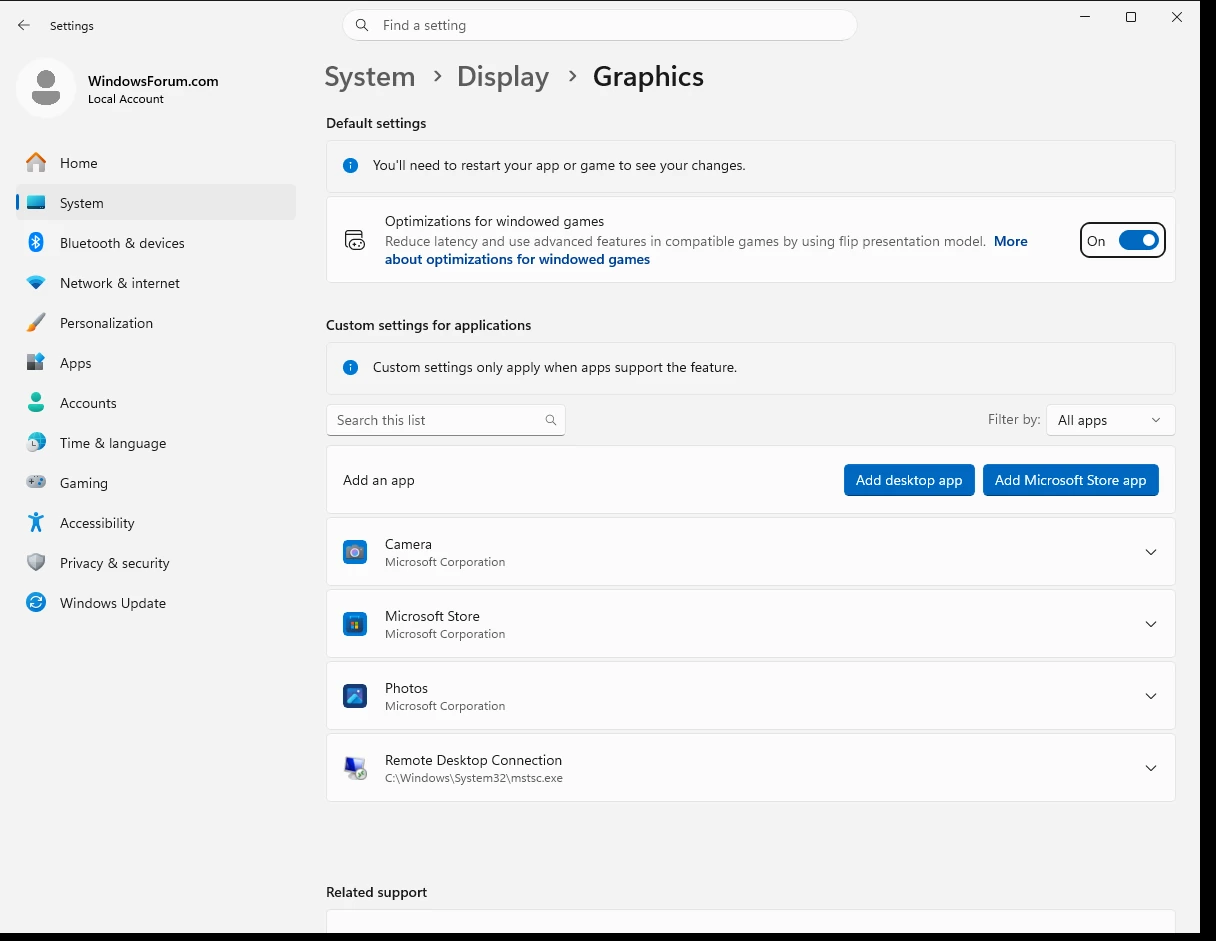
Hardware-accelerated GPU scheduling, restart, and test again. You can undo this by returning the toggle to its original setting.
7. Repair Windows system files
I could not show a live demonstration of this repair command, but you can run it safely as follows:
- Right-click Start and select Terminal (Admin).
- Run:
Code:
DISM /Online /Cleanup-Image /RestoreHealth
sfc /scannow
- Restart Windows after both commands finish.
If the issue remains, please tell us:
- Whether an external monitor, TV, or docking station was recently connected
- Whether this happens with every application or only one application
- Your graphics adapter shown under Device Manager > Display adapters
- Your Windows version from
winver