

Microsoft’s June 2026 Microsoft 365 update cycle tightens Copilot access inside Office apps, adds new Teams controls for deleting meeting recap artifacts, changes meeting chat organization and live-caption defaults, and previews AI-driven SharePoint and Teams features scheduled for July and August. The through-line is not simply “more AI.” It is Microsoft turning Microsoft 365 into a policy surface where licensing, retention, accessibility, and user interface choices now arrive as product updates. For IT departments, the practical question is no longer whether Copilot is coming to daily work; it is whether the organization can govern the ways Copilot is being threaded into work before users treat those defaults as settled facts.
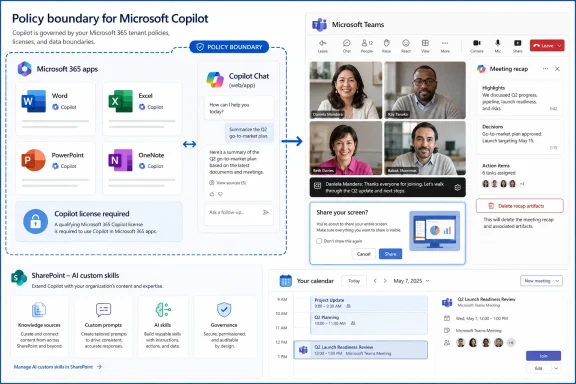
The most consequential change in this batch is also the least flashy: Copilot features inside Word, Excel, PowerPoint, and OneNote are now confined to users with a Microsoft 365 Copilot license. Users without that license still have access to Copilot Chat through the Microsoft 365 Copilot app or web experience, and Outlook remains an exception where Copilot Chat capabilities continue to be available more broadly.
That distinction matters because Microsoft spent the last two years teaching users to think of Copilot as something that appears inside the flow of work. The ribbon button in Word, the side pane in Excel, and the drafting help in PowerPoint are not psychologically equivalent to opening a separate app and pasting context into a chatbot. The licensing change is therefore not merely a commercial adjustment; it changes the shape of the user experience.
Microsoft’s argument is predictable and not entirely unreasonable. The full in-app experience has higher infrastructure costs, deeper data grounding, and a greater expectation that the model will understand the document or workbook already open in front of the user. If Microsoft wants to reserve that higher-touch experience for paid Copilot seats, it is doing what enterprise software vendors have always done: moving the most valuable workflow integration behind the premium SKU.
But the timing and naming remain messy. Many organizations have users who have seen Copilot buttons appear, disappear, change labels, or move between applications. The result is an adoption problem that looks like a support problem: “Why did Copilot stop working in Word?” is not the same as “Why is our tenant’s AI licensing strategy inconsistent?” but help desks will hear the former long before procurement resolves the latter.
For users, “Copilot” sounds singular. For admins, it is a maze of service plans, app surfaces, tenant policies, data boundaries, and licensing entitlements. The June update reinforces that split reality: non-licensed users are not losing AI assistance entirely, but they are losing the in-app convenience that made the feature feel native.
That may be a healthy correction. A separate Copilot Chat experience is easier to explain as a general assistant, while a licensed Microsoft 365 Copilot experience can be positioned as the premium version with stronger grounding in work content. The risk is that Microsoft’s own product language has not always made that boundary obvious enough to ordinary employees.
Outlook’s exception is especially interesting. Email and calendar context remain among the most obvious places for AI assistance, and Microsoft appears unwilling to pull that away from broader Copilot Chat users. That may keep Copilot visible in the daily rhythm of work, but it also makes the licensing story harder to summarize in one sentence. Word requires a Copilot license; Outlook may not; the web app still works; the installed Office apps may not. That is not a deployment note — that is a training burden.
This is exactly the sort of feature users will welcome. Teams meetings generate digital residue: recordings nobody watches, transcripts nobody requested, summaries that might be helpful for a week and risky forever. Giving organizers a direct way to delete that content from the recap surface recognizes a reality many companies have been slow to confront: AI meeting features are also content retention features.
The governance implications are thornier. A delete button is empowering when used by the right person for the right reason. It is dangerous when users mistake it for a compliance control. Whether deletion satisfies a legal hold, retention policy, audit requirement, or industry-specific recordkeeping obligation depends on the organization’s Microsoft Purview configuration, regulatory posture, and administrative controls.
Microsoft’s product direction is clear: meeting organizers are becoming content stewards. That is a cultural shift. Historically, a meeting organizer managed invites, presenters, lobby settings, and maybe recording permissions. Now that same person may be deciding whether an AI-generated summary of a sensitive HR discussion or contract negotiation should continue to exist.
There are good reasons to remove recap artifacts. Transcripts can capture sensitive personal data, unreleased financial information, privileged legal conversations, or casual remarks that age badly once stripped of tone and context. AI-generated summaries can introduce another class of problem: a summary may be useful without being fully accurate, and inaccurate summaries can become dangerously authoritative if stored alongside the meeting record.
But deletion also introduces asymmetry. If an organizer deletes a transcript after a contentious meeting, participants may interpret that action differently depending on their role. In ordinary collaboration, this will rarely matter. In disciplinary, legal, procurement, or incident-response contexts, it may matter a great deal.
The safest interpretation for IT is not “Teams now solves recap governance.” It is “Teams now exposes recap governance to end users.” That means organizations need policy language, retention settings, audit expectations, and training that explain when recap content should be preserved, when it should be deleted, and who is authorized to make that call.
This is not a glamorous feature, but it addresses one of Teams’ oldest problems: the app is both a communications hub and an archive, and those roles conflict. What helps in the moment can become noise a week later. Meeting chats are especially prone to this because they are often useful before, during, and shortly after a meeting, then become historical context.
For schools and universities, including Seton Hall’s audience, the change has an obvious classroom benefit. Class sessions, advising appointments, department meetings, and events can generate many parallel chat threads. A dedicated area for meeting chats makes Teams behave a little less like an endless message pile and a little more like a structured collaboration workspace.
The admin angle is subtler. Any interface change that changes where users look for information can generate support tickets, especially in environments with mixed training materials or screenshots. But this is the kind of Teams cleanup Microsoft needs more of: not another AI layer, not another premium add-on, but basic information architecture catching up with how people actually use the product.
This is the right accessibility choice. Live captions are not a decorum layer; they are an access layer. For deaf and hard-of-hearing users, neurodivergent users, non-native speakers, people in noisy environments, and anyone reviewing a difficult conversation in real time, captions need to reflect speech accurately. Sanitizing words can obscure meaning, tone, emotion, and sometimes the substance of the conversation itself.
The change may feel uncomfortable in classrooms, public meetings, or corporate all-hands events where profanity is not expected. But the filter remains available, and organizations that need stricter norms can address them through meeting policies, behavioral expectations, and event moderation. The default caption system should not rewrite speech to make transcripts more polite.
There is also an AI-adjacent reason this matters. Captions and transcripts increasingly feed downstream features: summaries, recaps, search, and Copilot prompts. If the input is altered, the derived output may be altered too. Accuracy at the caption layer is not just an accessibility issue; it is part of the data quality chain.
That sounds simple, but it is a major conceptual step. Microsoft is trying to move Copilot from a conversational assistant into a repeatable business process tool. The difference between “summarize this document” and “run our standard intake-review skill on this folder” is the difference between personal productivity and lightweight automation.
SharePoint is the natural place for this experiment because it is where so much enterprise content already lives. Policies, project documents, financial reports, grant materials, academic resources, departmental procedures, and HR forms often sit in SharePoint libraries with permissions that already encode organizational boundaries. If AI skills respect those boundaries, Microsoft can argue that it is not asking customers to move work into a new AI system; it is adding AI behavior to the content system they already operate.
The risk is prompt sprawl. Reusable prompts can become shadow procedures, especially if they are created casually and then reused widely. A custom AI skill that “summarizes reports in our preferred format” may sound harmless, but if the format omits caveats, mishandles exceptions, or quietly changes interpretation over time, the organization has created a new process dependency without the governance normally attached to process design.
That democratization is useful. It also means IT will need to decide which AI skills are personal conveniences, which are departmental tools, and which are formal business processes. A skill used by one researcher to summarize articles is not the same as a skill used by an admissions office, finance department, or legal team to triage documents.
The phrase “within existing permission and security frameworks” is doing a lot of work. Permissions determine what content the AI can access, but they do not automatically determine whether the AI’s output is appropriate, complete, or compliant. Security boundaries answer “can this user see the data?” They do not answer “should this AI-generated transformation of the data be used for a decision?”
That is where organizations will need a new layer of governance. Not every reusable prompt needs a committee. But shared AI skills that influence decisions, records, student services, customer communication, or regulated workflows need owners, review cycles, and clear labeling. Otherwise, “natural language automation” becomes a polite name for undocumented operational drift.
This is the kind of change that looks cosmetic until the wrong screen is shared in a board meeting, classroom, legal consultation, or incident bridge. Screen sharing is one of the highest-risk ordinary actions in modern work. It is mundane, frequent, and capable of exposing sensitive information in seconds.
The live preview and confirmation step are therefore more than interface polish. They are small friction points inserted at exactly the moment users need them. Microsoft has spent years reducing friction in collaboration tools; here, it is adding friction because the cost of a mistake is high enough to justify the pause.
The reorganization of meeting controls may provoke the usual grumbling from users who have memorized the current layout. That is unavoidable. But Teams has suffered from years of feature accretion, and meetings now carry controls for reactions, apps, chat, participants, rooms, transcription, recording, Copilot, layouts, interpretation, and sharing. A meeting toolbar cannot be both infinitely extensible and instantly legible.
Teams’ new sharing experience appears aimed at that everyday risk. Live previews help users verify the content before broadcasting it. A better organized panel reduces the chance of selecting the wrong window. A confirmation step adds a deliberate moment between intent and action.
This is not a substitute for security training, sensitivity labels, data loss prevention, or endpoint controls. It is, however, an example of security-sensitive design. Good enterprise UX does not merely make common actions faster; it makes dangerous mistakes less likely.
For IT admins, the practical benefit may be fewer embarrassing incidents rather than fewer breaches. That still matters. Trust in collaboration tools erodes when users feel one click away from exposing the wrong information. A sharing flow that encourages a quick visual check is a small but meaningful improvement.
This is Microsoft responding to a real enterprise objection. Many organizations like the idea of AI summaries but dislike the retention footprint created by recordings and transcripts. A recording is a rich record. A transcript is searchable, quotable, discoverable, and potentially sensitive. Keeping either one may create obligations the organization did not intend to create.
A recap without a retained transcript offers a compromise: capture the utility of AI summarization while reducing the amount of raw meeting content stored afterward. That will appeal to organizations with strict retention rules, sensitive meeting categories, or cultural resistance to recording everything. It also gives Microsoft a stronger answer to the common objection that Copilot meeting features require turning every conversation into a permanent artifact.
But the compromise is not magic. An AI recap is still a record of the meeting, even if it is not a transcript. It may contain decisions, action items, names, deadlines, and interpretations of what happened. Depending on the context, that summary may still be discoverable, sensitive, or subject to retention requirements.
That distinction is critical. A transcript preserves too much; a summary may preserve too little or emphasize the wrong thing. If a meeting involves a formal decision, the organization may need an authoritative record. If it involves brainstorming, sensitive personnel matters, or preliminary negotiation, the organization may prefer a lighter footprint. The same feature can be either helpful or risky depending on the meeting type.
Organizers will need guidance. The choice to enable AI recap without transcript should not be treated like choosing a background blur. It is a records decision disguised as a meeting option. That does not mean only lawyers should touch it, but it does mean organizations need defaults and norms before the feature becomes another casual toggle.
This is where Microsoft’s AI strategy keeps colliding with enterprise reality. The company is building flexible controls because customers have different needs. Customers then inherit the burden of deciding which controls belong in which scenario. Flexibility is good, but unmanaged flexibility becomes inconsistency.
Copilot licensing in that environment is not just a procurement matter. If some faculty, staff, or departments have Microsoft 365 Copilot and others do not, the user experience will vary across campus. Training materials may need to distinguish between Copilot Chat, licensed in-app Copilot, Outlook exceptions, Teams recaps, and SharePoint AI skills. That is a lot to ask of users who just want to draft, meet, teach, advise, and file documents.
Meeting recap deletion also lands differently in education. A student support meeting, faculty committee meeting, disciplinary proceeding, research collaboration, and public webinar do not carry the same retention expectations. Giving organizers deletion power may be welcome, but institutions need to align it with policy before accidental deletion becomes a dispute.
The profanity filter change is another campus-relevant example. Accuracy in captions matters for accessibility and academic integrity. At the same time, universities host public-facing events and classes where participants may have different expectations about language. The correct answer is not one universal setting; it is a clear understanding that accessibility defaults and community standards must be handled separately.
Defaults are powerful because most users do not change them. They become the operational reality of the organization unless IT intervenes. That is why Microsoft 365 administration increasingly feels less like software configuration and more like institutional policy translation.
The old version of Office administration was mostly about deployment, identity, storage, and security. The new version is about deciding how work should be remembered, summarized, assisted, and automated. That is a much more political job, even when it is buried in admin centers and message center posts.
Microsoft’s challenge is that it wants Copilot to feel ambient while enterprises need it to be governed. The company cannot sell AI as a seamless productivity layer and then be surprised when customers ask exactly where the seams are. These June updates show Microsoft exposing more of those seams — through license boundaries, deletion controls, and retention-aware recap options — but the customer still has to stitch them into policy.
The June 2026 Microsoft 365 updates show a platform moving from AI demonstration to AI administration, where the important story is no longer whether Copilot can draft, summarize, or organize, but who gets to use it, what it remembers, what it deletes, and how clearly organizations can explain those choices before the next wave arrives.
 Microsoft Turns Copilot From Feature Preview Into License Boundary
The most consequential change in this batch is also the least flashy: Copilot features inside Word, Excel, PowerPoint, and OneNote are now confined to users with a Microsoft 365 Copilot license. Users without that license still have access to Copilot Chat through the Microsoft 365 Copilot app or web experience, and Outlook remains an exception where Copilot Chat capabilities continue to be available more broadly.That distinction matters because Microsoft spent the last two years teaching users to think of Copilot as something that appears inside the flow of work. The ribbon button in Word, the side pane in Excel, and the drafting help in PowerPoint are not psychologically equivalent to opening a separate app and pasting context into a chatbot. The licensing change is therefore not merely a commercial adjustment; it changes the shape of the user experience.
Microsoft’s argument is predictable and not entirely unreasonable. The full in-app experience has higher infrastructure costs, deeper data grounding, and a greater expectation that the model will understand the document or workbook already open in front of the user. If Microsoft wants to reserve that higher-touch experience for paid Copilot seats, it is doing what enterprise software vendors have always done: moving the most valuable workflow integration behind the premium SKU.
But the timing and naming remain messy. Many organizations have users who have seen Copilot buttons appear, disappear, change labels, or move between applications. The result is an adoption problem that looks like a support problem: “Why did Copilot stop working in Word?” is not the same as “Why is our tenant’s AI licensing strategy inconsistent?” but help desks will hear the former long before procurement resolves the latter.
The Free Chat Was Never the Same Product
The continued availability of Copilot Chat outside the Office apps is Microsoft’s way of keeping a broad AI foothold across Microsoft 365 without giving away the high-value embedded experience. That is a rational platform strategy. It also exposes the awkwardness of the Copilot brand, which now covers everything from general chat to document-aware drafting, meeting intelligence, security investigation, developer assistance, and custom agents.For users, “Copilot” sounds singular. For admins, it is a maze of service plans, app surfaces, tenant policies, data boundaries, and licensing entitlements. The June update reinforces that split reality: non-licensed users are not losing AI assistance entirely, but they are losing the in-app convenience that made the feature feel native.
That may be a healthy correction. A separate Copilot Chat experience is easier to explain as a general assistant, while a licensed Microsoft 365 Copilot experience can be positioned as the premium version with stronger grounding in work content. The risk is that Microsoft’s own product language has not always made that boundary obvious enough to ordinary employees.
Outlook’s exception is especially interesting. Email and calendar context remain among the most obvious places for AI assistance, and Microsoft appears unwilling to pull that away from broader Copilot Chat users. That may keep Copilot visible in the daily rhythm of work, but it also makes the licensing story harder to summarize in one sentence. Word requires a Copilot license; Outlook may not; the web app still works; the installed Office apps may not. That is not a deployment note — that is a training burden.
Teams Gets a Delete Button, and Governance Gets a New Headache
The Teams change allowing meeting organizers to delete recap content sounds like a straightforward housekeeping improvement. From the Recap page, organizers can remove meeting recordings, transcripts, AI-generated summaries, and meeting notes. Once deleted, that content is gone permanently, while documents shared during the meeting remain in their original locations.This is exactly the sort of feature users will welcome. Teams meetings generate digital residue: recordings nobody watches, transcripts nobody requested, summaries that might be helpful for a week and risky forever. Giving organizers a direct way to delete that content from the recap surface recognizes a reality many companies have been slow to confront: AI meeting features are also content retention features.
The governance implications are thornier. A delete button is empowering when used by the right person for the right reason. It is dangerous when users mistake it for a compliance control. Whether deletion satisfies a legal hold, retention policy, audit requirement, or industry-specific recordkeeping obligation depends on the organization’s Microsoft Purview configuration, regulatory posture, and administrative controls.
Microsoft’s product direction is clear: meeting organizers are becoming content stewards. That is a cultural shift. Historically, a meeting organizer managed invites, presenters, lobby settings, and maybe recording permissions. Now that same person may be deciding whether an AI-generated summary of a sensitive HR discussion or contract negotiation should continue to exist.
Permanent Deletion Is a Feature and a Liability
The phrase “deleted permanently” should make every compliance officer slow down. Users tend to think of deletion as tidying up. Lawyers, auditors, and security teams think of deletion as an event that must be explainable after the fact.There are good reasons to remove recap artifacts. Transcripts can capture sensitive personal data, unreleased financial information, privileged legal conversations, or casual remarks that age badly once stripped of tone and context. AI-generated summaries can introduce another class of problem: a summary may be useful without being fully accurate, and inaccurate summaries can become dangerously authoritative if stored alongside the meeting record.
But deletion also introduces asymmetry. If an organizer deletes a transcript after a contentious meeting, participants may interpret that action differently depending on their role. In ordinary collaboration, this will rarely matter. In disciplinary, legal, procurement, or incident-response contexts, it may matter a great deal.
The safest interpretation for IT is not “Teams now solves recap governance.” It is “Teams now exposes recap governance to end users.” That means organizations need policy language, retention settings, audit expectations, and training that explain when recap content should be preserved, when it should be deleted, and who is authorized to make that call.
Meeting Chats Move Out of the Clutter
The new Meeting chats section in Teams is a more modest change, but it may be one users feel immediately. Teams chat lists have become crowded with direct messages, group chats, channel-adjacent conversations, meeting threads, class discussions, event chats, and recurring standup chatter. Pulling meeting-related conversations into a dedicated section gives users a better chance of finding the discussion attached to a specific meeting without spelunking through the entire chat list.This is not a glamorous feature, but it addresses one of Teams’ oldest problems: the app is both a communications hub and an archive, and those roles conflict. What helps in the moment can become noise a week later. Meeting chats are especially prone to this because they are often useful before, during, and shortly after a meeting, then become historical context.
For schools and universities, including Seton Hall’s audience, the change has an obvious classroom benefit. Class sessions, advising appointments, department meetings, and events can generate many parallel chat threads. A dedicated area for meeting chats makes Teams behave a little less like an endless message pile and a little more like a structured collaboration workspace.
The admin angle is subtler. Any interface change that changes where users look for information can generate support tickets, especially in environments with mixed training materials or screenshots. But this is the kind of Teams cleanup Microsoft needs more of: not another AI layer, not another premium add-on, but basic information architecture catching up with how people actually use the product.
Microsoft Decides Accuracy Beats Politeness in Live Captions
Teams will now disable the profanity filter by default for live captions, allowing captions to more accurately reflect what was said during meetings, calls, and events. Users can still turn the filter on or off from the live captions settings. The default, however, is now fidelity rather than sanitization.This is the right accessibility choice. Live captions are not a decorum layer; they are an access layer. For deaf and hard-of-hearing users, neurodivergent users, non-native speakers, people in noisy environments, and anyone reviewing a difficult conversation in real time, captions need to reflect speech accurately. Sanitizing words can obscure meaning, tone, emotion, and sometimes the substance of the conversation itself.
The change may feel uncomfortable in classrooms, public meetings, or corporate all-hands events where profanity is not expected. But the filter remains available, and organizations that need stricter norms can address them through meeting policies, behavioral expectations, and event moderation. The default caption system should not rewrite speech to make transcripts more polite.
There is also an AI-adjacent reason this matters. Captions and transcripts increasingly feed downstream features: summaries, recaps, search, and Copilot prompts. If the input is altered, the derived output may be altered too. Accuracy at the caption layer is not just an accessibility issue; it is part of the data quality chain.
SharePoint’s Custom AI Skills Push Copilot Toward Office Automation
The July previewed SharePoint feature — custom AI skills for recurring tasks — points to where Microsoft wants the Microsoft 365 AI story to go next. Instead of users repeatedly typing the same prompt to analyze documents, summarize reports, or organize content, SharePoint will let them create reusable natural-language instructions that guide AI through recurring workflows. These skills are expected to operate within SharePoint’s existing permission and security frameworks.That sounds simple, but it is a major conceptual step. Microsoft is trying to move Copilot from a conversational assistant into a repeatable business process tool. The difference between “summarize this document” and “run our standard intake-review skill on this folder” is the difference between personal productivity and lightweight automation.
SharePoint is the natural place for this experiment because it is where so much enterprise content already lives. Policies, project documents, financial reports, grant materials, academic resources, departmental procedures, and HR forms often sit in SharePoint libraries with permissions that already encode organizational boundaries. If AI skills respect those boundaries, Microsoft can argue that it is not asking customers to move work into a new AI system; it is adding AI behavior to the content system they already operate.
The risk is prompt sprawl. Reusable prompts can become shadow procedures, especially if they are created casually and then reused widely. A custom AI skill that “summarizes reports in our preferred format” may sound harmless, but if the format omits caveats, mishandles exceptions, or quietly changes interpretation over time, the organization has created a new process dependency without the governance normally attached to process design.
Natural Language Is Not a Governance Model
Microsoft’s promise that custom SharePoint skills can be designed in natural language is both appealing and dangerous. Natural language lowers the barrier to automation, which is exactly why it will spread. The person who understands a recurring document workflow may not know Power Automate, SharePoint metadata design, or scripting, but they can describe what they want AI to do.That democratization is useful. It also means IT will need to decide which AI skills are personal conveniences, which are departmental tools, and which are formal business processes. A skill used by one researcher to summarize articles is not the same as a skill used by an admissions office, finance department, or legal team to triage documents.
The phrase “within existing permission and security frameworks” is doing a lot of work. Permissions determine what content the AI can access, but they do not automatically determine whether the AI’s output is appropriate, complete, or compliant. Security boundaries answer “can this user see the data?” They do not answer “should this AI-generated transformation of the data be used for a decision?”
That is where organizations will need a new layer of governance. Not every reusable prompt needs a committee. But shared AI skills that influence decisions, records, student services, customer communication, or regulated workflows need owners, review cycles, and clear labeling. Otherwise, “natural language automation” becomes a polite name for undocumented operational drift.
Teams’ August Redesign Admits the Meeting UI Got Too Busy
Microsoft’s planned August refresh of Teams meeting controls is an admission that the meeting interface has accumulated too much weight. Core controls such as microphone, camera, and screen sharing are expected to move into a simplified, center-aligned layout, while less frequently used tools shift into a reorganized More menu. The sharing experience will also gain live previews, a more organized sharing panel, and an additional confirmation step to reduce accidental sharing.This is the kind of change that looks cosmetic until the wrong screen is shared in a board meeting, classroom, legal consultation, or incident bridge. Screen sharing is one of the highest-risk ordinary actions in modern work. It is mundane, frequent, and capable of exposing sensitive information in seconds.
The live preview and confirmation step are therefore more than interface polish. They are small friction points inserted at exactly the moment users need them. Microsoft has spent years reducing friction in collaboration tools; here, it is adding friction because the cost of a mistake is high enough to justify the pause.
The reorganization of meeting controls may provoke the usual grumbling from users who have memorized the current layout. That is unavoidable. But Teams has suffered from years of feature accretion, and meetings now carry controls for reactions, apps, chat, participants, rooms, transcription, recording, Copilot, layouts, interpretation, and sharing. A meeting toolbar cannot be both infinitely extensible and instantly legible.
Accidental Sharing Is a Security Problem Wearing a UX Hat
Enterprises often talk about data loss as if it happens mainly through malicious insiders, compromised credentials, or misconfigured cloud storage. In reality, plenty of exposure happens through ordinary interface mistakes. The wrong window gets shared. A desktop with sensitive notifications appears. A presenter forgets which monitor is visible. A private chat flashes during a live session.Teams’ new sharing experience appears aimed at that everyday risk. Live previews help users verify the content before broadcasting it. A better organized panel reduces the chance of selecting the wrong window. A confirmation step adds a deliberate moment between intent and action.
This is not a substitute for security training, sensitivity labels, data loss prevention, or endpoint controls. It is, however, an example of security-sensitive design. Good enterprise UX does not merely make common actions faster; it makes dangerous mistakes less likely.
For IT admins, the practical benefit may be fewer embarrassing incidents rather than fewer breaches. That still matters. Trust in collaboration tools erodes when users feel one click away from exposing the wrong information. A sharing flow that encourages a quick visual check is a small but meaningful improvement.
AI Recaps Without Recordings Try to Square the Compliance Circle
The most intriguing upcoming Teams feature is the August plan to let Microsoft 365 Copilot users generate AI meeting recaps without saving a meeting recording or transcript. Organizers with a Copilot license will be able to enable or disable the capability before or during a meeting. Once enabled, Copilot will produce a post-meeting summary that eligible participants with Copilot access can review, while no recording or transcript is retained as part of that feature.This is Microsoft responding to a real enterprise objection. Many organizations like the idea of AI summaries but dislike the retention footprint created by recordings and transcripts. A recording is a rich record. A transcript is searchable, quotable, discoverable, and potentially sensitive. Keeping either one may create obligations the organization did not intend to create.
A recap without a retained transcript offers a compromise: capture the utility of AI summarization while reducing the amount of raw meeting content stored afterward. That will appeal to organizations with strict retention rules, sensitive meeting categories, or cultural resistance to recording everything. It also gives Microsoft a stronger answer to the common objection that Copilot meeting features require turning every conversation into a permanent artifact.
But the compromise is not magic. An AI recap is still a record of the meeting, even if it is not a transcript. It may contain decisions, action items, names, deadlines, and interpretations of what happened. Depending on the context, that summary may still be discoverable, sensitive, or subject to retention requirements.
Less Retention Does Not Mean No Record
The phrase “without recording or transcript” will be easy for users to overread. It does not mean the meeting leaves no trace. It means the raw recording and transcript are not retained as part of this recap workflow. The AI-generated summary itself remains content that someone can read, forward, cite, challenge, or rely on.That distinction is critical. A transcript preserves too much; a summary may preserve too little or emphasize the wrong thing. If a meeting involves a formal decision, the organization may need an authoritative record. If it involves brainstorming, sensitive personnel matters, or preliminary negotiation, the organization may prefer a lighter footprint. The same feature can be either helpful or risky depending on the meeting type.
Organizers will need guidance. The choice to enable AI recap without transcript should not be treated like choosing a background blur. It is a records decision disguised as a meeting option. That does not mean only lawyers should touch it, but it does mean organizations need defaults and norms before the feature becomes another casual toggle.
This is where Microsoft’s AI strategy keeps colliding with enterprise reality. The company is building flexible controls because customers have different needs. Customers then inherit the burden of deciding which controls belong in which scenario. Flexibility is good, but unmanaged flexibility becomes inconsistency.
Universities Are a Perfect Test Case for the New Microsoft 365
The Seton Hall framing is useful because higher education sits at the intersection of nearly every Microsoft 365 tension. Universities are workplaces, classrooms, research environments, healthcare-adjacent institutions, public event hosts, and student service providers. They have faculty autonomy, student privacy obligations, administrative bureaucracy, and a wide range of technical literacy.Copilot licensing in that environment is not just a procurement matter. If some faculty, staff, or departments have Microsoft 365 Copilot and others do not, the user experience will vary across campus. Training materials may need to distinguish between Copilot Chat, licensed in-app Copilot, Outlook exceptions, Teams recaps, and SharePoint AI skills. That is a lot to ask of users who just want to draft, meet, teach, advise, and file documents.
Meeting recap deletion also lands differently in education. A student support meeting, faculty committee meeting, disciplinary proceeding, research collaboration, and public webinar do not carry the same retention expectations. Giving organizers deletion power may be welcome, but institutions need to align it with policy before accidental deletion becomes a dispute.
The profanity filter change is another campus-relevant example. Accuracy in captions matters for accessibility and academic integrity. At the same time, universities host public-facing events and classes where participants may have different expectations about language. The correct answer is not one universal setting; it is a clear understanding that accessibility defaults and community standards must be handled separately.
Microsoft’s Real Product Is Now the Default
Across these updates, Microsoft is not merely adding features. It is choosing defaults. Copilot is inside the app only if the user has the right license. Meeting recap artifacts can be deleted by organizers. Meeting chats get their own space. Profanity filtering is off by default. Screen sharing gets more confirmation. AI summaries can exist without retained raw transcripts.Defaults are powerful because most users do not change them. They become the operational reality of the organization unless IT intervenes. That is why Microsoft 365 administration increasingly feels less like software configuration and more like institutional policy translation.
The old version of Office administration was mostly about deployment, identity, storage, and security. The new version is about deciding how work should be remembered, summarized, assisted, and automated. That is a much more political job, even when it is buried in admin centers and message center posts.
Microsoft’s challenge is that it wants Copilot to feel ambient while enterprises need it to be governed. The company cannot sell AI as a seamless productivity layer and then be surprised when customers ask exactly where the seams are. These June updates show Microsoft exposing more of those seams — through license boundaries, deletion controls, and retention-aware recap options — but the customer still has to stitch them into policy.
The June Updates Draw a Line Through the Copilot Era
The practical lesson from this release wave is that Microsoft 365 tenants need to treat AI and meeting features as governance changes, not just user-facing enhancements. A small toggle in Teams or a changed entitlement in Word can alter how people create records, interpret meetings, and expect assistance inside core productivity apps.- Organizations should update user guidance to explain that Copilot inside Word, Excel, PowerPoint, and OneNote now depends on a Microsoft 365 Copilot license.
- Help desks should be ready for confusion from users who still have Copilot Chat access but no longer see the same in-app Copilot behavior.
- Teams meeting organizers need clear policy on when recap content may be deleted and when it must be preserved.
- Accessibility guidance should explain that live captions now favor accurate transcription by default, while the profanity filter remains user-controllable.
- SharePoint AI skills should be reviewed as reusable workflow assets, not merely clever prompts.
- AI recaps without retained recordings or transcripts should be treated as reduced-retention meeting records, not as evidence that no record exists.
The June 2026 Microsoft 365 updates show a platform moving from AI demonstration to AI administration, where the important story is no longer whether Copilot can draft, summarize, or organize, but who gets to use it, what it remembers, what it deletes, and how clearly organizations can explain those choices before the next wave arrives.
References
- Primary source: RS Web Solutions
Published: 2026-06-17T03:12:12.908277
June 2026 Microsoft 365 Updates - Seton Hall News
Discover the latest June 2026 updates for Microsoft 365 from Seton Hall, featuring new features, security enhancements, and productivity tools. Stay informed.www.rswebsols.com - Official source: techcommunity.microsoft.com
What’s New in Microsoft 365 Copilot | May 2026 | Microsoft Community Hub
Welcome to the May 2026 edition of What's New in Microsoft 365 Copilot! Every month, we highlight new features and enhancements to keep Microsoft 365 admins... techcommunity.microsoft.com
- Official source: learn.microsoft.com
Release Notes for Microsoft 365 Copilot | Microsoft Learn
Lists the features that reach General Availability in each release of Microsoft 365 Copilot.learn.microsoft.com - Related coverage: windowscentral.com
Microsoft 365 is paywalling most of Copilot in its Office apps | Windows Central
Commercial customers will soon need a Microsoft 365 Copilot license to use Copilot Chat in Word, Excel, PowerPoint, and OneNote.www.windowscentral.com - Related coverage: uctoday.com
Microsoft Teams Meeting Recap App June 2026 - UC Today
Teams gets a dedicated Meeting Recap app this month alongside Video Recap and AI recap without transcript. Here's what IT teams need to review before it rolls out.www.uctoday.com - Related coverage: techradar.com
Microsoft Teams wants to make it easier to forget all your embarrassing meeting mistakes | TechRadar
Delete Microsoft Teams meeting content and pretend it never happenedwww.techradar.com
- Related coverage: augmentt.com
What’s New in M365 for MSPs — June 2026
M365 updates June 2026 for MSPs: changes across Intune, Entra ID, Defender, Copilot, licensing, Teams, and Purview with action items and July deadlines.www.augmentt.com - Related coverage: techriver.com
