

Microsoft has quietly shipped KB4052623 — an official platform update for Microsoft Defender Antivirus — that closes a widely reported scan‑skip bug while also adding a set of consequential platform changes administrators must understand before deploying it broadly.
Shortly before KB4052623’s release users started seeing an unsettling Defender notification after scans: “Windows Defender skipped an item due to exclusions or network protection settings.” The message appeared on many systems that had not configured exclusions, creating confusion and prompting community troubleshooting and a temporary workaround (re‑enabling network scanning) from independent researchers. Microsoft’s response was to publish KB4052623 as a product (platform) update for the Defender antimalware platform. Platform updates like this are distributed monthly and carry changes to the on‑disk layout, binary versions and the way Defender interacts with Windows and network resources. The official Defender product updates page explains the platform cadence and how administrators should manage and roll back platform updates if needed.
KB4052623 is an example of how a small change in an antivirus platform can have cascading operational effects across enterprise policies, firmware settings and network protections. The vendor fix restores correct scan reporting, but administrators must apply it thoughtfully — test, monitor, and ensure policy and firmware recovery playbooks are in place before broad deployment.
Source: BetaNews Microsoft releases an official fix for the Windows Defender bug
 Background
Shortly before KB4052623’s release users started seeing an unsettling Defender notification after scans: “Windows Defender skipped an item due to exclusions or network protection settings.” The message appeared on many systems that had not configured exclusions, creating confusion and prompting community troubleshooting and a temporary workaround (re‑enabling network scanning) from independent researchers. Microsoft’s response was to publish KB4052623 as a product (platform) update for the Defender antimalware platform. Platform updates like this are distributed monthly and carry changes to the on‑disk layout, binary versions and the way Defender interacts with Windows and network resources. The official Defender product updates page explains the platform cadence and how administrators should manage and roll back platform updates if needed. What KB4052623 fixes — the technical summary
The scan‑skip symptom and root cause
- The visible symptom: Defender’s scan summary reported skipped items even when no user exclusions were configured.
- Root cause (community and vendor analysis): a change in Defender’s scanning behavior for network files and how the platform treated network‑scoped checks, combined with an engine/platform update that disabled network file scanning by default in certain builds. This mismatch produced the notification text even though local files were scanned normally. Independent analysis and vendor notes converged on this explanation.
The fix
- KB4052623 updates the Microsoft Defender antimalware platform binaries and addresses the logic that led to the misleading skip message, restoring expected scan behavior for most affected configurations. Microsoft’s defensive guidance on platform updates and the ability to revert platform versions are documented in the Defender updates guidance.
Verified technical details
- KB4052623 is distributed through the normal channels: Windows Update and the Microsoft Update Catalog (platform/package updates). Administrators who manage updates through WSUS, MECM or a UNC share will find the platform packages there as well. Microsoft documents the recommended install and rollback commands (MpCmdRun.exe -SignatureUpdate, -RevertPlatform, and platform file paths under %ProgramData%\Microsoft\Windows Defender\Platform).
Known side effects and gotchas in KB4052623
KB4052623 fixes the scan‑skip problem, but the release notes — and subsequent reporting and vendor advisories — document concrete side effects. These are not theoretical: multiple independent outlets and vendor KBs observed and reproduced the same issues. Administrators should treat these as material deployment risks.1) New file path affects AppLocker and download policies
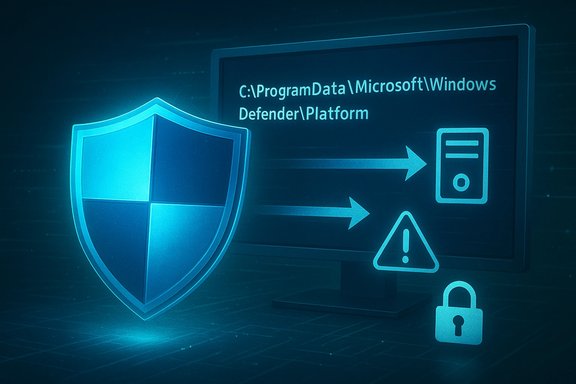
- Change: the update stores platform binaries under ProgramData (for example: %OSDrive%\ProgramData\Microsoft\Windows Defender\Platform*).
- Problem: environments that enforce AppLocker or similar path‑based policies may block updated Defender binaries or downloads because the path has changed from the protected Program Files locations to ProgramData.
- Mitigation: explicitly allow the new platform path in AppLocker / Group Policy: set Allow for %OSDrive%\ProgramData\Microsoft\Windows Defender\Platform*. This is a rapid, minimal policy change that avoids blocking legitimate Defender components.
2) Secure Boot boot failures with specific platform version (4.18.1901.7)
- Observed issue: systems that installed a particular platform version (identified as 4.18.1901.7 or shown with the suffix “4.18.1901‑7” in some KB notes) experienced boot failures when Secure Boot was enabled.
- Microsoft status: acknowledged as a known issue and provided a rollback (‑revertplatform) and Secure Boot disable/enable procedure as an interim workaround.
- Workaround steps (summarized):
- Boot into firmware (UEFI) and disable Secure Boot.
- Boot Windows, run the platform revert command: "%programdata%\Microsoft\Windows Defender\Platform\4.18.1901-7\MpCmdRun.exe" -RevertPlatform.
- Wait, verify the Windows Defender service is running (sc query WinDefend) and that the windefend binary no longer points to version 4.18.1901.7 (sc qc WinDefend).
- Reboot, re‑enable Secure Boot in firmware.
- Caveat: this is a heavyweight temporary remediation and requires console/BIOS access; do not attempt on fleets without a tested process.
3) Increased outbound SmartScreen / Network Protection traffic for some platform builds (4.18.2001.10)
- Symptom: enterprises using Network Protection in Audit or Block mode saw unexpected increases in outbound traffic to Microsoft Defender SmartScreen‑associated domains.
- Affected platform version: reported for 4.18.2001.10 in Microsoft notes.
- Microsoft response: a service update or subsequent platform release to address the traffic pattern; interim mitigation is to temporarily disable Network Protection if the traffic is unacceptable for the environment.
- Operational note: disabling network protections reduces visibility and blocking capabilities. Consider targeted mitigation (throttling, proxy allowlisting or isolating affected test segments) and monitor Microsoft’s follow‑up fixes rather than leaving Network Protection off long term.
Cross‑checking claims and independent confirmations
This is not just a single blog post: the same behavioral fix and the same side effects were reported independently by multiple outlets and researchers, and the vendor confirmed the high‑risk items in the release notes.- Vendor confirmation: Microsoft’s Defender update guidance and platform notes describe KB4052623 as part of the monthly platform cadence and include the standard installation, rollback and platform version guidance. That documentation explains how to roll back platform updates and the platforms’ versioning scheme.
- Independent researcher: Günter Born (BornCity) reported the scan‑skip symptom, reproduced the cause (network file scanning disabled by default), published a workaround and later confirmed that KB4052623 eliminated the notification for many users. His reporting also tracked the Secure Boot and AppLocker side effects as they were discovered.
- Industry press: outlets such as BleepingComputer and BetaNews reproduced the vendor notes and the workaround steps, and provided practical guidance for obtaining the KB via Windows Update or the Microsoft Update Catalog. These reports independently confirm both the fix and the post‑release issues.
Recommended deployment strategy (practical, conservative)
KB4052623 fixes a real functional problem, but the side effects justify conservative rollout in managed environments.Quick checklist for pilots and corporate testing
- Stage the update to a small pilot group that reflects fleet diversity (UEFI/Secure Boot, AppLocker usage, Network Protection enabled).
- Validate that Defender platform version and engine versions align post‑install by checking Get‑MpComputerStatus and the platform folder under %ProgramData%\Microsoft\Windows Defender\Platform.
- Confirm AppLocker rules allow the ProgramData platform path before mass deployment.
- Monitor for increased outbound traffic from endpoints with Network Protection enabled. If observed, collect pcap/proxy logs and consult Microsoft’s guidance before disabling protections.
- Only after a 1–2 week pilot with no regressions proceed to wider rollout.
Step‑by‑step verification commands (admin console)
- Check Defender status: Get‑MpComputerStatus (PowerShell) — verifies AMServiceEnabled, AntivirusEnabled, RealTimeProtectionEnabled and platform versions.
- Force signature/platform update: "%programdata%\Microsoft\Windows Defender\Platform\<version>\MpCmdRun.exe" -SignatureUpdate.
- Revert platform (if in emergency): "%programdata%\Microsoft\Windows Defender\Platform\<badversion>\MpCmdRun.exe" -RevertPlatform.
- Service checks: sc query WinDefend and sc qc WinDefend to verify running state and binary path.
These are the same vendor‑documented commands you will use for both rollout validation and emergency rollbacks.
Mitigations and policy changes you may need to make
- AppLocker: add an Allow rule for %OSDrive%\ProgramData\Microsoft\Windows Defender\Platform* (or update your managed allow list) to prevent download and execution blocks. Test AppLocker rules in Audit mode first.
- Secure Boot and recovery plan: ensure you have a documented BIOS/UEFI process for toggling Secure Boot if you must perform the platform revert workaround. For large fleets, pre‑scripted recovery playbooks and out‑of‑band management (iDRAC, iLO, AMT) are mandatory.
- Network Protection monitoring: if your environment uses Network Protection in Audit or Block mode, put additional monitoring on SmartScreen/Defender domains for a short window after platform installation. If traffic spikes occur, coordinate with Microsoft support and your network team — do not simply flip protections off without compensating controls.
Risk analysis — benefits vs. costs
Benefits
- Fixes a false positive/visibility problem where Defender reported skipped items incorrectly, improving trust in scan results and reducing noise in user and helpdesk workflows.
- Restores expected scanning behavior across typical desktop and server setups, improving defensive posture and compliance with scanning policies.
Costs and operational risks
- Potential boot failures on Secure Boot‑enabled devices if certain platform versions are installed — this is high impact and requires console/firmware access to recover. ﹣ Mitigation: pilot testing and rollback playbooks.
- AppLocker and other path‑based controls must be updated to allow the new platform location, or legitimate Defender components may be blocked. ﹣ Mitigation: policy updates and audit mode testing.
- Temporary increases in outbound SmartScreen traffic for some platform builds could stress proxies, egress policies or raise security alerts in tightly controlled networks. ﹣ Mitigation: monitor and coordinate with Microsoft for follow‑up fixes rather than disabling protections permanently.
Troubleshooting quick‑reference
If you see the original “skipped an item” message and you haven’t yet installed KB4052623:- Short term (non‑ideal): enable network scanning via Group Policy (Computer Configuration → Administrative Templates → Windows Components → Microsoft Defender Antivirus → Scan → Scan network files = Enabled). Microsoft does not recommend network scans as a standard because of performance/traffic implications, but enabling it removes the notification if the skip is purely about network files. Treat this as a diagnostic/workaround, not a long‑term policy change.
- AppLocker download blocks: set AppLocker to Allow for %OSDrive%\ProgramData\Microsoft\Windows Defender\Platform*. Test in audit mode first.
- Boot failure with Secure Boot active and platform version 4.18.1901.7 installed: follow Microsoft’s rollback steps — disable Secure Boot, run MpCmdRun.exe -RevertPlatform for the affected platform folder, verify WinDefend is running, then re‑enable Secure Boot. This is a recovery flow; implement it only with console/firmware access and after validating on a test machine.
- Unexpected network traffic from Network Protection: temporarily disable Network Protection only if absolutely necessary, collect logs for investigation, and coordinate with Microsoft for a service update. Disabling increases exposure — do not leave it off without compensating controls.
Verification notes and caveats
- Multiple independent sources corroborate the fix and the side effects: Microsoft’s platform update guidance, community researcher reports (BornCity), and industry reporters (BleepingComputer, BetaNews). The threefold confirmation (vendor + independent researcher + press) gives strong confidence in the diagnoses and remedies described here.
- Anecdotal feedback that “the problem vanished for everyone” should be treated as anecdotal — realistic fleet diversity, different firmware setups, and third‑party endpoint controls can change behavior. Always test before wide deployment.
- If you rely on third‑party encryption or disk‑protection tools (Dell Encryption, Symantec, etc., expect interactions: Dell’s advisory for example documented how moving Defender files to ProgramData can affect products that monitor or encrypt disk locations — those products may need updated exclusion patterns. Cross‑vendor coordination is essential.
Final recommendations for Windows administrators and power users
- Do not delay indefinitely: the KB fixes a real and measurable functional issue that erodes trust in scan results. Schedule a controlled pilot this week if possible.
- Pilot aggressively: include devices with Secure Boot, AppLocker policies and Network Protection enabled. Validate boot, update behavior, and network telemetry.
- Prepare rollback and recovery playbooks: include the MpCmdRun -RevertPlatform sequence, firmware steps for toggling Secure Boot, and AppLocker policy edits. Practice the recovery steps in a lab before any wide deployment.
- Communicate with helpdesk and security operations: explain expected short‑term changes (possible increased SmartScreen traffic) so false positive SOC escalations are reduced.
- Keep an eye on Microsoft’s Defender platform releases and follow up releases: platform updates are monthly and Microsoft typically ships follow‑ups for known side effects in the next platform rollouts. Subscribe to vendor advisories and test each new platform version as it arrives.
KB4052623 is an example of how a small change in an antivirus platform can have cascading operational effects across enterprise policies, firmware settings and network protections. The vendor fix restores correct scan reporting, but administrators must apply it thoughtfully — test, monitor, and ensure policy and firmware recovery playbooks are in place before broad deployment.
Source: BetaNews Microsoft releases an official fix for the Windows Defender bug
