

Microsoft pushed KB5071416 on December 9, 2025 — a Setup Dynamic Update for Windows 11, version 23H2 — that refreshes the small set of Setup binaries used during feature updates and install-time operations; the package is available through Windows Update, the Microsoft Update Catalog, and will sync to WSUS, replaces KB5062683, and installs a specific set of updated files administrators should verify before rolling the change into production.
Dynamic Updates are a surgical servicing mechanism Microsoft uses to refresh only the files Setup and the pre-boot/recovery environment (WinRE) need during media-based installs and feature updates. They exist so imaging and deployment teams can avoid rebuilding entire install.wim/winre.wim payloads each time Microsoft fixes a pre-boot or setup binary. The upstream Microsoft guidance explains how to acquire and apply Dynamic Update packages to existing Windows images and why they matter for media hygiene and in-place upgrade reliability. KB5071416 is explicitly a Setup Dynamic Update for Windows 11, version 23H2. The KB’s public summary states the update “makes improvements to Windows setup binaries or any files that setup uses for feature updates” and lists the delivery channels (Windows Update, Update Catalog, WSUS), prerequisites (none), and replacement information (it replaces KB5062683). The KB also publishes a file manifest with the precise file names and file versions that the update delivers. Administrators and imaging teams should treat that manifest as the authoritative verification artifact.
If you manage images or enterprises, treat KB5071416 as essential image hygiene: download the standalone package, inject into a test image, validate file versions against the KB manifest, run functional setup/recovery tests, then roll out in staged waves. For consumers and unmanaged devices, let Windows Update handle it automatically.
Conclusion
KB5071416 is not a headline feature release; it’s the kind of focused, behind-the-scenes update that quietly reduces upgrade failures and hardens deployment pipelines for Windows 11, version 23H2. Administrators should apply standard DU discipline: download the official package from the Update Catalog, validate file versions listed in the KB, test on representative hardware, and stage the rollout to minimize risk. The Microsoft documentation and deployment guidance give the tools and verification steps; the operational risk is manageable if you follow a pilot-then-rollout model and keep archival images for rollback.
Source: Microsoft Support KB5071416: Setup Dynamic Update for Windows 11, version 23H2: December 9, 2025 - Microsoft Support
 Background / Overview
Dynamic Updates are a surgical servicing mechanism Microsoft uses to refresh only the files Setup and the pre-boot/recovery environment (WinRE) need during media-based installs and feature updates. They exist so imaging and deployment teams can avoid rebuilding entire install.wim/winre.wim payloads each time Microsoft fixes a pre-boot or setup binary. The upstream Microsoft guidance explains how to acquire and apply Dynamic Update packages to existing Windows images and why they matter for media hygiene and in-place upgrade reliability. KB5071416 is explicitly a Setup Dynamic Update for Windows 11, version 23H2. The KB’s public summary states the update “makes improvements to Windows setup binaries or any files that setup uses for feature updates” and lists the delivery channels (Windows Update, Update Catalog, WSUS), prerequisites (none), and replacement information (it replaces KB5062683). The KB also publishes a file manifest with the precise file names and file versions that the update delivers. Administrators and imaging teams should treat that manifest as the authoritative verification artifact. What KB5071416 actually contains
At a glance (official facts)
- Applies to: Windows 11 Home and Pro, Enterprise, Education and Enterprise Multi-Session — version 23H2.
- Distribution: Windows Update (automatic), Microsoft Update Catalog (standalone CAB/MSU / catalog entry), and WSUS synchronization.
- Prerequisites: None.
- Restart: The KB states you might have to restart your computer after you apply this update; treat restart requirements as conditional depending on which files are in use.
- Replacement: This update replaces KB5062683; always prefer the most recent DU for image hygiene.
File-level detail (what to validate)
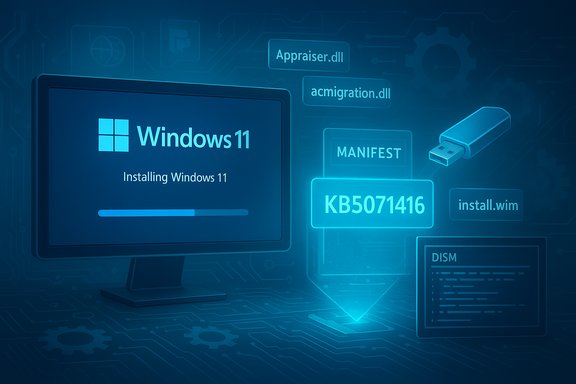
The KB publishes a detailed file manifest for the English (United States) package. Representative entries in the x64 file list include, but are not limited to:- acmigration.dll — File version 10.0.22621.6335 (dated Nov 12, 2025)
- Appraiser.dll — File version 10.0.22621.6335 (dated Nov 12, 2025)
- MediaSetupUIMgr.dll, migcore.dll, mighost.exe and many SetupPrep .mui resource files — all listed at version 10.0.22621.6335 in the KB manifest.
Why this matters — operational impact
For consumer and unmanaged devices
- Reduced install-time friction: Refreshing Setup binaries reduces the chance of version mismatch crashes and other install-time failures when a device receives a feature update. For most home users, this update will be invisible and beneficial: Windows Update will download and install it automatically, and it is intentionally small and focused.
For enterprises, imaging teams and device manufacturers
- Media hygiene without full rebuilds: Imaging teams can inject Setup Dynamic Updates into install.wim so frozen or “golden” images gain the latest setup fixes without rebuilding an entire ISO. Microsoft’s deployment guidance for dynamic update media workflows covers these steps and provides PowerShell helpers and DISM workflows.
- Deterministic verification: The KB’s file manifest is how you confirm the DU applied cleanly — compare file versions inside your mounted WIM or a running device’s System32 folder against the KB table. This is the operational control that prevents setup-time mismatches in at-scale rollouts.
Real-world context from community experience
Community analysis and admin guidance repeatedly emphasize two points: treat Dynamic Updates as image-hygiene steps (not routine monthly patches) and validate them before broad deployment. Recent rollout experience shows these packages materially reduce upgrade failure rates when tested properly, but also that inadequate testing can embed regressions into recovery or setup images. Those operational lessons are consistent across multiple DU waves.Strengths and benefits (what KB5071416 delivers)
- Surgical fix scope: Because the update targets only Setup binaries and resources, it has a low blast radius compared with cumulative updates or feature updates.
- Faster remediation of install-time issues: Patching Appraiser.dll, MediaSetupUIMgr and other Setup components reduces a common root cause of failed feature updates.
- Supports frozen-image workflows: You can inject the package into offline install.wim to keep golden images current without an ISO rebuild — a huge time-saver for large device fleets.
- Published verification artifacts: The KB lists file versions and timestamps so validation can be scripted and automated in CI/CD imaging pipelines.
Risks, trade-offs and what to watch for
Dynamic Updates are powerful, but they carry operational trade-offs that require thought before broad adoption.- Restart behavior is conditional: The KB for KB5071416 explicitly says you might have to restart after applying the package. Don’t assume no-reboot semantics for all DUs; plan maintenance windows accordingly when manually deploying.
- Don’t conflate Setup DUs with Safe OS / WinRE DUs: Setup Dynamic Updates and Safe OS (WinRE) Dynamic Updates are distinct. Some WinRE Safe OS DUs are non-removable once integrated into a winre.wim image — that permanence is a specific property of Safe OS DUs and not necessarily of every Setup DU. Administrators must check the KB for each DU to confirm removal behavior and whether injection will be irreversible. Conflating the two can lead to incorrect rollback expectations. Community guidance has repeatedly warned about treating Safe OS changes as effectively permanent for an image once injected.
- Hardware diversity increases risk: Pre-boot and setup code interacts with a wide variety of firmware, USB controllers, NVMe drivers and OEM quirks. A DU that works on one model may exhibit regressions on another; representative hardware testing is essential.
- WSUS / catalog pitfalls: WSUS synchronization errors, missing catalog metadata or incorrect classification settings can delay or block distribution to managed devices. Validate WSUS catalogs and approvals before scheduling broad rollouts.
- Unverifiable or undisclosed fixes: Microsoft KBs for Dynamic Updates rarely include detailed bug-by-bug explanations. They say the package “improves setup binaries” without enumerating specific defects. If you need change-level transparency (for compliance or debugging), that limitation is unavoidable; flag such uncertainty as an operational constraint. Where the precise bug fixes matter, lab testing is the only reliable verification method.
Validation and verification — step-by-step checklist
Below are pragmatic verification steps imaging teams and admins should run before and after applying KB5071416.- Inventory and identify target images/devices:
- Document which golden images, offline WIMs, and device groups run Windows 11 23H2.
- Download authoritative artifacts:
- Obtain the KB5071416 CAB/MSU from the Microsoft Update Catalog and capture checksums.
- Confirm the KB manifest file list (versions and timestamps) from the KB page and save a copy for automation.
- Lab injection and validation:
- Mount a copy of your install.wim (or a test VM) and inject the DU with DISM or your deployment automation.
- Script file-version checks inside the mounted image and compare to the KB table. Microsoft Learn documents the recommended media-update workflows.
- Boot-time and feature-update testing:
- Perform a full in-place upgrade scenario, Reset this PC and a feature-update test on representative hardware groups (cover Intel/AMD/ARM models as applicable).
- Verify Setup success, check event logs, and test peripheral/USB input handling during setup phases.
- Post-deployment monitoring:
- Monitor telemetry, WinREAgent events, and help-desk tickets during an initial pilot wave.
- Use a rollback plan based on restoring previously known-good images if a regression appears; note that if you injected a Safe OS DU into winre.wim that is irreversible, rollback requires reimaging with an older winre.wim.
Recommended deployment playbook (practical advice)
- For unmanaged/home users: Allow Windows Update to install the package automatically. It’s small, focused, and meant to reduce future feature-update failures.
- For SMEs and IT shops with small fleets: Pilot on a few device models, then roll out by hardware family. Confirm file versions and run an in-place upgrade test on each family. Use Update Catalog downloads if you need to control sequencing.
- For large enterprises and imaging teams:
- Add a media-refresh step to your build pipeline: inject the latest Setup Dynamic Update into install.wim, validate files and then promote the image through staging.
- Preserve and archive previous golden images before injecting any DU — that gives you a clean rollback path if you discover a regression later.
- Use WSUS/ConfigMgr groups to stage approvals and avoid broad automatic approvals before testing.
How to tell if the update applied successfully
- Compare file versions: Mount the image or check C:\Windows\System32 on a test device and match the file-version values against the KB manifest from the Microsoft KB page (the KB lists exact file versions for each file). This is the primary verification method.
- DISM/package listing: For offline images, use DISM to list installed packages and confirm the CAB/MSU applied; for online systems, use dism /online /get-packages or Windows Update history and registry/package manifests to verify installation. Note that Setup DUs may not always appear as a user-facing “Update” in the same way cumulative updates do, so file-version checks are more reliable.
- Functional checks: Run a test in-place upgrade and confirm the Setup flow completes and that the event log shows no setup-time exceptions; validate that “Reset this PC” and feature-update flows are successful on test hardware. Community guidance highlights those functional checks as essential because they reflect the real-world value of the DU.
Common admin FAQs (short answers)
- Will this DU reinstall Windows or change user data?
No — Setup Dynamic Updates refresh specific setup binaries and do not reinstall user-land code or overwrite user data; they are narrowly scoped. - Can I uninstall KB5071416 after applying it to a golden image?
Setup DUs are typically intended for injection or on-device servicing; Safe OS (WinRE) DUs can be non-removable when integrated into winre.wim. The KB for KB5071416 is a Setup DU; check the KB and the Update Catalog manifest for uninstallability and plan for image restore-based rollback if needed. Treat Safe OS DUs more cautiously because those have historically been irreversible for injected images. - Should I wait for more telemetry before deploying broadly?
Yes — deploy to a pilot group first, monitor telemetry and tickets, then expand rollout. Community practice is to stage DU deployments by hardware family and by site.
Final assessment and editorial takeaway
KB5071416 is a routine but important operational hygiene update: it updates the Setup toolset used during feature updates and media-based installs for Windows 11 version 23H2, is available through normal Microsoft channels, and publishes a full file manifest for administrators to validate. When applied thoughtfully, the package reduces the odds of failed feature updates and improves installation robustness. The update’s strengths are its focused scope, published verification artifacts, and support for image-injection workflows that avoid full ISO rebuilds. However, the main caveats are operational rather than technical: test broadly across representative hardware, preserve golden images before injecting changes, watch WSUS/Update Catalog behavior during distribution, and understand the difference between Setup DUs and Safe OS (WinRE) DUs — the latter can carry irreversible image changes if injected. Community experience underscores that inadequate testing is the primary source of post-deployment pain, not the DU mechanism itself.If you manage images or enterprises, treat KB5071416 as essential image hygiene: download the standalone package, inject into a test image, validate file versions against the KB manifest, run functional setup/recovery tests, then roll out in staged waves. For consumers and unmanaged devices, let Windows Update handle it automatically.
Conclusion
KB5071416 is not a headline feature release; it’s the kind of focused, behind-the-scenes update that quietly reduces upgrade failures and hardens deployment pipelines for Windows 11, version 23H2. Administrators should apply standard DU discipline: download the official package from the Update Catalog, validate file versions listed in the KB, test on representative hardware, and stage the rollout to minimize risk. The Microsoft documentation and deployment guidance give the tools and verification steps; the operational risk is manageable if you follow a pilot-then-rollout model and keep archival images for rollback.
Source: Microsoft Support KB5071416: Setup Dynamic Update for Windows 11, version 23H2: December 9, 2025 - Microsoft Support
