

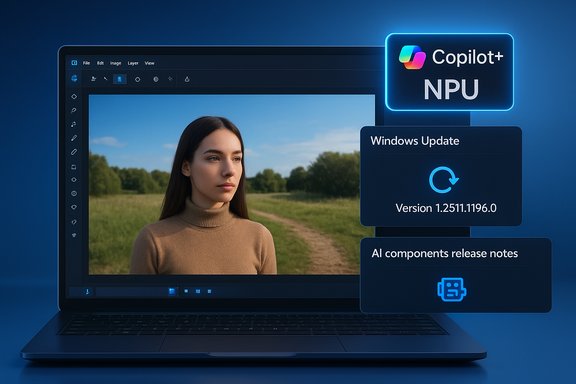
Microsoft’s KB5071603 pushes a focused update to the Image Transform AI component—shipped as version 1.2511.1196.0—bringing incremental improvements to the on‑device image editing pipeline used on Copilot+ PCs and delivered automatically through Windows Update for Windows 11, version 24H2 and 25H2 systems that have the required cumulative updates installed.
The Image Transform AI component is part of Microsoft’s growing family of on‑device AI pieces that power features such as background removal, object erasure, restyling and other content-aware edits inside Photos, Paint, File Explorer AI actions and related system surfaces. These components are distributed as small, targeted component KBs (not full OS feature updates) and are installed automatically by Windows Update on eligible machines—primarily Copilot+ PCs that meet Microsoft’s hardware and driver criteria. Microsoft documents the AI components and their release history in a centralized release information page for AI components; that page is the authoritative registry for component versions and KB associations. The immediate context for KB5071603 follows a series of incremental Image Transform and Image Processing updates Microsoft has been shipping through 2025 (for example, KB5061855, KB5063136 and KB5067464), each advancing the component version and improving the quality and performance of in‑OS image editing features. Those earlier KBs follow the same pattern: they apply to Copilot+ hardware, require the latest cumulative update for the servicing branch, and are listed in Update history after installation.
Recommended rollout checklist:
In short:
Conclusion
KB5071603’s Image Transform AI component update (version 1.2511.1196.0) is another incremental step in improving Windows’ on‑device generative image tooling on Copilot+ PCs. The update follows Microsoft’s established pattern—hardware gating, LCU prerequisites and automatic installation via Windows Update—and delivers measurable user benefits while introducing the usual operational considerations for IT teams (drivers, rollout strategy and governance). Organizations and advanced users should test in controlled rings, align drivers and firmware, and treat the AI component KBs like runtime updates: small in size but high in potential impact.
Source: Microsoft Support KB5071603: Image Transform AI component update (version 1.2511.1196.0) - Microsoft Support
 Background / Overview
The Image Transform AI component is part of Microsoft’s growing family of on‑device AI pieces that power features such as background removal, object erasure, restyling and other content-aware edits inside Photos, Paint, File Explorer AI actions and related system surfaces. These components are distributed as small, targeted component KBs (not full OS feature updates) and are installed automatically by Windows Update on eligible machines—primarily Copilot+ PCs that meet Microsoft’s hardware and driver criteria. Microsoft documents the AI components and their release history in a centralized release information page for AI components; that page is the authoritative registry for component versions and KB associations. The immediate context for KB5071603 follows a series of incremental Image Transform and Image Processing updates Microsoft has been shipping through 2025 (for example, KB5061855, KB5063136 and KB5067464), each advancing the component version and improving the quality and performance of in‑OS image editing features. Those earlier KBs follow the same pattern: they apply to Copilot+ hardware, require the latest cumulative update for the servicing branch, and are listed in Update history after installation. What KB5071603 actually does
- The published summary for KB5071603 states the update contains improvements to the Image Transform AI component and increments the component to version 1.2511.1196.0.
- The primary user‑visible capability tied to Image Transform is the erase object / fill with generated background feature: remove a foreground subject or an unwanted object and have the local model generate a plausible background to fill the gap.
- This update targets Copilot+ PCs only and is available for devices running Windows 11, version 24H2 and Windows 11, version 25H2, provided the machine already has the latest cumulative update for the applicable branch installed.
- Installation is handled through Windows Update (it’s downloaded and installed automatically), and you can confirm presence by visiting Settings > Windows Update > Update history. After installation the entry is shown in the Update history list. (This mirrors how previous Image Transform KBs were delivered and tracked.
Why this matters — practical benefits for users
For people who use image editing features inside Windows, the Image Transform pipeline matters because it centralizes and standardizes how edits are performed and where models execute. Benefits include:- Faster, lower‑latency editing when the model is executed locally on an NPU‑equipped Copilot+ PC instead of routing photos to the cloud for processing.
- Improved privacy for many editing operations because some transforms run entirely on‑device, reducing the need to send images to remote services.
- Better integration with shell experiences — File Explorer AI actions (Erase objects, Remove background) and the Photos app gain parity with one another as they rely on the same component versions.
- Incremental quality improvements: each component update typically refines algorithms (fewer artifacts after fill operations, improved edge masks, better color matching and texture synthesis), so users see more believable “fill” results over time.
Technical context: Copilot+ hardware, NPUs and gating
Microsoft treats certain AI features as hardware‑gated experiences. The best, lowest‑latency versions of Image Transform run on Copilot+ PCs—a class of machines with dedicated neural processing units (NPUs) and vendor support that enable local inference. Community and Microsoft materials outline that Copilot+ devices are designed to offload inference locally to NPUs for speed and privacy; Microsoft and independent reporting often cite an NPU performance threshold in the community (commonly discussed in public reporting as ~40+ TOPS) as an operational guideline for which hardware will deliver the richest on‑device experience. Treat specific TOPS thresholds as provisional until a device’s certification documentation is consulted, but the broad distinction—Copilot+ hardware vs. non‑Copilot hardware—is confirmed in Microsoft’s platform messaging. Operational consequences:- If a device is not Copilot+‑certified, Windows Update may not install the AI component, or the feature will be present but run more slowly or be processed in the cloud.
- Drivers, firmware and vendor runtime stacks are required to expose the NPU to Windows AI runtimes; mismatches are a common source of failures when applying component updates. Community guidance strongly recommends aligning GPU/NPU drivers and OEM firmware before broad rollouts.
Prerequisites and how the update is delivered
- You must have the latest cumulative update (LCU) for Windows 11, version 24H2 or 25H2 installed. Microsoft’s component KBs explicitly state that the LCU is a prerequisite; without it the component will not install. This requirement is consistent across the Image Transform KB family.
- The component is distributed via Windows Update and will be downloaded and installed automatically when applicable. For environments that need offline packages or WSUS/Configuration Manager distribution, the Microsoft Update Catalog and WSUS synchronization are the standard channels for obtaining the standalone package (when Microsoft publishes that option).
- Check installation after reboot: Settings > Windows Update > Update history. The component entry will appear in the list with a human‑readable item such as “Image Transform version X.Y.Z (KBnnnnnnn).”
Deployment and testing guidance (enterprise and power users)
The Image Transform AI component is small but touches the NPU runtime and media stacks—so for IT teams managing fleets, treating this like a binary/driver change is wise.Recommended rollout checklist:
- Inventory eligible devices: flag devices that are Copilot+ (NPU present and vendor certified). Keep a CMDB field for Copilot+ eligibility.
- Align drivers and firmware: update chipset, GPU, camera ISP and NPU companion drivers to OEM‑recommended versions before installing the component. Driver mismatches are the leading operational risk for regressions.
- Create a pilot ring: stage the component to a small representative set for 7–14 days. Test image edit scenarios, camera/Studio Effects, and other AI features that interact with the media stack.
- Acceptance tests: include real workloads (Photos app erase/restore, Super Resolution, restyling) and record before/after quality, CPU/NPU utilization, and temperature/thermal throttling data.
- Monitor and collect artifacts: if regressions occur, gather Update history entries, Windows Event logs, WER dumps and driver versions to accelerate triage.
- Expand rings after stable telemetry: staged expansion helps contain and identify device‑class regressions.
- Keep Windows Update enabled and check Settings > Windows Update > Update history to verify the component version appears after installation.
- If a feature doesn’t show up immediately, remember Microsoft commonly gates feature visibility server‑side; installing the component may be necessary but not sufficient for immediate exposure.
Risks, limitations and privacy considerations
- Hybrid cloud behavior: not every Image Transform request is guaranteed to run fully on‑device. Some flows—especially those that require broader context, tenant integration or advanced reasoning—may be hybrid or cloud‑assisted, depending on licensing and tenant settings. Administrators should expect hybrid routing in certain cases and review tenant privacy/policy settings before enabling Copilot features widely. Local SLMs (small language models) and local vision models reduce cloud exposure for many tasks, but do not remove the need for governance when cloud‑backed Copilot features are enabled.
- Model artifacts and hallucinations: generative image fills are not perfect. Edge artifacts, color mismatches and hallucinated content (imagined textures or objects) remain possible—especially on complex backgrounds. Each component update aims to reduce those artifacts, but users should check edits carefully for content accuracy in professional or regulated contexts.
- Driver and runtime regressions: because updates touch the vendor runtime stacks and NPU execution provider, misaligned drivers or OS servicing stack issues can produce crashes, installation errors or degraded behavior; common troubleshooting steps include updating drivers, capturing logs, and rolling out via staged rings. Community reporting shows that driver mismatches and third‑party utilities can be the root cause of many installation or runtime problems.
- Feature visibility and licensing: some Copilot‑adjacent experiences require Microsoft 365/Copilot licensing or a Microsoft account/Entra ID sign‑in to unlock cloud‑assisted actions or enhanced summarization features. Hardware gating remains an important determinant of capability.
- Public discussions and some reporting mention an NPU threshold (commonly discussed around ~40+ TOPS) to define the Copilot+ class; this figure appears in community analysis and Microsoft partner messaging but should be validated against official OEM certification documentation for a given device before treating it as a hard requirement for a specific hardware SKU. Treat the specific TOPS figure as provisionally reported until device certification documents are confirmed.
Troubleshooting and rollback options
If an installation fails or a regression appears after KB5071603 (or any AI component KB):- Verify Update history: Settings > Windows Update > Update history and capture the KB entry for the component. This exact entry accelerates support and escalation.
- Basic steps:
- Reboot the device and retry the operation.
- Update OEM drivers and firmware (chipset, GPU, camera ISP, NPU runtimes).
- Disable or update third‑party utilities (antivirus, disk filters) that may block driver or runtime installs.
- Diagnostics to collect:
- WindowsUpdate.log: Get‑WindowsUpdateLog from PowerShell.
- CBS log and Servicing stack errors: C:\Windows\Logs\CBS\CBS.log.
- WER crash dumps and Event Viewer Application/System logs.
- GPU/NPU driver versions and vaip_config or onnxruntime provider logs if available.
- If the update is blocking critical systems:
- Use Uninstall updates via Settings > Update history to remove the component entry if Microsoft published an uninstallable MSU for that KB.
- For offline or complex rollbacks, use image-level recovery or restore points; note that some servicing stacks or SSU portions may not be removed with simple uninstallers—plan rollback strategies accordingly. Community guidance and Microsoft’s servicing documentation underscore the importance of pilot rings precisely because of these rollback complexities.
Practical checks you should run now
- Confirm prerequisite:
- Settings > Windows Update → verify latest cumulative update installed for 24H2/25H2.
- Confirm component presence:
- Settings > Windows Update > Update history → look for an entry named along the lines of “Image Transform version 1.2511.1196.0 (KB5071603)” after the update has been applied.
- Dev/advanced check (for admins): capture WindowsUpdate.log and relevant WER/CBS logs if install fails and prepare to provide those to OEM or Microsoft support for triage.
- Validate driver stack:
- Confirm chipset, GPU, camera and NPU runtime versions match OEM guidance. If you have an AMD/Intel vendor page for device drivers, align to their recommended bundles before broad rollout.
Final assessment — what to expect and recommended posture
KB5071603 continues Microsoft’s iterative approach to on‑device AI: small component updates, delivered via Windows Update, target measurable quality improvements to user‑facing image editing features and rely on the platform’s hardware‑gating model (Copilot+). For most home users on Copilot+ hardware, the update will be a welcome quality bump that arrives automatically; for IT teams the update should be treated as an important runtime change that touches low‑level media and NPU stacks and therefore belongs in pilot ring testing and driver alignment workflows.In short:
- Expect improved erase/fill results and tighter integration across Photos, Paint and File Explorer AI actions.
- Treat the update as dependent on OS servicing and vendor drivers—do not deploy blindly across an unmanaged fleet.
- Watch for signs of driver mismatches, cloud/hybrid routing of image operations and staged feature visibility; collect logs proactively in pilot rings to shorten triage cycles.
Conclusion
KB5071603’s Image Transform AI component update (version 1.2511.1196.0) is another incremental step in improving Windows’ on‑device generative image tooling on Copilot+ PCs. The update follows Microsoft’s established pattern—hardware gating, LCU prerequisites and automatic installation via Windows Update—and delivers measurable user benefits while introducing the usual operational considerations for IT teams (drivers, rollout strategy and governance). Organizations and advanced users should test in controlled rings, align drivers and firmware, and treat the AI component KBs like runtime updates: small in size but high in potential impact.
Source: Microsoft Support KB5071603: Image Transform AI component update (version 1.2511.1196.0) - Microsoft Support
