

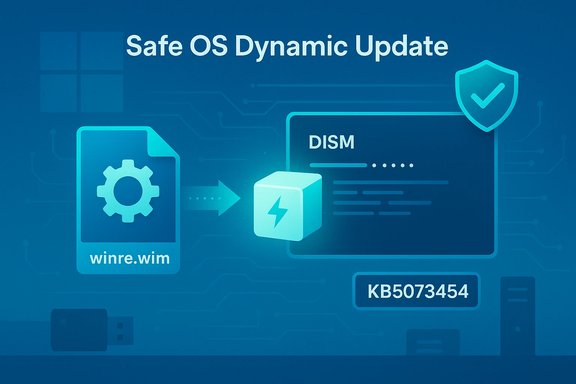
 KB5073454 — Safe OS Dynamic Update for Windows 11 (23H2) — January 13, 2026
A WindowsForum-style technical guide, background, deployment checklist and step‑by‑step instructions for end users and administratorsSummary
- KB5073454 (published January 13, 2026) is a Safe OS Dynamic Update that refreshes the Windows Recovery Environment (WinRE) used by Windows 11, version 23H2. The public KB summary is intentionally short — “This update makes improvements to the Windows recovery environment (WinRE)” — and the authoritative, actionable details for administrators are in the update’s file manifest and the Microsoft Update Catalog package.
- This article explains what the KB does in practical terms, why it matters, how to get the standalone package, how to inject the update into winre.wim or install media, how to verify the change, rollout recommendations, and troubleshooting / rollback considerations you must plan for. Guidance below is based on Microsoft’s KB model for Safe OS dynamic updates and community/operational best practices.
- WinRE is a highly trimmed pre‑boot environment used for recovery actions (Reset this PC, Automatic Repair, cloud reinstall, BitLocker recovery, etc.. When WinRE’s small set of drivers and orchestration binaries lags behind the running OS or recent cumulative updates, recovery flows can fail (USB input not working in WinRE, inability to access NVMe/RAID devices, BitLocker prompts, stalled cloud re‑installs). Safe OS Dynamic Updates are Microsoft’s surgical way to refresh just those pre‑boot bits without rebuilding whole ISOs. KB5073454 refreshes the WinRE payload for 23H2 to close those gaps.
- This KB was published on January 13, 2026. If you’re reading this after that date, check whether later Safe OS DUs have been published for 23H2 (they are published periodically); always validate file manifests for the specific KB you plan to apply.
- Delivery channels: Windows Update (automatic to eligible devices), Microsoft Update Catalog (standalone CAB/MSU), and WSUS when configured for the correct product/classification.
- When applied to a device’s on‑disk WinRE image (winre.wim) the update typically does not require a host restart; when injected into an image (install media/winre.wim) the change is effectively permanent for that image — rollback requires restoring a preserved golden image or recovery media. Plan accordingly.
- The KB page also carries Microsoft’s advisory around Secure Boot certificate expirations that begin to matter in mid‑2026 — you should review Secure Boot certificate guidance as part of recovery/media work.
- The public KB text gives the summary; the Update Catalog CAB and the KB’s file manifest list the exact files replaced, file version numbers and timestamps. Those file attributes are the authoritative artifacts you should compare to your images and to mounted winre.wim contents before and after servicing. Always download the CAB from the Update Catalog and validate the SHA‑256 from the catalog entry before injecting.
- Back up golden images and winre.wim (immutable copy).
- Download KB5073454 CAB from Microsoft Update Catalog and validate SHA‑256/manifest.
- Mount a copy of winre.wim with DISM and inspect file versions (match to CAB manifest).
- Apply the CAB to the mounted image (DISM /Add‑Package) or follow Microsoft’s “Add an update package to Windows RE” guidance for offline injection.
- Commit, unmount and run verification (reagentc /info, GetWinReVersion.ps1 or check WinREAgent event 4501).
- Pilot on representative hardware (USB‑C only laptops, BitLocker enabled devices, OEM models) for 48–72 hours.
1) Download and validate the package
- From an admin workstation, get the KB5073454 CAB from the Microsoft Update Catalog (catalog entry contains file manifest and SHA‑256). Verify that the SHA‑256 of the downloaded CAB matches the one shown in the catalog:
- PowerShell example: Get-FileHash -Path .\KB5073454.cab -Algorithm SHA256
- Compare the digest to the Update Catalog manifest. This prevents tampered or partial downloads.
- Copy your golden winre.wim and install.wim to an immutable backup location and record their checksums. Safe OS DUs are often non‑removable once baked into images; preserving the pre‑DU artifacts is your rollback plan.
- Create a mount directory and mount the wim:
- dism /Mount-Image /ImageFile:"C:\images\winre.wim" /Index:1 /MountDir:C:\mnt\winre
- Inspect file versions inside the mounted image and note current WinRE version fields in key files (for example securekernel.exe, reagentc components). Compare those file versions to the file manifest in the catalog.
- Use DISM to add the package to the mounted image:
- dism /Image:C:\mnt\winre /Add-Package /PackagePath:C:\downloads\KB5073454.cab
- Commit changes: dism /Unmount-Image /MountDir:C:\mnt\winre /Commit
- Note: when applying to a mounted image you are modifying the image artifact; test before replacing production images.
- If you prefer, follow Microsoft’s documented steps for adding an update package to Windows RE (this covers details like BitLocker handling and reagentc enable/disable). The KB references that guidance for manual installs.
- Replace the winre.wim inside your install media or deployment shares (USB/ISO/MDT/SCCM images) with the updated copy, then recreate ISOs or update your deployment pipelines. Ensure your automation preserves your backups.
- reagentc /info — returns WinRE status and path to winre.wim. Use this first to confirm you’re targeting the expected image.
- GetWinReVersion.ps1 — Microsoft publishes a small helper PowerShell script (or sample tooling) to read the WinRE version string from a winre.wim; compare the reported WinREVersion string against the KB’s expected post‑install version that’s published in the KB/Update Catalog manifest.
- Event Viewer — System log: WinREAgent servicing events (Event ID 4501) log success messages, e.g. “Servicing succeeded. The Windows Recovery Environment version is now: <version>.” Look for that entry after applying the update.
- DISM inspection — Mount the updated winre.wim and check Windows\System32 file versions; they should match the file manifest inside the CAB. This is the definitive, file‑level verification method.
- Preserve golden images and recovery USBs before any injection. Treat the change as irreversible for images.
- Pilot in rings: start with a small set of representative devices (different OEMs, models with USB‑C only, devices with and without BitLocker, docking station families). Run Reset this PC (local and cloud), Automatic Repair, and BitLocker unlock flows on each pilot device. Test USB input in WinRE across device families.
- Expand to broader pilot for 48–72 hours while monitoring WinREAgent events, Windows Update history, and helpdesk tickets. If no regressions, proceed in waves.
- WinRE still shows old version after servicing: check Windows Update history to ensure the Safe OS DU was offered/installed; inspect WinREAgent events; if needed, apply the CAB manually and re‑verify.
- USB input fails inside WinRE after update (historical issue): as mitigation, boot from external WinPE (created from a fresh Windows ISO) for recovery, then mount winre.wim inside Windows and re‑inject the Safe OS DU if required. Test USB drivers in WinRE during pilot.
- Unexpected BitLocker recovery prompts: mismatched WinRE drivers or orchestration can trigger BitLocker recovery. Preserve recovery keys centrally (AD/Azure AD/MBAM/Intune) and validate TPM/Secure Boot settings in firmware before broad rollout. Test cloud reinstall and Reset flows under BitLocker conditions.
- If you use WSUS, ensure you have the correct Product/Classifications (Windows 11 / Updates) and confirm the DU CAB has synchronized. Some DUs are catalog‑only at first and may require manual import into WSUS or distribution point steps. Use Intune/ConfigMgr phased deployments for staged rollout and rollback capability on clients.
- Non‑removability on images: once injected into an image (winre.wim or install media), many Safe OS DUs cannot be removed — the practical rollback is restoring the saved pre‑DU golden image. Do not inject into production images until you have fully tested and have a tested backup/restore plan.
- Limited public disclosure: Microsoft’s KB text is terse; the file manifest and Update Catalog are the authoritative technical records. If you need a detailed root‑cause for a customer symptom, you may need a Microsoft support case or engineering post for deeper detail.
- Validate CAB SHA‑256:
- Get-FileHash -Path .\KB5073454.cab -Algorithm SHA256
- Mount winre.wim:
- dism /Mount-Image /ImageFile:"C:\images\winre.wim" /Index:1 /MountDir:C:\mnt\winre
- Add package to mounted image:
- dism /Image:C:\mnt\winre /Add-Package /PackagePath:C:\downloads\KB5073454.cab
- Commit and unmount:
- dism /Unmount-Image /MountDir:C:\mnt\winre /Commit
- Check WinRE status:
- reagentc /info
- Search Event Viewer for WinREAgent servicing events (System log, Event ID 4501) after applying update.
- CAB filename and SHA‑256, date downloaded.
- Exact commands run and images changed; pre/post checksums for winre.wim.
- WinRE reported version string (GetWinReVersion.ps1 output) and WinREAgent event evidence.
- Pilot hardware list and results for functional tests (Reset, Automatic Repair, BitLocker unlock, USB input).
- Check Windows Update (Settings → Windows Update). If the Safe OS update is offered, install and reboot if prompted. Many consumer devices will receive the update automatically if eligible.
- If Windows Update does not show the update and you need to update recovery media, download the standalone package from the Microsoft Update Catalog and follow the “Add an update package to Windows RE” instructions — only do the manual injection if you are comfortable with DISM imaging operations. Back up winre.wim first.
- You’ve performed a tested injection into a non‑production image and you observe a regression in a recovery flow (e.g., persistent USB input failure in WinRE on multiple OEM models) that you cannot mitigate by restoring the prior image. Because public KBs intentionally avoid deep engineering details, Microsoft support/engineering is often needed for root cause and remediation.
- Do: backup golden images, download the CAB from the Update Catalog, validate the SHA‑256, mount a copy of winre.wim and compare file versions to the CAB manifest, pilot broadly and test Reset/BitLocker/USB input, then roll out in waves.
- Don’t: inject KB5073454 into production golden images without testing — the update is effectively permanent for the image and rollbacks require restoring pre‑DU media.
- Verify: reagentc /info, GetWinReVersion.ps1, DISM file checks and WinREAgent event 4501 are your canonical verification signals.
- A printable runbook (step‑by‑step commands + checklist) tailored to your environment (I can include PowerShell scripts to automate verification), or
- A short staged rollout plan you can paste into an IT change ticket (pilot → preproduction → production waves with test matrices)?
Source: Microsoft Support KB5073454: Safe OS Dynamic Update for Windows 11, version 23H2: January 13, 2026 - Microsoft Support
