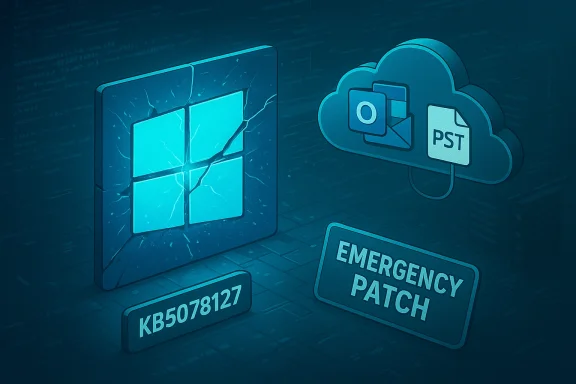
Microsoft's unusual instruction to remove a Windows cumulative security update has placed administrators and everyday users in a difficult, high-stakes choice: accept the immediate return of core functionality or keep a patch that protects against security threats. Microsoft identified the January 13, 2026 cumulative update — published as KB5074109 (OS Build 26200.7623 for Windows 11) — as the source of multiple regressions that in some setups make Outlook Classic unusable, break app access to cloud‑backed files, and trigger display and stability problems. Microsoft’s own support documentation names the Outlook/PST issue and lists temporary workarounds including using webmail, moving PST files out of OneDrive, and, when necessary, uninstalling the update while engineers investigate the root cause.
In Microsoft’s monthly servicing cadence, January 13, 2026 delivered cumulative security and quality fixes for Windows 11 and Windows 10. The package identified as KB5074109 included a broad set of fixes and changes intended to close security holes and harden system components. However, deployment telemetry and user reports rapidly revealed regressions affecting several unrelated subsystems: file I/O to cloud‑synced folders, the legacy Win32 Outlook client (commonly called Outlook Classic), and in some cases GPU/display and app‑launch failures. Microsoft marked the Outlook-related symptom as a confirmed issue and published mitigation guidance while the engineering teams investigate further.
The most visible symptom — and the one that pushed Microsoft to give unusually blunt advice — is the Outlook regression. Users whose Outlook profiles use POP accounts, or who keep .pst files inside cloud‑sync folders such as OneDrive (or Dropbox), started seeing Outlook freeze at “Not Responding,” fail to close cleanly, and exhibit inconsistent mailbox state (missing Sent Items, repeated redownloads). For many business users who rely on Outlook Classic and local PSTs, this breaks productivity in a way that webmail cannot always replace. Microsoft’s support advisory explicitly links these failures to the January 13 updates and lists moving PST files or uninstalling the update as interim steps.
Community reporting and media coverage quickly amplified Microsoft’s message. Outlets tracking Windows servicing problems noted that the update had also triggered other failures — black screens on some systems, apps failing with error code 0x803F8001, and Remote Desktop / Azure Virtual Desktop authentication problems that required out‑of‑band fixes. Those immediate fixes addressed some, but not all, symptoms; Microsoft still recommends uninstalling KB5074109 as an acceptable short‑term mitigation for affected users.
For enterprises, this argues for conservative patching strategies, robust pilot rings, and maintaining the ability to apply rapid mitigations (KIRs, Group Policy blocks, targeted uninstalls). For consumers, it reinforces good hygiene: maintain frequent backups, enable System Restore points, and avoid storing critical application data exclusively inside cloud‑synced folders unless your workflow has been validated.
Finally, the widespread coverage from mainstream outlets and the Microsoft support advisory show the company is aware and responding — but the pace and granularity of their public communications will determine whether trust erodes further among IT pros and power users.
The practical reality is that any decision to uninstall must be accompanied by compensations: data backups, temporary alternate workflows (webmail or locally stored PSTs), and careful pause of automatic updates to prevent reinstallation until Microsoft publishes a tested fix. Enterprises should treat this incident as a call to harden their update‑management posture: broader pilot rings, better telemetry, and clear rollback paths are not optional anymore — they're essential.
Readers with affected systems should follow Microsoft’s support guidance and mainstream troubleshooting steps, plan for a careful rollback if needed, and document everything before altering patch status. Microsoft’s public advisory and the breadth of independent reporting make the problem and recommended mitigations clear; what remains to be seen is how quickly Microsoft publishes a permanent fix and a post‑mortem explaining the precise technical root cause.
Source: Moneycontrol https://www.moneycontrol.com/techno...-update-here-s-why-article-13789872.html/amp/
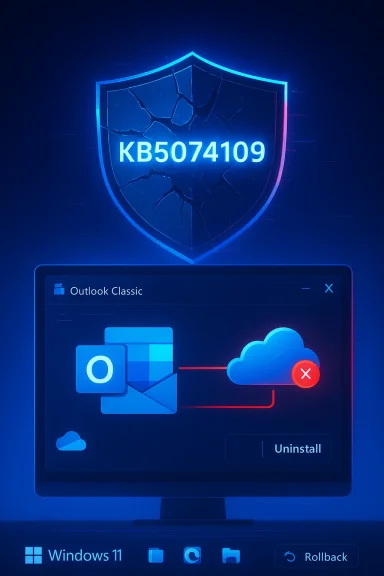 Background: what shipped and how it broke workflows
In Microsoft’s monthly servicing cadence, January 13, 2026 delivered cumulative security and quality fixes for Windows 11 and Windows 10. The package identified as KB5074109 included a broad set of fixes and changes intended to close security holes and harden system components. However, deployment telemetry and user reports rapidly revealed regressions affecting several unrelated subsystems: file I/O to cloud‑synced folders, the legacy Win32 Outlook client (commonly called Outlook Classic), and in some cases GPU/display and app‑launch failures. Microsoft marked the Outlook-related symptom as a confirmed issue and published mitigation guidance while the engineering teams investigate further. The most visible symptom — and the one that pushed Microsoft to give unusually blunt advice — is the Outlook regression. Users whose Outlook profiles use POP accounts, or who keep .pst files inside cloud‑sync folders such as OneDrive (or Dropbox), started seeing Outlook freeze at “Not Responding,” fail to close cleanly, and exhibit inconsistent mailbox state (missing Sent Items, repeated redownloads). For many business users who rely on Outlook Classic and local PSTs, this breaks productivity in a way that webmail cannot always replace. Microsoft’s support advisory explicitly links these failures to the January 13 updates and lists moving PST files or uninstalling the update as interim steps.
Community reporting and media coverage quickly amplified Microsoft’s message. Outlets tracking Windows servicing problems noted that the update had also triggered other failures — black screens on some systems, apps failing with error code 0x803F8001, and Remote Desktop / Azure Virtual Desktop authentication problems that required out‑of‑band fixes. Those immediate fixes addressed some, but not all, symptoms; Microsoft still recommends uninstalling KB5074109 as an acceptable short‑term mitigation for affected users.
What Microsoft confirmed (and what it did not)
Confirmed points from Microsoft’s advisory
- Outlook Classic hangs when profiles rely on POP accounts or PST files stored in OneDrive after installing updates released on or after January 13, 2026 (KB5074109). Microsoft marked the issue as investigating and published workarounds.
- Applications that open/save files from cloud‑backed storage can become unresponsive in certain configurations after the January update; this behavior manifests most visibly when apps access PSTs or other frequently accessed personal data files stored in OneDrive/Dropbox.
- Microsoft listed temporary mitigations: use webmail where possible, move PSTs out of cloud‑synced folders, or uninstall the Windows update if you cannot work around the problem.
What Microsoft has not (yet) published
- A detailed root‑cause analysis naming the exact Windows component, driver API, or third‑party interaction responsible for the regression.
- A complete list of all affected system configurations or an exact incidence rate across customer devices; Microsoft’s public documentation warns that the behavior depends on environment and configuration.
How widespread and severe are the problems?
Independent reporting and community telemetry indicate a mixed picture: the regressions are severe where they occur but not universal. In practice, the update has produced:- Complete functionality loss for affected Outlook Classic users relying on PSTs in OneDrive, effectively halting email workflows.
- App hangs and failures when working with cloud‑backed files in certain configurations.
- Display and GPU‑related issues on a subset of devices that surfaced as black screens or performance regressions.
- Remote Desktop and Windows 365 authentication/credential failures in some enterprise setups; Microsoft issued out‑of‑band fixes for some of these non‑Outlook problems.
Practical guidance for users and admins
When an update both protects and breaks systems, decision‑making must weigh security against availability. The following guidance synthesizes Microsoft’s support steps, mainstream reporting, and community experience.Quick triage (for home users)
- If you are not seeing the symptoms described (Outlook hangs, app hangs when saving to OneDrive, display black screens, or multiple app errors), do not uninstall KB5074109 solely out of caution; staying patched remains the safest posture. Microsoft’s advisory continues to recommend staying up to date unless you’re affected.
- If you are seeing Outlook hangs and you rely on Outlook Classic with PSTs stored in OneDrive, immediately consider:
- Using Outlook webmail as a stopgap, or
- Moving PST files to a local folder that is not cloud‑synced, and reconfiguring Outlook to point to the new local PST location. Microsoft documents the move workflow as a valid mitigation.
Uninstalling the update (consumer path)
- Open Settings → Windows Update → Update history.
- Click Uninstall updates (or go to Control Panel → Programs and Features → View installed updates).
- Select Security Update for Microsoft Windows (KB5074109) and choose Uninstall.
- After uninstall, pause updates temporarily via Settings → Windows Update → Pause updates to prevent immediate reinstallation.
- Some users report the uninstall process fails with error 0x800f0905 or is blocked because the package is bundled as a combined servicing stack update (SSU) + LCU. That means the normal UI may not always perform a clean rollback. If the uninstall fails, Microsoft and independent outlets recommend trying System Restore (if available), the Windows Update Troubleshooter, or an in‑place repair install to restore a working component store before attempting rollback. Back up critical data before proceeding.
- Uninstalling removes security fixes. Microsoft explicitly warns about the trade‑off: uninstalling restores functionality but also reopens exposure to the vulnerabilities the patch fixed. The January package included many security hardenings; leaving unpatched should be treated as a temporary emergency mitigation, not a long‑term stance.
Advanced recovery options (powerr users and admins)
- Use DISM to inspect the package list and remove the LCU if required, but exercise caution: removing servicing components can be complex and dangerous if the wrong package is removed.
- If uninstall fails, perform an in‑place repair (Windows 11 repair install using the installation media) to refresh the component store without losing apps or data, then attempt uninstalling again. This approach has helped many users who encountered 0x800f0905 during rollback attempts.
Enterprise guidance
- Enterprises should treat this incident as a textbook case for conservative rollout and pilot rings: do not push a full deployment until the issue is resolved or mitigations are validated in pilot groups.
- Use Microsoft’s servicing tools for targeted mitigation: Known Issue Rollback (KIR) artifacts, Group Policy to block specific updates, or SCCM/WSUS controls to pause deployment while the Windows Team issues a fix. Collect diagnostic logs (DISM, CBS, App compatibility traces) and escalate through Microsoft Premier/Unified Support when necessary. The incident highlights the value of a 7–14 day pilot period before broad rollouts.
Why Microsoft telling users to uninstall an update matters
Microsoft almost never recommends uninstalling security updates as an official mitigation. When it does, that signal is meaningful for three reasons:- It acknowledges the regression is both real and severe enough in production environments to outweigh temporary security posture concerns for some users.
- It demonstrates the limits of automated, monthly servicing when an update interacts unpredictably with a diverse software ecosystem — especially cloud‑sync clients and legacy Win32 workflows.
- It raises broader questions about the balance between pushing security fixes quickly and ensuring they don’t break critical workflows for enterprise customers and power users.
Technical analysis: likely causes and risk vectors
Based on Microsoft’s symptom set (apps hanging on I/O to cloud folders, Outlook PST locking, and random app launch failures), the most plaus are:- Timing/locking changes in the file I/O or cloud sync stack — If the update adjusted how the OS reports file locks, caches metadata, or signals file availability, cloud‑sync clients may misinterpret the state and lock files unexpectedly, causing applications like Outlook to block on I/O operations.
- Servicing stack interactions — When updates are delivered as combined SSU + LCU packages, the servicing stack’s behavior affects rollback and may leave residual state that prevents clean uninstalls.
- Driver/GPU regressions — The display/GPU-related reports (black screens) point to regressions in the graphics stack or driver interactions triggered by kernel or display driver interface changes in the update.
Strengths and shortcomings of Microsoft’s response so far
What Microsoft did well
- Microsoft quickly acknowledged the Outlook/PST problem and published a clear support advisory listing symptoms and temporary mitigations.
- The Windows team issued out‑of‑band updates to address high‑impact side effects (for example, Remote Desktop and shutdown issues) where a targeted fix was available.
Where the response fell short
- The advisory lacks a detailed remediation timeline and a root‑cause explanation that enterprise admins require to make longer‑term decisions.
- Uninstall guidance is simple in theory but, in practice, rollback can fail on some machines due to servicing stack complexities — leaving some users stuck and requiring complex recovery steps. This gap underscores the need for faster, more actionable recovery tooling (for example, targeted Known Issue Rollback or a one‑click diagnostic/rollback service for admins).
Decision framework: how to choose for your environment
If you must decide whether to uninstall KB5074109, use this prioritized checklist:- Does the update currently break your critical workflows? If no, keep the update installed and monitor Microsoft’s release health.
- If yes, can you apply Microsoft’s mitigations (webmail, move PSTs to local storage) quickly and safely without uninstalling? If yes, prefer mitigations.
- If mitigations are impractical or insufficient and business continuity is impacted, plan an uninstall with full backups, and pause updates afterward. Be prepared for potential rollback errors (0x800f0905) and document recovery steps.
- For fleets, use pilot rings, KIR artifacts, and an incident response plan that balances security risk with operational impact. Engage Microsoft Support early if rollback issues occur at scale.
Longer‑term implications for Windows servicing and for users
This episode is a reminder of the growing complexity of endpoint ecosystems. Windows now must coordinate with a massive array of third‑party sync clients, device drivers, legacy client applications, and cloud services. A single change that touches file I/O semantics or servicing behavior can cascade into productivity outages.For enterprises, this argues for conservative patching strategies, robust pilot rings, and maintaining the ability to apply rapid mitigations (KIRs, Group Policy blocks, targeted uninstalls). For consumers, it reinforces good hygiene: maintain frequent backups, enable System Restore points, and avoid storing critical application data exclusively inside cloud‑synced folders unless your workflow has been validated.
Finally, the widespread coverage from mainstream outlets and the Microsoft support advisory show the company is aware and responding — but the pace and granularity of their public communications will determine whether trust erodes further among IT pros and power users.
Checklist: what to do now (quick reference)
- If unaffected: no immediate action; continue to install Microsoft updates.
- If affected:
- Use webmail where possible.
- Move PSTs and other critical files out of OneDrive/Dropbox to local storage and reconfigure apps.
- If the above fails, uninstall KB5074109 and pause updates — but back up data first and prepare for potential rollback errors.
- If you manage a fleet: pause broad deployment, validate mitigations in pilot rings, use KIR/WSUS/SCCM to block problematic updates, and collect diagnostics.
Final assessment
Microsoft telling users to uninstall a security update is a rare but responsible move when specific customer‑impacting regressions outweigh, in the short term, the benefits of that patch for a subset of devices. The January 13, 2026 update (KB5074109) created such a trade‑off: for users whose workflows were broken — particularly those relying on Outlook Classic with PSTs stored in cloud‑synced folders — uninstalling the update restores productivity, while leaving open a window of reduced security.The practical reality is that any decision to uninstall must be accompanied by compensations: data backups, temporary alternate workflows (webmail or locally stored PSTs), and careful pause of automatic updates to prevent reinstallation until Microsoft publishes a tested fix. Enterprises should treat this incident as a call to harden their update‑management posture: broader pilot rings, better telemetry, and clear rollback paths are not optional anymore — they're essential.
Readers with affected systems should follow Microsoft’s support guidance and mainstream troubleshooting steps, plan for a careful rollback if needed, and document everything before altering patch status. Microsoft’s public advisory and the breadth of independent reporting make the problem and recommended mitigations clear; what remains to be seen is how quickly Microsoft publishes a permanent fix and a post‑mortem explaining the precise technical root cause.
Source: Moneycontrol https://www.moneycontrol.com/techno...-update-here-s-why-article-13789872.html/amp/