

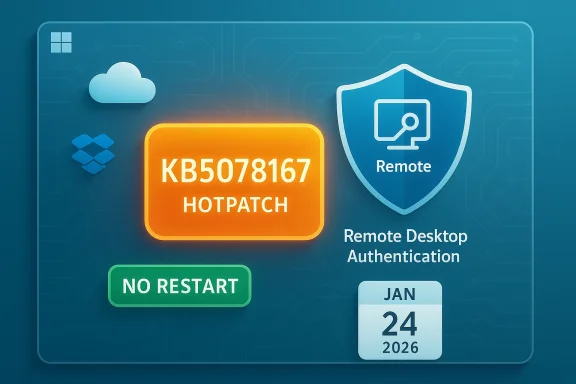
Microsoft’s January 24, 2026 hotpatch — KB5078167 — landed as a targeted, out‑of‑band repair that addresses two high‑impact regressions introduced earlier in the month: Remote Desktop authentication failures and a file‑system interaction bug that caused apps (including Outlook in certain PST‑on‑OneDrive setups) to hang or re‑download mail. The update applies to Windows 11 servicing lines and is distributed as a hotpatch that does not require a restart, giving admins and power users a quicker path to remediation for issues that disrupted remote access and cloud‑file workflows.
Two regression classes stood out:
This follows earlier January OOB fixes (for example KB5077744 and platform‑specific KBs issued on January 17) that were intended to restore remote sign‑in flows across affected builds. Those January 17 OOB updates remain the canonical first‑response for many organizations that applied fixes immediately; KB5078167 is a subsequent hotpatch that improves servicing and ensures the corrections are available via the hotpatch delivery pipeline.
Source: Microsoft Support January 24, 2026—Hotpatch KB5078167 (OS Builds 26200.7634 and 26100.7634) Out-of-band - Microsoft Support
 Background
The January 2026 update wave and why it mattered
Patch Tuesday on January 13, 2026 delivered a large combined servicing‑stack + cumulative update across multiple Windows servicing channels. Microsoft’s monthly rollup addressed more than a hundred CVEs, started a phased replacement of expiring Secure Boot certificates, and made several platform fixes. That baseline introduced edge‑case regressions for some configurations that became apparent quickly in telemetry and community reports.Two regression classes stood out:
- Connection and authentication failures in Remote Desktop flows and cloud‑desktop services (affecting Windows App sign‑on sequences, Azure Virtual Desktop, Windows 365 Cloud PCs and some RemoteApp clients).
- File‑system/cloud storage errors that left applications unresponsive when opening or saving files to cloud‑synced locations such as OneDrive or Dropbox; in certain Outlook PST configurations this could cause hangs, missing Sent Items, or re‑downloads of mail.
What Hotpatch KB5078167 fixes
Remote Desktop and authentication flows
KB5078167 explicitly fixes sign‑in failures during Remote Desktop connections that were observed after the January 13 cumulative updates. The symptom set included failed credential prompts and blocked connections when the Windows App or other modern Remote Desktop clients attempted to perform secure sign‑in flows. Microsoft’s advisory lists Remote Desktop authentication as a primary fix in the hotpatch.This follows earlier January OOB fixes (for example KB5077744 and platform‑specific KBs issued on January 17) that were intended to restore remote sign‑in flows across affected builds. Those January 17 OOB updates remain the canonical first‑response for many organizations that applied fixes immediately; KB5078167 is a subsequent hotpatch that improves servicing and ensures the corrections are available via the hotpatch delivery pipeline.
File system / cloud storage interactions and Outlook PST behavior
The hotpatch also addresses a class of errors that caused apps to become unresponsive when opening or saving files to cloud‑based storage providers. Microsoft called out OneDrive and Dropbox scenarios specifically, and documented the most visible user impact: Outlook profiles with PST files stored on OneDrive could hang, not reopen until the process was terminated, show missing Sent Items, or trigger re‑downloads of previously fetched messages. The Microsoft Office support advisory published in January described those exact symptoms and listed temporary workarounds. KB5078167’s file‑system correction aims to close that hole.Hotpatch mechanics: no reboot required
One of the important operational details for this package is that it is delivered as a hotpatch and installs without forcing a restart on eligible devices. Microsoft bundles the required servicing stack update (SSU) with the hotpatch so that Windows Update can sequence the components automatically. For administrators managing uptime‑sensitive endpoints or server roles eligible for hotpatching, this reduces remediation windows and avoids the scheduling overhead of immediate reboots. Microsoft’s KB explicitly notes the no‑restart behavior for this hotpatch.Timeline and cross‑verification of the January fixes
- January 13, 2026 — Microsoft released the regular monthly rollups (e.g., KB5074109 and related KBs) that introduced fixes and began the certificate rollout; community telemetry soon flagged the two regression classes described above.
- January 14–17, 2026 — Microsoft acknowledged the regressions and issued emergency out‑of‑band updates, such as KB5077744 for Windows 11 24H2/25H2 and KB5077797 for 23H2, to restore Remote Desktop authentication and, where relevant, fix Secure Launch shutdown regressions. Independent outlets and Microsoft’s Release Health pages documented the same timeline, corroborating the vendor advisories.
- January 24, 2026 — Microsoft published the hotpatch KB5078167 (OS Builds 26200.7634 and 26100.7634) to deliver further quality improvements and hotpatch‑specific fixes, including and cloud‑file interaction corrections; the package is offered via Windows Update and does not require a reboot on hotpatch‑eligible systems.
Impact assessment — who should care and why most home users will see minimal direct impact beyond automatic updates being applied. However, consumers who use classic Outlook profiles with PST files stored in OneDrive, who rely on Remote Desktop connections initiated via the Windows App, or who have cloud‑desktop subscriptions (Windows 365 / Cloud PCs) may have experienced interruptions that the hotpatch corrects. Casual users who prefer immediate certainty may still opt to verify their build number and the presence of KB5078167 in Windows Update.
Small businesses and SMBs
Small orgs that use Remote Desktop for administrative access or that store PSTs on OneDrive should prioritize this hotpatch. The no‑restart nature of the hotpatch is especially valuable for SMBs that lack complex maintenance windows. Still, standard good practice applies: validate backups (especially for PSTs) before applying updates that touch file‑system and sync behavior.Enterprise and managed fleets
Enterprises should treat KB5078167 as a high‑priority quality update for several reasons:- Remote access is foundational for hybrid work; rapid remediation of authentication regressions is operationally critical.
- The hotpatch delivery path matters for endpoints enrolled in hotpatch servicing; ensuring devices are properly enrolled and meet baseline prerequisites avoids surprises in deployment.
- For fleets using classic Outlook with PSTs on OneDrive (not recommended for large orgs), the file‑system fixes reduce risk of data duplication or mailbox inconsistencies.
Deployment guidance and recommended steps
Follow this prioritized checklist to deploy KB5078167 safely and effectively:- Inventory and prioritize:
- Identify systems that recently installed January 13 updates (check OS build numbers such as 26200.7623 / 26100.7623) and catalog endpoints that rely on Remote Desktop, Azure Virtual Desktop, Windows 365, or have PST files stored on OneDrive.
- Confirm hotpatch eligibility:
- Hotpatch delivery requires specific enrollment and baseline conditions. Verify licensing and management tool enrollment (Intune, Windows Autopatch, Azure Update Manager) to ensure devices will receive the restart‑free hotpatch.
- Test in a pilot ring:
- Apply the hotpatch to a small, representative pilot group that includes Remote Desktop users and any machines with OneDrive‑hosted PSTs to confirm the fix and identify unexpected side effects.
- Verify post‑install behavior:
- Test Remote Desktop sign‑in flows (Windowent, and AVD/Windows 365 where used).
- On systems with Outlook PSTs on OneDrive, validate Outlook exit/restart behavior and confirm Sent Items and mail consistency.
- Roll out broadly once validated:
- Use standard deployment channels (Windows Update, WSUS/ConfigMgr, Microsoft Update Catalog for offline deployments). Microsoft bundles the SSU with the hotpatch when delivered via Windows Update; if using catalog packages, ensure the correct SSU is present.
- Reconcile temporary mitigations:
- If your environment earlier used KIR Group Policy artifacts or temporary workarounds (for example moving PSTs out of OneDrive), document and, if safe, remove or revert those mitigations after confirming the hotpatch resolves the core issue.
Troubleshooting — common scenarios and fixes
- Remote Desktop still fails after hotpatch:
- Confirm device successfully installed KB5078167 and that no prior KIR artifacts remain pinned. If the problem persists on a specific user device, test with the classic RDP client and check credential manager / token cache states. Reinstalling the Windows App or clearing its credential cache may help in isolated cases.
- Outlook hangs or re‑downloads mail:
- Microsoft’s temporary guidance includes moving PST files off OneDrive and using webmail while the issue is present. After the hotpatch, validate Outlook’s behavior and consider repairing the PST with scanpst.exe if mail int. If symptoms remain, collect Outlook logs, OST/PST metadata and escalate to Microsoft Support.
- Hotpatch not offered or device still requires reboot:
- Verify hotpatch enrollment and baseline prerequisites. Some devices may fall back to the regular LCU path and therefore require the standard reboot semantics. If a device has mismatched SSU/LCU sequencing, install the matching SSU referenced in the KB and re‑scan for updates.
Critical analysis — strengths, limitations, and residual risks
Notable strengths
- Fast remediation cadence: Microsoft’s January 17 OOB fixes followed quickly by a January 24 hotpatch demonstrate an accelerated response model for serious regressions, which is important for widely used remote‑access scenarios. The use of hotpatching to reduce restarts is an operational advantage for uptime‑sensitive environments.
- Targeted fixes: The hotpatch explicitly addresses both Remote Desktop authentication and cloud‑file interaction regressions, the two most disruptive user experiences reported after the January rollup. This focused approach reduces collateral changes compared with a full monthly rebaseline.
Limitations and risks
- Hotpatch eligibility complexity: Not all devices are eligible for hotpatching. Enrollment, licensing and baseline requirements can fragment remediation paths across an organization, forcing some devices to accept LCUs that require reboots while others receive restart‑free hotpatches. This increases deployment complexity for heterogeneous fleets.
- Residual unknowns: While Microsoft’s KB for KB5078167 reports no known issues at publication, complex regressions in large, heterogeneous environments sometimes surface only after broad rollout. Organizations should keep pilot rings active and retain rollback/uninstall plans if unusual behavior emerges.
- PST on OneDrive remains a brittle pattern: Storing Outlook PSTs on cloud‑sync folders has long been discouraged because PST files are not designed for concurrent or sync‑mediated access. Even with this hotpatch, the practice carries inherent risk of corruption, duplication, and synchronization anomalies; moving PSTs to locally managed storage or mailbox‑based archiving remains the safer long‑term pattern. Microsoft’s own interim guidance suggested moving PSTs out of OneDrive as a workaround prior to fixes.
Broader process questions
- The January sequence — a large baseline update followed by multiple emergency OOBs and then a hotpatch — highlights the tension between delivering security fixes at scale and preserving platform stability for complex enterprise configurations. The cadence is defensible from a security standpoint, but it shows that downstream testing and staged rollouts remain crucial for enterprise IT. Independent reporting and community threads have called for more robust pre‑release validation in specific scenarios (cloud desktop auth, Secure Launch configurations), which is a fair critique given the operational impact.
Practical takeaways and recommended policies
- Prioritize deployment of KB5078167 to endpoints that:
- Rely on Remote Desktop, Windows App‑initiated RDP, Azure Virtual Desktop or Windows 365; or
- Use classic Outlook profiles with PSTs stored on OneDrive.
- Avoid storing PSTs on OneDrive as a long‑term practice. Use mailbox‑based archives, OST-based cached modes, or dedicated network shares with controlled access instead.
- Maintain pilot rings and staged deployment policies for monthly baselines. Reserve emergency OOB and hotpatch channels for rapid remediation of critical regressions only.
- For hotpatch‑eligible servers, confirm enrollment and baseline prerequisites before expecting restart‑free remediation; build documentation and reporting into the change‑control process to track which devices will receive hotpatches versus LCUs.
- Keep an evidence trail: collect update logs, application logs and user repro steps before and after applying fixes. This accelerates vendor escalation where needed and protects against data loss scenarios (notably PST inconsistencies).
Conclusion
KB5078167 is a narrowly scoped but operationally significant hotpatch: it restores Remote Desktop authentication flows and fixes cloud‑file interaction regressions that interfered with Outlook and other apps after Microsoft’s January 13 cumulative updates. Delivered as a no‑restart hotpatch for eligible systems, it shortens the window between detection and remediation for high‑impact user problems. Administrators should prioritize affected endpoints, validate hotpatch eligibility, and use pilot rings to confirm behavior before broad deployment. At the same time, organizations should treat PSTs stored on cloud‑synced folders like OneDrive as a risky configuration and migrate to supported mailbox or local storage patterns. Microsoft’s rapid sequence of OOB updates and the January 24 hotpatch underline the importance of staged rollouts, telemetry‑driven triage, and clear rollback plans when cumulative platform changes touch authentication and file‑system code paths that underpin everyday business operations.Source: Microsoft Support January 24, 2026—Hotpatch KB5078167 (OS Builds 26200.7634 and 26100.7634) Out-of-band - Microsoft Support
