

Microsoft rushed a second out-of-band emergency patch in late January after its January Patch Tuesday rollout introduced a regression that left Outlook and other apps unable to reliably open or save files stored in cloud-synced locations such as OneDrive and Dropbox — the fix, published as KB5078127, is cumulative, includes prior emergency fixes, and is being urged for immediate installation on affected Windows 11 branches.
The January 2026 Patch Tuesday cycle delivered the usual mix of security and quality fixes, but telemetry and field reports quickly highlighted several regressions affecting diverse subsystems: Remote Desktop and Cloud PC sign-ins, Secure Launch behavior, and — most visibly for productivity users — a class of cloud file I/O failures that caused applications to hang when opening or saving files that live in synced folders. Microsoft issued an initial out-of-band update to address some issues, then published a second cumulative out-of-band (OOB) package on January 24 — KB5078127 for Windows 11 versions 24H2 and 25H2 — expressly to repair the cloud-file regression and to consolidate earlier fixes into a single cumulative release.
Community trackers, forum posts, and independent outlets all converged on a similar timeline: Patch Tuesday (January 13) → first emergency OOB fixes (January 17) → second, consolidated OOB cumulative (January 24). That compressed cadence reflected the operational urgency for organizations and users who depend on cloud-synced storage for day-to-day work.
Why did Outlook show up as the poster child for this regression? Classic Outlook’s PST model demands consistent, low-latency, synchronous local file I/O with strict locking semantics. Cloud-sync clients (OneDrive, Dropbox) use placeholder/hydration and overlay behaviors that change timing and locking characteristics. When an OS change alters file-system or placeholder interactions even slightly, legacy file formats like PST can deadlock or behave unpredictably. That mismatch is exactly what Microsoft’s advisory and community analysis point to as the fragile surface at fault.
Community posts and vendor advisories emphasize the following points:
The broader lesson is less comfortable: even mature, widely deployed update processes are vulnerable to brittle interactions when the operating system, sync clients, legacy file formats, and a highly heterogeneous hardware base all change together. Rapid fixes will continue to be required, but the industry and vendors must invest in wider pre-release validation, better rollback tooling, and clearer communications to reduce the operational blast radius when problems inevitably occur. Until then, disciplined rollout practices and readiness for manual recovery remain the most reliable defenses for administrators and power users alike.
Microsoft’s second emergency patch in January — KB5078127 — fixes a high-impact cloud-file regression that halted productivity for some users and consolidated prior emergency responses into a single cumulative release. Apply it quickly if you are affected, stage it carefully if you manage fleets, and maintain robust rollback and recovery plans in case you are among the small number of systems that experience boot failures. The short-term technical fix is in place; the medium-term operational work — better test coverage, clearer rollback mechanics, and reduced reliance on fragile legacy patterns like PST-in-cloud — remains unfinished.
Source: findarticles.com Microsoft Issues Second Windows Emergency Patch
 Background / Overview
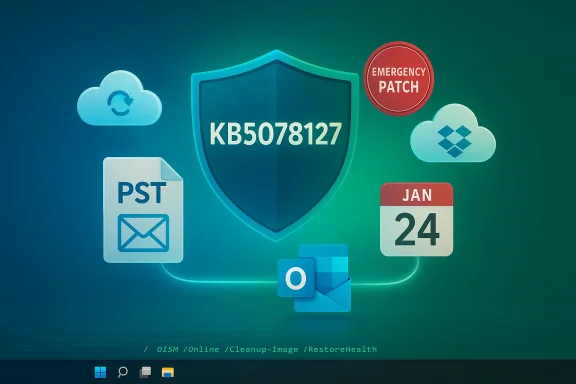
The January 2026 Patch Tuesday cycle delivered the usual mix of security and quality fixes, but telemetry and field reports quickly highlighted several regressions affecting diverse subsystems: Remote Desktop and Cloud PC sign-ins, Secure Launch behavior, and — most visibly for productivity users — a class of cloud file I/O failures that caused applications to hang when opening or saving files that live in synced folders. Microsoft issued an initial out-of-band update to address some issues, then published a second cumulative out-of-band (OOB) package on January 24 — KB5078127 for Windows 11 versions 24H2 and 25H2 — expressly to repair the cloud-file regression and to consolidate earlier fixes into a single cumulative release. Community trackers, forum posts, and independent outlets all converged on a similar timeline: Patch Tuesday (January 13) → first emergency OOB fixes (January 17) → second, consolidated OOB cumulative (January 24). That compressed cadence reflected the operational urgency for organizations and users who depend on cloud-synced storage for day-to-day work.
What KB5078127 actually fixes
The core regression: cloud file access and Outlook PSTs
The central functional problem addressed by KB5078127 was a regression introduced by the January baseline: applications became unresponsive or returned unexpected errors when opening or saving files in cloud-backed folders (for example, OneDrive or Dropbox). Microsoft explicitly called out scenarios where the classic Outlook (Win32) client — particularly configurations that store PST files inside OneDrive-synced folders — would hang, fail to reopen unless the process was terminated or the system was restarted, or show mail-store anomalies such as missing Sent Items or re-downloading previously retrieved messages.Why did Outlook show up as the poster child for this regression? Classic Outlook’s PST model demands consistent, low-latency, synchronous local file I/O with strict locking semantics. Cloud-sync clients (OneDrive, Dropbox) use placeholder/hydration and overlay behaviors that change timing and locking characteristics. When an OS change alters file-system or placeholder interactions even slightly, legacy file formats like PST can deadlock or behave unpredictably. That mismatch is exactly what Microsoft’s advisory and community analysis point to as the fragile surface at fault.
What the patch bundles
KB5078127 is cumulative: it includes the fixes from the January 13 security update (the LCU/SSU baseline), earlier out-of-band fixes (the January 17 package), and targeted quality improvements to restore reliable file I/O with cloud-synced storage. It also ships with a servicing stack update (SSU), which improves install reliability but complicates naive uninstall paths. Microsoft provided Known Issue Rollback (KIR) artifacts and Group Policy controls so IT teams can mitigate the behavioral change without fully uninstalling security updates in managed environments.Verification: independent cross-checks
- Microsoft’s official KB for the January 24 OOB explicitly lists the cloud-file I/O fix and the Outlook PST symptoms as among the package’s improvements. That is the authoritative source for what the update claims to resolve.
- Independent reporting from mainstream Windows outlets and community trackers corroborated the timeline and the symptoms, documenting the initial Patch Tuesday regressions and the rapid leases that culminated in KB5078127. These independent confirmations are useful because they verify that the issue was observed widely enough to warrant an additional emergency cumulative package.
How to get and install KB5078127 (consumer and IT guidance)
For everyday users (consumer Windows PCs)
- Open Settings > Windows Update and select Check for updates. Devices on the January update chain that have the prerequisite packages installed should be offered KB5078127 automatically. A reboot is required to.
- If you use Outlook Classic with PST files stored inside OneDrive or another cloud-sync folder, install the patch immediately and verify that Outlook can open and save your PST without hangs. If symptoms persist, temporarily move the PST to a local folder, test again, and move it back once confirmed stable.
For IT administrators (WSUS, Intune, Autopatch)
- Deploy via Windows Server Update Services (WSUS), Microsoft Intune, Windows Autopatch, or import the package from the Microsoft Update Catalog for controlled ringed rollouts. Microsoft published guidance on expedited deployment policies for Intune and Autopatch to accelerate installs for managed fleets.
- Because the package contains an SSU, sttall paths may not remove the SSU; document the precise DISM /Remove-Package commands and package names ahead of time to enable safe rollback if needed. Use the provided KIR Group Policy artifacts for targeted mitigation where full rollout is not possible.
- Prioritize devices with known exposure: endpoints with PSTs in OneDrive, users who rely on Dropbox/OneDrive for primary document storage, and machines with heavy cloud-sync dependencies. Stage the rollout: pilot → broad deployment → enforced roll-out, while keeping the tempo brisk to reduce business disruption.
Known side effects and the boot-failure issue
UNMOUNTABLE_BOOT_VOLUME — limited but severe
Separately, Microsoft acknowledged a limited number of reports of devices failing to boot to desktop after installing the January 13 security update (and later updates), showing a black screen and the stop code UNMOUNTABLE_BOOT_VOLUME (Stop 0xED). Affected devices were described as physical machines running Windows 11 24H2 and 25H2, and the othese machines is manual intervention through the Windows Recovery Environment (WinRE). Microsoft and multiple outlets have warned that these cases, while limited, are serious for the users caught in them.Community posts and vendor advisories emphasize the following points:
- The failure mode typically appears early in the boot process (black screen, stop code UNMOUNTABLE_BOOT_VOLUME).
- Virtual machines appear unaffected in community telemetry, which suggests the problem may interact with physical firmware, pre-boot platform features, or storage drivers that differ across physical OEM hardware.
Recovery steps — the practical sequence
If you encounter tLUME stop code after these updates, the standard recovery flow is:- Boot into the Windows Recovery Environment (WinRE) (hold Shift while selecting Restart from the sign-in screen, or boot from recovery media).
- From Troubleshoot > Advanced options, try Startup Repair first.
- If that fails, select Uninstall updates and remove the latest quality update (the January cumulative).
- If Uninstall updates is not available or fails, use System Restore if a restore point exists.
- If BitLocker is enabled, expect a BitLocker recovery key prompt during the WinRE flow — have recovery keys available in Active Directory, Azure AD, or your password vault.
- As a last resort, use DISM and SFC from WinRE command prompt to repair offline images, and if necessary restore frr perform a clean OS recovery.
Troubleshooting Outlook and cloud-file symptoms (detailed, practical)
If, after installing KB5078127, you still see app hangs or Outlook anomalies, follow this checklist:- Confirm the device has the updated OS build (Windows 11 builds advanced to 26200.7628 for 25H2 and 26100.7628 for 24H2 as part of KB5078127). Validate via Settings > Windows Update > Update history.
- Temporarily relocate PST files to a local non-synced folder:
- Close Outlook and ensure OUTLOOK.EXE is not running in Task Manager.
- Copy the PST to a local directory outside any OneDrive/Dropbox sync scope.
- Re-open Outlook using the File > Account Settings > Data Files path to point to the relocated PST.
- Test send/receive and mail behavior.
- If stable, plan a migration away from PST-in-cloud patterns (see recommendations below).
- If third-party applications show the same hang pattern, check whether the cloud client (OneDrive/Dropbox) is presenting placeholder files (Files On-Demand) or actively hydrating files; temporarily disabling Files On-Demand or pausing sync during critical operations can be a pragmatic mitigation until the fixlidate behavior.
- Monitor for related side effects: missing Sent Items or duplicates often indicate read/write ordering issues; ensure network latency or transient sync states are not the immediate cause before assuming a persistent OS-level regression. If symptoms persist on patched systems, collect diagnostic logs (Event Viewer application/system logs, OneDrive sync diagnostics) and escalate to vendor support with reproducible steps.
Administrative playbook: rollout, monitoring, and rollback
For IT managers responsible for fleets, treat the KB5078127 deployment as a high-priority remediation with a controlled but accelerated rollout:- Inventory and prioritize
- Identify endpoints storing PSTs in OneDrive or other cloud-sync folders.
- Flag machines running Secure Launch or other pre-boot security features that were implicated in earlier regressions.
- Prioritize remote workers and machines that perform local sync-heavy workflows.
- Ringed deployment
- Pilot: 5–10 representative machines (cover hardware variants and sync behaviors).
- Broad pilot: 25–100 machines including remote and managed devices.
- Production rollout: staggered but fast (24–72 hours) for exposed systems.
- Full roll-out: remaining estate after successful validation.
- Monitoring and telemetry
- Use endpoint monitoring to detect post-installation hangs or repeat crashes.
- Capture and triage Event Viewer error chains, app hangs, and OneDrive sync error codes.
- Track help-desk tickets for patterns and escalate recurrink planning
- Because KB5078127 includes an SSU, standard uninstalls via Windows Update may not fully roll back the change. Pre-document the LCU package name and the DISM Remove-Package command you will use if an LCU rollback is necessary.
- Test Known Issue Rollback (KIR) Group Policy artifacts in a safe pilot; KIR can temporarily neutralize behavior without removing security fixes. ([s)
- Communications
- Notify users about required reboots and practical mitigations (move PSTs to local storage, use Outlookry).
- Provide concise help-desk scripts for recovery and escalation paths.
Risk analysis and critical commentary
Strengths in Microsoft’s response
- Microsoft responded quickly: within days of the initial regressions it shipped packages and then consolidated fixes into KB5078127. That sequence demonstrates an effective incident-response pipeline when urgent regressions threaten productivity. The availability of KIR artifacts, hotpatch variants for eligible enterprise systems, and consolidated SSU+LCU packages show intent to both fix and reduce install friction.
- The vendor was transparent in acknowledging a limited number of boot-failure mmediate guidance on recovery and mitigations. Visibility is critical during an operational incident, and Microsoft published the advisory and KB pages rapidly.
Persistent risks and weaknesses
- Combined SSU+LCU packaging: bundling the Servicing Stack Update (SSU) with the Latest Cumulative Update (LCU) improves forward-install success but complicates rollback. Administrators that want to remove only the LCU must use DISM with the specific package name; wusa.exe uninstalling the combined package will not remove the SSU. That friction raises the operational cost of emergency fixes and lengthens recovery windows in rare failure cases.
- Test-surface gaps: the outbreak revealed a blind spot where mixed legacy-application patterns (PSTs stored in cloud-sync folders) intersect with modern placeholder/hydration semantics. Those usage patterns are common in the incident underscores the need for broader real-world validation matrices that include common sync clients, legacy file formats, and OEM firmware permutations.
- Attribution and speculation: some commentators pointed fingers at accelerated development pd code generation as causal factors. Those claims are speculative without internal engineering post-mortems; responsible analysis should treat such hypotheses cautiously until an engineering root-cause is published. In short, correlation in timing does not equal causation.
Longer-term recommendations for IT teams and power users
- Remove PSTs from cloud-sync scopes. Move to server-side mailboxes, cloud archives, or modern mailbox formats that do not require local PSTs. This reduces exposure to sync-related file semantics and simplifies endpoint recovery.
- Expand validation test matrices. Add common cloud-sync clients (OneDrive, Dropbox) and legacy file patterns to pre-release validation. Include physical hardware variants and firmware permutations that may not appear in virtualized testbeds.
- Harden rollback/runbook readiness. Maintain bootable recovery media, accessible BitLocker keys, tested DISM uninstall scripts, and clear KIR Group Policy artifact deployment paths. These operational assets shorten recovery time if a small percentage of devices fail after updates.
- Communicate risk and provide simple mitigations. Tell users to pause sync during large archive operations, avoid placing active PSTs in sync folders, and use web-based mail interfaces for critical actions when local Outlook shows errant behavior. Clear user guidance reduces help-desk load during patch storms.
A final assessment: what this episode means for Windows stability
KB5078127 is a necessary and pragmatic emergency response: it fixes a productivity-stopping regression that affected a real-world intersection of legacy application expectations and modern cloud-sync semantics. The patch restores expected behavior for many users and provides IT with targeted mitigations (KIR) and deployment options. That is the good news.The broader lesson is less comfortable: even mature, widely deployed update processes are vulnerable to brittle interactions when the operating system, sync clients, legacy file formats, and a highly heterogeneous hardware base all change together. Rapid fixes will continue to be required, but the industry and vendors must invest in wider pre-release validation, better rollback tooling, and clearer communications to reduce the operational blast radius when problems inevitably occur. Until then, disciplined rollout practices and readiness for manual recovery remain the most reliable defenses for administrators and power users alike.
Quick checklist (at-a-glance)
- For users:
- Install KB5078127 via Settings > Windows Update and reboot.
- If Outlook remains unresponsive and your PST is in OneDrive, move PST to a local folder and test.
- For administrators:
- Pilot KB5078127 in a representative ring (including OneDrive-exposed systems).
- Use KIR Group Policy artifacts where immediate rollback is preferable to full uninstall.
- Prepare DISM remove-package commands and boot recovery media.
- Monitor for UNMOUNTABLE_BOOT_VOLUME reports and be ready to recover via WinRE.
Microsoft’s second emergency patch in January — KB5078127 — fixes a high-impact cloud-file regression that halted productivity for some users and consolidated prior emergency responses into a single cumulative release. Apply it quickly if you are affected, stage it carefully if you manage fleets, and maintain robust rollback and recovery plans in case you are among the small number of systems that experience boot failures. The short-term technical fix is in place; the medium-term operational work — better test coverage, clearer rollback mechanics, and reduced reliance on fragile legacy patterns like PST-in-cloud — remains unfinished.
Source: findarticles.com Microsoft Issues Second Windows Emergency Patch
