Outlook Crashes on Windows 11 After January 2026 Patch: Emergency Fix KB5078127

  • Thread Author
Outlook crashing on Windows 11 after January’s Patch Tuesday left inboxes frozen, mailboxes mismatched, and IT teams scrambling — and Microsoft’s emergency out-of-band update finally appears to have stopped the worst of it. The fix targets a flaw introduced by the January 13, 2026 security rollup (KB5074109) that caused applications to become unresponsive when accessing files stored in cloud‑synced locations, with classic Outlook profiles relying on PST files inside OneDrive or other sync folders hit hardest.

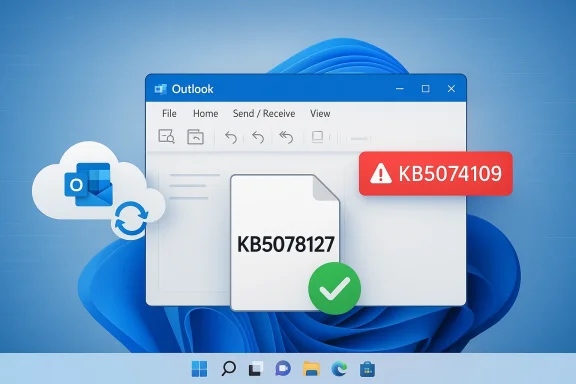
Windows desktop showing Outlook, cloud sync icon, red KB5074109 alert, and green-checked KB5078127 document.Background: what Microsoft shipped and what went wrong​

Microsoft’s January 13, 2026 security update for Windows 11 — tracked as KB5074109 — was a broad cumulative rollup that included security fixes and quality improvements across multiple components. The update is listed for Windows 11 versions 24H2 and 25H2 (OS builds 26100.7623 and 26200.7623). Within days of deployment, users and administrators reported a variety of regressions: apps failing to close, systems rebooting unexpectedly, and in some cases boot failures on specific hardware.
One clear regression was a file‑access interaction between Windows, OneDrive (and other cloud sync clients such as Dropbox), and applications that open or save files in cloud‑backed folders. Microsoft documented that, after installing KB5074109, some apps became unresponsive or returned unexpected errors when opening or saving files stored in cloud‑based storage, explicitly calling out Outlook when PST files were located inside a OneDrive‑synced folder. Symptoms included Outlook hanging on launch, failing to exit cleanly, re‑downloading previously fetched messages, and missing items in Sent Items.
That behavior is especially disruptive for legacy Outlook setups: POP3 accounts and archived PSTs are commonly used by home users and organizations that have not migrated mail to Exchange Online or modern IMAP/OST configurations. Where those PST files were placed inside cloud‑sync folders — often due to Known Folder Move or user preference to back up Documents to OneDrive — the interplay between the OS changes and file‑sync semantics led to repeated hangs and reliability problems.

Timeline and Microsoft’s response​

  • January 13, 2026: Microsoft released the January security update, KB5074109. Reports of app instability and other regressions followed soon after.
  • January 17, 2026: Microsoft issued an optional out‑of‑band update, KB5077744, that addressed some immediate issues (notably specific Remote Desktop and shutdown failures). That update was optional but signaled Microsoft’s rapid remediation work.
  • January 24, 2026: Microsoft shipped a second, mandatory out‑of‑band update, KB5078127, covering 24H2 and 25H2, which specifically includes a fix for apps becoming unresponsive when saving or opening files from cloud storage, and lists the Outlook PST scenario as addressed. The update increments affected OS builds (for example, to 26200.7628).
The January‑24 emergency update (KB5078127) bundles the January fixes and additional corrections, and Microsoft notes that a Known Issue Rollback (KIR) mechanism and Group Policy files are available for enterprise deployment if administrators need to accelerate mitigation across managed machines.

What actually caused Outlook crashing on Windows 11?​

At a technical level, the fault was not Outlook itself but a regression in how the OS and file system handled certain file operations that involved cloud‑backed folders. When an application opens or writes to files inside folders synchronized by OneDrive or other sync engines, the OS may interact with the sync client and a virtualized file provider. A change rolled into KB5074109 altered timing or locking semantics in that code path; the result: applications could block waiting on file operations that never completed cleanly. In classic Outlook configurations — where primary mailbox data is stored in a .pst file — Outlook depends on consistent, low‑latency file I/O. When the PST is stored in a cloud‑synced folder, that dependency becomes fragile.
Observable user symptoms mapped cleanly to this model:
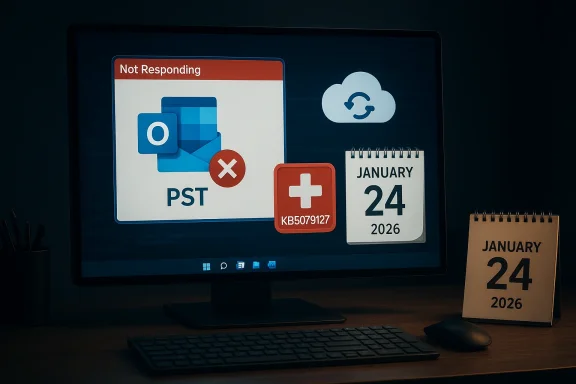
  • Outlook shows “Not Responding” during startup or when sending/syncing mail.
  • Outlook does not close properly and requires killing the process in Task Manager or rebooting to fully recover.
  • Sent messages don’t appear in Sent Items, and sometimes the client re‑downloads previously fetched messages — signs of file and index state inconsistencies.
Microsoft’s public notes and the out‑of‑band patch confirm this was a regression introduced by the January cumulative update, not an inherent flaw in OneDrive or Outlook alone. That distinction is important — it tells us the updater changed OS behavior in ways that exposed long‑standing fragility when PSTs live inside synchronized folders.

How widespread was the damage? — the facts and the things we can’t verify​

Multiple outlets reported widespread disruption and a flood of support requests from users and IT admins. Coverage from mainstream tech sites and community threads documented thousands of individual reports and many anecdotal accounts of day‑to‑day disruption. Microsoft’s own support pages acknowledged the problem for multiple OS versions and listed it as “Fixed” after KB5078127 was released.
However, precise metrics — how many machines were affected, how many Outlook users saw data loss, or whether “millions” suffered these crashes — are not published by Microsoft. Claims about millions of users experiencing the issue are therefore not independently verifiable with public telemetry today; reputable reporting uses terms like “widespread” and “many users” rather than concrete totals. Treat broad numeric claims as unverified unless Microsoft publishes specific telemetry later.

Microsoft’s emergency fix: what KB5078127 does (and how it’s delivered)​

KB5078127 is an out‑of‑band cumulative update that Microsoft made available via Windows Update and the Update Catalog for affected Windows 11 builds. The bulletin for KB5078127 explicitly states the update fixes the issue where applications became unresponsive when opening or saving files to cloud‑based storage, including cases where Outlook PST files were stored on OneDrive; it also notes improvements to handling cloud‑synchronised data and addresses subsequent system crashes reported after the January security rollout.
Key operational notes about the update:
  • The update is offered automatically through Windows Update for devices that already installed KB5074109 or KB5077744; administrators can also obtain the package manually.
  • Microsoft provides a Known Issue Rollback (KIR) path and Group Policy/MSI files for enterprises that need to propagate the mitigation through GPO or Intune faster than Windows Update would. The KIR approach temporarily disables the change that caused the regression and requires a restart to apply.
In short: the emergency patch restores the previous, compatible behavior for the file I/O path used by cloud sync clients, and Microsoft gave enterprise channels additional tools to accelerate remediation across managed estates.

What users should do now — practical, verifiable steps​

If you experienced Outlook crashes, hangs, missing sent items, or repeat downloads after the January 13 update, follow these prioritized steps. I’ve cross‑checked each recommendation against Microsoft guidance and troubleshooting articles.
  • Check Windows Update and install KB5078127 (if present). Open Settings > Windows Update and select “Check for updates.” If KB5078127 is available, install it and restart the PC. Microsoft lists this update as the fix for the problem.
  • If the update is not yet installed automatically, you can search for and install the out‑of‑band package manually through the Microsoft Update Catalog or your enterprise patching tool; once installed, restart. Microsoft’s KB page notes the update is available for manual download and via Windows Update.
  • If you cannot immediately install the patch, use webmail or the Outlook web client as a temporary workaround to send and receive messages until the desktop client becomes stable. Microsoft recommended webmail as a short‑term mitigation.
  • Move PST files out of OneDrive or other cloud‑synced folders. Microsoft’s guidance explains how to copy .pst files to a non‑synced folder (for example, C:\OutlookFiles), reattach the copy in Outlook, then remove the OneDrive copy from Outlook’s Data Files list. This is a recommended interim step to prevent PST I/O from traversing the cloud‑sync stack.
  • If you suspect PST corruption (missing Sent Items, odd duplication), run the Inbox Repair tool (ScanPST.exe) against the PST file to detect and repair issues. Microsoft documents ScanPST for repairing PSTs; several community threads also recommend running ScanPST after moving the file.
  • If you prefer to remove KB5074109 entirely, follow Microsoft’s documented uninstall procedures — but beware: some users reported errors (for example, 0x800f0905) when attempting the rollback. If you encounter uninstall errors, Microsoft and community reporting recommend using System Restore (if available) or uninstalling via the Windows Recovery Environment; these options are more invasive and require backups.
  • For enterprise environments: apply the Known Issue Rollback (KIR) ADMX/MSI via Group Policy or Intune as documented by Microsoft to temporarily disable the problematic change across managed devices. After applying the KIR, affected devices must restart. Microsoft’s KIR documentation describes the process and the policy MSI approach.

For admins: deploying KIR, audit, and containment​

Enterprise teams have three realistic paths:
  • Rapid KIR activation (recommended where wide impact is seen): download the KIR policy definition MSI that Microsoft published for the issue and deploy it through Group Policy or Intune (ADMX ingestion). Once the policy is applied, a restart enacts the rollback. Microsoft provides step‑by‑step guidance for both GPO and Intune routes.
  • Staged update deployment: use Windows Update for Business, WSUS or your patch management tool to delay or approve KB5074109 removal/KB5078127 deployment based on device groups and telemetry. Run pilot groups first, then escalate. This reduces blast radius but requires careful testing against corporate apps. (This is standard patching hygiene; KIR is the faster, surgical route.)
  • Endpoint mitigation: identify accounts still using PSTs stored on OneDrive (Known Folder Move, user Documents/Outlook Files), and move those PST files to a local, non‑synced folder using the Microsoft guidance. Consider blocking PST files from syncing to OneDrive via OneDrive admin controls if your organization prohibits PSTs in cloud folders. Microsoft’s OneDrive documentation acknowledges PST files may be synced less frequently and gives guidance on how to prevent PST syncing.

Data‑integrity and long‑term risk analysis​

This incident exposes two intertwined risks that administrators and users should take seriously:
  • Storing active Outlook PST files inside cloud‑sync folders is inherently fragile. OneDrive and similar services are not optimized for high‑frequency transactional access patterns that PSTs require, and when OS or sync behaviors change, data consistency or access can break. Microsoft supports moving PSTs out of OneDrive and even documents blocking PST syncing where needed. If your organization still relies on PSTs, it’s time to treat them as legacy artifacts and remove them from synchronized folders.
  • Patch regressions are inevitable at scale; the critical question is how fast the vendor detects, communicates, and mitigates. Microsoft shipped out‑of‑band fixes quickly, but communication and rollout created friction: an optional patch, then an emergency patch, and a KIR mechanism for enterprises. The speed of fixes matters, but so does the clarity of guidance for admins who face competing priorities (security vs availability). For organizations where uptime and data integrity are top priorities, this episode reinforces the need for robust update testing, staggered deployments, and documented rollback plans.

What Microsoft did well — and where this could have been handled better​

Strengths
  • Rapid remediation: Microsoft issued two out‑of‑band updates (KB5077744 and KB5078127) within two weeks of the original Patch Tuesday, and published clear KB articles describing symptoms, affected builds, and the fixes. The KIR mechanism and Group Policy MSI files give enterprise admins practical tools to accelerate remediation. These actions reflect a system capable of quick triage and focused fixes.
  • Clear, actionable user guidance: Microsoft provided step‑by‑step workarounds (webmail, moving PSTs out of OneDrive, uninstall options) and guidance on how to remove PST files from OneDrive, which helped less‑technical users avoid data loss.
Weaknesses and risks
  • Regressions in core file I/O semantics are highly disruptive. A change that affects how apps access files in cloud‑backed folders is a systemic risk because it touches many third‑party sync clients and legacy workflows (like PSTs in OneDrive). Better pre‑release testing for common, high‑risk scenarios — especially those involving OneDrive and widely used legacy data formats — might have avoided the incident. Independent reporting highlighted the scale of the disruption; the absence of public impact metrics made situational awareness harder for admins.
  • Uninstall fragility: a subset of users reported being unable to roll back KB5074109 cleanly, encountering uninstall errors (for example, 0x800f0905). That complication forced more invasive recovery paths (System Restore, WinRE uninstall), increasing the operational burden on support teams. Microsoft’s guidance on uninstalling the combined SSU+LCU packages explains limitations, but users and admins should be aware this rollback is not always straightforward.

Practical recommendations: hardening mail workflows going forward​

  • Keep PST files off cloud‑sync folders. Move active PSTs to local folders (C:\OutlookFiles or a secured network share) and use server‑based archives or Exchange Online mailboxes where possible. Microsoft explicitly documents how to relocate and reattach PST files.
  • Migrate away from PSTs where feasible. PSTs are brittle and were designed for a different era. Migration to OST/Exchange, Exchange Online Archiving, or modern IMAP/Exchange configurations reduces single‑file dependency and improves resiliency. Microsoft’s Outlook documentation shows OST locations and highlights that OSTs are a synchronized copy of server data and generally do not require the same backup choreography as PSTs.
  • Adopt phased update deployment. Use pilot rings, monitoring, and test plans for business‑critical applications. Staggering deployments and having rollback documentation reduces blast radius when regressions slip through. KIR exists as a targeted safety valve, but your organization should incorporate KIR into documented incident playbooks.
  • Back up PSTs and verify backups. If you must keep PSTs, maintain independent backups outside the sync client and periodically validate them with ScanPST. This reduces the chance of silent corruption.
  • Monitor vendor advisories. Subscribe to Windows release health updates and Microsoft support notifications, and track emergency patches and KIR announcements. Quick action matters when fixes are released.

Final assessment: stability restored, but lessons remain​

KB5078127 appears to have closed the most disruptive hole introduced by January’s rollup: applications that were freezing when interacting with cloud‑synced folders, and Outlook instances that hung when PSTs sat in OneDrive, now have a recorded fix and a supported remediation path. Microsoft’s KIR tooling and the out‑of‑band update give enterprises practical options to accelerate mitigation across fleets.
That said, the outage exposed brittle assumptions in long‑running user workflows (PSTs in OneDrive) and the inherent risk of large OS updates touching shared, cross‑component subsystems. Organizations would be wise to treat this incident as a prompt to modernize mail storage topologies, tighten update testing and rollout policies, and document rollback playbooks that include KIR as a supported lever. For individual users, the immediate advice is simple and verifiable: install KB5078127, move PSTs out of cloud‑synced folders, use webmail until the desktop client is stable, and keep backups.
If you’re still seeing problems after applying the patch and following the steps above, gather log evidence (Windows Event Viewer, Outlook logs), open a Microsoft support case if you have a commercial contract, and consider pilot testing a clean Outlook profile on an unpatched machine to verify whether PST movement or profile reconstruction resolves the issue. The crisis phase appears to be over; the recovery and prevention phase is where IT teams should now focus their energy.

Conclusion
The January 2026 Windows update incident — culminating in Outlook crashing on Windows 11 for users with PSTs in OneDrive — is a reminder that ecosystem complexity and legacy workflows still matter. Microsoft’s emergency update and KIR pathway fixed the immediate regression, but the root lesson is systemic: keep critical data formats out of sync clients when possible, adopt modern mail architectures, and maintain disciplined, staged update practices. The immediate emergency is resolved; the long‑term resilience of mail workflows depends on how organizations and users apply the lessons learned.

Source: punemirror.com Outlook crashing on Windows 11 chaos: emergency fix finally restores stability
 

Outlook users woke up to chaos after Microsoft’s mid‑January security rollup triggered a cascade of stability failures across Windows 11 — most visibly leaving classic Outlook profiles frozen, failing to close, or losing items when PST data lived inside cloud‑synced folders. Microsoft moved faster than usual: an initial out‑of‑band emergency patch arrived days after Patch Tuesday, and a consolidated emergency cumulative update (KB5078127) followed on January 24, 2026 to restore normal file I/O behavior and stop the Outlook hangs. This article explains precisely what broke, why PSTs in OneDrive and similar sync clients were uniquely exposed, how Microsoft responded, and what IT teams and home users should do now to recover, verify data integrity, and reduce future risk.

A computer monitor displays a Not Responding PST error with cloud sync and a calendar.Background / Overview​

The incident began with Microsoft’s January 13, 2026 Patch Tuesday security rollup (cataloged as KB5074109), which included a range of OS security and servicing updates across Windows 11 branches. Within days, telemetry and field reports identified several regressions: Remote Desktop and Azure Virtual Desktop sign‑in failures, unexpected shutdown/hibernate regressions on devices using Secure Launch, and a more severe class of file I/O regressions that broke applications when they opened or saved files inside cloud‑synced folders. Classic Outlook profiles — defined by POP accounts and PST archives frequently kept in user Documents or OneDrive — produced the most visible and disruptive symptoms.
Microsoft initially issued an optional out‑of‑band update (KB5077744) on January 17 to address several urgent issues but the cloud file I/O regressions persisted for many users. In response, Microsoft released a consolidated out‑of‑band cumulative update on January 24 (KB5078127) that bundles the January 13 security baseline, the earlier OOB fixes, and targeted corrections designed to restore consistent behavior when applications access files in cloud‑backed locations such as OneDrive and Dropbox. The KB5078127 package advances affected Windows 11 builds and includes Known Issue Rollback (KIR) artifacts and Group Policy options to help enterprise administrators apply surgical mitigations.

What went wrong: the technical picture in plain English​

At its core, this was not an Outlook application bug alone but a regression in the OS/file‑system/cloud‑sync interaction layer that changed how file operations were handled when a sync client provided placeholder or on‑demand files. When Windows altered timing, locking, or hydration semantics for files that live in a cloud‑synced folder, applications that depend on low‑latency, predictable file semantics could hang or behave incorrectly.
  • PST fragility. A PST is a monolithic local database file: Outlook expects direct, exclusive access with predictable locks and I/O sequencing. That model breaks when a sync client or OS layer may hydrate files asynchronously, present placeholder states, or interfere with file handles. In practical terms, Outlook could block waiting for I/O that never completed or end up in inconsistent write states, causing missing Sent Items or redownloaded messages.
  • Broader surface area. The same underlying regression affected other applications that open/save files in OneDrive or Dropbox folders, making this an ecosystem interoperability failure rather than a single app regression. That increased the urgency: productivity apps, editors, backup utilities, and Outlook all surfaced symptoms.
  • Symptoms observed by users. The most common, repeatable problems were Outlook showing “Not Responding” on launch, background OUTLOOK.EXE processes that wouldn’t terminate cleanly, missing entries in Sent Items despite messages being sent, and clients re‑downloading older mail. Many users solved the immediate freeze only by killing the process in Task Manager or rebooting the PC.
Microsoft’s public guidance and release notes describe the symptom class and the fix without publishing a line‑by‑line root‑cause post‑mortem; any deeper attribution to a single kernel change, a specific OneDrive behavior, or an OEM driver would be speculative until Microsoft publishes full engineering details. Treat such deeper claims as unverified.

Microsoft’s emergency response: timeline and contents​

  • January 13, 2026 — Microsoft ships the Patch Tuesday cumulative update (KB5074109). Users begin reporting multiple regressions, including cloud file I/O failures.
  • January 17, 2026 — Microsoft issues an initial out‑of‑band remedial update (KB5077744) to address high‑impact regressions such as Remote Desktop and shutdown issues. The cloud file I/O problem remains for many systems.
  • January 24, 2026 — Microsoft publishes a second out‑of‑band cumulative update (KB5078127) that consolidates prior fixes and explicitly addresses the regression where apps become unresponsive when opening or saving files in cloud‑backed storage (OneDrive, Dropbox). The update includes servicing stack improvements and KIR artifacts for enterprise deployment.
KB5078127 is distributed via Windows Update and the Microsoft Update Catalog, and it requires a restart because it combines a Servicing Stack Update (SSU) with the Latest Cumulative Update (LCU). For environments that require minimal downtime, Microsoft provided hotpatch variants for eligible systems to reduce restart impact. The company also published Known Issue Rollback Group Policy artifacts so administrators could mitigate the regression without uninstalling security fixes.
Independent outlets — including The Verge, Windows Central, and PCWorld — corroborated this sequence and emphasized that the fixes were aimed specifically at restoring file I/O semantics for cloud‑sync scenarios and at repairing Outlook behavior for classic PST profiles. These independent reports confirm Microsoft’s published guidance and highlight how disruptive the outage was across home and business users.

What to do now: step‑by‑step for home users and IT admins​

If you were affected, or want to proactively protect systems, follow this prioritized checklist. Each recommended action is grounded in Microsoft’s guidance and field best practice.
  • Immediate steps (home users and small offices)
  • Check Windows Update. Install KB5078127 if it’s offered. Reboot and verify Outlook behavior. KB5078127 is the targeted fix for the cloud file I/O regression.
  • If you can’t or won’t install immediately, temporarily use Outlook Web Access (webmail) to send/receive critical mail to avoid data inconsistency while you remediate. Microsoft explicitly recommends webmail as a short‑term mitigation.
  • Move active PST files out of OneDrive or other cloud‑synced folders to a local, unsynced folder (e.g., C:\OutlookFiles). Detach and reattach the local PST in Outlook to prevent PST I/O from traversing the cloud sync stack until you’ve applied the fix. This is the most reliable short‑term workaround.
  • Back up PST files before any move or remediation step. If you rely on OneDrive for backups, produce a separate local copy first. Always assume repair steps may change file timestamps or create temporary files.
  • Recovery steps if Outlook is currently hung or data appears inconsistent
  • End lingering OUTLOOK.EXE processes via Task Manager or restart the PC.
  • Install KB5078127 and reboot. Verify Outlook startup, sending, and Sent Items behavior.
  • If Sent Items are missing, check the PST copy and the server (if applicable) and verify whether messages were actually sent by checking server logs or the webmail Sent Items. If mail was sent but not recorded locally, consider exporting the server‑side Sent Items to preserve audit records.
  • Enterprise deployment checklist (IT admins)
  • Pilot in a ring that includes representative machines using OneDrive, Known Folder Move, and classic Outlook PST setups. Validate Outlook open/close, Sent Items behavior, and other core apps that interact with cloud‑backed folders.
  • Use Microsoft’s KIR Group Policy artifacts for immediate mitigation where rollback of the entire LCU is impractical. KIR allows targeted behavioral rollback without removing security patches. Apply, restart, and test.
  • If you must remove the LCU only, prepare DISM‑based removal and recovery playbooks — combined SSU+LCU packages complicate simple uninstalls. Document build and package names before removal and validate component store health (DISM /RestoreHealth and sfc /scannow).
  • Communicate to users: recommend webmail and a temporary pause of Known Folder Move or redirection of PSTs until devices receive KB5078127 or the KIR mitigations.

Critical analysis: strengths of Microsoft’s response — and the hard lessons​

Microsoft’s rapid, iterative remediation shows clear strengths: the company acknowledged multiple regressions quickly, issued a first OOB fix within four days, and consolidated a more comprehensive out‑of‑band cumulative update on January 24. The addition of Known Issue Rollback artifacts and hotpatch variants demonstrates operational flexibility and that Microsoft supports enterprise constraints on downtime. For users and admins who installed KB5078127, stability has been restored in many configurations.
However, several weaknesses and systemic lessons are evident:
  • Fragile interoperability between legacy models and cloud abstractions. PST files date back to an era when mail storage was strictly local. Modern overlay file providers (on‑demand hydration, placeholders) introduce timing/locking semantics that legacy code doesn’t tolerate. The industry should treat PST‑in‑sync‑folders as an anti‑pattern; organizations should accelerate migration to cloud‑native mailbox storage where practical.
  • Testing gaps in real‑world usage patterns. This incident suggests pre‑release validation did not sufficiently cover scenarios where user data lives under OneDrive/Dropbox or where Known Folder Move is used. Test matrices must include cloud sync clients, hardware/driver variants, and enterprise features such as Secure Launch.
  • Rollback and servicing complexity. Bundling SSUs with LCUs improves forward installation reliability, but it complicates selective uninstalls. Administrators need better telemetry and clearer uninstall guidance; reliance on KIR is helpful but may not be sufficient for all environments.
  • Communications and telemetry limitations. Multiple outlets reported widespread disruption, but Microsoft has not published precise telemetry on affected device counts. Assertions that “millions” were affected remain unverified without Microsoft telemetry disclosure; reputable sources frame the impact as widespread rather than numeric. Treat such large numeric claims cautiously until Microsoft provides data.

Risks and remaining unknowns​

  • Data integrity risk. Although Microsoft’s fix addresses the hanging and file‑I/O behaviors, any time a PST is manipulated under a sync client there is a non‑zero risk that subtle corruption or index inconsistencies could have occurred prior to remediation. Back up PSTs and verify mailbox integrity (Inbox Repair Tool / scanpst.exe where appropriate) after applying the patch. If you detect corruption, restore from a known‑good backup.
  • Residual regressions. The compressed cadence of emergency patches means there’s a non‑zero chance new side effects will emerge as the fixes propagate across diverse hardware and driver ecosystems. Monitor vendor advisories for firmware or driver updates that interact with the storage stack.
  • Operational dependency on KIR. Known Issue Rollback is a valuable mitigation, but it is an operational tool, not a substitute for robust QA. Organizations should document KIR usage and incorporate it into runbooks — but also push for telemetry that helps identify whether KIR has been successfully applied across their estate.
  • Long‑term product strategy. The root friction between legacy desktop file models and cloud‑first user expectations is not solved by one hotfix. Vendors and enterprises will need to align on migration strategies: remove active PSTs from synced folders, favor cloud mailboxes, or adopt architectures that ensure local files are exclusively local while backups are handled separately.

Quick reference: safe checklist (condensed)​

  • Check Windows Update; install KB5078127 and reboot. Verify Outlook behavior.
  • If you can’t install immediately, use Outlook Web and move PSTs out of OneDrive. Back up PSTs first.
  • For admins, pilot KB5078127 in a ring that includes cloud‑sync profiles, use KIR if needed, and document DISM rollback procedures.
  • If you observe missing Sent Items or duplicated downloads, check server‑side copies (webmail) and export server copies as needed. Run scanpst.exe on suspect PSTs and restore from backups if corruption is detected.

Conclusion​

The January 2026 Windows servicing cycle produced a high‑visibility lesson: legacy file models and modern cloud sync layers do not mix without rigorous validation. Microsoft’s rapid escalation — from the January 17 emergency patch to the January 24 consolidated fix (KB5078127) — illustrates both the company’s capacity to respond and the fragility of complex update pipelines. For affected users, the emergency patch restores stability in most reported cases; for IT teams, the incident is a concrete reminder to update operational playbooks: widen test matrices to include sync clients and legacy PST usage, prepare KIR and DISM rollback procedures, and accelerate migration off PSTs stored in synced folders.
Treat the immediate crisis as mitigated for systems that install KB5078127, but treat the episode itself as a prompt for longer‑term remediation: back up data, move PSTs out of synced folders, adopt cloud‑native mail storage where possible, and update your patch testing to reflect the real world your users inhabit. The emergency patch fixed the symptoms; the next stage is to harden the processes that allow such regressions to slip past in the first place.

Source: punemirror.com Outlook crashing on Windows 11 chaos: emergency fix finally restores stability
 

Windows 11’s January patch cycle produced a rare — and disruptive — three‑step cascade of updates that left several everyday apps unusable for many users before Microsoft pushed a corrective out‑of‑band update on January 24. The problematic chain began with the January 13 Patch Tuesday cumulative (tracked as KB5074109 for several servicing branches), produced an initial emergency patch on January 17, and culminated in the consolidated out‑of‑band cumulative KB5078127 (plus sibling KBs for other branches) that Microsoft says corrects applications becoming unresponsive when they access files stored in cloud‑synced folders such as OneDrive and Dropbox.

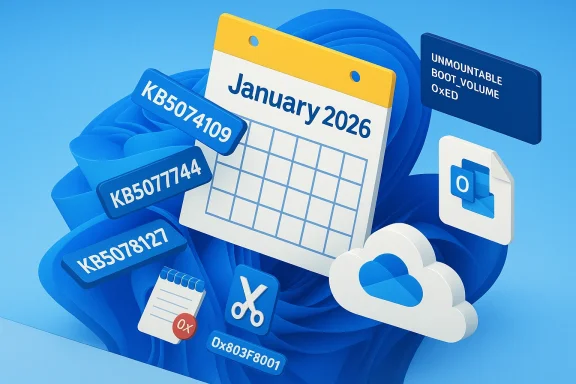
Blue 3D illustration of a January 2026 calendar surrounded by cloud icons and Office symbols.Background / Overview​

The disruption began with Microsoft’s standard January 13, 2026 Patch Tuesday release. Within days, customers and telemetry flagged multiple regressions across different subsystems: Remote Desktop authentication failures, power‑state and Secure Launch shutdown anomalies, Microsoft Store/app license validation errors that prevented some Store‑dependent apps from launching, and — most visibly to desktop users — file I/O and synchronization problems when apps tried to open or save files inside cloud‑synced folders. Those cloud I/O failures disproportionately affected legacy workflows such as the classic Outlook Win32 client when PST files were stored inside OneDrive.
Microsoft’s first emergency out‑of‑band (OOB) patch on January 17 addressed some of the highest‑impact symptoms (notably Remote Desktop and shutdown regressions), but did not fully remediate the cloud‑file I/O problems. As reports persisted, Microsoft issued a second OOB cumulative on January 24 — KB5078127 for Windows 11 versions 24H2 and 25H2, and KB5078132 for 23H2 — that consolidates the January 13 baseline, the January 17 emergency fixes, and additional corrections aimed squarely at the cloud file I/O regression.
Thiday, an immediate OOB, and a follow‑up OOB within two weeks — is unusual but reflects the severity of the regressions and the operational pressure on Microsoft to restore functionality for both consumers and enterprise customers. Multiple independent outlets and community forums tracked the sequence in near real time.

What broke — observable symptoms and affected apps​

Microsoft Store / app licensing failures (Notepad, Snipping Tool, and other Store apps)​

Some users reported that built‑in or Store‑dependent apps — including Notepad and Snipping Tool — failed to launch with an error that referenced account or license validation, commonly surfaced as error code 0x803F8001 or a message saying the app is “currently not available in your account.” These failures point to Microsoft Store entitlement or registration issues triggered by the update path rather than outright deletion of apps. Typical effective short‑term remedies included resetting the Store cache, signing out and signing back in, reinstalling affected apps, or applying the corrective updates once available.

Cloud file I/O regression — Outlook, OneDrive, Dropbox and third‑party apps​

The most visible productivity casualty was the classic Outlook (Win32) client when configured with POP accounts or local PST archives stored inside OneDrive‑synced folders. Users and admins reported Outlook hanging with “Not Responding,” background OUTLOOK.EXE instances that would not terminate, inability to reopen Outlook without killing the process or rebooting, missing Sent Items, and re‑downloads of previously fetched messages. Those behaviors are consistent with a file I/O or synchronization regression where the OS or cloud sync client changed timing, locking, or placeholder/hydration behavior in a way that broke legacy file semantics.
Beyond Outlook, any application that relied on deterministic, local file semantics when interacting with files presented by cloud sync clients (OneDrive, Dropbox) could hang or throw errors. That includes editors, backup utilities, and certain line‑of‑business tools that assume immediate synchronous writes and exclusive file locks. Microsoft’s KB explicitly references this class of behavior and frames KB5078127 as a fix for those problems.

Rare but severe boot failures​

Separately, a very small subset of devices failed to boot after the January rollout, presenting a UNMOUNTABLE_BOOT_VOLUME stop code (0xED) and requiring manual recovery via WinRE or restore/reimaging in the worst cases. Microsoft described these incidents as limited in scope but acknowledged they were investigating. These boot problems, while infrequent, are highly disruptive for affected users because they prevent normal startup and demand recovery work.

Why did this happen? A technical analysis​

The visible failure modes point to a tight, fragile interaction surface between three major components:
  • the Windows file I/O stack and possible servicing stack changes introduced by the January cumulative;
  • cloud sync clients (OneDrive, Dropbox) that use placeholders, on‑demand hydration and background uploads; and
  • legacy Win32 applications (Outlook with PSTs) that expect stable, POSIX‑like local file behavior and exclusive locks.
When the OS or a servicing change alters file‑handle semantics, oplock behavior, or hydration timing, an application that performs frequent random access and relies on exclusive locks (for example, Outlook's PST implementation) can deadlock or stall waiting for I/O that the cloud provider is delaying or presenting differently. The practical outcome is an app that shows “Not Responding” rather than a clean error code — and because PSTs are a monolithic file format, synchronization mismatches can lead to missing items or duplicate downloads when the client later reads inconsistent state. Microsoft’s support notes mirror this explanation without publicly revealing low‑level root cause code paths.
Another contributing factor is Microsoft’s packaging choice: the January out‑of‑band packages combine a Servicing Stack Update (SSU) with the Latest Cumulative Update (LCU). That bundling improves installation reliability but also complicates rollback — an ordinary wusa.exe /uninstall will not remove the SSU portion. Administrators who need to remove the LCU must use DISM /Remove‑Package with the LCU package name. This makes incident response more complex and underlines the importance of staged piloting.
Finally, the Store entitlement failures (the 0x803F8001 symptom) underscore how increasing reliance on Store registration and account entitlements expands the potential damage surface: when Store licensing, cache, or registration gets into a bad state, even core utilities that users expect to "just work" can fail to launch. That makes seemingly isolated update regressions far more visible and painful.

What Microsoft shipped and how they responded​

Microsoft’s public remediation path was threefold:
  • The baseline January 13 security and quality cumulative (tracked as KB5074109 for several Windows 11 branches) shipped first. That package introduced the regressions.
  • An initial out‑of‑band package on January 17 (KB5077744 and siblings) aimed to fix Remote Desktop and Secure Launch shutdown regressions. This reduced some urgent symptoms but did not fully cure the cloud file I/O issues.
  • A consolidated, cumulative out‑of‑band update on January 24 (KB5078127 for 24H2/25H2 and KB5078132 for 23H2) that includes the January 13 security fixes, the January 17 OOB fixes, and a targeted correction for the cloud file I/O regression that left apps unresponsive when accessing OneDrive/Dropbox files. Microsoft also published Known Issue Rollback (KIR) artifacts and Group Policy packages to let IT admins apply more surgical mitigations where necessary.
Microsoft’s KB pages explicitly call out the regression and the fixes. The KB entries also explain how to obtain the updates (Windows Update, Microsoft Update Cataloand provide guidance for enterprise deployments, hotpatch variants, and KIR‑based group policy mitigations. Because the KB combines SSU and LCU, Microsoft documents DISM removal steps for administrators who need to remove only the LCU portion.
Independent reporting and community telemetry corroborated the timeline and the symptoms, and highlighted the operational pain for administrators who had to decide between uninstalling a mandatory security rollup and tolerating productivity loss. That tradeoff is centrnagement: security compliance vs. operational stability.

Clear, actionable guidance for users and administrators​

Below are practical, prioritized steps to triage and remediate the most common problems generated by the January updates. These are organized so admins can apply them to fleets and end users can follow a safe path.

Immediate checks (for all users)​

  • Check Windows Update and install available OOB fixes: Open Settings > Windows Update and Check for updates. If KB5078127 (or the appropriate KB for your branch) is offered, install it and reboot. Microsoft recommends this for devices already running the January baseline or the January 17 OOB packages.
  • Verify app symptoms: If Notepad or other Store apps fail with a Store entitlement error (for example 0x803F8001), try the straightforward Store fixes: sign out and sign back into your Microsoft account, reset the Store cache (wsreset), or reinstall the affected Store app. These simple steps can resotitlement caches.

If Outlook or other apps hang when using OneDrive/Dropbox​

  • Immediately stop using PST files inside cloud‑synced folders. Move PSTs to a local unsynced folder (for example C:\UserlookData) and point Outlook to the relocated PST. This avoids thedration semantics. Microsoft listed moving PST files out of OneDrive as a mitigation.
  • If Outlook is unresponsive, use Task Manager to end the OUTLOOK.EXE process; if it cannot be killed, reboot the system. Back up PST files before further action. If messages appear missing, check web‑mail first (Outlook Web Access / Exchange Online) to confirm server copies of mail are present.
  • Apply KB5078127 (or branch equivalent) and then re‑test Outlook’s behavior against the relocated PST. If you must keep PSTs in synchronized folders, ensure the sync client is fully up to date and test behavior on a pilot machine before broad rollout.

If you need to roll back an LCU​

  • Because the SSU is bundled with the LCU in the January OOB packages, simple wusa.exe /uninstall may not remove the SSU. Microsoft documents the DISM /Remove‑Package approach to remove only the LCU package. Identify the exact package name from the update history and use DISM to remove that LCU. This is an administrative, advanced step and requires offline familiarity with DISM. Use backups/snapshots before attempting. ([support.microsoft.com](January 24, 2026—KB5078127 (OS Builds 26200.7628 and 26100.7628) Out-of-band - Microsoft Support mitigations
  • Use Known Issue Rollback (KIR) Group Policy artifacts where Microsoft supplied them to temporarily disable the change that caused the regression without uninstalling security updates. Microsoft published KIR artifacts and instructions for IT administrators.
  • Deploy the OOB update in a staged pilot ring (pilot, then broader rings) rather than approving globally immediately; test critical workflows that involve cloud‑synced folders and remote desktop scenarios. Make sure you have current backups of PSTs and system images before mass deployments.

Short checklist (quick reference)​

Strengths​

  • Rapid triage and multiple OOB releases: Microsoft acknowledged the issues and released targeted OOB fixes within days, culminating in a consolidated cumulative that specud file I/O regressions and Outlook PST hangs. This fast turnaround reduced downtime for many customers who adopted the OOB; the KB pages document the fixes and deployment guidance.
  • Enterprise controls and KIR support: The provision of Known Issue Rollback artifacts and Group Policy mitigations gave administrators a surgical option to neutralize the regression without removing security updates — a pragmatic approach for sensitive production environments.

Weaknesses / Risks​

  • Update packaging complicates rollback: Bundling SSU with LCU improves install reliability but makes rollback and incident response more complicated for administrators who need to remove only the cumulative portion. The required DISM steps are more advanced than a simple wusa uninstall.
  • Fragile interactions between cloud and legacy semantics: The incident demonstrates the brittle edge where legacy Win32 file semantics meet modern cloud placeholder/hydration systems. As more users and IT shops mix local containers (PSTs) with cloud‑sync scopes, the chance of subtle timing or locking regressions increases. Microsoft and cloud sync vendors will need to invest in regression suites that more comprehensively cover these interaction surfaces.
  • Communication noise and user pain: Because the initial failure modes manifested differently across devices (app license errors, cloud I/O hangs, and in rare cases boot failures), administrators faced difficult choices between uninstalling mandatory security fixes and tolerating productivity loss. This raises questions about how Microsoft stages mandatory security ports that also change non‑security surface area. Community reporting and independent outlets amplified the disruption.

Broader implications and lessons for IT teams​

  • Test cloud‑sync scenarios explicitly. Any enterprise that allows or relies on local archives within cloud‑synced folders should include those workflows in update testing. Legacy formats such as PST are especially brittle and should be assumed to be sensitive to file system semantics.
  • Maintain clear rollback and recovery playbooks. Because simple uninstallation may not be possible for combined SSU+LCU packages, teams should document DISM removal, snapshot/backup restores, and offline recovery steps before a mass rollout.
  • Consider cloud‑native transitions. Where possible, move away from PST‑based workflows and toward cloud‑native mail profiles (Exchange Online/Outlook modern profiles) that are designed for online synchronization rather than local file containers. The incident highlights the operational cost of mixing monolithic local files with cloud sync systems.
  • Communicate with users. For service desks, clear guidance (move PST out of OneDrive temporarily; use Outlook web while remediating; backup PSTs) reduces ticket volume and prevents data loss from ill‑advised user interventions.

What remains uncertain and what to watch next​

Microsoft’s public KBs describe the symptoms and the corrective measures in broad terms but stop short of publishing low‑level root cause analyses of the underlying code path. That means the precise kernel or file system change that triggered the regression remains opaque to the public. Treat any deeper causal claims in community posts as hypotheses unless Microsoft or a trusted technical deep‑dive provides confirmation. If you need to plan long‑term mitigations, watch Microsoft’s release health dashboard and KB updates for follow‑on advisories and any retrospective analysis they publish.
Also watch for cumulative updates that follow KB5078127: Microsoft said it’s working on additional resolutions and the KIR artifacts are temporary mitigations pending stable fixes in future updates. Administrators should track update history and test new rollups in staged rings.

Final takeaway​

The January 2026 Windows update saga is a reminder that modern operating system servicing touches a vastly bigger surface area than traditional security updates did. The intersection of legacy Win32 file semantics, cloud sync clients, Store‑based app registration, and servicing packaging choices produced a compound failure that manifested across multiple app types and device configurations. Microsoft responded quickly with targeted OOB releases and enterprise mitigations — and KB5078127 appears to address the most egregious cloud file I/O regressions — but the incident underscores enduring lessons for administrators: pilot updates, keep clean backups, avoid storing legacy monolithic files inside cloud‑synced folders when possible, and maintain a tested rollback playbook for complex cumulative packages.
If your systems are affected, prioritize moving PSTs out of OneDrive, install the January 24 OOB update for your servicing branch (or apply the KIR Group Policy if you manage fleets and require surgical control), and validate your rollback and recovery steps before wide deployment. Where specifics remain unverified at the kernel or file‑system level, proceed cautiously and rely on Microsoft’s KB guidance while monitoring for any follow‑on advisories.


Source: IOL Uh-oh! Windows updates broke a number of basic apps
 

Back
Top