

Microsoft’s January servicing cycle for Windows 11 turned turbulent this month after the Patch Tuesday rollup released on January 13 (KB5074109) triggered a chain of regressions that left everyday apps — from classic Outlook to cloud‑backed editors — hanging or failing. Microsoft pushed two emergency out‑of‑band (OOB) packages, first on January 17 and then a consolidated cumulative update, KB5078127, on January 24 to address the problems. The OOB release explicitly fixes a cloud file‑I/O regression that caused apps to become unresponsive when opening or saving files in OneDrive, Dropbox and similar services, and Microsoft documents that the update resolves classic Outlook hangs tied to PST files stored in OneDrive.
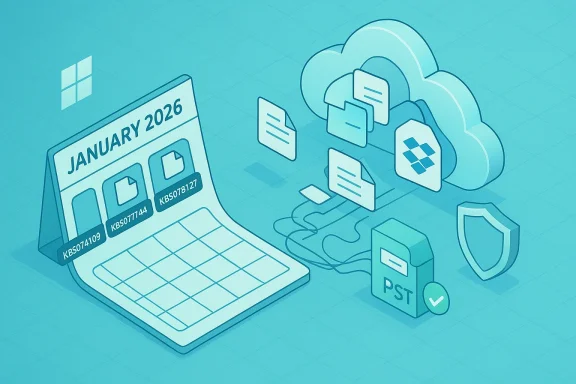
Windows’ monthly Patch Tuesday model is designed to keep billions of devices secure, but the January 2026 rollup behaved like a one‑two punch: a broad cumulative update on January 13 (KB5074109), an emergency patch mid‑month to repair immediate regressions, and then a second emergency cumulative on January 24 (KB5078127) that consolidated fixes and repaired the most visible fallout. Microsoft’s public support notes and the Windows release‑health dashboard list the three‑step timeline and map the fixes to specific symptoms and OS build numbers (for example, OS Build 26200.7628 for 25H2 and 26100.7628 for 24H2).
This compressed cadence is unusual for Microsoft and has left many end users and IT teams asking hard questions: why did a security‑first rollup produce functional regressions, why did an initial emergency patch fail to fully remediate the damage, and what should administrators do now to balance security and stability? Independent reporting and diagnostic threads demonstrate the operational impact: working mailboxes going dark, editors failing to save, and, in a limited set of cases, boot failures requiring offline recovery.
A small change in timing or lock behavior in the OS file stack can therefore deadlock a legacy Win32 client that expects immediate behavior. The result in January was predictable from a systems‑theory perspective: Outlook could hang while waiting for I/O that the sync client or OS delayed, leaving background OUTLOOK.EXE processes that would not terminate cleanly. Microsoft’s KB text explicitly calls this out and lists the cloud‑file fix as the central corrective for KB5078127.
This is not a simple “Outlook bug” — it’s a platform interoperability problem where multiple moving parts (OS file stack, sync client, legacy app expectations) must be precisely coordinated. When one piece changes, the assumptions break.
Microsoft also published workarounds and advice for administrators: move PST files out of OneDrive, use webmail access for affected accounts, and, where necessary, remove the January cumulative update as an interim mitigation. For enterprise environments, Microsoft published Known Issue Rollback (KIR) artifacts and Group Policy mitigations to disable the change causing the issue without fully uninstalling security updates — a safer mitigation path for managed fleets.
Independent outlets and security/IT trade press tracked the incident in near‑real time and documented user workarounds and removal procedures for those who could not wait for the final OOB fix.
That said, the sequence — a monthly cumulative that regresses, a mid‑month emergency patch that doesn’t fully remediate, and a consolidated OOB two weeks later — exposes two structural truths. First, complex ecosystems with legacy and modern components are fragile in the face of low‑level timing changes. Second, organizations must design patching and recovery practices that accept the inevitability of regressions: canary rings, quick rollback paths, tested recovery media, and policies that avoid fragile file placements (for example, PSTs inside cloud sync scopes).
If your machine was affected and you’ve installed KB5078127, verify app behavior and maintain normal backup and monitoring discipline. If you’re an admin, prioritize canary testing, apply Microsoft’s KIR or cumulative update in a controlled ring, and treat PSTs stored in cloud‑synced folders as technical debt to be remediated. The January sequence will be a reference case for Windows patch management for some time — and it’s one that underscores why change control matters as much as security in large‑scale OS maintenance.
Conclusion
The January 2026 Windows servicing incident shows the tradeoffs and fragility that occur when legacy file‑semantics meet modern cloud sync models at scale. Microsoft’s KB5078127 is the corrective update that brings back normal file I/O behavior for most users and resolves the Outlook PST hang scenarios, but the episode should prompt administrators and power users to review patch windows, avoid fragile storage patterns, and prioritize recovery readiness. Apply KB5078127 if you haven’t already, follow Microsoft’s advised mitigations if you are still symptomatic, and treat this as a reminder that robust patch management and recovery planning are now core parts of owning any Windows estate.
Source: sundayindependent.co.za Uh-oh! Windows updates broke a number of basic apps
 Background: three updates, three weeks, and rising alarm
Windows’ monthly Patch Tuesday model is designed to keep billions of devices secure, but the January 2026 rollup behaved like a one‑two punch: a broad cumulative update on January 13 (KB5074109), an emergency patch mid‑month to repair immediate regressions, and then a second emergency cumulative on January 24 (KB5078127) that consolidated fixes and repaired the most visible fallout. Microsoft’s public support notes and the Windows release‑health dashboard list the three‑step timeline and map the fixes to specific symptoms and OS build numbers (for example, OS Build 26200.7628 for 25H2 and 26100.7628 for 24H2). This compressed cadence is unusual for Microsoft and has left many end users and IT teams asking hard questions: why did a security‑first rollup produce functional regressions, why did an initial emergency patch fail to fully remediate the damage, and what should administrators do now to balance security and stability? Independent reporting and diagnostic threads demonstrate the operational impact: working mailboxes going dark, editors failing to save, and, in a limited set of cases, boot failures requiring offline recovery.
What exactly broke — a concise, verifiable summary
- Classic Outlook (Win32) with PSTs in OneDrive: many users reported Outlook freezing with “Not Responding,” processes that would not terminate, missing Sent Items, and repeated re‑downloads of mail. Microsoft’s KB notes that Outlook may hang if PST files are stored in OneDrive; KB5078127 addresses this behavior.
- Apps accessing cloud‑backed files (OneDrive, Dropbox): applications that expected synchronous, local file semantics could hang or throw unexpected errors when opening or saving files presented by cloud sync clients. Microsoft explicitly calls out this class of failure in the January 24 OOB notes.
- Remote Desktop / Azure Virtual Desktop authentication failures: credential prompt failures and sign‑in errors for some remote connection workflows were acknowledged after the January 13 update and were part of the reason Microsoft issued the January 17 emergency patch. The later OOB also lists resolved issues in this domain.
- Microsoft Store / entitlement regressions (reported by users): some store‑dependent apps failed to launch with error code 0x803F8001 in community reports; these were likely tied to Microsoft Store entitlement or registration glitches triggered around the update window. These reports are prevalent in forum archives and community diagnostics, but Microsoft’s KB emphasizes the cloud file‑I/O problem as the central fix. Treat the Store/entitlement reports as community observations that co‑occurred with the January cycle.
- Rare boot failures / UNMOUNTABLE_BOOT_VOLUME: a limited subset of devices experienced severe startup failures after the January 13 cumulative; Microsoft and community monitors flagged UNMOUNTABLE_BOOT_VOLUME (Stop Code 0xED) in a minority of instances. These were disruptive but described by Microsoft as limited in scope.
Timeline: the three‑step remediation sprint
- January 13, 2026 — Microsoft ships the monthly cumulative security update (tracked for many branches as KB5074109). Telemetry and forum posts begin flagging regressions the same week.
- January 17, 2026 — Microsoft issues the first out‑of‑band emergency update (examples include KB5077744), addressing the most critical failures like Remote Desktop and shutdown/login problems.
- January 24, 2026 — Microsoft releases a consolidated out‑of‑band cumulative update, KB5078127, that bundles the January 13 baseline, the January 17 emergency patch, and fixes the cloud file‑I/O regression impacting OneDrive/Dropbox and classic Outlook PST scenarios. The update is delivered through Windows Update and the Microsoft Update Catalog.
Technical anatomy: why PSTs + OneDrive + legacy apps lost the race
At the core of the outage was an interoperability regression between the Windows file stack and modern cloud‑sync client semantics (placeholder/hydration models). Classic Outlook expects deterministic, synchronous file semantics and exclusive locks for PST files. Cloud sync clients — including OneDrive and third‑party sync engines like Dropbox — expose files through placeholder entries that can change hydration timing, locking semantics, and perceived latency.A small change in timing or lock behavior in the OS file stack can therefore deadlock a legacy Win32 client that expects immediate behavior. The result in January was predictable from a systems‑theory perspective: Outlook could hang while waiting for I/O that the sync client or OS delayed, leaving background OUTLOOK.EXE processes that would not terminate cleanly. Microsoft’s KB text explicitly calls this out and lists the cloud‑file fix as the central corrective for KB5078127.
This is not a simple “Outlook bug” — it’s a platform interoperability problem where multiple moving parts (OS file stack, sync client, legacy app expectations) must be precisely coordinated. When one piece changes, the assumptions break.
Which apps were affected — verified list and the murkier claims
- Confirmed / documented by Microsoft:
- Classic Outlook (Win32) when PSTs are stored on OneDrive — Outlook hangs and may not reopen; fixed in KB5078127.
- Any application opening/saving files in OneDrive or Dropbox may become unresponsive or encounter errors — KB5078127 lists the file system fix.
- Remote Desktop / Azure Virtual Desktop authentication issues were acknowledged and mitigated across the OOBs.
- Widely reported by users and independent outlets (corroborated by community telemetry and technical reporting):
- Notepad, Snipping Tool, and other Store‑dependent apps: multiple community threads reported store entitlement/launch failures (0x803F8001) for Notepad and similar tools after the January updates, though Microsoft’s KB emphasizes cloud I/O as the central fix. These claims are credible in community reporting but are primarily user‑observed rather than the central focus of Microsoft’s KB. Treat these Store entitlement failures as plausible and worth troubleshooting (reset Store cache, re‑sign into Microsoft account, reinstall the app), but note they weren’t the primary item Microsoft listed in KB5078127.
- Other third‑party apps that rely on local file semantics (editors, backup tools, in‑house line‑of‑business apps) showed symptoms consistent with a file‑I/O regression; the footprint and severity varied with each app’s design and the user’s OneDrive/Dropbox usage.
How Microsoft responded — what KB5078127 does and doesn’t do
Microsoft’s January 24 out‑of‑band update, KB5078127, is cumulative: it bundles the January 13 security LCU (KB5074109), the January 17 emergency edits, and targeted fixes for the cloud file‑I/O regression. The KB notes the precise symptom it corrects: “After installing the Windows update released on and after January 13, 2026, some applications became unresponsive or encountered unexpected errors when opening files from or saving files to cloud‑based storage, such as OneDrive or Dropbox. In certain Outlook configurations that store PST files on OneDrive, Outlook may hang and fail to reopen.”Microsoft also published workarounds and advice for administrators: move PST files out of OneDrive, use webmail access for affected accounts, and, where necessary, remove the January cumulative update as an interim mitigation. For enterprise environments, Microsoft published Known Issue Rollback (KIR) artifacts and Group Policy mitigations to disable the change causing the issue without fully uninstalling security updates — a safer mitigation path for managed fleets.
Independent outlets and security/IT trade press tracked the incident in near‑real time and documented user workarounds and removal procedures for those who could not wait for the final OOB fix.
Practical, step‑by‑step guidance for affected users and admins
If you’re seeing symptoms after the January updates, follow this prioritized checklist. These steps balance operational recovery and security considerations.- Check whether KB5078127 is installed (recommended first step).
- Settings > Windows Update > Update history > Look for KB5078127 (or check OS build numbers referenced in Microsoft KB). If it’s installed, reboot and retest the affected app.
- If KB5078127 is not yet installed and you’re affected, install the OOB update using Windows Update or the Microsoft Update Catalog. The update is cumulative and intended to restore affected app functionality.
- Immediate workarounds if Outlook is hanging:
- Move PST files out of OneDrive sync scope to a local folder, then open Outlook. This has been repeatedly recommended by Microsoft as a mitigation.
- Use Outlook on the web (OWA) or your mail provider’s webmail until the update is applied.
- If you must remove the January 13 update (risk: temporary reduction in security posture):
- Uninstall KB5074109 via Settings > Windows Update > Update history > Uninstall updates. If uninstall is blocked, use the DISM/Remove‑Package option described by Microsoft or restore a System Restore point. Note: some machines encountered errors when uninstalling — seek guidance and back up data first.
- For enterprise administrators:
- Use Microsoft’s KIR and Group Policy artifacts to temporarily disable the change causing the regression without uninstalling security updates, test in a canary ring, then roll to production only after verification.
- If you see Store entitlement errors (0x803F8001) for Notepad or similar:
- Reset the Microsoft Store cache (wsreset.exe), sign out and back into your Microsoft account, and reinstall the affected app package. These steps helped many community members recover app launches. Note: these Store issues were community‑observed and less emphasized in Microsoft’s KB than the cloud‑I/O fix.
Risks, caveats and what to watch for next
- Security vs. availability trade‑off: Uninstalling a security cumulative update is a blunt instrument — it restores functionality but reduces your device’s security posture. Prefer KIR or the official OOB patch when possible. Microsoft’s OOB packages are cumulative and include security fixes as well as quality updates, so applying KB5078127 generally restores both security and stability for affected scenarios.
- Partial remediation is possible: Microsoft’s January 17 emergency fix fixed some symptoms but did not resolve the cloud file‑I/O regression fully, forcing the January 24 consolidated OOB. If you installed the first emergency patch but still see Outlook or OneDrive problems, KB5078127 is the corrective release you should target.
- Not all claims are equally verified: Community reports naming Notepad, Snipping Tool and other built‑in apps as failing are credible and widespread in user forums, but Microsoft’s KB is explicit about the cloud file‑I/O regression as the central issue. Treat Store entitlement errors as secondary but actionable — try the Store cache and reinstallation steps first. Flag any claims about widespread data loss as unverified until confirmed by Microsoft or by reproducible telemetry.
- Boot failures remain a serious edge case: UNMOUNTABLE_BOOT_VOLUME and similar start‑up faults were reported in a limited number of machines. If your device will not boot, follow Microsoft’s recovery guidance (WinRE, bootable recovery media) or consult your organization’s recovery runbook; do not attempt on‑the‑fly remediations without a full backup.
What this episode means for Windows update strategy
For IT leaders and technically savvy home users, January’s incident is a case study in why patch management must be a controlled process:- Treat major cumulative updates as change events. Patch windows, representative hardware tests, and canary rings remain essential, even for security updates. The scale and diversity of the Windows ecosystem means that regressions will happen; the question is how well you can detect, isolate and roll back without disrupting critical services.
- Preserve recovery channels. Reliable recovery media, accessible BitLocker keys, and tested WinRE flows are non‑negotiable. Several affected machines needed offline recovery after this cycle.
- Favor mitigations that preserve security. Known Issue Rollback (KIR) artifacts and Group Policy mitigations allow targeted control without removing security fixes. These are better for production fleets than wholesale uninstall of an LCU.
- Document and avoid fragile patterns. Storing legacy PST files inside cloud‑synced folders is a convenience that increases fragility. For organizations with legacy Outlook usage, keep PSTs on local, managed storage or migrate mail archives to server‑based or modern mailbox solutions.
Final verdict: Microsoft fixed the symptom — but the bigger lesson remains
KB5078127, released on January 24, 2026, appears to correct the most damaging regression introduced by the January 13 cumulative update: applications becoming unresponsive when interacting with cloud‑backed files and the associated Outlook PST hang scenario. Microsoft documented the fix and provided both emergency and enterprise‑level mitigations to restore functionality; independent outlets and community telemetry confirm that many users recovered after installing the OOB cumulative.That said, the sequence — a monthly cumulative that regresses, a mid‑month emergency patch that doesn’t fully remediate, and a consolidated OOB two weeks later — exposes two structural truths. First, complex ecosystems with legacy and modern components are fragile in the face of low‑level timing changes. Second, organizations must design patching and recovery practices that accept the inevitability of regressions: canary rings, quick rollback paths, tested recovery media, and policies that avoid fragile file placements (for example, PSTs inside cloud sync scopes).
If your machine was affected and you’ve installed KB5078127, verify app behavior and maintain normal backup and monitoring discipline. If you’re an admin, prioritize canary testing, apply Microsoft’s KIR or cumulative update in a controlled ring, and treat PSTs stored in cloud‑synced folders as technical debt to be remediated. The January sequence will be a reference case for Windows patch management for some time — and it’s one that underscores why change control matters as much as security in large‑scale OS maintenance.
Conclusion
The January 2026 Windows servicing incident shows the tradeoffs and fragility that occur when legacy file‑semantics meet modern cloud sync models at scale. Microsoft’s KB5078127 is the corrective update that brings back normal file I/O behavior for most users and resolves the Outlook PST hang scenarios, but the episode should prompt administrators and power users to review patch windows, avoid fragile storage patterns, and prioritize recovery readiness. Apply KB5078127 if you haven’t already, follow Microsoft’s advised mitigations if you are still symptomatic, and treat this as a reminder that robust patch management and recovery planning are now core parts of owning any Windows estate.
Source: sundayindependent.co.za Uh-oh! Windows updates broke a number of basic apps
