

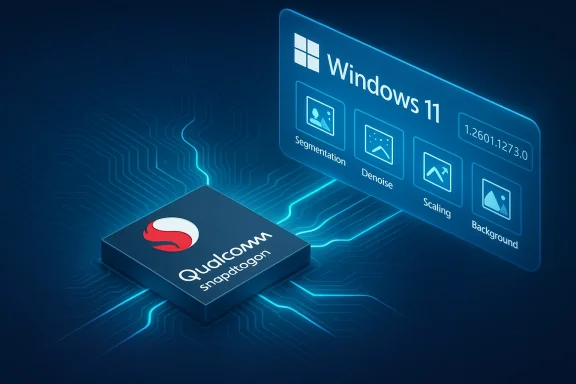
Microsoft’s terse update note for KB5079261 says the Image Processing AI component for Qualcomm-powered systems has been bumped to version 1.2601.1273.0 and will be delivered automatically to eligible devices running Windows 11, version 26H1. The package, Microsoft explains, focuses on the low-level image primitives Windows uses to determine scaling metadata and to separate foreground from background — the building blocks behind super‑resolution, object erase/inpainting, and background replacement features — and it requires that devices already have the latest cumulative update for Windows 11, version 26H1 installed before the component will appear in Update history.
Windows is increasingly shipping small, per‑silicon AI components outside of the traditional cumulative update cadence. These components — Image Processing, Image Transform, Phi Silica (local SLM), and multiple execution providers — are updated independently to allow faster iteration on models and runtimes tuned for specific NPUs and drivers. That pattern explains why Microsoft publishes many short KB notes that say only “includes improvements” while leaving the engineering details to partners and internal telemetry. This approach has been documented in Microsoft’s AI components release notes and is visible across several recent KBs.
The Image Processing AI component has an operational scope that is easy to miss until it changes: it helps Windows apps and system features measure image scale, denoise, segment foreground vs background, and prepare pixel data for downstream generative or transform operations. In short, it sits at the crossroads of the Camera/Photos pipeline, Windows Studio Effects, Paint / Copilot imaging features, and any UI that relies on fast, local image segmentation and scaling. Previous Qualcomm-targeted Image Processing component updates follow the same installation model and messaging style (for example, earlier Qualcomm Image Processing updates listed under other KB numbers used the same “includes improvements” summary).
That said, the model also shifts complexity to administrators, third‑party devs, and OEMs. IT teams must reconcile:
If you manage or use Copilot+ Qualcomm hardware, test first, verify drivers, and collect diagnostics for any unexpected behavior. The per‑silicon cadence is a powerful tool for fixing real problems quickly — but it requires disciplined validation in the field to keep user experiences consistent and predictable.
Source: Microsoft Support KB5079261: Image Processing AI component update (version 1.2601.1273.0) for Qualcomm-powered systems - Microsoft Support
 Background / Overview
Windows is increasingly shipping small, per‑silicon AI components outside of the traditional cumulative update cadence. These components — Image Processing, Image Transform, Phi Silica (local SLM), and multiple execution providers — are updated independently to allow faster iteration on models and runtimes tuned for specific NPUs and drivers. That pattern explains why Microsoft publishes many short KB notes that say only “includes improvements” while leaving the engineering details to partners and internal telemetry. This approach has been documented in Microsoft’s AI components release notes and is visible across several recent KBs.The Image Processing AI component has an operational scope that is easy to miss until it changes: it helps Windows apps and system features measure image scale, denoise, segment foreground vs background, and prepare pixel data for downstream generative or transform operations. In short, it sits at the crossroads of the Camera/Photos pipeline, Windows Studio Effects, Paint / Copilot imaging features, and any UI that relies on fast, local image segmentation and scaling. Previous Qualcomm-targeted Image Processing component updates follow the same installation model and messaging style (for example, earlier Qualcomm Image Processing updates listed under other KB numbers used the same “includes improvements” summary).
What KB5079261 actually says (and what it doesn’t)
- What Microsoft’s public note reports:
- The Image Processing AI component for Qualcomm-powered systems has been updated to 1.2601.1273.0.
- The update targets devices on Windows 11, version 26H1 and will install automatically via Windows Update when the machine has the required cumulative OS servicing in place.
- After installation the update is visible in Settings > Windows Update > Update history with a build/label entry specific to Qualcomm-powered systems.
- What Microsoft’s note omits:
- A line‑by‑line changelog, model weight diffs, or operator/runtime changes.
- Any performance metrics (latency, power, NPU utilization) or clear before/after benchmarks.
- Security or CVE mapping (component KBs of this style commonly do not list CVEs unless they are security patches).
- Checksums, standalone ISOs, or manual MSU download links for offline deployment.
Who should care — scope and applicability
- Target hardware: Qualcomm-powered Copilot+ / Snapdragon X2 class devices (ARM64 NPU-equipped machines). This is not a generic Windows client patch for every PC.
- Target OS: Windows 11, version 26H1 (a hardware‑scoped release that ships on select new OEM devices and is distinct from mainstream 24H2/25H2 servicing). If you are not running 26H1 on a qualifying Qualcomm device, this update will not apply. Recent coverage confirms 26H1 is being delivered as a platform release for next‑gen ARM hardware and is not an in‑place feature update for older PCs.
- Delivery model: Automatic via Windows Update once the cumulative prerequisite is met. There is no broad downloadable feature pack published in the KB note for manual install; administrators should expect the package as an automatic component-level servicing payload.
Why this matters: practical effects you may see
Small component updates like this are rarely dramatic, but they can have noticeable, direct user impact in specific places:- Improvements in foreground/background segmentation can make object selection, background blur/replacement (video calls), and “remove background” style workflows more accurate.
- Image scaling and super‑resolution may benefit, with better upscaling results and fewer artifacts on compressed images.
- Runtime changes can shift load from CPU to NPU (or vice versa), affecting battery life and heat profiles during image-heavy tasks.
- Compatibility with OEM NPU drivers and execution providers (e.g., Qualcomm’s QNN/ONNX backends) may be improved or, in rare cases, introduce regressions if driver and component versions are mismatched.
Deployment & prerequisites — what to check before expecting it to appear
- Confirm OS and build:
- Device must be running Windows 11, version 26H1 and have the latest cumulative update (LCU) for that version installed. Microsoft explicitly ties component installation to the presence of the latest cumulative servicing for the target OS branch.
- Confirm hardware:
- The device must be Qualcomm‑powered and meet Copilot+ / Snapdragon X2 platform requirements. If you have Intel/AMD hardware, different per‑silicon packages exist (Intel and AMD have their own Image Processing KBs and version numbers).
- How it arrives:
- The update is delivered automatically through Windows Update. There is no public manual download link in the KB note; administrators should expect it as a component payload that appears in Update history after installation.
- How to verify:
- Settings → Windows Update → Update history will show an entry like “Image Processing version 1.2601.1273.0 for Qualcomm-powered systems (KB5079261)” after the update is applied.
- If the entry is not present, verify cumulative updates and hardware compatibility, then check Windows Update again.
Testing checklist for users and IT admins
Before and after the component installs, use this checklist to detect functional or performance changes and to gather evidence if you must escalate to Microsoft or the OEM:- Functional checks (user-facing)
- Open the Photos app and test crop + enhance, auto‑fix, and upscaling routines on a set of representative images (small, medium, large; compressed vs RAW).
- Run the Camera app’s portrait/segmentation modes and test background blur/replacement in a video call (Teams/Zoom/Meet).
- Try inpainting/object erase features in Paint / Cocreator or native Photos editing if supported.
- Performance & resource checks
- Run a short workload that uses image transforms and watch for changes in responsiveness and battery draw during the test period.
- Note any unexpected CPU or thermal throttling.
- Stability & logging
- Check Reliability Monitor and Event Viewer for new errors tied to imaging, AI components, or Qualcomm NPU drivers in the 24–48 hours after install.
- If a regression is observed, collect Logs (Feedback Hub, diagnostic traces) and reproduce the steps so OEM or Microsoft support can triage.
- Compatibility checks
- Confirm OEM drivers (Qualcomm NPU drivers, GPU drivers) are on the latest vendor-supplied versions — component updates assume compatible driver stacks.
- Validate that third‑party imaging apps that rely on hardware offload still run as expected.
Troubleshooting and mitigation
If you see problems after the update:- Short‑term rollback options:
- Windows Update > Update history > Uninstall updates (if the component shows as uninstallable). Not all component updates provide a user-uninstall path.
- If the component is not removable from the UI, use your device management solution (Windows Update for Business, Microsoft Intune, or WSUS) to block or delay the component’s rollout to affected machines.
- Collect diagnostics:
- Use Feedback Hub to file a problem report and attach diagnostic traces.
- Document exact reproduction steps, device model, OS build (include the KB5077179 / cumulative OS LCU build referenced on the device), Qualcomm driver versions, and approximate timing of the change.
- Escalation:
- If the issue impacts business operations, escalate through OEM support (most NPU/driver issues are best handled in cooperation with OEM/Qualcomm), and open a Microsoft support case if required.
Security, privacy and risk considerations
- Security posture:
- These Image Processing component KBs, historically, are service updates aimed at feature and reliability adjustments rather than direct security patches. Microsoft’s public notes for similar Image Processing updates do not typically list CVE fixes; that does not mean a security change can’t be present, but it suggests that admins should not treat these KBs as imperative security updates by default. If you need security assurances, request more detail through your Microsoft or OEM support channel.
- Privacy and data handling:
- On‑device AI reduces cloud roundtrips (a privacy benefit), but changes to image segmentation and preprocessing could affect what telemetry is collected when diagnostics are enabled. Review telemetry settings for Copilot+ and on‑device AI components in enterprise deployments and update privacy notices if you operate a BYOD or customer-facing fleet that might change user expectations. Microsoft’s Copilot+ and on‑device AI messaging emphasize local processing, but admins should continue to validate privacy posture through their compliance channels.
- Fragmentation risk:
- Because updates are per‑silicon and per‑OS branch (24H2/25H2/26H1), fleets with mixed hardware and different Windows branches will have divergent component versions. That fragmentation can complicate troubleshooting and user experience parity in large organizations and should be factored into testing and update‑control policies. Previous coverage of 26H1 shows Microsoft shipping a separate servicing lane for hardware-optimized releases, highlighting this fragmentation risk.
The bigger picture: Microsoft’s componentized AI servicing model
KB5079261 (as described) is an example of Microsoft’s ongoing strategy: ship smaller, targeted updates that adjust models and runtimes for specific NPUs and OEM driver stacks without waiting for a full OS feature update. This makes sense technically — NPUs, quantization strategies and memory layouts vary by vendor and generation, so per‑silicon updates reduce the risk of cross‑platform regressions and speed up fixes.That said, the model also shifts complexity to administrators, third‑party devs, and OEMs. IT teams must reconcile:
- Faster iteration (good: quicker fixes and improvements).
- Increased servicing complexity (bad: per‑silicon differences, more items to test).
- Opacity in public messaging (neutral: shorter notes, but less clue about what changed).
Recommendations — what I’d advise administrators and power users to do now
- If you manage qualifying Qualcomm 26H1 devices:
- Run a small pilot (5–20 devices) and validate the testing checklist before allowing broad rollout.
- Ensure OEM/Qualcomm drivers (GPU, NPU, QNN execution provider) are on the latest validated versions before installing component updates.
- Use Windows Update for Business / Intune / WSUS to stagger rollout and to create a rollback window if regressions appear.
- If you’re a power user on a Qualcomm 26H1 device:
- Let the update install automatically (recommended), then run quick checks of Photos/Camera features and a short battery/perf comparison.
- If you notice regressions, report them through Feedback Hub with reproduction steps and attach system diagnostics.
- If you are on Intel/AMD or not on 26H1:
- You don’t need to take action for KB5079261 specifically. Monitor the corresponding per‑silicon KB for your platform — Microsoft is publishing Intel and AMD versions under different KB numbers and component version strings.
A final note on verification and transparency
Microsoft’s public KB style for these AI components is deliberately minimal. That limits noise for general consumers, but it also leaves advanced users and IT admins wanting more detail. If you require deeper technical transparency (operator changes, model diffs, performance numbers), your best avenues are:- Partner/OEM support channels (OEMs often publish driver/component compatibility notes).
- Microsoft commercial support or Premier/Unified support engagements for enterprise customers.
- Community reporting — pilot test results and measured benchmarks from trusted labs provide practical evidence.
Conclusion
KB5079261 — the Image Processing AI component refresh that advances the Qualcomm build to 1.2601.1273.0 for Windows 11, version 26H1 — is another small but meaningful step in Microsoft’s rollout of modular, per‑silicon AI updates. For users on qualifying Snapdragon/Qualcomm devices it promises incremental improvements in segmentation and scaling that underpin Photos, Camera, and Studio‑effects features. For IT admins, it reiterates the tradeoff Microsoft has chosen: faster, more surgical updates in exchange for more testing and fleet management complexity.If you manage or use Copilot+ Qualcomm hardware, test first, verify drivers, and collect diagnostics for any unexpected behavior. The per‑silicon cadence is a powerful tool for fixing real problems quickly — but it requires disciplined validation in the field to keep user experiences consistent and predictable.
Source: Microsoft Support KB5079261: Image Processing AI component update (version 1.2601.1273.0) for Qualcomm-powered systems - Microsoft Support
