

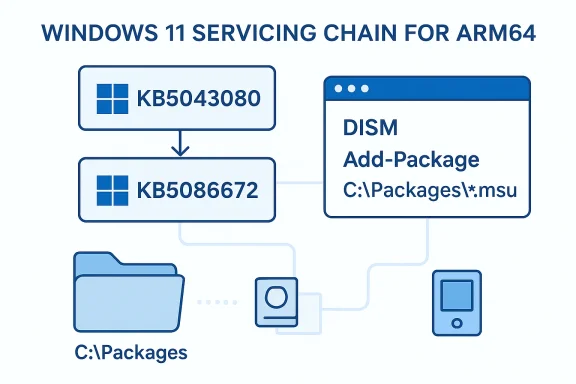
KB5086672 is a post-checkpoint cumulative update for Windows 11 that must be installed with care, because Microsoft’s servicing model now treats some updates as dependent chains rather than one-off standalone packages. In practical terms, that means the update can require a prior checkpoint package, and Microsoft expects administrators to either let DISM resolve the chain automatically or install the MSUs in the exact order listed in the KB article. For ARM64 systems, the install sequence you provided shows the prerequisite KB5043080 first, followed by KB5086672. Microsoft’s support guidance for post-checkpoint updates explains why double-clicking the .MSU may fail in some scenarios and why the catalog download can include multiple packages that must be applied in order.
Microsoft’s move to checkpoint-style servicing is part of a broader effort to make cumulative updates smaller, more predictable, and easier to sustain over time. Instead of forcing every device to ingest one giant monolithic monthly package, the company has introduced checkpoint cumulative updates that form milestones in the servicing chain. That design reduces redundancy, but it also introduces a new operational reality: admins can no longer assume that a single package is enough on every machine, especially when the device is offline, image-based, or out of sync with Windows Update.
KB5086672 fits squarely into that model. The Microsoft Support instructions state that the standalone package is available from the Microsoft Update Catalog and that the KB contains one or more MSU files that must be installed in a specific order. The article you shared also shows the ARM64 package name and the explicit two-step sequence, which strongly suggests this update depends on the earlier checkpoint update KB5043080 before the newer payload can be applied successfully.
For enterprise teams, this matters less as a patching curiosity and more as a servicing-process change. Patch orchestration tools, offline image pipelines, build-and-capture workflows, and remedial update procedures all need to understand that a “cumulative update” may not be singular anymore. In other words, the update is not just about what changes inside Windows; it is also about how Windows is now serviced.
There is also a practical upside to the new model. When Microsoft structures packages into checkpoints, it can better isolate prerequisites and reduce the size of repeated content across later updates. That should, in theory, make servicing more efficient for endpoints that stay current. The tradeoff is that lagging devices may need a more deliberate recovery path, and administrators must be ready to use DISM, Add-WindowsPackage, or controlled MSU sequencing instead of relying on a single-click install.
For administrators, the consequence is straightforward: the old assumption that “the latest KB supersedes everything” is no longer safe in every deployment path. The support article even recommends keeping the download folder clean and limited to the required MSUs. That suggests Microsoft is trying to minimize ambiguity in the servicing engine’s package discovery process, which is especially important when multiple dynamic updates or prerequisites are involved.
The architecture-specific naming is also a reminder that Windows servicing is still highly platform-aware. The ARM64 package names in the example are distinct from x64 equivalents, and Microsoft has been consistent about publishing architecture-specific instructions for recent Windows 11 releases. That means mixed-device fleets need careful targeting, not a generic “download the KB” approach.
That said, bundled installation only works well when the package set is complete and correctly matched to the target build. If the folder contains unrelated MSUs or a mismatched architecture, you can create more confusion than convenience. That is exactly why Microsoft emphasizes using a clean local directory such as C:\Packages.
This matters because some servicing failures are not caused by corruption or damage at all. They are caused by attempting to apply a later package before the chain’s foundation is in place. In a modern Windows servicing environment, sequence is a dependency, not merely a convenience.
Consumers will feel this differently. Most home users rely on Windows Update, which should abstract away much of the complexity. But if a consumer tries to apply a standalone package manually, especially on an offline or recovery system, the new dependency structure can produce confusing failures and the dreaded “operation is not supported” style of experience Microsoft has documented elsewhere.
The broader implication is that Windows servicing is becoming more state-aware. The update you need is no longer just a question of date; it is a question of baseline, architecture, and installation context. That is a more modern model, but it is also less forgiving.
It is also a reminder that Microsoft still considers the servicing engine, not a browser download, to be the authoritative way to apply complex Windows updates. WUSA may still have a place for simple installs, but the more prerequisites enter the picture, the more Microsoft steers users toward servicing tools that understand package topology. That is a meaningful shift in update ergonomics.
That has implications for support desks and image engineers alike. If a machine fails to patch, the problem may not be the file itself but the absence of an earlier package that the servicing stack now expects. Understanding the catalog list is becoming as important as reading the KB title.
For schools, field workers, and mobile-first enterprises, this is not a niche issue. ARM64 devices may be the ones most likely to receive streamlined management, but they are also the devices most likely to be recovered remotely or serviced from offline media. When a checkpoint update is involved, a missing prerequisite can turn a routine update into a support ticket that consumes real time.
This is likely to shape how OEMs and enterprise tooling vendors approach deployment images as well. Imaging strategies that once assumed a simple LCU overlay may need to incorporate checkpoint baselines and month-matched Dynamic Update components. Microsoft’s note about matching SafeOS Dynamic Update or Setup Dynamic Update packages to the same month, or otherwise using the most recently published version, underscores how detailed this workflow has become.
Another item to monitor is how Microsoft documents these updates over time. If future KBs keep using similar wording and similar package chains, then organizations should treat checkpoint servicing as a permanent part of Windows maintenance rather than an exception. If the documentation becomes more automated or more self-describing, that may reduce the burden on administrators; if not, expect more reliance on runbooks, scripts, and validation labs.
Source: Microsoft - Message Center March 31, 2026—KB5086672 (OS Builds 26200.8117 and 26100.8117) Out-of-band - Microsoft Support
 Overview
Microsoft’s move to checkpoint-style servicing is part of a broader effort to make cumulative updates smaller, more predictable, and easier to sustain over time. Instead of forcing every device to ingest one giant monolithic monthly package, the company has introduced checkpoint cumulative updates that form milestones in the servicing chain. That design reduces redundancy, but it also introduces a new operational reality: admins can no longer assume that a single package is enough on every machine, especially when the device is offline, image-based, or out of sync with Windows Update.KB5086672 fits squarely into that model. The Microsoft Support instructions state that the standalone package is available from the Microsoft Update Catalog and that the KB contains one or more MSU files that must be installed in a specific order. The article you shared also shows the ARM64 package name and the explicit two-step sequence, which strongly suggests this update depends on the earlier checkpoint update KB5043080 before the newer payload can be applied successfully.
For enterprise teams, this matters less as a patching curiosity and more as a servicing-process change. Patch orchestration tools, offline image pipelines, build-and-capture workflows, and remedial update procedures all need to understand that a “cumulative update” may not be singular anymore. In other words, the update is not just about what changes inside Windows; it is also about how Windows is now serviced.
There is also a practical upside to the new model. When Microsoft structures packages into checkpoints, it can better isolate prerequisites and reduce the size of repeated content across later updates. That should, in theory, make servicing more efficient for endpoints that stay current. The tradeoff is that lagging devices may need a more deliberate recovery path, and administrators must be ready to use DISM, Add-WindowsPackage, or controlled MSU sequencing instead of relying on a single-click install.
What Microsoft is signaling with KB5086672
Microsoft is effectively saying that installation order now matters in a way that many Windows admins have not had to think about for years. The support article language is explicit: download all MSU files for the KB into one folder, let DISM discover prerequisite files when possible, or install each file individually in the published order. That is not typical “consumer update” wording; it is servicing guidance for managed environments, recovery media, and offline deployment scenarios.Why the package chain matters
The inclusion of KB5043080 as a prerequisite is the most important operational clue in the update flow. Microsoft’s broader support note on post-checkpoint updates explains that the latest checkpoint cumulative update is often required before later packages can be installed cleanly, especially when a local FoD or language pack was added offline. In that context, KB5086672 is not just a patch, but part of a dependency chain that preserves servicing consistency across versions.For administrators, the consequence is straightforward: the old assumption that “the latest KB supersedes everything” is no longer safe in every deployment path. The support article even recommends keeping the download folder clean and limited to the required MSUs. That suggests Microsoft is trying to minimize ambiguity in the servicing engine’s package discovery process, which is especially important when multiple dynamic updates or prerequisites are involved.
The architecture-specific naming is also a reminder that Windows servicing is still highly platform-aware. The ARM64 package names in the example are distinct from x64 equivalents, and Microsoft has been consistent about publishing architecture-specific instructions for recent Windows 11 releases. That means mixed-device fleets need careful targeting, not a generic “download the KB” approach.
- Installation order is mandatory when multiple MSUs are included.
- ARM64 and x64 packages are not interchangeable.
- DISM is the preferred mechanism for controlled deployment.
- WUSA may work for some targets, but it is not the safest choice for complex chains.
- Offline images need special attention to package sequencing.
How the installation methods differ
Microsoft outlines two methods for KB5086672: installing all MSUs together from one folder, or installing each MSU one by one in the documented order. In practice, Method 1 is best for IT teams that want to let DISM resolve dependencies automatically, while Method 2 is useful when an environment needs more granular control or troubleshooting visibility. Both methods assume that the prerequisite package can be acquired from the Catalog and that the correct architecture is selected.Method 1: bundled installation
The first method is the simplest on paper. Place all required MSU files in a single folder, then run DISM with the PackagePath pointing to the target MSU. Microsoft says DISM will discover and install prerequisite MSU files as needed, which makes this approach attractive in scripted deployments and offline servicing workflows.That said, bundled installation only works well when the package set is complete and correctly matched to the target build. If the folder contains unrelated MSUs or a mismatched architecture, you can create more confusion than convenience. That is exactly why Microsoft emphasizes using a clean local directory such as C:\Packages.
Method 2: explicit sequencing
The second method is more manual but often more reliable for diagnostics. Microsoft’s instructions for KB5086672 specifically say to download and install each MSU individually in the listed order, which starts with windows11.0-kb5043080-arm64 and then proceeds to windows11.0-kb5086672-arm64. That ordering is the clearest proof that the update chain is not optional.This matters because some servicing failures are not caused by corruption or damage at all. They are caused by attempting to apply a later package before the chain’s foundation is in place. In a modern Windows servicing environment, sequence is a dependency, not merely a convenience.
- Method 1 is better for automation.
- Method 2 is better for troubleshooting.
- Both methods assume the right architecture.
- Both methods depend on the correct checkpoint package.
- Both are preferable to guessing or forcing an install through a GUI double-click.
Why checkpoint updates change the patching conversation
Checkpoint cumulative updates are not just a Microsoft packaging experiment; they change the economics of endpoint maintenance. By anchoring later updates to earlier checkpoints, Microsoft can reduce duplication and perhaps make monthly payloads more manageable. But the model also shifts responsibility to the administrator to understand where a device sits on the servicing timeline before attempting remediation.Enterprise impact versus consumer impact
For enterprises, checkpoint servicing introduces a new layer of patch hygiene. A fleet that is generally current will likely benefit, because monthly updates can be easier to stage and less expensive to distribute. A fleet that has drifted out of compliance, however, may suddenly need a checkpoint package, a later package, and possibly offline servicing through DISM. That is operationally more complex than a traditional one-package cumulative update model.Consumers will feel this differently. Most home users rely on Windows Update, which should abstract away much of the complexity. But if a consumer tries to apply a standalone package manually, especially on an offline or recovery system, the new dependency structure can produce confusing failures and the dreaded “operation is not supported” style of experience Microsoft has documented elsewhere.
The broader implication is that Windows servicing is becoming more state-aware. The update you need is no longer just a question of date; it is a question of baseline, architecture, and installation context. That is a more modern model, but it is also less forgiving.
Practical consequences for admins
Admins should think in terms of image baseline, not just update ID. A device serviced online through Windows Update may glide through these changes with little drama, while an offline or air-gapped endpoint may require the exact prerequisite chain. That difference becomes especially important in regulated industries, remote sites, and kiosk deployments where manual remediation is common.- Patch compliance now depends on the baseline state of the device.
- Offline installs require prerequisite awareness.
- Recovery media should be validated against the same month when possible.
- Air-gapped fleets need a repeatable chain for update application.
- Help desks may need more servicing literacy than before.
What the documentation tells us about Microsoft’s servicing strategy
The support article structure around KB5086672 mirrors a pattern Microsoft has been rolling out across Windows 11 24H2-era updates. Recent support pages repeatedly note that standalone packages are available from the Update Catalog, that some updates include multiple MSUs, and that DISM or Add-WindowsPackage should be used when installation order matters. That consistency suggests a deliberate servicing strategy, not a one-off exception.The role of DISM and Add-WindowsPackage
DISM remains the backbone of controlled Windows servicing because it can manage package addition in online and offline contexts. Microsoft’s guidance to use DISM /Online /Add-Package for running systems and DISM /Image or Add-WindowsPackage for mounted images reinforces its central role. For IT pros, this is the method that offers the clearest path when packages must be applied in a prescribed order.It is also a reminder that Microsoft still considers the servicing engine, not a browser download, to be the authoritative way to apply complex Windows updates. WUSA may still have a place for simple installs, but the more prerequisites enter the picture, the more Microsoft steers users toward servicing tools that understand package topology. That is a meaningful shift in update ergonomics.
The significance of the Update Catalog
The Microsoft Update Catalog is doing more than hosting files here; it is functioning as the distribution point for dependency-aware servicing. Microsoft’s support material points users to the Catalog specifically because it can expose the full set of related MSU files, including prerequisite checkpoints. In practical terms, the Catalog is now the place where admins validate the real shape of an update, not just its headline KB number.That has implications for support desks and image engineers alike. If a machine fails to patch, the problem may not be the file itself but the absence of an earlier package that the servicing stack now expects. Understanding the catalog list is becoming as important as reading the KB title.
- DISM is the preferred tool for chained packages.
- The Update Catalog exposes the full package set.
- KB numbers alone no longer tell the entire story.
- Offline servicing must respect package dependencies.
- Microsoft’s documentation is increasingly written for workflow discipline rather than casual clicking.
Why ARM64 deserves special attention
The KB5086672 instructions you provided are explicitly framed around ARM64, and that matters for more than just device compatibility. ARM64 systems often sit at the intersection of modern mobility, energy efficiency, and enterprise deployment complexity, which makes patch sequencing especially important. If a package chain is misapplied on these devices, the result can be a larger support burden than on conventional x64 endpoints.ARM64 in the Windows servicing pipeline
Microsoft has increasingly treated ARM64 as a first-class platform for Windows 11, with support pages and update releases routinely publishing architecture-specific downloads. That is a sign of maturity, but it also means organizations can no longer treat ARM devices as exceptions in patch planning. They are now central enough to deserve their own baseline, their own validation, and their own package-handling playbook.For schools, field workers, and mobile-first enterprises, this is not a niche issue. ARM64 devices may be the ones most likely to receive streamlined management, but they are also the devices most likely to be recovered remotely or serviced from offline media. When a checkpoint update is involved, a missing prerequisite can turn a routine update into a support ticket that consumes real time.
Why architecture matching matters
Architecture mismatches are one of the easiest ways to derail a servicing workflow. The update files are not universal, and the KB documentation is clear that users should download the package matching their device architecture. In a multi-device fleet, that means deployment scripts must branch cleanly between ARM64 and x64, or else the wrong file will be staged and the installation will fail.- ARM64 devices require architecture-specific packages.
- Update scripts should not assume a one-size-fits-all download path.
- Offline recovery plans should be tested on real hardware.
- Managed fleets need separate validation for ARM64 baselines.
- Servicing errors often stem from mismatched MSUs, not broken Windows installs.
The bigger pattern: Windows updates are becoming more modular
KB5086672 should be read as part of a larger platform shift. Microsoft is moving toward a world where updates are more modular, more state-dependent, and more recoverable through explicit package chains. That trend may be frustrating for anyone expecting old-school “download one file, install one patch” simplicity, but it is consistent with the needs of a modern OS that serves consumer laptops, enterprise desktops, cloud-connected images, and recovery media.Compatibility and support implications
Modular servicing can improve compatibility if the baseline is maintained, because each update builds on a known foundation. It can also make Microsoft’s support burden more manageable by reducing ambiguity about which packages belong together. But the tradeoff is that administrators now need better update inventory and more disciplined media handling, especially when repairing systems that have been disconnected from Windows Update for long periods.This is likely to shape how OEMs and enterprise tooling vendors approach deployment images as well. Imaging strategies that once assumed a simple LCU overlay may need to incorporate checkpoint baselines and month-matched Dynamic Update components. Microsoft’s note about matching SafeOS Dynamic Update or Setup Dynamic Update packages to the same month, or otherwise using the most recently published version, underscores how detailed this workflow has become.
Consumer simplicity, enterprise complexity
For consumers, the best-case scenario remains invisible servicing through Windows Update. For enterprises, however, modularity translates into more testing, more documentation, and more change control. The upside is a potentially cleaner long-term servicing model; the downside is that old assumptions about cumulative updates may now be a source of failures if they are not updated as well.- Better long-term servicing consistency.
- More explicit dependency management.
- Smaller likelihood of ambiguous update states.
- Greater need for deployment automation.
- Higher value for documentation and runbooks.
Strengths and Opportunities
KB5086672 highlights a servicing model that, while more complex, is also more structured and potentially more reliable once organizations adapt to it. Microsoft is giving admins the tools to apply updates in a deterministic way, and that predictability can be a real advantage in enterprise patch management. The checkpoint approach also creates an opportunity for better image hygiene, because teams that stay current may benefit from more efficient update handling over time.- More predictable package sequencing for managed environments.
- Cleaner servicing baselines for systems that stay compliant.
- Better offline image control through DISM and Add-WindowsPackage.
- Reduced guesswork when troubleshooting update failures.
- Clearer architecture targeting for ARM64 and x64 fleets.
- Potentially smaller recurring payloads over time.
- Improved operational discipline around update staging and recovery.
Risks and Concerns
The most immediate risk is confusion. End users and even some administrators may assume that a cumulative update is self-contained, only to discover that the package requires a checkpoint prerequisite or a specific install sequence. That can lead to failed installs, support escalations, and unnecessary troubleshooting when the real problem is simply an incomplete package chain.- Install failures when prerequisites are missing.
- User confusion caused by non-obvious package ordering.
- Offline deployment errors if images are not baselined properly.
- Architecture mismatches on ARM64 versus x64 systems.
- Workflow brittleness in scripted remediation environments.
- Greater support overhead for help desks and desktop engineering teams.
- Potential downtime if patching is attempted in the wrong sequence.
Looking Ahead
The most important thing to watch is whether Microsoft continues to standardize checkpoint-based servicing across additional Windows 11 releases. If KB5086672 is any indication, the company is leaning into a future where update packages are more explicit about prerequisites, architecture, and install method. That should eventually make patching more deterministic, but only if administrators and tooling keep pace.Another item to monitor is how Microsoft documents these updates over time. If future KBs keep using similar wording and similar package chains, then organizations should treat checkpoint servicing as a permanent part of Windows maintenance rather than an exception. If the documentation becomes more automated or more self-describing, that may reduce the burden on administrators; if not, expect more reliance on runbooks, scripts, and validation labs.
- Track whether future KBs continue to reference checkpoint prerequisites.
- Validate offline image workflows against the latest servicing model.
- Keep separate test coverage for ARM64 and x64 devices.
- Review whether your patching tools can ingest multiple MSUs in order.
- Confirm that recovery media uses the correct month-matched Dynamic Update components where applicable.
Source: Microsoft - Message Center March 31, 2026—KB5086672 (OS Builds 26200.8117 and 26100.8117) Out-of-band - Microsoft Support
