

Microsoft released KB5089570 on May 26, 2026, as an optional preview cumulative update for Windows 11 version 26H1, moving supported systems to OS Build 28000.2179 while bundling File Explorer changes, Xbox mode, Secure Boot servicing work, AI component updates, and enterprise management improvements. The update is not a Patch Tuesday security release, but it is exactly the sort of preview package that tells administrators where Windows is headed next. Microsoft is using the familiar optional-update lane to test a more ambitious mix of shell polish, hardware-era features, and platform hardening. The result is a build that looks modest in Windows Update but matters more than its “Preview” label suggests.
KB5089570 is a reminder that Windows preview updates are no longer merely bug-fix rehearsals for next month’s cumulative update. They have become Microsoft’s semi-public staging area for features that are finished enough to ship, controversial enough to phase, or infrastructure-heavy enough to need telemetry before broad enforcement.
That matters because Windows 11 version 26H1 is not just another routine point on the build chart. The 28000-series branch sits in a moment when Microsoft is trying to make Windows feel more adaptive to new hardware categories, especially Arm systems and Copilot+ PCs, while still maintaining the servicing discipline expected by enterprises. KB5089570 tries to serve both masters.
The update arrives through the same split Microsoft has increasingly favored: gradual rollout for some user-facing features, normal rollout for broader quality fixes. That distinction is not cosmetic. It means two machines can both report OS Build 28000.2179 and still expose different new capabilities depending on eligibility, rollout state, device class, policy, and hardware support.
For enthusiasts, that can feel like another round of feature roulette. For IT departments, it is a reminder that build numbers alone no longer fully describe the Windows experience. In modern Windows, the operating system is less a fixed artifact than a managed distribution channel.
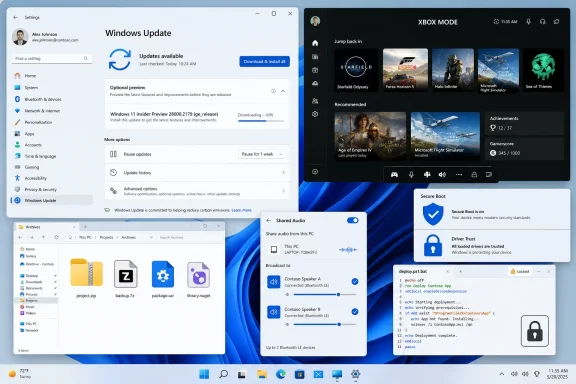
Shared Audio is a good example. It uses Bluetooth LE Audio broadcast technology to let two people listen from the same Windows 11 PC at once, assuming the machine and paired devices support the right hardware stack. That sounds like a small quality-of-life feature, and for many people it will be. But it also puts Windows closer to the expectations users already bring from phones, tablets, and modern earbuds.
Xbox mode is the more revealing move. Microsoft says it brings a streamlined, full-screen gaming interface to Windows 11 PCs, including laptops, desktops, and tablets, with entry points from the Xbox app, Game Bar settings, or Windows key + F11. That framing is careful: this is not “Windows becomes Xbox,” but Windows borrowing console-like posture when the user wants it.
The strategic target is obvious. Windows is trying to remain the default PC gaming platform while handhelds, living-room PCs, and controller-first experiences keep pulling users away from the keyboard-and-mouse desktop. A full-screen Xbox-flavored mode is Microsoft admitting that the shell itself can be friction when the PC is being used as an appliance.
File Explorer gets the less glamorous but arguably more practical work. The update expands archive handling to include formats such as uu, cpio, xar, and NuGet packages, preserves view and sort preferences in common folders when apps open Explorer directly, and fixes annoyances like white flashes in dark mode. That is not headline material, but it is the kind of accumulated polish that determines whether Windows feels coherent day to day.
The Explorer fixes are particularly telling because they address user irritation rather than feature ambition. A white flash in dark mode is not a catastrophic bug, but it is the kind of visual paper cut that makes Windows feel less finished. Explorer processes that do not cleanly stop after windows close are similarly mundane until they become a performance or troubleshooting problem.
The update also includes broader explorer.exe reliability improvements around sign-in, taskbar menus, Task View, and Quick Access unpinning. That matters because Explorer is not just a file manager. It is also the desktop shell, taskbar host, and one of the most visible surfaces where small failures become user distrust.
Microsoft’s challenge is that Windows 11 has been marketed around modern design and AI-era experiences while many users still want the basics to stop regressing. KB5089570’s Explorer work is a tacit acknowledgment that shell reliability remains a competitive feature. If the desktop feels unstable, the AI overlay does not rescue the experience.
There is also a practical sysadmin angle. Explorer instability is one of those categories of trouble that generates support tickets without always producing clean diagnostic evidence. A crash at sign-in, a frozen taskbar menu, or a stuck process after closing windows can look like profile corruption, GPU driver trouble, shell extension misbehavior, or update fallout. Improvements here reduce noise across the support desk.
That is not a typical consumer-facing feature. It is a platform security shift.
Cross-signed drivers have long occupied a messy space in the Windows ecosystem. They helped hardware vendors, utilities, and niche software survive across Windows generations, but they also created a broader trust surface than Microsoft now appears willing to tolerate. Kernel-mode code is too powerful to remain governed by old assumptions indefinitely.
The important detail is Microsoft’s phased enforcement model. Windows audits driver compatibility for at least 100 hours and three reboots before enabling enforcement, according to the release notes. After that, a small number of cross-signed drivers might be blocked.
That sounds cautious, and it should be. Driver trust changes are the kind of security work that can make Windows safer while breaking old VPN clients, device utilities, industrial peripherals, anti-cheat components, monitoring agents, or bespoke enterprise hardware stacks. Microsoft is effectively saying: we are going to narrow the trust boundary, but we will watch the device first.
Administrators should treat this as an early warning, not a footnote. The right response is not panic, but inventory. If your environment depends on old drivers whose signing status is poorly understood, KB5089570 is another sign that the grace period for legacy kernel assumptions is shrinking.
This is Microsoft trying to thread a familiar needle. Secure Boot certificate maintenance needs careful device targeting because firmware, bootloaders, recovery environments, and update history can interact in painful ways. But the more Microsoft relies on service data to decide which devices are safe to move forward, the more privacy- and compliance-sensitive organizations ask what is being sent and why.
The new policy gives administrators a way to limit that data flow. That is useful, but it also creates a trade-off: the more restricted the telemetry posture, the more organizations may need to own the operational burden of validating Secure Boot readiness themselves. In high-control environments, that is acceptable. In loosely managed fleets, it can become another source of drift.
This is one of the quiet themes of modern Windows administration. Microsoft increasingly designs servicing around cloud-scale confidence signals, then adds policy switches for organizations that cannot or will not participate fully. The policy exists because enterprise Windows is not a single audience.
For security teams, the immediate message is straightforward. Secure Boot certificate updates should not be treated as ordinary cosmetic servicing. They sit close to the boot chain, recovery scenarios, and hardware compatibility. KB5089570 does not make that scary, but it does make it current.
That distinction is essential. The presence of AI components inside the cumulative update does not mean every Windows 11 26H1 machine is suddenly getting the same on-device AI stack. Microsoft is packaging for a heterogeneous Windows world, where a single update can contain components that only light up on qualifying hardware.
The practical effect is that update payloads and release notes now describe a superset of Windows, not necessarily the exact experience of any one machine. A Copilot+ PC may receive AI model component updates from the same KB that a conventional desktop treats mostly as shell polish and servicing maintenance. Windows Server, meanwhile, is explicitly outside that AI component applicability.
This packaging model is efficient for Microsoft but complicates communication. Users see “AI components” and reasonably ask whether something new is being installed, whether it consumes disk, whether it runs locally, and whether it affects privacy. The answer depends on hardware eligibility and feature exposure, which is not always obvious from Windows Update’s surface.
The taskbar agent feature adds another layer. Microsoft describes a way for Windows to show progress for agents from first- and third-party apps, with Researcher in Microsoft 365 Copilot as the first adopter. That is a small UI integration, but it points to a larger ambition: Windows wants to become the place where long-running AI tasks are monitored like downloads, sync jobs, or background processes.
That is not glamorous, but it is important. Microsoft has spent years making Windows more service-driven, app-driven, and consumer-service-adjacent. Enterprise admins have spent the same years trying to remove, suppress, or standardize parts of that experience before devices reach users.
The dynamic app removal list is especially notable because it acknowledges that inbox app control cannot be static. Microsoft changes apps, packages, and experiences over time. A fixed policy model ages badly in that world. A dynamic list is more aligned with how Windows is actually maintained.
There is a catch. Microsoft says the dynamic list is not currently available in the Intune Settings Catalog, so validation must be performed using Group Policy or custom OMA-URI. That is exactly the kind of half-modern management state that frustrates administrators: the policy exists, but the cleanest cloud-management interface may lag behind.
Kiosk mode also gets attention, with simplified configuration for allowed packaged apps when Microsoft Edge is one of the allowed apps. That is a small sentence with real deployment implications for retail, education, healthcare, and shared-device scenarios. Kiosk deployments live or die on predictable app allow lists, and Edge is often unavoidable in modern workflows.
This is a deeply Windows kind of security improvement. Batch files are old, plain, and everywhere. They still glue together deployment scripts, logon actions, software installers, admin tools, scheduled tasks, and decades of enterprise automation. Anything that changes how they execute deserves attention.
The risk Microsoft is addressing is conceptually simple: a script that changes while it is running can create opportunities for tampering, race conditions, or unexpected behavior. Locking batch files during execution narrows that window. For environments using application control, it also helps align script behavior with stronger integrity assumptions.
But old automation is rarely tidy. Some internal workflows may depend on scripts rewriting themselves, generating temporary command files, or modifying helper files during execution. That does not mean organizations should avoid the new mode. It means they should test before enabling it broadly, especially where legacy deployment tooling remains in use.
The larger message is that Microsoft is continuing to harden the parts of Windows that attackers and administrators both use. PowerShell has received years of logging, constrained language, and policy attention. CMD and batch files are older, but they are not invisible.
Startup performance remains one of the most emotionally charged parts of Windows. Users do not measure boot in laboratory terms; they measure it by whether the machine feels ready when they try to work. Improvements to launching startup apps after device start may not change benchmark headlines, but they can affect perceived responsiveness.
Storage settings performance on large volumes is another admin-relevant fix. As disks get larger and workstations handle heavier local datasets, Windows settings pages cannot assume consumer-scale storage. Slow enumeration in a settings UI can make basic management feel broken.
Delivery Optimization memory improvements are similarly practical. The service is supposed to make update distribution more efficient, particularly across networks where peer-assisted delivery can reduce bandwidth pressure. If it unexpectedly consumes too much memory, it becomes part of the update problem rather than the solution.
Microsoft Store reliability fixes target errors including 0x80070057, 0x80240008, and 0x80073d28. Store failures are not just consumer annoyances anymore. In managed Windows environments, Store-delivered components, inbox app updates, and packaged app dependencies can affect real workflows.
Windows Hello improvements also deserve more attention than they often receive. Biometric sign-in reliability is security usability in its purest form. If face recognition or fingerprint persistence fails after upgrades, users fall back to weaker or more frustrating paths, and help desks inherit the mess.
The standalone package instructions are more complicated than most home users will ever touch. Microsoft says the Microsoft Update Catalog package may contain one or more MSU files requiring installation in a specific order, though the provided sequence for this update lists the KB5089570 MSU. Administrators can place all MSU files in one folder and let DISM discover needed prerequisites, or install each file individually in order.
That language is aimed at people servicing running systems, offline images, and installation media. It matters because Windows deployment is increasingly about keeping images current without waiting for first boot to absorb a mountain of cumulative updates. The more Microsoft ties feature readiness, servicing stack health, and Dynamic Update alignment together, the more image maintenance becomes a discipline rather than a chore.
There is also a small but important note about Dynamic Update packages. Microsoft advises matching Dynamic Update packages to the same month as the KB where possible, and using the most recently published SafeOS or Setup Dynamic Update if a same-month package is unavailable. That is the sort of instruction that prevents subtle deployment inconsistencies.
For ordinary users, the update is available through Windows Update as an optional preview. For Windows Update for Business, Microsoft says the changes will appear in the next security update. That means cautious organizations can skip the preview and still expect the fixes to arrive through the normal mandatory channel later, barring changes or holds.
The risk profile depends heavily on the device. A mainstream PC using common drivers and default settings may see mostly welcome polish. A specialized workstation with old hardware drivers, strict traffic policies, custom app removal baselines, kiosk constraints, or offline servicing workflows has more to validate.
The driver policy change is the obvious candidate for deeper testing. Even with Microsoft’s audit period and phased enforcement, organizations should identify systems that rely on older third-party kernel drivers. That includes peripherals, security tools, industrial interfaces, and legacy business software with low-level components.
The Secure Boot changes also deserve controlled rollout. Certificate servicing near the boot chain is not an area where administrators should rely solely on optimism. Backup, recovery, firmware baselines, and known-good rollback plans matter.
Home users should apply a simpler rule. If you are not chasing a specific fix or feature, there is usually little urgency to install an optional preview immediately. If you are on eligible 26H1 hardware and want Xbox mode, Shared Audio, File Explorer fixes, or the latest Copilot+ component updates, the preview channel is the sanctioned way to get them early.
 Microsoft Uses the Preview Lane as a Product Roadmap
KB5089570 is a reminder that Windows preview updates are no longer merely bug-fix rehearsals for next month’s cumulative update. They have become Microsoft’s semi-public staging area for features that are finished enough to ship, controversial enough to phase, or infrastructure-heavy enough to need telemetry before broad enforcement.That matters because Windows 11 version 26H1 is not just another routine point on the build chart. The 28000-series branch sits in a moment when Microsoft is trying to make Windows feel more adaptive to new hardware categories, especially Arm systems and Copilot+ PCs, while still maintaining the servicing discipline expected by enterprises. KB5089570 tries to serve both masters.
The update arrives through the same split Microsoft has increasingly favored: gradual rollout for some user-facing features, normal rollout for broader quality fixes. That distinction is not cosmetic. It means two machines can both report OS Build 28000.2179 and still expose different new capabilities depending on eligibility, rollout state, device class, policy, and hardware support.
For enthusiasts, that can feel like another round of feature roulette. For IT departments, it is a reminder that build numbers alone no longer fully describe the Windows experience. In modern Windows, the operating system is less a fixed artifact than a managed distribution channel.
The Consumer Features Are Real, but the Strategy Is Bigger
The flashiest additions in KB5089570 are the ones Microsoft wants normal users to notice: Shared Audio, Xbox mode, haptic input feedback, a cleaner voice typing experience, and more archive support in File Explorer. None of those individually rewrites the Windows story. Together, they show Microsoft trying to make Windows behave less like a legacy desktop shell and more like a device platform that can stretch from tablet to handheld to workstation.Shared Audio is a good example. It uses Bluetooth LE Audio broadcast technology to let two people listen from the same Windows 11 PC at once, assuming the machine and paired devices support the right hardware stack. That sounds like a small quality-of-life feature, and for many people it will be. But it also puts Windows closer to the expectations users already bring from phones, tablets, and modern earbuds.
Xbox mode is the more revealing move. Microsoft says it brings a streamlined, full-screen gaming interface to Windows 11 PCs, including laptops, desktops, and tablets, with entry points from the Xbox app, Game Bar settings, or Windows key + F11. That framing is careful: this is not “Windows becomes Xbox,” but Windows borrowing console-like posture when the user wants it.
The strategic target is obvious. Windows is trying to remain the default PC gaming platform while handhelds, living-room PCs, and controller-first experiences keep pulling users away from the keyboard-and-mouse desktop. A full-screen Xbox-flavored mode is Microsoft admitting that the shell itself can be friction when the PC is being used as an appliance.
File Explorer gets the less glamorous but arguably more practical work. The update expands archive handling to include formats such as uu, cpio, xar, and NuGet packages, preserves view and sort preferences in common folders when apps open Explorer directly, and fixes annoyances like white flashes in dark mode. That is not headline material, but it is the kind of accumulated polish that determines whether Windows feels coherent day to day.
File Explorer Is Still Where Windows Wins or Loses Trust
Microsoft can talk about AI agents and gaming modes all it wants, but Windows users still judge the operating system by the reliability of File Explorer, the taskbar, and the update process. KB5089570 spends real engineering effort on that unglamorous terrain.The Explorer fixes are particularly telling because they address user irritation rather than feature ambition. A white flash in dark mode is not a catastrophic bug, but it is the kind of visual paper cut that makes Windows feel less finished. Explorer processes that do not cleanly stop after windows close are similarly mundane until they become a performance or troubleshooting problem.
The update also includes broader explorer.exe reliability improvements around sign-in, taskbar menus, Task View, and Quick Access unpinning. That matters because Explorer is not just a file manager. It is also the desktop shell, taskbar host, and one of the most visible surfaces where small failures become user distrust.
Microsoft’s challenge is that Windows 11 has been marketed around modern design and AI-era experiences while many users still want the basics to stop regressing. KB5089570’s Explorer work is a tacit acknowledgment that shell reliability remains a competitive feature. If the desktop feels unstable, the AI overlay does not rescue the experience.
There is also a practical sysadmin angle. Explorer instability is one of those categories of trouble that generates support tickets without always producing clean diagnostic evidence. A crash at sign-in, a frozen taskbar menu, or a stuck process after closing windows can look like profile corruption, GPU driver trouble, shell extension misbehavior, or update fallout. Improvements here reduce noise across the support desk.
Microsoft Quietly Tightens the Driver Trust Model
The most consequential part of KB5089570 may be buried in a line about Windows Driver Policy. Microsoft says the update changes how the Windows kernel trusts third-party drivers by removing default trust for cross-signed drivers, while continuing to allow drivers from the Windows Hardware Compatibility Program and a trusted legacy allow list.That is not a typical consumer-facing feature. It is a platform security shift.
Cross-signed drivers have long occupied a messy space in the Windows ecosystem. They helped hardware vendors, utilities, and niche software survive across Windows generations, but they also created a broader trust surface than Microsoft now appears willing to tolerate. Kernel-mode code is too powerful to remain governed by old assumptions indefinitely.
The important detail is Microsoft’s phased enforcement model. Windows audits driver compatibility for at least 100 hours and three reboots before enabling enforcement, according to the release notes. After that, a small number of cross-signed drivers might be blocked.
That sounds cautious, and it should be. Driver trust changes are the kind of security work that can make Windows safer while breaking old VPN clients, device utilities, industrial peripherals, anti-cheat components, monitoring agents, or bespoke enterprise hardware stacks. Microsoft is effectively saying: we are going to narrow the trust boundary, but we will watch the device first.
Administrators should treat this as an early warning, not a footnote. The right response is not panic, but inventory. If your environment depends on old drivers whose signing status is poorly understood, KB5089570 is another sign that the grace period for legacy kernel assumptions is shrinking.
Secure Boot Servicing Becomes a Telemetry Balancing Act
KB5089570 also advances Microsoft’s Secure Boot certificate rollout work. The update adds more targeting data intended to increase coverage of devices eligible to receive new Secure Boot certificates automatically. At the same time, Microsoft adds a Group Policy and MDM setting called LimitSecureBootRequiredServiceData, which can suppress a Secure Boot service event normally sent to Microsoft.This is Microsoft trying to thread a familiar needle. Secure Boot certificate maintenance needs careful device targeting because firmware, bootloaders, recovery environments, and update history can interact in painful ways. But the more Microsoft relies on service data to decide which devices are safe to move forward, the more privacy- and compliance-sensitive organizations ask what is being sent and why.
The new policy gives administrators a way to limit that data flow. That is useful, but it also creates a trade-off: the more restricted the telemetry posture, the more organizations may need to own the operational burden of validating Secure Boot readiness themselves. In high-control environments, that is acceptable. In loosely managed fleets, it can become another source of drift.
This is one of the quiet themes of modern Windows administration. Microsoft increasingly designs servicing around cloud-scale confidence signals, then adds policy switches for organizations that cannot or will not participate fully. The policy exists because enterprise Windows is not a single audience.
For security teams, the immediate message is straightforward. Secure Boot certificate updates should not be treated as ordinary cosmetic servicing. They sit close to the boot chain, recovery scenarios, and hardware compatibility. KB5089570 does not make that scary, but it does make it current.
Copilot+ PCs Get the AI Payload, Everyone Else Gets the Packaging
The update includes AI component versions for Image Search, Content Extraction, Semantic Analysis, and Settings Model, all listed at version 1.2604.515.0. Microsoft also notes that these AI component updates are applicable to Windows Copilot+ PCs and will not install on ordinary Windows PCs or Windows Server systems.That distinction is essential. The presence of AI components inside the cumulative update does not mean every Windows 11 26H1 machine is suddenly getting the same on-device AI stack. Microsoft is packaging for a heterogeneous Windows world, where a single update can contain components that only light up on qualifying hardware.
The practical effect is that update payloads and release notes now describe a superset of Windows, not necessarily the exact experience of any one machine. A Copilot+ PC may receive AI model component updates from the same KB that a conventional desktop treats mostly as shell polish and servicing maintenance. Windows Server, meanwhile, is explicitly outside that AI component applicability.
This packaging model is efficient for Microsoft but complicates communication. Users see “AI components” and reasonably ask whether something new is being installed, whether it consumes disk, whether it runs locally, and whether it affects privacy. The answer depends on hardware eligibility and feature exposure, which is not always obvious from Windows Update’s surface.
The taskbar agent feature adds another layer. Microsoft describes a way for Windows to show progress for agents from first- and third-party apps, with Researcher in Microsoft 365 Copilot as the first adopter. That is a small UI integration, but it points to a larger ambition: Windows wants to become the place where long-running AI tasks are monitored like downloads, sync jobs, or background processes.
Enterprise Controls Are Catching Up to the Windows Microsoft Already Ships
KB5089570 includes several changes clearly aimed at administrators who have spent the Windows 11 era asking for more control over the inbox experience. Enterprise State Roaming can now be managed through Windows Backup for Organizations policies. The “Remove Default Microsoft Store packages” policy gains support for a dynamic app removal list for Windows Enterprise and Education, allowing administrators to specify additional MSIX or APPX package family names through Group Policy.That is not glamorous, but it is important. Microsoft has spent years making Windows more service-driven, app-driven, and consumer-service-adjacent. Enterprise admins have spent the same years trying to remove, suppress, or standardize parts of that experience before devices reach users.
The dynamic app removal list is especially notable because it acknowledges that inbox app control cannot be static. Microsoft changes apps, packages, and experiences over time. A fixed policy model ages badly in that world. A dynamic list is more aligned with how Windows is actually maintained.
There is a catch. Microsoft says the dynamic list is not currently available in the Intune Settings Catalog, so validation must be performed using Group Policy or custom OMA-URI. That is exactly the kind of half-modern management state that frustrates administrators: the policy exists, but the cleanest cloud-management interface may lag behind.
Kiosk mode also gets attention, with simplified configuration for allowed packaged apps when Microsoft Edge is one of the allowed apps. That is a small sentence with real deployment implications for retail, education, healthcare, and shared-device scenarios. Kiosk deployments live or die on predictable app allow lists, and Edge is often unavoidable in modern workflows.
The Command Line Gets a Security Feature with Old-School Consequences
One of KB5089570’s more interesting security improvements concerns batch files and Command Prompt scripts. Administrators can enable a mode that prevents batch files from changing during execution by setting a registry value under the Command Processor key. Policy authors can also use an application manifest control for the same behavior.This is a deeply Windows kind of security improvement. Batch files are old, plain, and everywhere. They still glue together deployment scripts, logon actions, software installers, admin tools, scheduled tasks, and decades of enterprise automation. Anything that changes how they execute deserves attention.
The risk Microsoft is addressing is conceptually simple: a script that changes while it is running can create opportunities for tampering, race conditions, or unexpected behavior. Locking batch files during execution narrows that window. For environments using application control, it also helps align script behavior with stronger integrity assumptions.
But old automation is rarely tidy. Some internal workflows may depend on scripts rewriting themselves, generating temporary command files, or modifying helper files during execution. That does not mean organizations should avoid the new mode. It means they should test before enabling it broadly, especially where legacy deployment tooling remains in use.
The larger message is that Microsoft is continuing to harden the parts of Windows that attackers and administrators both use. PowerShell has received years of logging, constrained language, and policy attention. CMD and batch files are older, but they are not invisible.
Performance Fixes Matter Because Windows 11 Is Still Fighting Its Reputation
KB5089570 includes performance and reliability improvements across storage settings, startup app launching, Delivery Optimization memory usage, Microsoft Store downloads, taskbar system tray loading, Windows Hello, display color profiles, audio driver compatibility, and font rendering. That breadth is typical of cumulative previews, but the categories are revealing.Startup performance remains one of the most emotionally charged parts of Windows. Users do not measure boot in laboratory terms; they measure it by whether the machine feels ready when they try to work. Improvements to launching startup apps after device start may not change benchmark headlines, but they can affect perceived responsiveness.
Storage settings performance on large volumes is another admin-relevant fix. As disks get larger and workstations handle heavier local datasets, Windows settings pages cannot assume consumer-scale storage. Slow enumeration in a settings UI can make basic management feel broken.
Delivery Optimization memory improvements are similarly practical. The service is supposed to make update distribution more efficient, particularly across networks where peer-assisted delivery can reduce bandwidth pressure. If it unexpectedly consumes too much memory, it becomes part of the update problem rather than the solution.
Microsoft Store reliability fixes target errors including 0x80070057, 0x80240008, and 0x80073d28. Store failures are not just consumer annoyances anymore. In managed Windows environments, Store-delivered components, inbox app updates, and packaged app dependencies can affect real workflows.
Windows Hello improvements also deserve more attention than they often receive. Biometric sign-in reliability is security usability in its purest form. If face recognition or fingerprint persistence fails after upgrades, users fall back to weaker or more frustrating paths, and help desks inherit the mess.
The Update Process Itself Is Part of the Story
Microsoft says KB5089570 includes servicing stack update KB5095676, moving that component to 28000.2172. Servicing stack updates are the machinery that installs Windows updates, and their presence is a reminder that Microsoft is not only updating Windows but continually updating the updater.The standalone package instructions are more complicated than most home users will ever touch. Microsoft says the Microsoft Update Catalog package may contain one or more MSU files requiring installation in a specific order, though the provided sequence for this update lists the KB5089570 MSU. Administrators can place all MSU files in one folder and let DISM discover needed prerequisites, or install each file individually in order.
That language is aimed at people servicing running systems, offline images, and installation media. It matters because Windows deployment is increasingly about keeping images current without waiting for first boot to absorb a mountain of cumulative updates. The more Microsoft ties feature readiness, servicing stack health, and Dynamic Update alignment together, the more image maintenance becomes a discipline rather than a chore.
There is also a small but important note about Dynamic Update packages. Microsoft advises matching Dynamic Update packages to the same month as the KB where possible, and using the most recently published SafeOS or Setup Dynamic Update if a same-month package is unavailable. That is the sort of instruction that prevents subtle deployment inconsistencies.
For ordinary users, the update is available through Windows Update as an optional preview. For Windows Update for Business, Microsoft says the changes will appear in the next security update. That means cautious organizations can skip the preview and still expect the fixes to arrive through the normal mandatory channel later, barring changes or holds.
“No Known Issues” Is Not the Same as “No Risk”
Microsoft states that it is not currently aware of any issues with KB5089570. That is welcome, but it should not be read as a guarantee. Preview updates exist precisely because Microsoft wants more real-world signal before broad release.The risk profile depends heavily on the device. A mainstream PC using common drivers and default settings may see mostly welcome polish. A specialized workstation with old hardware drivers, strict traffic policies, custom app removal baselines, kiosk constraints, or offline servicing workflows has more to validate.
The driver policy change is the obvious candidate for deeper testing. Even with Microsoft’s audit period and phased enforcement, organizations should identify systems that rely on older third-party kernel drivers. That includes peripherals, security tools, industrial interfaces, and legacy business software with low-level components.
The Secure Boot changes also deserve controlled rollout. Certificate servicing near the boot chain is not an area where administrators should rely solely on optimism. Backup, recovery, firmware baselines, and known-good rollback plans matter.
Home users should apply a simpler rule. If you are not chasing a specific fix or feature, there is usually little urgency to install an optional preview immediately. If you are on eligible 26H1 hardware and want Xbox mode, Shared Audio, File Explorer fixes, or the latest Copilot+ component updates, the preview channel is the sanctioned way to get them early.
The Build 28000.2179 Checklist for People Who Actually Maintain PCs
KB5089570 is best understood as a preview of Microsoft’s next servicing priorities for Windows 11 26H1: more adaptive device experiences, tighter trust boundaries, more manageable inbox apps, and continued repair work on the shell. Before treating it as just another optional update, administrators and power users should separate the parts that affect daily experience from the parts that affect fleet policy.- KB5089570 is an optional preview update for Windows 11 version 26H1 that moves supported devices to OS Build 28000.2179.
- The most visible user-facing additions include Shared Audio, Xbox mode, expanded File Explorer archive support, haptic input feedback, and a redesigned voice typing surface.
- The most important security-adjacent changes involve third-party driver trust, Secure Boot certificate targeting, and an optional mode that locks batch files during execution.
- Copilot+ PCs receive updated AI components, but those components are not meant to install on ordinary Windows PCs or Windows Server systems.
- Enterprise administrators get more control over app removal, Enterprise State Roaming through Windows Backup for Organizations policies, kiosk configuration, and Secure Boot service-data behavior.
- Organizations that do not need early fixes can wait for the next security update channel, where Microsoft says these changes will appear for Windows Update for Business.
References
- Primary source: Microsoft Support
Published: Tue, 26 May 2026 21:32:32 Z
May 26, 2026—KB5089570 (OS Build 28000.2179) Preview - Microsoft Support
 support.microsoft.com
- Related coverage: ninjaone.com
Loading…
www.ninjaone.com - Official source: catalog.update.microsoft.com
Loading…
catalog.update.microsoft.com - Related coverage: windowsforum.com
Loading…
windowsforum.com - Related coverage: thewincentral.com
Loading…
thewincentral.com - Related coverage: windowsreport.com
Loading…
windowsreport.com
- Related coverage: thurrott.com

Microsoft Issues the Week D Preview Updates for Windows 11
It's the Tuesday of Week D on the Windows Update schedule, and we all know what that means: New preview updates ahead of the Patch Tuesday in June. www.thurrott.com