

Windows 11 now gives enterprise administrators a supported way to remove a particular class of single sign-on consent prompt on managed PCs, restoring a more seamless Microsoft sign-in experience where the organization has already established device trust, identity controls, and account governance.
The new control arrives with the July 2026 cumulative security update, KB5101650, for Windows 11, version 24H2 and version 25H2. It is intentionally narrow: it does not disable all authentication prompts, override multifactor authentication, grant application permissions, or alter consumer-account behavior. Instead, it automatically accepts the Windows-level permission that allows a user’s Microsoft sign-in identity to be reused across other Microsoft apps and services.
For Windows administrators, the feature is small in implementation but meaningful in practice. A single registry value can eliminate an extra interruption that has become visible in some regional sign-in flows—especially in the European Economic Area—while preserving user-facing prompts outside the managed enterprise scope.
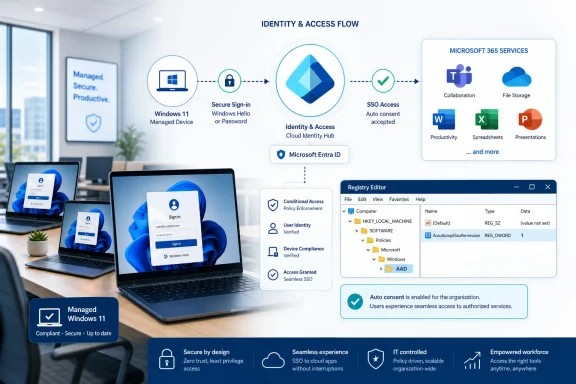
The policy is designed for managed Windows devices using Microsoft Entra ID work or school accounts. When enabled, it tells Windows to automatically accept the operating system’s single sign-on permission on behalf of the organization.
The required registry configuration is:
The critical detail is the full path. The value belongs under:
Not under the shorter
Once the supported update is installed and the policy is applied, Windows can reuse the credentials associated with the user’s Windows sign-in for eligible Microsoft applications and services without displaying the SSO permission prompt.
This is an automatic acceptance of Windows SSO permission, not a blanket authorization mechanism. Administrators should be careful not to confuse it with Microsoft Entra application consent, OAuth permission grants, Conditional Access controls, Windows Hello for Business, or passwordless sign-in policy.
In practical terms, a user may sign in to Windows with a work or school account, open a Microsoft application, and then encounter a prompt asking whether they want to continue using that Windows identity for additional Microsoft sign-ins.
The intention is understandable. It gives users more visibility and choice over account reuse, particularly in a regulatory environment where identity transparency and meaningful consent carry greater importance.
However, a prompt that is useful in a lightly managed personal environment can become an unnecessary point of friction in a tightly governed business environment. In an enterprise where devices are enrolled, accounts are managed, Conditional Access is enforced, and the organization already controls identity policy, the decision is often not meaningfully discretionary at the individual device level.
That is the gap the new
An application consent prompt is generally about whether an app can access specific data or services on behalf of a user or organization. Those requests can involve permissions to mail, files, calendars, profiles, directories, or other cloud resources. They are governed by an entirely different permission model and may require user consent, administrator consent, or both.
The Windows SSO prompt addressed by this policy is different. It concerns whether the credentials used to sign in to Windows can also be used to sign the person into other Microsoft apps and services without repeatedly asking them to authenticate or confirm reuse of the account.
That means enabling the registry policy does not:
The underlying user-facing prompt was introduced to give people more control over whether their Windows identity is reused across Microsoft apps and services. That change is especially associated with the EEA, where Windows no longer assumes that signing in to the operating system should automatically sign the user into other Microsoft experiences.
For an organization outside the EEA, the policy may not produce an obvious day-to-day difference if users never receive the relevant Windows SSO prompt in the first place. In that situation, there is nothing for the policy to suppress, so the practical benefit is limited.
That does not make the policy irrelevant to multinational organizations. Many enterprises manage devices across multiple regions, with users who travel, relocate, or work under region-specific configurations. A global device-management baseline can use the same policy for supported enterprise devices, while administrators validate actual behavior in each deployment ring.
The most accurate way to frame the feature is this:
A registry value existing on a system is not evidence of support. Production deployment should follow the published support matrix, and at present this control should be treated as a Windows 11 client feature.
A single prompt can also cause users to make choices that are technically valid but operationally undesirable. They may decline the reuse of their work identity, select a personal account, or assume that the dialog is suspicious because it appears unexpectedly after Windows sign-in.
The new policy gives IT teams a way to keep the managed corporate sign-in flow consistent.
A typical approach is:
Depending on the organization’s management model, common approaches include:
However, this should not be mistaken for native Settings Catalog integration. A user interface option in Intune would improve discoverability, reduce custom-script maintenance, and provide a more transparent policy inventory. Until such an option appears, organizations should document the registry setting carefully in their configuration baseline.
The operational requirement is straightforward: the management system must write the DWORD value in the correct location, on eligible Windows 11 devices, after the device has received the required Windows update.
Exclude or separately evaluate:
Validate:
A correct result should show the DWORD value set to
To create the configuration manually for testing only:
Manual testing should be restricted to controlled lab or pilot devices. Broad production implementation belongs in the organization’s management platform, where the configuration can be audited, targeted, and reversed.
Authentication changes can be stateful. Testing should include clean-user and new-device scenarios rather than relying only on a previously configured account session.
Potential concerns include:
A registry-backed policy can also reach environments where administrators use Group Policy, Configuration Manager, third-party endpoint tools, or custom automation rather than cloud-native management alone.
Still, many IT teams will reasonably argue that a policy with enterprise-wide sign-in implications belongs in a more discoverable administrative interface.
Until then, organizations should treat the registry value as a documented policy artifact: name it clearly, include it in endpoint baselines, track it in change control, and ensure that support teams understand what it affects.
Its strongest value is in managed EEA-related deployments, where users may now be asked whether Windows should reuse their sign-in identity across Microsoft apps and services. Outside that environment, the policy may have little visible effect unless the relevant prompt is present, but multinational organizations can still use it to standardize their managed-device configuration.
Administrators should deploy it with clear expectations. It is not a replacement for Entra consent policy, MFA, Conditional Access, or application authorization controls. It is a targeted user-experience policy that aligns Windows SSO behavior with the trust decisions an enterprise has already made for its devices and identities.
For organizations operating modern Windows 11 fleets, the setting offers a practical way to reduce sign-in friction without abandoning the distinctions that matter most: managed versus unmanaged devices, work accounts versus personal accounts, and convenience versus accountable identity governance.
The new control arrives with the July 2026 cumulative security update, KB5101650, for Windows 11, version 24H2 and version 25H2. It is intentionally narrow: it does not disable all authentication prompts, override multifactor authentication, grant application permissions, or alter consumer-account behavior. Instead, it automatically accepts the Windows-level permission that allows a user’s Microsoft sign-in identity to be reused across other Microsoft apps and services.
For Windows administrators, the feature is small in implementation but meaningful in practice. A single registry value can eliminate an extra interruption that has become visible in some regional sign-in flows—especially in the European Economic Area—while preserving user-facing prompts outside the managed enterprise scope.
 What the New Windows SSO Policy Actually Does
The policy is designed for managed Windows devices using Microsoft Entra ID work or school accounts. When enabled, it tells Windows to automatically accept the operating system’s single sign-on permission on behalf of the organization.The required registry configuration is:
Code:
Registry path:
HKLM\SOFTWARE\Policies\Microsoft\Windows\AAD

Value name:
AutoAcceptSsoPermission

Value type:
DWORD

Value data:
1HKLM\SOFTWARE\Policies\Microsoft\Windows\AADNot under the shorter
HKLM\SOFTWARE\Policies\Microsoft\AAD path. That distinction matters because a value deployed to the wrong location may appear successfully in Registry Editor while having no effect on the Windows sign-in experience.Once the supported update is installed and the policy is applied, Windows can reuse the credentials associated with the user’s Windows sign-in for eligible Microsoft applications and services without displaying the SSO permission prompt.
This is an automatic acceptance of Windows SSO permission, not a blanket authorization mechanism. Administrators should be careful not to confuse it with Microsoft Entra application consent, OAuth permission grants, Conditional Access controls, Windows Hello for Business, or passwordless sign-in policy.
Why Users Started Seeing SSO Prompts
The policy exists because Microsoft changed part of the Windows sign-in experience in the European Economic Area (EEA). Rather than automatically extending a user’s Windows sign-in identity into other Microsoft applications and services, Windows can ask the user to confirm whether they want that same account used elsewhere.In practical terms, a user may sign in to Windows with a work or school account, open a Microsoft application, and then encounter a prompt asking whether they want to continue using that Windows identity for additional Microsoft sign-ins.
The intention is understandable. It gives users more visibility and choice over account reuse, particularly in a regulatory environment where identity transparency and meaningful consent carry greater importance.
However, a prompt that is useful in a lightly managed personal environment can become an unnecessary point of friction in a tightly governed business environment. In an enterprise where devices are enrolled, accounts are managed, Conditional Access is enforced, and the organization already controls identity policy, the decision is often not meaningfully discretionary at the individual device level.
That is the gap the new
AutoAcceptSsoPermission registry policy is intended to close.This Is Not the Same as an Application Consent Prompt
Windows administrators should distinguish this SSO notice from the more familiar Microsoft Entra application consent flow.An application consent prompt is generally about whether an app can access specific data or services on behalf of a user or organization. Those requests can involve permissions to mail, files, calendars, profiles, directories, or other cloud resources. They are governed by an entirely different permission model and may require user consent, administrator consent, or both.
The Windows SSO prompt addressed by this policy is different. It concerns whether the credentials used to sign in to Windows can also be used to sign the person into other Microsoft apps and services without repeatedly asking them to authenticate or confirm reuse of the account.
That means enabling the registry policy does not:
- Approve Microsoft Entra app permissions.
- Grant tenant-wide admin consent.
- Bypass MFA requirements.
- Override Conditional Access policies.
- Sign users into non-Microsoft services.
- Eliminate password prompts caused by expired sessions, risk-based authentication, or policy changes.
- Remove sign-in prompts for personal Microsoft accounts.
Does This Only Matter in the EEA?
The short answer is: the policy is most directly relevant to organizations affected by the EEA sign-in experience, but it is not merely a consumer or regional convenience feature.The underlying user-facing prompt was introduced to give people more control over whether their Windows identity is reused across Microsoft apps and services. That change is especially associated with the EEA, where Windows no longer assumes that signing in to the operating system should automatically sign the user into other Microsoft experiences.
For an organization outside the EEA, the policy may not produce an obvious day-to-day difference if users never receive the relevant Windows SSO prompt in the first place. In that situation, there is nothing for the policy to suppress, so the practical benefit is limited.
That does not make the policy irrelevant to multinational organizations. Many enterprises manage devices across multiple regions, with users who travel, relocate, or work under region-specific configurations. A global device-management baseline can use the same policy for supported enterprise devices, while administrators validate actual behavior in each deployment ring.
The most accurate way to frame the feature is this:
- EEA-managed enterprise environments are likely to see the clearest and most immediate benefit.
- Organizations outside the EEA may see little visible change today, depending on their users’ sign-in flow and regional experience.
- Multinational businesses can use the policy to standardize managed-device behavior where the prompt appears.
- Personal and unmanaged devices are deliberately outside the policy’s reach.
Scope: What Is Supported and What Is Not
Microsoft has defined the boundaries clearly, and administrators should treat those limits as part of the security design rather than as missing functionality.Supported scenarios
The policy applies to:- Windows 11, version 24H2
- Windows 11, version 25H2
- Devices with the applicable July 2026 cumulative update or a later cumulative update containing the same change
- Managed enterprise devices
- Devices used with Microsoft Entra ID accounts
- Deployments made through a supported management method capable of setting device-level registry policy
Unsupported or unaffected scenarios
The policy does not apply to:- Personal Microsoft accounts, often called Microsoft accounts or MSAs
- Unmanaged consumer PCs
- Devices outside organizational policy control
- General application-permission consent dialogs
- Third-party identity-provider prompts
- MFA challenges
- Security prompts created by Conditional Access, credential risk, device compliance, or session expiration
- Windows Server by documented support implication
A registry value existing on a system is not evidence of support. Production deployment should follow the published support matrix, and at present this control should be treated as a Windows 11 client feature.
Why Enterprise IT Teams Wanted This Control
For managed-device environments, reducing unnecessary prompts is more than an aesthetic improvement. Authentication interruptions can create help-desk calls, user confusion, inconsistent onboarding outcomes, and avoidable account-selection mistakes.A single prompt can also cause users to make choices that are technically valid but operationally undesirable. They may decline the reuse of their work identity, select a personal account, or assume that the dialog is suspicious because it appears unexpectedly after Windows sign-in.
The new policy gives IT teams a way to keep the managed corporate sign-in flow consistent.
Benefits for standard enterprise deployments
The primary advantages include:- Fewer interruptions during first-use experiences for Microsoft apps and services.
- More predictable onboarding for newly provisioned PCs.
- Reduced confusion for users who expect their work account to follow them through the Microsoft ecosystem.
- Lower support burden when employees encounter a prompt they do not understand.
- Consistent behavior across managed fleets, especially in multinational environments.
- Improved alignment with zero-touch provisioning, Windows Autopilot, and cloud-managed endpoint strategies.
A policy that fits existing trust models
The feature makes the most sense where the organization already has a mature device and identity posture, including:- Microsoft Entra joined or hybrid-joined devices.
- Intune enrollment or equivalent endpoint management.
- Device compliance evaluation.
- Conditional Access policies.
- Strong authentication requirements.
- Documented account-separation practices.
- Restricted local administrator access.
- Defined policies for personal accounts on work devices.
Deployment Options: GPO, Intune, Configuration Manager, and More
The registry value can be deployed through several management channels:- Group Policy
- Microsoft Intune
- Microsoft Configuration Manager
- Another MDM, endpoint-management, or configuration-management tool that can write the required registry key and DWORD value
Group Policy deployment
For domain-managed environments, Group Policy Preferences can create the required key and value.A typical approach is:
- Create or update a computer-targeted Group Policy Object.
- Navigate to the registry preference settings.
- Create the
AADkey under the specified Policies path if it does not already exist. - Add
AutoAcceptSsoPermissionas aREG_DWORD. - Set the value to
1. - Scope the policy to a pilot device group before broader rollout.
HKLM, it is device-wide and should be deployed in the computer configuration context rather than as a per-user preference.Intune deployment
For cloud-managed PCs, Intune can deploy the registry configuration, but the route may be less elegant than administrators would prefer.Depending on the organization’s management model, common approaches include:
- A PowerShell platform script running in the system context.
- An Intune remediation package with detection and remediation scripts.
- A Win32 app that applies and detects the desired registry state.
- A custom configuration approach available through an endpoint-management platform with registry support.
However, this should not be mistaken for native Settings Catalog integration. A user interface option in Intune would improve discoverability, reduce custom-script maintenance, and provide a more transparent policy inventory. Until such an option appears, organizations should document the registry setting carefully in their configuration baseline.
Configuration Manager and other tools
Microsoft Configuration Manager can apply the value through scripts, compliance settings, packages, or task sequences. Other endpoint tools can use their own registry-policy or scripting engines.The operational requirement is straightforward: the management system must write the DWORD value in the correct location, on eligible Windows 11 devices, after the device has received the required Windows update.
A Practical Deployment Plan
Although the registry change is simple, authentication experiences deserve controlled deployment. A staged rollout is still the right operational discipline.1. Confirm update readiness
Verify that target devices run:- Windows 11, version 24H2 or version 25H2.
- KB5101650 or a later cumulative update.
- A supported enterprise management configuration.
- Microsoft Entra ID work or school account sign-in.
2. Identify the correct device population
Target devices rather than users. The policy belongs in the local machine hive and influences a device-level Windows behavior.Exclude or separately evaluate:
- Shared kiosks.
- Bring-your-own-device endpoints.
- Personal PCs enrolled only for limited management.
- Systems used by contractors with mixed personal and business account workflows.
- Devices where personal Microsoft account sign-in is intentionally permitted or common.
3. Pilot in the region where the prompt occurs
The best pilot group includes users who have demonstrably encountered the SSO prompt. For many organizations, that will include EEA-based devices or users operating under the EEA-related Windows sign-in experience.Validate:
- First-run Microsoft application behavior.
- Work-account sign-in continuity.
- Any interactions with shared-device configurations.
- Impact on support workflows.
- Whether personal Microsoft account prompts remain visible as expected.
4. Confirm the registry state
Administrators can verify the setting locally with PowerShell:
Code:
Get-ItemProperty `
  -Path "HKLM:\SOFTWARE\Policies\Microsoft\Windows\AAD" `
-Name "AutoAcceptSsoPermission"1.To create the configuration manually for testing only:
Code:
New-Item `
  -Path "HKLM:\SOFTWARE\Policies\Microsoft\Windows\AAD" `
  -Force | Out-Null

New-ItemProperty `
  -Path "HKLM:\SOFTWARE\Policies\Microsoft\Windows\AAD" `
  -Name "AutoAcceptSsoPermission" `
  -PropertyType DWord `
  -Value 1 `
-Force5. Keep a rollback path
A rollback is simple: remove the value or set it back according to the organization’s tested configuration standard. Before rollout, however, administrators should confirm the expected behavior after removal, including whether a new prompt appears immediately, after sign-out, after application restart, or only in a fresh sign-in scenario.Authentication changes can be stateful. Testing should include clean-user and new-device scenarios rather than relying only on a previously configured account session.
Security and Privacy Considerations
The feature improves convenience, but it also moves a user-facing choice into administrative policy. That is appropriate only when the organization is prepared to own the decision.The security case for enabling it
For a fully managed enterprise endpoint, automatically accepting the Windows SSO permission can be justified when:- The device is organization-owned or formally managed.
- The user signs in with an Entra ID account governed by enterprise policy.
- Strong authentication controls are already in place.
- The business expects Microsoft apps to use the same work identity.
- Account-selection ambiguity creates more risk than the suppressed prompt.
- The organization has clear requirements for personal-account use.
The risks of treating it as a universal convenience switch
The main risk is not that the setting secretly grants broad cloud permissions; it does not. The real risk is that an organization may suppress a transparency moment in environments where users need that visibility.Potential concerns include:
- Shared or multi-user devices where one person could misinterpret which account is being reused.
- Mixed-account workflows where personal and work Microsoft identities coexist.
- Poorly governed BYOD scenarios where management status does not equal organizational ownership.
- Weak documentation that leaves users unaware of how their Windows identity flows into Microsoft applications.
- Overbroad deployment groups that include devices outside the intended enterprise trust boundary.
Why a Registry Policy Is Both Useful and Unsatisfying
The decision to ship the control as a registry setting has clear advantages. It is simple, scriptable, compatible with a wide range of management platforms, and available to organizations that are not standardized on a single configuration stack.A registry-backed policy can also reach environments where administrators use Group Policy, Configuration Manager, third-party endpoint tools, or custom automation rather than cloud-native management alone.
Still, many IT teams will reasonably argue that a policy with enterprise-wide sign-in implications belongs in a more discoverable administrative interface.
The case for Settings Catalog support
A native Intune Settings Catalog policy would offer several improvements:- Clearer naming and documentation in the administrative portal.
- Easier assignment and scope management.
- Better visibility in configuration reports.
- Lower reliance on custom PowerShell or packaged Win32 content.
- Reduced risk of registry-path errors.
- More consistent policy lifecycle handling.
- Easier handoff between endpoint engineering and security teams.
Until then, organizations should treat the registry value as a documented policy artifact: name it clearly, include it in endpoint baselines, track it in change control, and ensure that support teams understand what it affects.
The Bottom Line
The new AutoAcceptSsoPermission policy is a focused but welcome Windows 11 management capability. It gives administrators a supported way to streamline the Microsoft sign-in experience on managed enterprise PCs by automatically accepting the Windows SSO permission that would otherwise interrupt users in applicable flows.Its strongest value is in managed EEA-related deployments, where users may now be asked whether Windows should reuse their sign-in identity across Microsoft apps and services. Outside that environment, the policy may have little visible effect unless the relevant prompt is present, but multinational organizations can still use it to standardize their managed-device configuration.
Administrators should deploy it with clear expectations. It is not a replacement for Entra consent policy, MFA, Conditional Access, or application authorization controls. It is a targeted user-experience policy that aligns Windows SSO behavior with the trust decisions an enterprise has already made for its devices and identities.
For organizations operating modern Windows 11 fleets, the setting offers a practical way to reduce sign-in friction without abandoning the distinctions that matter most: managed versus unmanaged devices, work accounts versus personal accounts, and convenience versus accountable identity governance.
References
- Primary source: Microsoft - Message Center
Published: 2026-07-24 14:00 PT
- Official source: learn.microsoft.com
Admin Control for SSO prompts - Microsoft Entra ID | Microsoft Learn
IT administrators can now automatically accept SSO permissions on managed Windows devices using a supported registry setting.learn.microsoft.com