

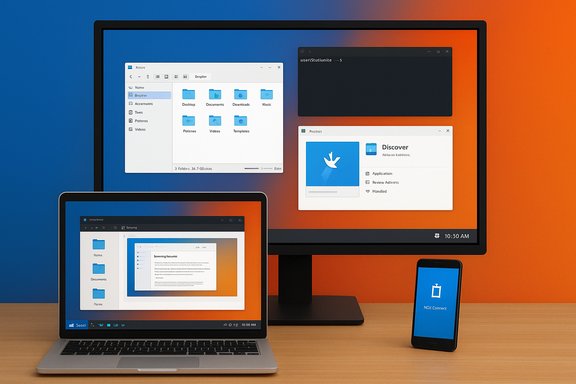
If you’re a Windows user thinking about leaving the churn of forced updates, hardware-gating, and opaque telemetry behind—or simply looking to revive an aging PC—Kubuntu is the single Linux distribution most likely to make that transition painless, productive, and repeatable for the majority of people. In this feature I’ll explain why Kubuntu (KDE Plasma on Ubuntu) is the best first Linux distro for Windows users, verify the critical claims behind that recommendation, describe practical migration steps, and spell out the risks and gotchas you must consider before pulling the trigger.
Background / Overview
The timing for recommending a Windows-to-Linux switch has never been more relevant. Microsoft ended mainstream support for Windows 10 on October 14, 2025, which leaves many users facing a choice: upgrade to Windows 11 (with its strict hardware requirements), buy a new PC, enroll in short-term Extended Security Updates, or migrate to an alternative OS. Microsoft’s own end-of-support announcement confirms that after October 14, 2025 Windows 10 will no longer receive feature or security updates. Windows 11’s minimum hardware bar—TPM 2.0, UEFI Secure Boot, a compatible 64‑bit CPU, and at least 4 GB of RAM—means a lot of older but otherwise healthy PCs are suddenly left out of the official upgrade path. Microsoft’s official Windows 11 system requirements list those exact constraints. That confluence—Windows 10’s end of life and Windows 11’s restrictive hardware policy—has driven renewed interest in Linux as a practical alternative. Community conversations and longstanding recommendations across enthusiast forums highlight Kubuntu frequently as one of the friendliest choices for users migrating from Windows, reinforcing the notion that familiarity matters when switching OSes.Why Kubuntu? A practical, Windows-like Linux
KDE Plasma: a UI Windows users recognize
Kubuntu is simply Ubuntu with the KDE Plasma desktop instead of GNOME. KDE Plasma is highly configurable and, by default, can be arranged to closely mimic the look and workflow of Windows 10 and Windows 11—taskbar, system tray, conventional Start menu, right-click context menus, and window controls in familiar places.- The application menu and taskbar are immediately recognizable to Windows users.
- The system settings application consolidates configuration into one place, avoiding the split-control-panel problem Windows users often find confusing.
- You can pin applications, create desktop shortcuts, and customize window behavior in short, non‑technical steps.
Default apps that replace Windows conveniences
Out of the box, Kubuntu includes polished KDE applications that replace the most commonly used Windows tools:- Dolphin — a fast, full‑featured file manager that behaves like File Explorer but includes advanced features such as split views, service menus, and network browsing.
- Konsole — a modern terminal with tabs, split views, and saved profiles.
- Okular — a capable document viewer that handles PDFs and many other formats.
- Spectacle — a screenshot tool that rivals (and often exceeds) the Windows Snipping Tool.
- KDE Connect — phone integration that mirrors and often improves on Microsoft’s Phone Link experience.
Software management: Discover makes apps easy
KDE’s Discover is a graphical software center that aggregates system packages, Flatpaks, and Snap/other sources in one place. For users coming from Windows, Discover operates like a familiar “app store” — search, install, update, and remove from a single GUI.- Discover supports Flatpak and system package backends; on Kubuntu you can enable Flatpak integration quickly to access Flathub.
- System updates can be handled from Discover or the native updater, avoiding the need to learn the command line for everyday tasks.
Hardware breathes new life on older machines
Unlike Windows 11, most modern Linux distributions (Kubuntu included) are far more forgiving of older CPUs and low memory. You can reasonably expect a well‑tuned Plasma desktop to be responsive on mid‑decade hardware or thin notebooks that Windows 11 struggles with.- Real-world reports show users reviving 5–10 year‑old laptops by switching to a lightweight Linux flavor or by tuning visual effects in Plasma.
- Kubuntu 25.04, for example, ships with Plasma 6.x and a modern kernel yet remains configurable enough to scale visuals down for older systems.
Verifying the big claims — short fact check
- Windows 10 end-of-support date: Microsoft’s lifecycle documentation and Microsoft’s support pages list October 14, 2025 as the end of support date for Windows 10 Home/Pro/Enterprise (22H2) and note security updates and technical support end after that date.
- Windows 11 hardware requirements: Microsoft’s official Windows 11 system requirements require a 1 GHz or faster 64‑bit CPU (2+ cores), 4 GB RAM, 64 GB storage, UEFI Secure Boot, and TPM 2.0 as a minimum. Microsoft’s documentation and technical pages list these requirements.
- Kubuntu = Ubuntu + KDE Plasma: Kubuntu is an official Ubuntu flavor that ships the KDE Plasma desktop, KDE frameworks, and KDE applications as the default desktop experience. Kubuntu’s project pages and release notes for the 25.04 release confirm its identity.
- KDE Connect and Discover exist and are actively maintained: KDE project pages and distribution docs describe KDE Connect’s features (notifications, SMS, file transfer, clipboard sharing) and KDE Discover’s role as a graphical app/install/updater in Plasma.
- Steam + Proton enables gaming on Linux: Proton is Valve’s open-source compatibility layer for Steam Play, and it's actively developed on GitHub; Canonical and Valve community documentation explain how Proton allows many Windows games to run on Linux. While not universal, Proton and the Steam ecosystem have made Linux a viable gaming platform for many titles.
What makes Kubuntu especially good for Windows refugees
Familiar workflows with less friction
A Windows user’s first day on Kubuntu should not feel like a new language immersion course. The KDE Plasma desktop is intentionally flexible: out of the box it feels familiar, and with a handful of settings you can create a near pixel-for-pixel Windows 10 layout if desired.- Pinned apps, system tray behavior, right-click context menus, and a conventional app list help reduce cognitive friction for users who rely on muscle memory.
- The System Settings app centralizes preferences—no toggling between legacy Control Panel and the modern “Settings” mess you get with Windows.
One store for apps & updates
The combined approach of distribution repositories + Discover + Flatpak means most software needs are met without hunting down proprietary installers:- Discover centralizes discovery and installation for desktop apps and Flatpaks.
- Ubuntu’s massive package repositories (and large third‑party Snap/Flatpak repositories) mean common Windows-equivalent programs are usually one or two clicks away.
- KDE’s native apps (Dolphin, Spectacle, Okular, Konsole) are polished, so many users never need to seek replacements.
Phone integration that’s actually useful
KDE Connect provides a direct, local network pairing between phone and PC with features many users will appreciate immediately: SMS from desktop, file transfer, clipboard sync, and media remote control. Many users report KDE Connect is more reliable than Microsoft’s Phone Link in similar scenarios. Documentation and distro guides show KDE Connect’s feature set and install options.Easier troubleshooting thanks to Debian/Ubuntu lineage
Kubuntu is built on Ubuntu, which itself draws from Debian. That lineage means:- Enormous online documentation and community answers for package management, drivers, and general troubleshooting.
- Plenty of how-to guides for virtually every problem a migrating Windows user will face.
- If you hit a question that’s not Kubuntu-specific, Ubuntu/Debian resources are usually applicable.
Gaming and multimedia: yes, it’s viable — with caveats
Linux gaming has improved dramatically, mostly because of Proton and community compatibility efforts.- Valve’s Proton is an actively maintained compatibility layer built on Wine and other components that lets many Windows-only Steam titles run on Linux with little or no tweaking. Proton’s source and changelog are public on Valve’s GitHub.
- Ubuntu/Canonical documentation details how to enable Steam Play and Proton to run Windows games, and practical guides show this is a workable path for casual and many hardcore gamers.
- Titles using kernel-level anti-cheat or certain DRM may remain incompatible.
- Competitive eSports titles with aggressive anti-cheat systems often require a Windows machine or dual‑boot.
- You may occasionally need Proton tricks (community forks, version pinning, or protontricks) for specific games.
Migration: practical steps to try Kubuntu without risk
- Try a Live USB first
- Create a bootable USB and run Kubuntu in live mode to test hardware support (Wi‑Fi, graphics, audio, and suspend/resume) without changing your disk.
- Backup everything
- Before any install or partition change, make a complete backup of personal files, browser profiles, and application settings to external storage or cloud.
- Dual-boot if you need safety
- Install Kubuntu alongside Windows for a seamless fallback while you learn the new environment.
- Check Secure Boot / driver quirks
- Some proprietary GPU drivers or third-party codecs may require Secure Boot toggles; Kubuntu guides and the Ubuntu community wiki document common workarounds.
- Enable Flatpak / Flathub and Install Discover backends
- On Kubuntu 25.04, enabling Flatpak and Discover’s Flatpak backend is a short command sequence documented in the release notes; doing so gives you access to a broader app catalog.
- Install Steam and enable Proton for gaming
- Install Steam, enable Steam Play / Proton in settings, and test a few titles you own; use community resources for per‑title fixes.
Risks, limits, and when to hold back
Proprietary Windows-only software
Certain professional apps—most notably the latest versions of Adobe’s Creative Cloud, some niche industry tools, and specific device-management suites—are still Windows-only. If your work depends on those exact apps, plan for one of these paths:- Keep a Windows machine for those apps.
- Use a dedicated Windows VM or dual‑boot.
- Evaluate Linux-native alternatives and compatibility layers (Wine, CrossOver, Proton) carefully for each app.
Anti-cheat and competitive gaming
Games that use kernel-mode anti-cheat drivers (some major eSports titles) may not run under Proton or Wine. Competitive gamers should verify each title’s compatibility before making a switch. Community anti-cheat trackers and ProtonDB are indispensable here.Hardware drivers and niche peripherals
Most mainstream Wi‑Fi, audio, and GPU hardware is well supported; however, unusual or very new hardware may need additional driver work or firmware. Laptop vendor features like certain power management chips, fingerprint readers, or proprietary webcam modules may require vendor-specific drivers that are Windows-first.The "edge-case" software and drivers
If you rely on specialized peripherals (medical devices, specific printers/labelers, or bespoke enterprise software), validate Linux support or plan for an unchanged Windows fallback.What to expect day one, week one, month one
Day 1: Familiarize yourself with the KDE layout, Discover, and the default KDE apps (Dolphin, Konsole, Spectacle). Pair your phone with KDE Connect and try copy/paste, notifications, and file transfers.Week 1: Move daily tasks to Linux — email, web browsing, office documents, photo viewing. Settle into package management for installs and updates. Try running a couple of Steam games under Proton if you’re a gamer.
Month 1: Decide whether to keep dual‑booting, fully migrate, or return to a Windows fallback for any remaining incompatible apps. If everything goes well, your older hardware will likely feel faster and more responsive than under Windows.
Final analysis and recommendation
Kubuntu represents the most pragmatic, lowest-friction Linux desktop for users migrating from Windows. It combines a familiar desktop metaphor (KDE Plasma) with polished default apps, a friendly graphical software center (Discover), and a large support base thanks to its Ubuntu/Debian lineage. For Windows users who want minimal surprises and a quick path to productivity, Kubuntu checks the most important boxes: familiarity, usability, software availability, and hardware flexibility. The distribution’s current releases and release notes demonstrate this ongoing focus. That said, the choice is not purely technical. You must reconcile three practical questions before committing:- Do I depend on any Windows-only applications that absolutely must run natively?
- Am I comfortable learning a little Linux-specific troubleshooting (most of it is Google-able and covered by Ubuntu/Kubuntu docs)?
- Do I need every single game I own to run flawlessly, including those protected by anti-cheat?
Quick checklist: Should you switch to Kubuntu now?
- Your PC is older and Windows 11 is not viable: Kubuntu can revive it.
- You want a Windows-like desktop with a gentler learning curve: Kubuntu + KDE Plasma fits.
- You rely on mainstream apps (Office alternatives, browsers, email, media players): available and supported.
- You’re a gamer: Proton often works, but check anti-cheat and per-game compatibility first.
Kubuntu is the Linux distro to hand to most Windows users who want a sensible, low‑risk, high‑return route out of the Windows upgrade treadmill. It blends familiarity, software availability, and long-term supportability—an appealing combination precisely when Windows 10’s official era draws to a close and Windows 11’s hardware fences leave too many devices stranded.
Source: How-To Geek This is the Linux distro I recommend to every Windows user
