

I installed a lean, community-curated build of Windows 11 (AtlasOS) on a spare PC, and the result was immediate: fewer background services, a restored classic Start/taskbar layout, a slimmer memory footprint, and an interface that felt like my computer again rather than a constant ad for Microsoft services.
Windows 11’s direction over the last few feature updates has been unmistakable: deeper integration with cloud services, broader Copilot/AI surface area across the shell, and more aggressive promotion of Microsoft apps and OneDrive. For many users that evolution has felt like a loss of control — more telemetry, more defaults that push online services, and more UI changes that break long-established muscle memory. Reported touches include AI Actions in File Explorer, Ask Copilot entries in context menus and the taskbar, and heavier reliance on Microsoft accounts and OneDrive during OOBE.
A growing ecosystem of third‑party projects and community tooling has sprung up to reclaim a slimmer, more private Windows experience. Two of the better-known examples are AtlasOS — which applies playbooks to a fresh Windows image to remove, disable or reconfigure many default services — and Tiny11 (an image builder that produces a thinner install ISO from official media). Both approaches are distinct from distributing a forked Windows ISO: they act as post‑installation (or offline servicing) toolchains that let technically capable users choose what the OS should do.
But there is no free lunch: deeper changes increase maintenance overhead, create potential compatibility problems with updates, and can reduce security if you remove protective components without replacing them. For power users, tinkerers and gamers who are comfortable with clean installs and backups, Atlas is an attractive tool that can make Windows 11 feel like the OS it once was. For users who need guaranteed vendor support, enterprise manageability, or rock‑solid anti‑cheat compatibility without extra maintenance, staying with a stock, well‑managed Windows image is the safer path.
If you’re curious: test a playbook in a virtual machine, read the playbook line by line, and keep a recovery plan. Lean Windows can be better — but it should be a carefully chosen trade‑off, not a leap in the dark.
Source: How-To Geek I switched to a "lean" version of Windows 11, and I'm never going back
 Background
Windows 11’s direction over the last few feature updates has been unmistakable: deeper integration with cloud services, broader Copilot/AI surface area across the shell, and more aggressive promotion of Microsoft apps and OneDrive. For many users that evolution has felt like a loss of control — more telemetry, more defaults that push online services, and more UI changes that break long-established muscle memory. Reported touches include AI Actions in File Explorer, Ask Copilot entries in context menus and the taskbar, and heavier reliance on Microsoft accounts and OneDrive during OOBE. A growing ecosystem of third‑party projects and community tooling has sprung up to reclaim a slimmer, more private Windows experience. Two of the better-known examples are AtlasOS — which applies playbooks to a fresh Windows image to remove, disable or reconfigure many default services — and Tiny11 (an image builder that produces a thinner install ISO from official media). Both approaches are distinct from distributing a forked Windows ISO: they act as post‑installation (or offline servicing) toolchains that let technically capable users choose what the OS should do.
What is AtlasOS and how does it work?
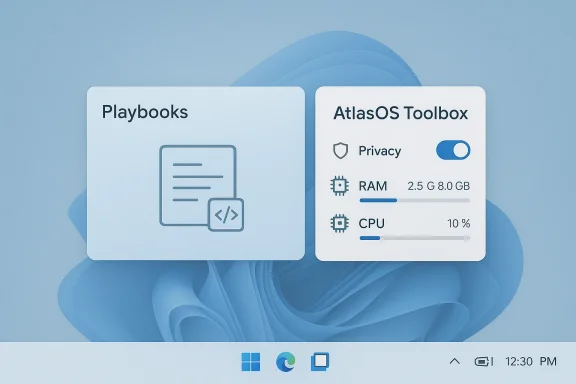
AtlasOS is an open community project that applies a set of pre‑authored transformations (called playbooks) to a fresh Windows install. It’s not a standalone OS — it’s a toolkit and a set of scripts that modify an official Windows installation to reduce telemetry, remove inbox apps and restore older UI defaults where practical.- Atlas uses an installer (often described as AME Wizard / TrustedUninstaller) driven by readable playbook files that contain the actions to perform. The playbooks are published so users can inspect what will be changed.
- The project emphasizes privacy and performance optimizations while trying to keep the system functional for day‑to‑day and gaming use. It documents which components are removed and warns about unsupported upgrade paths.
- After the core playbook runs, Atlas delivers a small control app (the Toolbox) that exposes toggles — for example, to re-enable or disable Copilot, Bing integration in Search, Windows Update behaviors (feature updates vs. security), or to remove Edge/Defender.
The immediate wins (what you actually see)
After a fresh Windows 11 install with Atlas playbooks applied, users commonly report these practical changes:- UI restores: taskbar icons and Start moved to the left, classic right‑click menus restored, and removal of the ad/MSN widget on the taskbar. These are cosmetic but affect usability and user comfort significantly.
- Bloat removal: removal or disabling of preinstalled inbox apps, unnecessary background services (including many telemetry agents), and the suppression of MSN/ad panels in the Start/search experiences.
- Toolbox controls: a small GUI to toggle Copilot, Bing searches, Windows Recall, Edge/Defender uninstallation prompts and update behavior. This makes post‑install tuning far easier than running multiple scripts and registry edits.
- Perceived performance: users often report fewer running processes and lower idle RAM (anecdotally, many testers report idle memory dropping by a gigabyte or more). Independent coverage from community testers shows real wins on low‑spec systems and for gaming latency, although the magnitude varies widely by hardware and which components you remove.
Installation workflow — practical steps (high level)
Installing AtlasOS is not a magical one‑click replacement of Windows; it’s a post‑install modification applied to a fresh Windows image. If you’re considering this route, here’s a safe, repeatable sequence:- Backup everything: full image backup or at least user data exported. This is non‑negotiable.
- Perform a clean install of a supported Windows 11 build (Atlas focuses on current supported Windows versions). Do not attempt to apply Atlas to an existing upgraded system.
- Download the Atlas AME Wizard and the playbook you intend to use. Inspect the plaintext playbook files to see exactly what will be executed. Atlas’s playbooks are intended to be transparent.
- Run the installer in an offline or well‑controlled environment (follow the project’s installation guide carefully). The installer will present optional choices: uninstall Edge, disable Defender, choose a performance profile, etc. Make conservative choices first — you can tighten later.
- Reboot and verify: check Windows Update, activation status, device drivers, and any anti‑cheat or DRM protected software you intend to run (games/anti‑cheat are a common source of post‑debloat problems).
Strengths: why enthusiasts are embracing lean Windows builds
- Transparency and auditability: Atlas’s approach of plaintext playbooks and a public repository makes it straightforward to inspect what’s being added/removed, which is a big advantage over opaque “custom ISOs.”
- Practical privacy gains: by disabling or removing many telemetry services and ad surfaces, you reduce the OS’s signal to Microsoft services. For privacy‑minded users this is the most attractive benefit.
- Performance and resource savings: fewer idle services, fewer background updates and UI animations, and an optimized power plan can reduce latency and memory use, particularly on lower‑RAM systems. Independent reviews and community reports back the claim that lean installs feel snappier.
- Restored choices: the ability to decide whether to keep Copilot, Bing search, OneDrive prompts, or Edge means the machine behaves more like an OS you control and less like an ad delivery platform.
Risks and trade‑offs: what to watch out for
- Update and upgrade fragility
- Atlas applies deep changes. Microsoft’s feature updates may revert, conflict with, or be blocked by those changes. Atlas’s documentation explicitly warns against performing major Windows version upgrades on an already‑modified system; the supported route is a clean reinstall plus reapply the playbook. If you want a hands‑off, low‑maintenance OS, this imposes overhead.
- Security surface if you remove Defender
- Atlas offers an option to disable/uninstall Windows Defender. Doing so removes one layer of protection; replacing it with a third‑party AV is possible, but leaving the system unprotected is risky. For many users the privacy/performance gain is not worth disabling endpoint protection entirely. Confirm threat model before turning Defender off.
- Games, DRM and anti‑cheat compatibility
- Community reports show occasional anti‑cheat and activation issues after aggressive debloating or when using modified images. Some anti‑cheat systems or DRM protections expect specific services or driver behavior. If gaming is central, test carefully and keep an unmodified recovery image.
- Enterprise and warranty support
- In enterprise or managed environments, these modifications conflict with MDM policies, Group Policy baselines, and vendor support expectations. Vendors and OEMs may refuse warranty assistance if you run non‑standard configurations; commercial IT teams should treat community builds as unsupported.
- Potential functionality loss
- Removing services and inbox apps can strip features you later realize you needed (e.g., seamless OneDrive integration, Windows sandboxing components, certain accessibility features). Because Atlas is surgical, you can often re‑enable pieces, but not always without reinstalling. Always keep a fresh ISO and recovery plan.
- Legal/licensing nuance
- Atlas does not redistribute a modified Windows ISO and claims it does not touch activation; it relies on you providing an official Windows image and key. That approach is intended to avoid license violations, but you must follow the project instructions precisely to stay compliant.
How Atlas compares to alternatives
- Tiny11 / image builders: Tiny11 creates a slimmer installer ISO from Microsoft media and can also tweak OOBE and remove inbox apps. It’s oriented toward image‑level compression and offline servicing rather than a post‑install playbook model; Tiny11 often targets very small core images that trade updateability for compactness. For users wanting a custom installer ISO (with options to bypass hardware checks or OOBE), Tiny11 is a proven alternative.
- Scripts like Win11Debloat / manual GP edits: These are great for incremental changes on an existing installation but can be more error‑prone and less auditable at scale. They’re better when you want reversible, cautious tweaks.
- Use Windows LTS/LTSC or specialized SKUs: Enterprises with strict baselines often opt for LTSC/IoT or locked images that reduce bloat while retaining vendor support. That is a formal path for organizations unwilling to run community builds.
Best practices and recommended workflow
- Test in a VM first. Run your chosen playbook on a virtual machine to validate functionality, drivers and critical apps.
- Keep official ISOs and recovery media. Don’t trust a single modded install — have an unmodified recovery path.
- Inspect playbooks before you run them. Atlas publishes plaintext playbooks; read them and understand each change.
- Titrate changes. Start conservative: remove optional apps and disable features first, then move to deeper services if the system remains stable.
- Document your choices. Keep notes of each toggle so you can reproduce or reverse the setup later.
- Watch Windows Update behavior. Decide whether you want to block feature updates or accept them and reapply a playbook after major upgrades. Atlas provides toggles for update behavior — use them intentionally.
Who should consider Atlas (and who shouldn’t)
- Consider Atlas if:
- You use a personal desktop or gaming rig where privacy, latency and memory usage matter.
- You’re comfortable with reinstalling or restoring images if a major Windows update causes trouble.
- You value transparency and want to inspect the exact changes applied to your OS.
- Avoid Atlas if:
- You rely on vendor support, enterprise management or stringent anti‑cheat/DRM compatibility.
- You cannot tolerate the possibility of having to perform a clean reinstall after a major feature update.
- You don’t have a robust backup and recovery plan.
Practical checklist before you dive in
- Backup: full image and user data.
- Create a bootable official Windows 11 installer for your edition.
- Confirm driver availability and that your hardware is supported by the Windows version you’ll install.
- Download Atlas AME Wizard and inspect the latest playbook (review the actions you’ll run).
- Create a recovery USB with the original install media and a system image.
- Start with conservative Atlas options; keep Defender enabled at first.
- Test the result for a week before making it your daily driver.
The verdict — why lean matters, but context is king
AtlasOS and similar projects answer a real, practical need: many users want a Windows 11 that behaves like an operating system rather than a persistent funnel for cloud services, in‑product advertising and new AI surfaces. Atlas’s transparent playbooks, toolbox toggles and community vetting make it one of the more credible options for reclaiming that experience, and independent testers report noticeable, reproducible improvements in idle memory, process counts and perceived responsiveness.But there is no free lunch: deeper changes increase maintenance overhead, create potential compatibility problems with updates, and can reduce security if you remove protective components without replacing them. For power users, tinkerers and gamers who are comfortable with clean installs and backups, Atlas is an attractive tool that can make Windows 11 feel like the OS it once was. For users who need guaranteed vendor support, enterprise manageability, or rock‑solid anti‑cheat compatibility without extra maintenance, staying with a stock, well‑managed Windows image is the safer path.
If you’re curious: test a playbook in a virtual machine, read the playbook line by line, and keep a recovery plan. Lean Windows can be better — but it should be a carefully chosen trade‑off, not a leap in the dark.
Source: How-To Geek I switched to a "lean" version of Windows 11, and I'm never going back
