

I switched from LibreOffice to ONLYOFFICE because I wanted a modern, cloud-friendly, and mobile-capable productivity suite that simply lets me get work done without wrestling with menus and manual configuration. The result isn’t just a cosmetic change: it reshaped how I collaborate, where I store documents, and what I expect from a free/open-source-friendly office suite. This article unpacks that switch, verifies the key product claims, and offers a practical playbook for anyone weighing LibreOffice against ONLYOFFICE — from interface and file compatibility to collaboration, mobile, AI, licensing, and long-term risks.
LibreOffice and ONLYOFFICE occupy two different positions in the open-source office landscape.
Switching office suites isn’t a vote for or against open source — it’s a tradeoff between control and convenience. OnlyOffice narrows that tradeoff with a modern, collaborative surface while keeping open-source options on the table. LibreOffice preserves the freedom to tinker, script, and control everything down to the document bytes. The right choice depends on whether your top priority is raw power or getting work done with fewer obstacles.
Source: MakeUseOf I stopped using LibreOffice and switched to this open-source office suite
 Background / Overview
LibreOffice and ONLYOFFICE occupy two different positions in the open-source office landscape.- LibreOffice is the long-established, community-driven office suite maintained by The Document Foundation. It’s the canonical free alternative to Microsoft Office for users who want full local control, deep feature sets (writer, calc, impress, base, draw, math), and a pure FOSS model. LibreOffice’s strengths are breadth, extensibility, and fidelity to open standards.
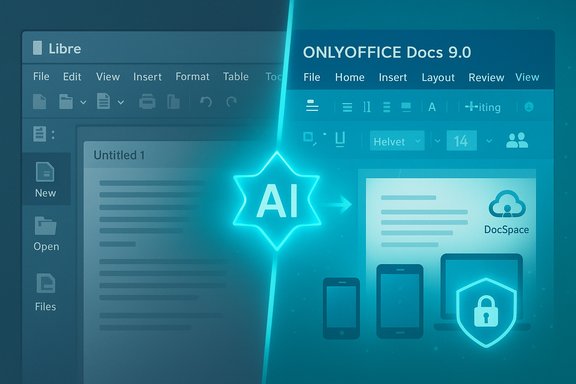
- ONLYOFFICE (developed by Ascensio / ONLYOFFICE Capital Group and contributors) provides a hybrid approach: open-source editors and cloud services plus proprietary/paid options and managed clouds. In 2025 ONLYOFFICE released a major update (Docs 9.0) focused on a redesigned interface and AI features, while introducing DocSpace — a room-based cloud collaboration service aimed at modern, team-centric workflows.
Why people (and I) switch: usability, mobility, and collaboration
The decision to change a core productivity tool is usually driven by a small set of practical needs. For me, those needs were:- A modern, predictable interface that feels at home for Microsoft Office users.
- Reliable, friction-free real-time collaboration without heavy self-hosting.
- A mobile app that lets me make edits or review documents on the go.
- Easy cloud options (hosted or hybrid) that don’t require deep server admin skills.
Interface and workflow: Ribbon, tabs, and the learning curve
- ONLYOFFICE adopts a Ribbon-like UI with tabbed toolbars and a tabbed document interface in its Desktop Editors. This mirrors modern Microsoft Office ergonomics and significantly lowers the learning curve for users who expect Home, Insert, Layout, and Review tabs. The editors also support managing multiple documents inside a single window via tabs — a UI pattern many users prefer for a browser-like workflow on desktop.
- LibreOffice uses a more traditional menu-and-toolbar design. It’s flexible and allows power-user customization, but many people find it dense and dated compared with the Ribbon model. That can create friction for users moving from Microsoft Office.
Real-time collaboration and cloud convenience
- DocSpace is ONLYOFFICE’s cloud/collaboration product. It’s designed around customizable rooms where teams can co-edit documents in real time, track changes, use comments and mentions, host audio/video calls, and manage version history. DocSpace offers free tiers and commercial plans, plus an option to self-host the platform.
- LibreOffice Online exists in the ecosystem (commonly delivered via Collabora Online or integrated with platforms like Nextcloud), but setting up a self-hosted, production-ready online instance typically requires more sysadmin effort. Collabora and other vendors provide supported packages, but for many users the setup steps (certificates, servers, WOPI or proxy config) are non-trivial compared with signing up for a hosted DocSpace account.
Mobile editing and on-the-go access
- ONLYOFFICE provides official Android and iOS mobile apps that connect to DocSpace and popular cloud services. The mobile apps are designed to map the desktop editing experience to phones and tablets, enabling editing and cloud sync.
- LibreOffice historically offered a viewer app on Android, and full mobile editing is available primarily through Collabora Office (a separate project/company that ports LibreOffice technology into a mobile-capable product). The official LibreOffice-branded mobile presence has been more limited, and many users rely on third-party or partner solutions for smooth mobile editing.
ONLYOFFICE in detail: features, claims, and verified facts
The move to ONLYOFFICE is more than cosmetic. Here are the product claims and verified details that matter to day-to-day use.DocSpace: rooms, AI, pricing, and hosting options
- DocSpace is a room-oriented collaboration hub that supports co-editing, comments, audio/video calls, public or private rooms, form filling, and virtual data rooms with granular access controls. It includes features for auditing, watermarking, and E2E encryption for “private rooms.”
- ONLYOFFICE markets DocSpace with a pay-for-admins model: users and guests can be free while administrative seats carry fees. There are free tiers for small teams and special plans for schools/nonprofits. Commercial plans start at a per-admin monthly price (pricing tiers are publicly stated by the vendor).
- DocSpace can be used as a hosted SaaS, or you can deploy a self-hosted DocSpace server for total control over documents. The product’s backend and front-end stacks are openly documented, and DocSpace is available on GitHub under AGPL for core components — enabling on-prem deployments.
ONLYOFFICE Docs 9.0 and AI integration
- In 2025 ONLYOFFICE released Docs 9.0, which added a refreshed interface, Diagram Viewer, Markdown (.md) support, OCR for PDFs, AI-assisted spreadsheet work, and tools to assist with macros and VBA conversion.
- ONLYOFFICE provides an AI plugin/assistant system. AI features require you to supply API keys from external providers (for example, major LLM providers) — ONLYOFFICE itself does not include a free LLM backend. That means you can enable AI features, but the cost and privacy depend on which LLM provider you choose and how you configure it.
Desktop Editors: tabbed documents and macro tooling
- ONLYOFFICE Desktop Editors are available for Windows, macOS, and Linux. They present a Ribbon-like interface and a tabbed single-window experience that many users find cleaner for juggling multiple documents.
- Macro support exists, but with a different philosophy than LibreOffice: ONLYOFFICE emphasizes JavaScript-based macros for safe automation and offers tools to extract or convert VBA macros; runtime support for native VBA may be limited compared with Microsoft Excel. For complex, legacy VBA-heavy workflows, compatibility may require testing.
LibreOffice in detail: strengths and platform realities
LibreOffice remains a powerhouse for users who put absolute control and feature depth ahead of cloud convenience.Community-driven, extensible, and open by design
- LibreOffice is developed by The Document Foundation and a broad contributor community. Its license model and governance prioritize software freedom, extensibility, and local control.
- Features LibreOffice excels at: in-depth styling and formatting controls, database integration (Base), advanced macros (LibreOffice Basic, Python scripting, ScriptForge), and robust ODF support.
Online and mobile story: Collabora and partners
- A true browser-based LibreOffice experience is typically delivered via Collabora Online or vendor-packaged LibreOffice Online solutions. Those are powerful — they preserve rendering fidelity — but they are more complex to install than modern SaaS-first offerings, and many home users find setup non-trivial.
- Collabora Office supplies mobile editing capabilities and is the practical path for mobile users who want LibreOffice tech on phones/tablets.
Side-by-side: practical comparison
Below are the most consequential differences when choosing between ONLYOFFICE and LibreOffice.- UI and learning curve
- ONLYOFFICE: Ribbon-like UI, familiar to Microsoft Office users, tabbed documents, lower learning curve.
- LibreOffice: Traditional menus and toolbars, extensive customizability, steeper initial discovery for newcomers.
- Collaboration & cloud
- ONLYOFFICE: Built-in cloud (DocSpace), seamless browser co-editing, hosted and self-host options.
- LibreOffice: Online via Collabora/third parties or Nextcloud integration; powerful but requires more setup.
- Mobile access
- ONLYOFFICE: Official mobile apps with editing and cloud connectivity.
- LibreOffice: Official branded app historically more viewer-focused; Collabora Office provides mobile editing.
- File format fidelity & macros
- ONLYOFFICE: Strong OOXML compatibility; JavaScript macros; tools to extract and convert VBA, but not a full VBA runtime parity.
- LibreOffice: Deep support for ODF, extensive macro frameworks (Basic/Python), better for heavy offline automation and database integration.
- Licensing & open source
- ONLYOFFICE: Hybrid — many core components are open-source (AGPL for some repos) while some enterprise features and cloud services may be proprietary or commercial.
- LibreOffice: Fully open under MPL/LGPL licensing and led by The Document Foundation.
- Security & data control
- BOTH: Offer self-hosting for total control. ONLYOFFICE provides enterprise encryption features and private-room E2EE for DocSpace; LibreOffice’s security model is local-first and depends on your hosting stack when online.
Risks, caveats, and what to verify before switching
Switching office ecosystems has costs beyond the install wizard. These are the realistic risks and mitigations.- Data residency and vendor model: DocSpace lets you choose hosted or self-hosted, but if you use ONLYOFFICE’s managed cloud your data will be subject to the vendor’s policies and the legal jurisdiction of the hosting. If regulatory compliance or strict data residency matters, prefer self-hosting or read contract terms carefully.
- Proprietary features and lock-in: ONLYOFFICE offers a generous free tier and open components, but some advanced features and administrative tooling may be commercial. Evaluate the features you rely on and determine which are open-source and which would require paid subscriptions.
- Macro compatibility: If you depend on complex VBA macros (common in legacy Excel workflows), test migration thoroughly. ONLYOFFICE can extract VBA and assist conversion, but full runtime parity with Excel is not guaranteed. LibreOffice provides its own macro environment that may or may not run existing VBA scripts without adaptation.
- AI privacy and cost: ONLYOFFICE’s AI features are powerful but require API keys for third-party LLMs. That means additional costs and privacy considerations. Verify the provider’s data retention and privacy terms before connecting sensitive documents.
- Security posture of hosted services: Always evaluate consumer-grade free tiers vs enterprise-grade offerings. For business use, confirm SLAs, encryption at rest/in transit, auditing capabilities, and account admin controls.
- Company governance and supply chain: ONLYOFFICE’s corporate structure includes offices and a holding arrangement spanning multiple countries. If supply-chain or geopolitical provenance is a concern, perform vendor due diligence and consider on-prem deployments.
Migration checklist: practical steps to evaluate and move
If you’re considering switching from LibreOffice to ONLYOFFICE (or trying it side-by-side), here’s a short, sequential checklist to test the switch with minimal disruption.- Inventory critical documents
- Identify documents with macros, templates, mail merges, or database links.
- Install ONLYOFFICE Desktop Editors locally
- Open sample documents to validate formatting, charts, and layout fidelity.
- Try DocSpace (hosted trial) or deploy a small self-hosted instance
- Test real-time co-editing, comments, version history, and sharing links.
- Test mobile workflow
- Install ONLYOFFICE mobile apps and connect to your DocSpace or preferred cloud.
- Validate macro compatibility
- Run key spreadsheets that use automation. If macros are critical, try the extraction/conversion tools and identify migration effort.
- Confirm export/import fidelity with stakeholders
- Exchange files with external partners who use MS Office to ensure printable, compliant output.
- Evaluate AI integration carefully
- Test AI on non-sensitive documents. Confirm which LLM you’ll use and budget for API costs.
- Decide hosting and compliance
- For business use, pick self-hosting if you need strict control; otherwise negotiate cloud terms and SLAs.
Real-world tradeoffs and final verdict
Both suites are excellent — but they serve different audiences and priorities.- Choose ONLYOFFICE if:
- You want a modern, Microsoft-like UI with minimal retraining.
- Real-time collaboration from the browser and mobile editing matter.
- You prefer an integrated hosted option that works quickly without complex server setup.
- You’re comfortable with hybrid open-source/commercial models and potential paid features for enterprise admin needs.
- Choose LibreOffice (and Collabora/Nextcloud for online) if:
- You need the deepest local control, full macro/database support, and pure FOSS licensing.
- You prefer to avoid managed cloud vendors and are prepared to self-host or rely on open-source stacks.
- Your workflows depend on heavy offline automation, Base databases, or extensive customization.
Closing: how to choose and what to test first
The best path is empirical: don’t pick based on hearsay. Run both for a week on representative documents, test macros and export fidelity, and try mobile and collaboration features with a teammate. If your migration checklist is green and the productivity wins offset any licensing or hosting tradeoffs, the change will pay for itself in reduced friction and faster collaboration.Switching office suites isn’t a vote for or against open source — it’s a tradeoff between control and convenience. OnlyOffice narrows that tradeoff with a modern, collaborative surface while keeping open-source options on the table. LibreOffice preserves the freedom to tinker, script, and control everything down to the document bytes. The right choice depends on whether your top priority is raw power or getting work done with fewer obstacles.
Source: MakeUseOf I stopped using LibreOffice and switched to this open-source office suite
